Import Employee Data from Local
# Overview
If an enterprise has a local internal identity management system, to quickly replicate and migrate employee data to IDaaS for unified management, you can refer to this module to directly import user and organizational data into IDaaS, thereby rapidly improving the identity management system.
# Prerequisites
- Have administrator permissions for the IDaaS Enterprise Center platform.
- Have obtained the local user and organizational data in advance.
# Steps
Log in to the IDaaS Enterprise Center platform. You can enter the data import page from the following two entry points.
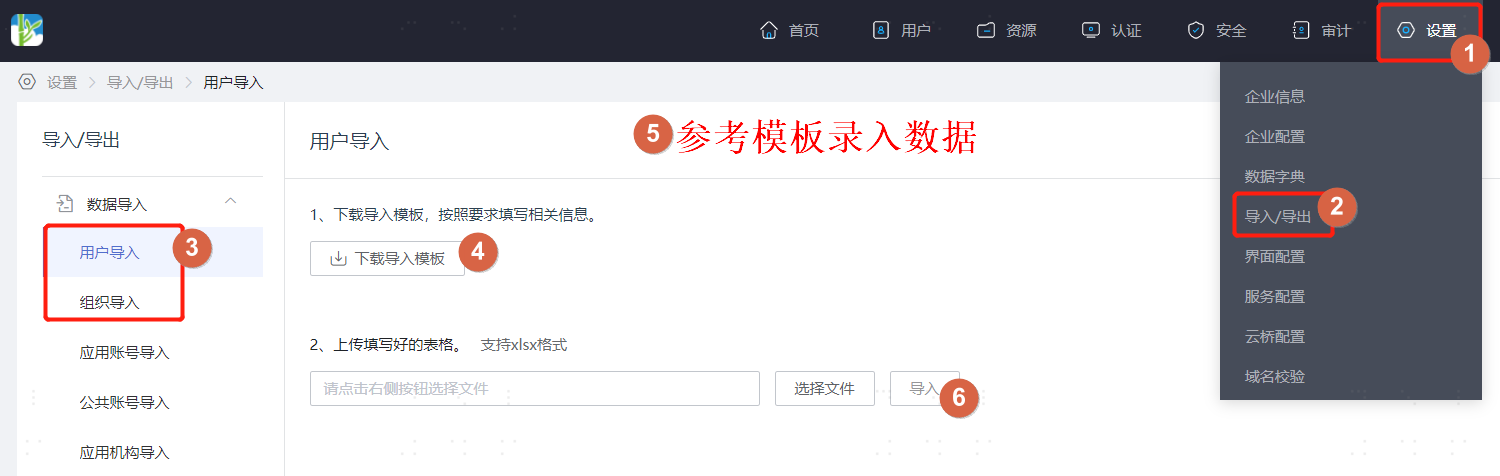
In the top navigation bar, select "Settings > Import/Export" to enter the Data Import/Export page.
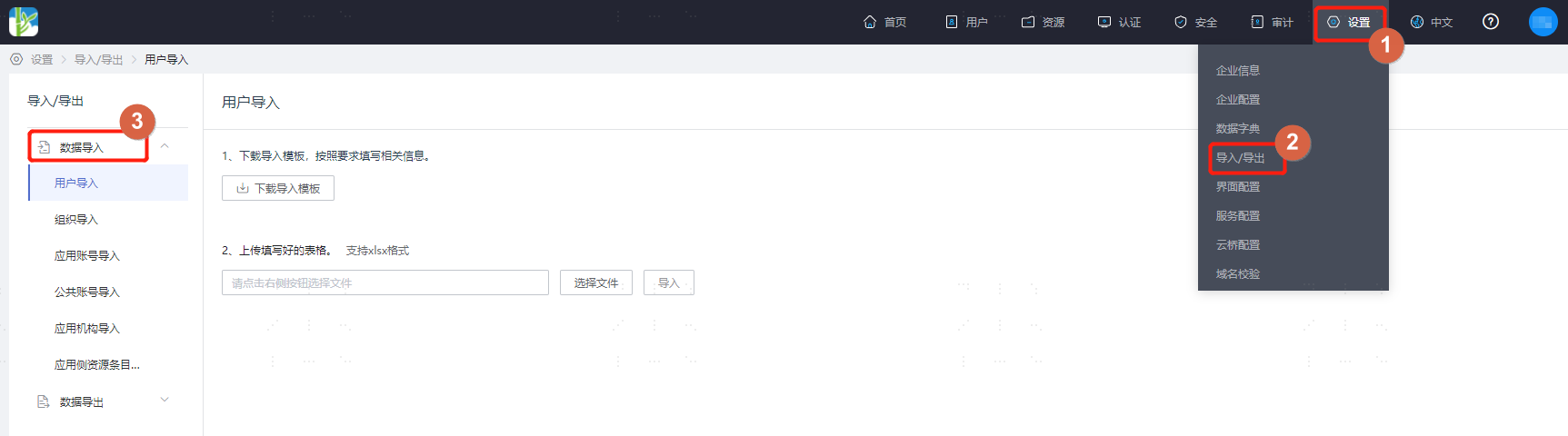
In the top navigation bar, select "Users > Organization & Users", then click "Import" on the right to enter the Data Import/Export page.

On the Data Import/Export page, select "Data Import" from the left dropdown, and choose to import users or organizations based on actual needs.
The operation method for importing users or organizations is the same. The following uses importing users as an example.
On the "User Import" page, click to download the import template, fill it out according to the template requirements. Key field filling requirements are as follows.
Parameters in the import template support customization. When a user attribute is set as required and "Allow Import" is checked, this field becomes a required parameter in the template and needs to be validated. For custom attributes, please refer to the relevant content in Manage User Attributes.
When the password initialization policy is enabled and "Email" is selected, the "email" field must be filled with a valid email address, otherwise the temporary initialization password cannot be received. If the email is not filled in, after the account is created, the user holding that account cannot log in to the User Center to reset the password. The Enterprise Center administrator must reset the password.
When the password initialization policy is enabled and "SMS" is selected, the "mobile" field must be filled with a valid phone number, otherwise the temporary initialization password cannot be received. If the phone number is not filled in, after the account is created, the user holding that account cannot log in to the User Center to reset the password. The Enterprise Center administrator must reset the password.
When the password initialization policy is enabled and "SMS + Email" is selected, either the "email" or "mobile" field needs to be filled. If both "email" and "mobile" are filled, the system defaults to sending the initialization password via email first. If only one of "email" or "mobile" is filled, the system sends the initialization password via the filled notification method. If neither "email" nor "mobile" is filled, after the account is created, the user holding that account cannot log in to the User Center to reset the password. The Enterprise Center administrator must reset the password.
"status" is a built-in template field that controls the status of imported users. This field is not mandatory for validation. If this field is not filled, the user status defaults to enabled.
For the "Country/Region", "Gender", "ID Type", and "Personnel Type" fields, please refer to the code or name corresponding to each field in the respective tabs of the template.
After filling out the template, return to the "User Import" page to upload the spreadsheet. After successful import, you can return to the "Organization & Users" page to view the imported data.