Managing Multiple Organizations for a Single User
# Overview
In practical personnel management, an employee may be affiliated with more than one organization, often holding multiple positions. Therefore, most OA systems support users being attached to multiple organizations. Similarly, if an HR system has a part-time functionality, users can also be attached to multiple organizations.
To ensure the integrity of enterprise employee data after migration to the IDaaS platform, IDaaS also provides configuration capabilities for single users across multiple organizations.
The basic concepts are as follows:
- Home Organization: When User A's primary organization is Organization 1, this relationship is called the Home Organization.
- Attached Organization: When User A's secondary organization is Organization 2, this relationship is called an Attached Organization.
# Steps
# Setting Multiple Organizations
Log in to the IDaaS Enterprise Center platform, select Users > Organizations & Users from the top navigation bar. When managing users, you can set multiple organizations for a user.

- A user can select up to 10 organizations (including both home and attached organizations).
- Administrators can only select organizations within their permission scope.
- Administrators can modify a user's home organization. After deleting the home organization, the next organization becomes the home organization.
# Viewing Multi-Organization Users
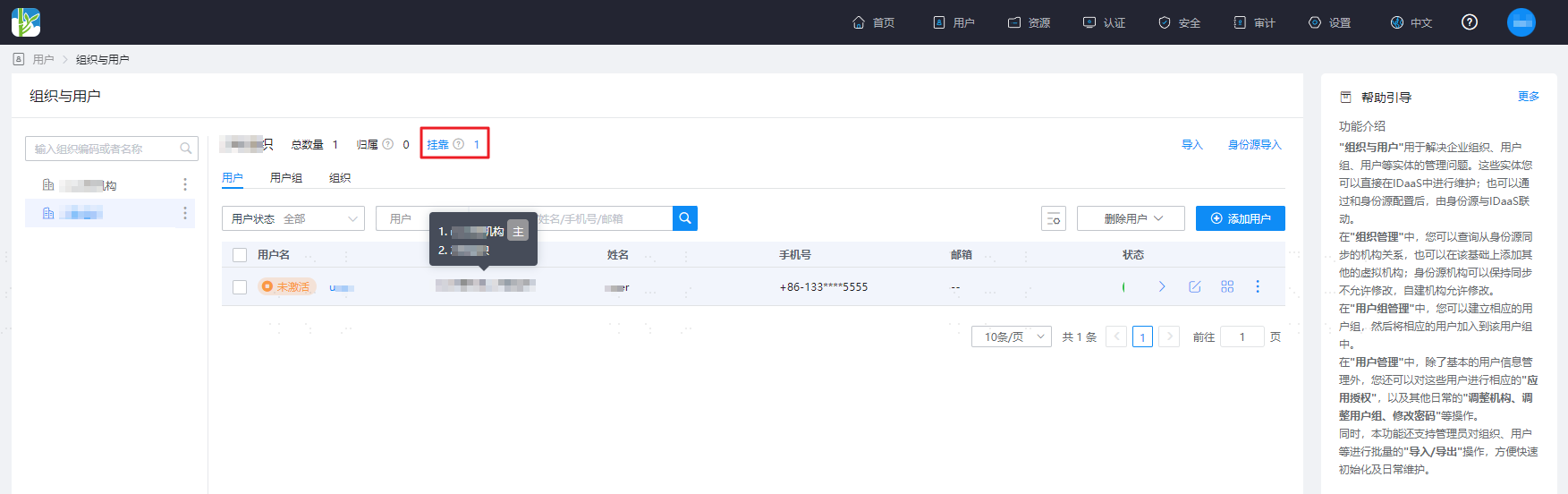
Log in to the IDaaS Enterprise Center platform, select Users > Organizations & Users from the top navigation bar. The tab above the user list supports statistics on the number of users under each organization, where:
- Number of Home Users + Number of Attached Users = Total Number.
- The user list page displays all organizations for a user. Hovering the mouse over the user's organization will mark the home organization as "Home".
Select an organization on the left, then click "Home" on the right to display all users whose home organization is the selected one.

Select an organization on the left, then click "Attached" on the right to display all users attached to the selected organization.
# Adding Multi-Organization Users to User Groups
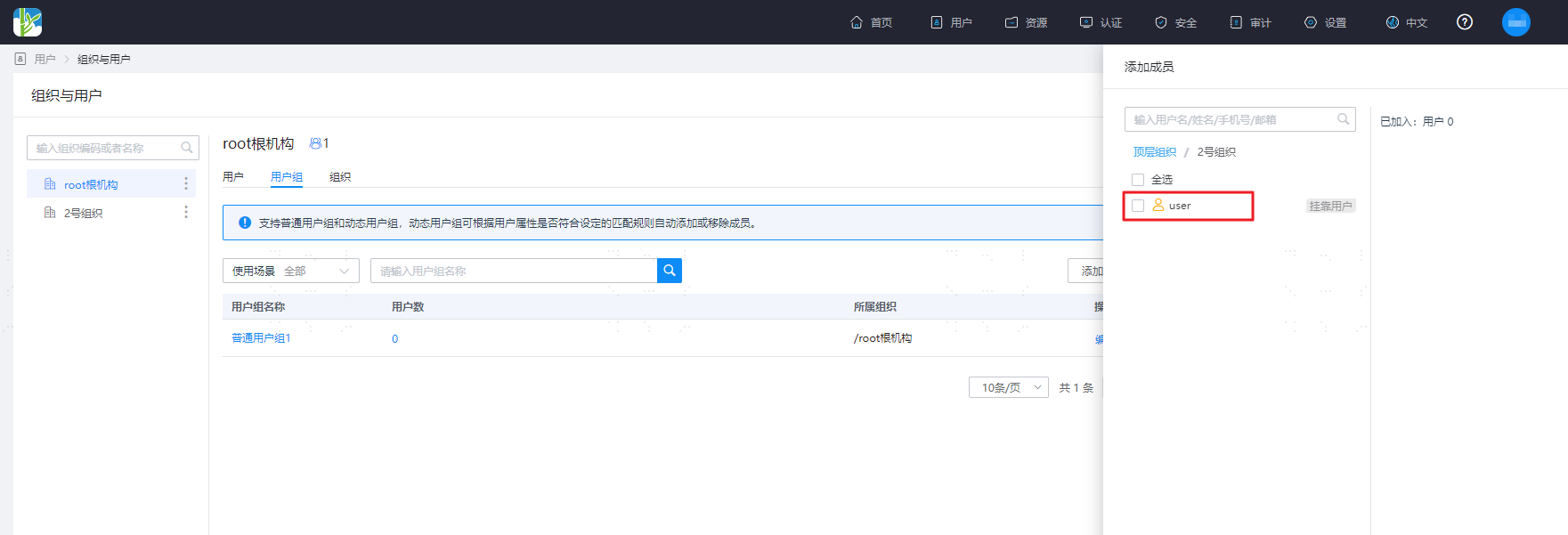
The illustration shows adding members to a user group, where the "user" is a multi-organization user.
Supports adding the home user "user" from the "root organization" to a static user group.

Supports adding the attached user "user" from "Organization 2" to a static user group.