
Managing Organizational Extended Attributes
# Overview
Bamboo Cloud IDaaS pre-configures organizational attributes for the user pool, such as organization name, organization code, organization type, parent organization, etc.
When enterprises have specific requirements during user management that cannot be met by the current built-in organizational attributes, you can refer to this section to customize and extend organizational attributes.
The built-in organization type attribute is by default linked to the "Organization Type" in the "Settings > Data Dictionary" of the Enterprise Center platform. You can extend and configure multiple organization types in this data dictionary. The built-in organization type dictionary cannot be deleted.
# Operational Steps
# Managing Organizational Attributes
- Each tenant is initialized with two default groups for organizational attribute definitions (Basic Information group, Extended Information group). These two default groups cannot be deleted. Organizational attribute fields are added under these groups. When administrators add new organizations, they fill in organizational information based on the groups set here.
- Supports configuring allowed special characters, character length ranges, field rules, display settings, etc., for built-in attribute fields.
Log in to the IDaaS Enterprise Center platform, select "Users > Attribute Definition" from the top navigation bar, choose the "Organizational Attribute Definition" tab, click "Add Field" next to a group, and set the relevant information for the attribute field.
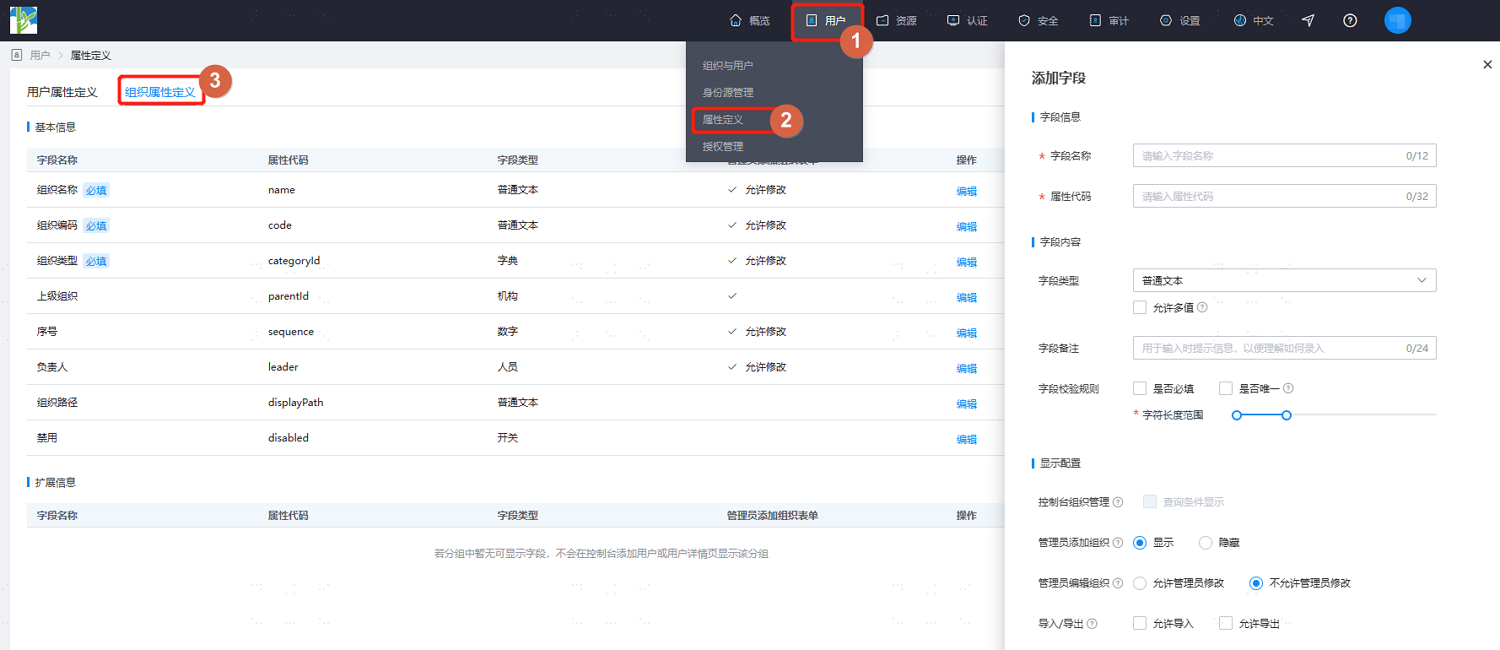
Set the basic information for the attribute field, including field name and attribute code.
- Field Name: Set the display name of the attribute across platforms.
- Attribute Code: Set the attribute code, used to identify the attribute, and must be unique.
Set the attribute type related information, i.e., the display type, length, whether it supports multiple values, and other related configurations for this new attribute on various platforms. Different types require different additional attribute information. Key parameters are as follows.
- Field Type: Set the display type of this attribute field on the platform.
- Plain Text: Supports extended fields configured with this type, setting the attribute display type as a plain text box, mainly used for attributes like organization name, description, etc. Supports configuring whether the attribute field can have multiple values.
- Number: Supports extended fields configured with this type, setting the attribute display type as a numeric input, storing integers, mainly used for attributes related to serial number ordering.
- Switch: Supports extended fields configured with this type, mainly used for attributes like turning on a parameter switch, storing Boolean data (true|false).
- Dictionary: Supports extended fields configured with this type, pre-defining selectable content for the parameter from the data dictionary, storing the code corresponding to the data dictionary.
- Organization: Built-in attribute type, used only by the parent organization field.
- Person: Built-in attribute type, used only by the responsible person field.
- Field Remarks: Set prompt information for when the attribute is being filled out, used to guide users in filling out this attribute.
- Field Validation Rules: Set validation rules for the attribute field.
- Required: Set whether this attribute is a mandatory field.
- Unique: Set whether the attribute value must be unique. 'Unique' and 'Multiple Values' cannot be selected simultaneously.
- Default Value: Set whether a default value is written for the attribute.
- Character Length Range: Set the length range for the attribute, commonly used for text types.
- Field Type: Set the display type of this attribute field on the platform.
Set the display configuration for the attribute.
- Console Organization Management: After checking "Display in Search Conditions", this attribute can be used as a search criterion on the organization search page. This configuration is only available when the field type is "Plain Text".
- Administrator Adding Organization:
- Display: This field is displayed when an administrator adds an organization on the platform.
- Hidden: This field is hidden when an administrator adds an organization on the platform.
- Administrator Editing Organization:
- Allow Administrator Modification: This field is displayed and is readable/writable when an administrator edits an organization on the platform.
- Do Not Allow Administrator Modification: This field is displayed but is read-only and cannot be edited when an administrator edits an organization on the platform.
- Import/Export:
- Allow Import: When checked, this attribute is dynamically displayed in the import template when importing organizational data on the platform.
- Allow Export: When checked, this attribute is included when exporting organizational data from the platform.
After completing the above configurations, click "OK" to save the attribute.
Click "Edit" or "Delete" under the "Operation" column for an added extended attribute to update or delete existing extended attributes. System built-in attributes can only be edited/updated and cannot be deleted.
# Effect Demonstration
After configuring the organizational attribute fields, select "Users > Organizations & Users" from the top navigation bar of the IDaaS Enterprise Center platform. When adding an organization, the display will follow the configuration of the organizational attributes.
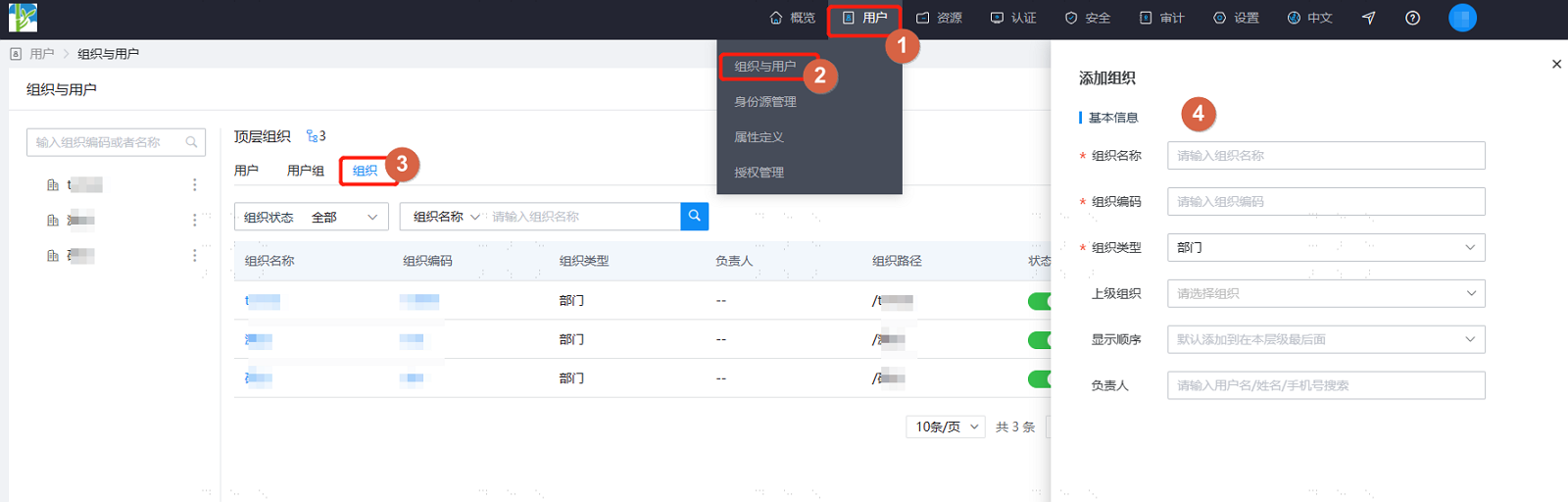
On the "Organizations" tab of the "Users > Organizations & Users" page, you can search for specific organizations by criteria. Click  to customize which organizational attributes are displayed in the list and their order (displayed from left to right in the list).
