Initiating To-Do/Notification Messages via API
# Overview
API (Application Programming Interface) refers to a set of predefined interfaces (such as functions, HTTP interfaces). Developers can access applications through API interfaces based on software or hardware. The IDaaS platform has built-in API interfaces, and application systems can call these APIs by establishing an authorization relationship with them.
This section guides you on how to display to-do and notification messages initiated by third-party applications within the IDaaS User Center by configuring enterprise APIs.
# Prerequisites
- Possess administrator permissions for the IDaaS Enterprise Center platform.
- The application has already been integrated into the platform.
# Steps
# Calling APIs to Integrate To-Do Messages
Please follow the API Calling Instructions to call the application-side task to-do management and application-side message notification management related interfaces to integrate the to-do and notification messages from third-party applications into IDaaS.
Calling the application-side task to-do management and application-side message notification management related interfaces requires granting the following API permissions:
| Permission Code Name | Description |
|---|---|
| app_todo_msg | Includes permissions for application-side message to-do management related interfaces |
| app_notice_msg | Includes permissions for application-side message notification management related interfaces |
# Viewing To-Do and Notification Messages
My To-Do
Log in to the User Center, click the icon
 in the upper right corner to pop up the My To-Do page, which displays current unprocessed to-do items. Click "Handle" next to a to-do item to directly jump to the corresponding application system.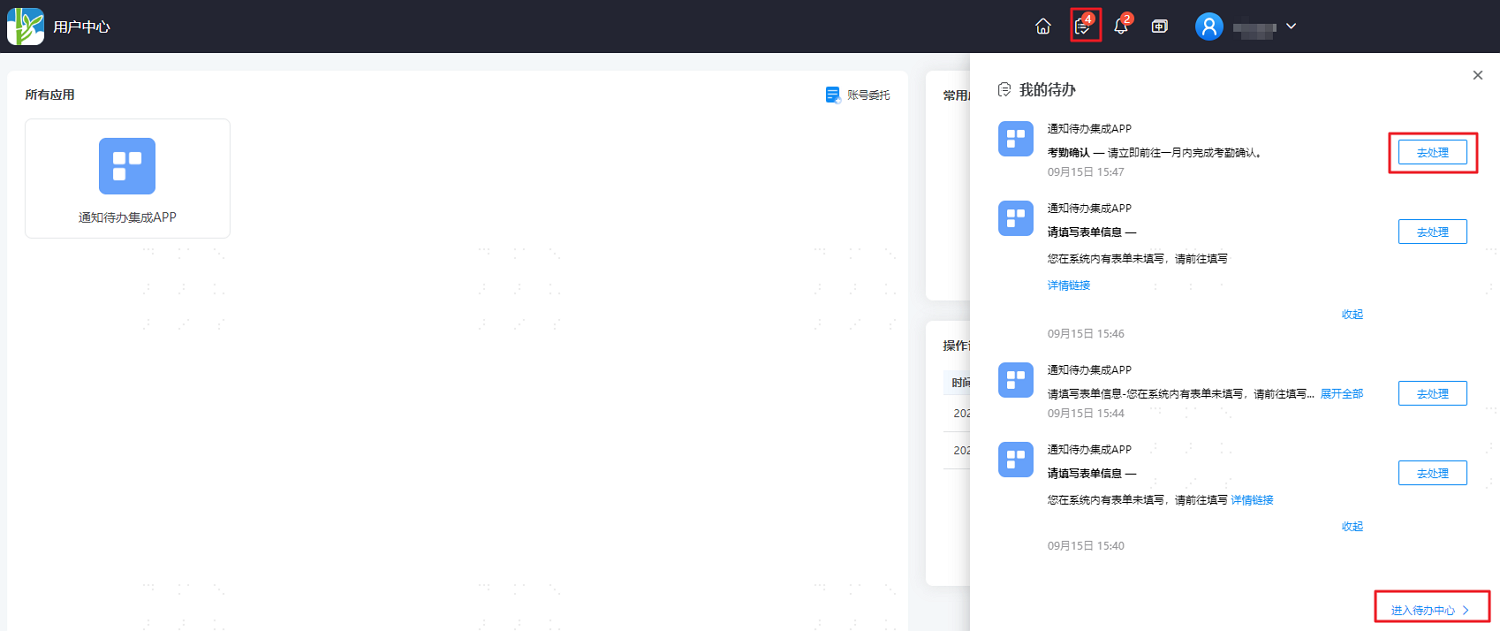
To-Do Center
On the My To-Do page, click "Enter To-Do Center" at the bottom to display both processed and unprocessed to-do items. It supports counting the number of to-do items under each application. Click "Handle" next to a to-do item to directly jump to the corresponding application system.

My Notifications
Log in to the User Center, click the icon
 in the upper right corner to pop up the My Notifications page, which displays current read and unread notifications. It supports marking all notifications as read with one click.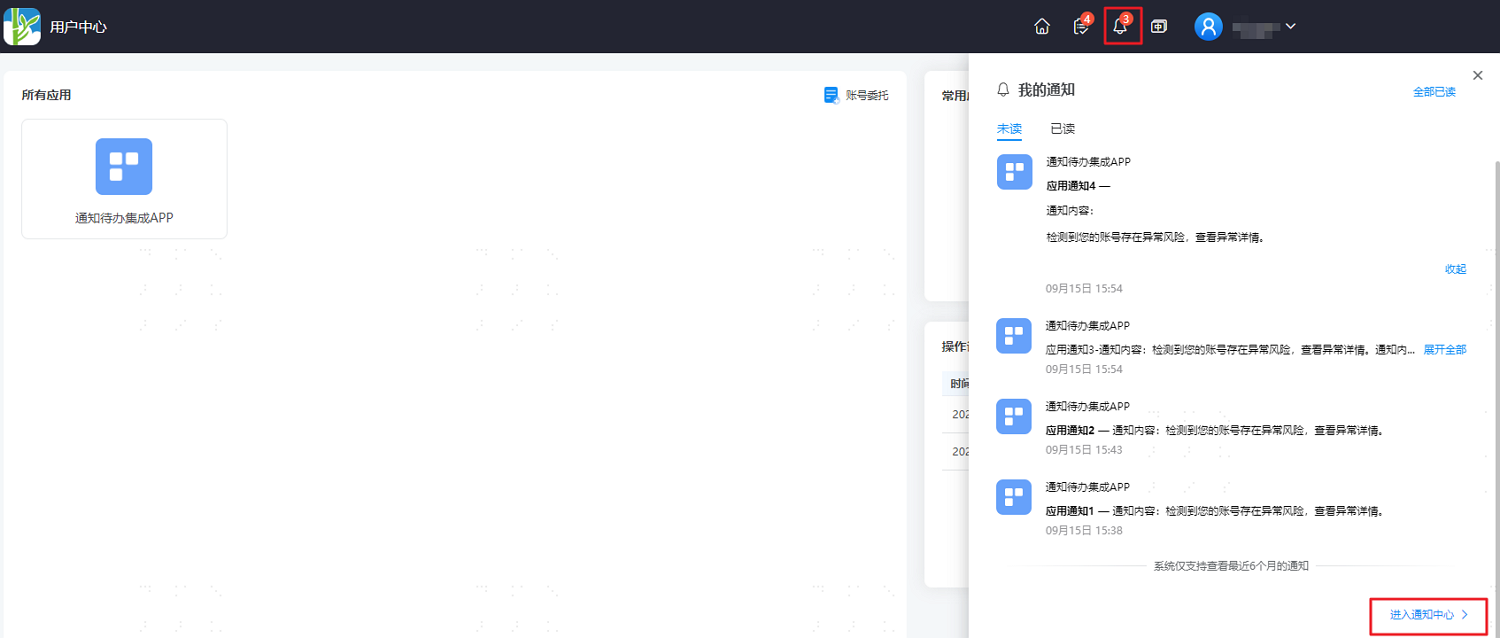
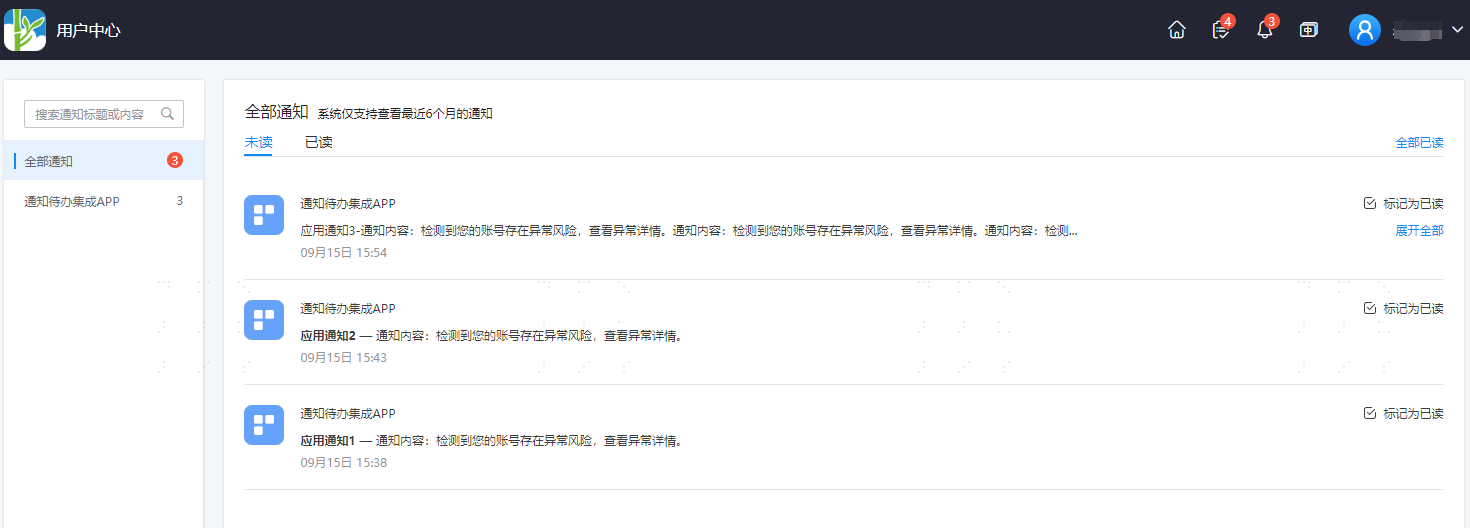
Notification Center
On the My Notifications page, click "Enter Notification Center" at the bottom to display all read and unread notifications. It supports counting the number of notification messages under each application and marking all notifications as read with one click.