DingTalk as Identity Source
# Overview
This chapter will introduce how to configure DingTalk as an identity source in the IDaaS platform. It enables synchronizing the organization structure and user data uniformly maintained by the DingTalk platform to the IDaaS platform, ensuring data consistency across various application systems within the enterprise.
# Prerequisites
- Have administrator permissions on the DingTalk Open Platform.
- Have administrator permissions on the IDaaS Enterprise Center platform.
# Configuration Process

# Steps
# Create an Application on DingTalk Open Platform
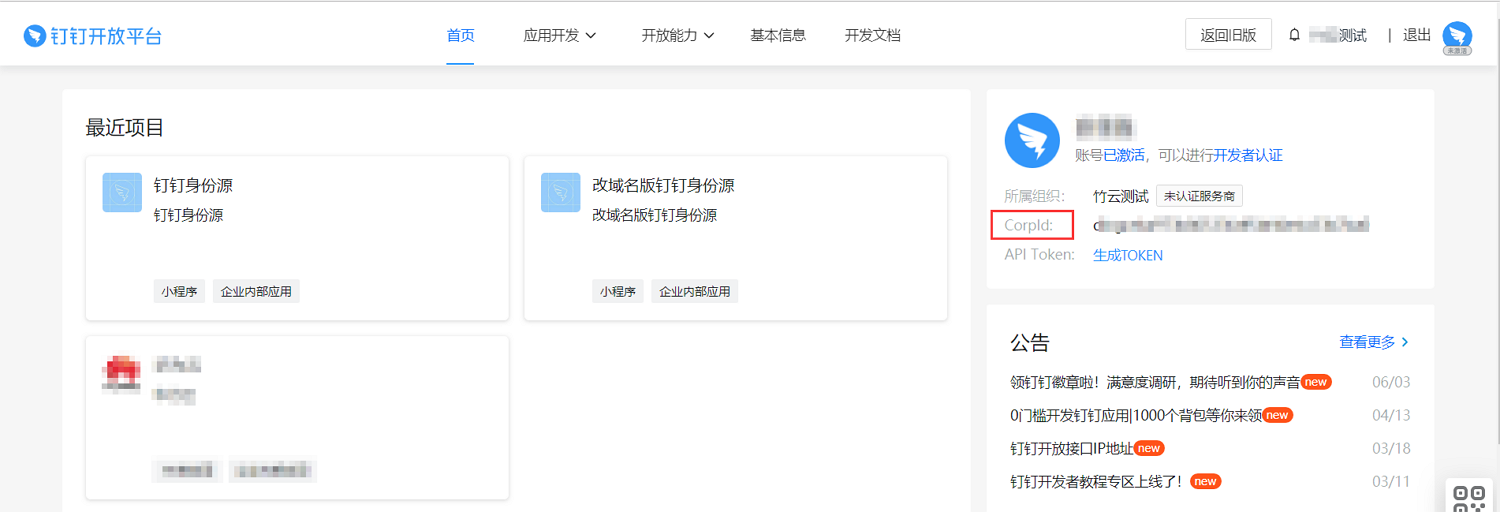
Log in to the DingTalk Open Platform (opens new window) and obtain the CorpId parameter value from the homepage.
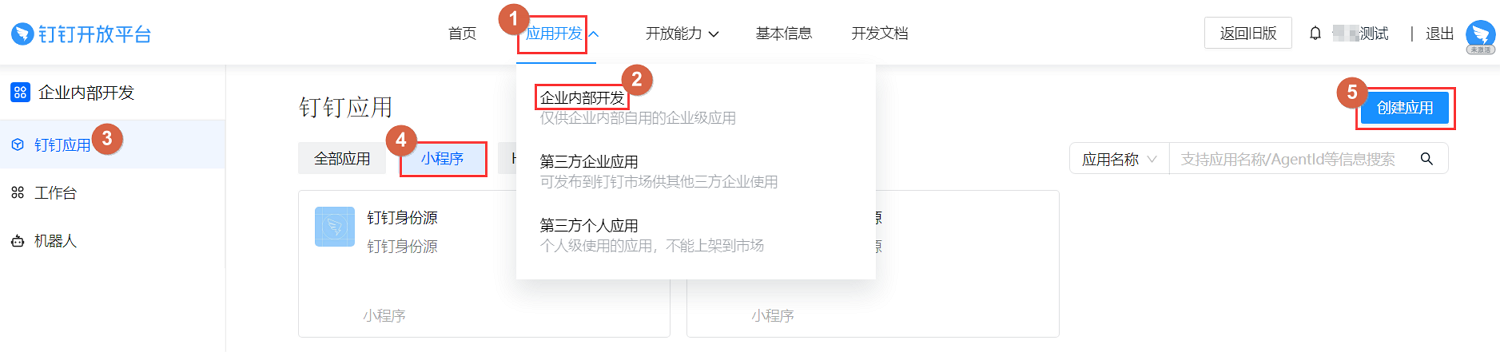
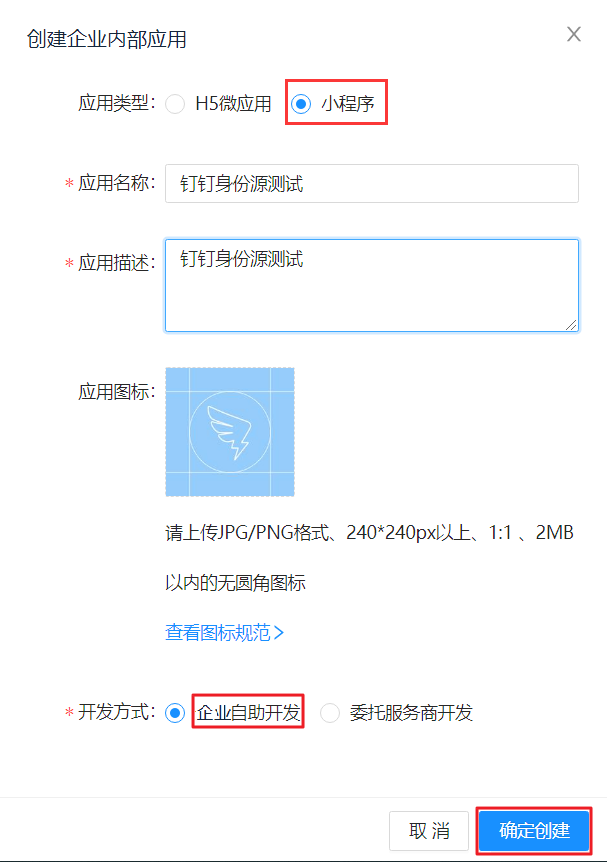
In the top navigation bar of the DingTalk Open Platform, select "Application Development > Enterprise Internal Development". Under Enterprise Internal Development, create an H5 Micro App or Mini Program. The following uses a Mini Program as an example. Select "DingTalk Application > Mini Program", then click "Create Application" and fill in the application creation form information.
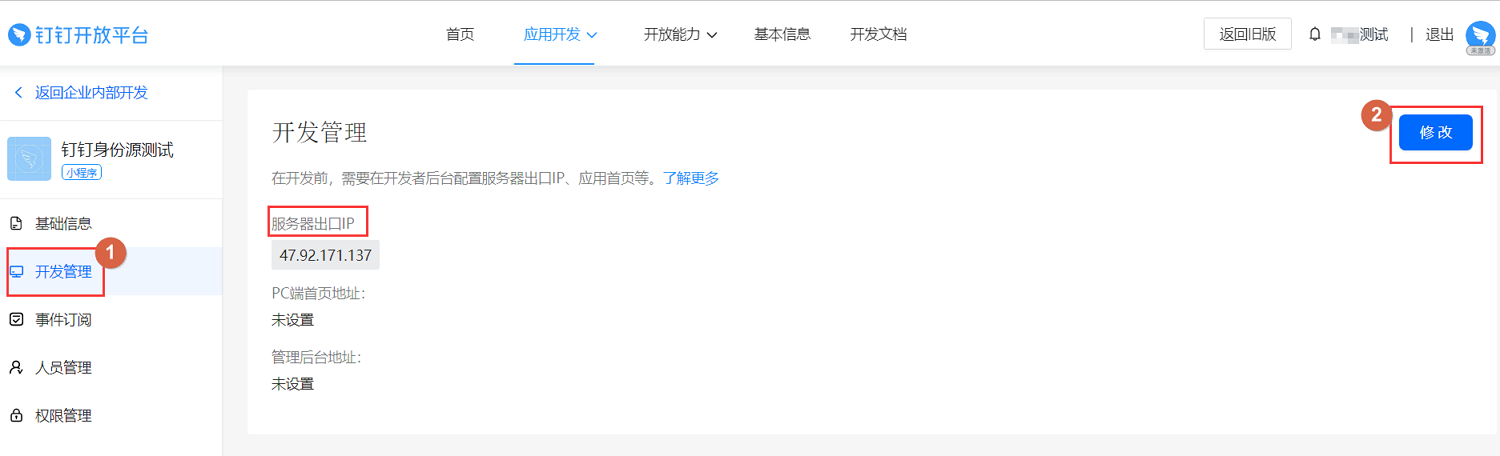
After creation, enter the Mini Program, click "Development Management" on the left, and modify the Server Egress IP to the IDaaS service egress IP: 47.92.171.137.
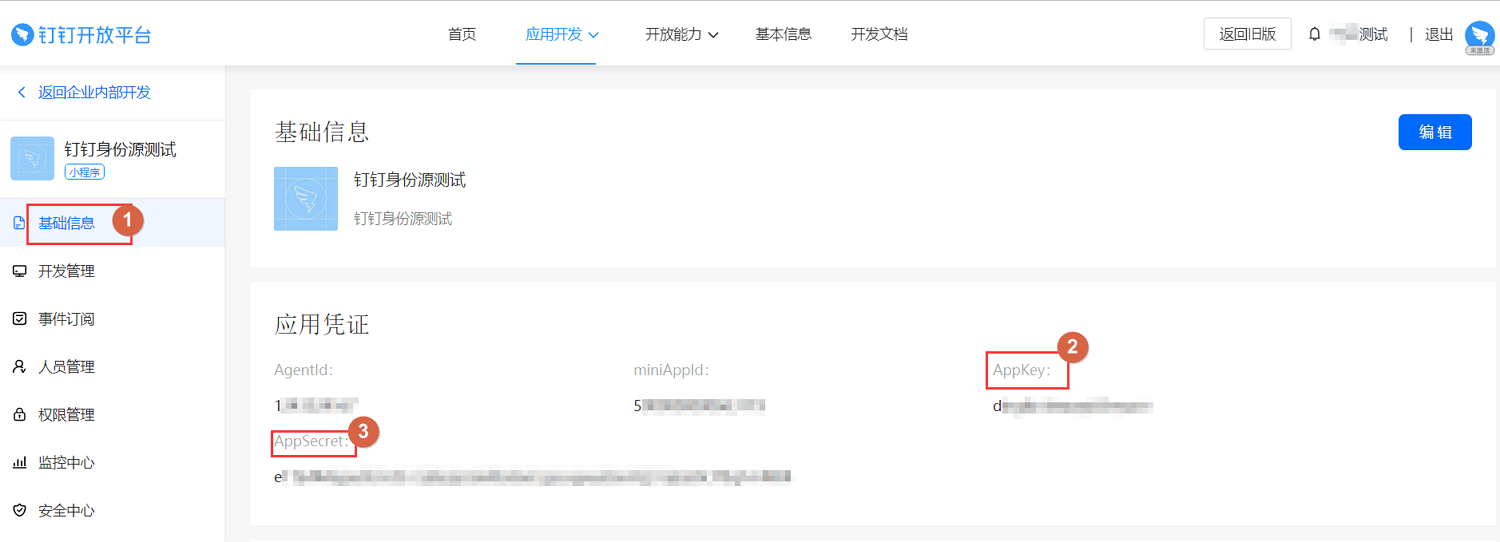
Click "Basic Information" on the left to obtain the Appkey and AppSecret parameter values.
Click "Security Center" on the left, select "HTTP Security Domain", click "Add", and configure the security domain (i.e., the IDaaS tenant domain).

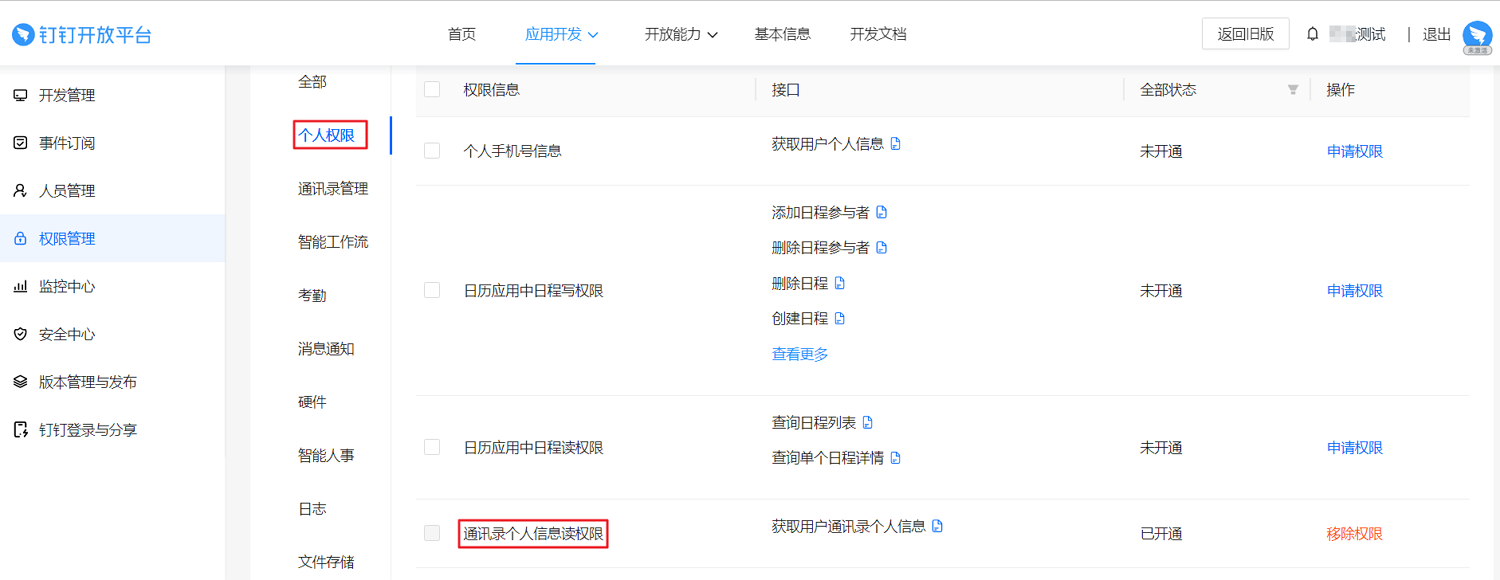
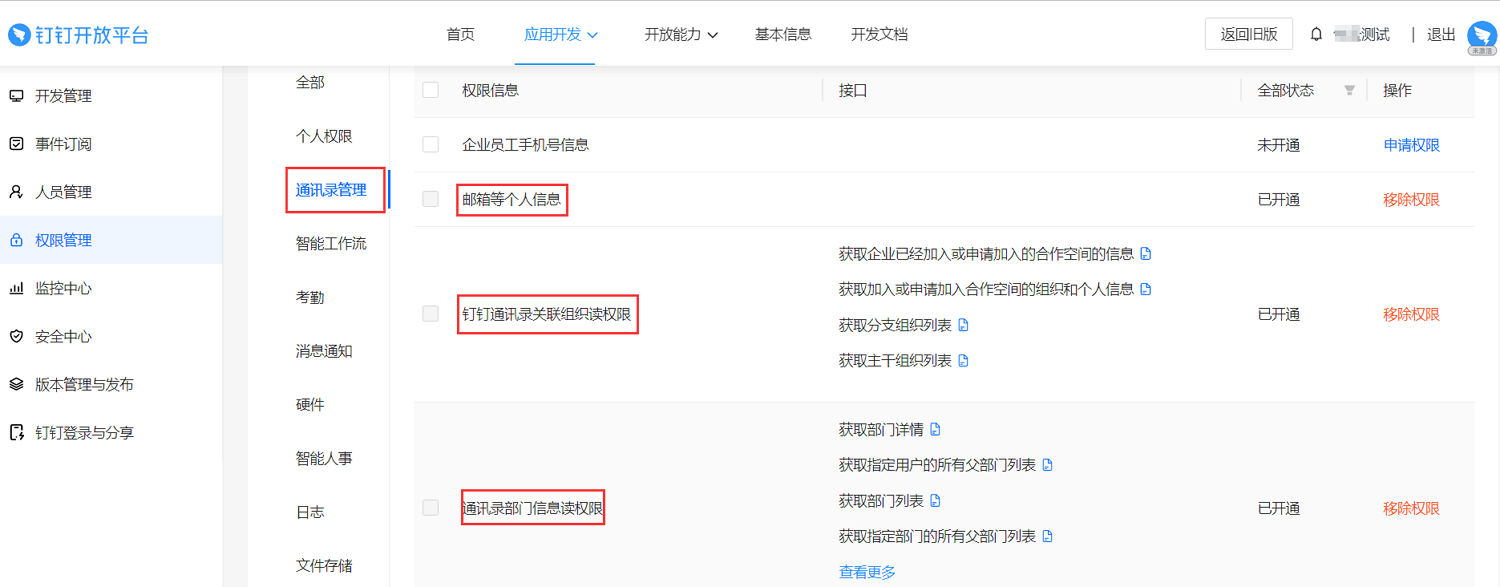
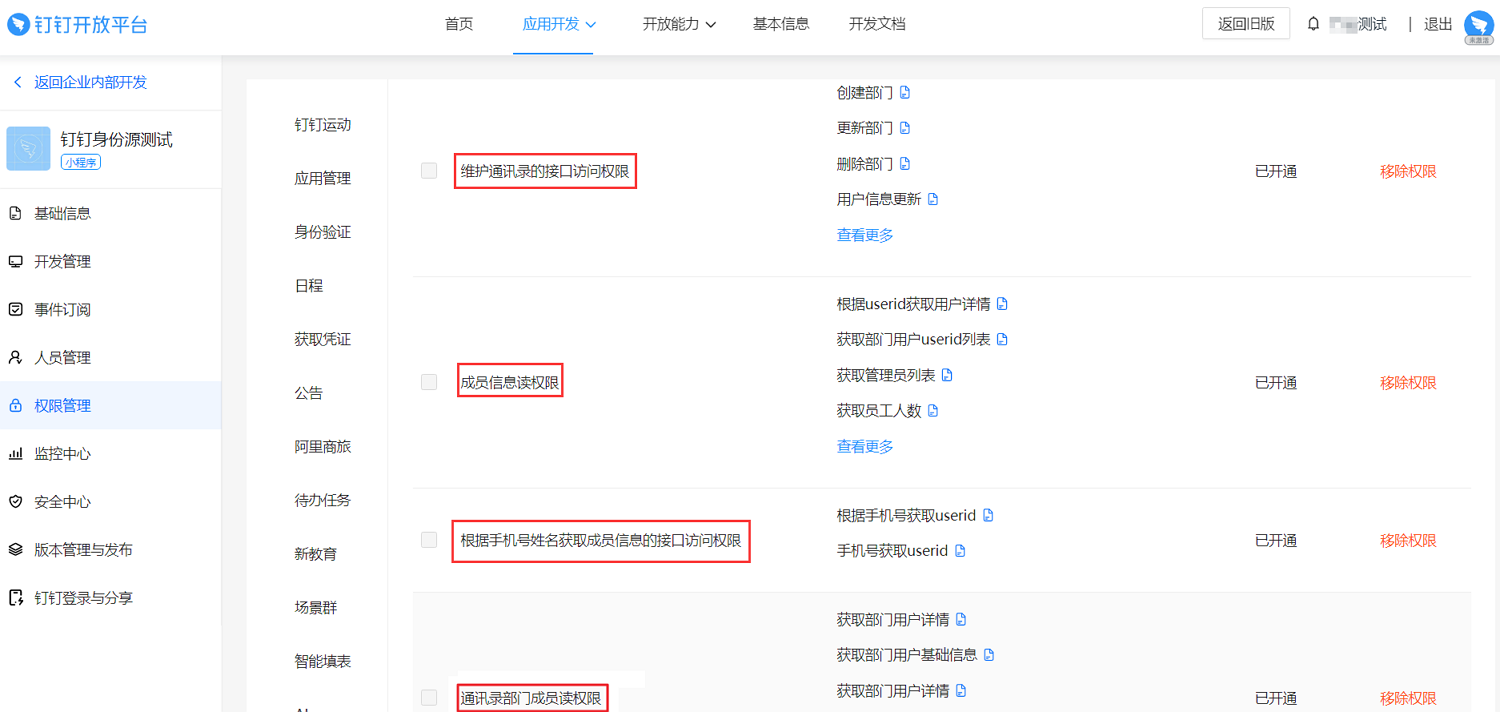
Click "Permission Management" on the left, switch to the "Interface Permissions" tab, and add the interface permissions as shown in the images below.

# Configure DingTalk Identity Source in IDaaS
Log in to the IDaaS Enterprise Center platform. In the top navigation bar, select "Users > Identity Source Management", click "Add Identity Source", and choose the "DingTalk" identity source.
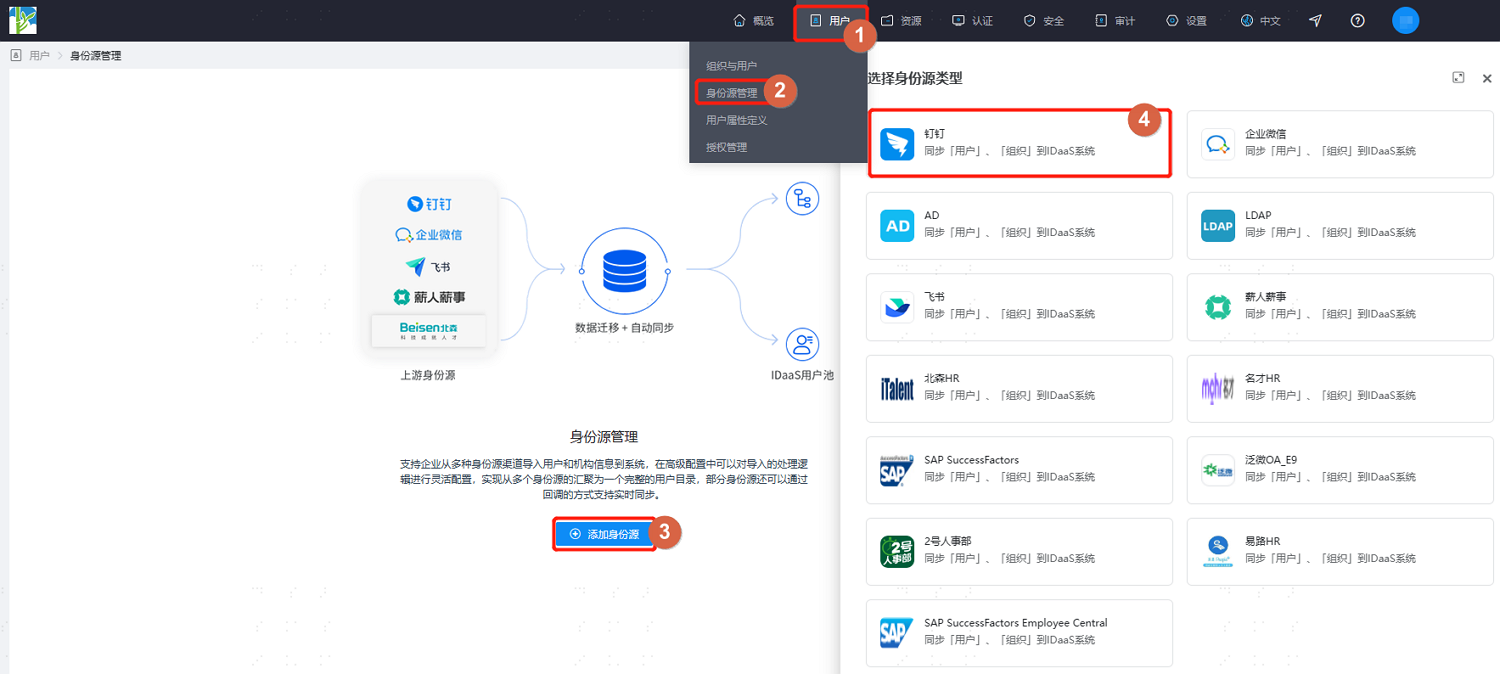
Customize the identity source name. Fill in parameters such as Enterprise ID, AppKey, and AppSecret according to the interface prompts. Click "Confirm" to save after completion.
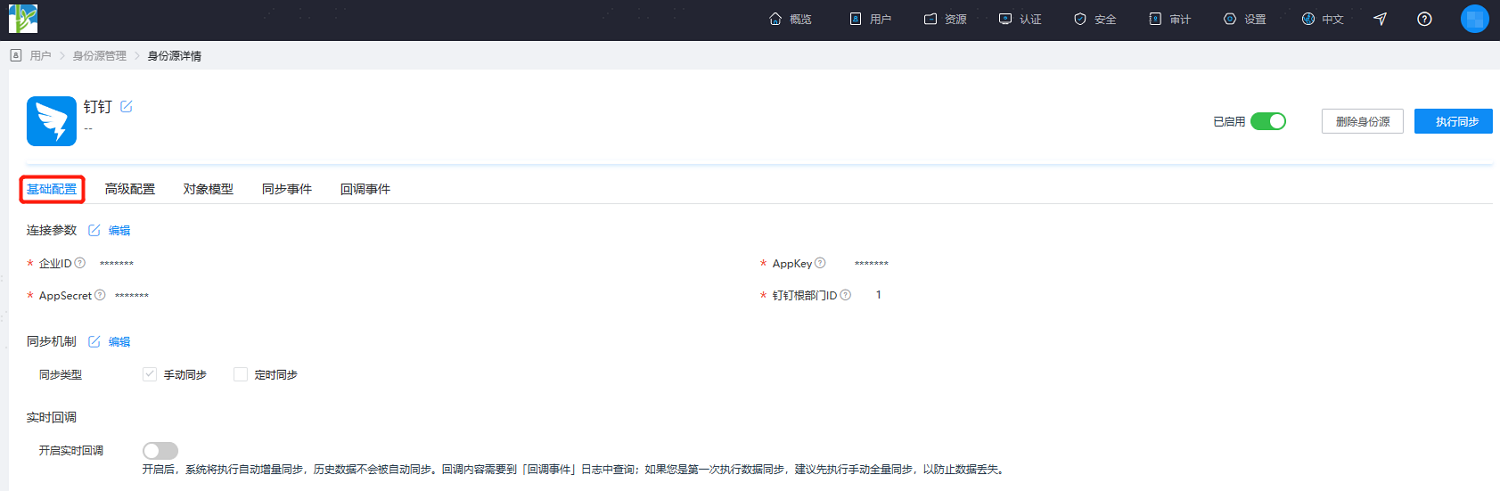
Enter the details page of the newly added identity source to view and update the "Basic Configuration" of the DingTalk identity source, including connection parameters, synchronization mechanism, and real-time callbacks.
Switch to the "Advanced Configuration" tab. It is recommended to keep the defaults or fill them in according to actual needs.

Parameter Description Select Root Org Import data from the identity source into this organization. The default is acceptable. Org Mapping Policy The mapping relationship for importing organizations from the DingTalk identity source into IDaaS. The default is acceptable. Create Org By default, keep "Yes" selected for creating and updating organizations. Delete Org By default, keep the organization (i.e., if an organization is deleted in DingTalk, it is retained in IDaaS). Supports disabling or deleting organizations. User Mapping Policy The mapping relationship for importing users from the DingTalk identity source into IDaaS. The default is acceptable. Create User By default, keep "Yes" selected for creating and updating users. Delete User By default, disable the user (i.e., if a user is deleted in DingTalk, they are disabled in IDaaS). Supports retaining or deleting users. Security Threshold Adjustment Set the maximum threshold percentage for changes such as user deletion, organization deletion, or organizational hierarchy changes when they occur in the upstream identity source.
Threshold = (Difference between platform recycled data and this batch's recycled data / Recycled data) * 100%. When the upstream identity source application disables/deletes data exceeding the set threshold, the platform will not perform the disable/delete operation upon receiving the instruction.After configuration is complete, switch to the "Object Model" tab and select "Mapping Definition". Configure the mapping relationships between the attributes and IDs of organizations and users in DingTalk and those in IDaaS according to the actual project requirements.
The Object Model supports mapping and matching attributes on users and organizations from the DingTalk identity source with the attributes of users and organizations in IDaaS. After configuration, it enables the retrieval of user and organization attributes from DingTalk and their synchronization to the corresponding user and organization attributes in IDaaS.
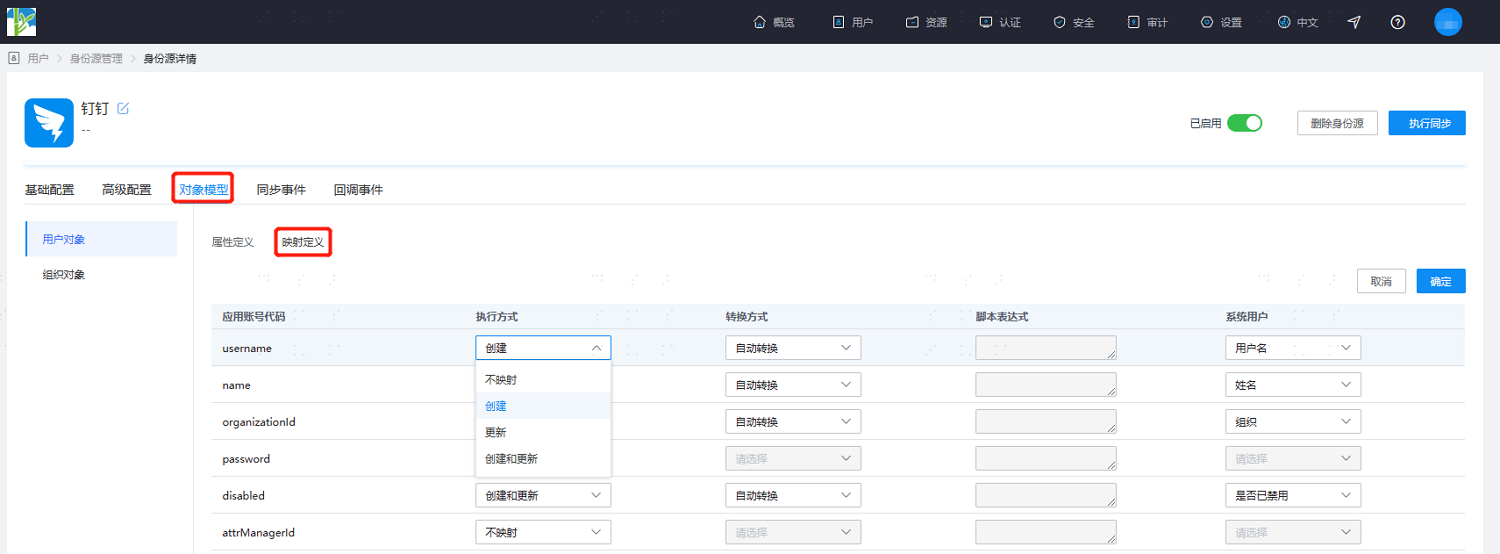
- Execution Method: Sets under which circumstances the attribute needs to be mapped.
- No Mapping: This attribute will not be synchronized to IDaaS.
- Create: The attribute is synchronized only during creation.
- Update: The attribute is synchronized only during updates.
- Create and Update: The attribute is synchronized during both creation and updates.
- Transformation Method: Sets the method for attribute mapping.
- Automatic Transformation: Synchronizes the value exactly as it is from the identity source.
- Script Transformation: Use this method to transform values from the identity source if they do not meet the required format. Refer to Script Mapping Method.
- After configuration is complete, click "Execute Sync" to immediately perform the synchronization operation.
If the synchronization mechanism in the basic configuration is set to scheduled synchronization, manual execution of sync tasks is not required here.
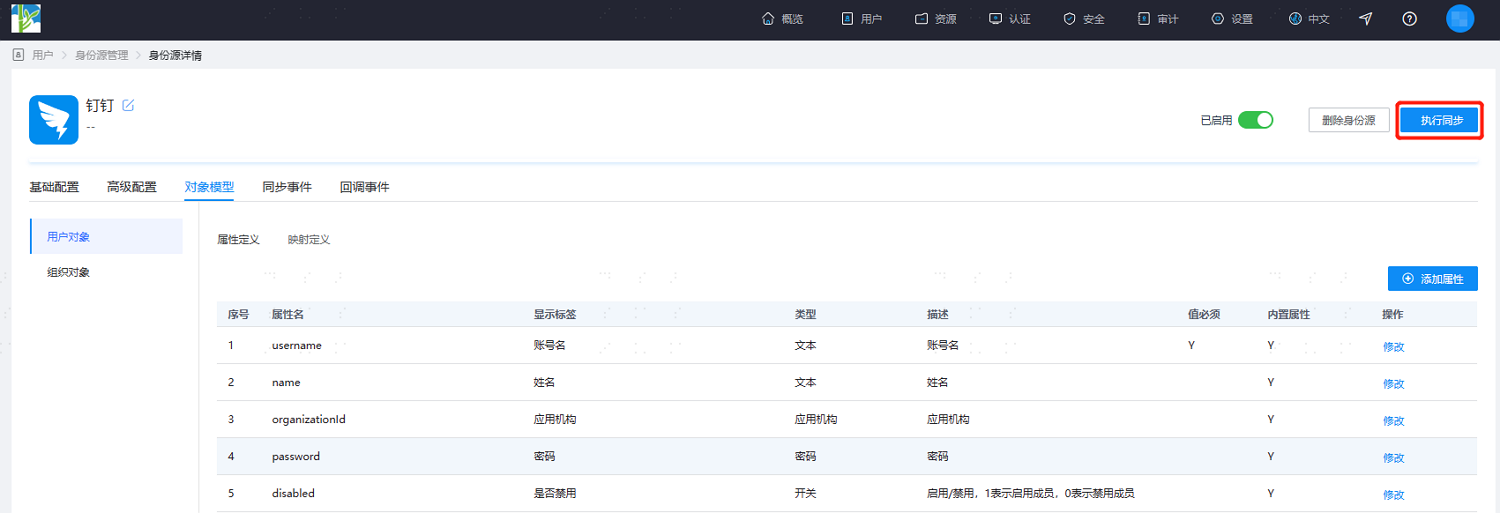
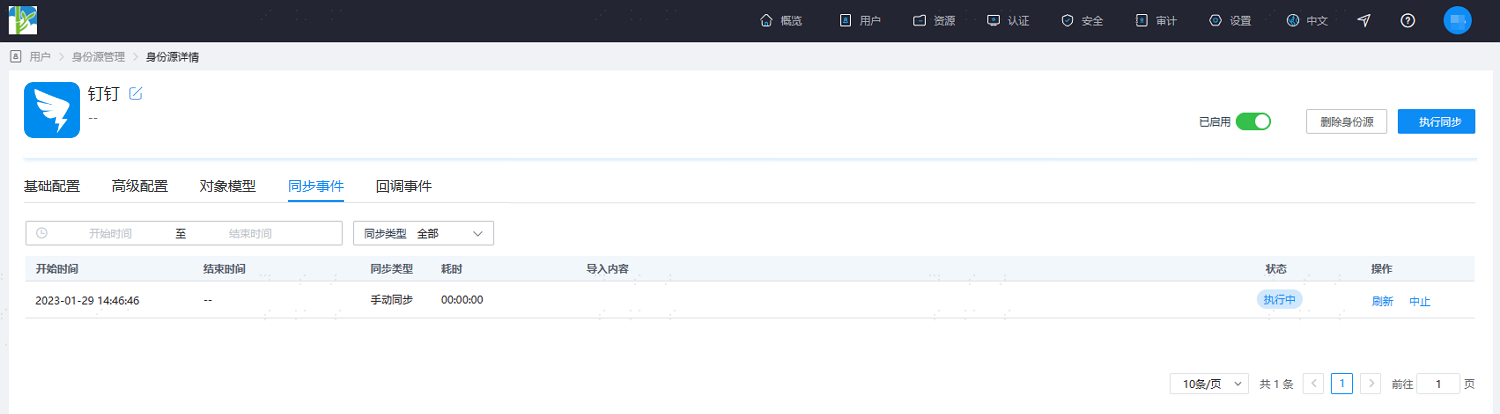
- After execution is complete, switch to the "Sync Events" page to view all synchronization tasks for this identity source. Click "Details" under the "Actions" column to view the import results, or check the imported data on the "Users > Users and Organizations" page.
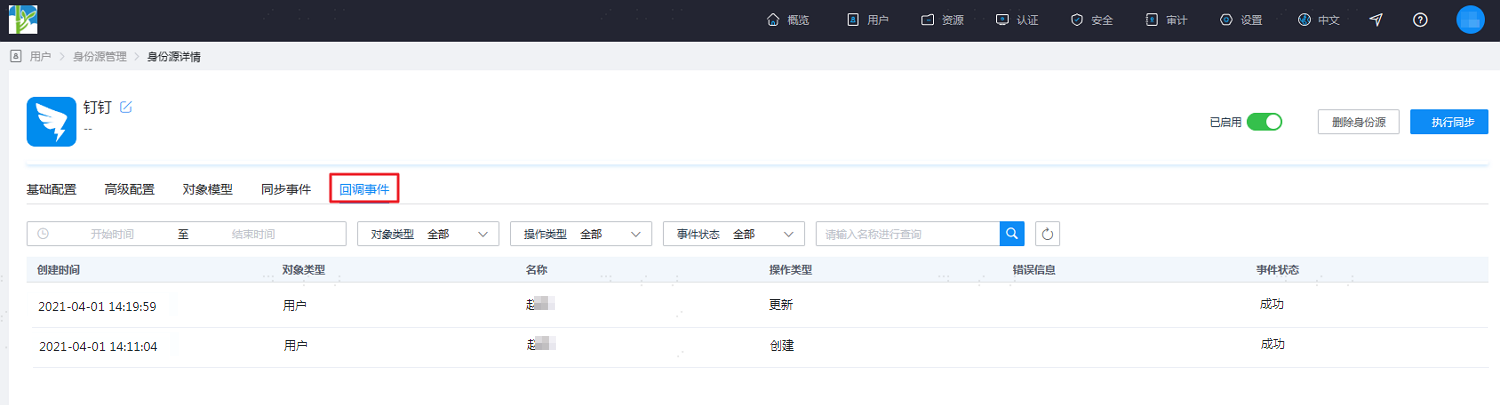
- (Optional) After the import synchronization is complete, switch to the "Callback Events" tab. If callback registration was enabled in the "Basic Configuration", you can view the records of real-time updates pushed from DingTalk contact data changes to IDaaS on this page.