
Feishu as Identity Source
# Overview
IDaaS supports enterprises in importing user and organizational information into the IDaaS platform through various identity source channels. This article will introduce how to configure Feishu as an identity source in the IDaaS platform, synchronizing the organization and user data uniformly maintained on the Feishu platform to the IDaaS platform, and ensuring data consistency across various application systems within the enterprise.
# Prerequisites
- Have administrator permissions for the Feishu developer backend. If you do not have an account, please register a developer account first at the Feishu Open Platform (opens new window).
- Have administrator permissions for the IDaaS Enterprise Center platform.
# Configuration Process

# Create an Application on Feishu Open Platform
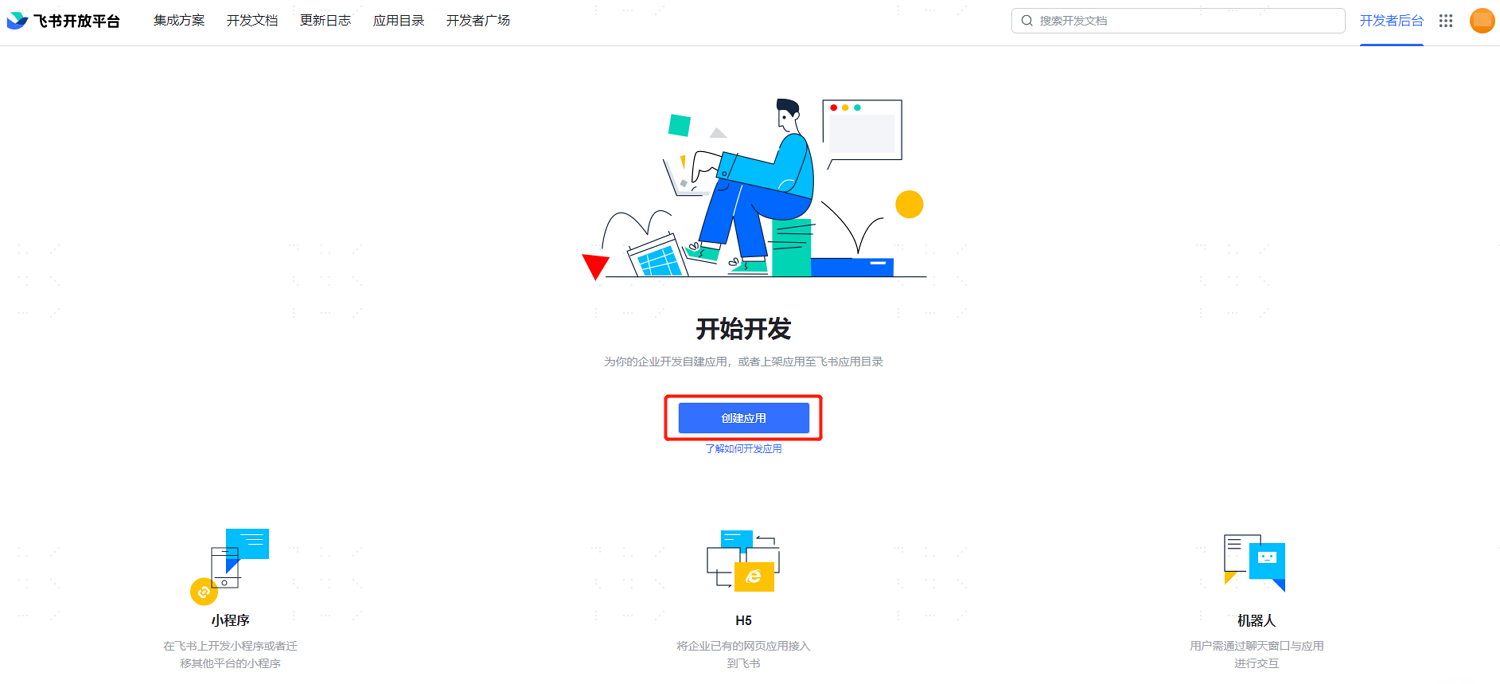
Log in to the Feishu Open Platform (opens new window), enter the "Developer Backend", and select "Create Application".
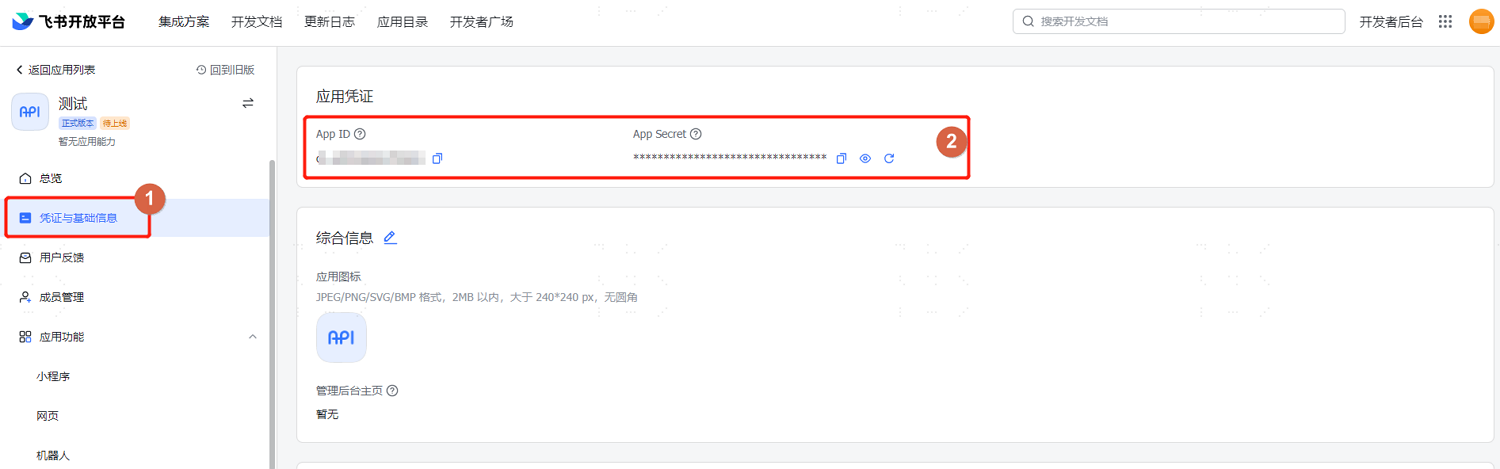
After creation is complete, enter the details page of the new application. On the left side, select "Credentials & Basic Information" to obtain the AppID and AppSecret parameters.
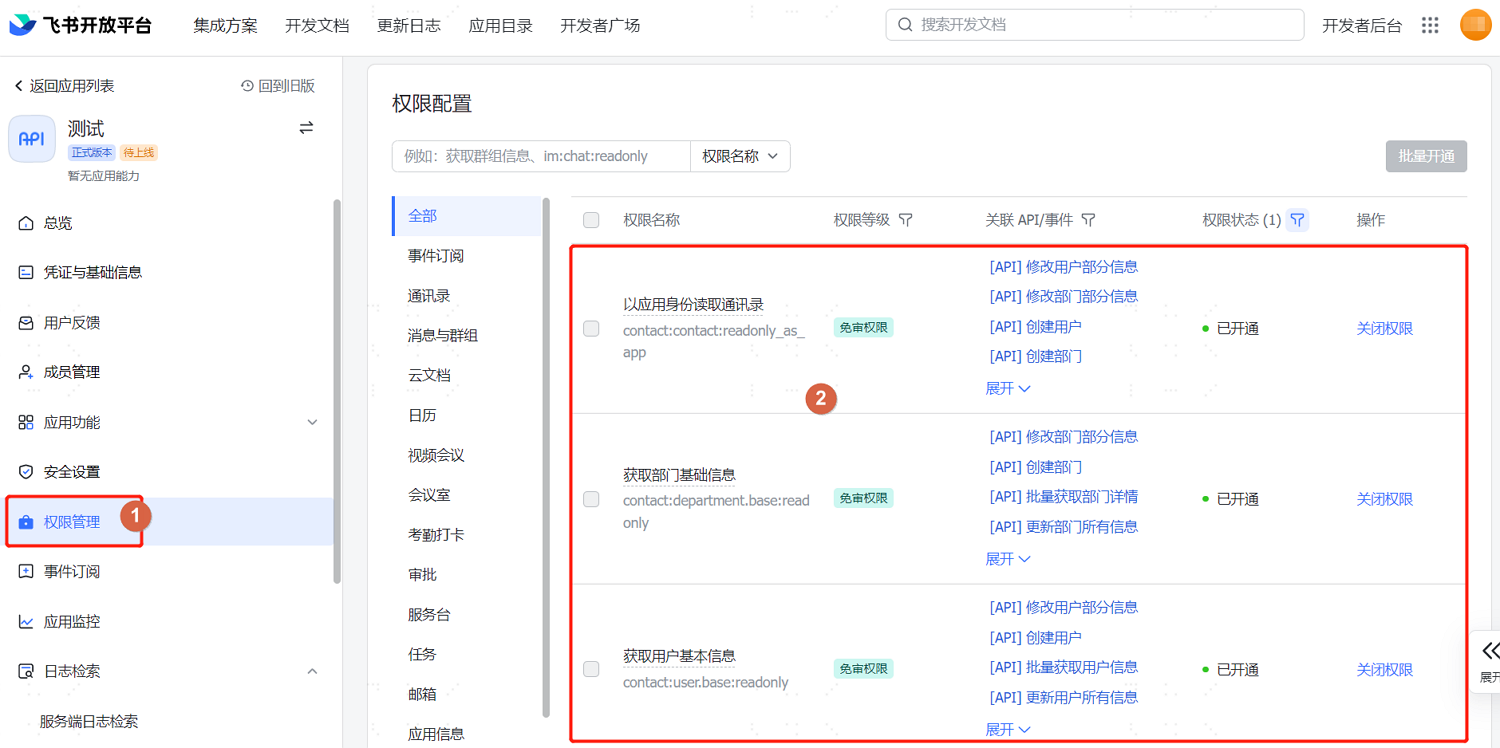
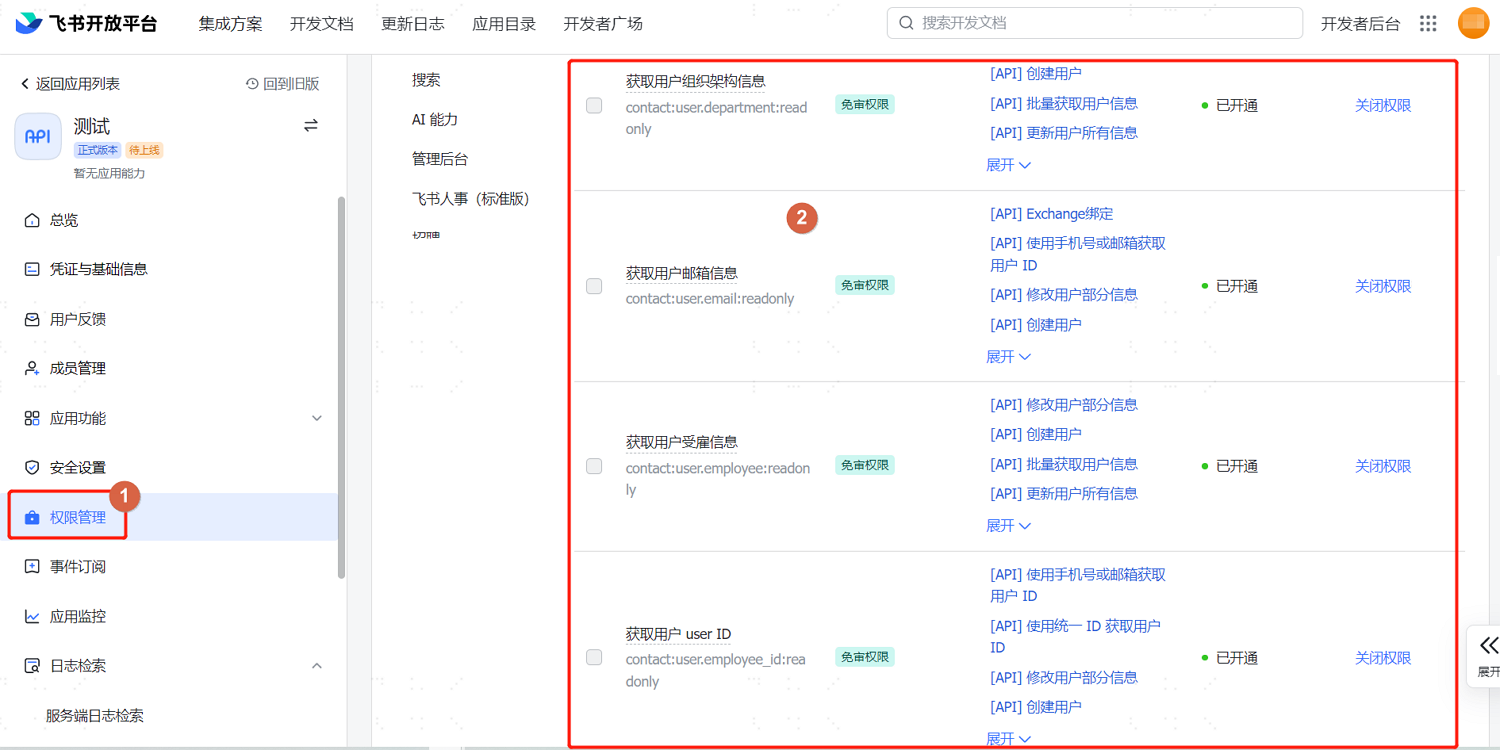
On the left side, select "Permission Management", configure application permissions, and add the following user and contact permissions. The contact permission scope must be configured as "All Members".
On the left side, select "Event Subscription", and set the values for the Encrypt Key, Verification Token parameters, and the request URL. The parameter descriptions are as follows.
This section can only be performed after adding the Feishu identity source in the IDaaS platform and completing the import configuration.
Parameter Description Encrypt Key Data encryption key, must be consistent with the IDaaS Feishu identity source parameter Verification Token Verification token, must be consistent with the IDaaS Feishu identity source parameter Request URL Configuration Data change notification URL, automatically generated after adding the Feishu identity source in the IDaaS Enterprise Center platform 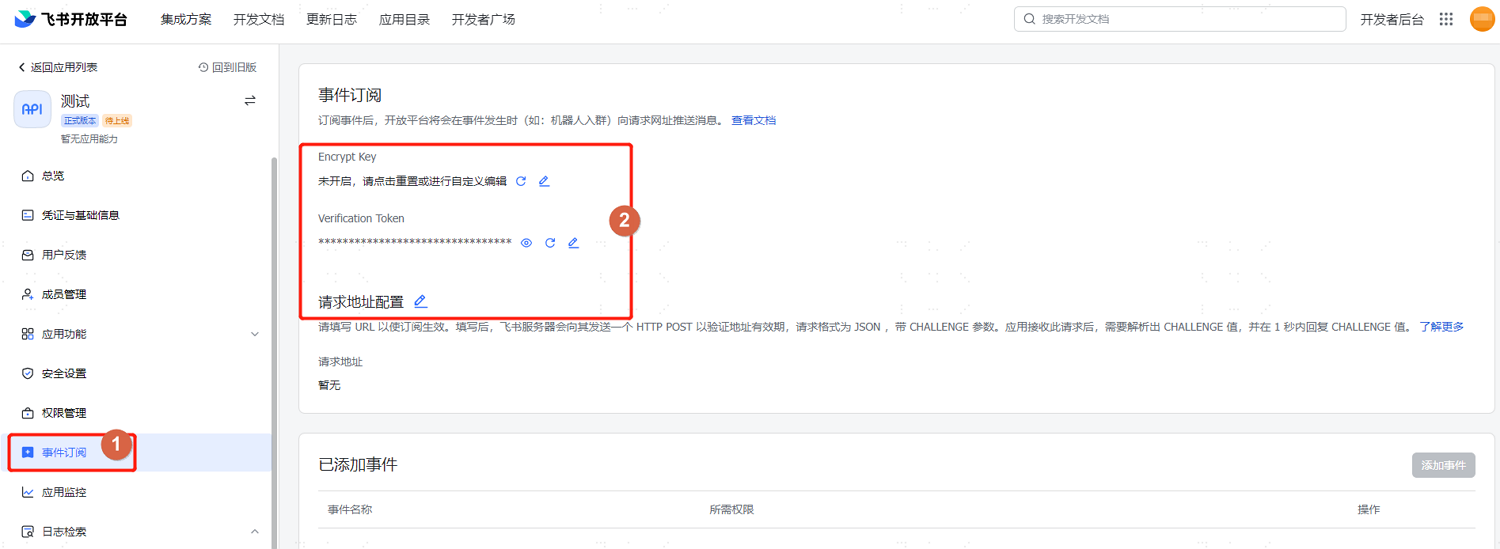
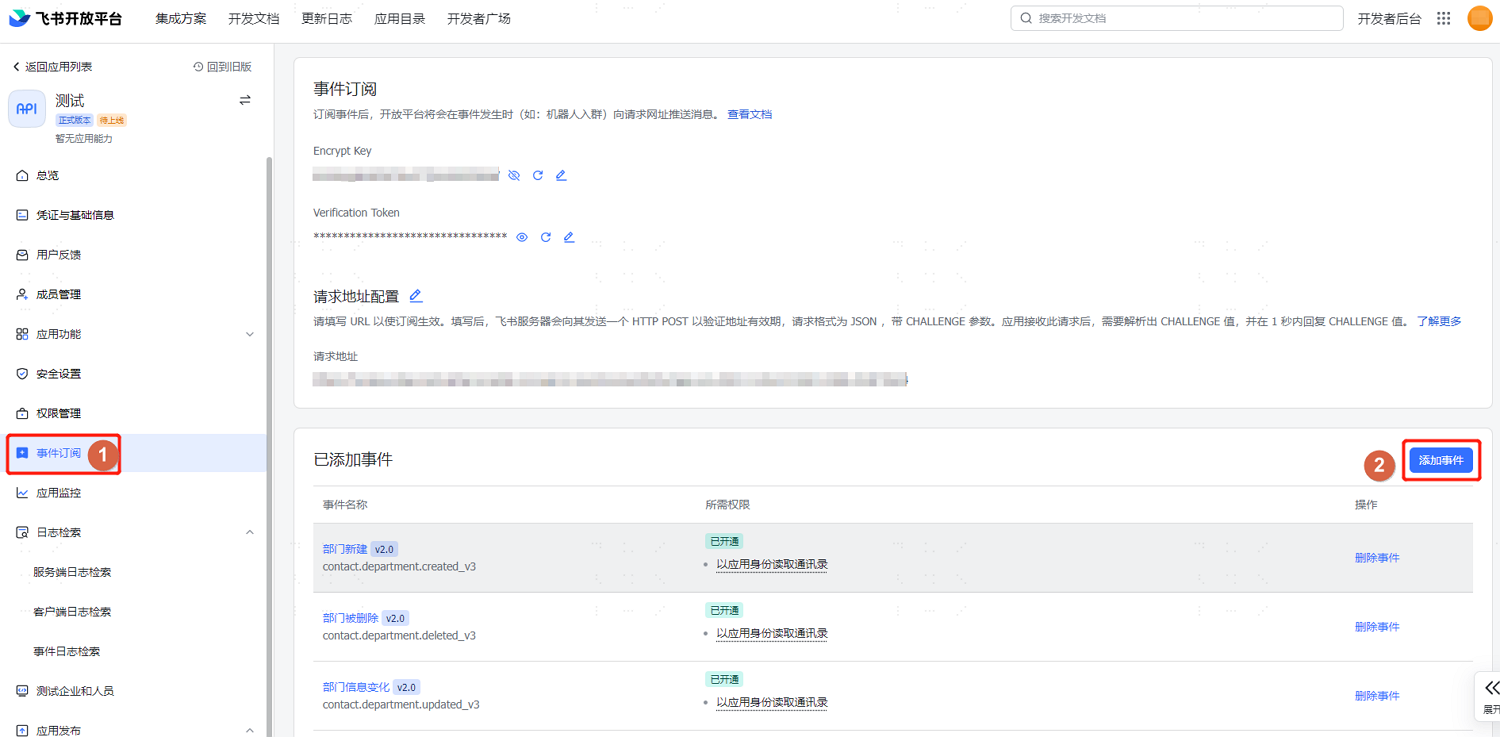
After configuration is complete, you can add events on this page to subscribe to Feishu events such as department creation, modification, deletion, and employee onboarding, offboarding, and information changes.
On the left side, select "Application Release > Version Management & Release", fill in the application version number and update description, set the availability status to "All Employees", and release the application.
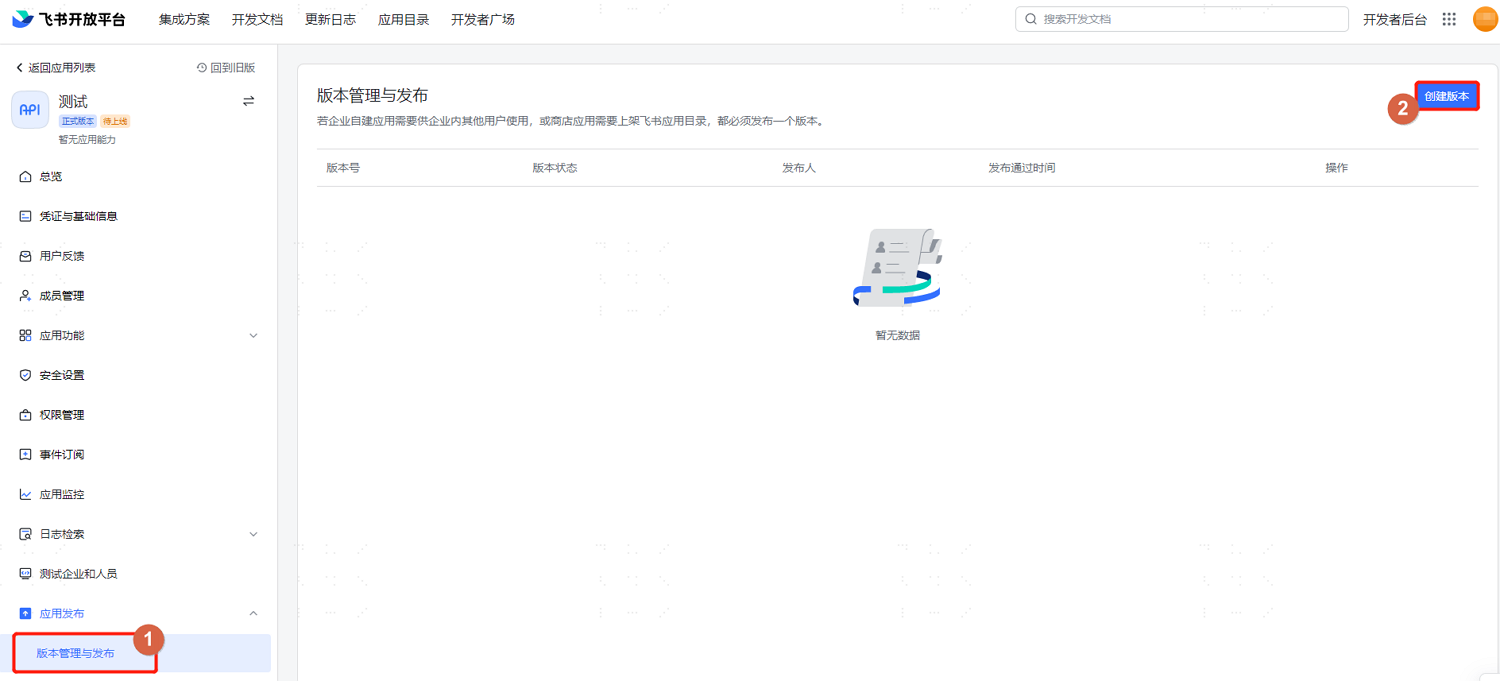
After settings are complete, save and apply for release. Log in to your Feishu Management Console (opens new window) and review it under "Workbench > Application Review".

# Configure Feishu Identity Source in IDaaS
Log in to the IDaaS Enterprise Center platform, select "Users > Identity Source Management" in the top navigation bar, click "Add Identity Source", and choose the "Feishu" identity source.
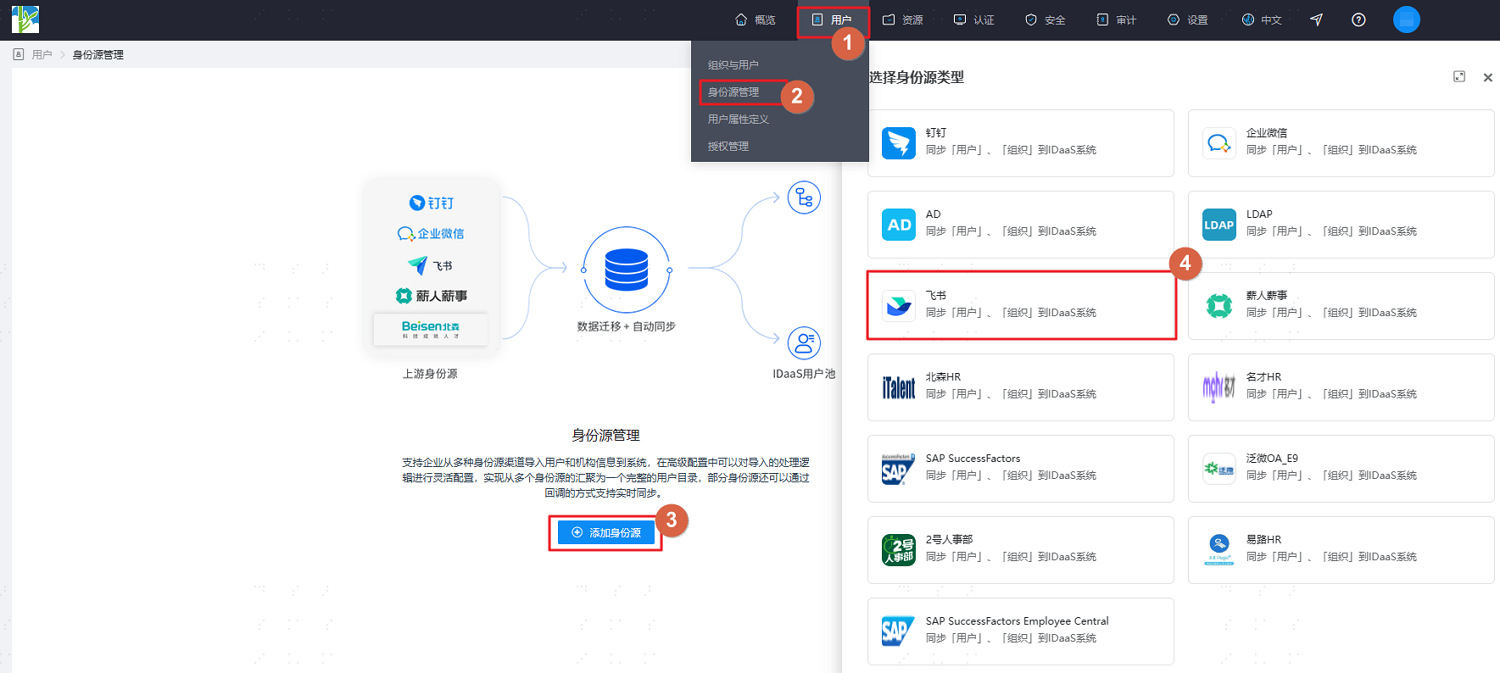
Customize the identity source name, fill in parameters such as APP ID, APP Secret, and root department name as prompted on the interface. After setting, click "OK" to save.
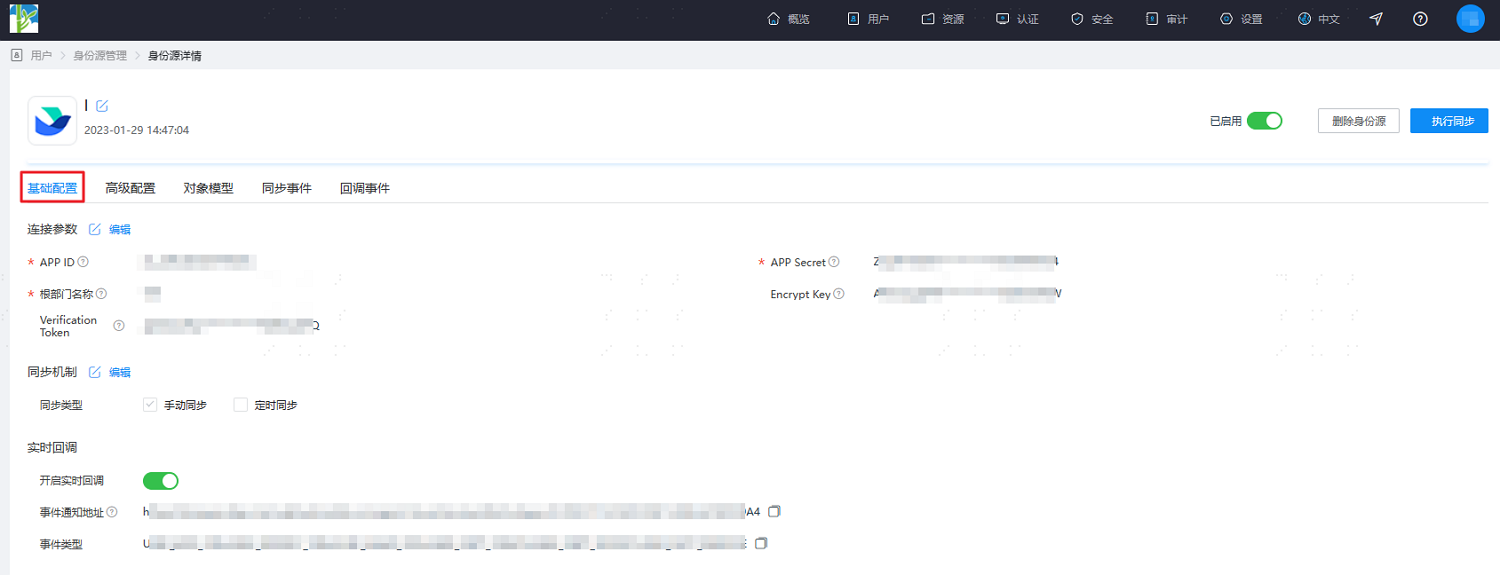
Enter the details page of the newly added identity source to view and update the "Basic Configuration" of the Feishu identity source, including connection parameters, synchronization mechanism, and real-time callbacks.
Switch to the "Advanced Configuration" tab. It is recommended to keep the default settings or fill them in according to actual needs.
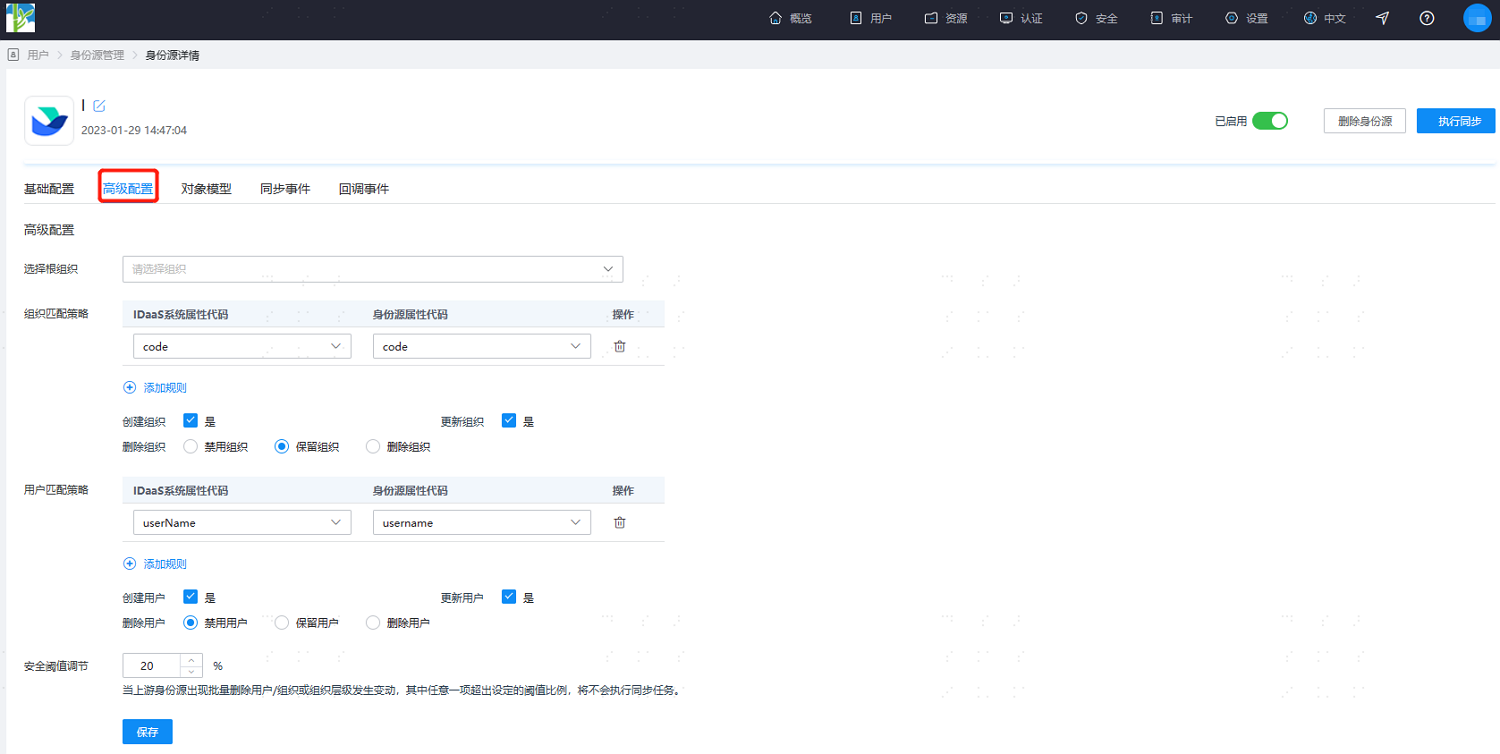
Parameter Description Select Root Organization Import data from the identity source into this organization. Default is sufficient. Organization Matching Strategy The mapping relationship for importing organizations from the Feishu identity source to IDaaS. Default is sufficient. Create Organization Create and update organizations. Default to checking "Yes" is sufficient. Delete Organization Default to retaining organizations (i.e., if an organization is deleted in Feishu, it is retained in IDaaS). Also supports disabling or deleting organizations. User Matching Strategy The mapping relationship for importing users from the Feishu identity source to IDaaS. Default is sufficient. Create User Create and update users. Default to checking "Yes" is sufficient. Delete User Default to disabling users (i.e., if a user is deleted in Feishu, the user is disabled in IDaaS). Also supports retaining or deleting users. Security Threshold Adjustment Set the maximum threshold ratio for changes such as user deletion, organization deletion, or organizational hierarchy changes when they occur in the upstream identity source.
Threshold = (Difference between platform's previously recycled data and this batch's recycled data / Previously recycled data) * 100%. When the upstream identity source application disables/deletes data exceeding the set threshold, the platform will not perform the disable/delete operation upon receiving the instruction.After configuration, switch to the "Object Model" tab and select "Mapping Definition". Set the transformation method for "username account name" to "Automatic Transformation", the execution method to "Create", and the corresponding system user attribute to "Username".
The object model supports mapping and matching attributes on users and organizations from the Feishu identity source with attributes of users and organizations in IDaaS. After configuration, it enables the recycling of user and organization attributes from Feishu to the user and organization attributes in IDaaS.
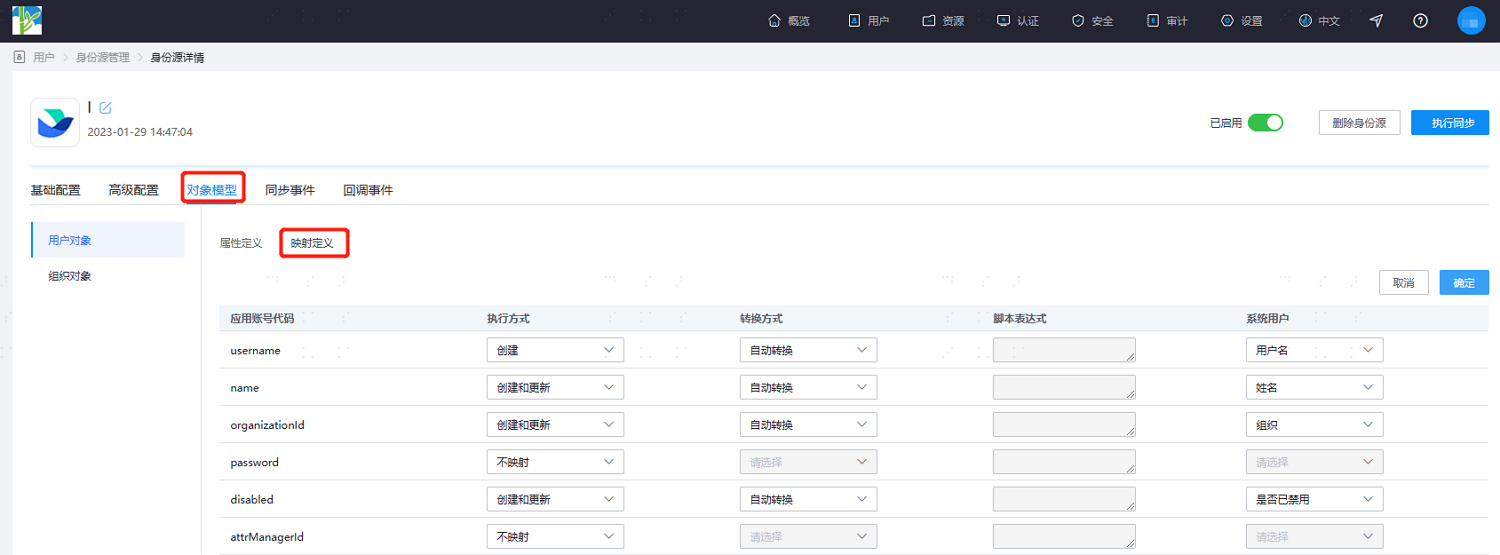
- Execution Method: Sets under which circumstances the attribute needs to be mapped.
- No Mapping: This attribute will not be synchronized to IDaaS.
- Create: The attribute is synchronized only during creation.
- Update: The attribute is synchronized only during updates.
- Create and Update: The attribute is synchronized during both creation and updates.
- Transformation Method: Sets how the attribute is mapped.
- Automatic Transformation: Synchronizes the value exactly as it is in the identity source.
- Script Transformation: Use this method to transform values from the identity source if they do not meet the required format. Refer to Script Mapping Methods.
- Execution Method: Sets under which circumstances the attribute needs to be mapped.
After configuration, click "Execute Synchronization" to immediately perform the synchronization operation.
If the synchronization mechanism in the basic configuration is set to scheduled synchronization, manual execution of synchronization tasks is not required here.
After execution is complete, switch to the "Synchronization Events" page to view all synchronization tasks for this identity source. Click "Details" under the "Operation" column of a synchronization task to view the import results, or go to the "Users > Users and Organizations" page to view the imported data.
(Optional) After the import synchronization is complete, switch to the "Callback Events" tab. If callback registration was enabled in "Basic Configuration", you can view the records of real-time update pushes from Feishu directory data changes to IDaaS on this page.