Configuring Dynamic User Groups
# Overview
Employees have different identities and positions within an enterprise, which may result in varying daily permissions. Users can be divided into multiple user groups for different purposes based on their identity and position, used for batch user authorization for applications. In practical usage scenarios, some applications require automatic authorization to employees who meet specific conditions through user groups. If a new employee meeting those conditions joins, limited by existing functionality, they can only be manually added to the application-authorized user group to complete the authorization.
However, the above method requires administrators to manually determine which user groups a user should join, presenting certain management difficulties and easily leading to delays for new employees due to operational oversights. Similarly, when user information changes and no longer meets the conditions, canceling application authorization also requires manual management by administrators. Therefore, IDaaS introduces the dynamic user group module, which automatically manages user data within dynamic groups by pre-setting conditions.
# Prerequisites
Have administrator permissions for the IDaaS Enterprise Center.
# Steps
Log in to the IDaaS Enterprise Center platform, select "Users > Organization and Users" in the top navigation bar, switch to the "User Groups" tab, click "Add Dynamic Group", and configure the basic information for the dynamic user group.
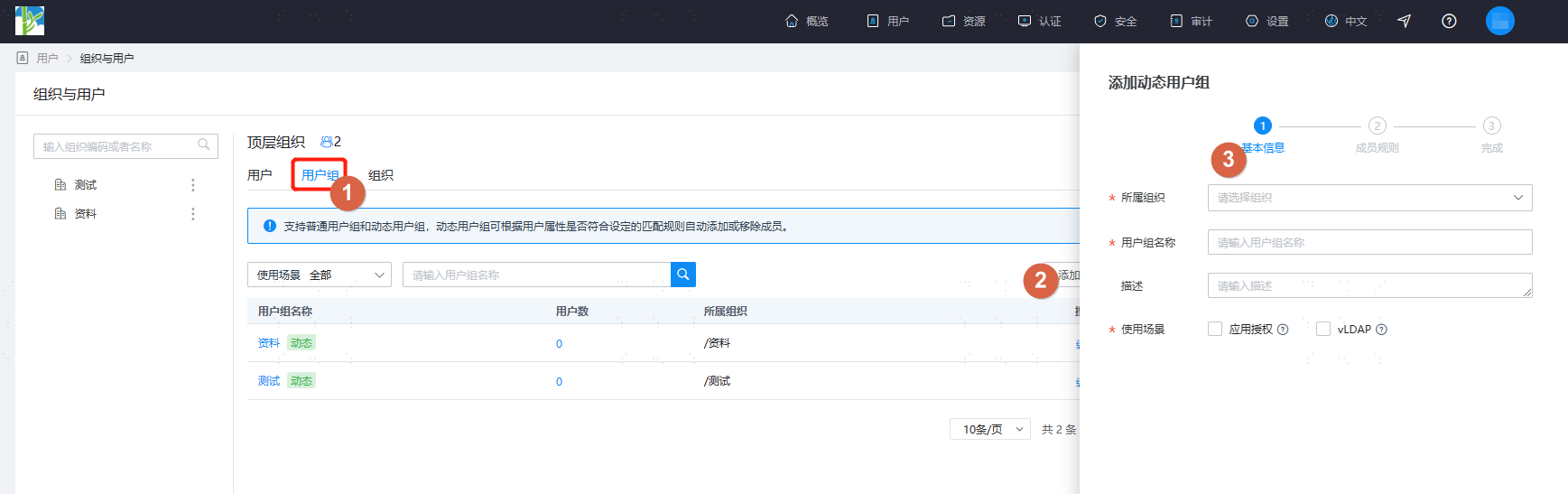
- Belonging Organization: Configure the organization to which the user group belongs. This cannot be modified after configuration.
- User Group Name: Configure the name of the user group.
- Description: Configure the description of the user group.
- Usage Scenario: Configure the usage scenario for the new user group.
- Application Authorization: Use this user group in the automatic authorization policy of an application to achieve fast and flexible application authorization.
- vLDAP: User group membership can be obtained when fetching user information via virtual LDAP.
After configuring the basic information, click "Next" to switch to the "Member Rules" tab. Configure the member matching rules for the dynamic user group to automatically match users who meet the set conditions.
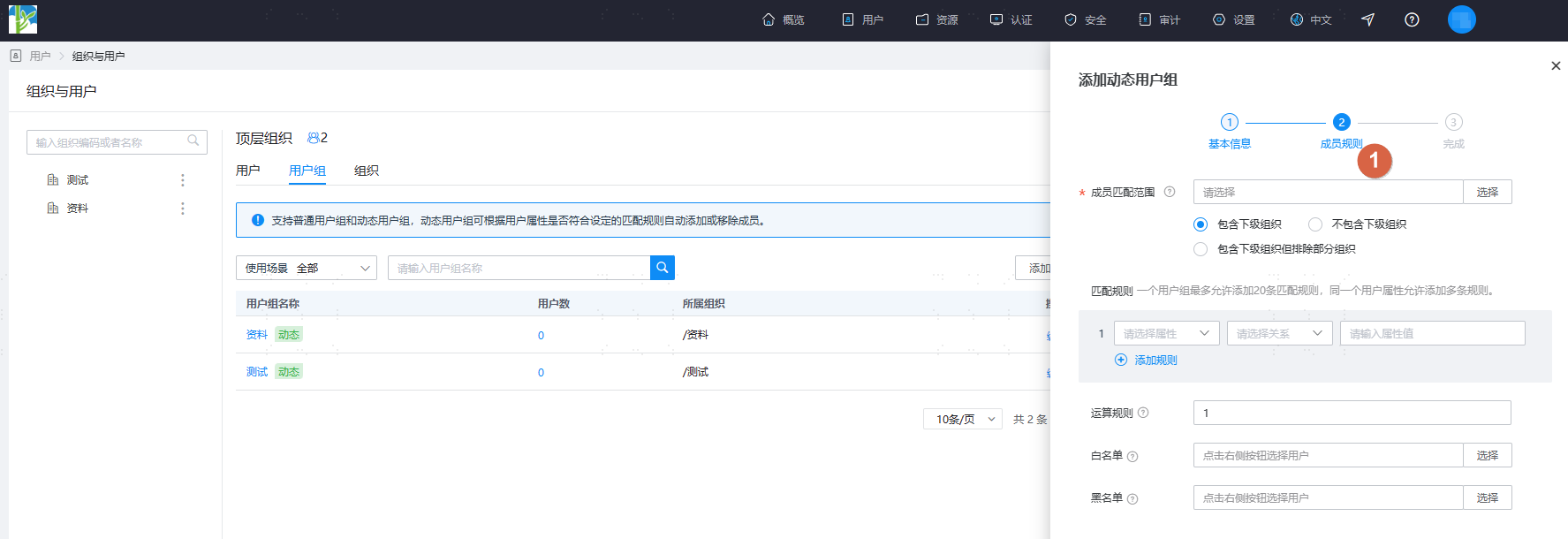
- Member Matching Scope: Configure the organizational scope for member matching of this dynamic user group. When a user belongs to multiple organizations, only their primary organization is matched.
- Include Subordinate Organizations: Includes the selected organization and its sub-organizations.
- Exclude Subordinate Organizations: Includes only the selected organization.
- Include Subordinate Organizations but Exclude Some: Includes the selected organization and its sub-organizations, excluding the selected organization and its sub-organizations.
- Matching Rules: Configure the member calculation rules for this dynamic user group. Create matching rules by configuring user attributes, operational relationships, and attribute values. Up to 20 rules can be configured.
- User Attributes: Supports selection of username, name, mobile number, email, birthday, gender, country or region, personnel type, direct supervisor, hire date, and custom fields of text type, date type, number type, as well as user status.
- Relationship: The logical relationship between the attribute and the value. Different attributes can have different relationships.
- Attribute Value: Connects the user attribute and the attribute value with a relationship to form a member filtering rule.
- Operation Rules: Configure the operational method between the matching rules for this dynamic user group.
- OR: Either the left or right matching rule is satisfied.
- AND: Both the left and right matching rules are satisfied.
- (): Rules within parentheses are calculated first.
- Whitelist: Users on the whitelist will be added to the dynamic user group regardless of whether they meet the filtering rules.
- Blacklist: Users on the blacklist will not be added to the dynamic user group regardless of whether they meet the filtering rules.
- Member Matching Scope: Configure the organizational scope for member matching of this dynamic user group. When a user belongs to multiple organizations, only their primary organization is matched.
After configuration is complete, click "OK" to save, then click "Submit Calculation" to automatically calculate the members in the user group based on the established rules.
- Each tenant is allowed to create up to 20 dynamic user groups.
- This feature is available only for tenants on the Professional edition or higher.
- Members cannot be manually added or removed from dynamic user groups.
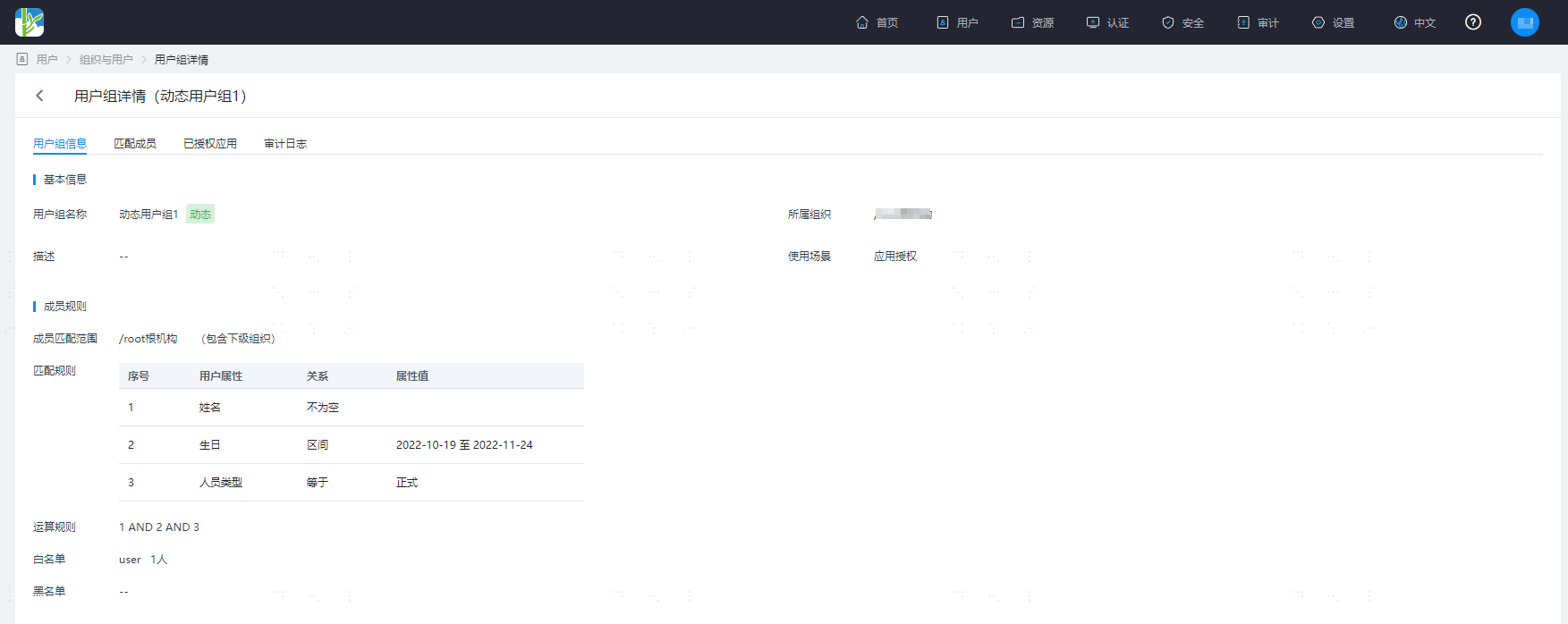
Return to the user group page, click the user group name to enter the user group details page, where you can view user group information, matched members, audit logs, etc.