
Configuring Kerberos Authentication Source
# Overview
To facilitate enterprise user authentication and login, the IDaaS platform supports configuring the Kerberos protocol as an authentication source. Users can authenticate and log into various application systems via the Kerberos protocol, providing enterprise users with a simpler, more convenient login method and a better user experience. This feature is currently only supported in 2E scenarios.
This section describes the related operations for configuring a Kerberos authentication source.
# Prerequisites
- An AD domain server has been created, and the IDaaS public cloud service can access the AD service.
- Possess administrator permissions for the IDaaS Enterprise Center platform.
# Procedure
# AD Service Configuration
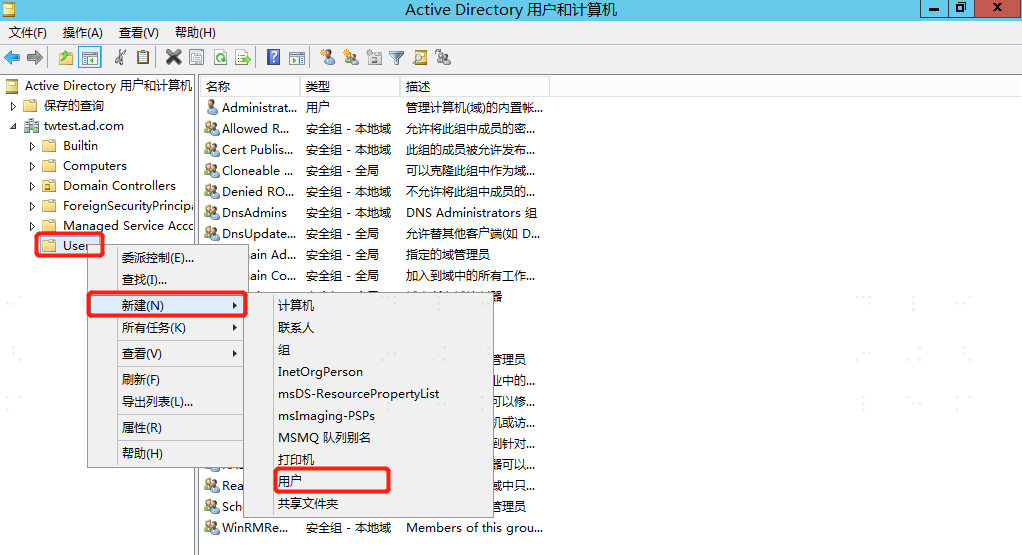
Open Active Directory Users and Computers, create a new user and password under the AD domain User, and set the password to never expire.
On the AD server, open cmd and execute the following command to generate the SPN.
setspn -A HTTP/{IDaaS tenant domain name} {newly created ad username}1Execute the following command to generate a keytab file, and copy the keytab file to the relevant directory.
ktpass /out {file generation address and filename} /mapuser {ad username created in step 1} /princ HTTPS/{IDaaS tenant domain name@ad domain name} /pass {password for the ad user created in step 1} /ptype KRB5_NT_PRINCIPAL /crypto AES256-SHA1
For example: ktpass /out c:\tomcat.keytab /mapuser gltomcat /princ HTTPS/gl1234.bccastle.com@idaas-test.com /pass P@ssw0rd /ptype KRB5_NT_PRINCIPAL /crypto AES256-SHA1
1
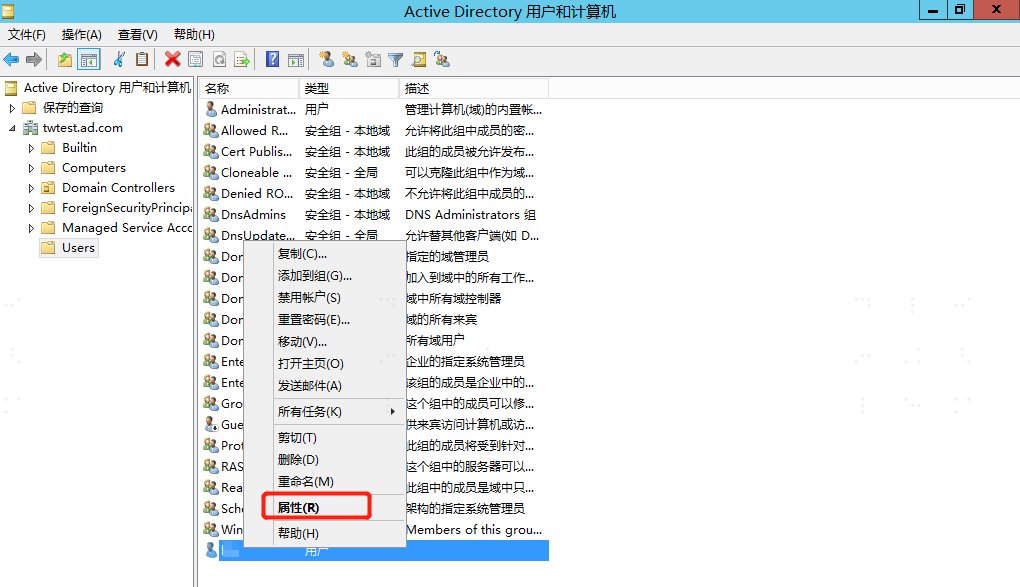
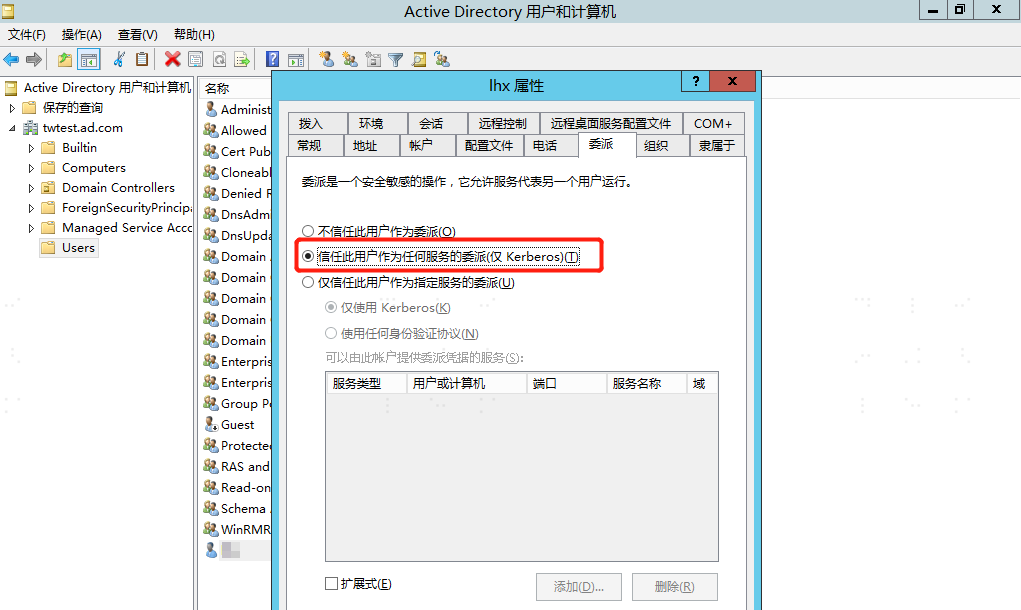
2After configuration is complete, right-click the user and select "Properties", switch to the "Delegation" tab, and select "Trust this user for delegation to any service (Kerberos only)".
Select "Internet Options" for the PC browser, switch to the "Security" tab, select "Trusted sites", add https://IDaaS tenant domain name, and add the tenant domain name to the browser's trusted sites. The tenant domain name can be obtained from "Settings > Company Information" in the IDaaS Enterprise Center.
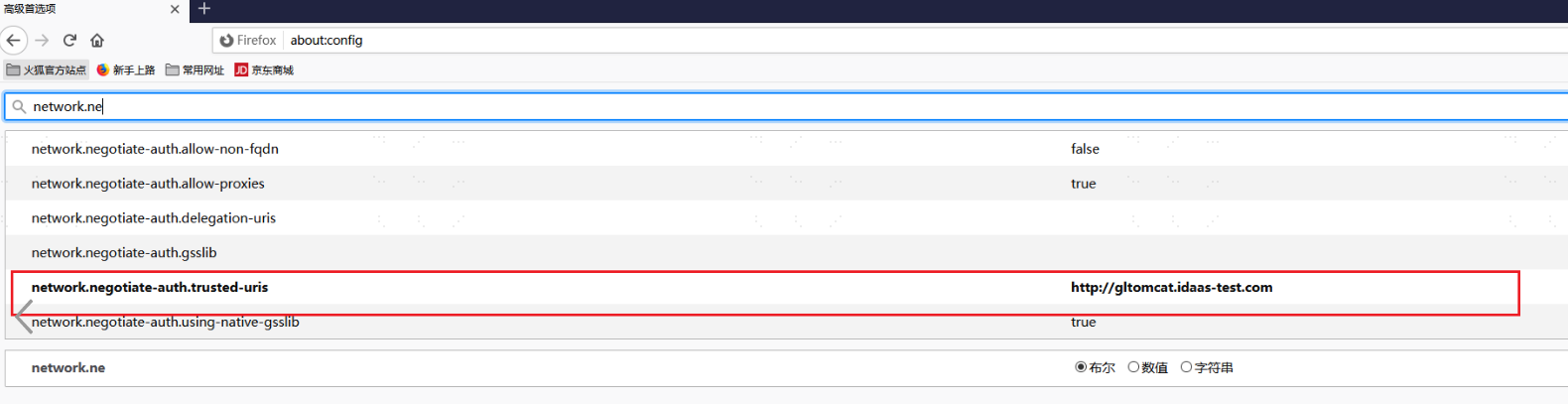
The above configuration is common for Google and IE browsers. If using Firefox browser, please refer to the image below for additional configuration.
# IDaaS Platform Configuration for Kerberos Authentication Source
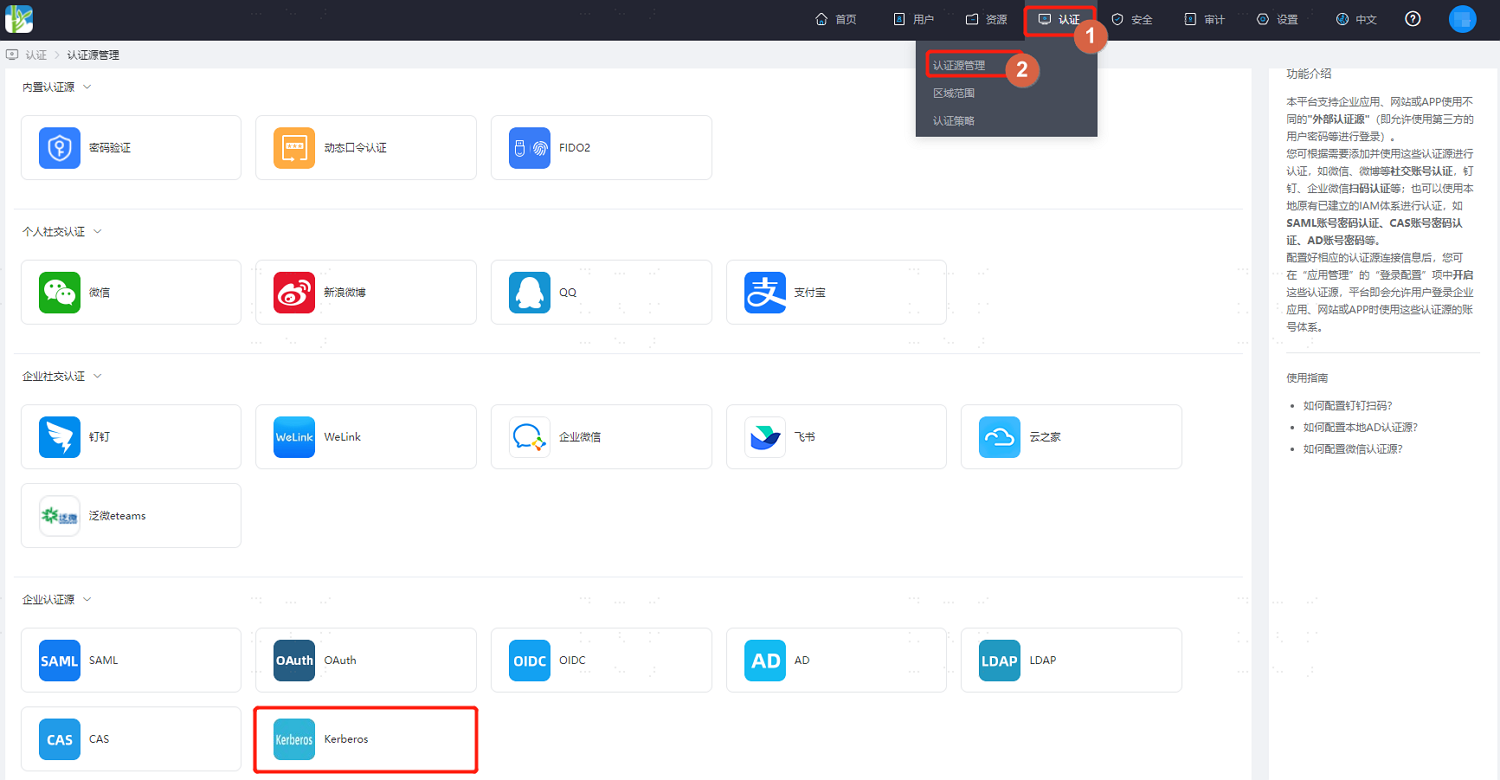
Log in to the IDaaS Enterprise Center platform, select "Authentication > Authentication Source Management" in the top navigation bar, go to the Kerberos authentication source page, and click "Add Authentication Source".
Configure the Kerberos authentication source parameters by referring to the interface prompts. Key parameter descriptions are as follows.
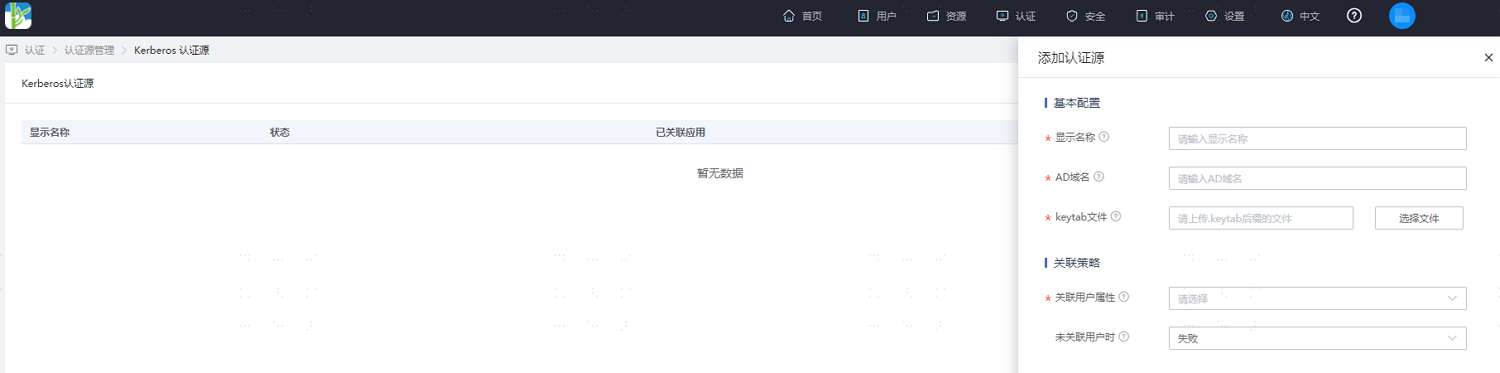
Parameter Description keytab file The keyTab file, obtained from the Windows AD server Associated User Attribute The IDaaS user attribute field used to associate with the user attribute in the Kerberos authentication source. It is recommended to use the username to associate with the Kerberos username. When User is Not Associated After a user successfully logs in using the Kerberos authentication source, if they are not associated with a system user, actions can be taken based on this setting. Setting it to "Fail" means this user is not allowed to pass authentication.