
Enhancing User Login Security
# Overview
User accounts are used within enterprises to log in and access application systems. Some applications contain the enterprise's private core data, thus requiring higher security for accounts. To strengthen the security of user access to various application systems, in addition to common functions like configuring password policies, the IDaaS platform provides multiple features to enhance user account login security. For example, configuring authentication policies, setting access control policies for applications, and configuring user risk behaviors, thereby achieving restrictions, grants, or enhanced authentication for access authorization.
# Prerequisites
Possess administrator permissions for the IDaaS Enterprise Center.
# Procedure
# Configuring Authentication Policies
This module guides administrators in configuring authentication policies to control access for users meeting the conditions specified in the policies. It also supports detecting user risk behaviors. Authentication policies are global-type policies.
Log in to the IDaaS Enterprise Center platform. In the top navigation bar, select "Authentication > Authentication Policies", then click "Add Policy" to configure user authentication policies.
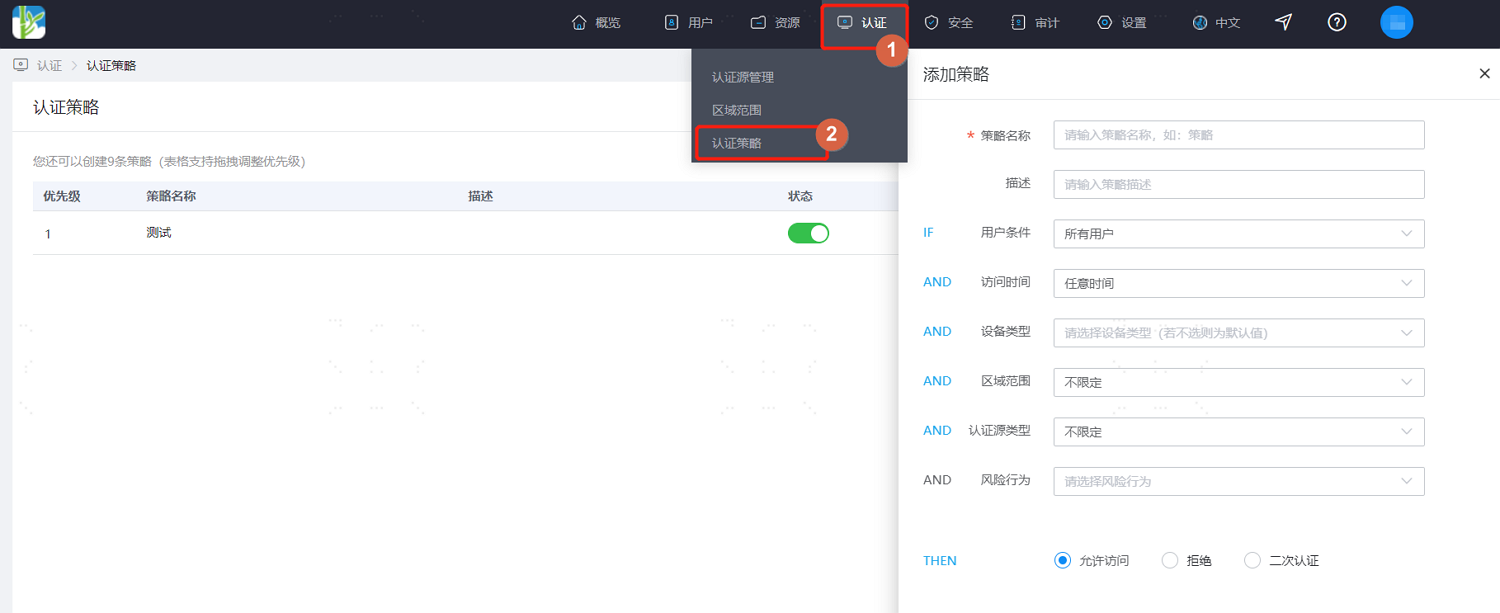
Configure according to the interface prompts. Key parameter descriptions are as follows.
User Condition: Set the user scope for which the authentication policy takes effect. Options include: effective for all users, effective only for users meeting specified conditions, or effective only for users not meeting specified conditions.
Access Time: Set the user access time period during which the authentication policy takes effect. Options include: effective at any time, effective only when accessing within a specified time range, or effective only when accessing outside a specified time range.
Device Type: Set the device type used by users for which the authentication policy takes effect. Options include: browser, desktop, mobile.
Geographic Range: Set the geographic area where the user is located for the authentication policy to take effect. In addition to built-in areas, custom configuration of geographic ranges is also supported. For details, please refer to Configuring Geographic Range.
Authentication Source Type: Set the authentication source used by users for which the authentication policy takes effect.
Risk Behavior: Set user risk behaviors. After configuration, risk behaviors are detected to check if conditions are met.
Allow Access: When set, it indicates that users meeting the above conditions are allowed to access applications integrated into the platform.
Deny: When set, it indicates that users meeting the above conditions are not allowed to access applications integrated into the platform.
Secondary Authentication: When set, it indicates that users meeting the above conditions need to undergo secondary authentication when accessing applications integrated into the platform. Custom secondary authentication frequency and methods are supported.
Secondary Authentication Frequency: Can be set to require secondary authentication every time, or based on device judgment. Device-based judgment offers more convenience without compromising security. For example, on the same device, secondary authentication may only be required once a week.
- The rule for authentication policy effectiveness is: if a user in the "User Condition" accesses an application within the specified "time period" and "geographic range", using the specified "device type" and "authentication source type", and the user meets the specified "risk behavior", then that user is either allowed, denied, or required to perform secondary authentication to access the application.
- If multiple authentication policies are added, the priority of each authentication policy can be manually adjusted, and they will be executed in order of policy priority.
# Configuring Access Control Policies
This module guides administrators in configuring access control policies for applications to control user access to that application based on conditions met in the policy. It includes default access control policies and custom access control policies. Access control policies are specific to individual applications.
Log in to the IDaaS Enterprise Center platform. In the top navigation bar, select "Resources > Applications". Select the application for which you want to configure the access control policy, then click "Access Control" to configure the user access control policy for the application.
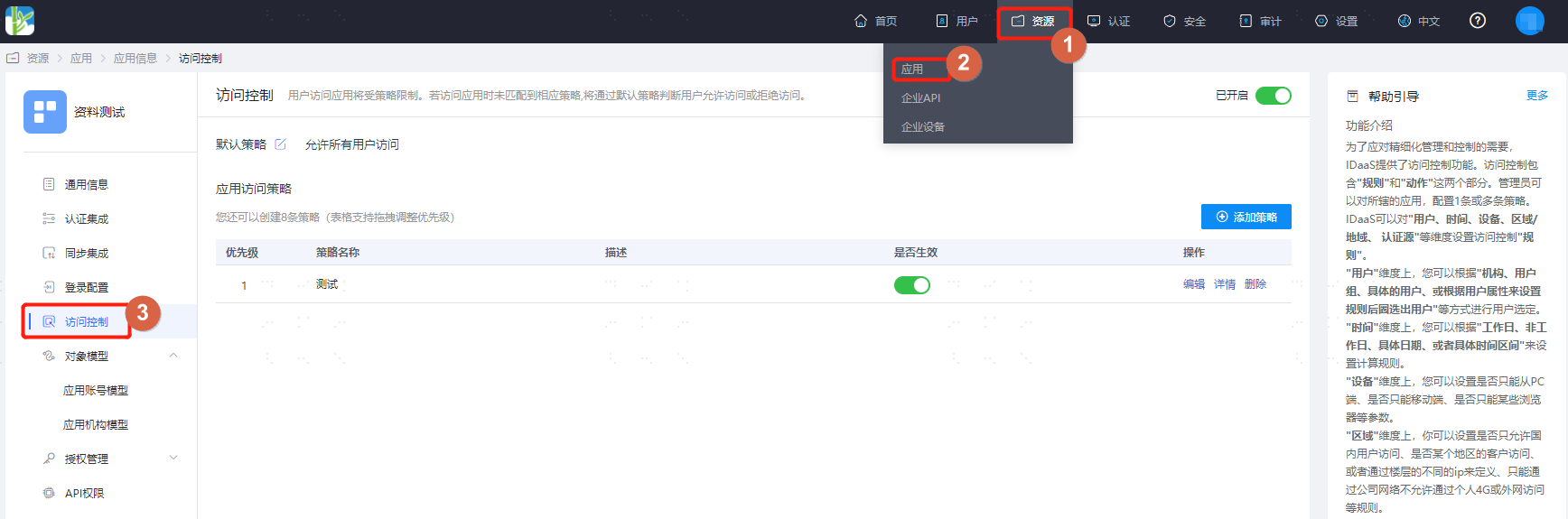
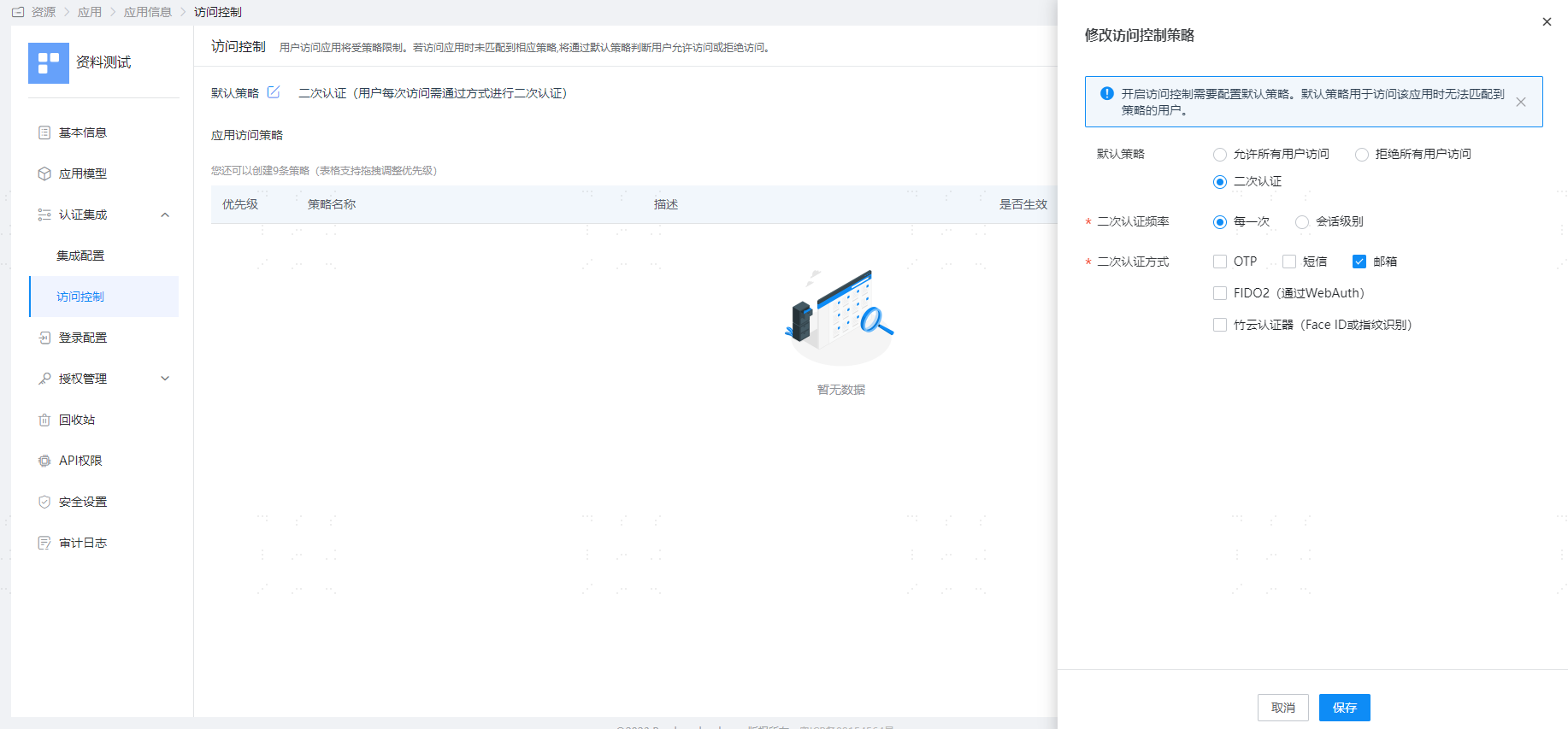
On the Access Control page, enable the "Access Control" switch. Based on actual project requirements, refer to the interface prompts to configure the default policy for the selected application. The default policy has lower priority than custom access policies.
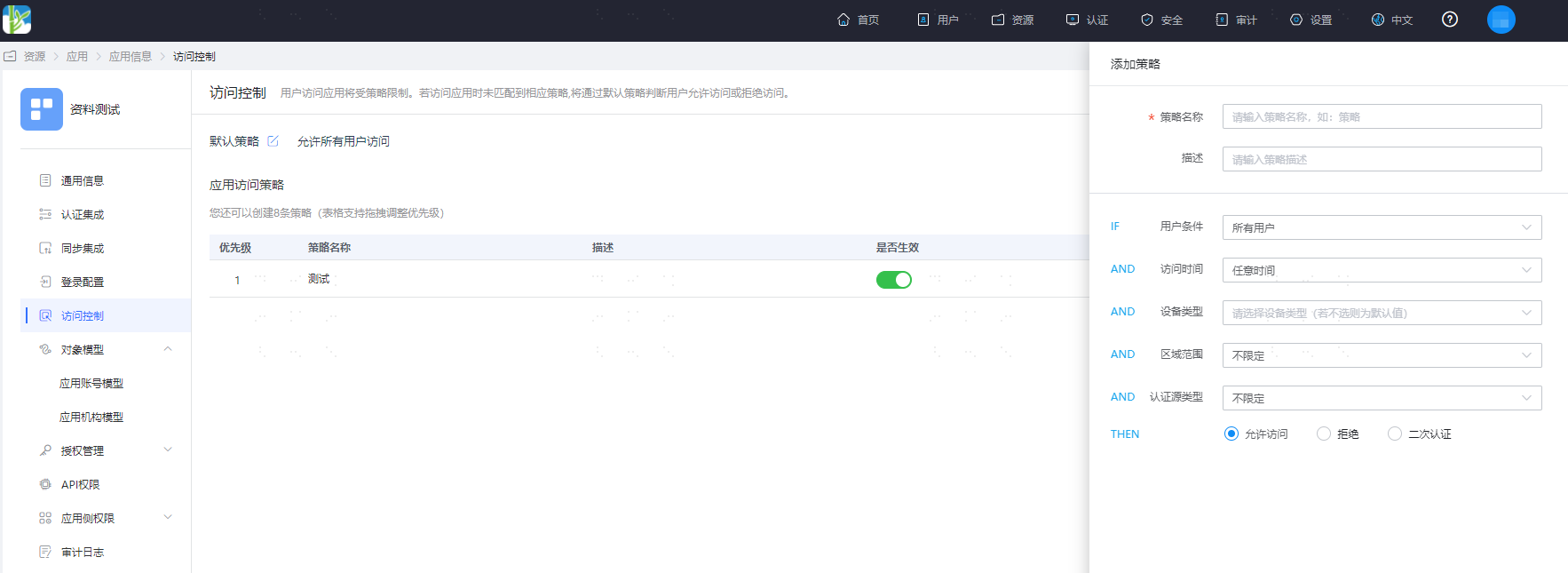
Click "Add Policy" to configure user access control policies for the selected application under specified conditions. Except for not supporting the configuration of risk behaviors, the configuration of access control policies is largely consistent with authentication policy configuration. This will not be detailed here; please refer to the above section on configuring authentication policies.
- Custom access control policies have higher priority than the default policy. That is, when a user meets the conditions set in an application's access policy, the user will preferentially follow that access policy.
- If multiple access policies are added, the priority of each access policy can be manually adjusted, and they will be executed in order of policy priority. If none of the access policies are met, the default policy will be executed.
- Authentication policies have higher priority than application access control policies. That is, when a user meets the conditions of a previously configured authentication policy, the authentication policy must be executed first.
# Risk Behavior Management
This module guides administrators in configuring risk behavior rules for enterprise users, enabling real-time detection of whether users exhibit abnormal risk behaviors. When a risk is triggered, real-time alert notifications are sent to users, enhancing the security of user accounts.
- Log in to the IDaaS Enterprise Center platform. In the top navigation bar, select "Security > Risk Behavior Management", click "Add Behavior" to set behavior rules for users. Key parameter descriptions are as follows.
Behavior Name: Customize the name of the risk behavior.
Risk Type: Set the type of risk to trigger, including abnormal location, abnormal device, abnormal IP, and account lockout. After selecting account lockout, a risk is triggered when a user's account is locked during login. For detailed information on account lockout configuration, please refer to the relevant content in Configuring Unified Password Policy.
Count Configuration: Risk assessment begins when the number of successful user logins exceeds three times the configured count. It is considered risk-free if the number does not reach three times the configured count.

- After configuration is complete, click "Notification Settings" to set the risk notification method, sending notifications to all users or specified users.
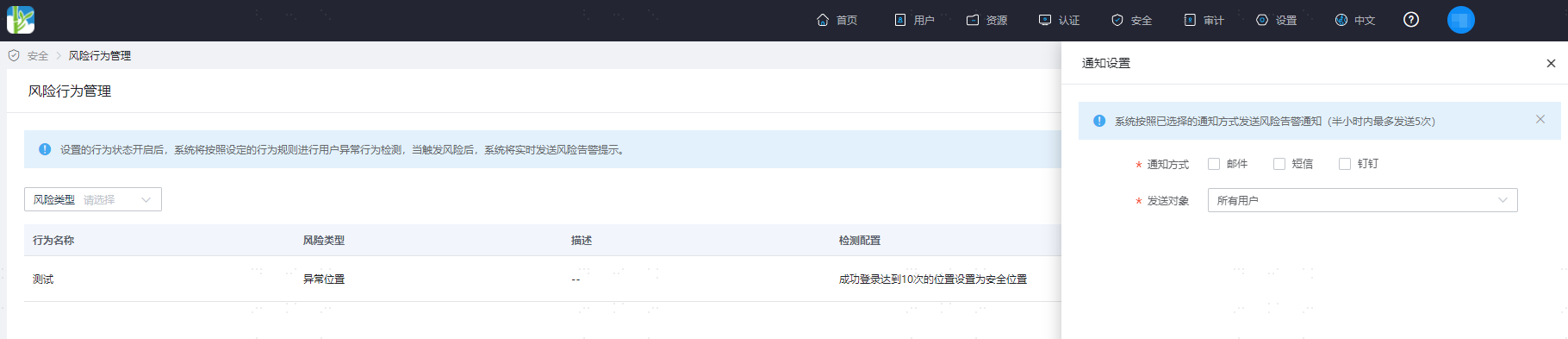
Since IDaaS enables the "Built-in SMS Gateway" by default, you can directly check the SMS notification method. If you set it to email or DingTalk notification, please ensure that the Email Gateway and DingTalk Gateway have been configured in advance.