Customizing Enterprise Domain to Access IDaaS
# Overview
This chapter guides you on customizing your enterprise domain to replace the tenant domain assigned by IDaaS.
Currently, top-level domain configuration is not supported. Secondary and lower-level domains are supported, such as xxx.xxx.com.
# Prerequisites
The enterprise has prepared the SSL certificate file (in base64 PEM format with a .crt extension) and the key file (in .key format) for the domain to be replaced.
The domain has completed real-name verification and has a validity period of more than three months. Some regions require a domain validity period of more than 45 days. The subject of the real-name verification must match the subject of the filing.
# Steps
# Domain Filing
If you have already completed certificate filing on Alibaba Cloud, please skip this step.
If the filing is done on other cloud services, according to policy requirements, you need to connect your filing information to Alibaba Cloud. If you do not connect your filing information to Alibaba Cloud, it will be detected and blocked by Alibaba Cloud's monitoring system, prompting you to connect the filing information to Alibaba Cloud. For detailed operations, please refer to Filing Transfer Process (opens new window).
# Domain Replacement
Since the IDaaS service is currently deployed on Alibaba Cloud, replacing with a personalized domain requires resolving the domain to the Alibaba Cloud service IP of IDaaS. To obtain the IP, please contact technical support personnel.
The following uses Alibaba Cloud DNS resolution configuration as an example. The domain is idaas.work, and the personalized domain to be set is sso.idaas.work.
Log in to the Alibaba Cloud DNS console, select the domain, and add a CNAME resolution record. The key parameter configuration is as follows.
Host Record Record Type Record Value sso CNAME IDaaS tenant domain.bccastle.com. 
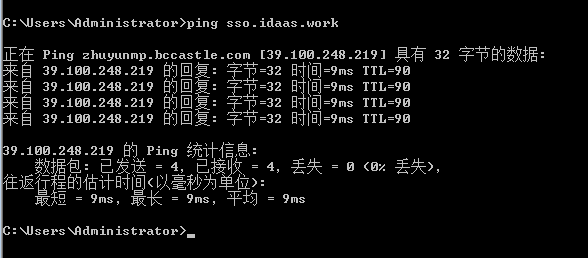
Use the ping command to check if the personalized domain resolves to the correct CNAME and IP address. The CNAME should be zhuyunmp.bccastle.com, and the IP address should be: 39.100.248.219.
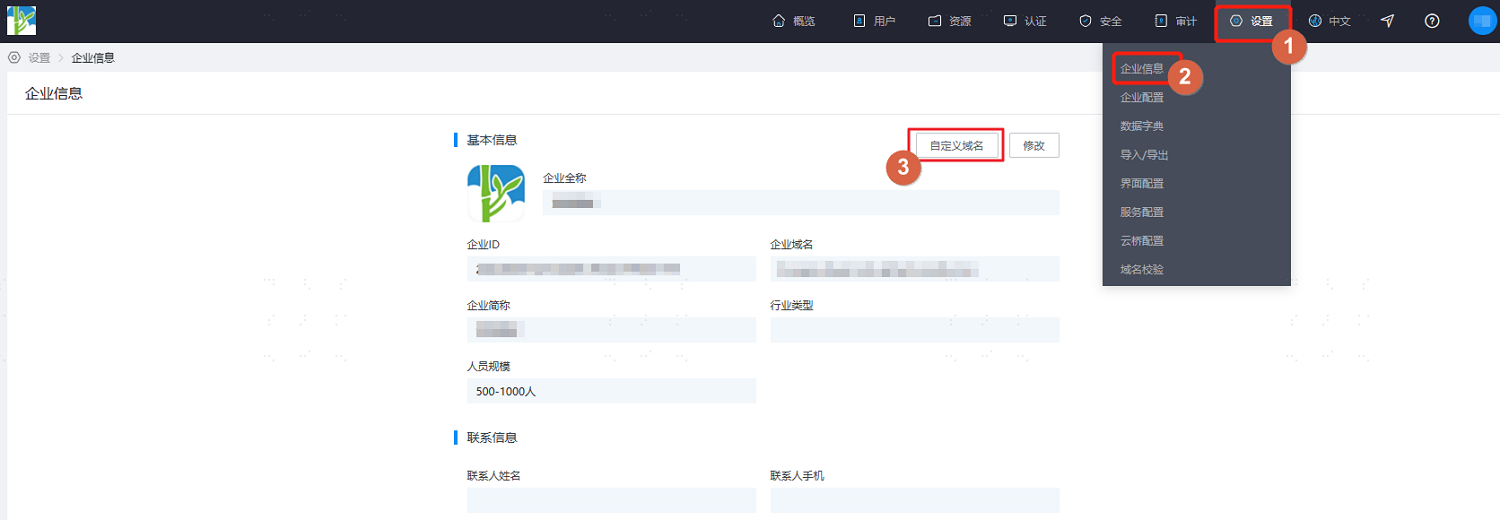
Log in to the IDaaS Enterprise Center platform, select "Settings > Enterprise Information" from the top navigation bar, and then choose "Custom Domain".
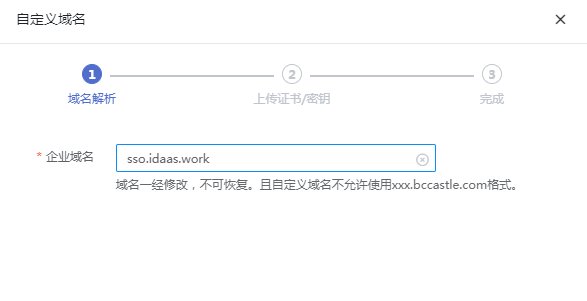
Fill in the domain name and click "Next".
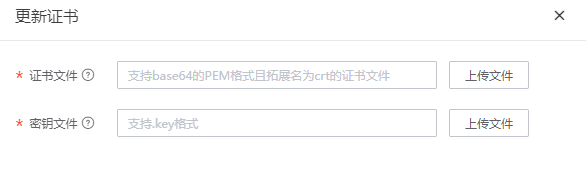
Upload the certificate file and key file, then click "Save".
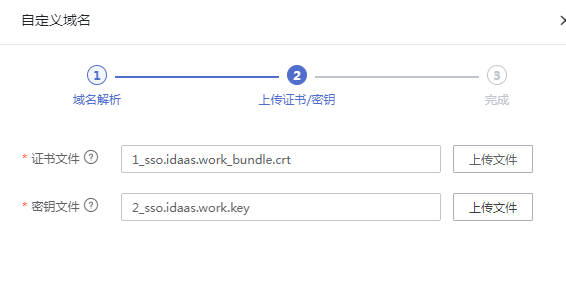
The certificate file has a .crt extension, supports PEM certificates using RSA and EC algorithms. The file content starts with -----BEGIN CERTIFICATE----- and ends with -----END CERTIFICATE-----. Typically, the certificate file contains multiple certificates, including intermediate CAs.
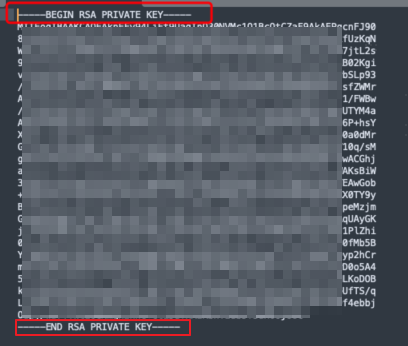
The key file has a .key extension, supports PKCS1 and PKCS8 formats. The file content starts with -----BEGIN [RSA/EC/] PRIVATE KEY----- and ends with -----END [RSA/EC/] PRIVATE KEY-----, as shown in the figure below.
After saving, you will automatically log out of the IDaaS Enterprise Center, and a prompt will appear indicating that the domain name was not found.

- Wait 5-10 minutes for the domain name to take effect. You can then access the IDaaS Enterprise Center and User Center via the new domain name. If access with the new domain name fails, please contact Bamboo Cloud technical support.
# Update Certificate
Domain name certificates typically have a validity period of only one year. The IDaaS Enterprise Center will prompt you to update the certificate before it expires. Please refer to the following content to update the certificate.
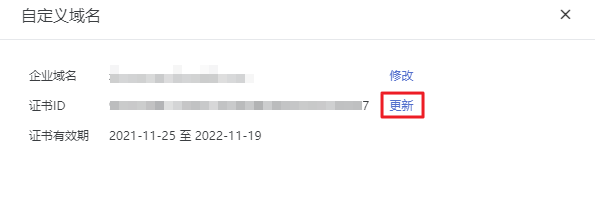
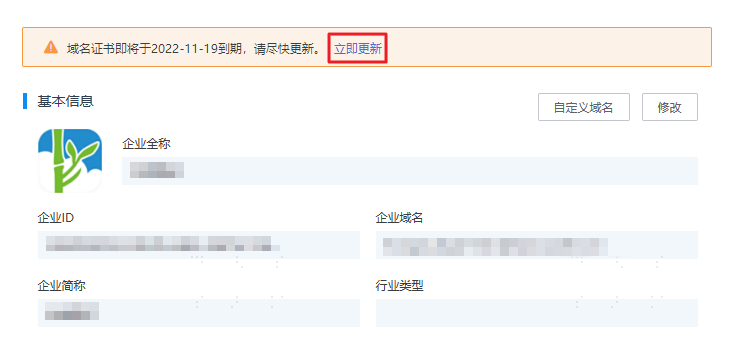
- In the IDaaS Enterprise Center platform, go to the "Settings > Enterprise Information" page. Click "Update Now" in the prompt at the top of the page to enter the custom domain name page.
- On the custom domain name page, click "Update" next to the Certificate ID. Follow the on-screen prompts to upload the latest certificate file and key file.