Activate Dynamic One-Time Password (OTP) Authentication
# Overview
This document explains how to log into the IDaaS platform and application systems using dynamic OTP verification codes. The IDaaS platform comes pre-configured with dynamic OTP authentication. Administrators only need to activate and configure it for use. On the login page, users can select the dynamic OTP login method to access various application systems. This achieves single sign-on (SSO) while providing a more secure and reliable login experience.
# Steps
# Enable Dynamic Password Verification for an Application
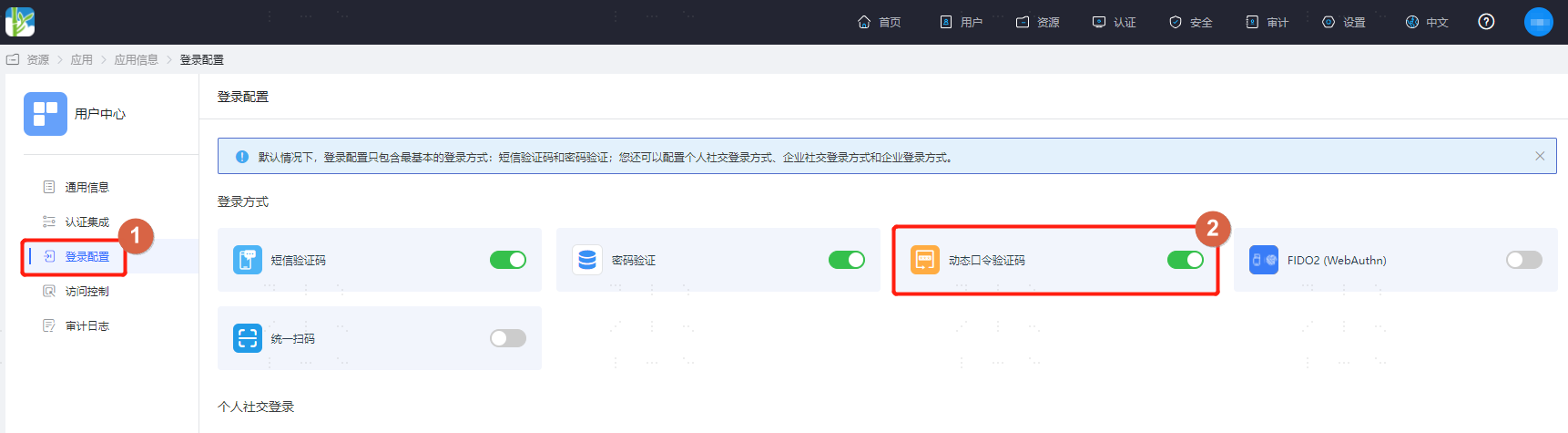
The administrator logs into the IDaaS Enterprise Center, selects "Resources > Applications" from the top navigation bar. This example uses the built-in application "User Center".
Select "User Center", enter the application details page, choose "Login Configuration", and under "Login Methods", enable Dynamic Password Verification Code.
# Individual User Activates Dynamic Password
- The individual user logs into the User Center, clicks the dropdown menu in the top right corner next to their name, and selects "Account Settings".
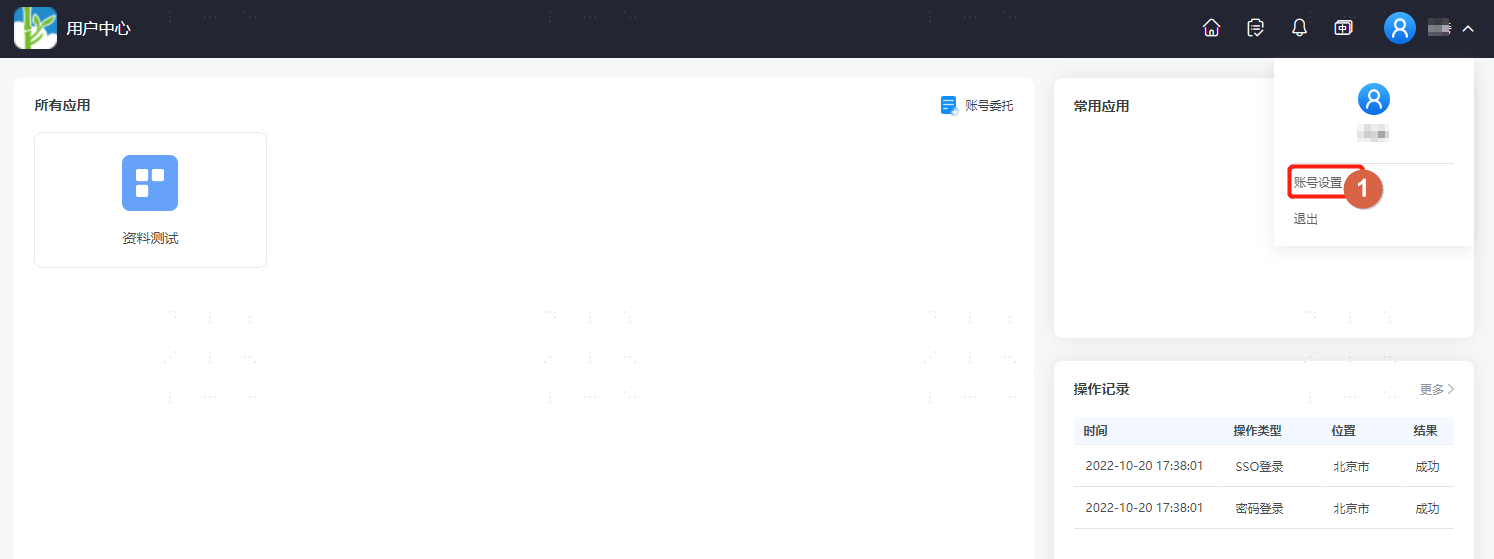
- On the Account Settings page, select "Account Security" and activate the dynamic password.

- Enter the activation configuration page and follow the activation process to configure.

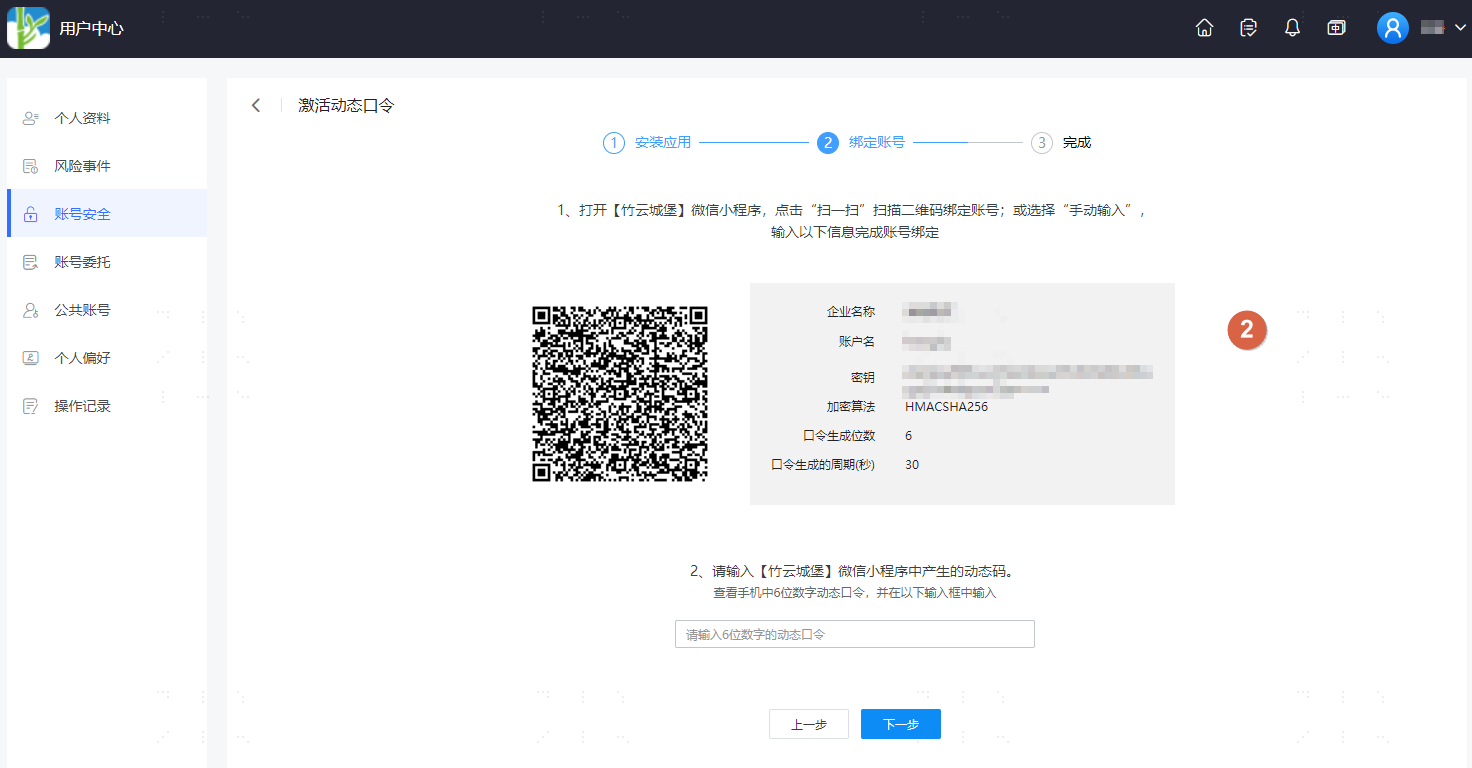
Supports binding with Google Authenticator, Microsoft Authenticator, or other dynamic code applications.
# Third-Party OTP Application Binding Process
The following uses Google Authenticator as an example.
- Open the third-party application app and select the add button.
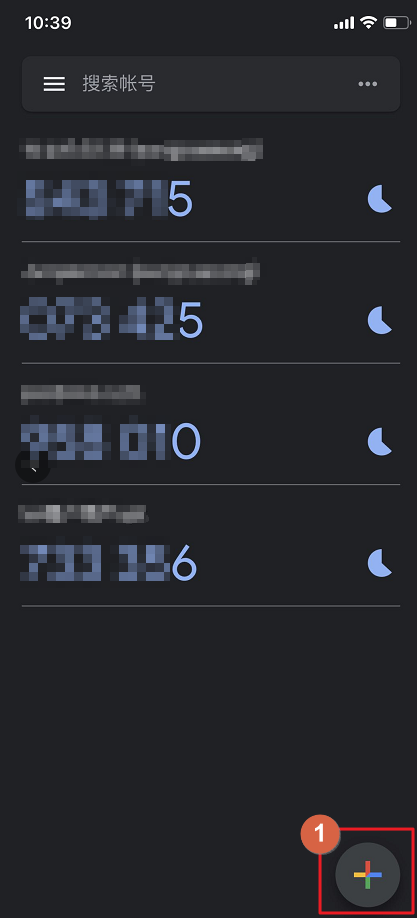
- Enter the account name and secret key from the User Center's dynamic password activation page, and click "Add".
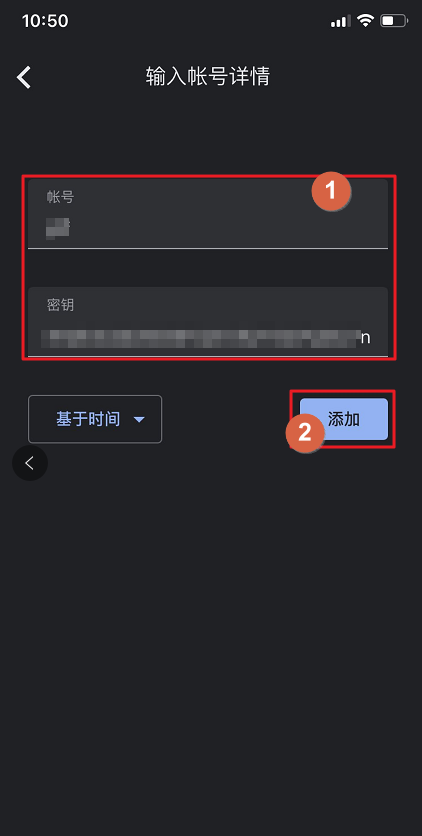
- Then return to the User Center and enter the dynamic code to complete the binding.


# Verify Dynamic Password Login
On the User Center login page, select the Dynamic Password login method, and enter the username and dynamic password to log in.