
Configuring User Password Authentication
# Overview
After enterprise employee data and application systems are centrally managed on the IDaaS platform, to facilitate enterprise users' access to application systems, IDaaS provides multiple authentication methods. Common methods such as password authentication and SMS verification codes are enabled by default. You can adopt the approach of setting personalized passwords or initial passwords for users on the platform, allowing users to log in to application systems using their account and password.
# Prerequisites
- Have administrator permissions for the IDaaS Enterprise Center platform.
- Have enabled the Email Gateway or SMS Gateway. The SMS Gateway is enabled by default and uses the "Built-in Gateway" under "Domestic SMS Gateway" as the default selection.
# Procedure
# Configuring Password Initialization Policy
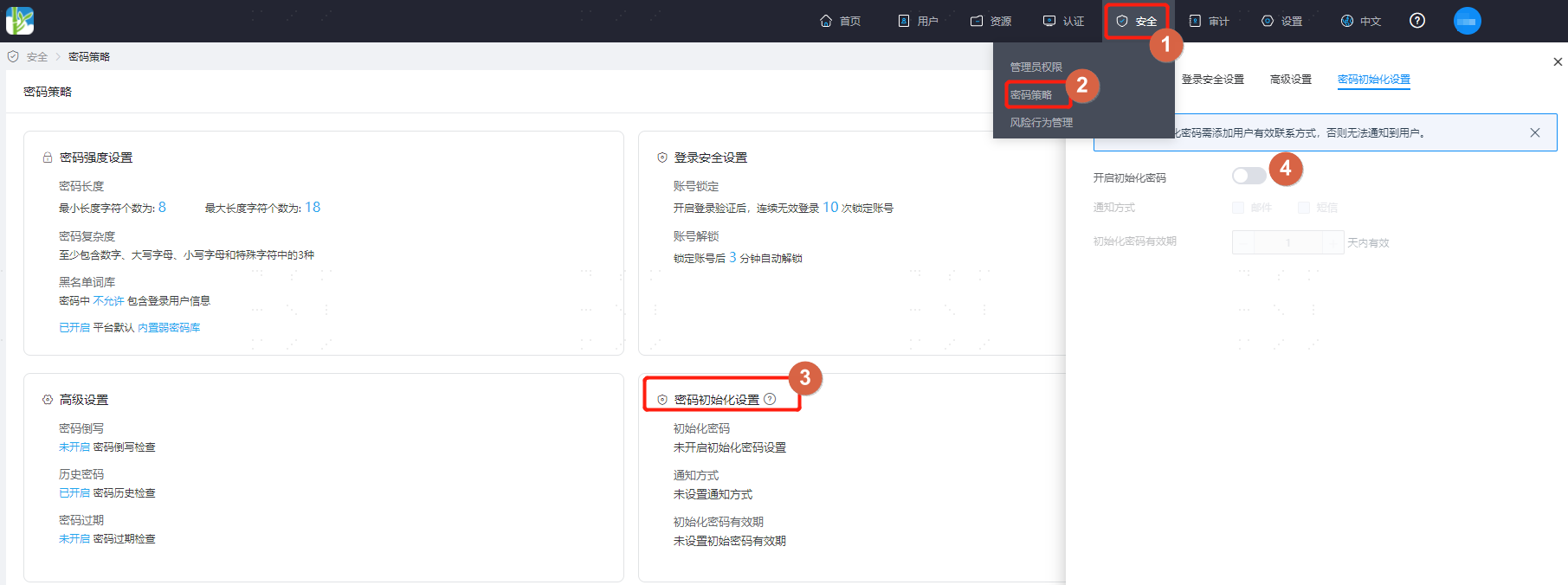
Log in to the IDaaS Enterprise Center platform. In the top navigation bar, select "Security > Password Policy", then choose "Password Initialization Settings".
Enable the initialization password toggle and set the notification method for the initialization password.
If "Email" notification is selected, the initialization password will be sent via email.
If "SMS" notification is selected, the initialization password will be sent via SMS.
If both "Email" and "SMS" are checked, the initialization password will be sent via email.
Set the validity period for the initialization password according to actual requirements.
# Configuring Password for Users
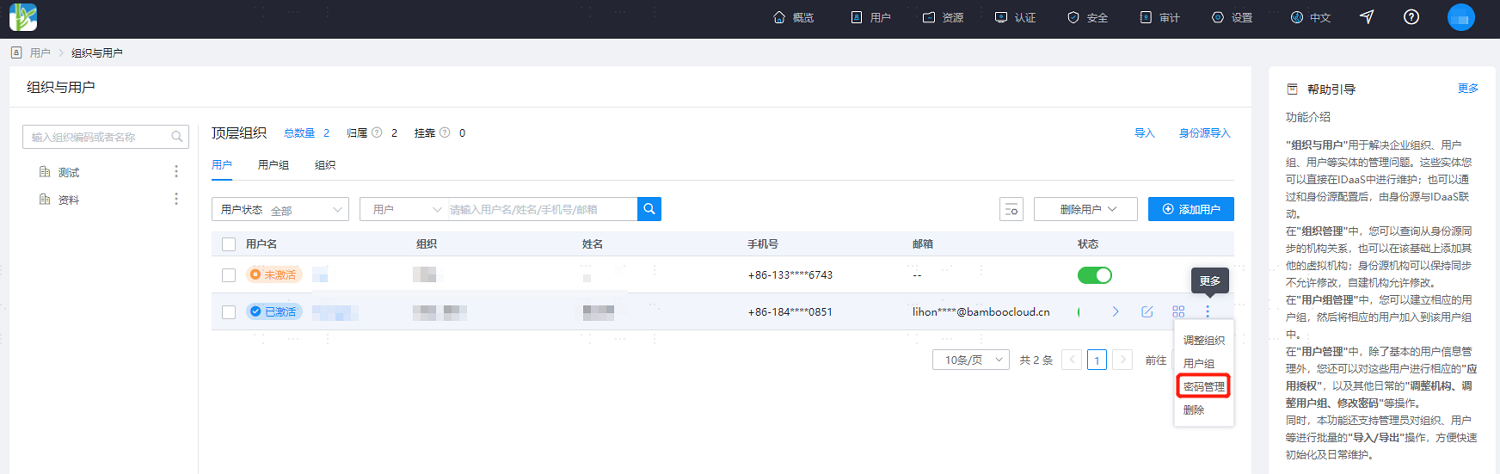
In the IDaaS Enterprise Center platform's top navigation bar, select "Users > Organization & Users", then choose Password Management to configure password-related information for user login.
Select "Custom": This means setting a fixed password for this user. Simply enter the fixed password in the "Please enter password" field. Subsequently, this user can change this password. If "Change password on first login" is checked, this user must change the password upon their first login.
Select "Auto-generate": The system automatically assigns a password to the user based on the password initialization configuration, and by default, the password must be changed on the first login. The user must complete the login within the validity period.
If "SMS" was selected when configuring the initialization password policy, then the "Mobile Number" field here becomes mandatory (the mobile number is a mandatory parameter by default). If "Email" was selected when configuring the initialization password policy, then the "Email" field becomes mandatory.
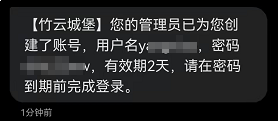
The user receives the password-related information via their mobile phone number or email.
# Configuring Password Verification for an Application
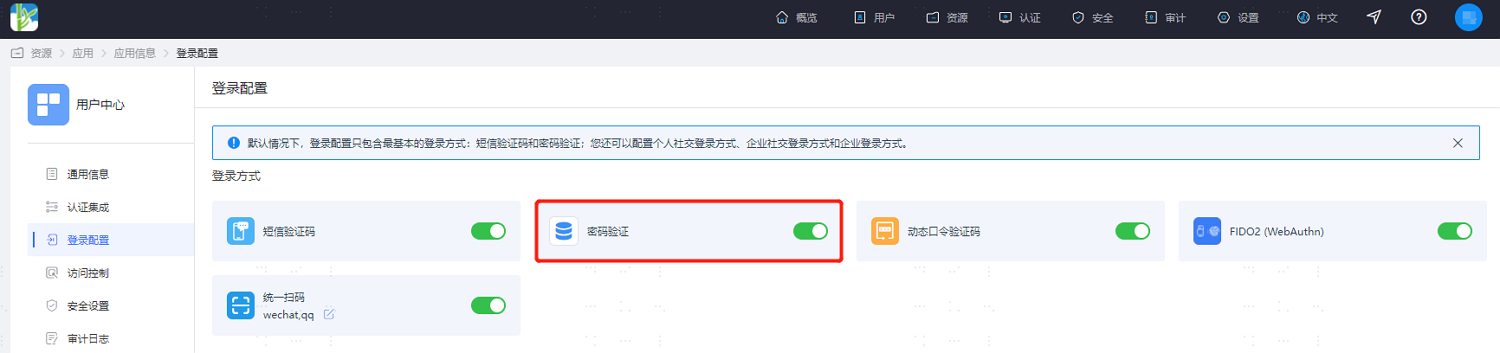
In the IDaaS Enterprise Center platform's top navigation bar, select "Resources > Applications". Taking the User Center application as an example, select "User Center" and switch to the "Login Configuration" tab. By default, the password verification switch is in the enabled state.
If the application is associated with AD or LDAP authentication, IDaaS account password login authentication cannot be used here.
# Verifying Password Login
Log in to the User Center page, use account and password for login authentication, and log in to the User Center according to the previously configured password policy and interface prompts.