Configuring Biometric Authentication such as Face and Fingerprint
# Overview
This article introduces how to log in to application systems integrated with the IDaaS platform through the FIDO2 authentication source. You can configure the FIDO2 authentication source in the IDaaS platform and select the FIDO2 login method on the login page to access various application systems. This achieves single sign-on, providing users with a simpler and more convenient login method while offering a more secure and reliable login experience.
# Prerequisites
- Have administrator privileges in the IDaaS Enterprise Center platform.
- The user's PC device has a security key (USB or Bluetooth) or a biometric authenticator (Windows Hello, Touch ID, etc.).
- The application has been integrated into the IDaaS platform.
# Configuration Flow

# Procedure
# Enable FIDO2 Authentication on the PC
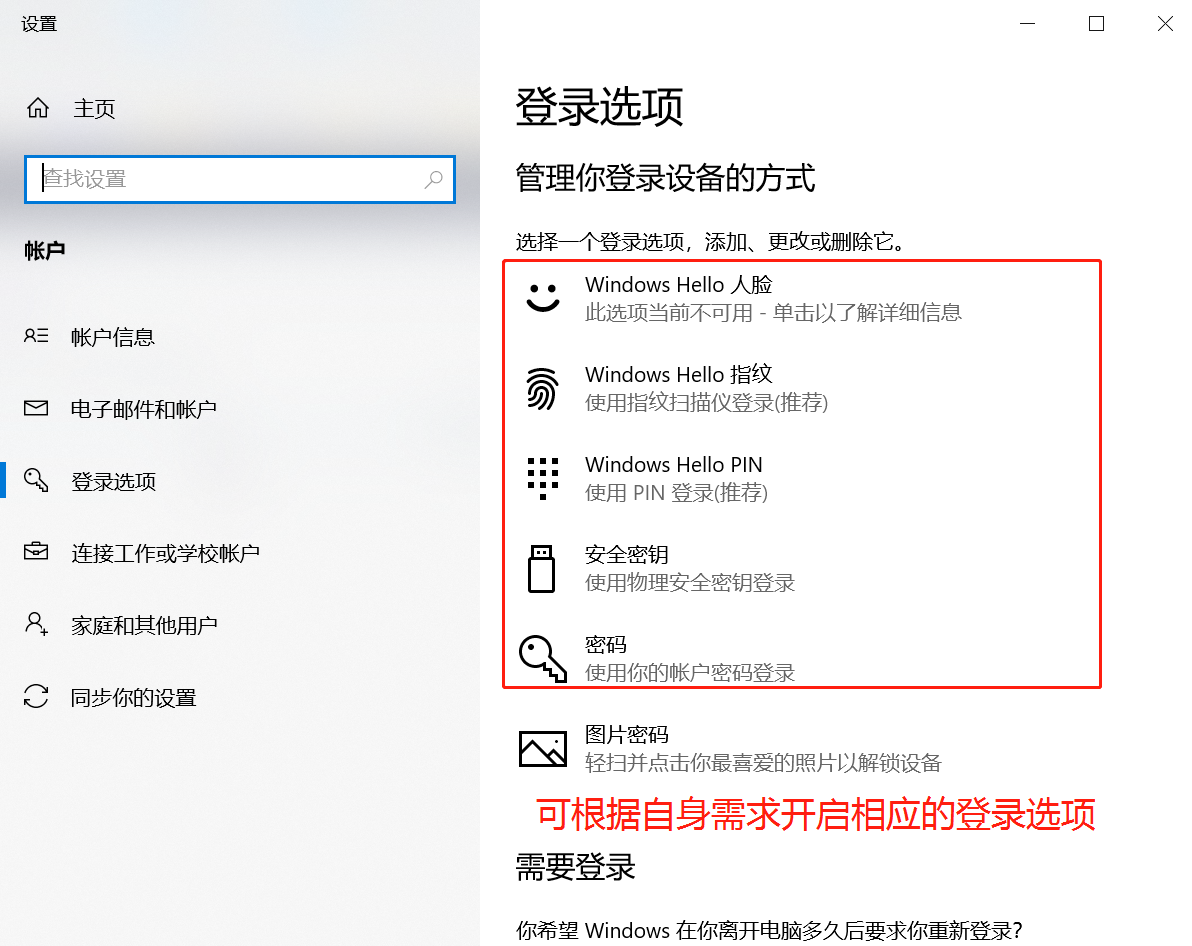
Enable the security key (USB or Bluetooth) or biometric authenticator (Windows Hello, Touch ID, etc.) on the user's PC device. The following uses enabling Windows Hello as an example.
# Configure FIDO2 Authentication Source in IDaaS Platform
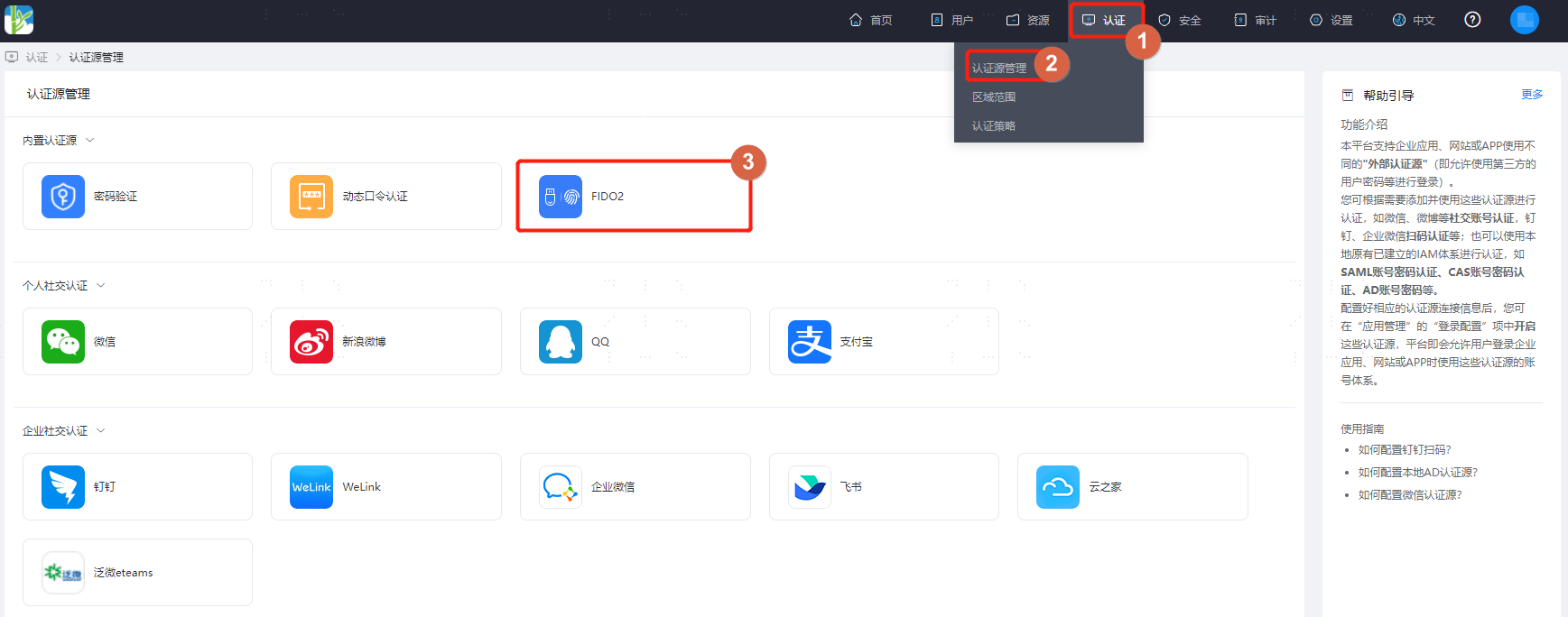
Log in to the IDaaS platform Enterprise Center, select "Authentication > Authentication Source Management > Built-in Authentication Sources" from the top navigation bar, find the FIDO2 authentication source, which is enabled by default.
Configure the required authentication source parameter information.
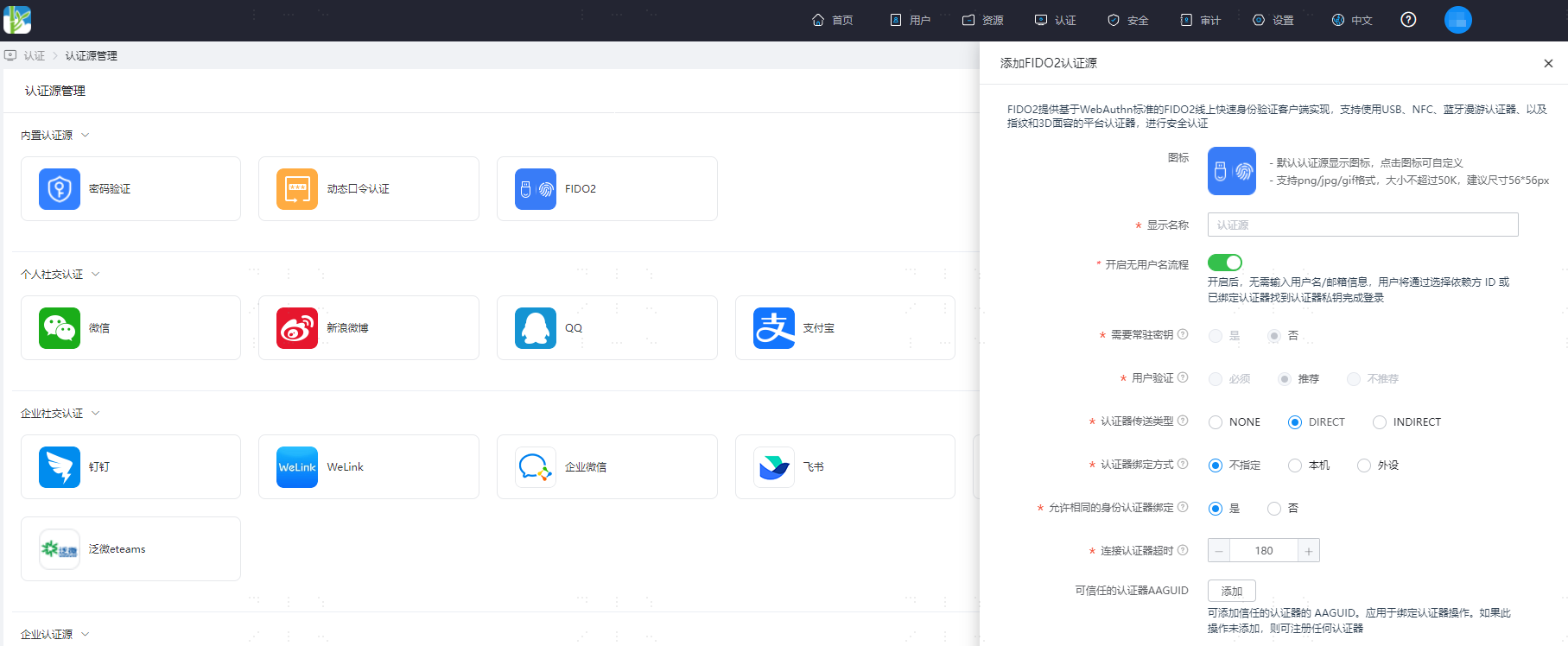
Parameter description:
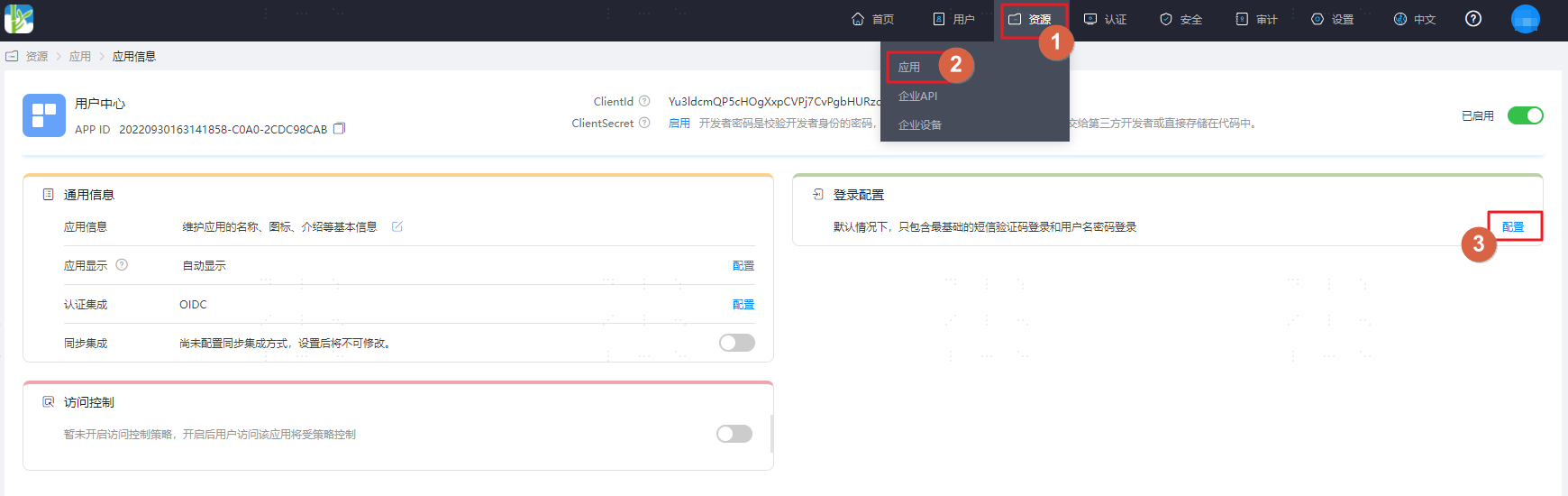
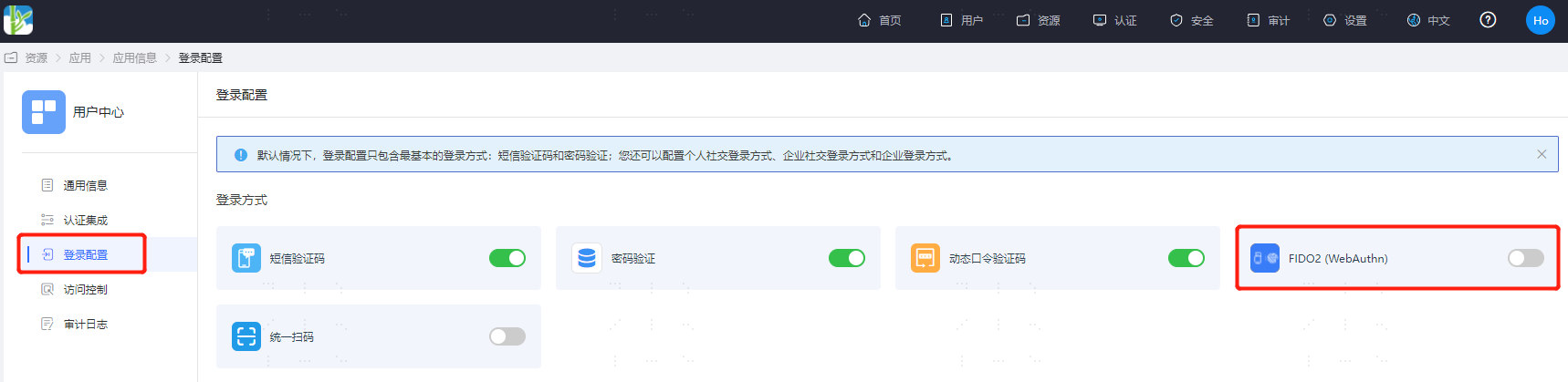
Parameter Description Icon Customizable icon. Display Name Custom display name for the authentication source. Enable Username-less Flow When enabled, no username/email information is required. Users will find the authenticator private key by selecting the Relying Party ID or a bound authenticator to complete login. Require Resident Key The authenticator generates a Public Key Credential as a Client-side-resident Public Key Credential Source. The default setting is "No". When the username-less flow is enabled, this parameter is automatically adjusted to "Yes". User Verification The authenticator confirms the actual verifying user, applied to registration and authentication operations. The default value is "Preferred". When the username-less flow is enabled, this parameter is automatically adjusted to "Required". Authenticator Attachment The preference for how the WebAuthn API implementation generates attestation statements. Applied to registration operations. The default value is "DIRECT". Authenticator Transport The authenticator attachment modes acceptable to the WebAuthn client. Applied to registration operations. The default value is not specified. Allow Same Type Authenticator Registration Allows re-registering the same type of authenticator. The default value is "Yes". Authenticator Connection Timeout Timeout setting for connecting to the authenticator during binding and authentication operations, default is 180 seconds. Trusted Authenticator AAGUID AAGUID of trusted authenticators can be added. Applied to binding authenticator operations. If not added here, any authenticator can be registered. After configuration is complete, select "Resources > Applications" from the top navigation bar. Taking the User Center application as an example, enter the application details, switch to the "Login Configuration" page, and enable the FIDO2 (WebAuthn) switch.
# Activate Binding in User Center
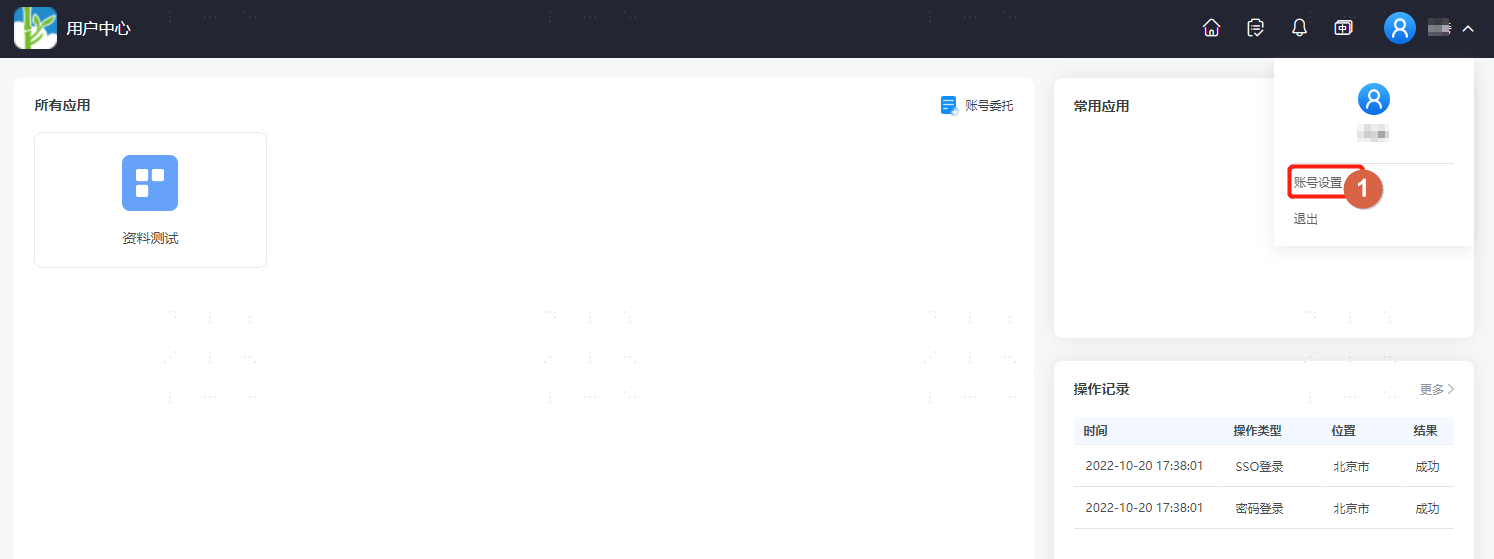
Log in to the User Center, click the dropdown menu in the top right corner next to the user, and select "Account Settings".
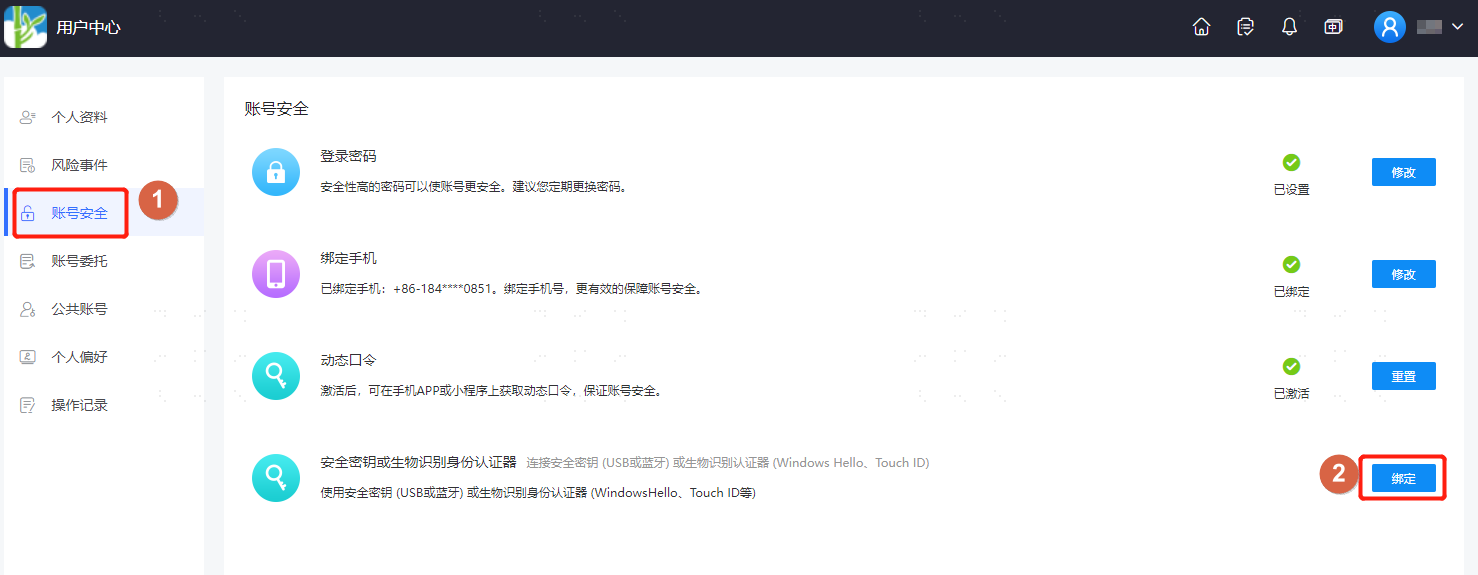
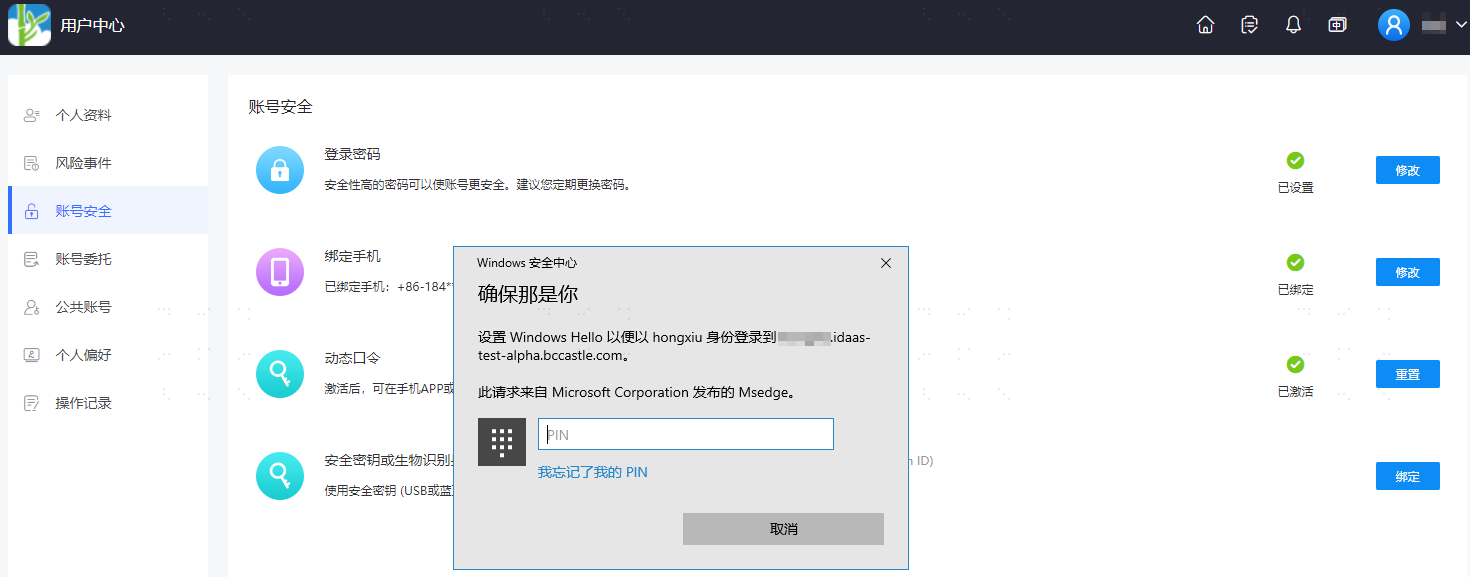
On the Account Settings page, select "Account Security" and bind the previously added security key or biometric authenticator.
- When no security key or biometric authenticator has been added, binding is not possible, and the bind button is in an unavailable state.
- When adding multiple authenticators, multiple selections can be bound. If modifications are needed, you can choose to remove the added authentication and re-add it.
# Verifying FIDO2 Authentication Login
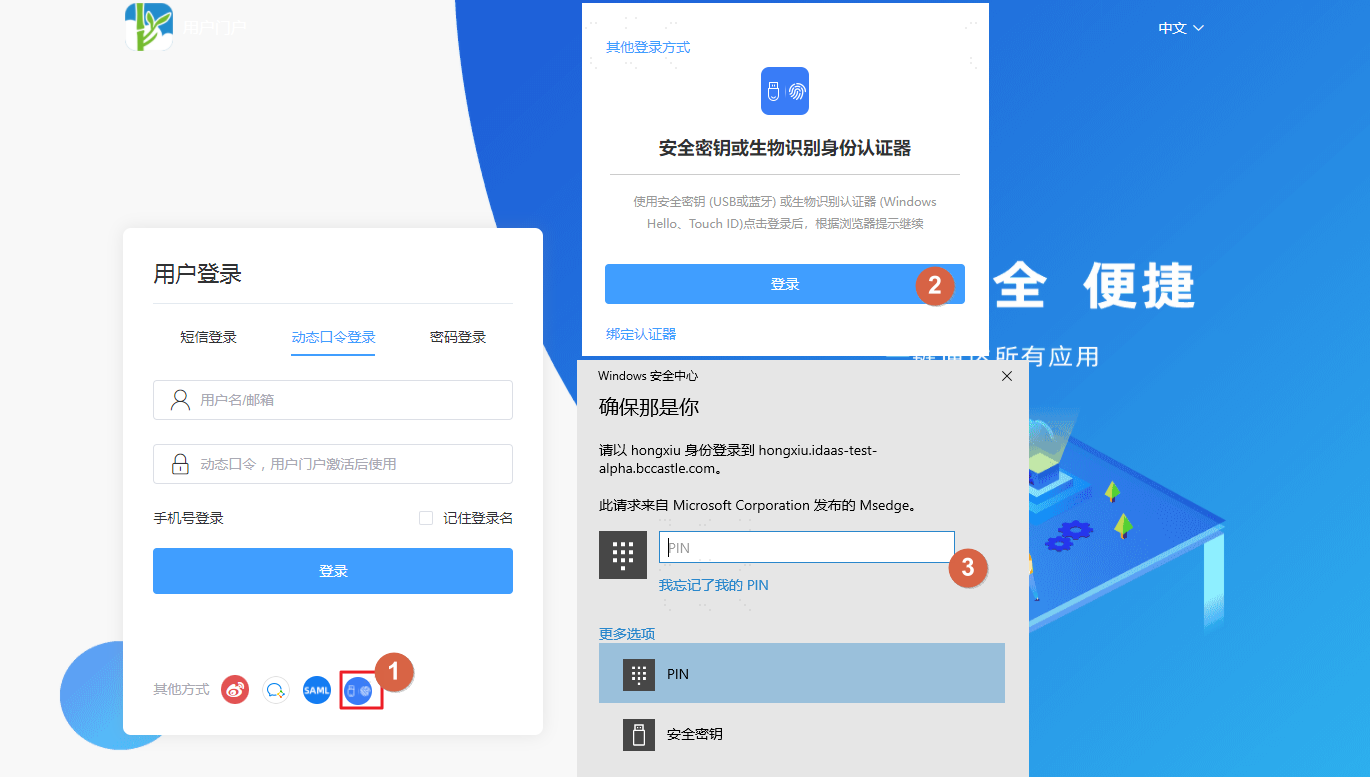
On the login page of the user center, select the FIDO2 authentication method to log in. A security key or biometric authenticator will pop up. After passing the relevant verification, you will successfully log in.
Biometric authenticators cannot be bound in incognito/private browser mode, meaning FIDO2 authentication login cannot be used.