
Functional Permission Management
# Overview
This chapter will guide you through the management of functional permissions. If your application has functional permission controls, you need to manage functional permissions according to the guidance in this chapter before authorizing application accounts.
# Prerequisites
- Possess administrator permissions for the IDaaS Enterprise Center platform.
- Have created an application and enabled an authorization model that is associated with functional permissions/data permissions.
# Steps
# Open the Functional Permission Management Page
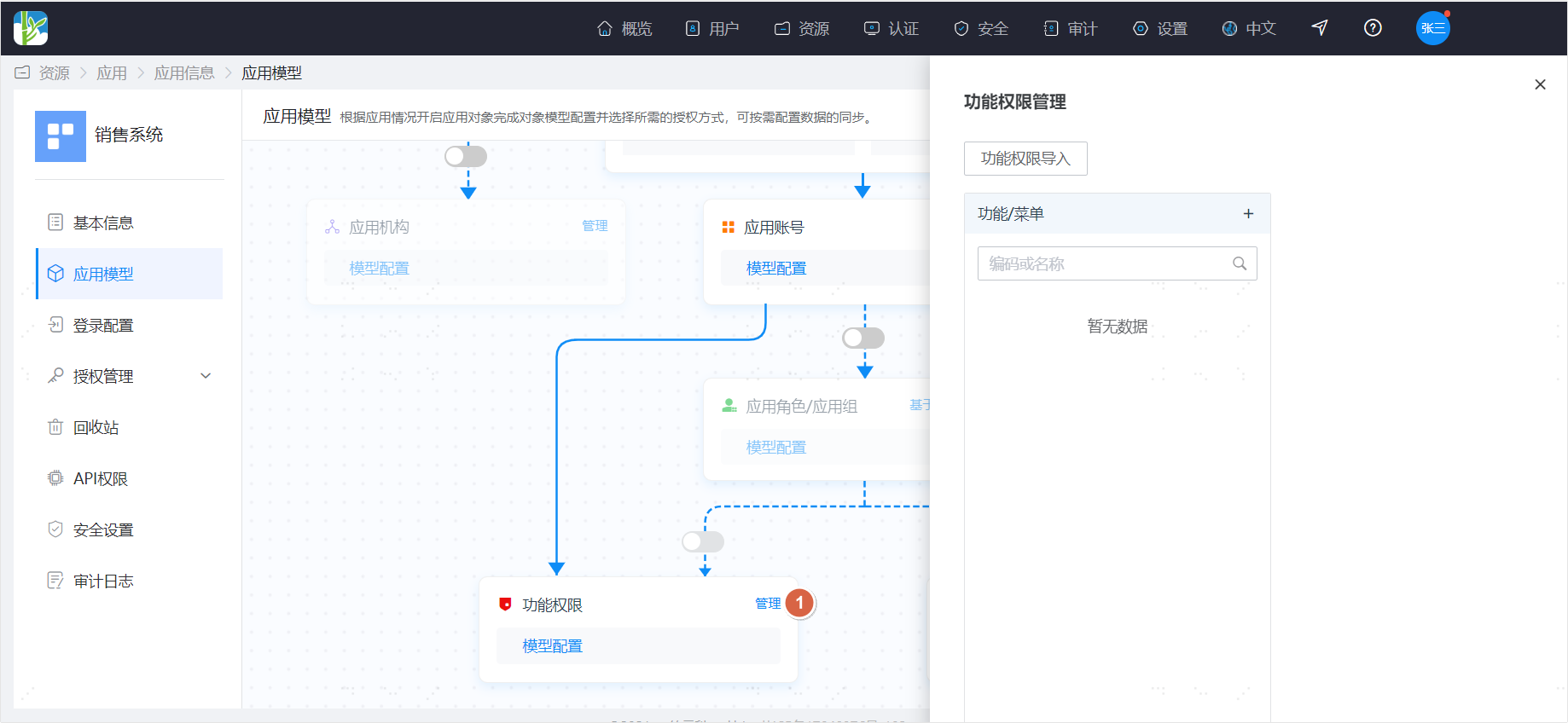
Click the management action on the functional permissions in the application model to open the functional permission management page.
# Import Functional Permissions
You can import functional permissions in bulk via an Excel spreadsheet. Click the functional permission import action to navigate to the application-side permission import page. Select the application, download the import template, prepare the data according to the template, and then proceed with the import.
# Manually Manage Functional Permissions
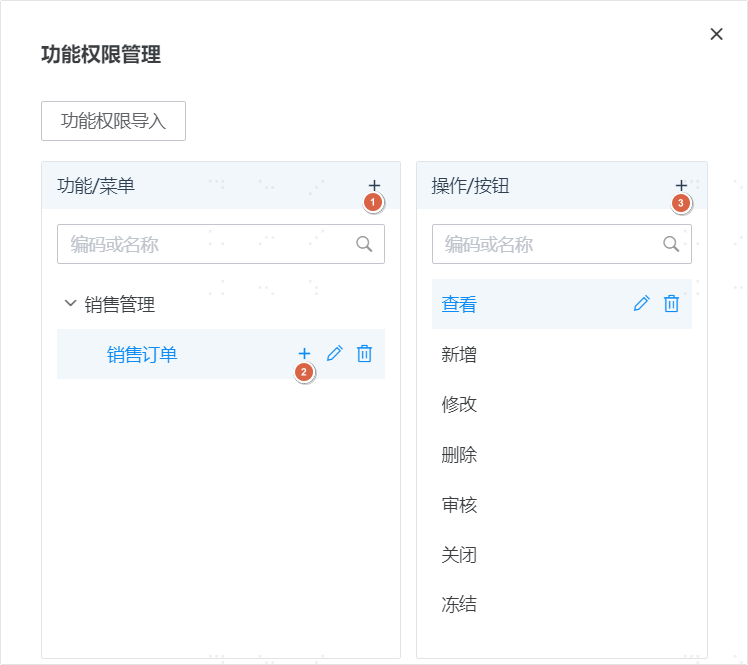
- Click the Add button at the top of the Functions/Menus section to add a first-level menu.
- Click the Add button on a menu to add a submenu.
- Select a menu, click the Add button in the Actions/Buttons section to add an action to that menu.
- Instructions for filling out:
- Name: Must be unique among siblings.
- Code: Must be unique and cannot be duplicated.
- Sequence Number: A smaller number means it will be displayed earlier.
# Authorize Functional Permissions
After functional permission management is completed, you can follow the guidance in Authorization Management to grant functional permissions to application accounts or assign functional permissions to application roles.