
Data Permission Management
# Overview
This chapter will guide you through the management of data permissions. If your application requires control over data permissions, you need to manage the data permissions according to the guidance in this chapter before authorizing application accounts.
# Prerequisites
- Have administrator permissions for the IDaaS Enterprise Center platform.
- The application has been created and an authorization model linked to functional permissions/data permissions has been enabled.
# Steps
# Open Model Configuration
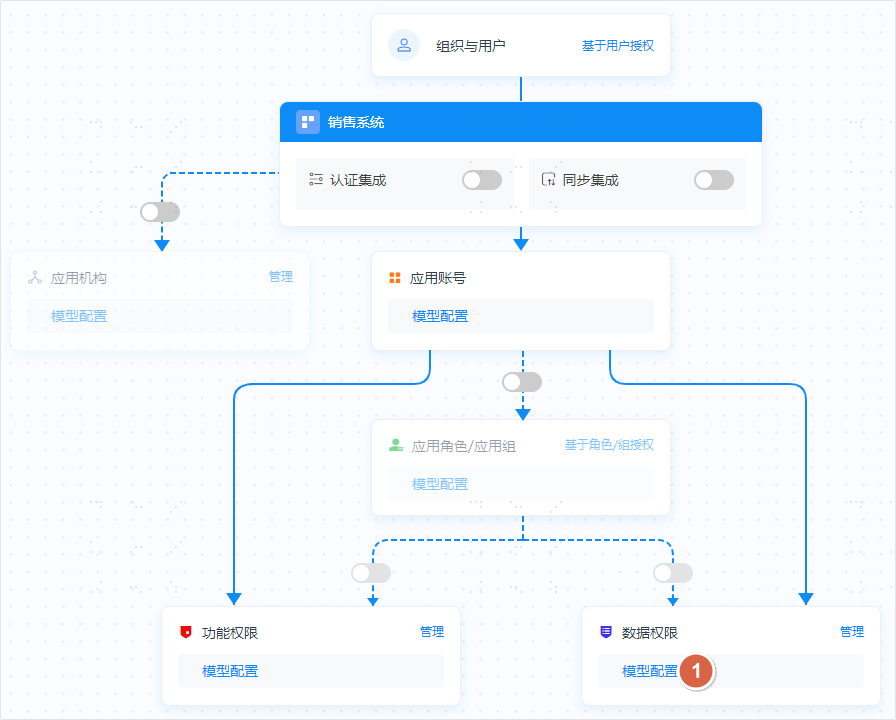
There may be different types of data in the application system. You can click the model configuration operation on the data permissions in the application model to define data objects.
# Add Data Object
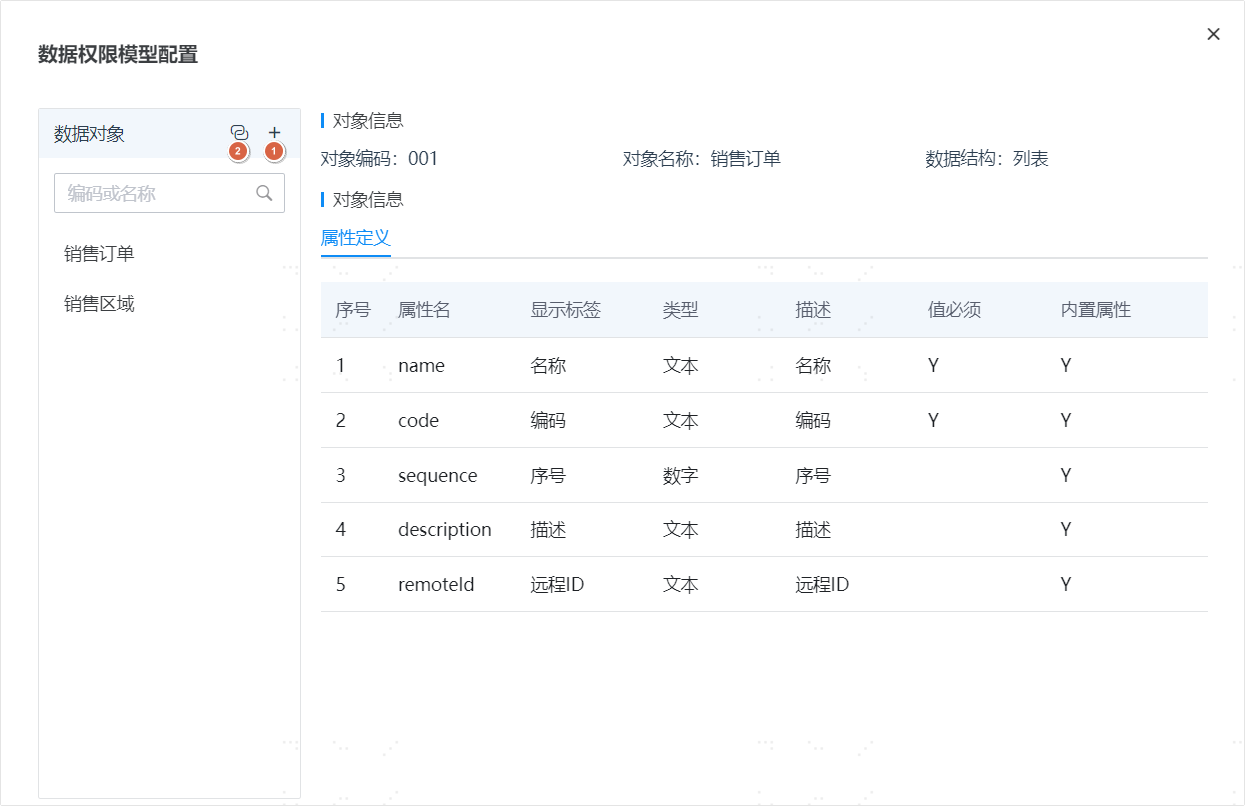
- Click the Add button to add a data object.
- Instructions:
- Data Object Name: Must be unique.
- Data Object Code: Must be unique, cannot be duplicated, and cannot be modified.
- Data Structure: Choose a tree structure when there is a parent-child relationship between data items.
- Reference an existing application object as a data object.
Currently, referencing organizational data from the application as data permissions is supported. Referenced organizational objects cannot be edited. The attribute definition and data management for organizational objects are still performed in the application's organizational function.
# Define Attributes for Data Objects
Different data objects may have different attributes. You can define attributes according to the data object.
# Open the Data Permission Management Page
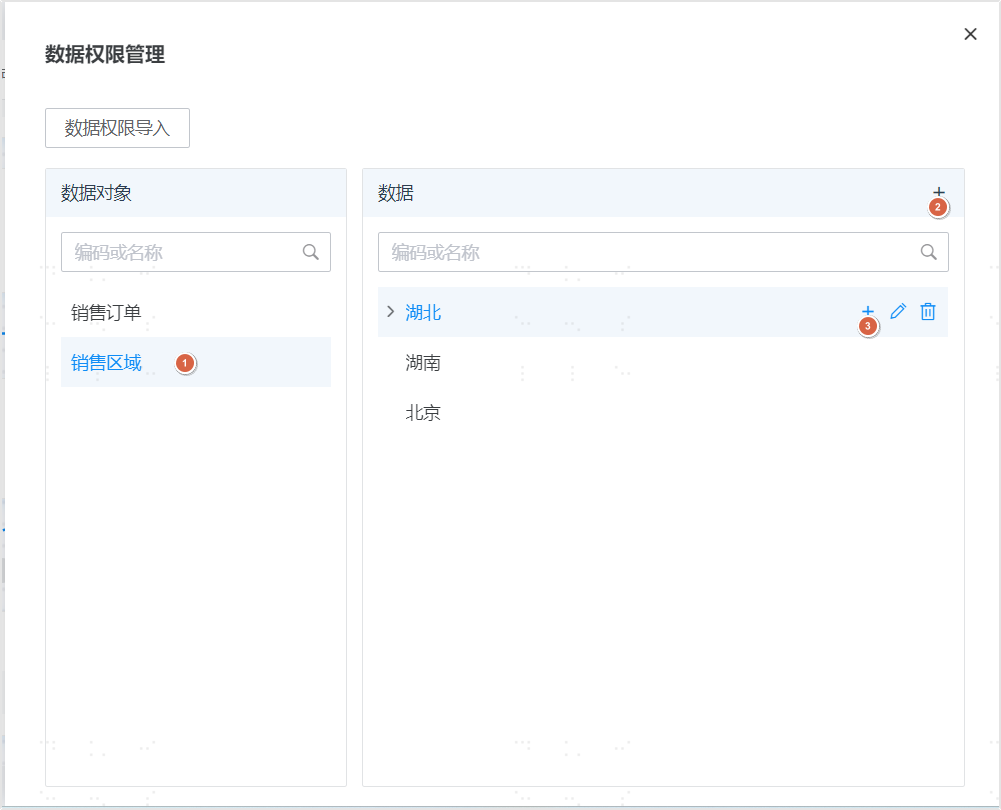
Click the management operation on the data permissions in the application model to open the data permission management page.
# Import Data Permissions
Data permissions can be imported in bulk via an Excel spreadsheet. Click the data permission import operation to navigate to the application-side permission import page. Select the application, download the import template, prepare the data according to the template, and then import it. Import separately for each data object.
# Manually Manage Data Permissions
- Select and click a data object. The data for that object will be displayed on the right side.
- Click the Add button at the top of the data on the right to add data.
- For a tree structure, you can continue to add child node data on the data item.
- Instructions:
- Name: Must be unique among siblings.
- Code: Must be unique, cannot be duplicated.
- Sequence Number: A smaller number means it will be displayed earlier.
# Authorize Data Permissions
After data permission management is complete, you can authorize data permissions to application accounts or assign data permissions to application roles according to the guidance in authorization management.