
Role-Based Authorization
Authorization Management
# Overview
This chapter will guide you through managing application roles. After role management is completed, you can assign roles to application accounts, i.e., authorize accounts based on roles.
# Prerequisites
- Have administrator privileges for the IDaaS Enterprise Center platform.
- Have created an application and enabled the RBAC (Role-Based Access Control) authorization model.
# Application Role Model Configuration
- Go to the application details page, click on the model configuration on the application role within the application model to open the model configuration page for application roles.
- Select the structural type for the application role. If your application roles have hierarchical relationships, please choose a tree structure. Once selected, it cannot be changed.
# Application Role Management
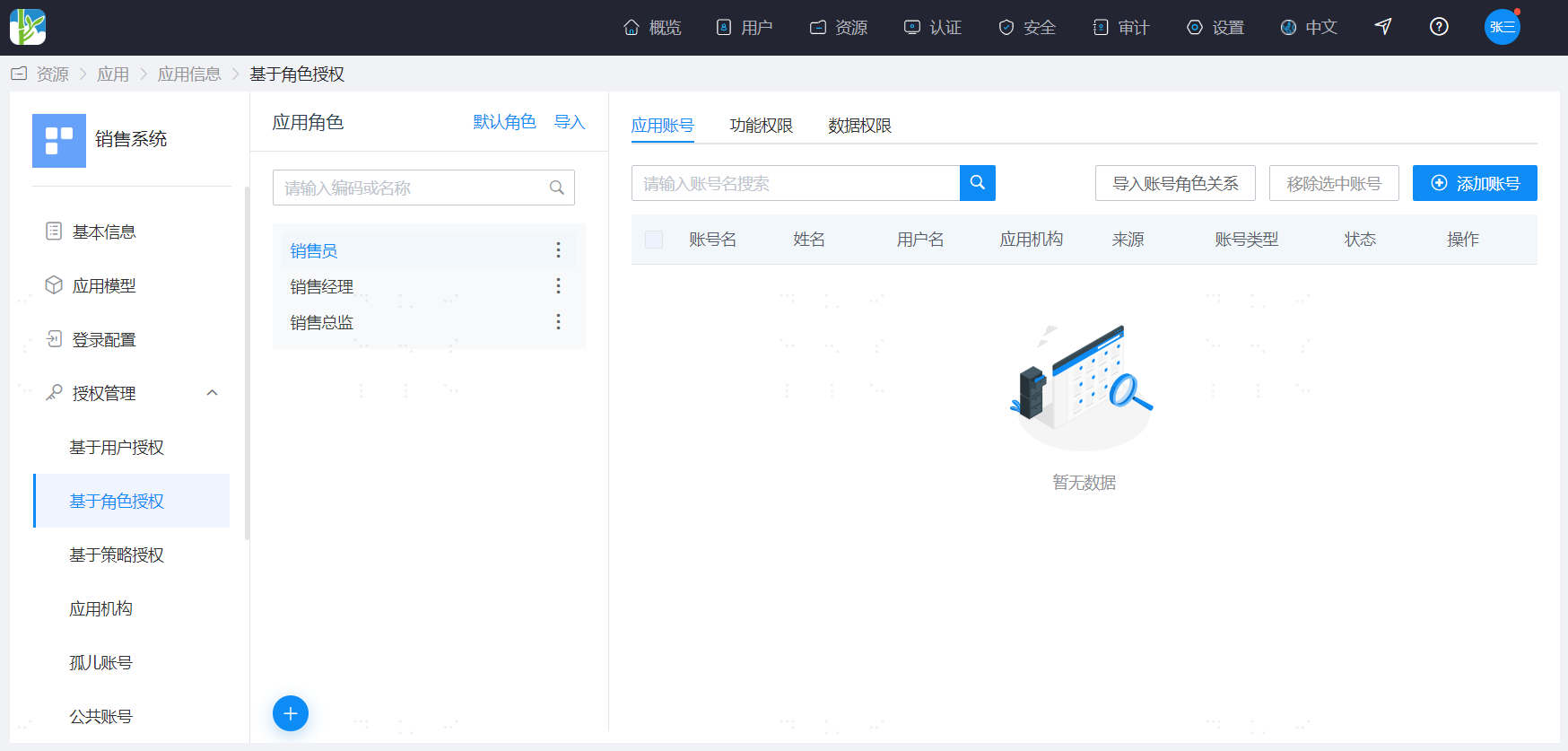
- Click on "Role-Based Authorization" on the application role within the application model to navigate to the management page for application roles.
- The left side of the page displays application roles, and the right side displays the application accounts that have been assigned the selected role. When the relationship between roles and functional permissions/data permissions is enabled, the right side also shows the functional/data permissions assigned to the selected role.
# Import Roles
- Application roles can be imported in bulk via an Excel spreadsheet. Click the import action to navigate to the application-side permission import page, select the application, download the import template, prepare the data according to the template, and then proceed with the import.
- After importing roles, you can continue to import role-functional permission relationships or role-data permission relationships.
# Manually Manage Roles
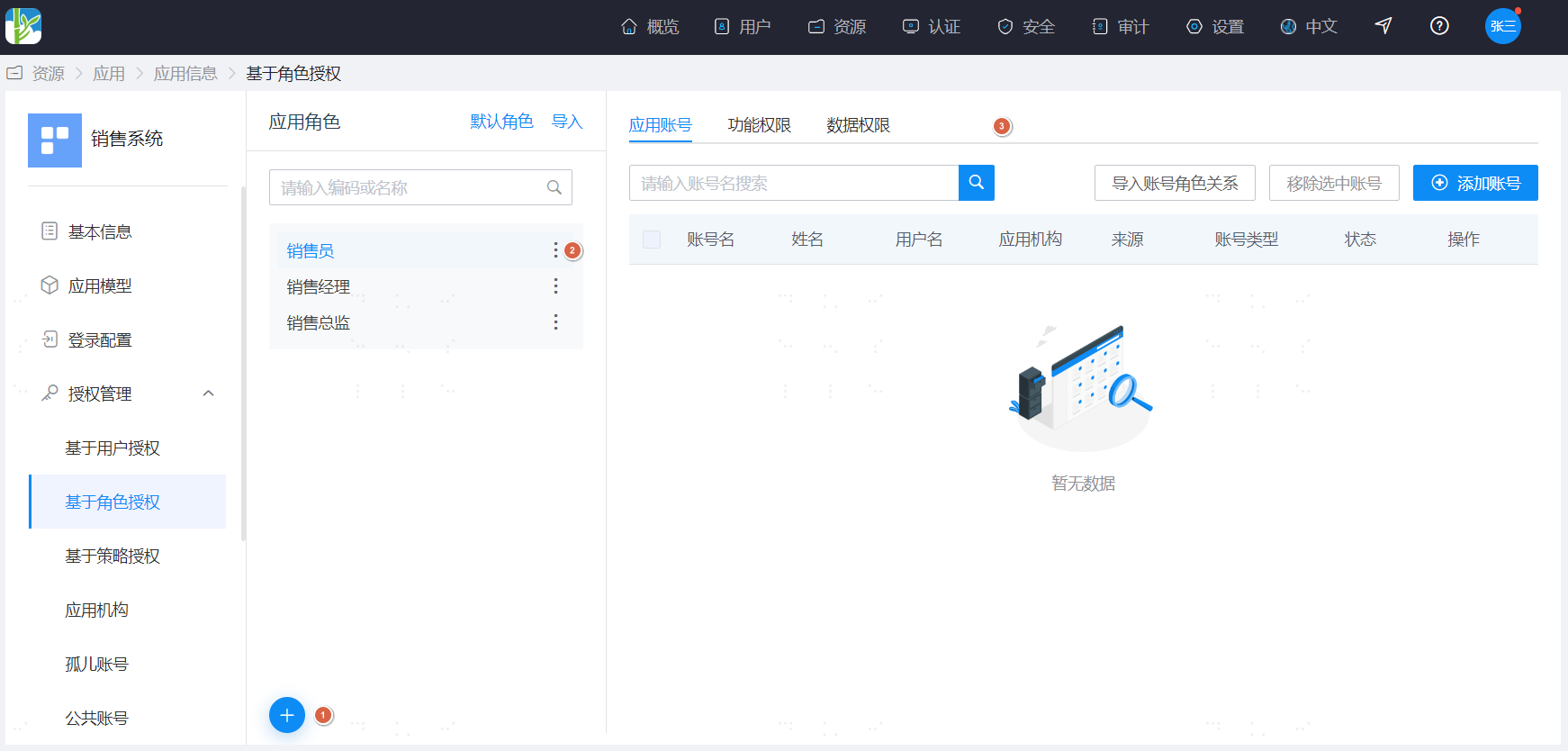
- Click the "Add" button under the application role area to add a role.
- Instructions for filling out:
- Belonging Organization: Can be selected when managing AD groups.
- Role Code: Must be unique and cannot be duplicated.
- Role Name: Cannot be duplicated in a list structure; cannot have duplicate names at the same level in a tree structure.
- Display Order: The smaller the number, the higher the display priority.
Click the "More Actions" button next to a role to perform edit, delete, or enable/disable operations.
Manage the relationships between roles and accounts, as well as with functional permissions/data permissions.
- Select a role, and on the right side's application account page, you can add accounts in bulk, granting a specific role to multiple accounts at once.
- On the functional/data permissions page, click "Import Role-Functional Permission Relationships" to enter the data import interface, where you can import role-functional/data permission relationships in bulk.
- On the functional/data permissions page, you can select the functional/data permissions to be granted to that role.
- Data permissions need to be selected according to the data object.
- Supports selecting all permissions to meet the needs of super administrator permission assignment.
# Set Default Roles
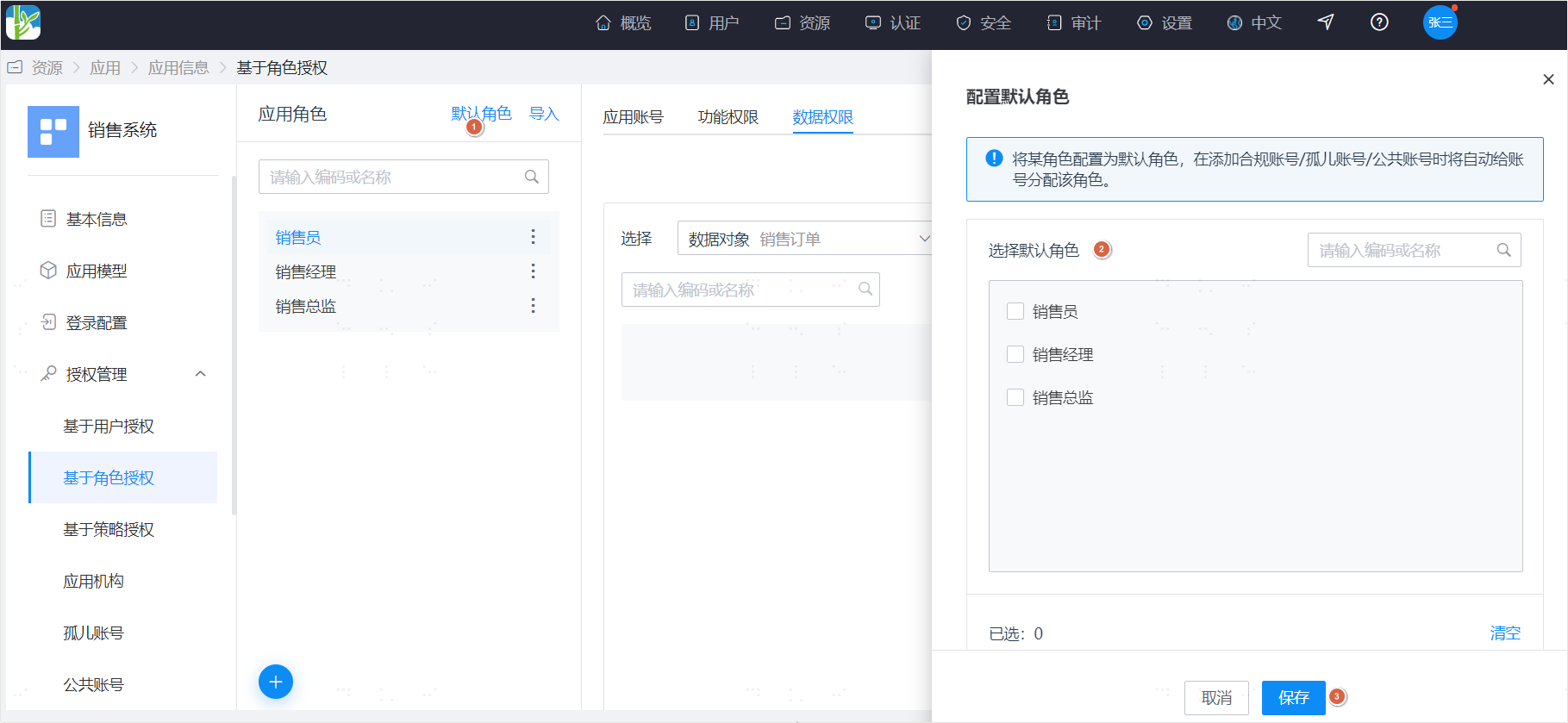
If your system requires assigning an initial default role to every account to ensure users can access normally, you can configure the system's default roles.
After setting default roles, when the application system adds an account, it will automatically assign the default role to that account.
# Authorize Application Roles
There are two ways to authorize application roles:
- Associate accounts with roles.
- Grant roles to users by following the guidance for user-based authorization.