
Policy-Based Authorization
# Overview
This chapter will guide you on how to authorize users based on rules. If your application system's permission assignments follow clear rules, policy-based authorization can help automate the permission distribution.
# Prerequisites
- Have administrator permissions on the IDaaS Enterprise Center platform.
- Have already created an application and enabled the authorization model.
# Steps
# Access the Policy-Based Authorization Interface
Open Authorization Management in the left navigation menu and click on Policy-Based Authorization.
# Add a Policy
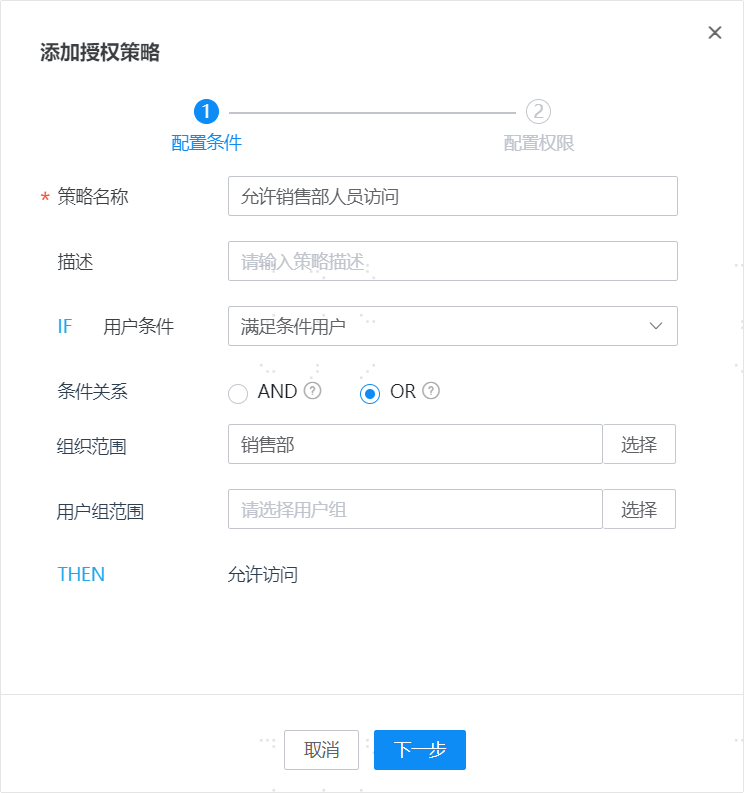
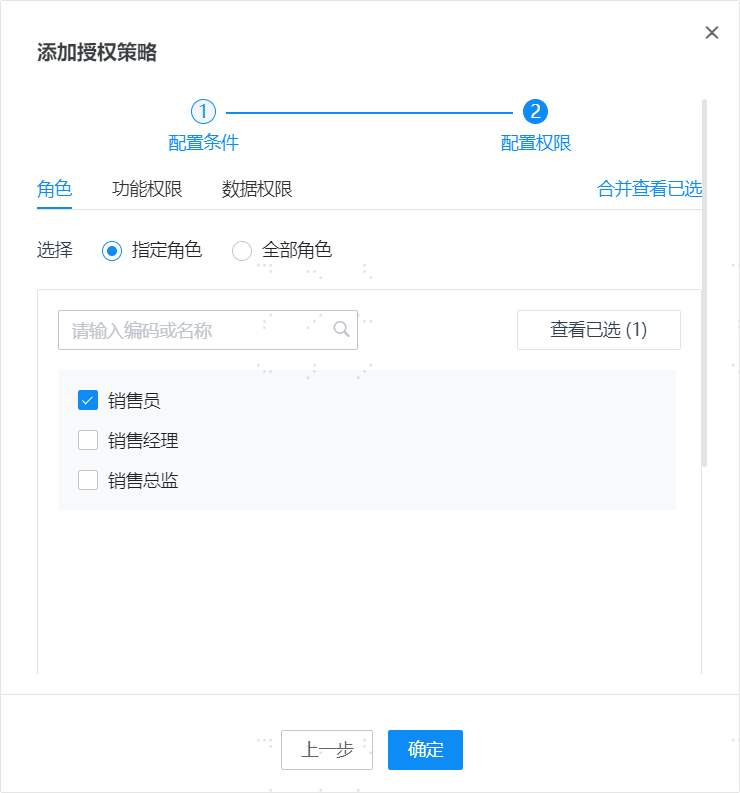
Click the Add Policy action at the top of the Policy-Based Authorization page to open the addition page. Adding a policy consists of two steps:
Configure User Conditions User conditions allow you to select users who meet the criteria and then configure the conditions those users must satisfy.
Configure Permissions When the application's authorization model is enabled, you can proceed to configure permissions.
# Manually Execute Policy Calculation
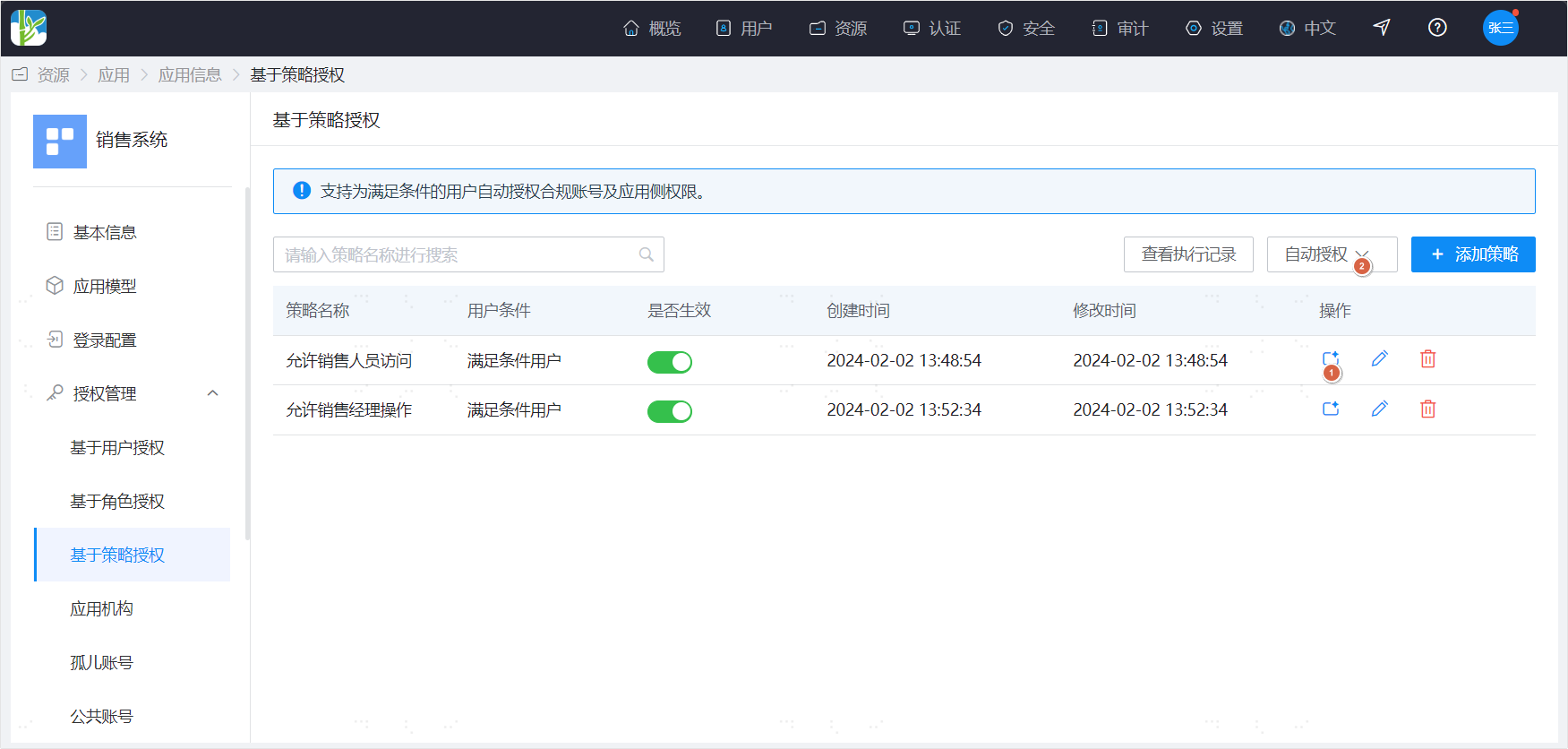
Execute Automatic Authorization for a Single Policy Click the automatic authorization icon in the data operation column of the policy list to execute the calculation for a single policy. The calculation rules are as follows: For users who meet the policy conditions: (1) If the user originally had no account, an account is automatically added; additionally, if the policy configures application permissions, the selected application permissions are automatically assigned to the account. (2) If the user originally already had an account, the account remains unchanged; and if the policy configures application permissions, the selected application permissions are appended to the account (added if not present, unchanged if already present).
Execute Authorization for All Policies Expand the automatic authorization action at the top of the page and select "One-Click Automatic Authorization" to execute the calculation for all policies. The calculation rules are as follows: For all users, match the policies they satisfy: (1) If a user originally had no account and currently satisfies a policy, an account is automatically added; additionally, if the policy configures application-side permissions, the selected application-side permissions are automatically assigned to the account; if a user satisfies multiple policies simultaneously, the assigned permissions are the union of the permissions from those multiple policies. (2) If a user originally already had an account and currently satisfies a policy, the account remains unchanged; additionally, if the policy configures application-side permissions, the selected application-side permissions are appended to the account (added if not present, unchanged if already present).
Execute Permission Revocation for All Policies Expand the automatic authorization action at the top of the page and select "One-Click Revoke Permissions" to revoke permissions that users no longer satisfy. There are two execution methods:
Preserve manually assigned permissions, with the following rules: For users who already have an account, check their policy satisfaction status: (1) If a user originally had a manually assigned account and currently satisfies no policy, the account is retained; if a user originally had an automatically assigned account and currently satisfies no policy, the account is deleted. (2) Additionally, if a user originally had a manually assigned application-side permission and the currently satisfied policies do not include this permission, the permission is retained; if a user originally had an automatically assigned application-side permission and the currently satisfied policies do not include this permission, the permission is deleted.
Enforce permission assignment strictly according to policies, with the following rules: For users who already have an account, check their policy satisfaction status: (1) If a user originally had an account (whether manually or automatically assigned) but currently satisfies no policy, the account is deleted. (2) Additionally, if a user originally had an assigned application-side permission (whether manually or automatically assigned) but the currently satisfied policies do not include this permission, the permission is deleted.
# Automatically Execute Policy Calculation
When a user changes, causing the policies they satisfy to change, the system will automatically adjust the user's permissions. The adjustment rule is: Permissions automatically granted to the user are re-assigned according to the satisfied policies, while manually granted permissions remain unchanged.
# View Execution Records
By viewing the authorization records operation, you can see the changes in user permissions for each execution calculation.
# Authorization Blacklist
# Blacklist Description
Policy-based authorization helps you automatically complete user authorization based on rules. However, after establishing rules, exceptions may arise. For example, a user may indeed meet a certain condition but, for some reason, should not be granted certain permissions. The authorization blacklist can address this scenario. The authorization blacklist serves two purposes:
- Deny granting access accounts: Adding a user to the blacklist and selecting this effect ensures that during the automatic authorization process, even if the user meets the conditions, they will not be granted an account for that application system.
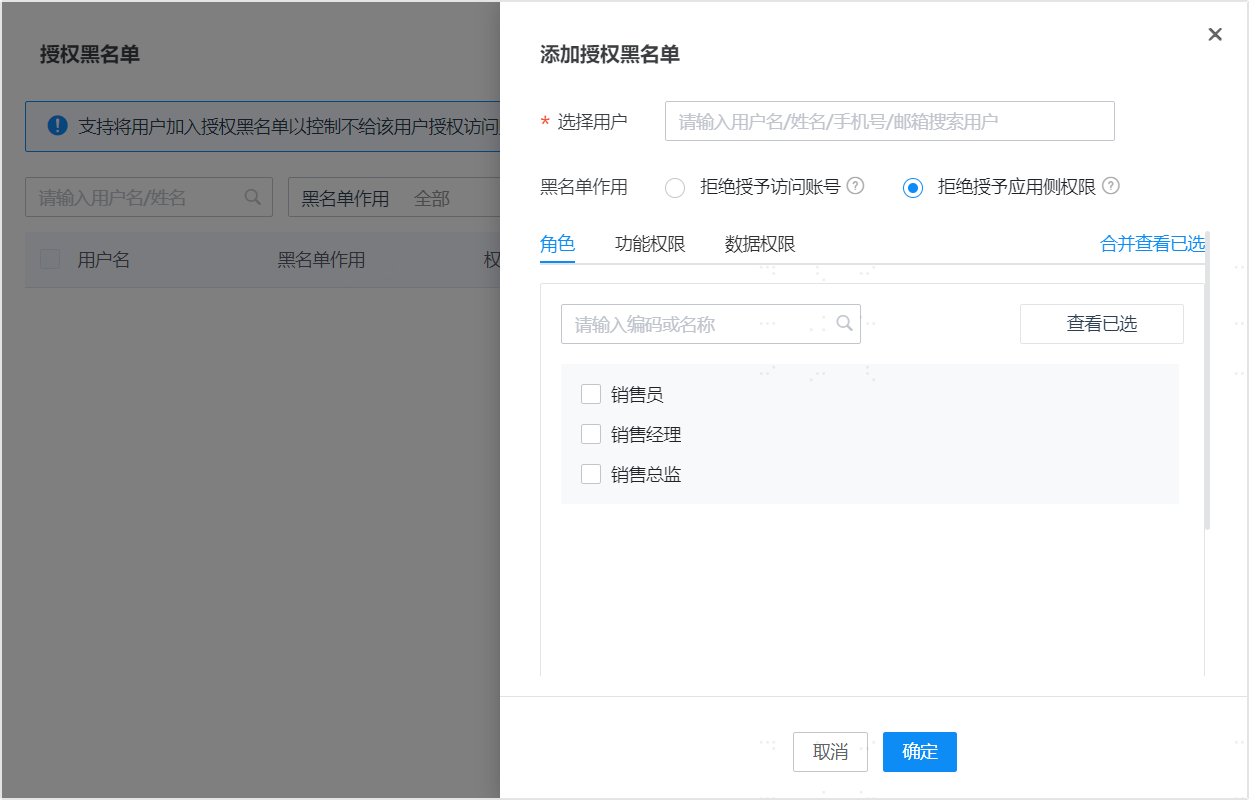
- Deny granting application-side permissions: Adding a user to the blacklist, selecting this effect, and choosing a role, functional permission, or data permission ensures that during the automatic authorization process, even if the user meets the conditions, they will not be granted these roles/functional permissions/data permissions. Denying the granting of an access account includes denying the granting of application-side permissions.
# Manually Add Authorization Blacklist
- Click on Authorization Blacklist at the top of the Policy-Based Authorization page to open the blacklist management interface.
- Click the Add button to add an authorization blacklist. You need to select a user and then specify the blacklist effect.
- A user can only be added to the blacklist once. After addition, it can be modified.
# Automatically Add Authorization Blacklist
When modifying the application-side permissions of an application account, if permissions that were automatically granted to a user are revoked, the user will automatically be added to the blacklist. This ensures that the revoked permissions are not re-granted due to automatic calculation.
I'm ready. Please provide the Markdown content you'd like me to translate.