
Configure WeChat Official Account Scan-to-Follow Login
# Overview
Follow Official Account Login refers to the process of generating a WeChat Official Account QR code on a PC website, where users scan the code with the WeChat app and, after following the official account, automatically complete the login. Using Follow Official Account Login can quickly drive traffic to the official account and enhance brand engagement. This section describes the configuration process for the WeChat Official Account scan-to-follow login feature. After configuring and integrating the WeChat authentication source on the IDaaS platform, refer to this module to configure WeChat Official Account scan-to-follow login for each application system.
# Prerequisites
- Have administrator permissions for the IDaaS Enterprise Center platform.
- Have already registered an official account on the WeChat Official Platform.
- The application has been integrated on the IDaaS platform.
- Have already configured a WeChat authentication source on the IDaaS platform with the login scenario set to Official Account Authorization Login.
Due to restrictions imposed by the WeChat platform, only Service Accounts have the API capability for Generating a Parametric QR Code (opens new window). Please ensure your official account is of the Service Account type.
# Procedure
- Configure WeChat Official Account Follow Login for the Application
Log in to the IDaaS Enterprise Center platform, select "Resources > Applications" in the top navigation bar, taking the User Center application as an example, select "User Center", switch to the "Login Configuration" tab, scroll down to WeChat, and enable the previously added WeChat authentication source whose login scenario is Official Account Authorization Login.

- WeChat Official Platform Configuration
Log in to the WeChat Official Platform (opens new window) and enter your official account.
# Set IP Whitelist
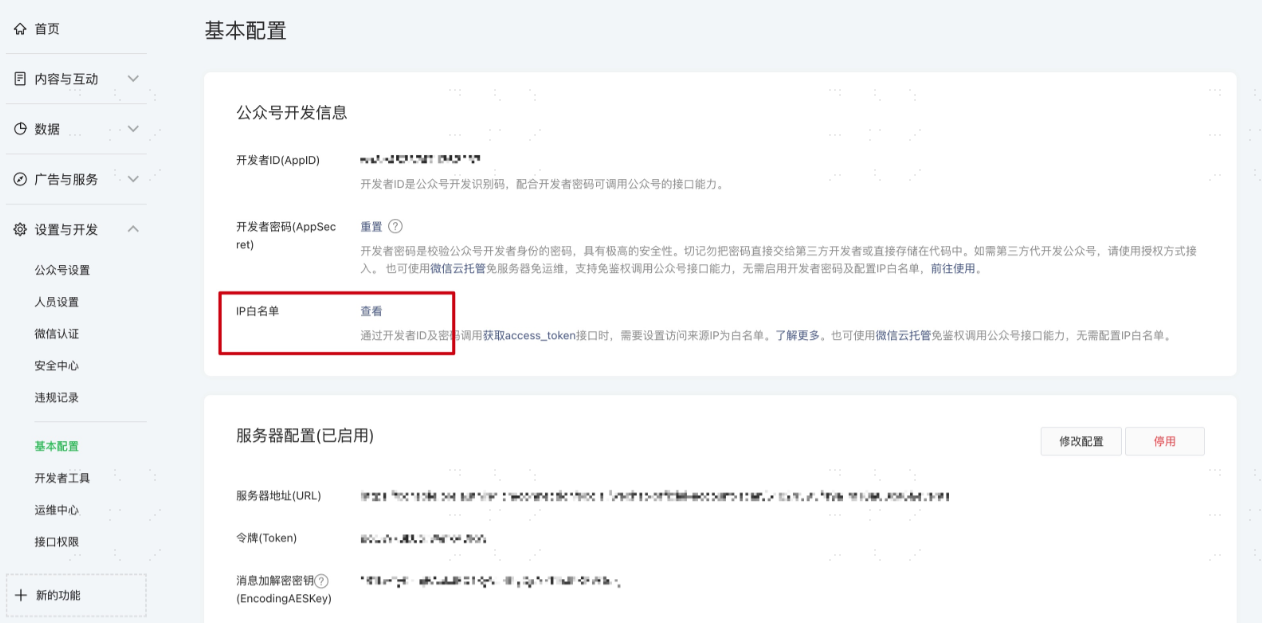
Basic Configuration -> IP Whitelist, add the IDaaS server IP (47.92.171.137) to the official account's IP whitelist.
# Add API Permissions
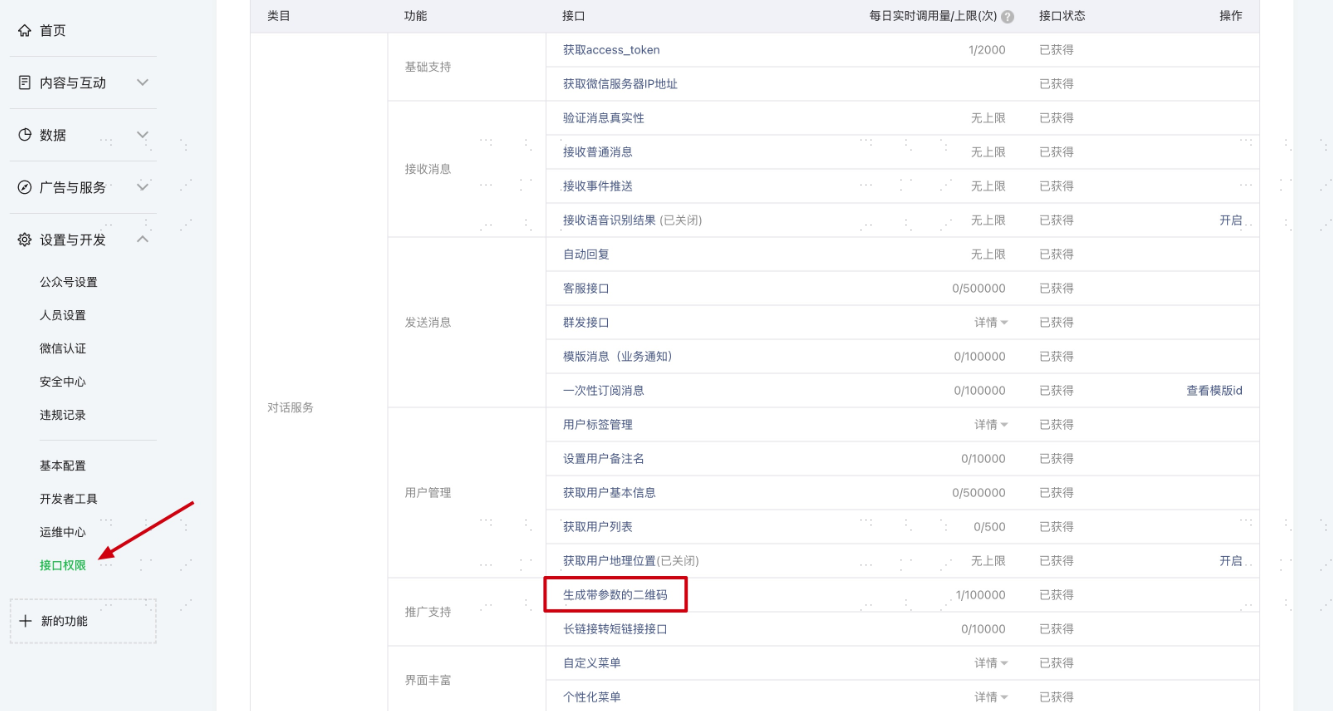
Settings & Development -> Interface Permissions page, add the Generating a Parametric QR Code (opens new window) API interface permission:
# Select Server Configuration Mode
Settings & Development -> Basic Configuration page, enable server configuration. After a user scans the official account QR code and follows the account, IDaaS can receive the user's scan and follow events, thereby completing the login. Since only one server configuration can be set for the WeChat server, you need to choose between two different modes based on your specific scenario:
- Mode One: Set the server address to the IDaaS server callback address. This mode is the simplest, but all events from the WeChat Official Account will be pushed to the IDaaS server, meaning you will lose other events besides scanning and following.
- Mode Two: Set the server address to your own server, and then forward the scan and follow events to the IDaaS server. This mode requires some development work but does not lose events and is beneficial for future extensions based on official account events.
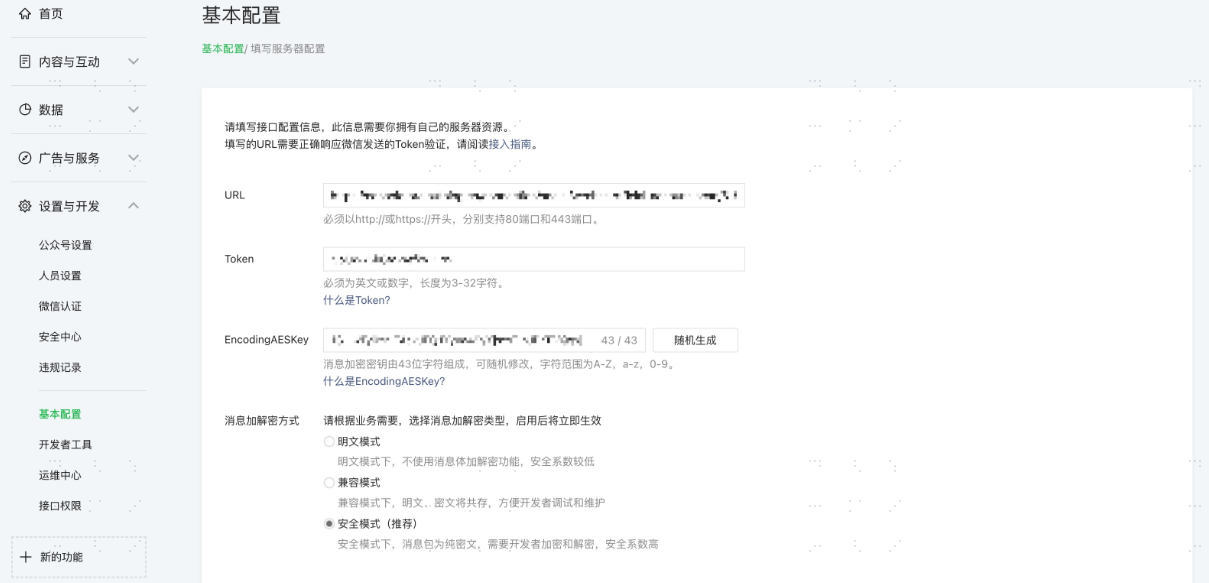
- URL: Set to the callback address on the authentication source, format: https://{your_domain}/api/v1/callback/wechatmpqr/{idpId}, where idpId is the authentication source ID. If you don't have an idpId yet, you can modify it here after creating the authentication source. If using Mode Two, you can configure your own server and then forward to the callback address on the authentication source.
- Token: You can set the Token to any string within the WeChat Official Account, and ensure that the token on the IDaaS console authentication source matches the token provided by the official account you are connecting to.
- Message Encryption Key (EncodingAESKey): The message encryption key consists of 43 characters. Ensure that the message encryption key on the IDaaS console authentication source matches the message encryption key provided by the official account you are connecting to.
- Message Encryption/Decryption Method: Secure mode is recommended.
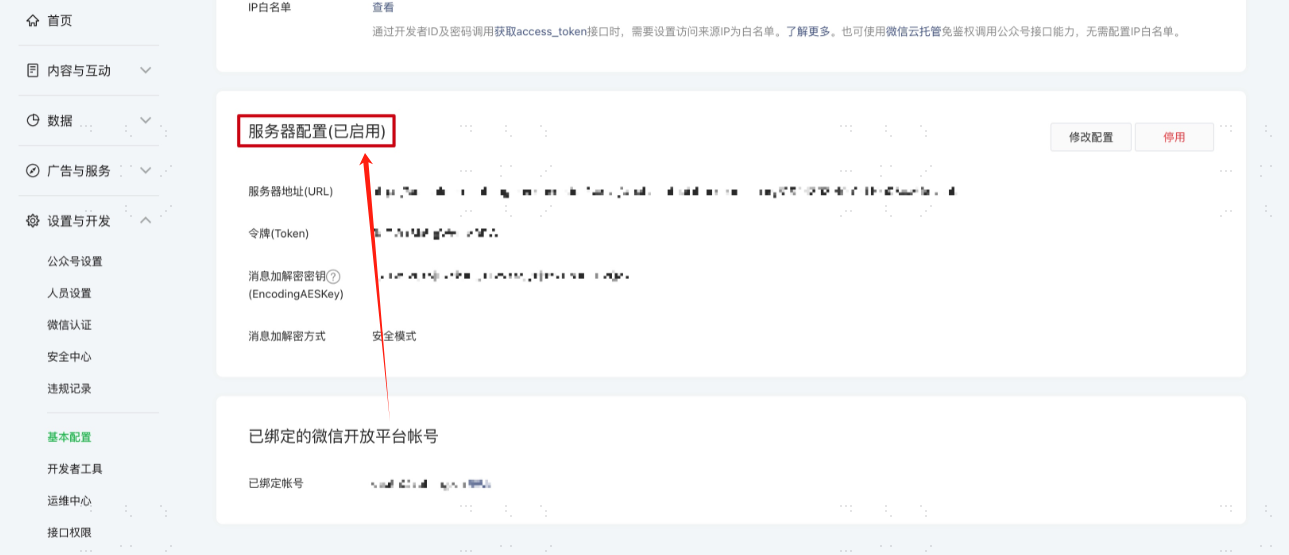
Click Submit to save, and finally, don't forget to Enable this server configuration.
# Verify WeChat Official Account Authorization Login
- The actual authentication login flow is related to the "When user is not associated" option in Configuring WeChat Authentication Source. Please refer to the on-screen prompts for login.
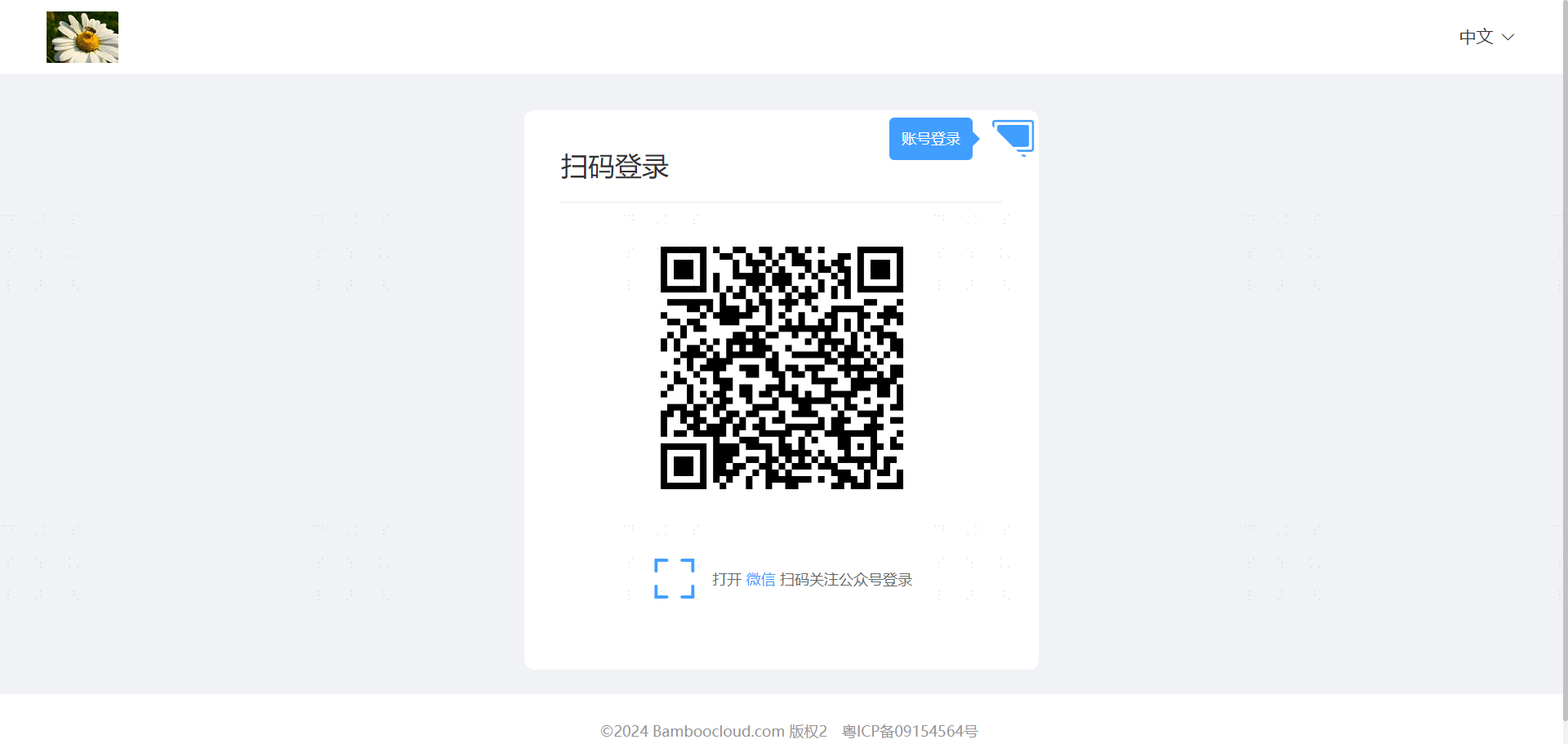
- Access the PC login page, click the scan code authentication method. After the user scans the code and follows the official account, first-time login requires binding a phone number, or automatic login after successful user registration via phone number.
# Attracting Traffic via Following WeChat Official Account {/examples/}
Enable the automatic user creation feature for unassociated users in the WeChat Official Account authentication source. When users follow the official account or scan its QR code, users will be automatically created. Users can then bind their existing phone numbers through the user center.