
Configuring QQ Authentication Source
# Overview
Tencent QQ authentication login allows users to securely log in to third-party applications or websites using Tencent QQ as the authentication source. To facilitate enterprise users' authentication login, the IDaaS platform supports configuring Tencent QQ as an authentication source. Users can log in to various application systems via QQ authentication, providing enterprise users with a simpler, more convenient login method and a better user experience.
This section describes the relevant operations for configuring the QQ authentication source.
# Prerequisites
- Possess developer permissions in the QQ Connect Management Center.
- Possess administrator permissions in the IDaaS Enterprise Center platform.
# Procedure
# Creating an Application and Obtaining Parameters in QQ Connect
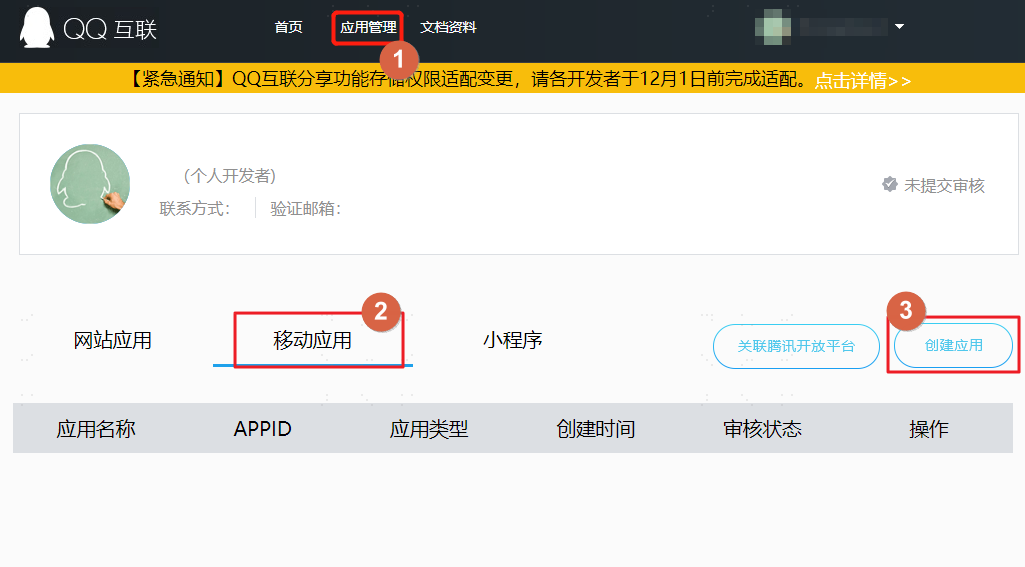
- Log in to the QQ Connect Management Center (opens new window), and based on the actual required QQ authentication method, choose to create the corresponding application. For operation steps, please refer to Creating an Application (opens new window).
Configuring QQ Scan Login: Create a website application and obtain the AppID and AppKey.
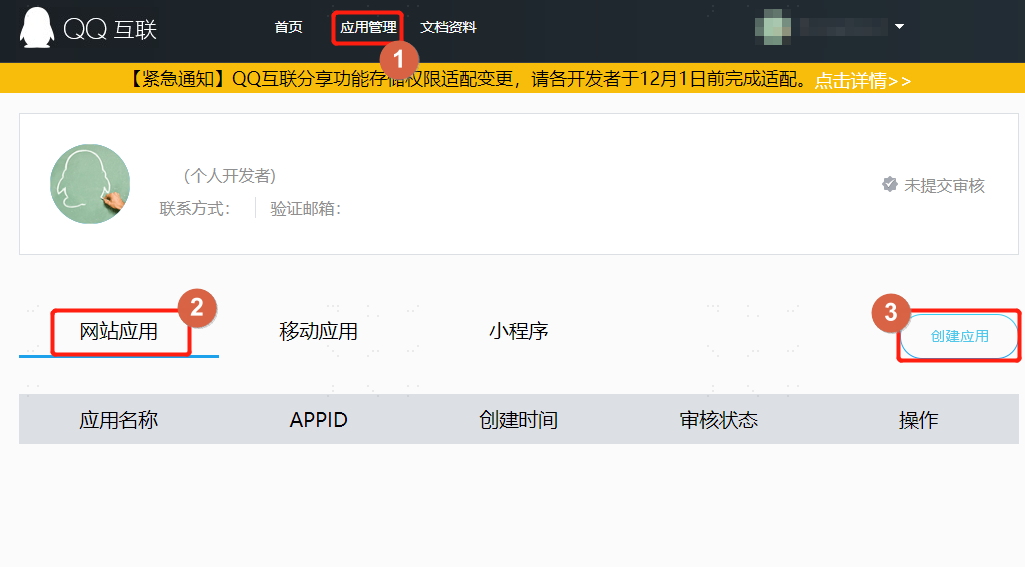
Configuring QQ Mobile Authorization Login: If there is no enterprise mobile application on the Tencent Open Platform, please create a mobile application and obtain the AppID and AppKey.
# Configuring QQ Authentication Source in IDaaS Platform
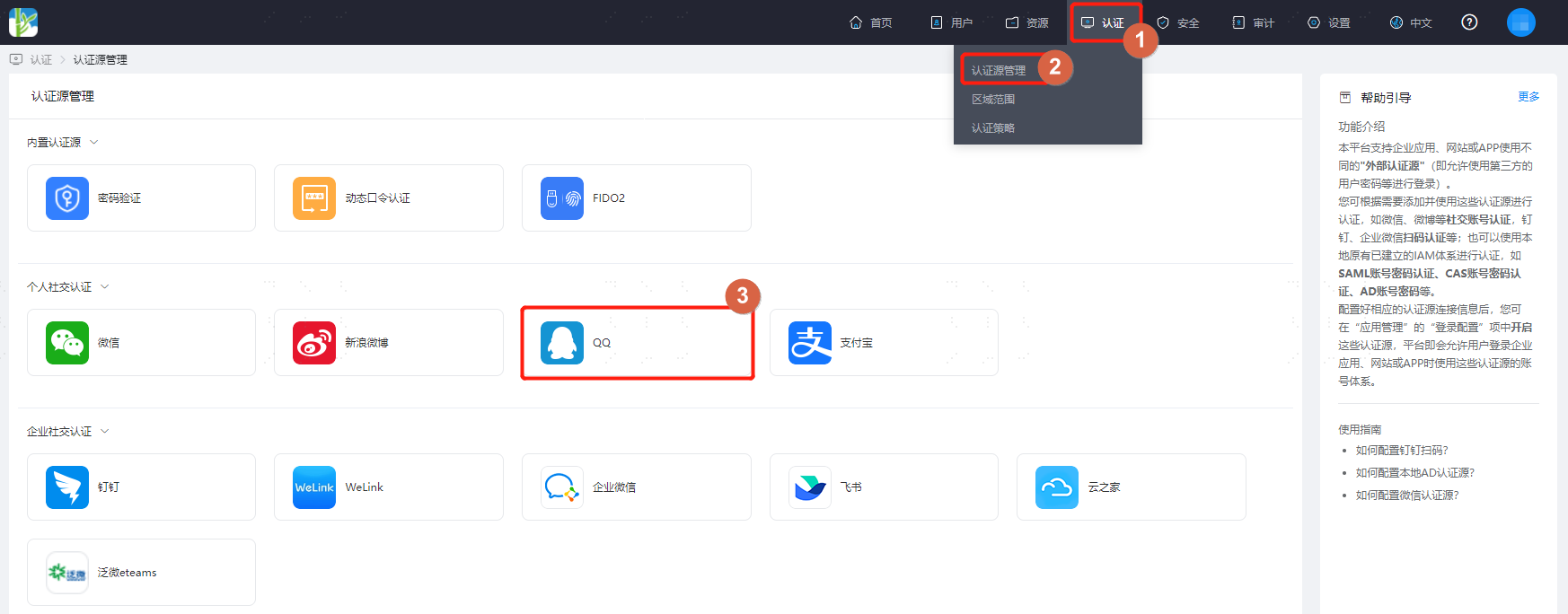
Log in to the IDaaS Enterprise Center platform, select "Authentication > Authentication Source Management" from the top navigation bar, go to the QQ authentication source page, and click "Add Authentication Source".
Configure the QQ authentication source parameters according to the interface prompts. Key parameter descriptions are as follows.
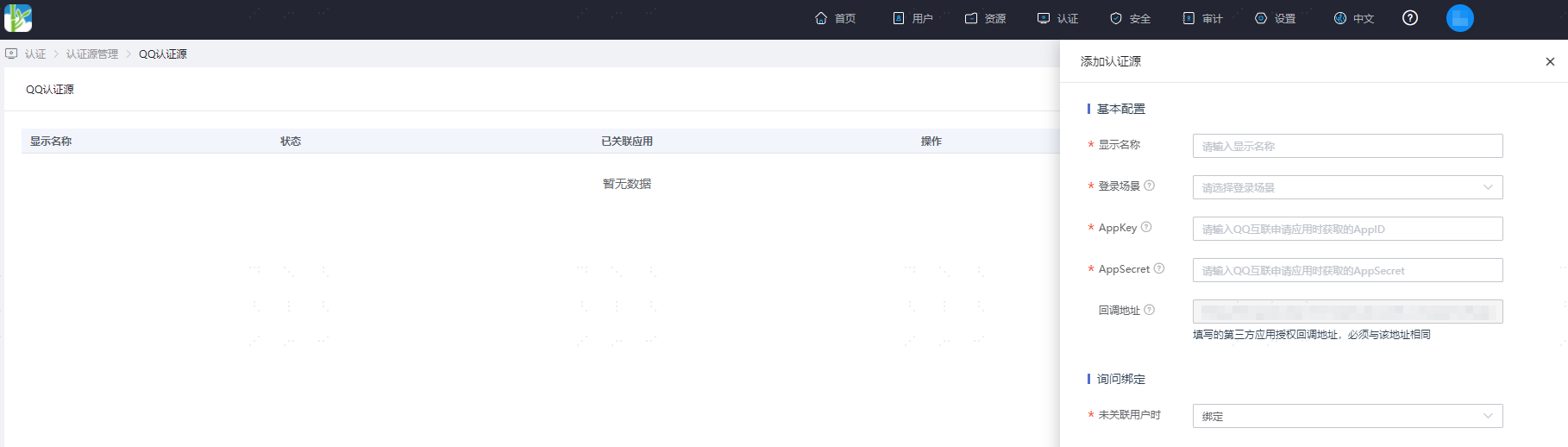
- Login Scenario: Select the login scenario based on the QQ authentication type, including PC browser scan login and mobile APP authorization login, corresponding to QQ scan login and QQ mobile authorization login methods respectively.
- When No User is Associated: This refers to when the authentication source attributes of the user information returned by the QQ platform do not match the associated user attributes in IDaaS, and no system user is linked. The optional configuration items are as follows.
- Bind: Set to "Bind". When no user is associated, it will redirect to a phone number or email verification page. If an existing phone number or email in IDaaS is entered and verified successfully, the user passes authentication.
- Bind or Register: Set to "Bind or Register". When no user is associated, it will redirect to a phone number or email verification page. If an existing phone number or email in IDaaS is entered and verified successfully, the user passes authentication; if a phone number or email not existing in IDaaS is entered and verified successfully, an IDaaS user is created based on the phone number or email and passes authentication.