Configuring Feishu External Browser Passwordless Login
# Overview
This section describes the configuration process for users to log in to IDaaS-integrated applications passwordlessly via an external browser from the Feishu PC client. After configuring the Feishu authentication source integration on the IDaaS platform, refer to this module to configure Feishu external browser passwordless login for various application systems.
# Prerequisites
- Have access management permissions for the IDaaS Enterprise Center.
- Have administrator permissions for the Feishu Open Platform account and have created an application.
- The application has been integrated on the IDaaS platform.
- The Feishu authentication source has already been configured on the IDaaS platform.
# Configuration Process

# Steps
The example application in this document is an OAuth protocol application created in IDaaS: OAUTH_1. Applicable scope: All self-built and pre-integrated applications that perform authentication integration with IDaaS via protocol.
# Configure Feishu Authentication for the Application
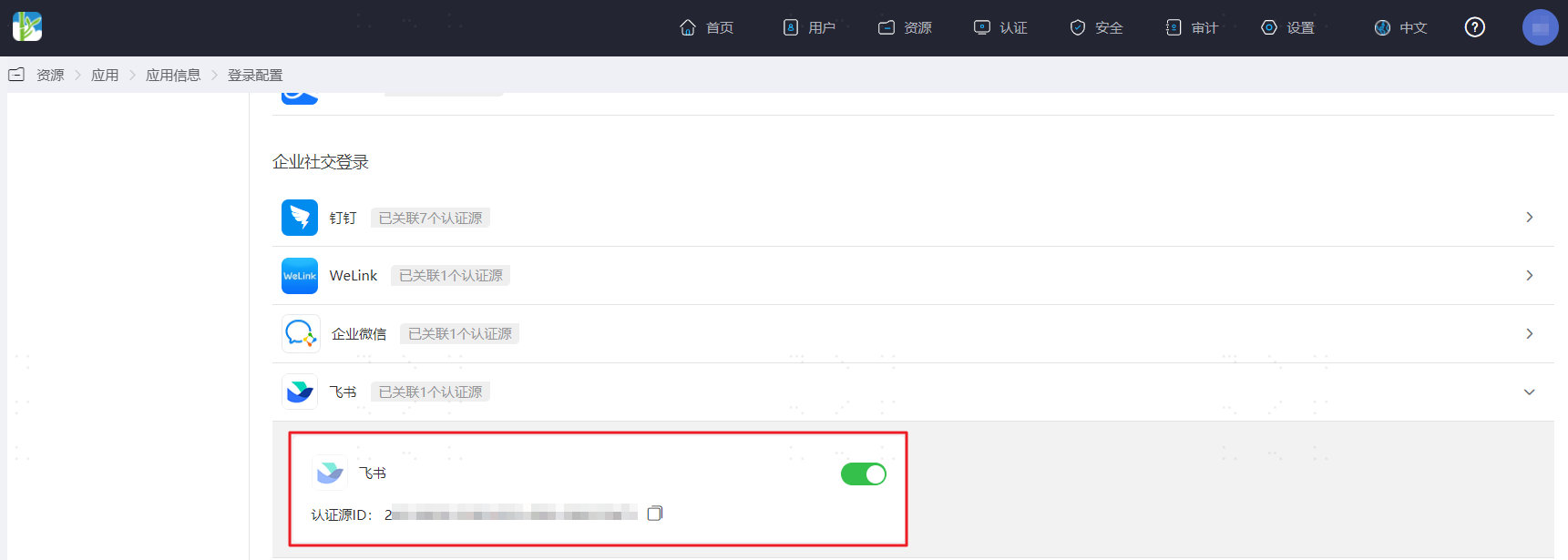
Log in to the IDaaS Enterprise Center platform, select "Resources > Applications" in the top navigation bar, using an OAuth protocol application as an example, select "OAUTH_1", switch to the "Login Configuration" tab, scroll down to Feishu, and enable the previously added Feishu authentication source.
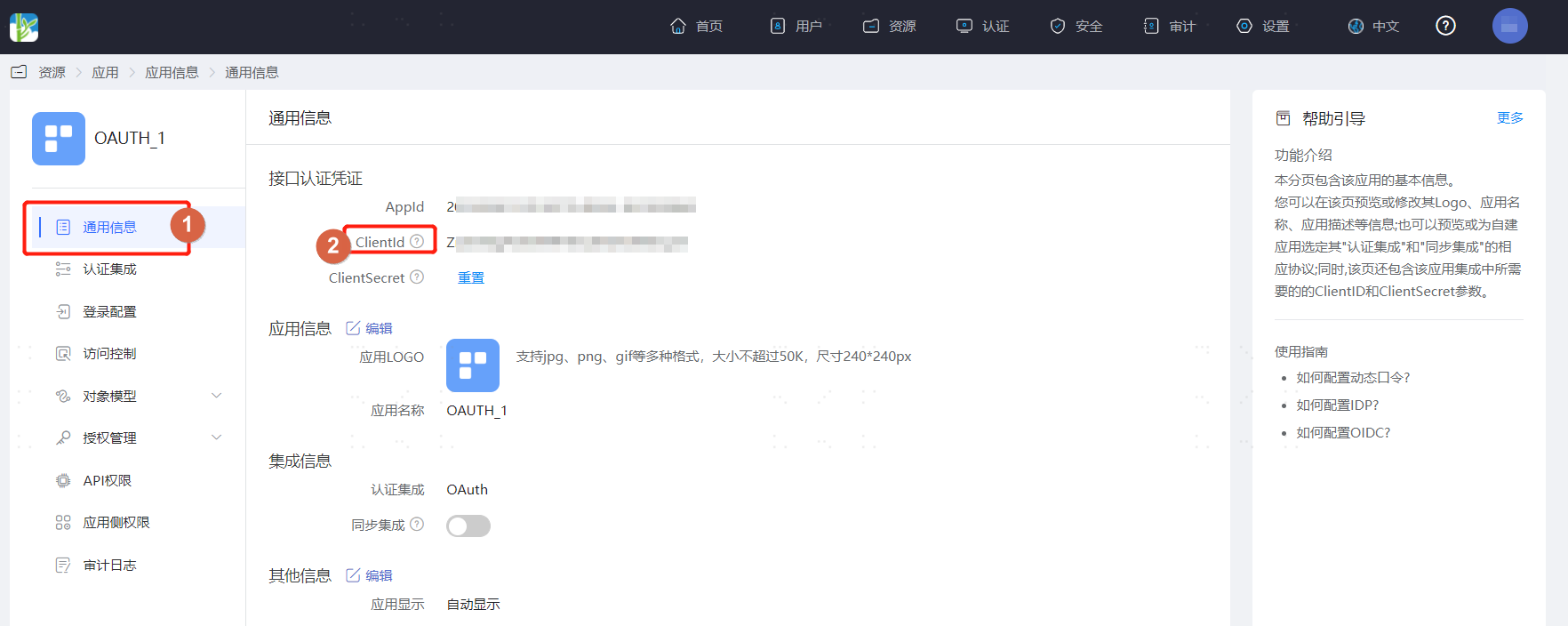
Switch to the "General Information" tab to obtain the application's ClientId.
# Feishu Admin Console Configuration
Log in to the Feishu Open Platform (opens new window), find and enter the previously created application, select "Application Features > Web", and set the Desktop Homepage.
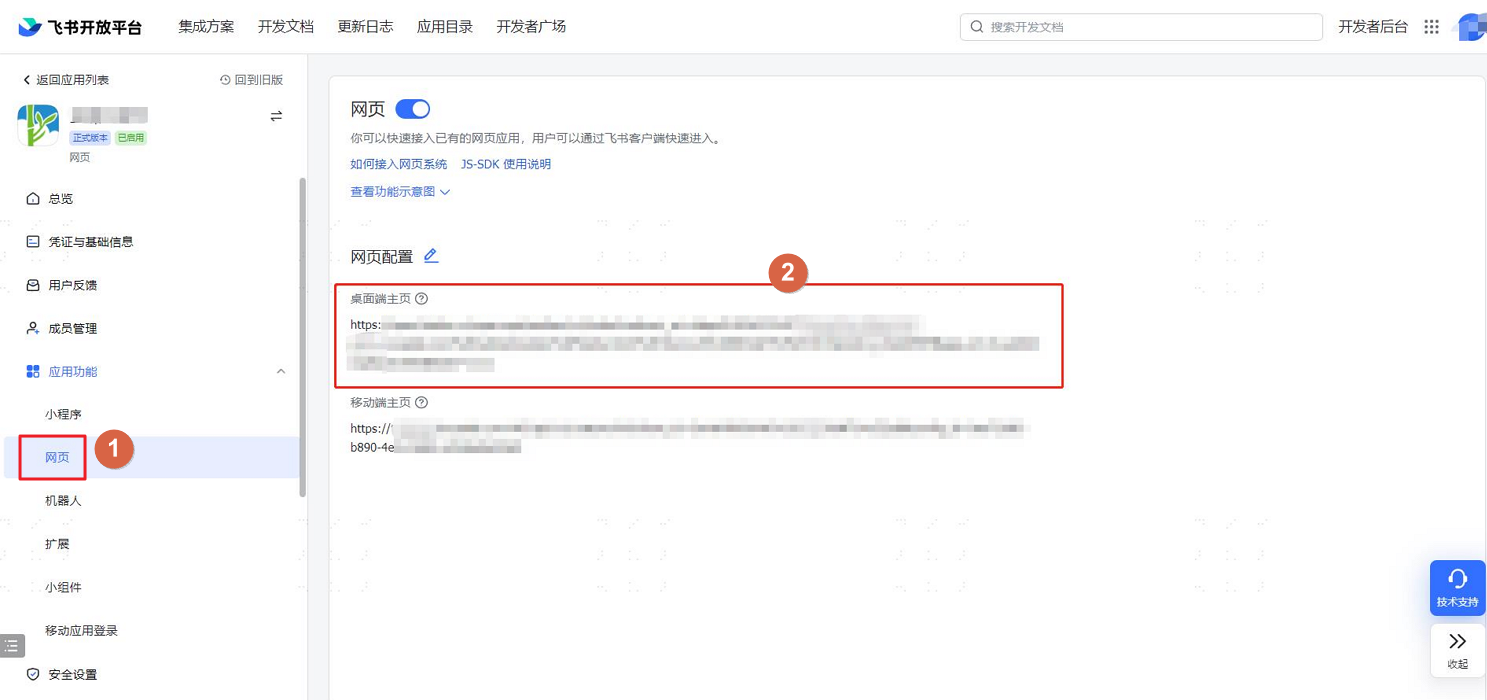
The Desktop Homepage link composition: https://open.feishu.cn/open-apis/authen/v1/index?redirect_uri={REDIRECT_URI}&app_id={APPID}
- REDIRECT_URI composition: https://xxx.bccastle.com/authentication/feishu.html?client_id=BDvQP7V7fiZXXi4cqovDekDl5fM
- client_id is the application's ClientId obtained in IDaaS.
- REDIRECT_URI needs to be URL-encoded. Example: https%3A%2F%2Fxxx%2Fauthentication%2Ffeishu.html%3Fclient_id%3DBDvQP7V7fiZXXi4cqovDekDl5fM
- APPID parameter: The AppKey configured for the Feishu authentication source in IDaaS, which is the AppId of the application configured as the authentication source in Feishu.
Example:
https://open.feishu.cn/open-apis/authen/v1/index?redirect_uri=https%3A%2F%2Fxxx%2Fauthentication%2Ffeishu.html%3Fclient_id%3DBDvQP7V7fiZXXi4cqovDekDl5fM&app_id=cli_a26xxxxx81be100e1- REDIRECT_URI composition: https://xxx.bccastle.com/authentication/feishu.html?client_id=BDvQP7V7fiZXXi4cqovDekDl5fM
Switch to the "Security Settings" tab, select "H5 Trusted Domain" and add the IDaaS tenant domain: https://xxx.bccastle.com/. The tenant domain can be obtained from "Settings > Enterprise Information" in the IDaaS Enterprise Center.

Switch to the "Security Settings" tab to configure the Redirect URL, which is the callback address after successful Feishu authentication.
- Replace xxx in the Redirect URL with your enterprise's IDaaS tenant domain. Example: https://xxx.bccastle.com/authentication/feishu.html. The tenant domain can be obtained from "Settings > Enterprise Information" in the IDaaS Enterprise Center.
# Verify Feishu PC Client External Browser Passwordless Login
The user logs into the Feishu client, finds the application created in Feishu, and clicks on that application to open the computer's default browser for passwordless login to OAUTH_1.