Configuring WeLink Authentication Source
# Overview
Huawei Cloud WeLink, originating from Huawei's internal practices, builds a fully connected digital work platform for enterprises that links teams, devices, operations, and knowledge. It creates a secure, open, and intelligent dedicated workspace for enterprises, helping them achieve digital transformation. The IDaaS platform supports configuring Huawei Cloud WeLink as an authentication source, allowing users to log in to various application systems through Huawei Cloud WeLink authentication. This provides enterprise users with a simpler, more convenient login method and a better user experience.
This section describes the operations related to configuring the Huawei Cloud WeLink authentication source.
# Prerequisites
- Have administrator permissions for the WeLink Open Platform.
- Have administrator permissions for the IDaaS Enterprise Center platform.
# Procedure
# Creating an Application on the WeLink Open Platform
Log in to the WeLink Open Platform address (opens new window), select "Applications > Application Management > All Applications", and click "Create on Open Platform" next to Self-built Applications.

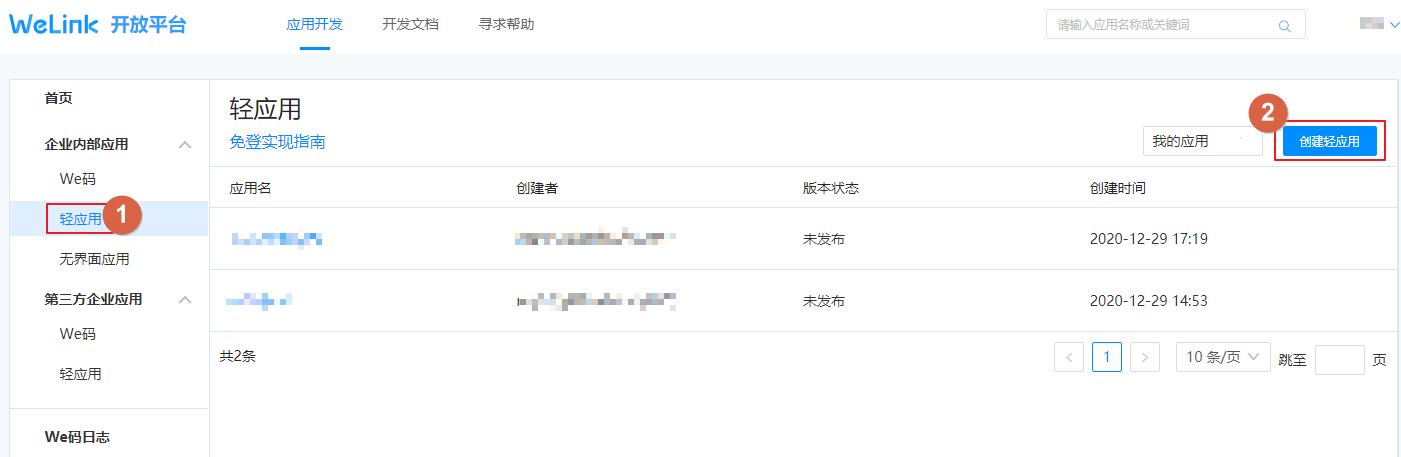
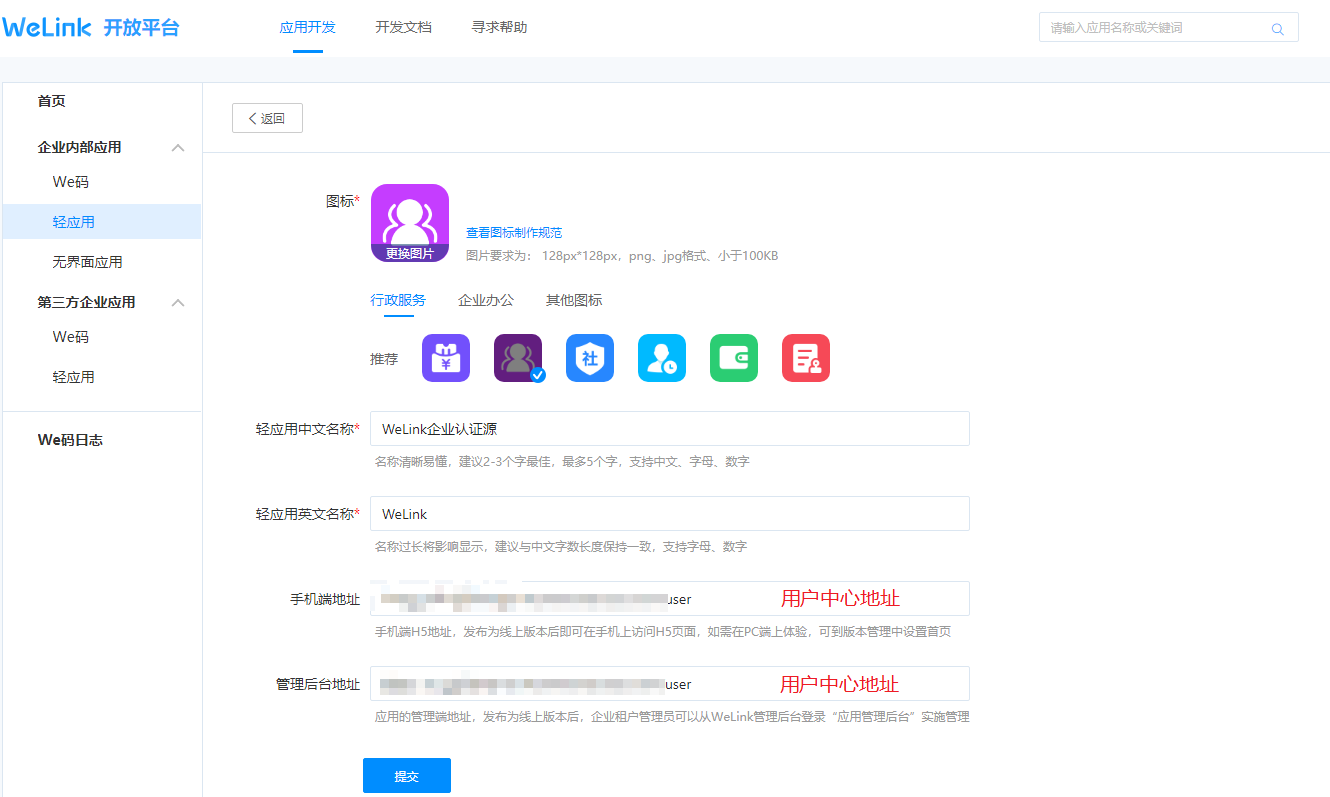
On the Application Development page, select "Internal Enterprise Applications > Light Applications", and click "Create Light Application" to create an application and configure parameters.
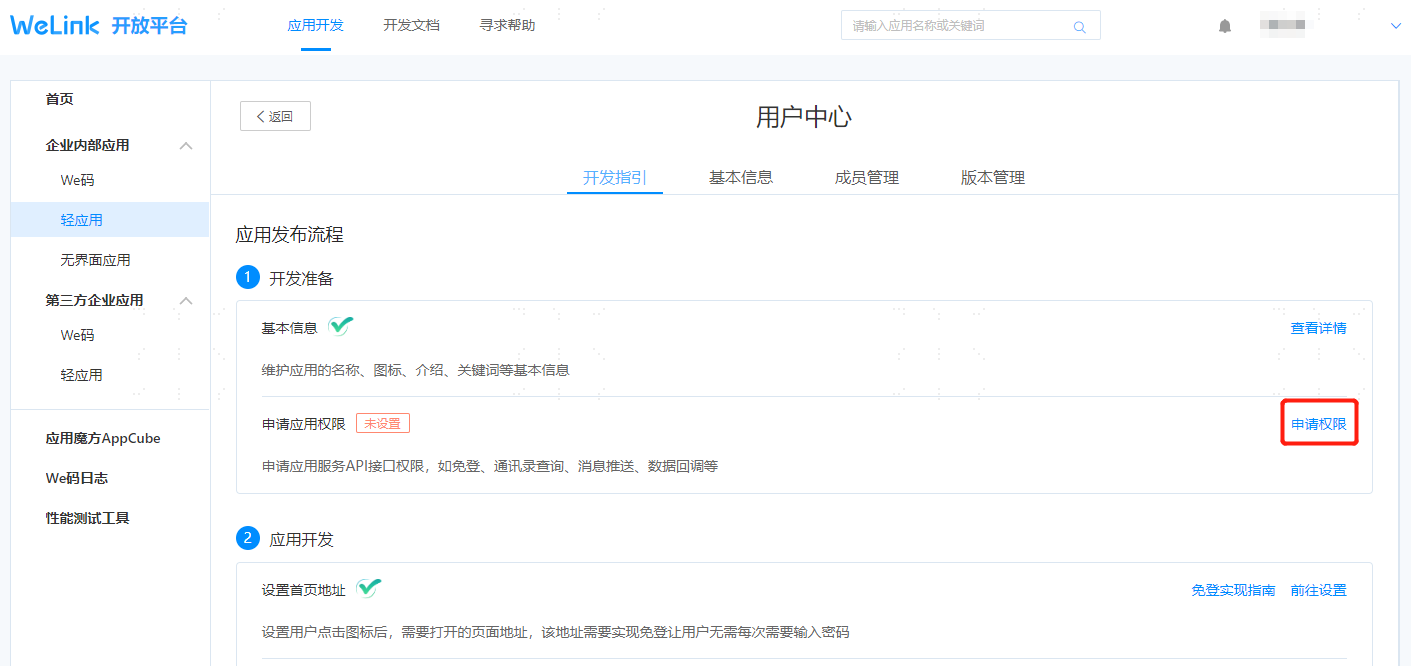
Click to enter the development guide page of the created application, click "Apply for Permissions" to set the callback address and API permissions. The callback address can be obtained from the WeLink authentication source parameters in "Authentication > Authentication Source Management" of the IDaaS Enterprise Center.
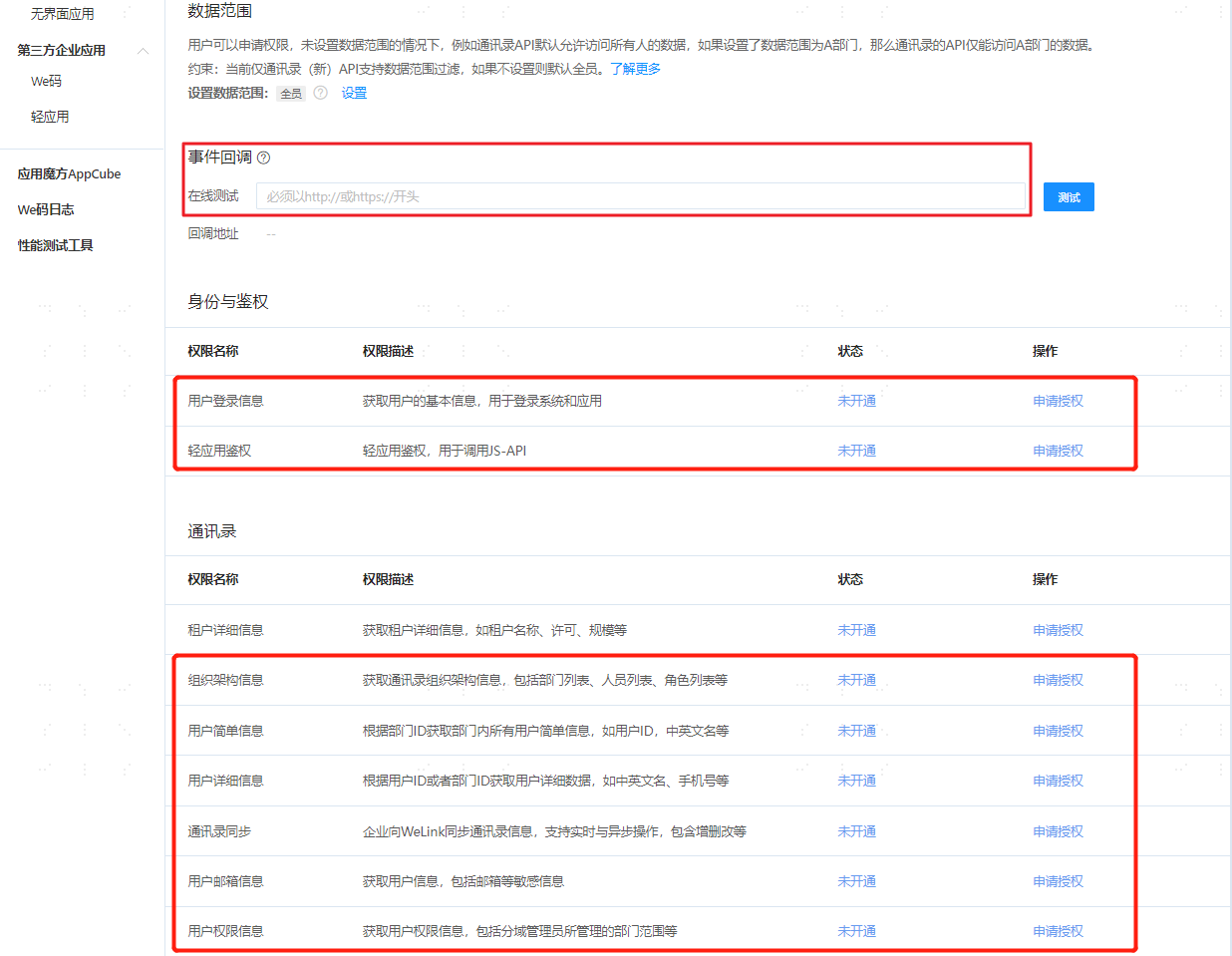
After configuration is complete, go to the application development guide page, switch to the "Basic Information" tab to obtain the
client_idandclient_secretparameters.
# Configuring the WeLink Authentication Source on the IDaaS Platform
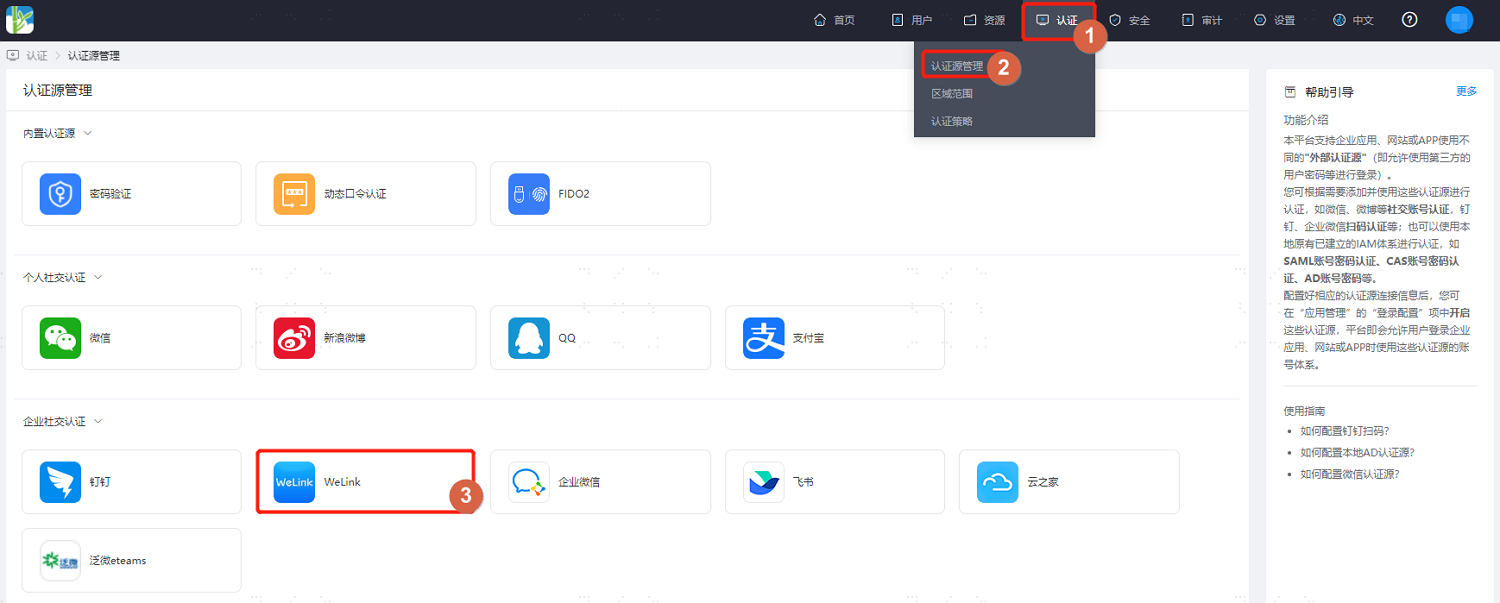
Log in to the IDaaS Enterprise Center platform, select "Authentication > Authentication Source Management" in the top navigation bar, go to the WeLink authentication source page, and click "Add Authentication Source".
Configure the WeLink authentication source parameters according to the interface prompts. Key parameter descriptions are as follows.
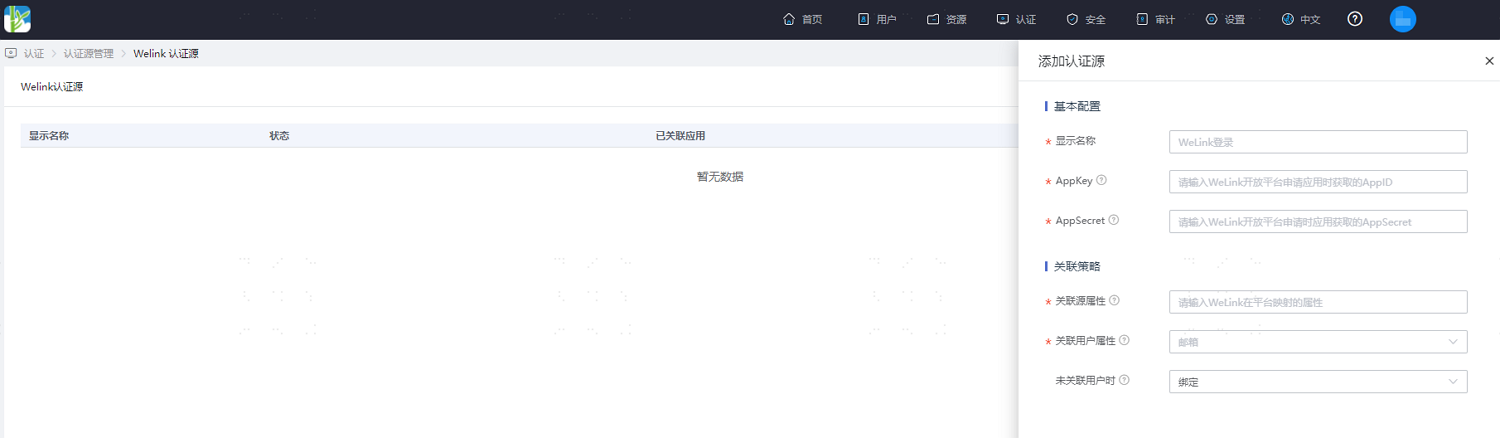
When no user is associated: This refers to when the associated source attribute of the user information returned by WeLink does not match the associated user attribute in IDaaS, and no system user is linked. The optional configuration items are as follows.
Failure: Set to "Failure", meaning this user is not allowed to pass authentication.
Bind: Set to "Bind". When no user is linked, the user will be redirected to a phone number or email verification page. If they enter a phone number or email that already exists in IDaaS and verification succeeds, the user passes authentication.
Bind or Register: Set to "Bind or Register". When no user is linked, the user will be redirected to a phone number or email verification page. If they enter a phone number or email that already exists in IDaaS and verification succeeds, the user passes authentication. If they enter a phone number or email that does not exist in IDaaS and verification succeeds, an IDaaS user is created based on the phone number or email and passes authentication.
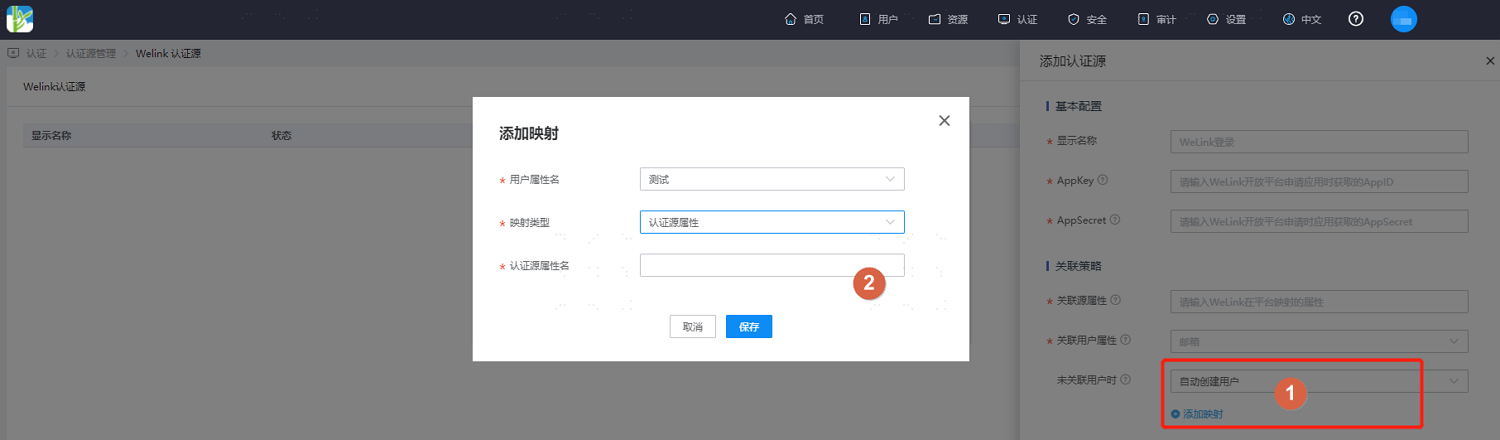
Automatically Create User: Set to "Automatically Create User". Click "Add Mapping" to map user attributes from WeLink to IDaaS user attributes according to mapping rules and associated attributes, creating a user and allowing them to pass authentication.
Attribute descriptions are as follows:
User Attribute Name: Select the user attribute in IDaaS from the dropdown.
Mapping Type: Select Authentication Source Attribute.
Authentication Source Attribute Name: WeLink user attribute.