Configuring Eteams Authentication Source
# Overview
Eteams authentication login allows users to securely log in to third-party applications or websites using Eteams as the authentication source. To facilitate authentication for enterprise users, the IDaaS platform supports configuring Eteams as an authentication source. Users can authenticate and log in to various application systems through Eteams, providing enterprise users with a simpler, more convenient login method and a better user experience.
This section describes the related operations for configuring the Eteams authentication source.
# Prerequisites
Possess administrator permissions for the Eteams open platform.
Possess administrator permissions for the IDaaS Enterprise Center platform.
# Steps
# Create an Application on the Eteams Open Platform
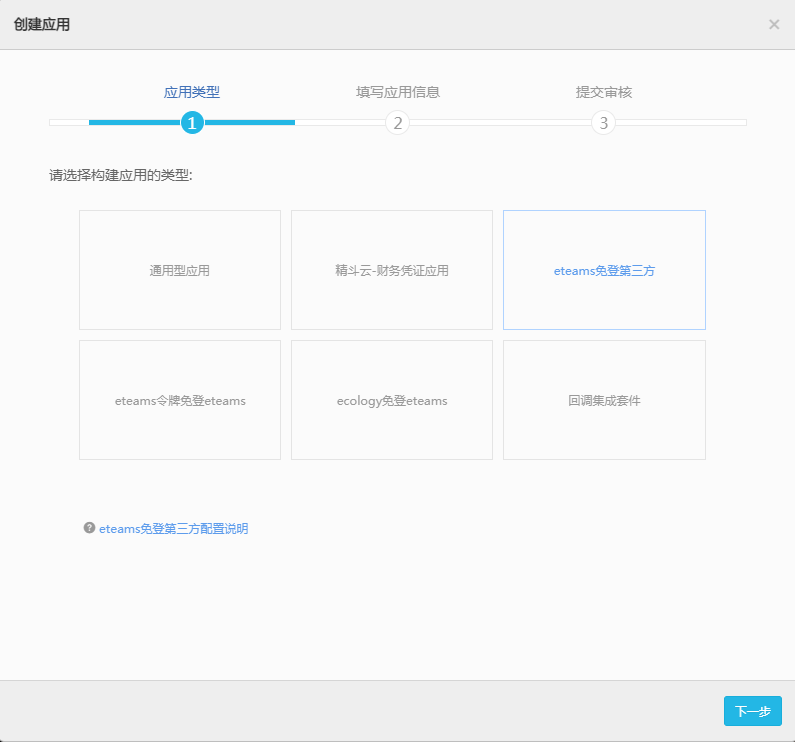
Log in to the Eteams Open Platform (opens new window), click "Create Application", and select "Eteams Third-Party Login-Free" as the application type.
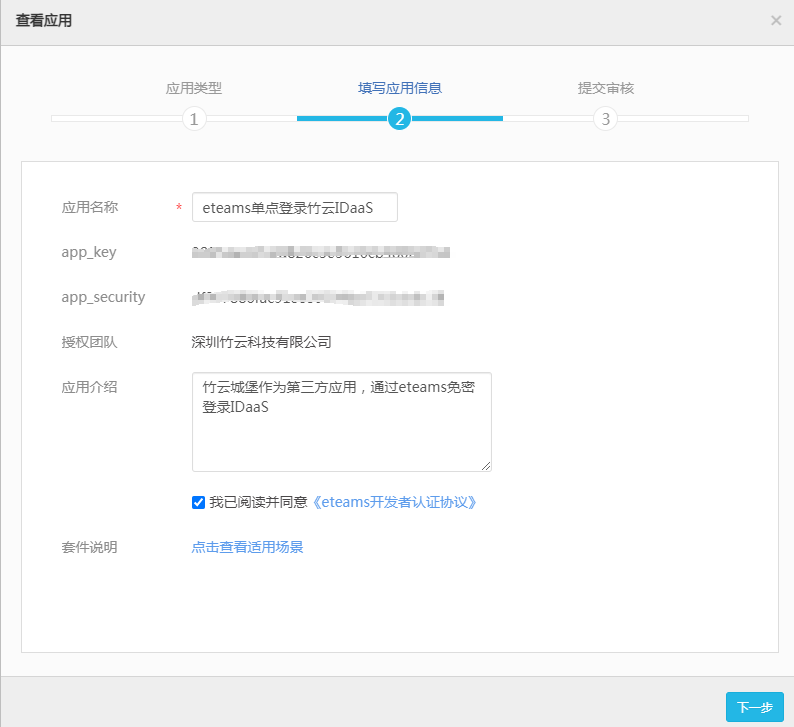
View the application information to obtain the app_key.
# Add Eteams Authentication Source in IDaaS
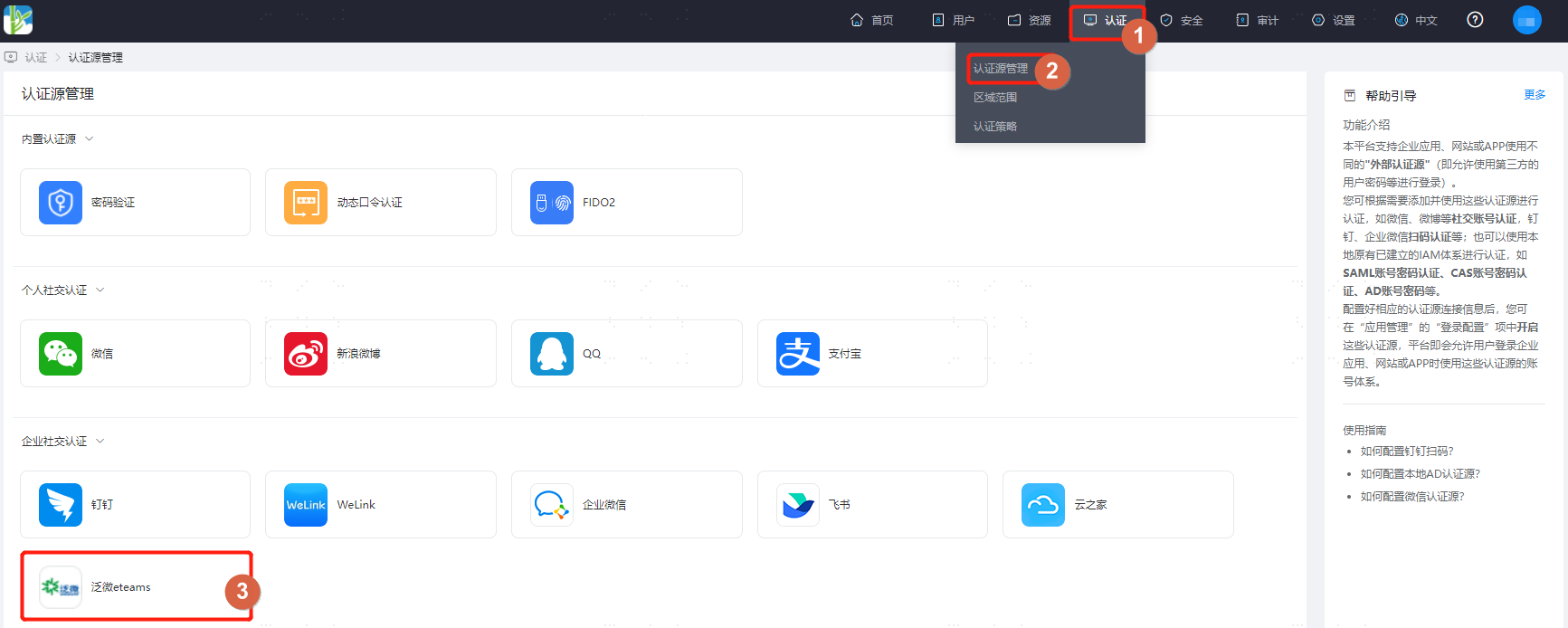
Log in to the IDaaS Enterprise Center platform, select "Authentication > Authentication Source Management" from the top navigation bar, go to the Eteams authentication source page, and click "Add Authentication Source".
Configure the Eteams authentication source parameters according to the interface prompts. Key parameter descriptions are as follows.
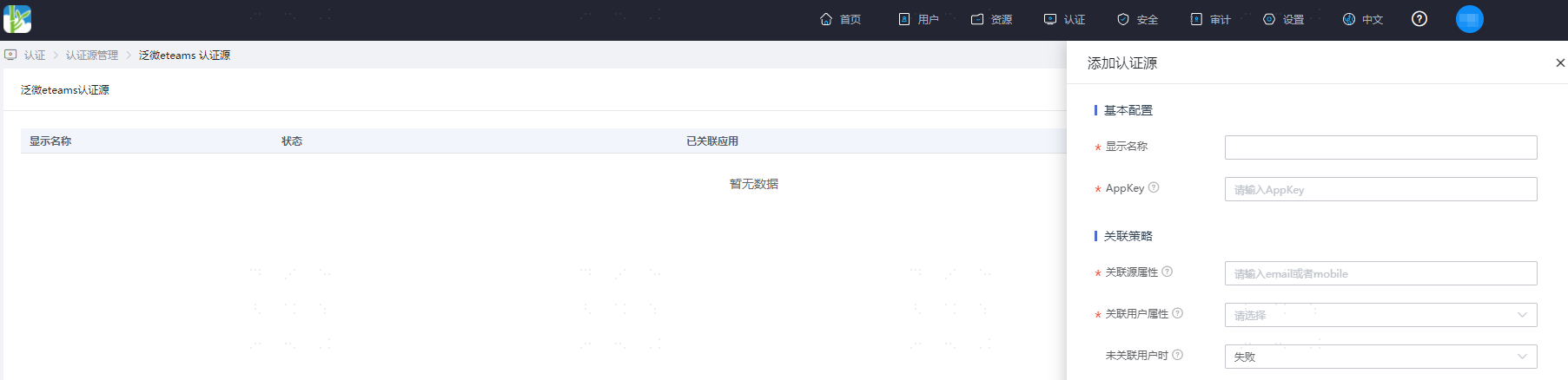
When no user is associated: This refers to when the associated source attribute of the user information returned by Eteams does not match the associated user attribute in IDaaS, and no system user is associated. The optional configuration items are as follows.
Fail: Set to "Fail", meaning this user is not allowed to pass authentication.
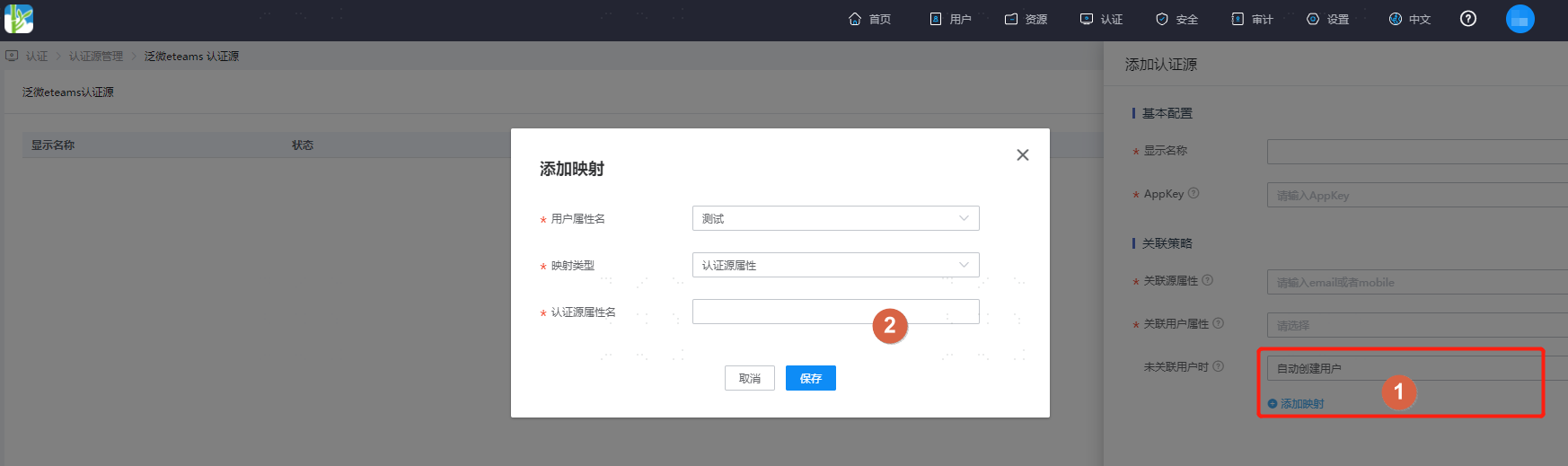
Automatically create user: Set to "Automatically create user", click "Add Mapping" to map the user attributes from Eteams to the user attributes in IDaaS according to the mapping rules and associated attributes, and create the user, allowing this user to pass authentication.
Attribute descriptions are as follows:
User Attribute Name: Select the user attribute in IDaaS from the dropdown.
Mapping Type: Select Authentication Source Attribute.
Authentication Source Attribute Name: Eteams user attribute.