Configuring WeLink Password-Free Login
# Overview
This section describes the configuration process for users to log in to IDaaS-integrated applications without a password within the WeLink PC client and mobile APP. After configuring the WeLink authentication source on the IDaaS platform, refer to this module to configure WeLink password-free login for each application system.
# Prerequisites
- Have access management permissions for the IDaaS Enterprise Center.
- Have administrator account permissions for the WeLink Open Platform and have already created an application.
- The application has been integrated on the IDaaS platform.
- The WeLink authentication source has already been configured on the IDaaS platform.
# Configuration Flow

# Procedure
The example application in this document is an OAuth authentication protocol application created in IDaaS: OAUTH_1. Applicable application scope: All self-built applications and pre-integrated applications that perform authentication integration with IDaaS through protocols.
# Configuring WeLink Authentication for the Application
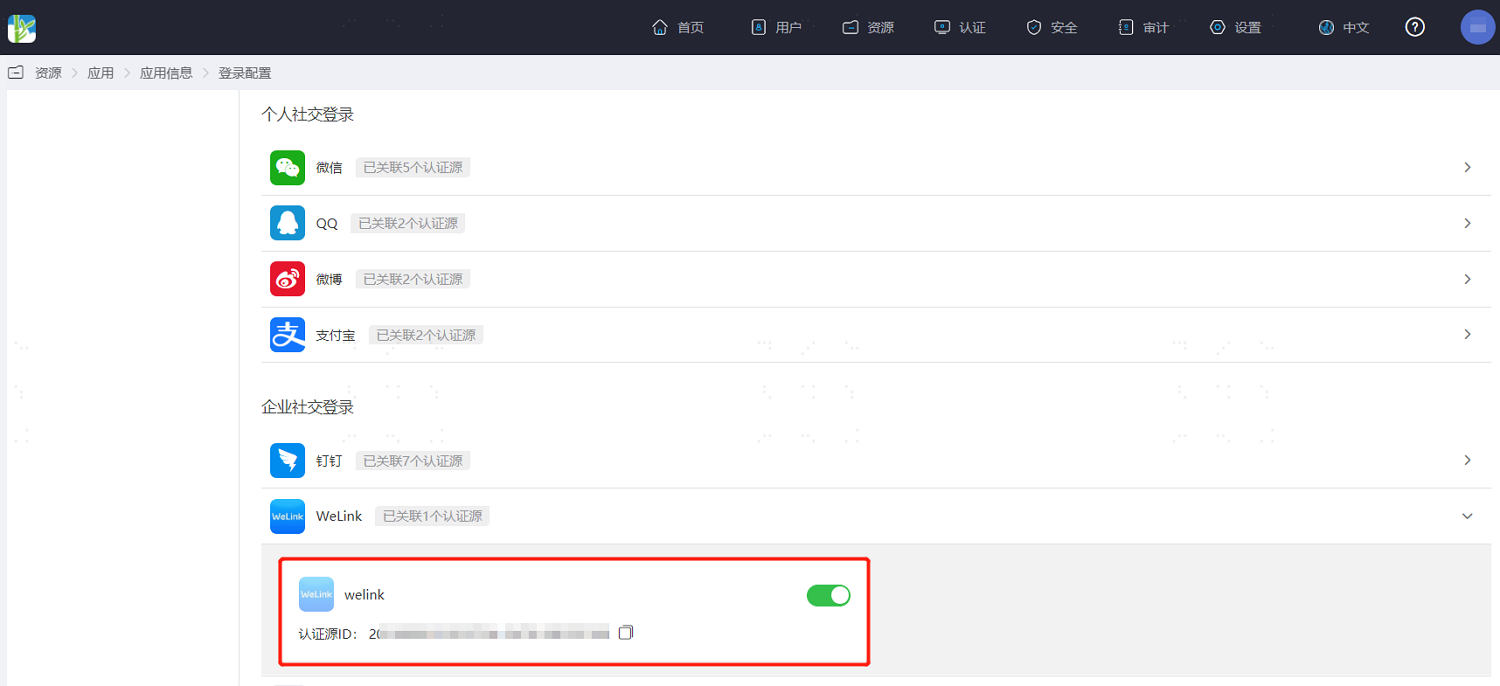
Log in to the IDaaS Enterprise Center platform, select "Resources > Applications" in the top navigation bar, taking an OAuth authentication protocol application as an example, select "OAUTH_1", switch to the "Login Configuration" tab, scroll down to WeLink, and enable the previously added WeLink authentication source.
Switch to the "Authentication Integration" tab, select "Mounting Address", and copy the application mounting URL.
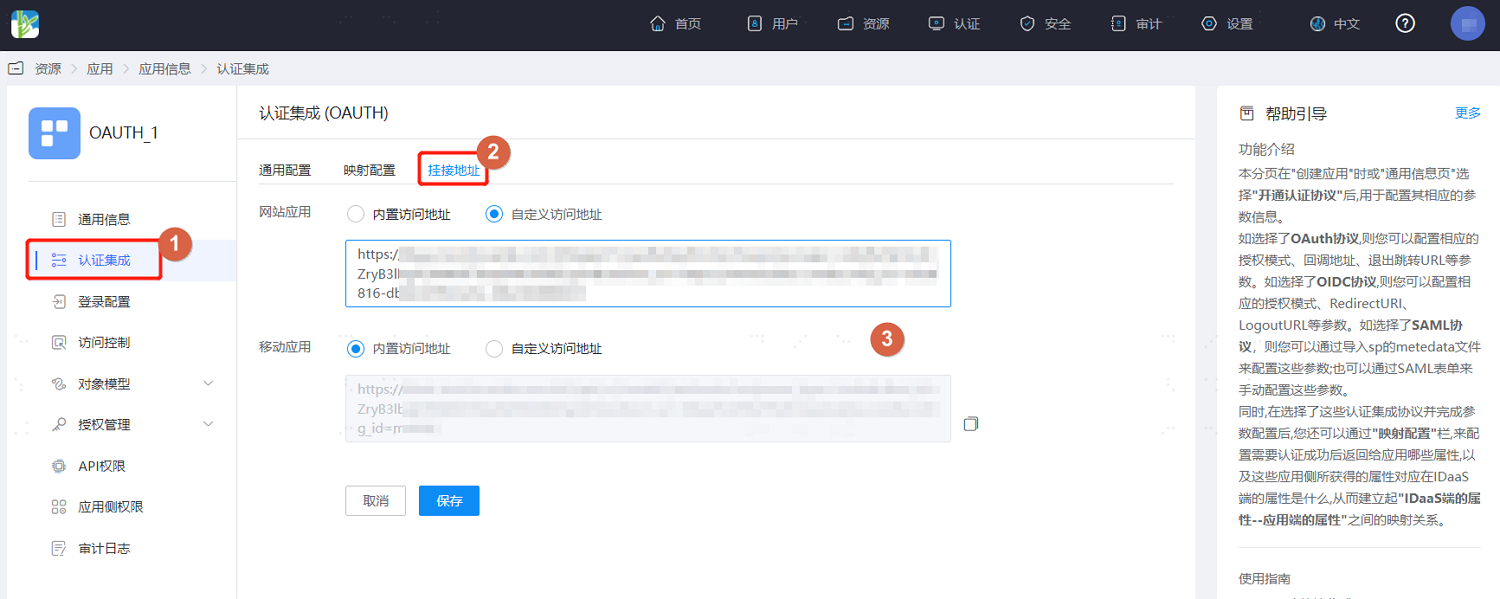
- Mounting Address: Generally, if accessing the application via a PC browser or PC client, it is recommended to access it here through the website application mounting address; if accessing the application via mobile H5 or mobile APP, it is recommended to access it here through the mobile application mounting address.
- Website Application: Corresponds to the WeLink desktop homepage
- Mobile Application: Corresponds to the WeLink mobile homepage
- Some pre-integrated applications do not support IDP-initiated Single Sign-On (SSO). Please ignore this step for those, e.g., Huawei Cloud, Tencent Cloud.
- Mounting Address: Generally, if accessing the application via a PC browser or PC client, it is recommended to access it here through the website application mounting address; if accessing the application via mobile H5 or mobile APP, it is recommended to access it here through the mobile application mounting address.
# WeLink Open Platform Configuration
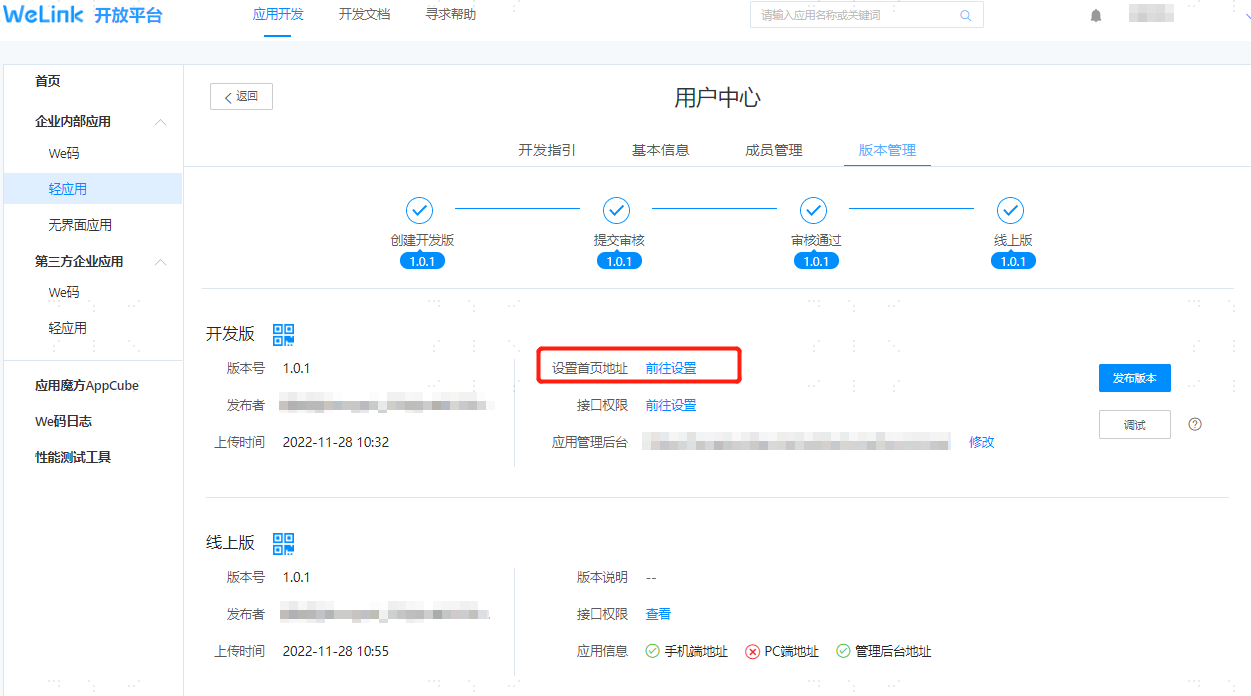
Log in to the WeLink Open Platform address (opens new window), find the previously created application and enter it, select "Version Management", and set the homepage address.
# Verifying Password-Free Login from the WeLink Side
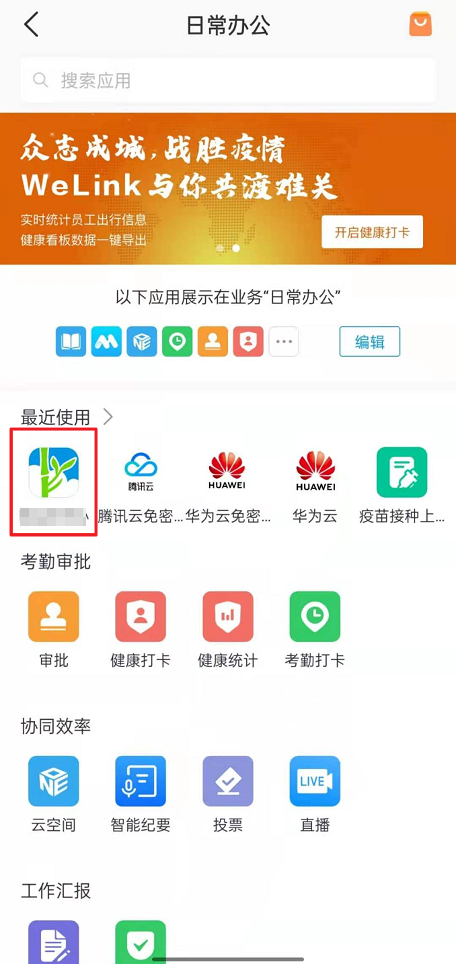
The user logs in to the WeLink PC client, finds the application created in WeLink under "Business > My Applications", and clicks on that application to log in without a password.
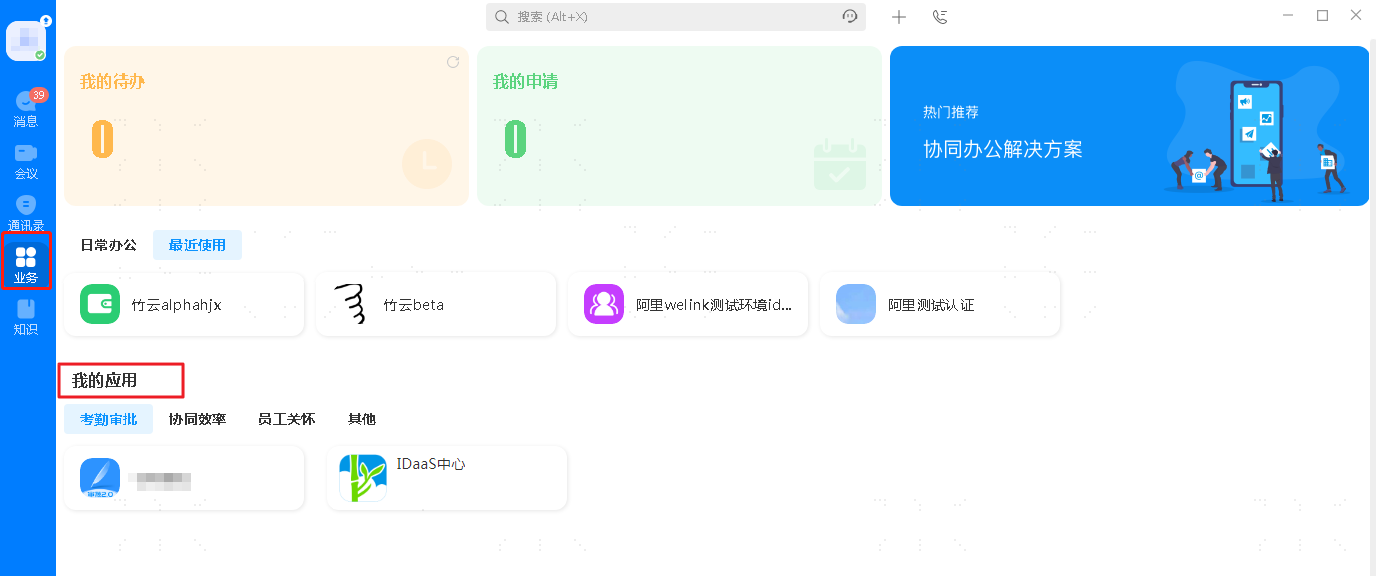
The user logs in to the WeLink mobile client, finds the application created in WeLink, and clicks on that application to log in without a password.