Configuring Weaver eteams Account Password and QR Code Login
# Overview
This section describes the configuration process for the Weaver eteams login function. After configuring the integrated Weaver eteams authentication source on the IDaaS platform, refer to this module to configure Weaver eteams account password and QR code authentication login for various application systems.
# Prerequisites
- Have administrator permissions for the IDaaS Enterprise Center platform.
- Have already created an application on the Weaver eteams open platform.
- The application has been integrated on the IDaaS platform.
- Have already configured the Weaver eteams authentication source on the IDaaS platform.
# Configuration Process

# Steps
# Configuring Weaver eteams Authentication for an Application
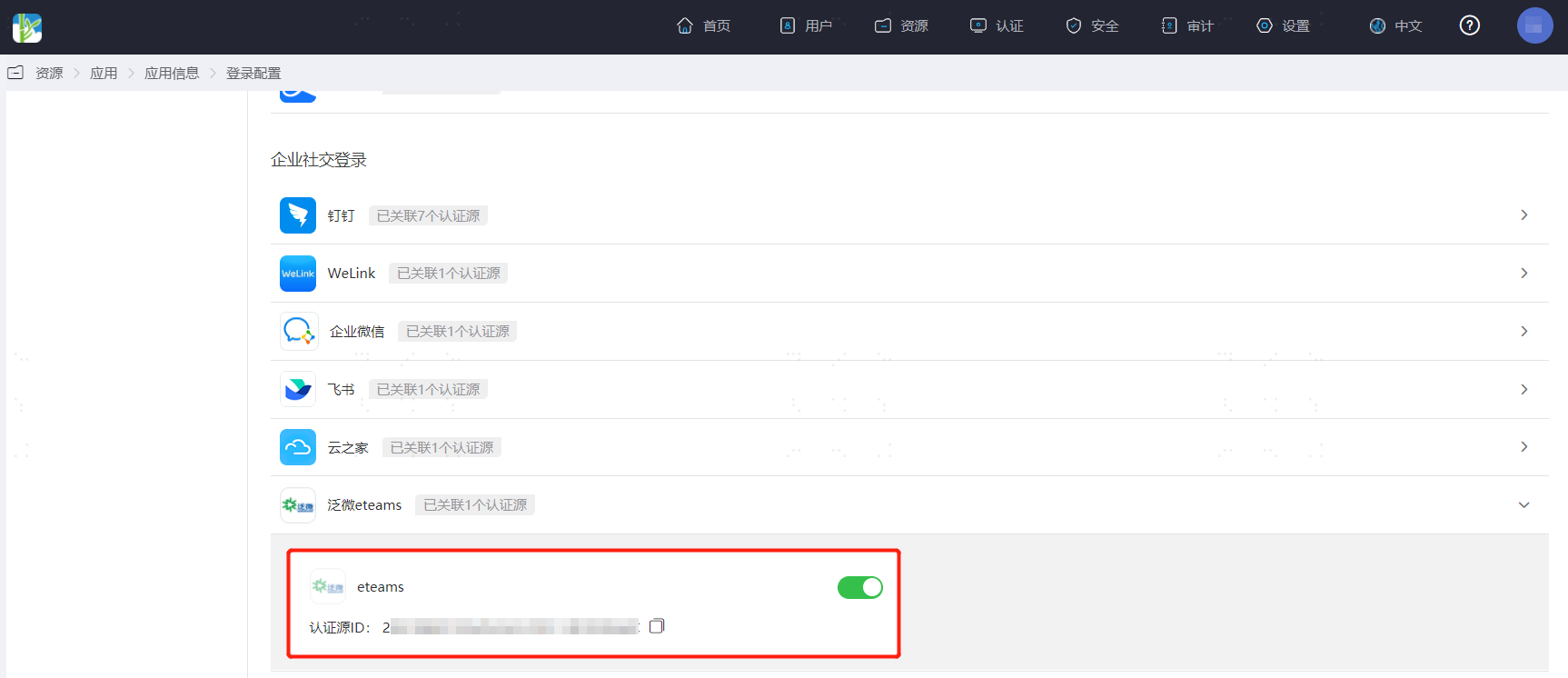
Log in to the IDaaS Enterprise Center platform. In the top navigation bar, select "Resources > Applications". Taking the User Center application as an example, select "User Center", switch to the "Login Configuration" tab, scroll down to Weaver eteams, and enable the previously added Weaver eteams authentication source.
# Verifying Weaver eteams Authentication Login
The actual process of Weaver authentication login is related to the "When user is not associated" option in Configuring the Weaver eteams Authentication Source. Please refer to the interface prompts for login.
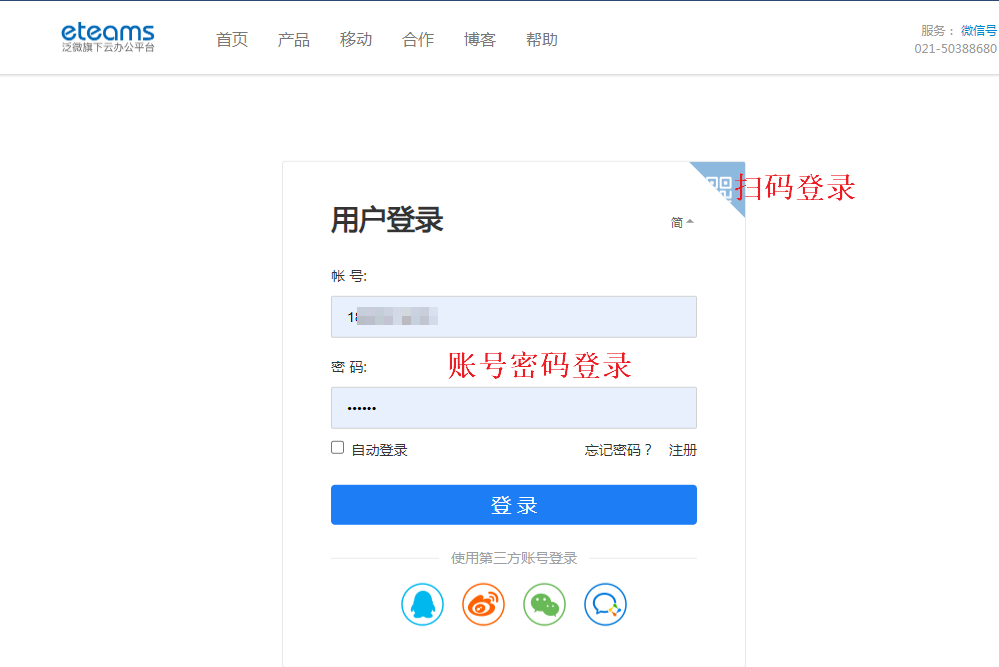
Log in to the User Center. On the application system login page, select eteams login.

Use eteams account password or scan the QR code to log in to the application system.