Configuring Apple Sign-In
# Overview
This section describes the configuration process for the Apple ID sign-in feature. After configuring and integrating the Apple authentication source on the IDaaS platform, refer to this module to configure Apple authentication sign-in for various application systems.
# Prerequisites
- Have administrator privileges for the IDaaS Enterprise Center platform.
- The application has been integrated on the IDaaS platform.
- The Apple authentication source has been configured on the IDaaS platform.
# Steps
# Configuring Apple Authentication for an Application
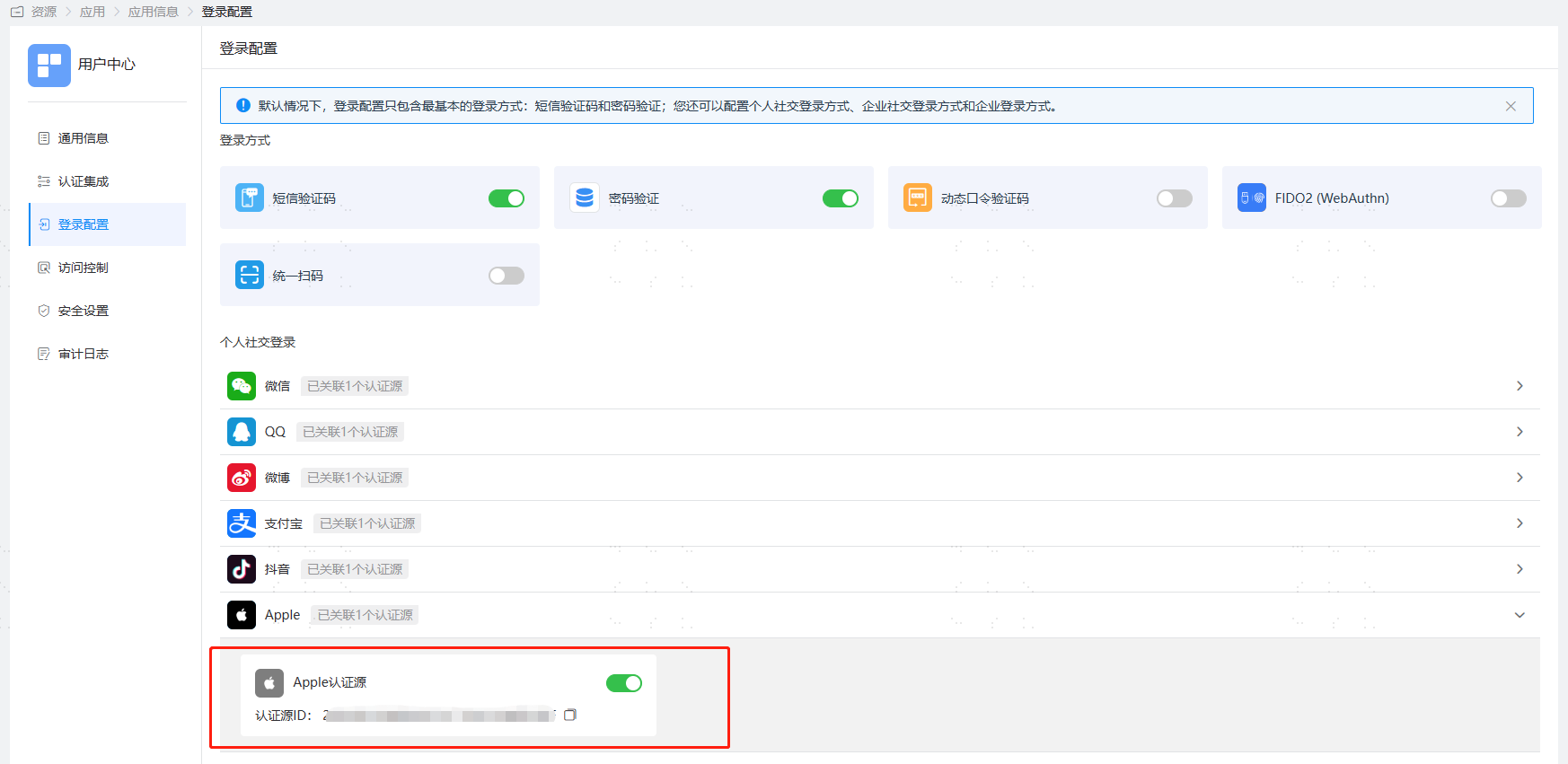
Log in to the IDaaS Enterprise Center platform. In the top navigation bar, select "Resources > Applications". Taking the User Center application as an example, select "User Center", switch to the "Sign-in Configuration" tab, scroll down to Apple, and enable the previously added Apple authentication source.
# Verifying Apple Sign-In
Access the User Center. On the application system's login page, choose Apple Sign-In.
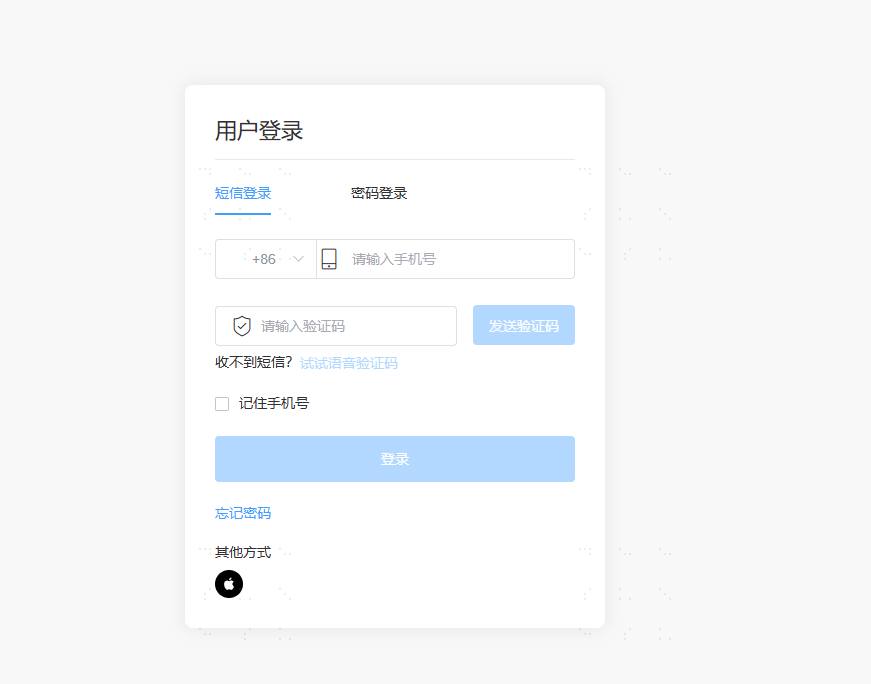
If logging in from an Apple device, the device will prompt the user for Face ID/Touch ID verification. After successful verification, the user can log in.
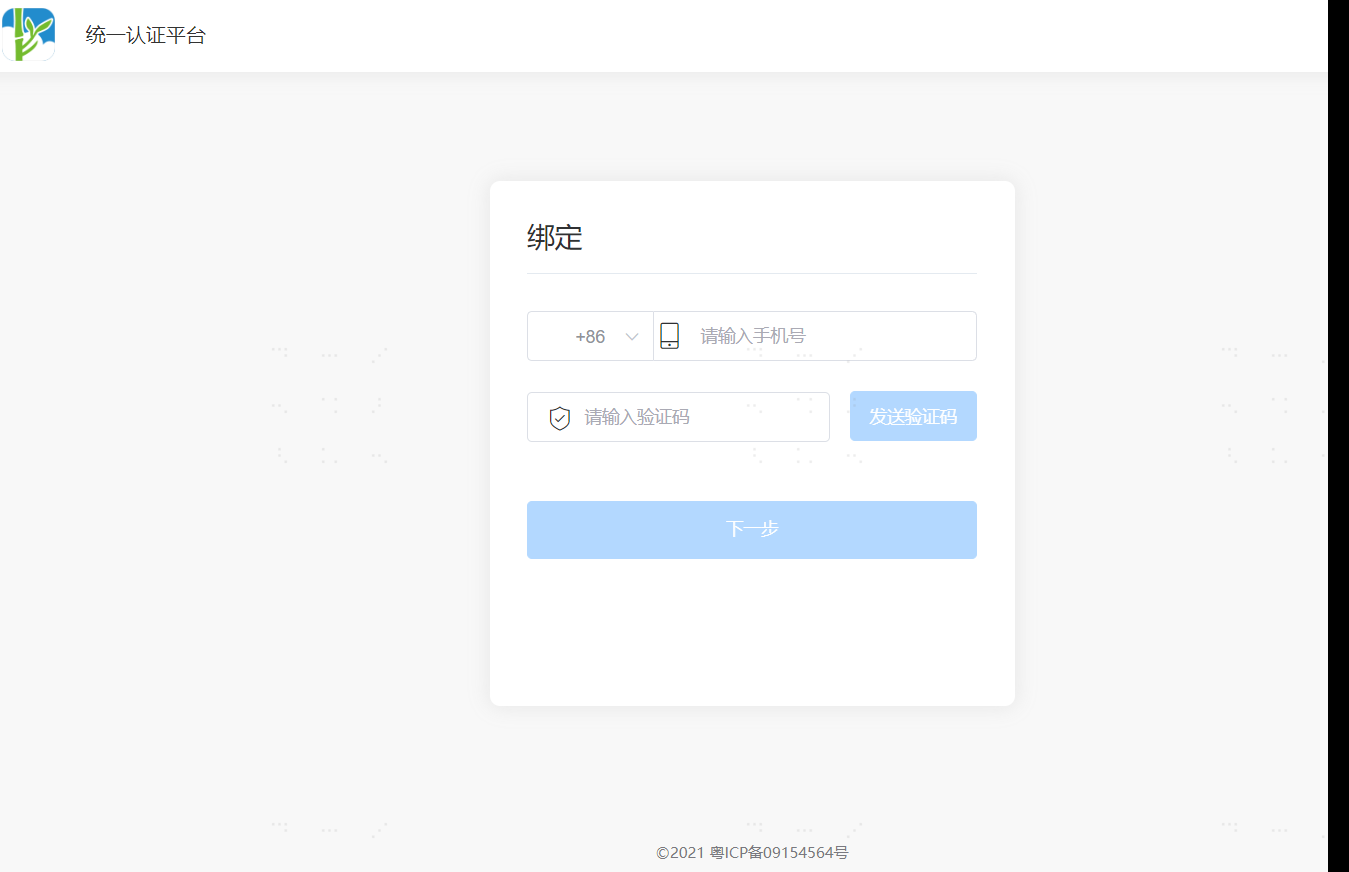
If the Apple ID account is already bound to a user, the system will automatically recognize the bound user and log in successfully. If this is the first time signing in, the binding or registration process needs to be completed according to the authentication source configuration.
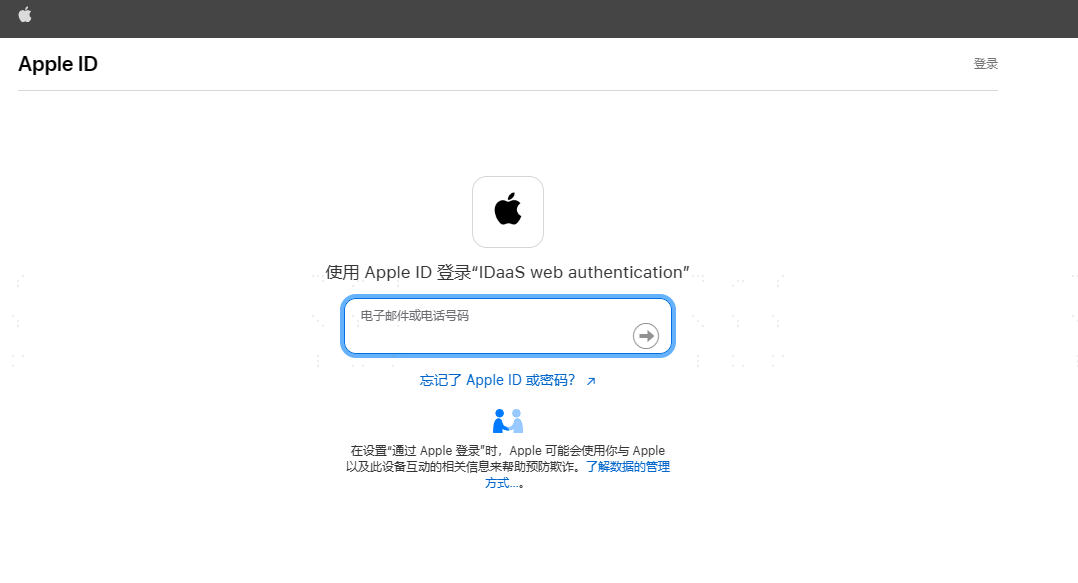
If signing in via the Apple authentication source from a non-Apple device, you will be redirected to the Apple ID login page. Use your Apple ID to complete the login and finish Apple's two-factor authentication.