
Configure Apple Authentication Source
# Overview
Apple provides the "Sign in with Apple" feature, allowing users to log in to third-party apps or websites directly using their Apple ID. To facilitate authentication and login for enterprise users, the IDaaS platform supports configuring an Apple authentication source. Users can log in to various application systems via Apple authentication, offering a simpler, more convenient login method and a better user experience for enterprise users.
This section describes the related operations for configuring an Apple authentication source.
# Prerequisites
- Have administrator permissions on the Apple Developer Platform. The Apple Developer Platform requires joining the Apple Developer Program (can be joined as an individual or organization, requires payment, annual fee RMB 688).
- Have administrator permissions on the IDaaS Enterprise Center platform.
# Steps
# Apple Developer Platform Operations
Log in to the Apple Developer Platform (opens new window) and add a developer program.
With administrator permissions, you can see "Certificates, Identifiers & Profiles" under Program Resources. Access Identifiers (English) (opens new window).
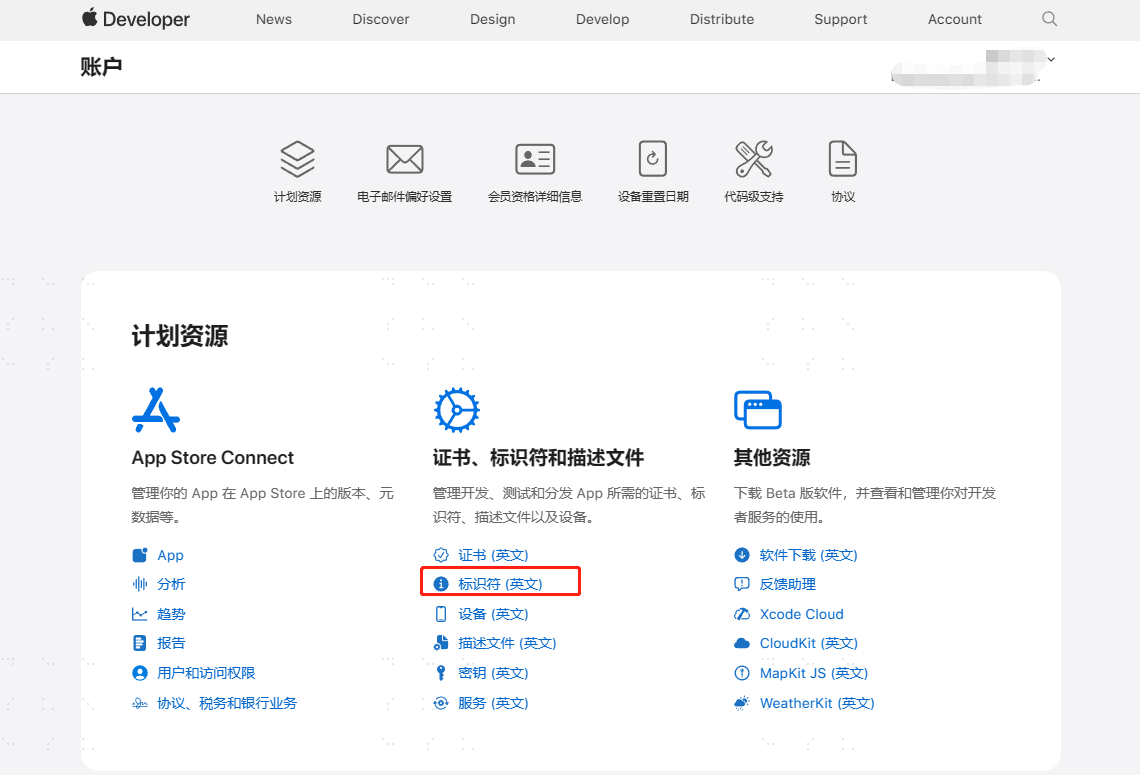
# Create an App ID
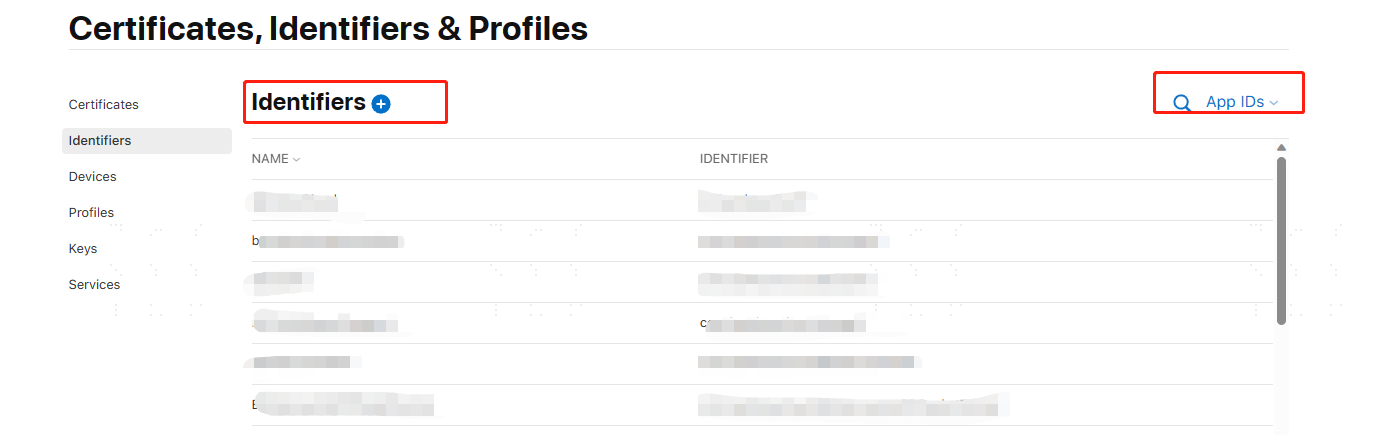
In the Identifiers menu, select App IDs, then click Add.
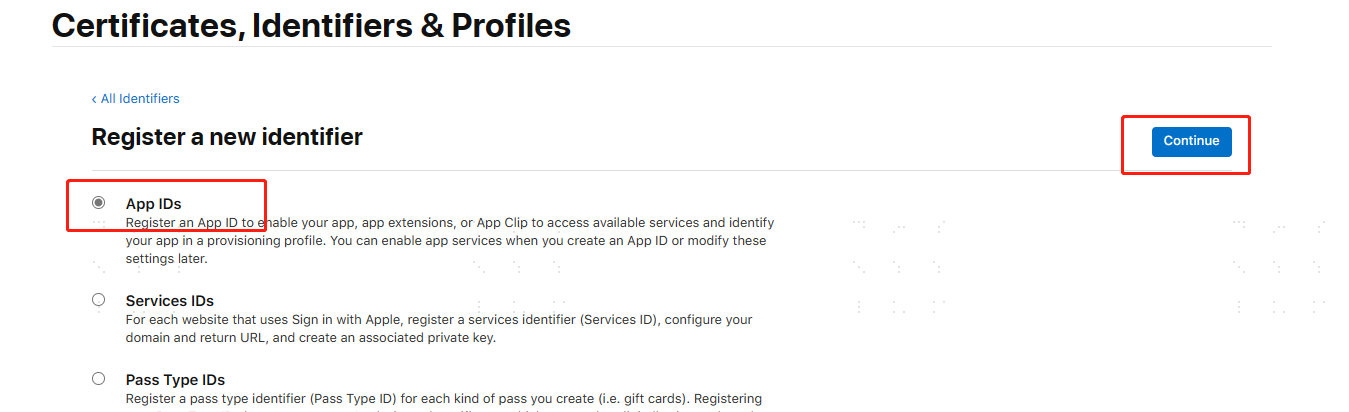
Select App IDs, then click Continue.
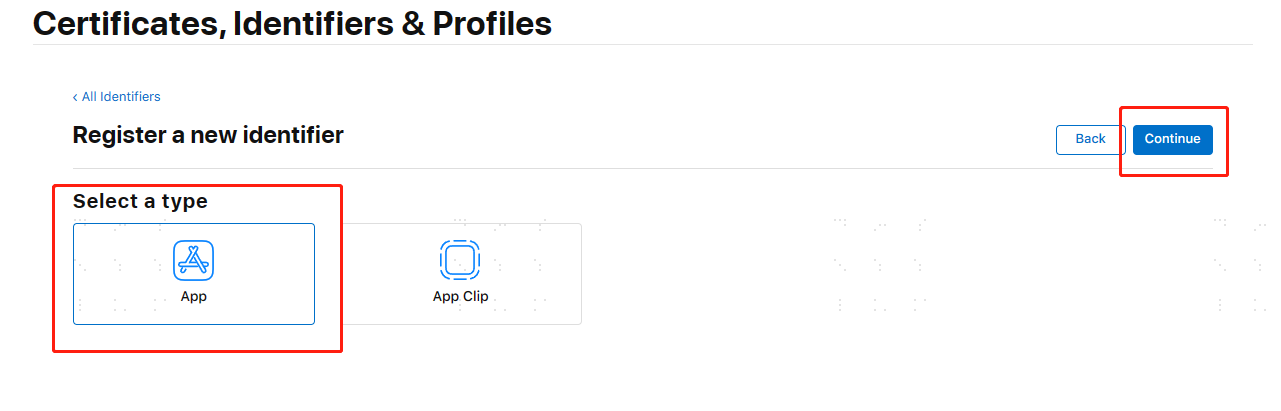
In Select a type, choose App, then click Continue.
On the Register an App ID page, enter the Description and Bundle ID.
- Description: App description, can be modified.
- Bundle ID: App identifier, must be unique and cannot be modified. It is recommended to enter the project's domain name, e.g., for domain.com you could enter com.domain.
- Team ID: Record this field, it will be used later for the TeamId field in the IDaaS Apple authentication source configuration.
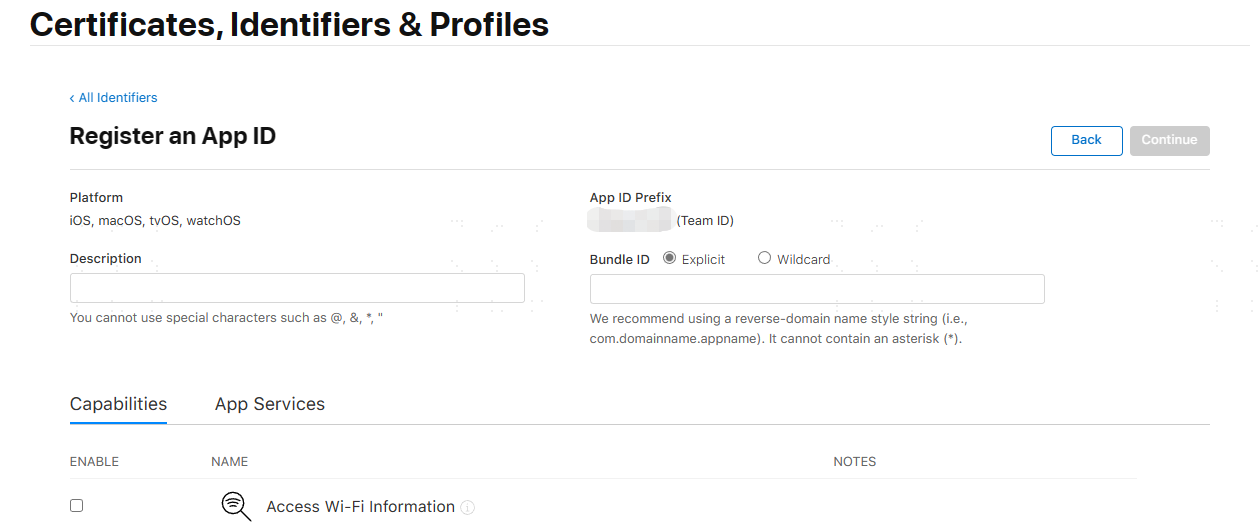
Check "Sign In with Apple" below, then click Continue to complete the App ID registration.

# Create a Service ID
In the Identifiers menu, select Services IDs, then click Add.
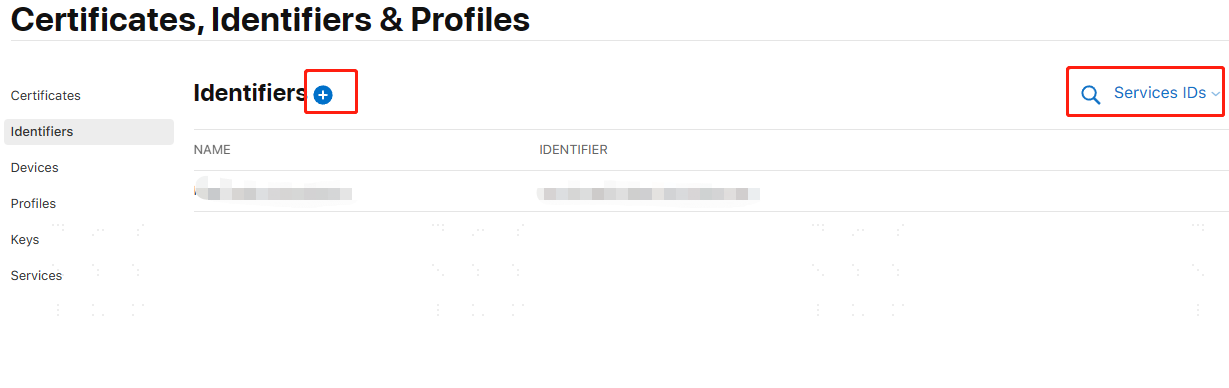
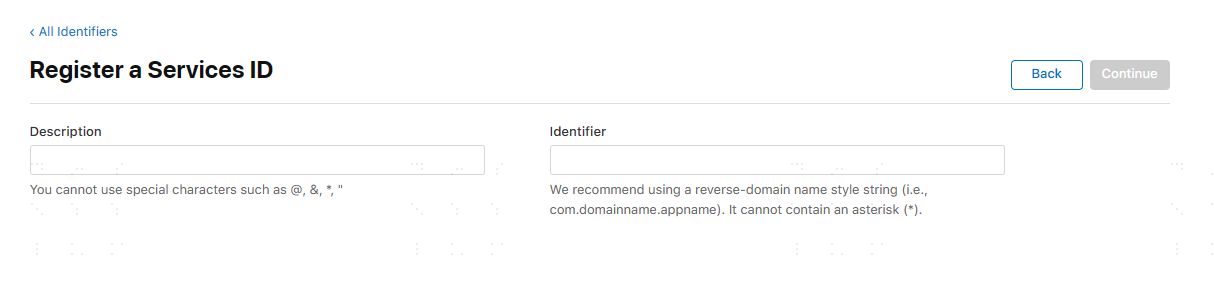
After selecting Services IDs, click Continue to enter the Register a Services ID page. Enter the Description and Identifier.
- Description: Service description, can be modified.
- Identifier: Service identifier, cannot be modified. This will be used later for the ClientId field in the IDaaS Apple authentication source configuration.
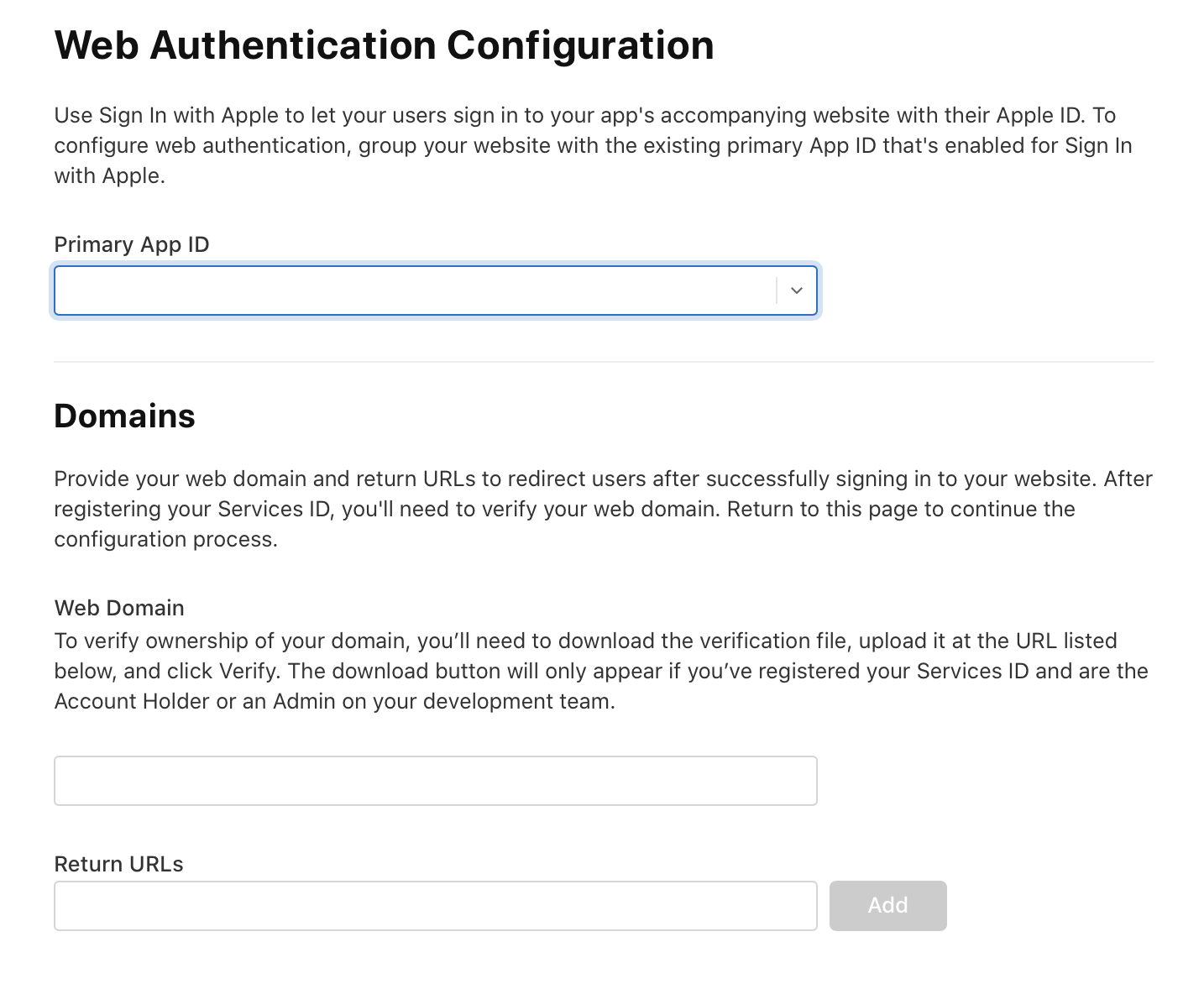
After completing the configuration in the previous step, click Continue to enter the following page. Once configured, the Service ID creation is successful.
- Primary App ID: Select and bind the App ID created earlier.
- Web Domain: Configure the secure interface domain name, e.g., domain.com. Do not include the https:// protocol header. You can fill in the IDaaS tenant domain name.
- Return URLs: The callback address for the interface after authorization login. This address must be the Apple login address provided by IDaaS, e.g.: https://demo.bccastle.com/api/v1/login/apple
# Create Keys
In the Keys menu, click Add.
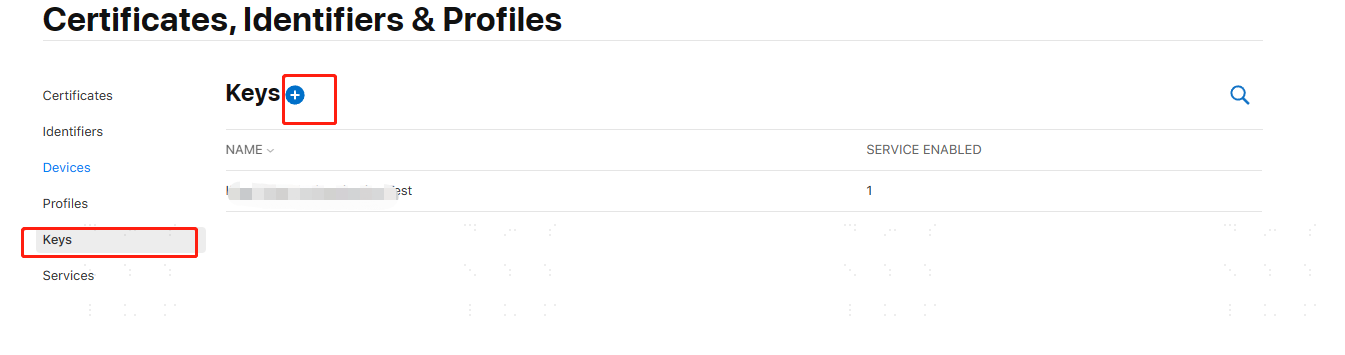
On the Register a New Key page, complete the following configuration.
key name: You can customize the name of the key.
Check
Sign in with Apple, clickConfigure, select the previously created APP ID, then clickSave.
After saving, return to the
Register a New Keypage. ClickConfigure, then continue and clickRegister. The following page will be displayed.This page shows the created Key ID and reminds you to download the private key file. Clicking
Note: The Key ID on this page needs to be recorded, and the downloaded .p8 file needs to be saved. They will be used later for the `Apple Private Key` field in the IDaaS Apple authentication source configuration.Downloadwill download a .p8 file.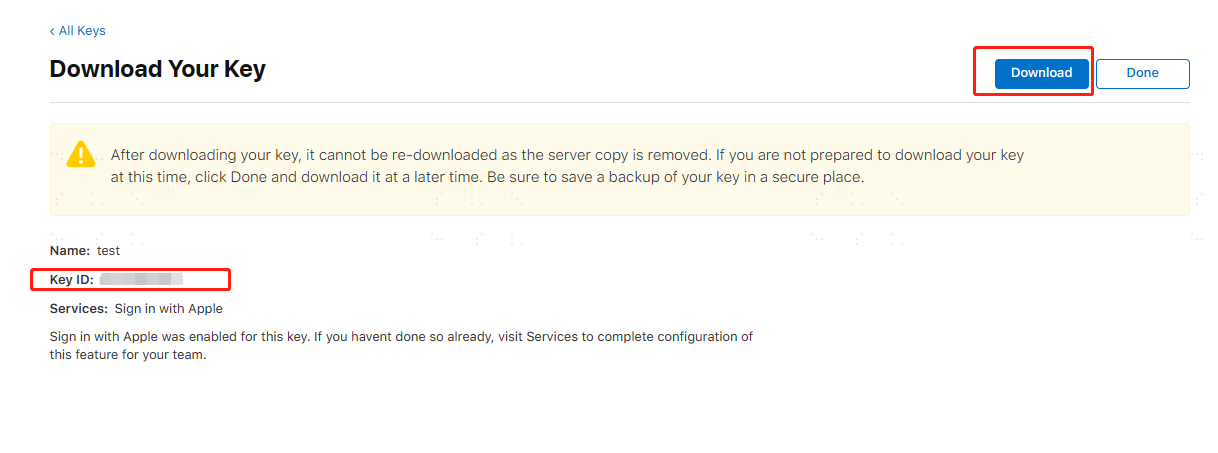
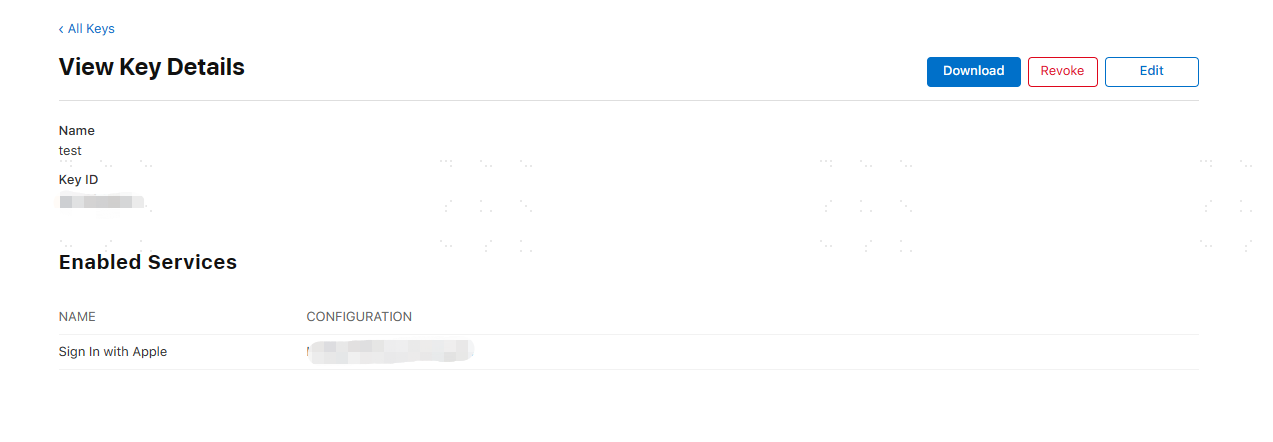
After completing the key addition, you can view the newly added key in the list. The details page is as follows.
# Configuring the Apple Authentication Source on the IDaaS Platform
Log in to the IDaaS Enterprise Center platform. In the top navigation bar, select
Authentication > Authentication Source Management, go to the Apple authentication source page, and clickAdd Authentication Source.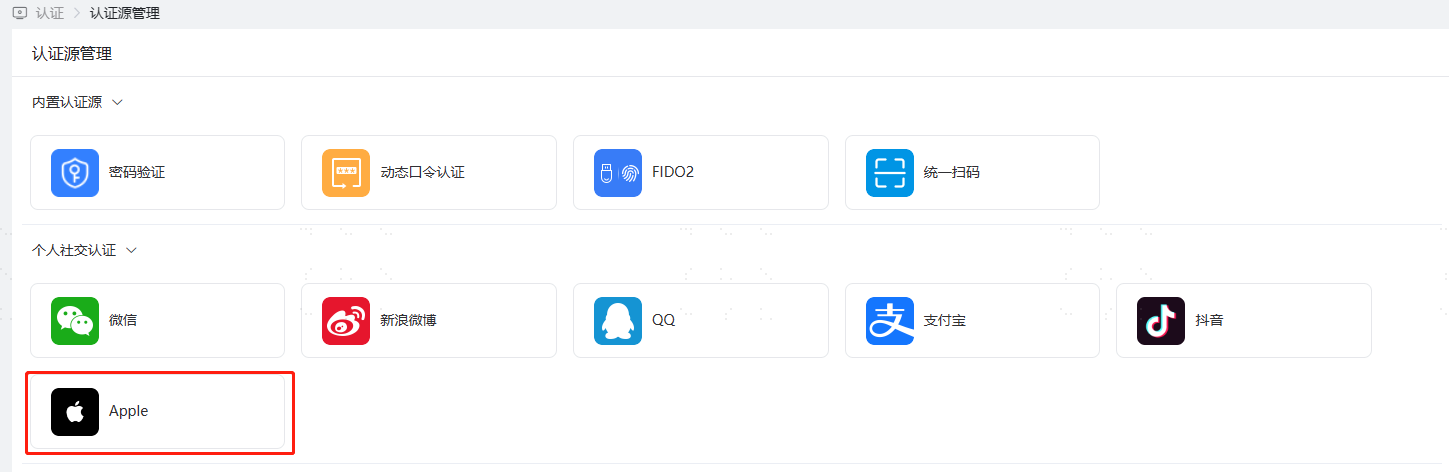
Configure the Apple authentication source parameters according to the interface prompts. Key parameter descriptions are as follows.

Basic Configuration: After completing the above operations on the Apple Developer Platform, you can obtain the following basic configurations:
- TeamId: A ten-digit enterprise/personal account number.
- ClientId: The
Identifierof the Services ID registered on the Apple Developer Platform. - KeyId: The key ID of the key just registered.
- Apple Private Key: The .p8 file downloaded when registering the Key on the Apple Developer Platform.
When No User is Associated: This refers to when the unique identifier (AppleID) returned by the Apple Open Platform is not associated with a system user in IDaaS. The optional configuration items are as follows.
- Bind: When no user is associated, based on the set binding method, it will redirect to the corresponding verification page. After successfully entering the SMS verification code, you can bind to the corresponding existing user.
- Bind or Register: When no user is associated, after entering the SMS verification code successfully, if the phone number does not exist, it will enter the registration process. After completing the registration information, you can log in through authentication.