Configuring AD Authentication Source
# Overview
To facilitate authentication and login for enterprise users, IDaaS directs authentication to the AD domain via the LDAP protocol. After AD authenticates, the AD-returned user attributes are matched and verified against the IDaaS user association attributes. Once verified, the user can log in to IDaaS. Currently, this feature is only supported in 2E scenarios.
This section describes the relevant operations for configuring an AD authentication source.
# Prerequisites
Have administrator privileges on the IDaaS Enterprise Center platform.
# Operation Steps
# Configuring AD Authentication Source on IDaaS Platform
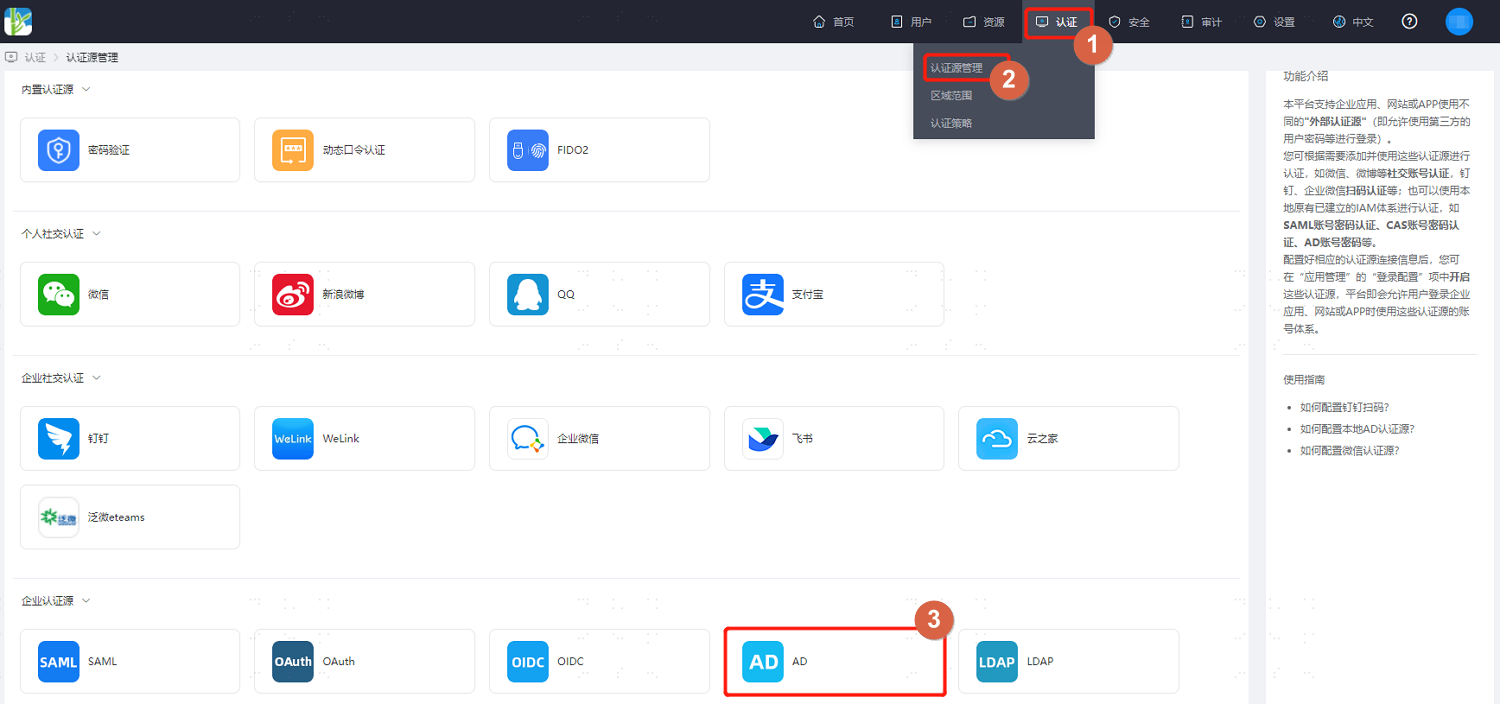
Log in to the IDaaS Enterprise Center platform. In the top navigation bar, select "Authentication > Authentication Source Management," go to the AD authentication source page, and click "Add Authentication Source."
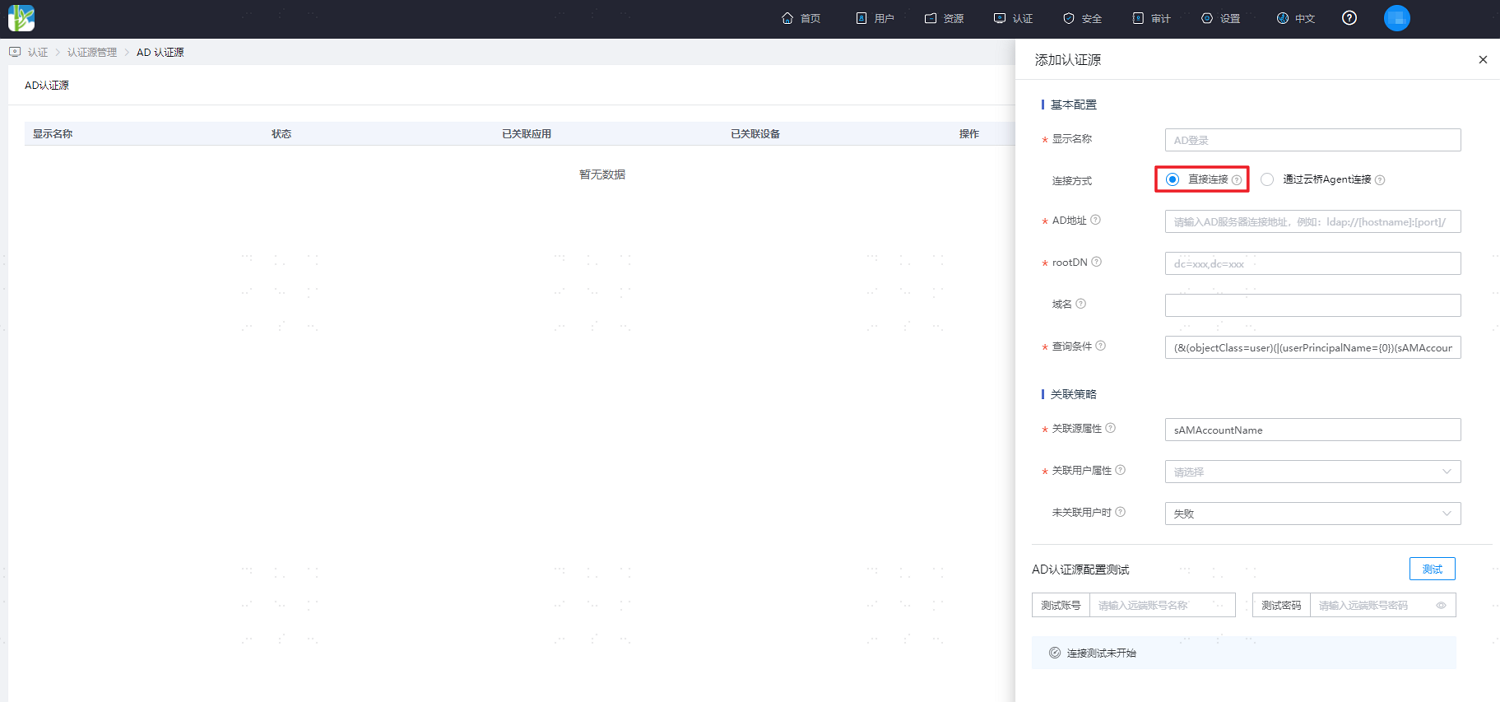
Configure the AD authentication source parameters according to actual project requirements, referring to the interface prompts. Key parameter descriptions are as follows.
Connection Method: Configure the connection method between the AD service and the IDaaS service.
Direct Connection: If the AD server has a fixed external IP and is accessible from the external network, it is recommended to choose the direct connection method.
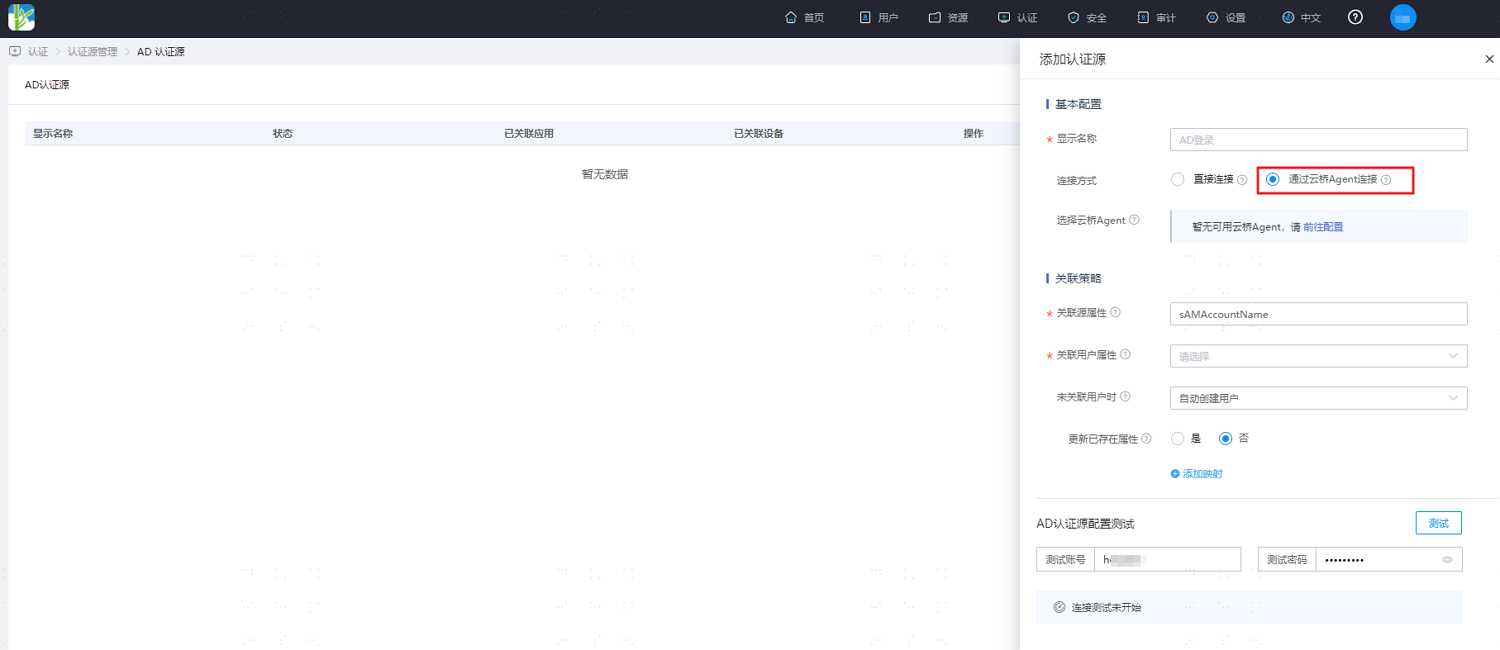
Via Cloud Bridge Agent: If the AD server is not accessible from the external network and needs to be accessed via the Authentication Source Cloud Bridge, choose the connection method via Cloud Bridge Agent.
AD Address: Required only when configuring the direct connection method. It is recommended to use an encrypted transmission method, such as ldaps://[hostname]:[port]/. Using an ldaps address will verify the certificate by default. You can choose to ignore certificate verification based on actual circumstances.
Function of Associated Source Attribute and Associated User Attribute: Maps a user attribute from AD to a user attribute in IDaaS. Authentication passes if this attribute from the user information returned by AD matches the associated attribute in IDaaS.
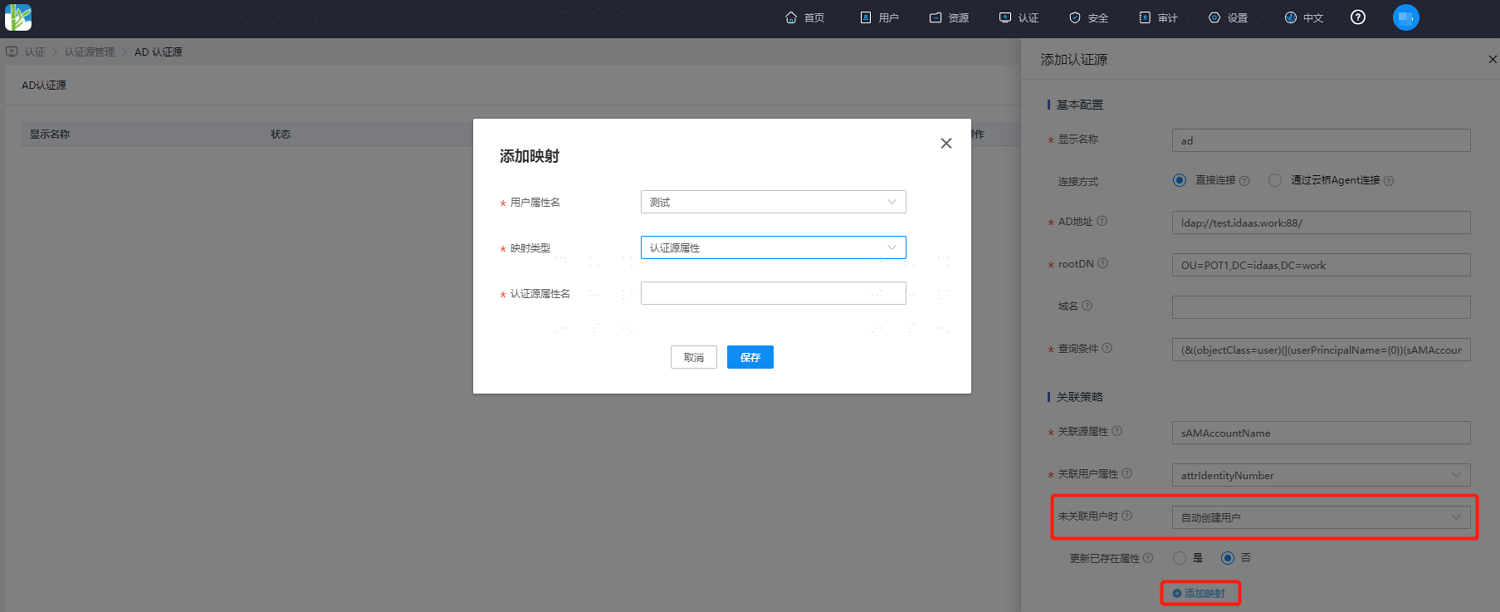
When User is Not Associated: When the source attribute from the user information returned by AD does not match the associated attribute in IDaaS, the following configuration options are available.
Selecting Fail means authentication is not allowed to pass.
Selecting Automatically Create User means an IDaaS user will be created based on the mapping rules and associated attributes, and authentication will pass.
Description of attributes to be added for mapping is as follows:
User Attribute Name: Drop-down to select a user attribute in IDaaS.
Mapping Type: Select the mapping type.
- When selecting the Authentication Source Attribute option, you need to enter the attribute name returned by the authentication source in the third row's Authentication Source Attribute Name input field.
- When selecting the Fixed Value option, you need to enter a fixed attribute value in the third row's Fixed Value input field.
- When selecting Script Transformation, you need to enter the transformation script in the third row's Script Content input field. For the syntax of script transformation, please refer to Dynamic Scripting in Development Mapping Definitions. For common AD-returned attributes in the script transformation object, please refer to the Script Transformation Object section below.
Authentication Source Attribute Name: The user attribute in the AD server.
# Script Transformation Object
The script object is
idp, containing AD-returned attributes. Common attributes are as follows:Attribute Name Display Name givenname First Name mobile Mobile Phone sn Last Name mail Email userPrincipalName Abbreviated as UPN, usually composed of account name + @ + domain, e.g., idaas@bamboocloud.com sAMAccountName Account Name When using script objects, you can directly use idp.【property name】 to retrieve them. For example: idp.sAMAccountName, idp.userPrincipalName.
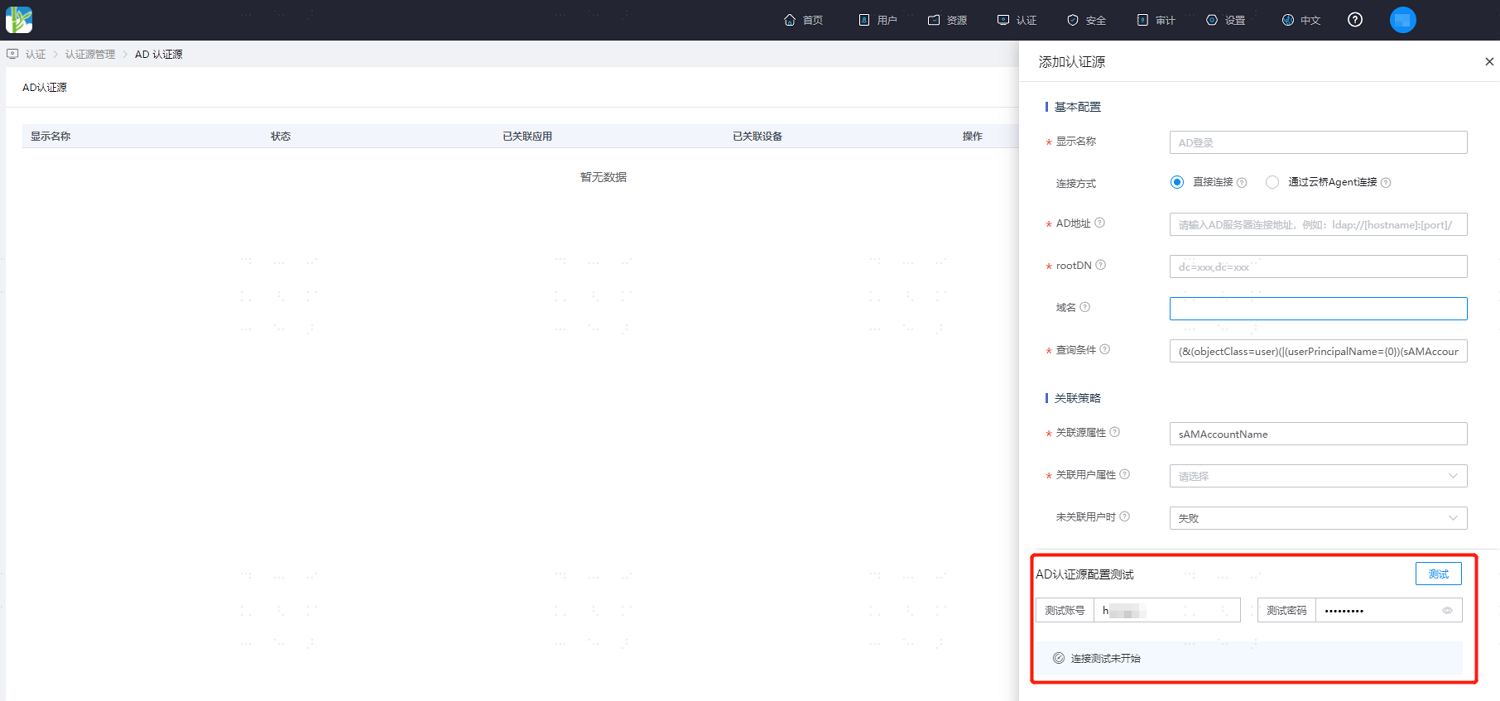
After completing the configuration of the AD authentication source parameters, enter the AD username and password at the bottom of the configuration, and click "Test" to verify the configuration of the AD authentication source and the connection to the AD server. Save the configuration after confirming the test is successful.