
Configuring SAML Authentication Source
# Overview
To facilitate enterprise user authentication and login, the IDaaS platform supports configuring the SAML protocol as an authentication source. Users can authenticate and log into various application systems through the SAML protocol, providing enterprise users with a simpler and more convenient login method and a better user experience.
This section introduces the related operations for configuring a SAML authentication source.
# Prerequisites
Possess administrator permissions for the third-party Identity Provider (IDP) application system, and the identity provider must support SAML authentication.
Possess administrator permissions for the IDaaS Enterprise Center platform.
# Procedure
# Obtain IDaaS SP Metadata
Log in to the IDaaS Enterprise Center platform. In the top navigation bar, select "Authentication > Authentication Source Management" to enter the SAML authentication source page.
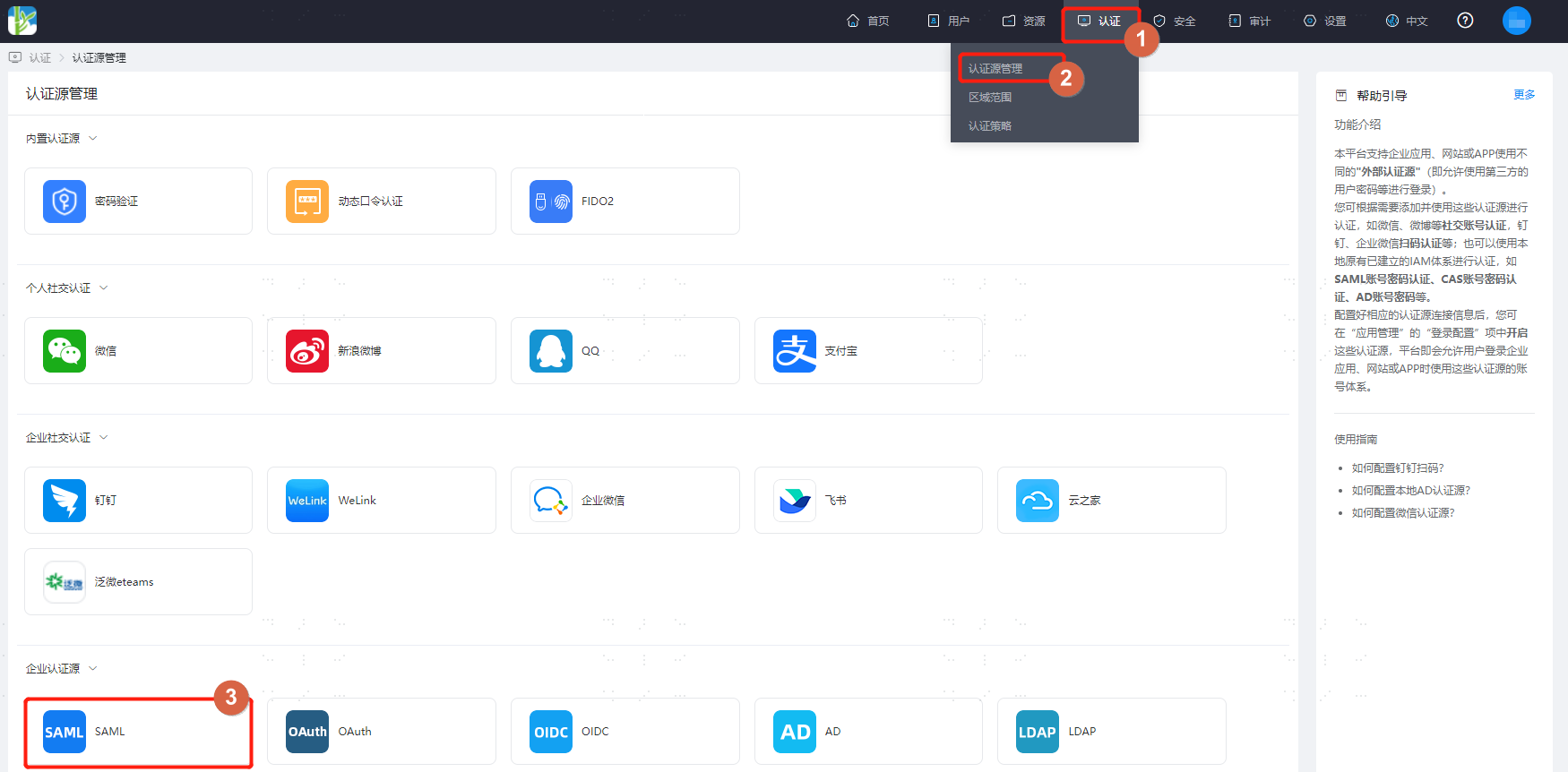
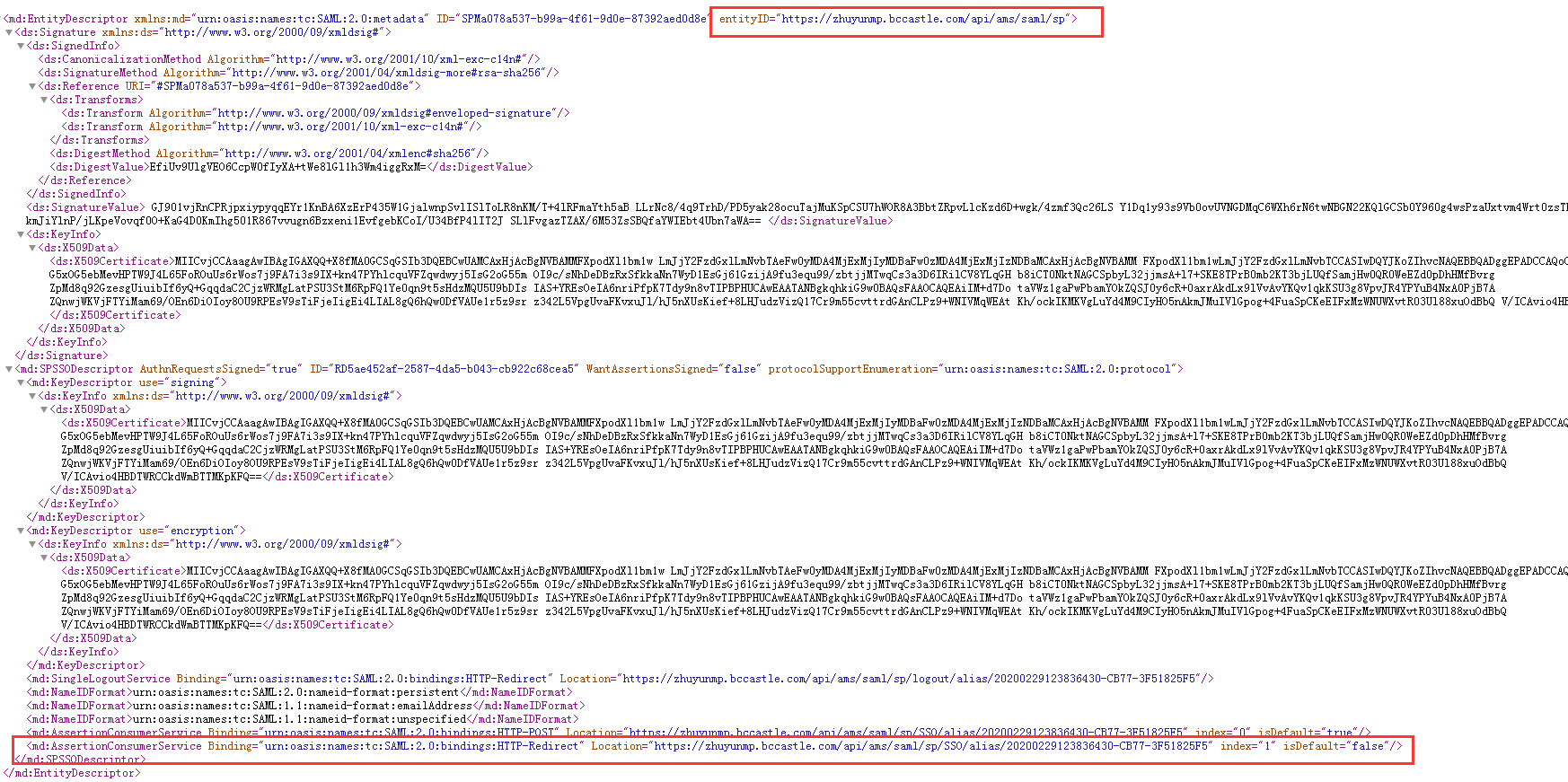
On the SAML authentication source page, click "SP Metadata" to download and view the metadata.

# Third-party SAML Authentication Platform Configuration
- Create an application with SAML 2.0 as the access method on the third-party platform. Complete the application's related information by combining it with the metadata obtained from the IDaaS platform. For detailed operations, please refer to the relevant documentation of each platform.
- Obtain the IDP metadata file of the newly created application.
- Grant users access permissions to the newly created application.
# Configure SAML Authentication Source on IDaaS Platform
Log in to the IDaaS Enterprise Center platform. In the top navigation bar, select "Authentication > Authentication Source Management" to enter the SAML authentication source page, then click "Add Authentication Source".
Configure the key parameters for the SAML authentication source by referring to the table below.
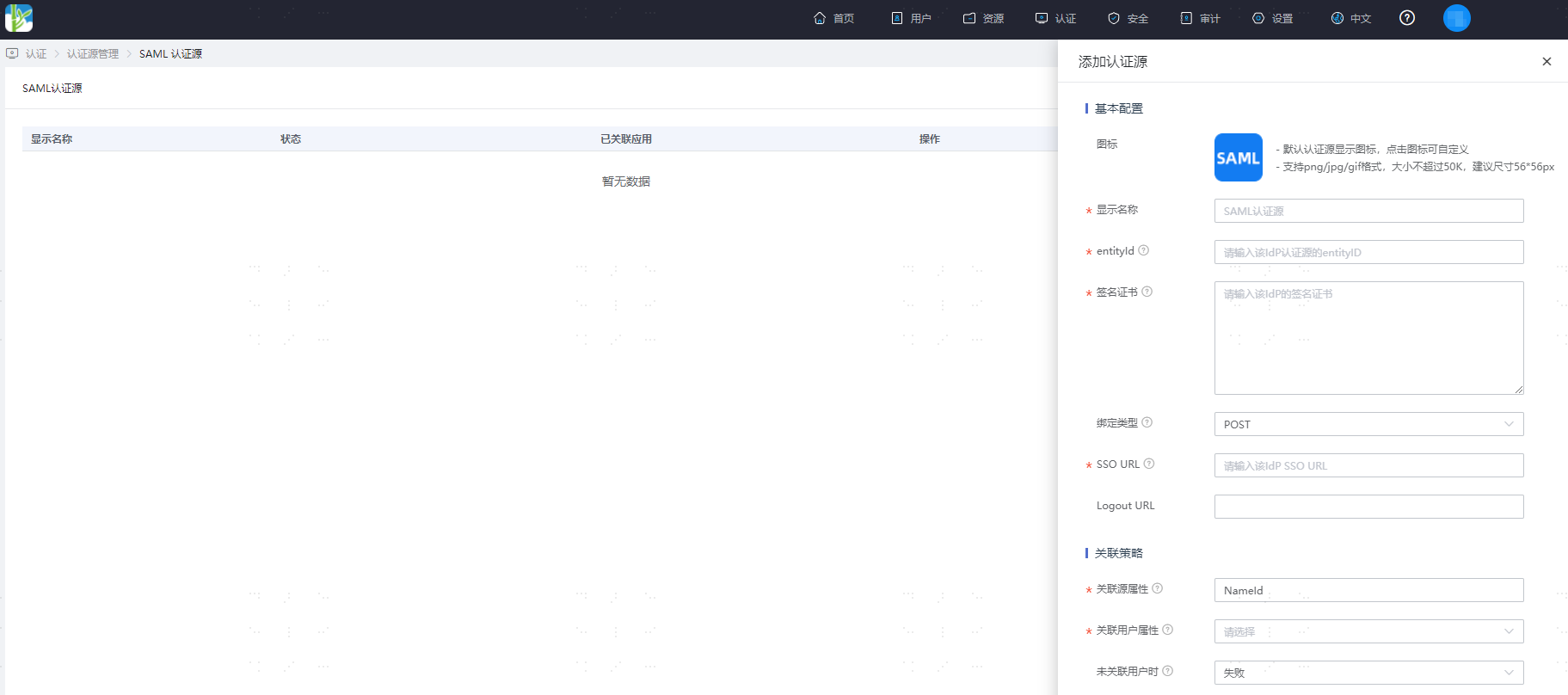
Parameter Description Display Name Custom display name for the authentication source entityId The entityID from the IDP metadata file of the newly created application on the third-party platform Signing Certificate The Certificate from the IDP metadata file of the newly created application on the third-party platform Binding Type The binding type supported by the SingleSignOnService address in the IdP. SSO URL The Identity Provider Single Sign-On URL from the IDP metadata file of the newly created application on the third-party platform Logout URL The global logout URL for the application Source Attribute The unique attribute name for the user in Okta User Attribute The unique attribute name maintained for the user in IDaaS When User Not Linked Fail, or Automatically Create User The username in IDaaS must match the authorized account in the third-party platform.
When User Not Linked: This refers to when the source attribute in the user information returned by the third-party platform does not match the user attribute in IDaaS, and no system user is linked. The configurable options are as follows.
Fail: Set to "Fail", meaning this user is not allowed to pass authentication.
Automatically Create User: Set to "Automatically Create User". You can choose whether to update existing attributes. Simultaneously, click "Add Mapping" to map user attributes from the third-party platform to IDaaS user attributes according to mapping rules and linked attributes, and create the user, allowing this user to pass authentication.
Attribute descriptions are as follows:
- User Attribute Name: Drop-down to select the user attribute in IDaaS.
- Mapping Type: Select Authentication Source Attribute.
- Authentication Source Attribute Name: User attribute from the third-party platform.