
Configure DingTalk Authentication Source
# Overview
DingTalk authentication login allows users to securely log in to third-party applications or websites using DingTalk as the authentication source. To facilitate authentication for enterprise users, the IDaaS platform supports configuring DingTalk as an authentication source. Users can authenticate and log in to various application systems via DingTalk, providing enterprise users with a simpler and more convenient login method and a better user experience.
This section describes the related operations for configuring the DingTalk authentication source.
# Prerequisites
- Have administrator permissions for the DingTalk Developer Backend.
- Have administrator permissions for the IDaaS Enterprise Center platform.
# Steps
# Create an Application in DingTalk Developer Backend
Log in to the DingTalk Developer Backend (opens new window) using a DingTalk account with developer permissions and select the correct organization to join.
In the top navigation bar, select "Application Development > Internal Development > DingTalk Application," then click "Create Application" to create an internal enterprise application.

- Application Type: Select H5 Micro Application.
- Application Name and Description can be filled with custom names.
After the application is created successfully, click on the application from the application list to enter the application details page.
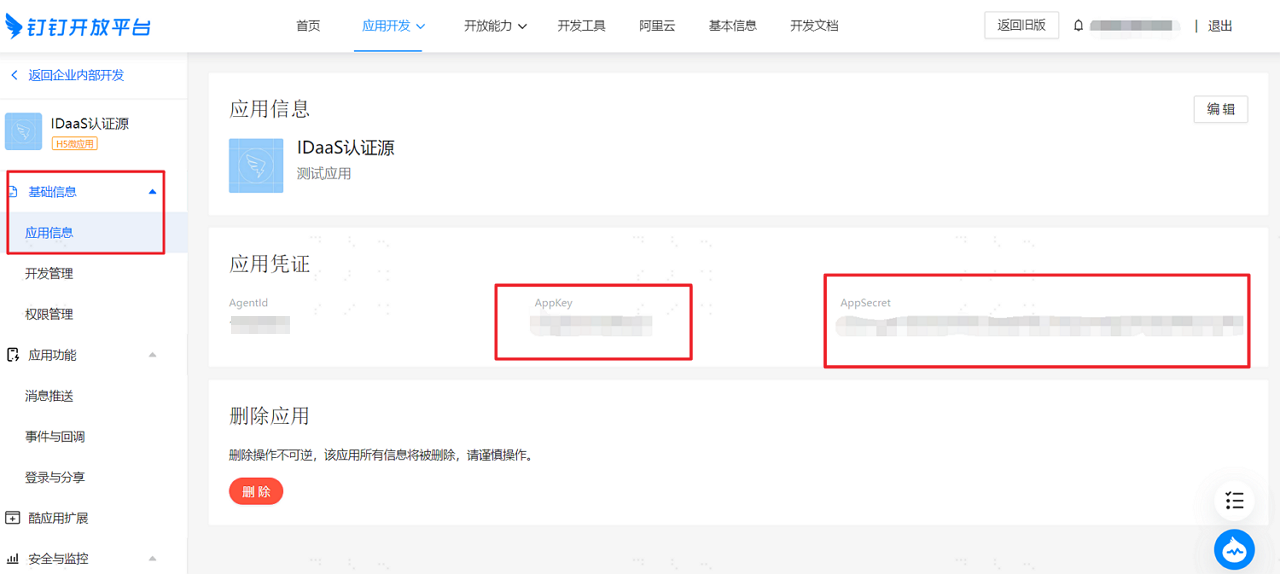
Remember the DingTalk application AppKey and AppSecret, as we will use them to configure the DingTalk authentication source on the IDaaS platform.
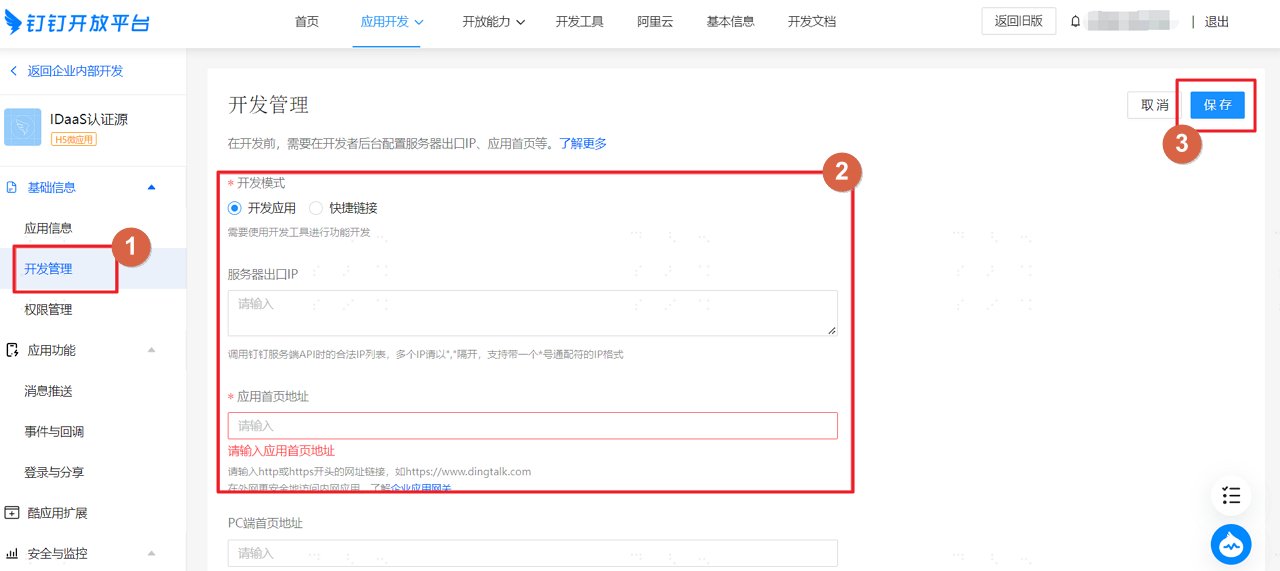
On the "Basic Information > Development Management" page, configure the DingTalk application server egress IP.
- Server Egress IP: IDaaS service egress IP: 47.92.171.137.
- Application Homepage Address: Enter the application homepage URL. Clicking the application icon on the mobile workbench will redirect to this page. You can fill in the IDaaS tenant domain name, obtained from the IDaaS Enterprise Center under "Settings > Enterprise Information." Example: https://{your-domain}.
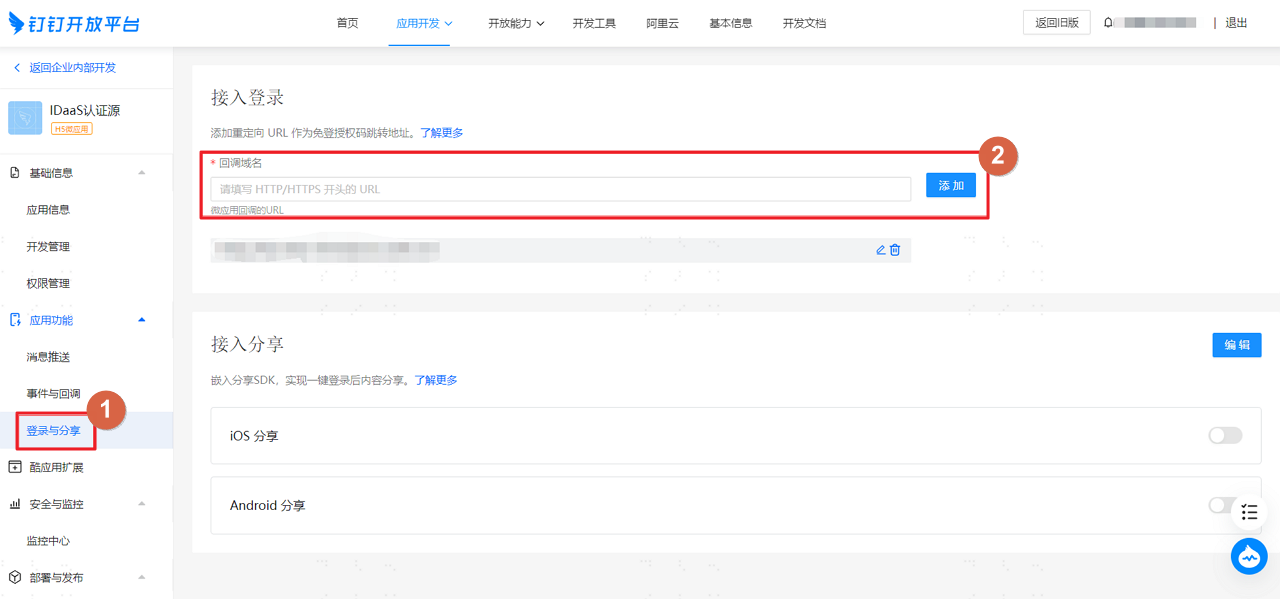
On the "Application Features > Login & Sharing" page, configure the callback domain.
Callback Domain: Fill in the IDaaS tenant domain name. Example: https://{your-domain}.
Go to "Basic Information > Permission Management."
Grant different permissions according to the authentication source configuration in IDaaS. You can supplement permissions after configuring the authentication source in IDaaS.
In "Deployment & Release > Version Management & Release," publish the DingTalk application.
# Configure DingTalk Authentication Source on IDaaS Platform
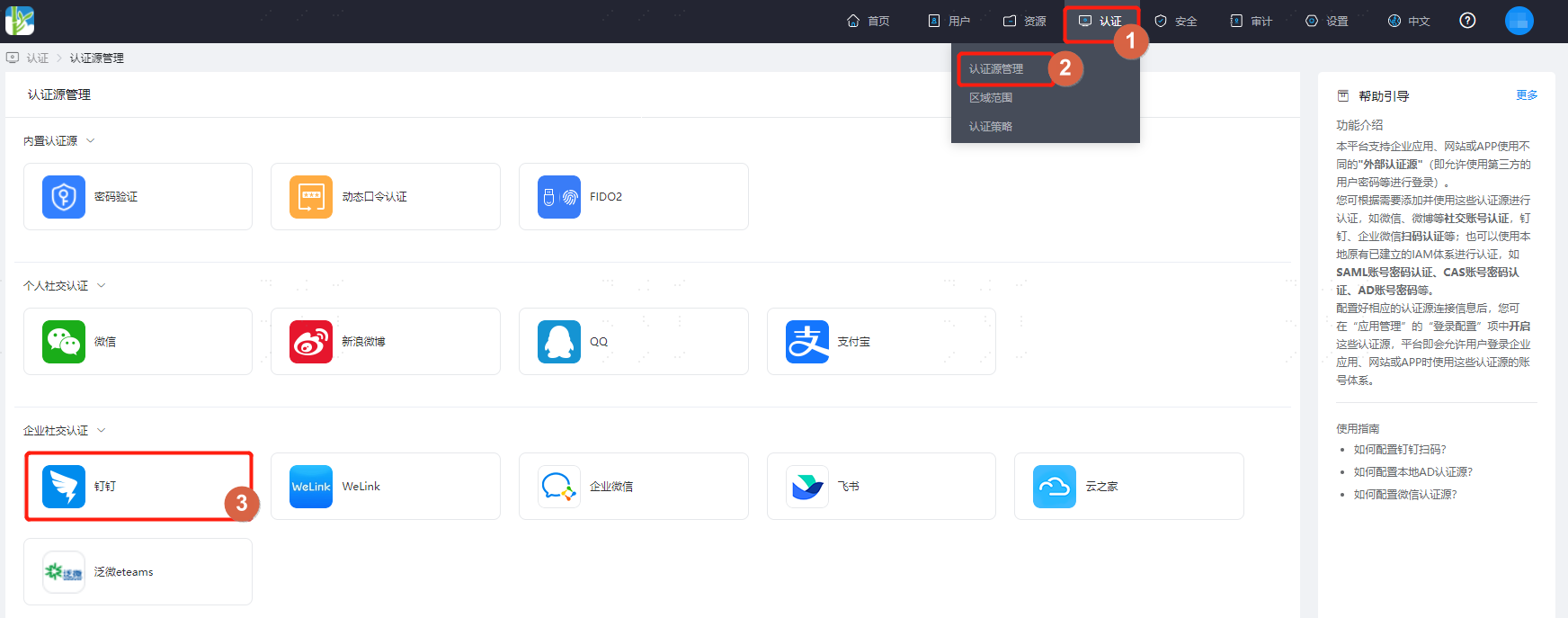
Log in to the IDaaS Enterprise Center platform, select "Authentication > Authentication Source Management" from the top navigation bar, go to the DingTalk authentication source page, and click "Add Authentication Source."
Configure the DingTalk authentication source parameters according to the interface prompts. Key parameter descriptions are as follows.

Automatic Binding: Enable
- Enable: Can automatically associate based on the associated source attribute and associated user attribute. If automatic association fails, proceed according to different workflows based on the When User is Not Associated scenario.
- Disable: By default, no automatic association is performed. Proceed directly according to different workflows based on the When User is Not Associated scenario. No API permissions are required for the DingTalk application. Not recommended.
Associated Source Attribute: Can choose to bind with existing users in the system or register as a new user.
mobile/email: Please configure and add API call permissions in Permission Management during Create an Application in DingTalk Developer Backend: Personal mobile number information and address book personal information read permissions.

Other Source Attributes: You can also choose other unique mandatory characteristic attributes such as jobNumber (DingTalk employee number) or userid (DingTalk user ID) as the source attribute. Please configure and add API call permissions in Permission Management during Create an Application in DingTalk Developer Backend: Personal mobile number information and address book personal information read permissions, and Member Information Read Permission.
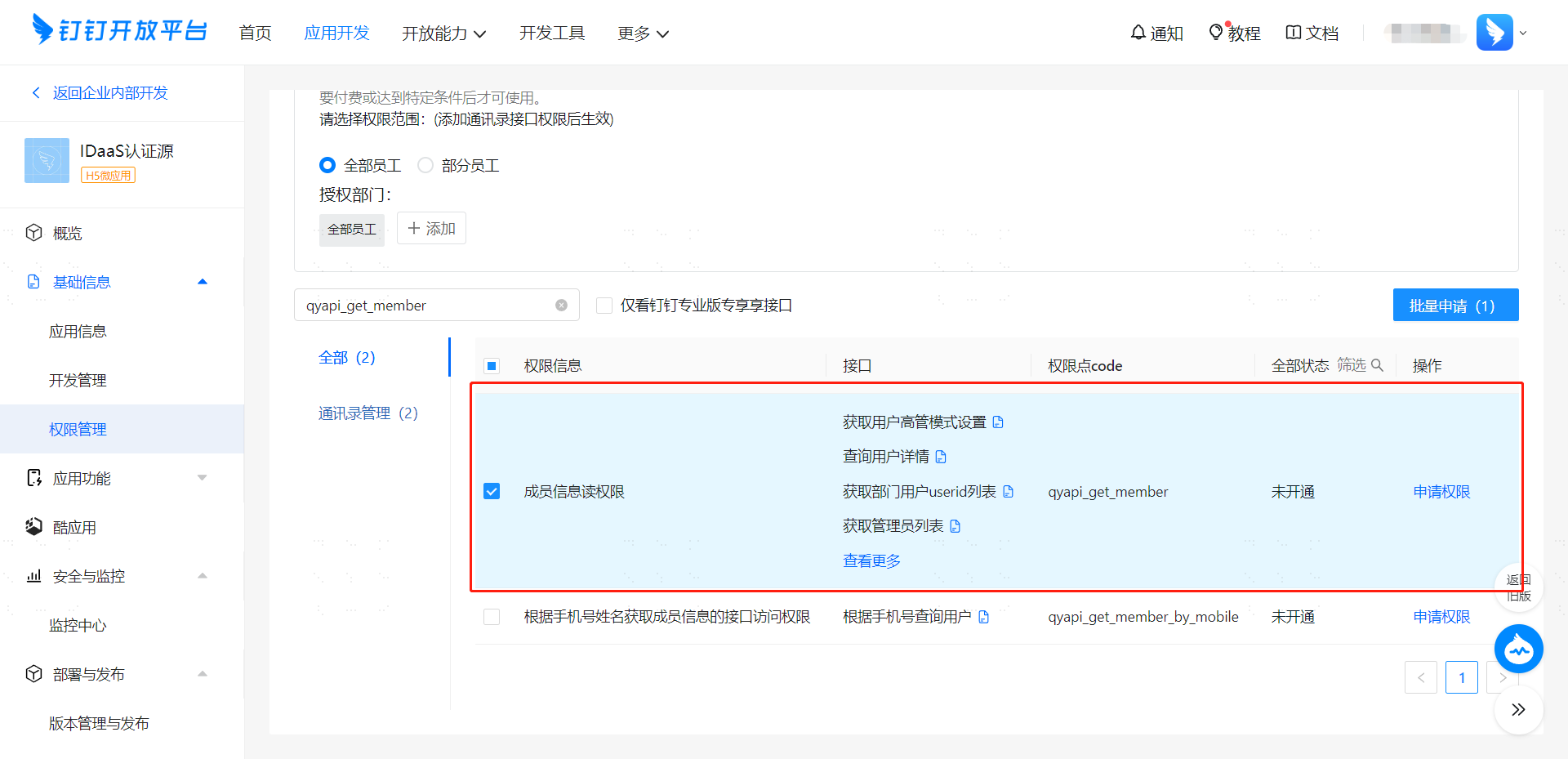
Associated User Attribute: The unique attribute name of the user in IDaaS, such as mobile, email.
When User is Not Associated: When the authentication source attribute of the user information returned by the DingTalk platform does not match the associated user attribute in IDaaS, and no system user is associated, the optional configuration items are as follows.
- Fail: Prompts binding failure when the user is not associated.
- Bind: Redirects to the mobile number verification page when the user is not associated. If an existing mobile number in IDaaS is entered and verified successfully, the user passes authentication; if a mobile number not existing in IDaaS is entered and verified, prompts that no associated user was found.
- Bind or Register: Redirects to the mobile number verification page when the user is not associated. If an existing mobile number in IDaaS is entered and verified successfully, the user passes authentication; if a mobile number not existing in IDaaS is entered and verified successfully, an IDaaS user is created based on the mobile number and passes authentication.
Please provide the Markdown content you would like me to translate.