
Configuring DingTalk External Browser Password-Free Login
# Overview
This chapter introduces the configuration process for users to log in to IDaaS integrated applications without a password via an external browser from the DingTalk PC client. After configuring the integrated DingTalk authentication source on the IDaaS platform, refer to this module to configure DingTalk external browser password-free login for each application system.
# Prerequisites
- Have access management permissions for the IDaaS Enterprise Center.
- Have account administrator permissions in the DingTalk Developer Backend and have already created an application.
- The application has been integrated on the IDaaS platform.
- The DingTalk authentication source has already been configured on the IDaaS platform /guide/admin/auth_source/dingdingsource.html.
# Configuration Process

# Steps
The example application in this document is an Oauth protocol application created in IDaaS: OAUTH_1. Applicable scope: All self-built applications and pre-integrated applications that are integrated with IDaaS for authentication via protocol.
# Configuring DingTalk Authentication for the Application
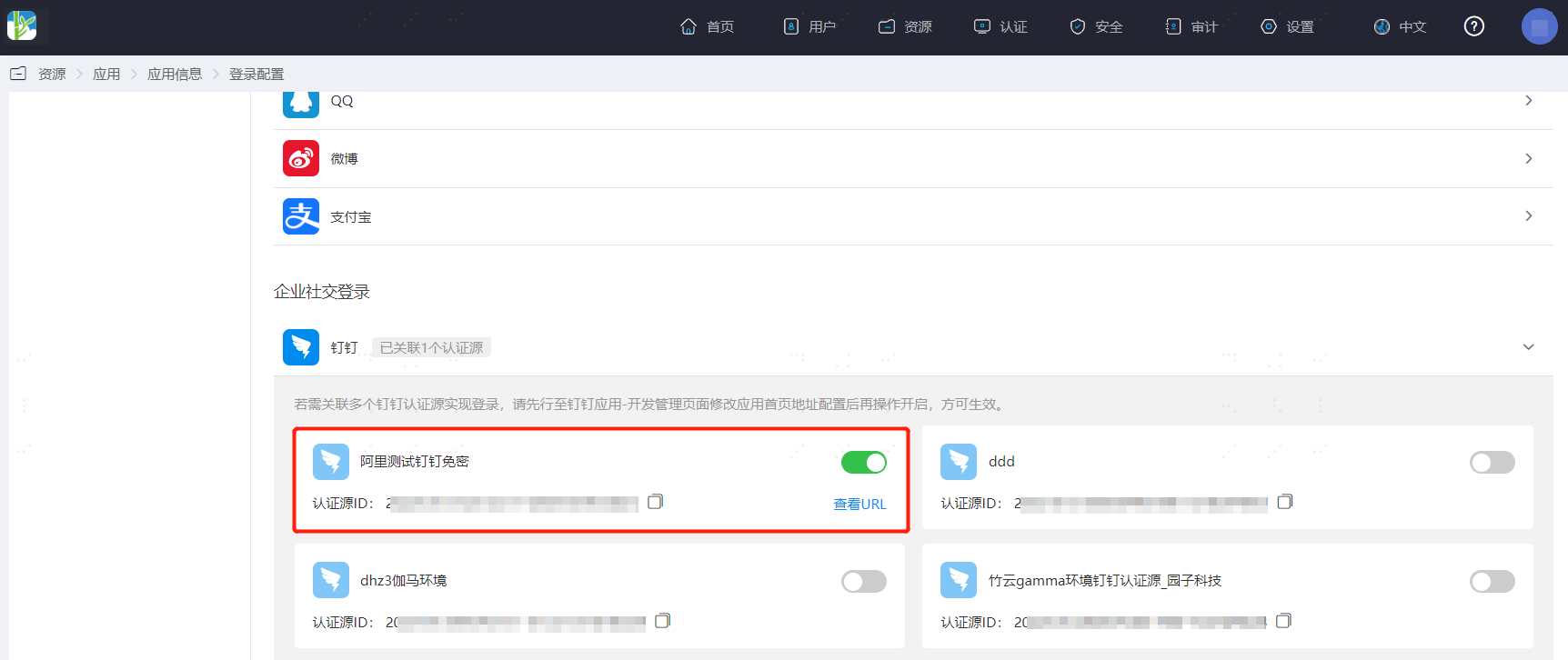
Log in to the IDaaS Enterprise Center platform, select "Resources > Applications" in the top navigation bar, taking the Oauth protocol application as an example, select "OAUTH_1", switch to the "Login Configuration" tab, scroll down to DingTalk, and enable the previously added DingTalk authentication source.
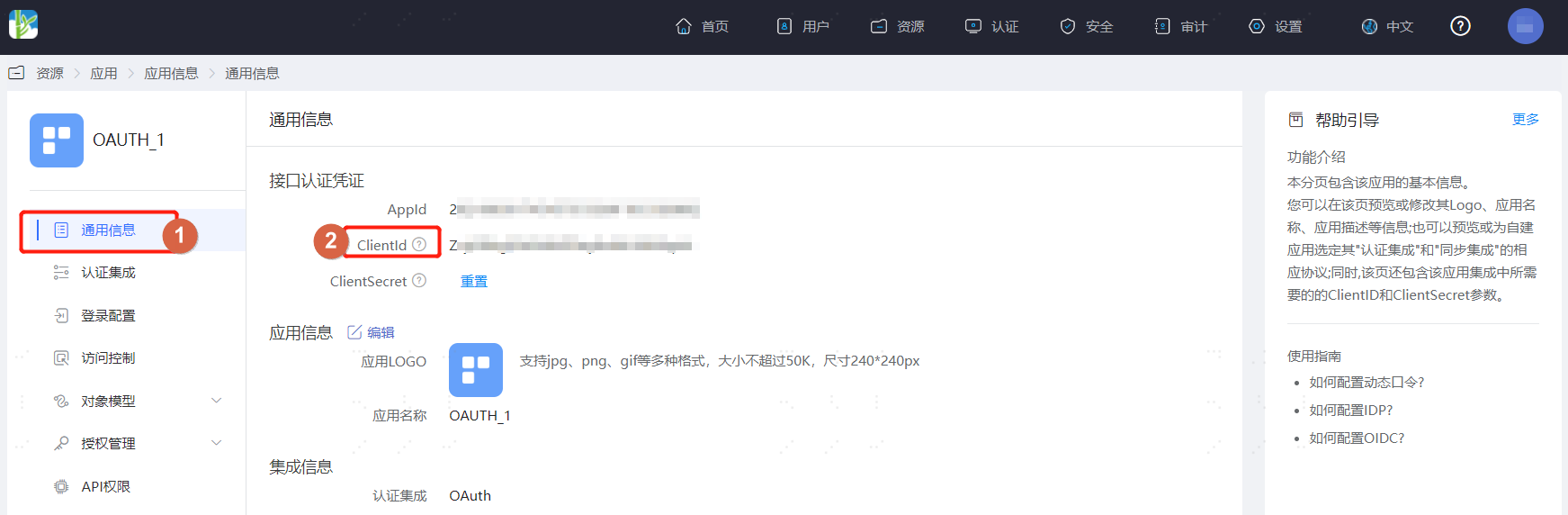
Switch to the "General Information" tab and obtain the application ClientId.
# DingTalk Management Backend Configuration
Log in to the DingTalk Developer Backend (opens new window), find the previously created application, select "Basic Information > Development Management", and modify the "PC Homepage Address".
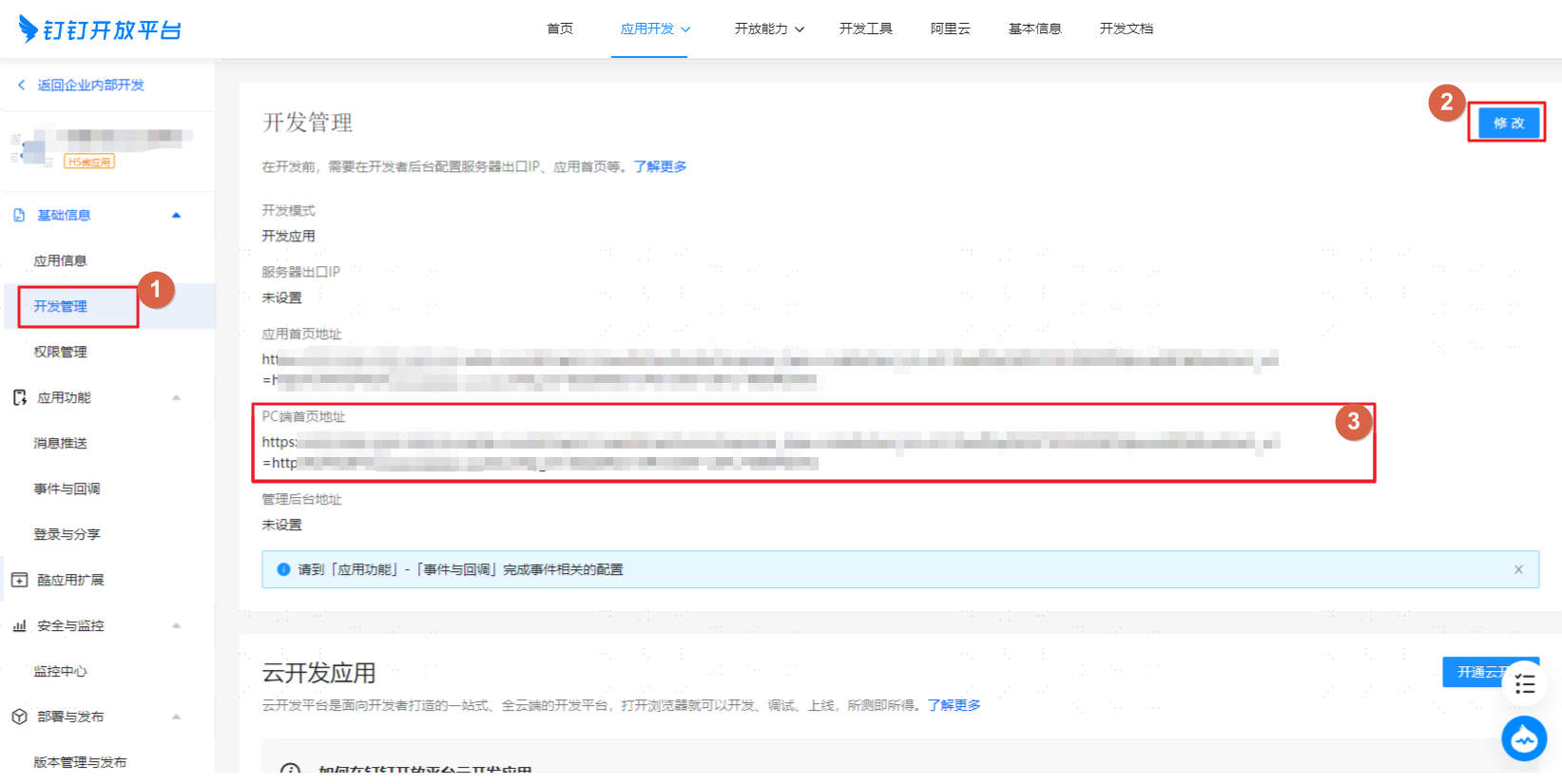
The address structure and parameter descriptions are as follows:
The PC Homepage Address is related to the "Auto-Bind" option in Configuring the DingTalk Authentication Source.
Auto-Bind - Enabled
- https://login.dingtalk.com/oauth2/auth?response_type=code&scope=openid&prompt=consent&client_id={appKey}&redirect_uri={redirect_uri}
Auto-Bind - Disabled
- https://oapi.dingtalk.com/connect/oauth2/sns_authorize?response_type=code&scope=snsapi_auth&appid={appKey}&redirect_uri={redirect_uri}
Where the parameter redirect_uri: https://{your-domain}/authentication/dingding.html?client_id={client_id}&idpId={idpId}, note that URL encoding is required.
Parameter Description your-domain IDaaS tenant domain, obtained from "Settings > Enterprise Info" in IDaaS Enterprise Center client_id IDaaS application ClientId, obtained from the application's General Information page in the IDaaS Enterprise Center platform appkey Parameter AppKey of the IDaaS DingTalk authentication source idpId ID of the DingTalk authentication source enabled for the IDaaS application
# Verifying DingTalk PC Client External Browser Password-Free Login
- The user logs into the DingTalk client, finds the application created in DingTalk, and clicks on that application to open the computer's default browser for password-free login to OAUTH_1.