Configure Google Authentication Source
# Overview
Google authentication login allows users to securely log in to third-party applications or websites using Google as the authentication source. To facilitate enterprise user authentication and login, the IDaaS platform supports configuring Google as an authentication source. Users can log in to various application systems via Google authentication, providing enterprise users with a simpler, more convenient login method and a better user experience. This feature is currently only supported in B2C scenarios.
This chapter describes the relevant operations for configuring a Google authentication source.
# Prerequisites
- Have administrator permissions for the Google Cloud Platform.
- Have administrator permissions for the IDaaS Enterprise Center platform.
# Steps
# Apply for Google OAuth2 Credentials
Log in to the Google Cloud Platform (opens new window), sign in with your Google account, go to APIs & Services, and after creating or selecting your project, choose the Credentials menu.
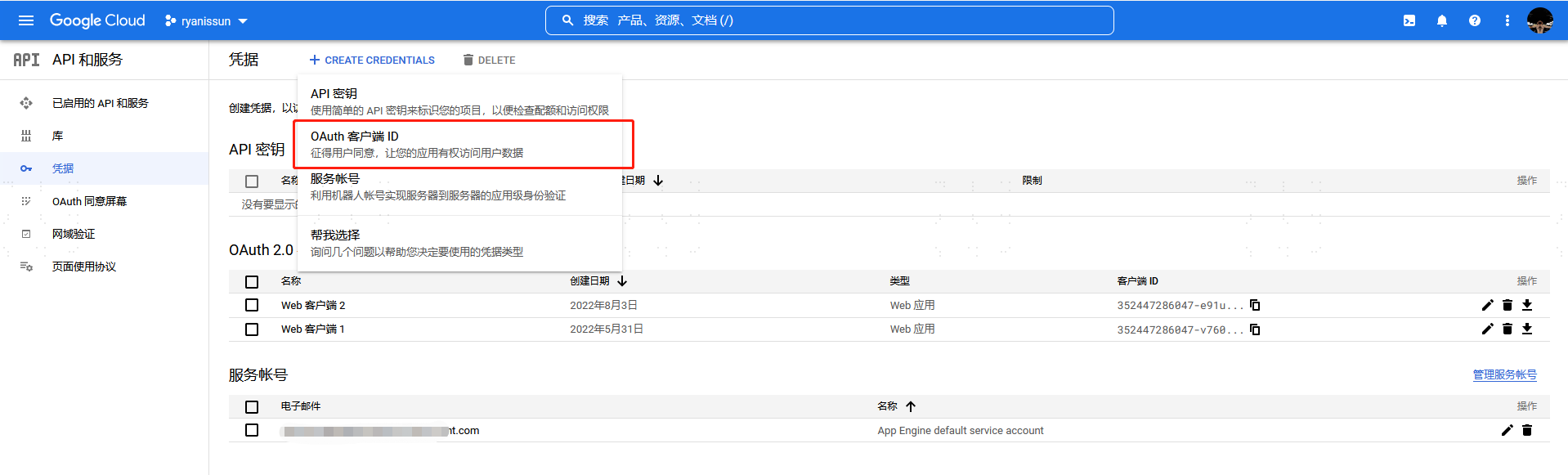
Create credentials and select OAuth client ID. For the application type, choose Web application. Fill in the name. The Authorized redirect URIs can be filled in later after creating the corresponding Google authentication source on the IDaaS platform. After configuration, click Create.
After creation is complete, obtain the Client ID and Client Secret.
# Configure Google Authentication Source on IDaaS Platform
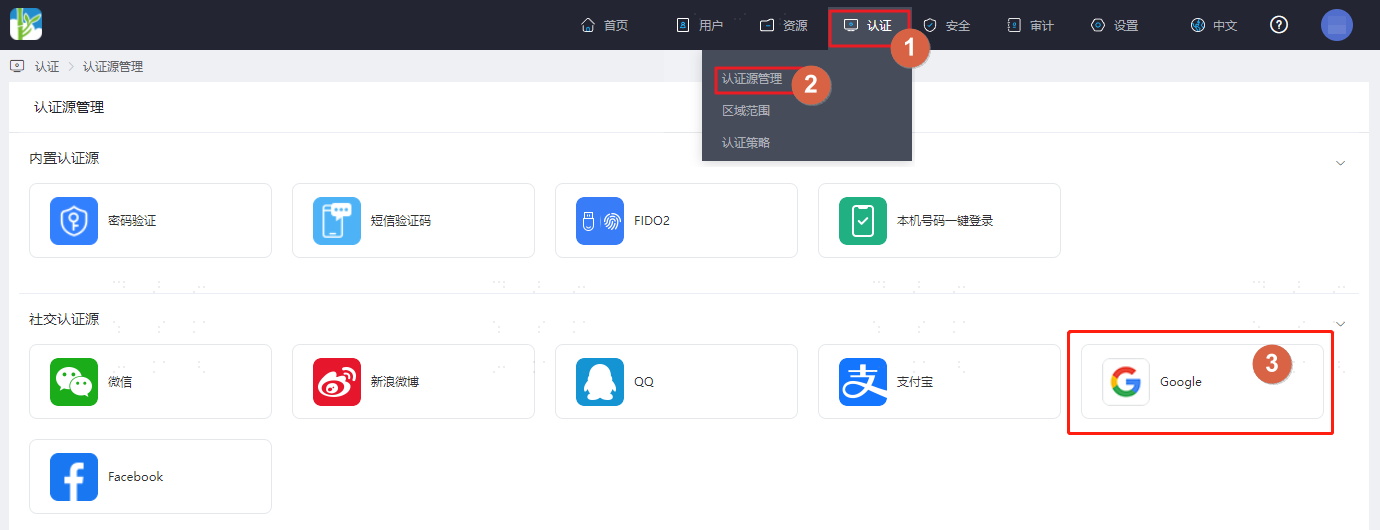
Log in to the IDaaS Enterprise Center platform, select "Authentication > Authentication Source Management" from the top navigation bar, go to the Google authentication source page, and click "Add Authentication Source".
Configure the Google authentication source parameters according to the interface prompts. Key parameter descriptions are as follows.
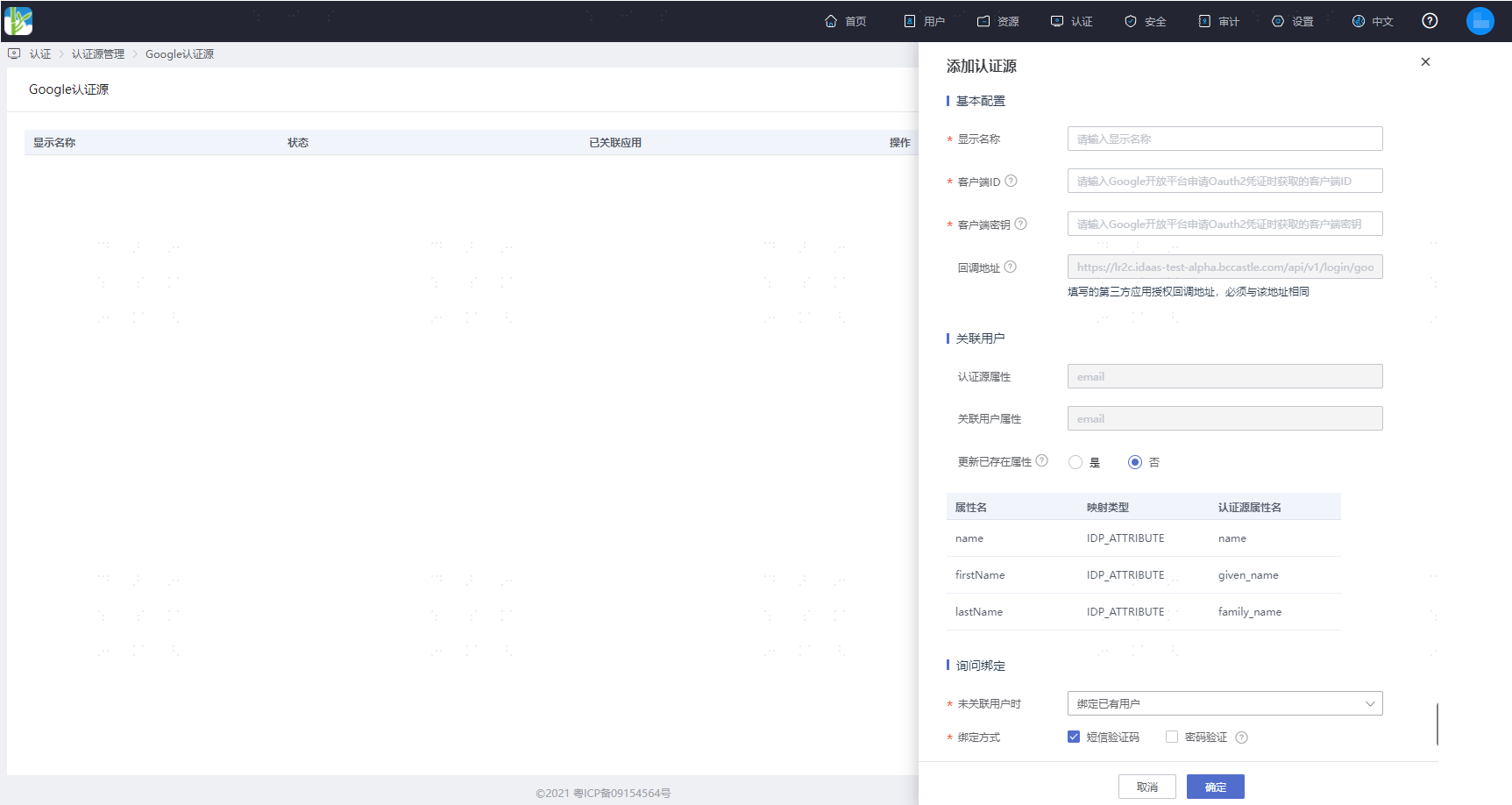
When no user is associated: This means when the authentication source attributes of the user information returned by the Google platform do not match the associated user attributes in IDaaS, and no system user is associated. The optional configuration items are as follows.
- Login as registration: When no user is associated, after entering the SMS verification code, the user can be directly registered and logged in via authentication.
- Bind existing user: When no user is associated, through the set binding method, redirect to the corresponding verification page. After successfully entering the SMS verification code or password, the corresponding existing user can be bound.
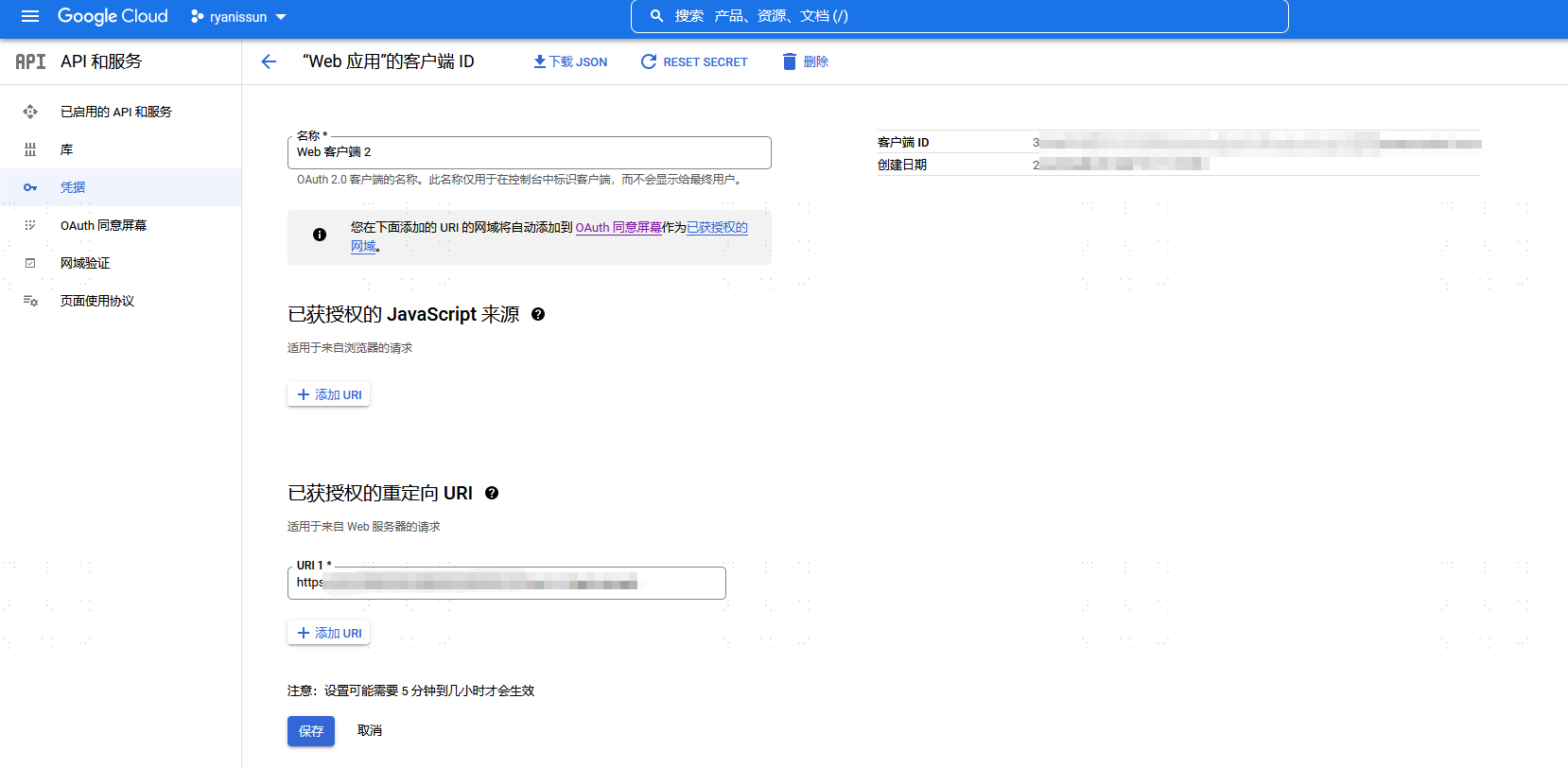
Obtain the callback address generated by the Google authentication source (example: https://xxx.bccastle.com/api/v1/login/google). Return to the Google Cloud Platform (opens new window), go to APIs & Services, select "Credentials", edit the created OAuth 2.0 client, and fill in the callback address in the "Authorized redirect URIs".