Configuring Custom Email Gateway and Templates
# Overview
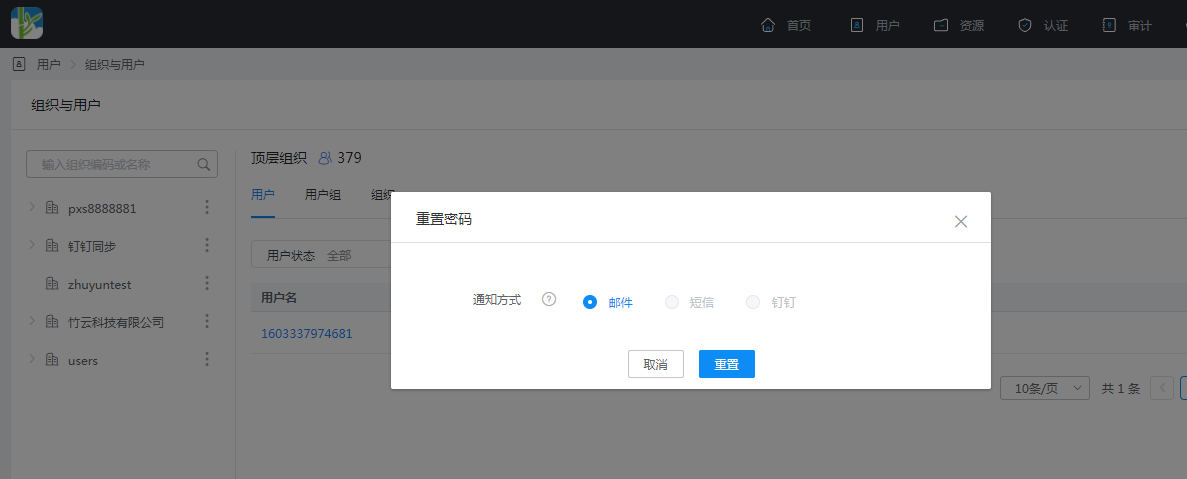
When administrators need to perform user password reset operations, or individuals forget their passwords and require a reset, besides using SMS to notify users, it is also supported to notify the relevant users via email.
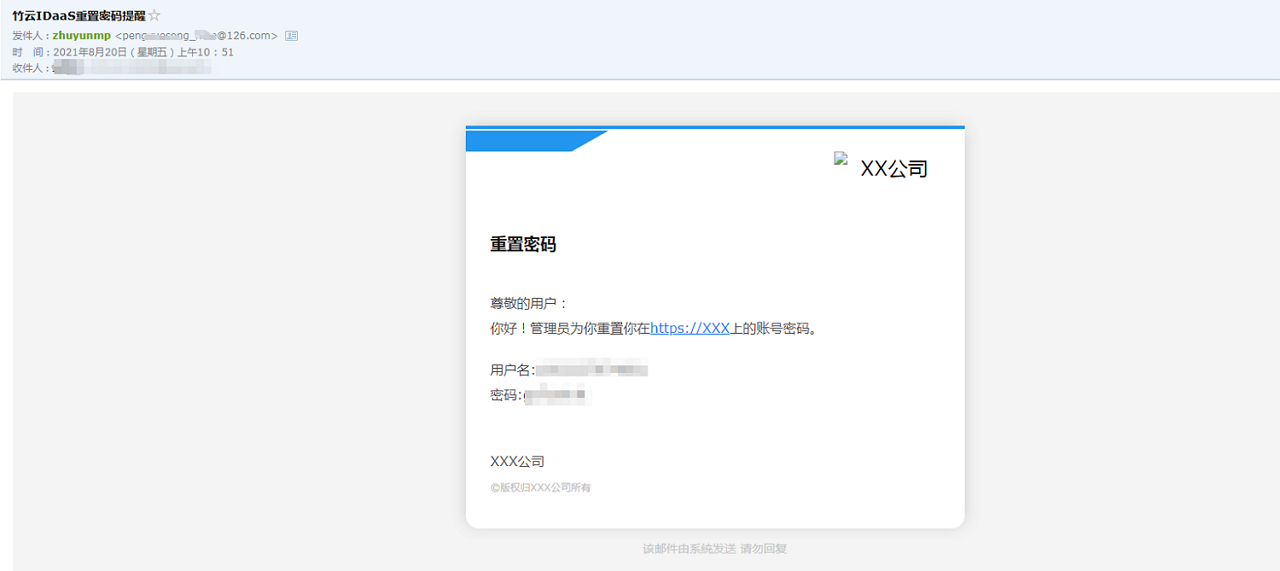
The IDaaS platform provides email notification functionality. By customizing the email gateway and notification templates for various scenarios within the platform, the relevant configurations can be invoked later in corresponding scenarios and times to send email notifications to users with related information.
# Prerequisites
- Have administrator permissions for the IDaaS Enterprise Center platform.
- The enterprise possesses its own email service.
# Configuration Process

# Steps
# Configure Email Gateway and Notification Templates
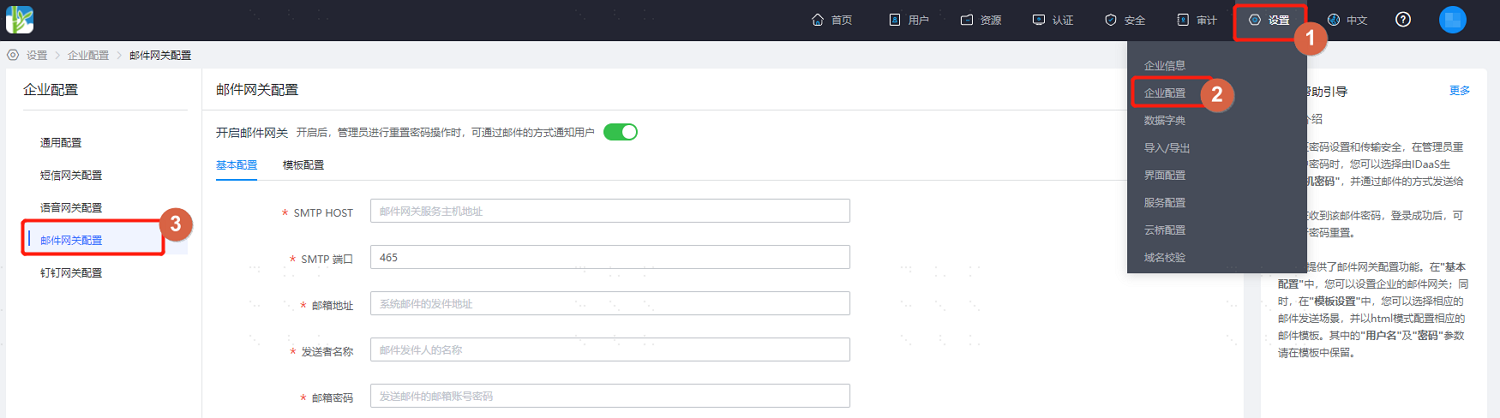
Log in to the IDaaS Enterprise Center platform. In the top navigation bar, select "Settings > Enterprise Configuration", then choose "Email Gateway Configuration".
Enable the email gateway and fill in the basic email gateway configuration. Key parameter descriptions are as follows.
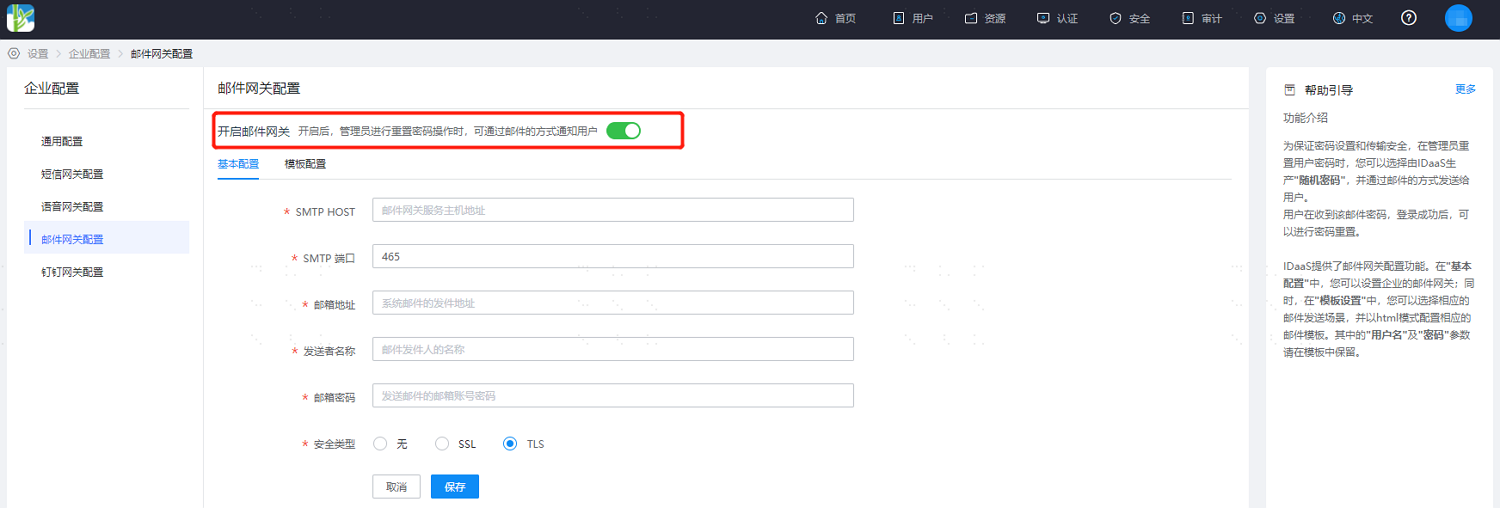
Parameter Description SMTP HOST Host address of the email gateway service SMTP Port External port of the email gateway service, default 465 Email Address Email address used for sending emails Sender Name Name displayed as the sender of the email Email Password Password for the email account used to send emails Security Type Set the security type for the email gateway, including None, SSL, TLS After completing the basic configuration, configure the email notification templates for various sending scenarios according to the actual project requirements, referring to the interface. Both Chinese and English email template configurations are supported.
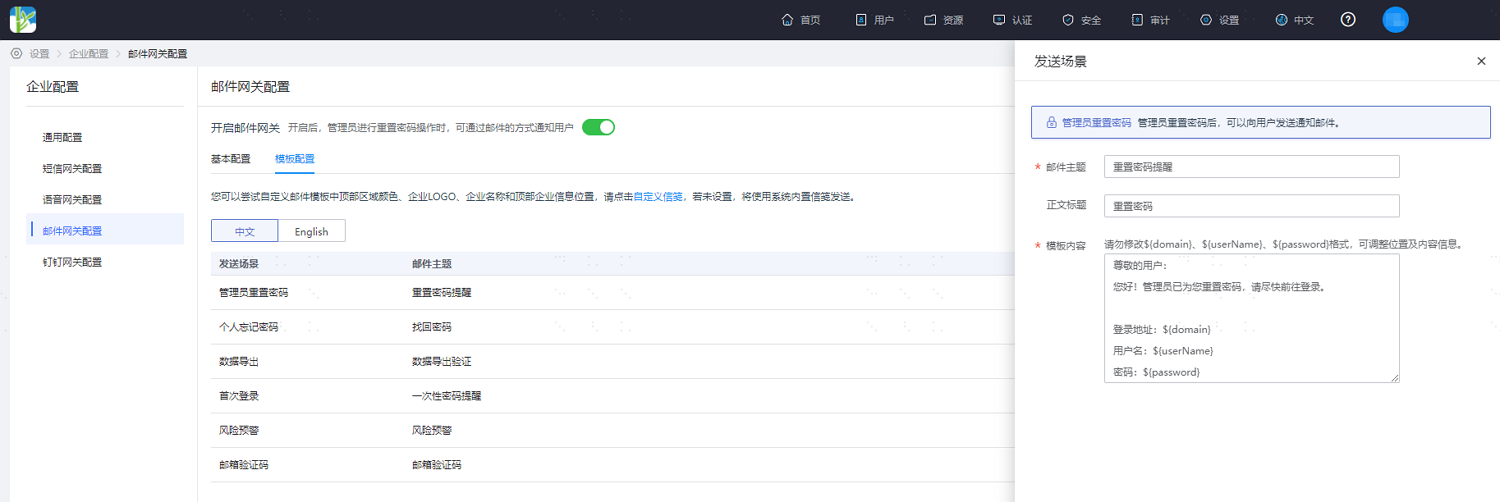
Click "Custom Letterhead" to customize the top area color, enterprise LOGO, enterprise name, and the position of top enterprise information in the email template.
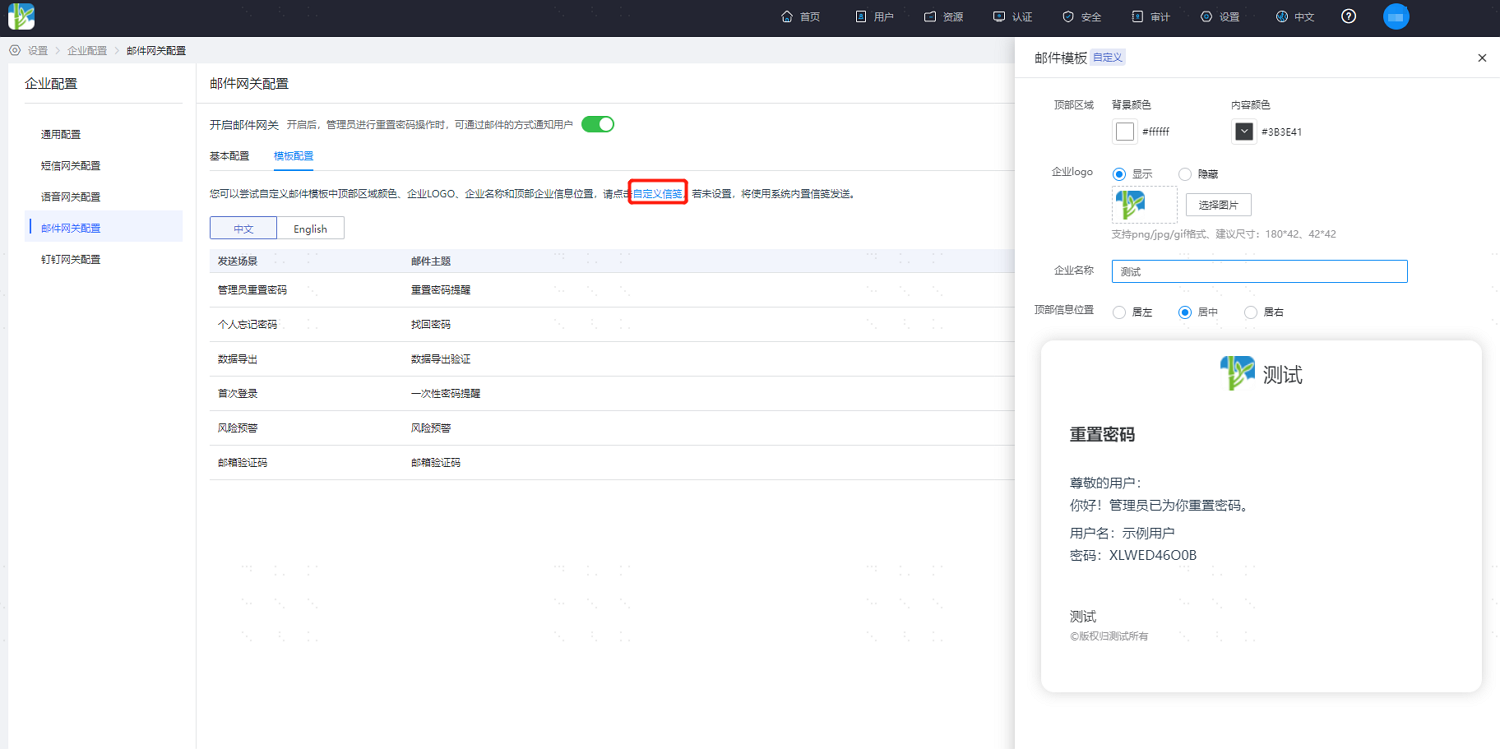
Click "Preview" to view a sample of the notification after configuration.
# Test Example
The following uses a personal NetEase 126 email account as an example for illustration, for reference only. The configuration process for email services from other providers should be performed according to the specific email service.
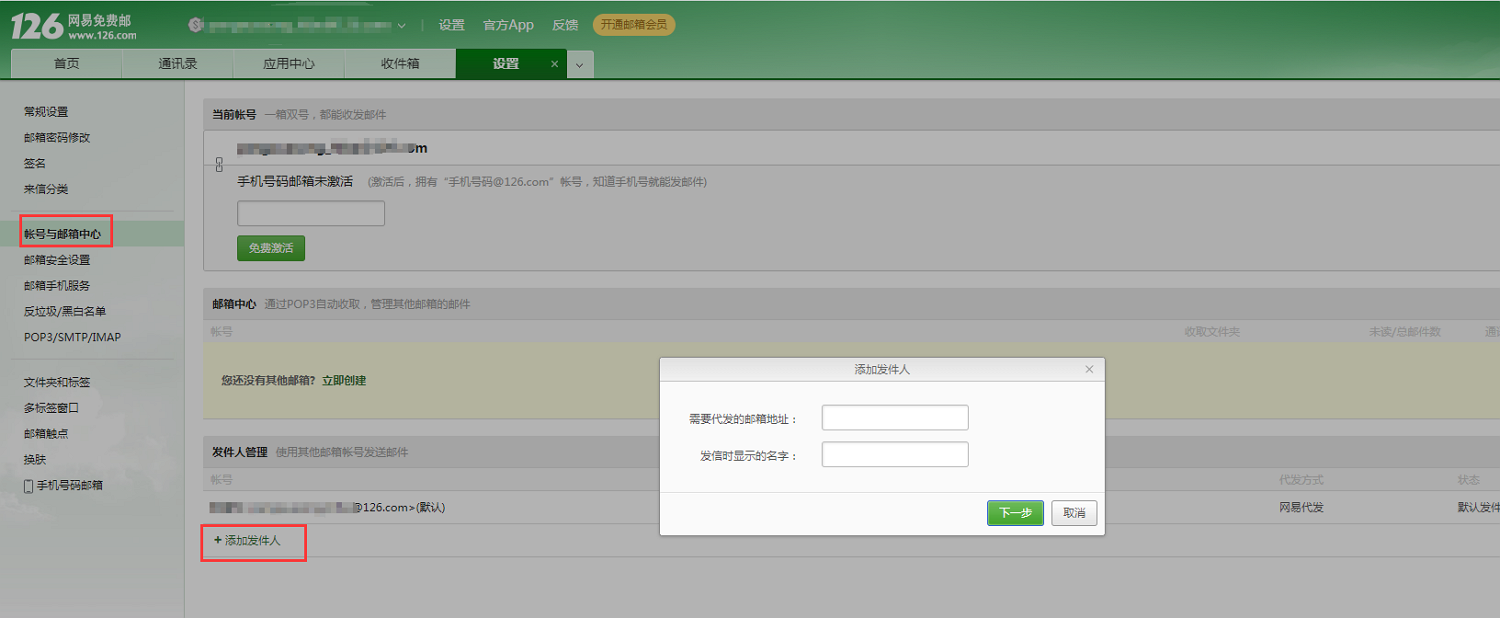
Log in to your 126 email account, go to Settings, select Account and Email Center, and add a sender.
For Email Address, enter your personal 126 email address. For Name Displayed When Sending, customize it, e.g., zhuyunmp.
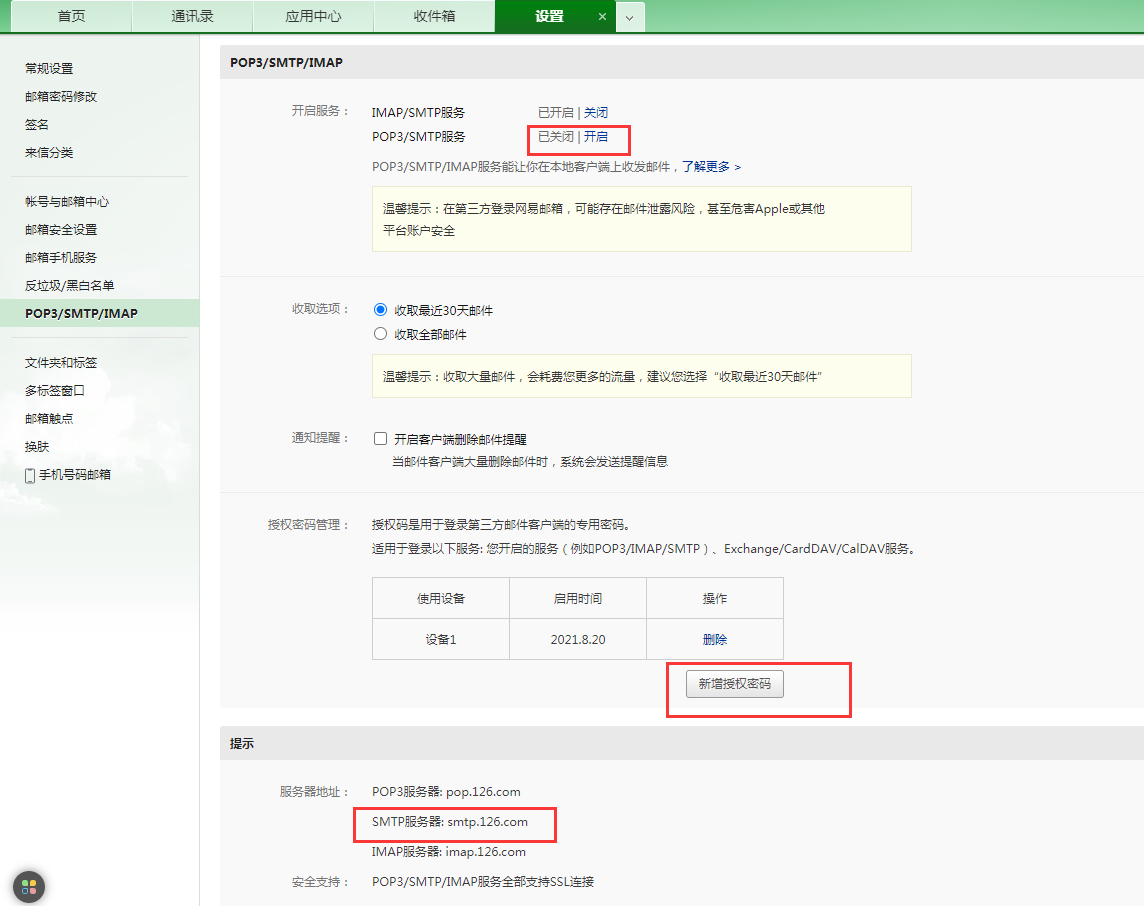
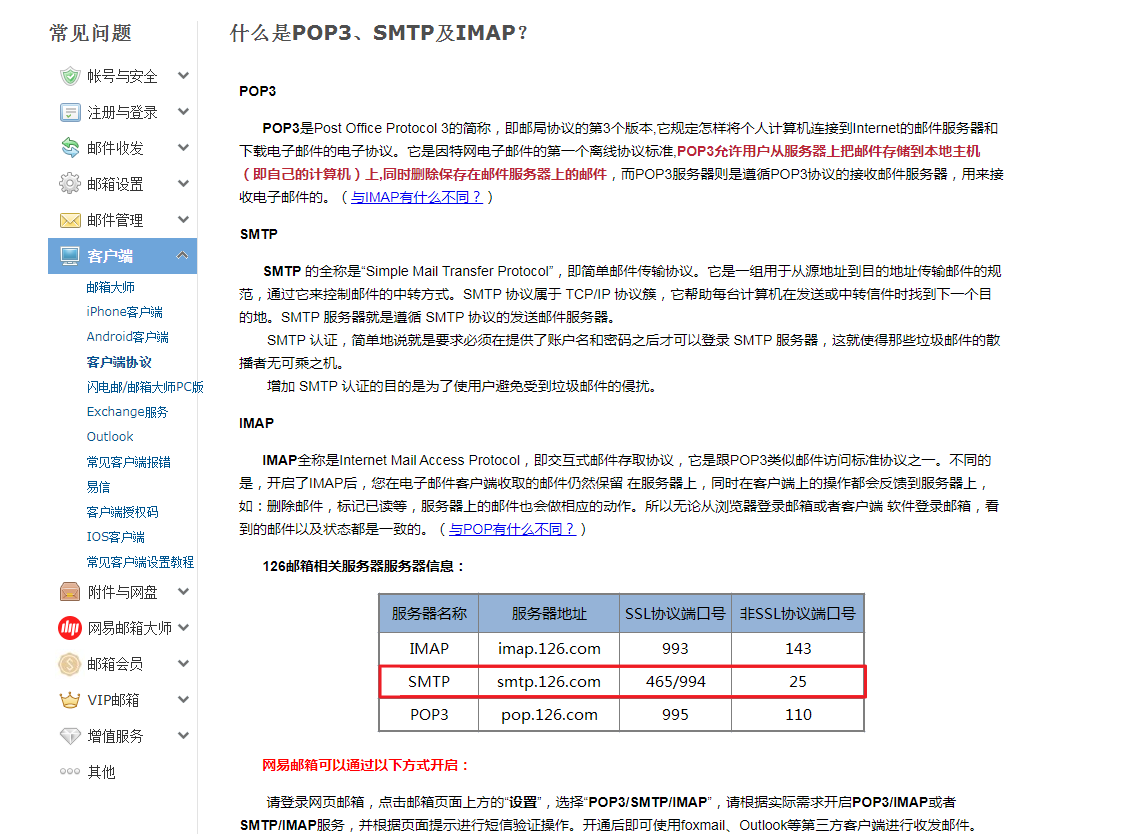
Go to POP3/SMTP/IMAP, enable the POP3/SMTP service, obtain the server address, and create a new authorization password.
Configure IDaaS email gateway parameters.
| Parameter | Value |
|---|---|
| SMTP HOST | smtp.126.com |
| SMTP Port | 465 |
| Email Address | 126 personal email address |
| Sender Name | The name displayed when sending from the 126 mailbox, e.g.: zhuyunmp |
| Email Password | 126 mailbox authorization password |
| Security Type | SSL |
- IDaaS administrator resets user password, with email notification.