
Authenticating and Logging into Enterprise Devices
# Overview
When enterprise devices are integrated with the IDaaS platform, multiple authentication methods can be configured for logging into the devices, such as IDaaS local database authentication, OTP authentication, and authentication using AD user password systems, among others.
This section guides you through authenticating and logging into enterprise devices.
This document uses Sangfor VPN as an example for operational instructions. Refer to the documentation SANGFOR_SSLVPN_v7.1_RADIUS Authentication Test Guide
# Prerequisites
- Please verify that the network device can connect to the IDaaS Radius service address.
- Possess administrator privileges for the IDaaS Enterprise Center platform.
# Procedure
# SANGFOR SSL VPN Configuration
Log in to SANGFOR SSL VPN, select "SSL VPN Settings > Authentication Settings", and choose Radius authentication.
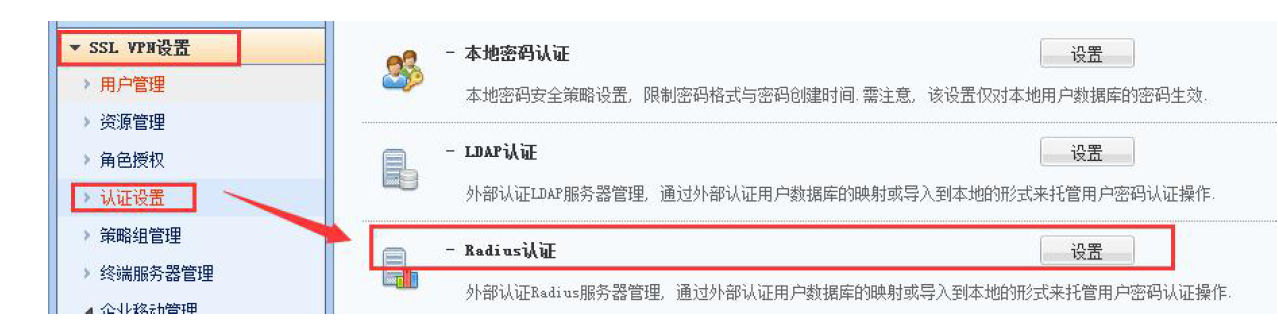
Create a new Radius authentication server and configure the basic server parameters. Please refer to the table below.

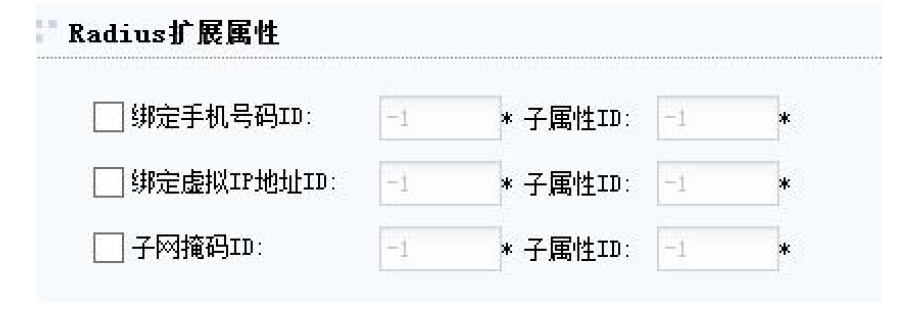
Parameter Description Server Address The Radius Server + authentication port obtained from the IDaaS platform in Adding Enterprise Device, e.g., 39.100.2.100:30058 Authentication Protocol Unencrypted protocol PAP Shared Secret Must match the shared secret for the enterprise device in IDaaS Character Set Default is UTF-8. Can be selected based on actual situation, supports UTF-8 and GBK Authentication Timeout Settings Settings for authentication timeout. Choose to enable or disable based on customer requirements. Configure timeout duration based on customer requirements, default is 5s (Optional) Configure Radius server extended attributes. When Radius users need to bind mobile phone numbers or virtual IPs, the customer's RADIUS server must have the corresponding ID fields and sub-attribute values set to bind this information. Configure the corresponding Attribute ID in the SSL VPN's RADIUS authentication settings. During user authentication, the SSL VPN will query the RADIUS server for the corresponding value (i.e., mobile number or virtual IP) using the Attribute ID configured in its RADIUS authentication settings.
Radius extended attributes are primarily used for settings when Radius users need to bind mobile phone numbers or virtual IPs. If there is no such requirement, configuration is not necessary.
(Optional) Configure Radius user group mapping. When customers need to authorize different resources based on the groups of users on the RADIUS server, different user groups from the RADIUS server can be mapped to different local user groups.

The field here refers to the field name for user groups on the RADIUS server. Then configure the mapping to the corresponding local user group. For example, field 1 on the RADIUS server corresponds to the local student group, and field 0 corresponds to the local teacher group.
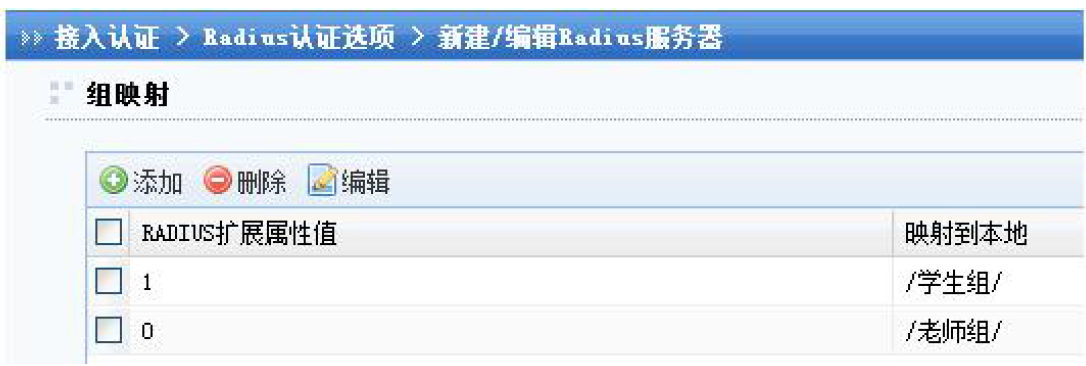
When setting up RADIUS group mapping, the RADIUS group information must be carried by the CLASS attribute 25 for the SSL VPN to recognize and perform group mapping. When no specific group mapping is configured, RADIUS users will match the default group mapping rule, gaining the permissions of the corresponding user group. This default mapped user group can be set by yourself, and then authorize the resources that need to be accessed by RADIUS users.
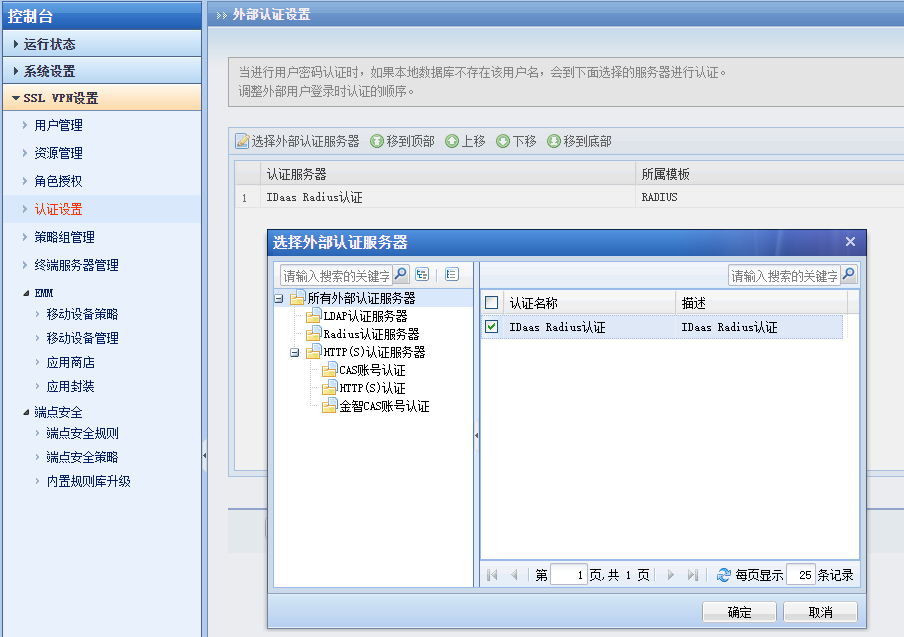
After configuration is complete, go to the "Authentication Policy" page and select "External Authentication Settings".

Check the previously added Radius authentication server.
# Verifying Login
- In the VPN console, select "SSL VPN Settings > User Management", then edit a user. Set the primary authentication method to "Radius" to avoid the user testing login defaulting to the local database first, which could affect test results.
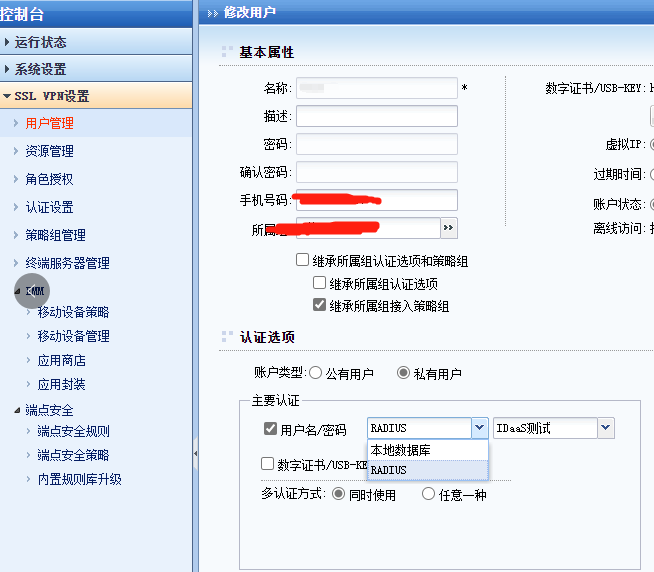
- Access the VPN address in a browser or client, enter the test username and password from IDaaS to log in. You can view the test login status through the user login logs in the IDaaS Enterprise Center or the VPN console.
The authentication login method here is related to the authentication source configured when adding a new enterprise device. If only one authentication source was configured when adding the device, then only one authentication is required here; if a secondary authentication source was configured when adding the device, then secondary authentication is required here.
