
Assigning Application Access Accounts to Users
# Overview
This feature is used to manage the binding relationship between "users on the IDaaS side" and "accounts on the application side." That is, for one IDaaS user, it identifies which application accounts they have in different application systems. It supports assigning multiple application accounts to a single user.
There are two forms of application account assignment: one is assigning a new account to a user; the other is binding an existing account to a user, changing the account status to normal and usable.
"New account" can be understood as "provisioning." It represents granting access to an application for a certain user or batch of users from IDaaS by assigning them application accounts. You can manually assign application accounts to a specific user or batch of users; you can also use automatic authorization policies to provision application accounts for all users, or set authorization policies based on conditions like organization, user group, etc., to automatically assign application accounts to users who meet the conditions.
Existing accounts refer to a batch of historical accounts that the system has offline. After sorting out the relationship between IDaaS users and application-side accounts offline, you can import these application accounts into IDaaS in bulk. After import, since these accounts are not associated with any user, they are also called orphan accounts. Binding these existing accounts to system users allows the users to use the corresponding accounts to access the application once the binding is successful.
# Prerequisites
- Have administrator permissions for the IDaaS Enterprise Center platform.
- The application has been integrated into the IDaaS platform.
# Steps
# Manually Assign Application Accounts
# Authorize from User Perspective
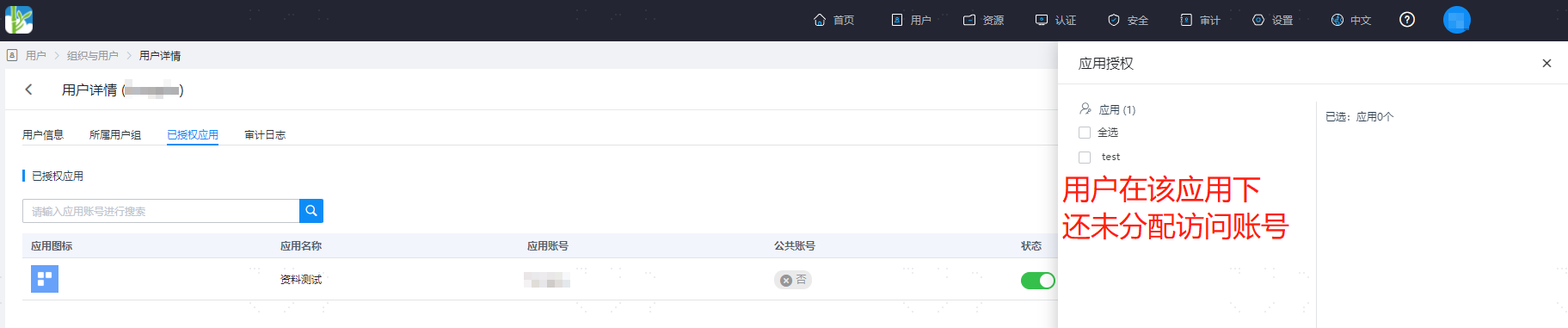
Log in to the IDaaS Enterprise Center platform, select "Users > Organization & Users" from the top navigation bar, hover over the user you want to authorize application accounts for, and click "Application Authorization" to enter the user details page.

The user details page displays all applications the user is already authorized for, meaning the user has been assigned access accounts for these applications. Click "Application Authorization" to authorize the selected user with access accounts for the required applications.
# Authorize from Application Perspective
Since the interface differs between self-built applications and pre-integrated applications, the steps are introduced separately below.
Add User Accounts for Pre-integrated Applications
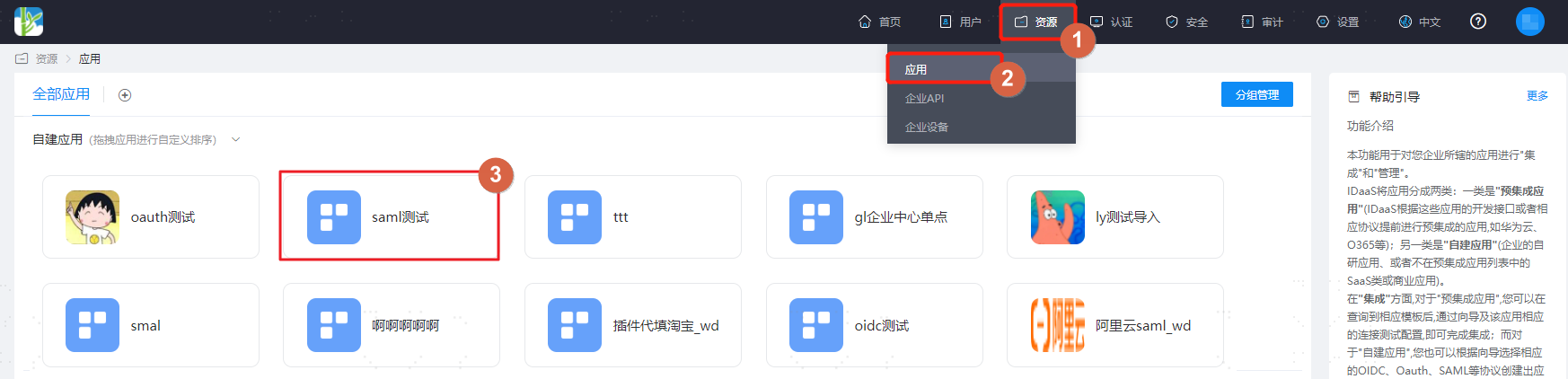
Log in to the IDaaS Enterprise Center platform, select "Resources > Applications" from the top navigation bar, find the application you want to authorize accounts for under the pre-integrated applications category, and click to enter that application.
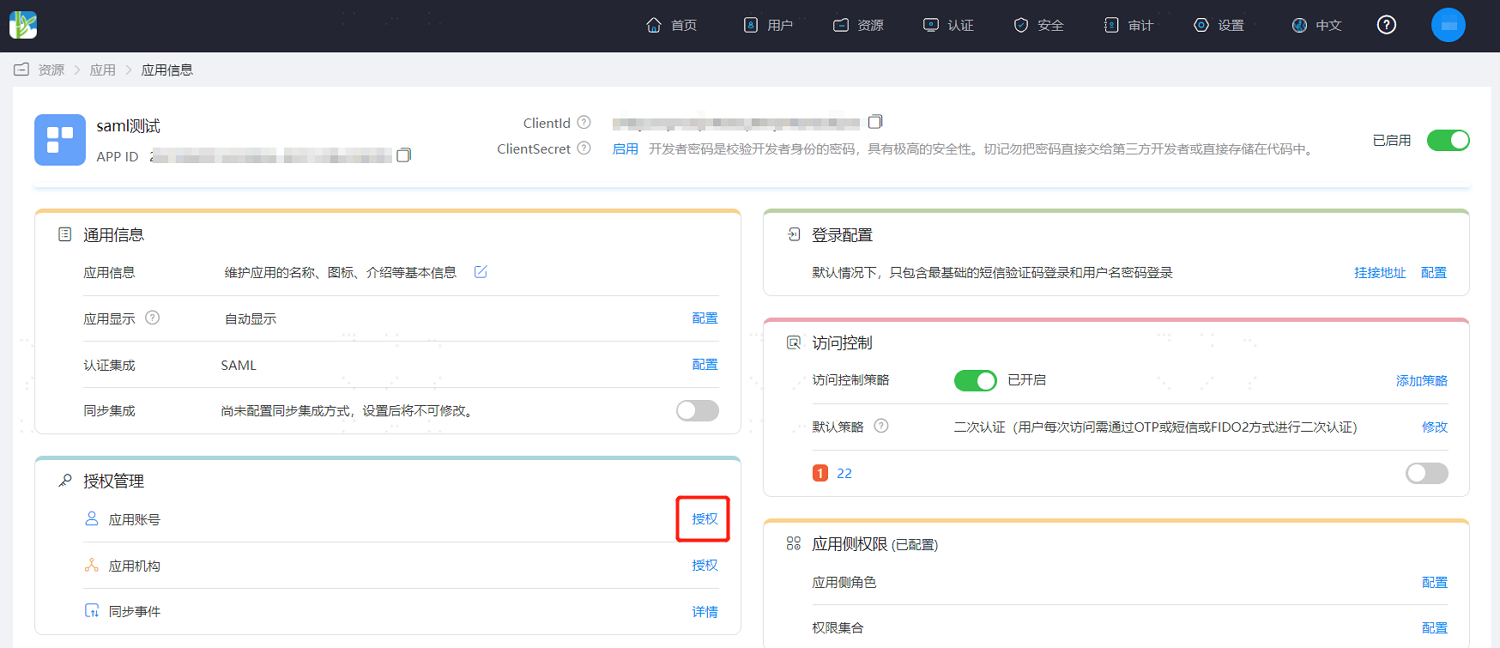
Find "Authorization Management," click "Authorize" next to the application account to enter the application accounts page. This page displays all accessible accounts under this application. Accounts are associated with users, and users can use these accounts to access the application.
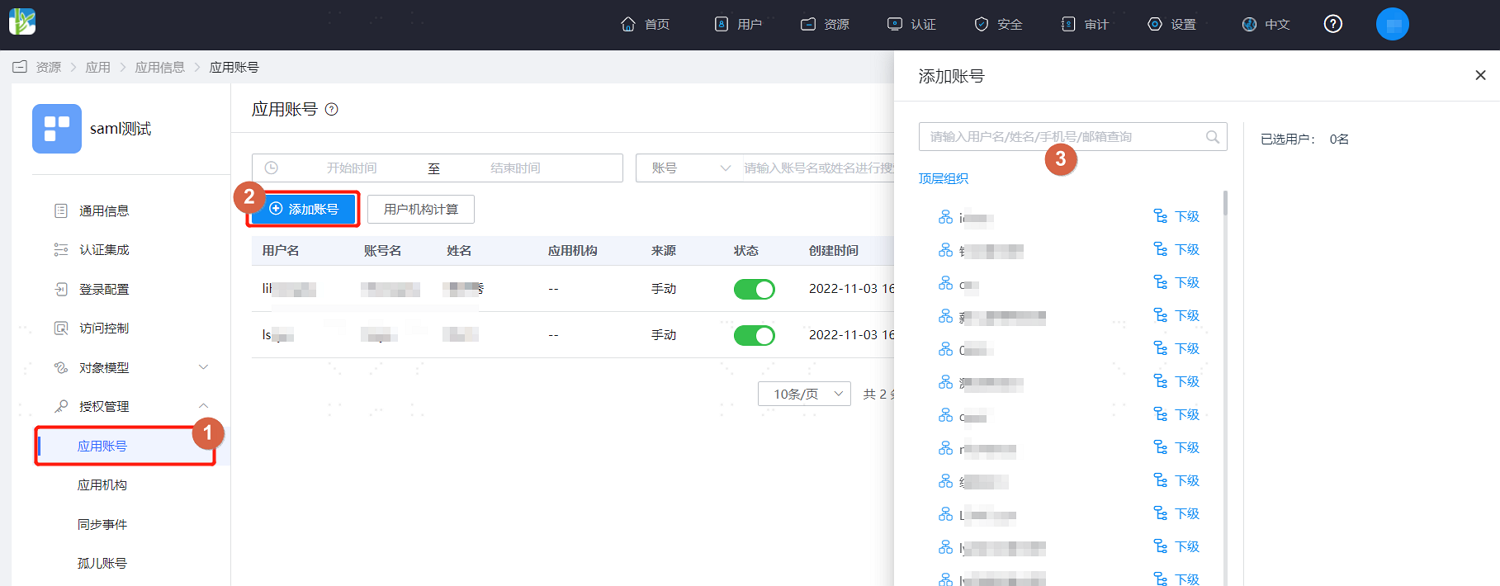
Click "Add Account" to assign accounts for accessing this application to users under a specified organization.
Add User Accounts for Self-built Applications
Log in to the IDaaS Enterprise Center platform, select "Resources > Applications" from the top navigation bar, find the application you want to authorize accounts for under the self-built applications category, and click to enter that application.
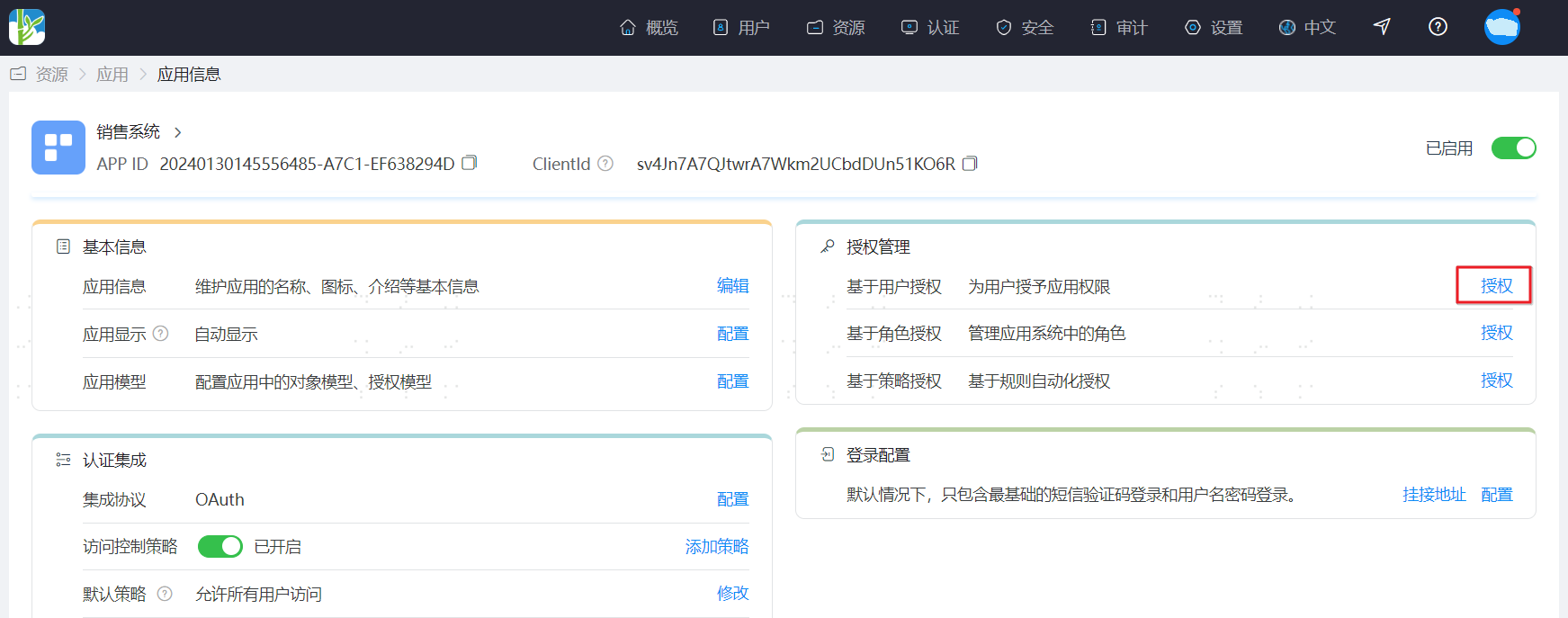
Find "Authorization Management," click "Authorize" next to User-based Authorization to enter the User-based Authorization page. This page displays all accessible accounts under this application. Accounts are associated with users, and users can use these accounts to access the application.
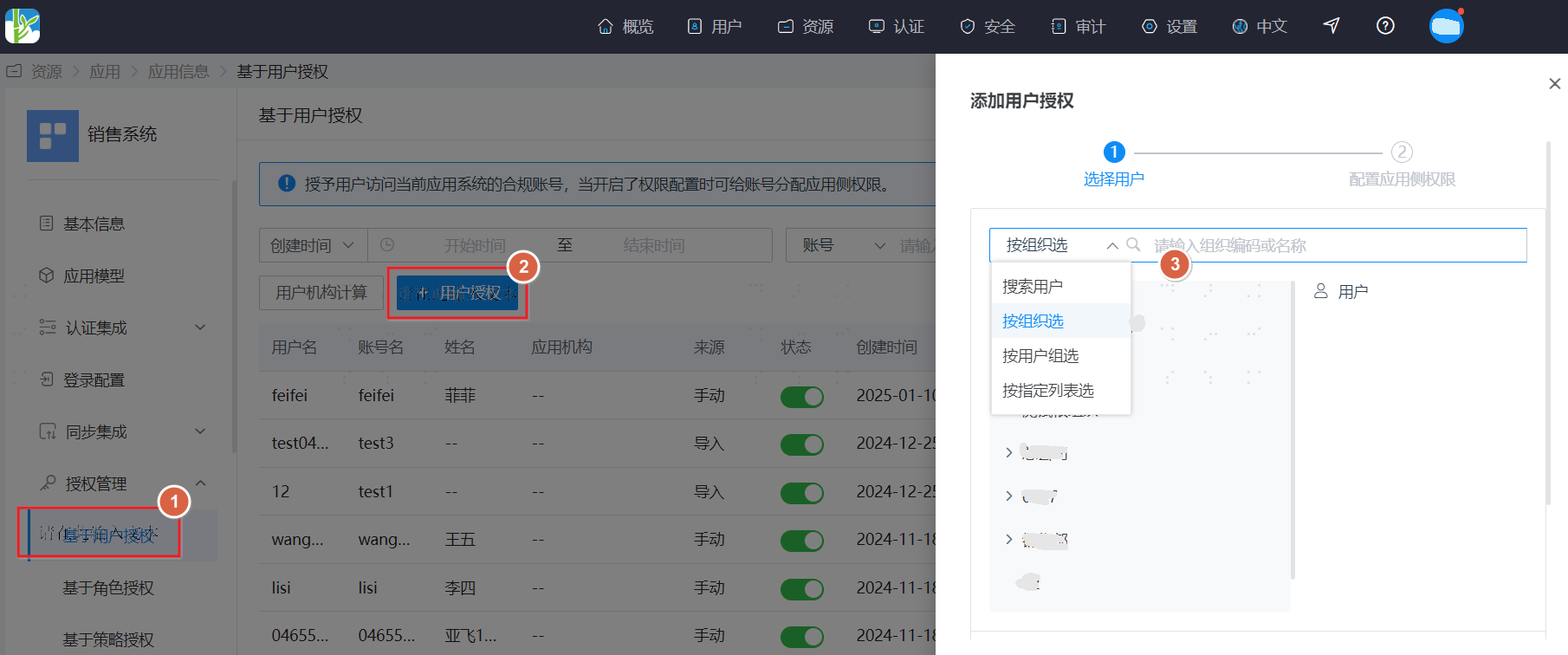
Click "Add User Authorization" to assign accounts for accessing this application to users under a specified organization or user group. You can also directly search for users to assign them accounts for accessing this application.
# Automatic Authorization
This means based on rules, automatically assigning application access accounts to users when they meet the rule conditions.
Since the interface differs between self-built applications and pre-integrated applications, the steps are introduced separately.
Automatically Assign Application Accounts to Users in Pre-integrated Applications
Log in to the IDaaS Enterprise Center platform, select "Resources > Applications" from the top navigation bar, find the application you want to authorize accounts for under the pre-integrated applications category, and click to enter that application.
Find "Authorization Management," click "Authorize" next to the application account to enter the application accounts page. This page displays all accessible accounts under this application. Accounts are associated with users, and users can use these accounts to access the application.
Click "Authorization Policy," turn on the "User Auto-authorization" button to support automatically assigning accounts for this application to users. Configuration instructions are as follows.
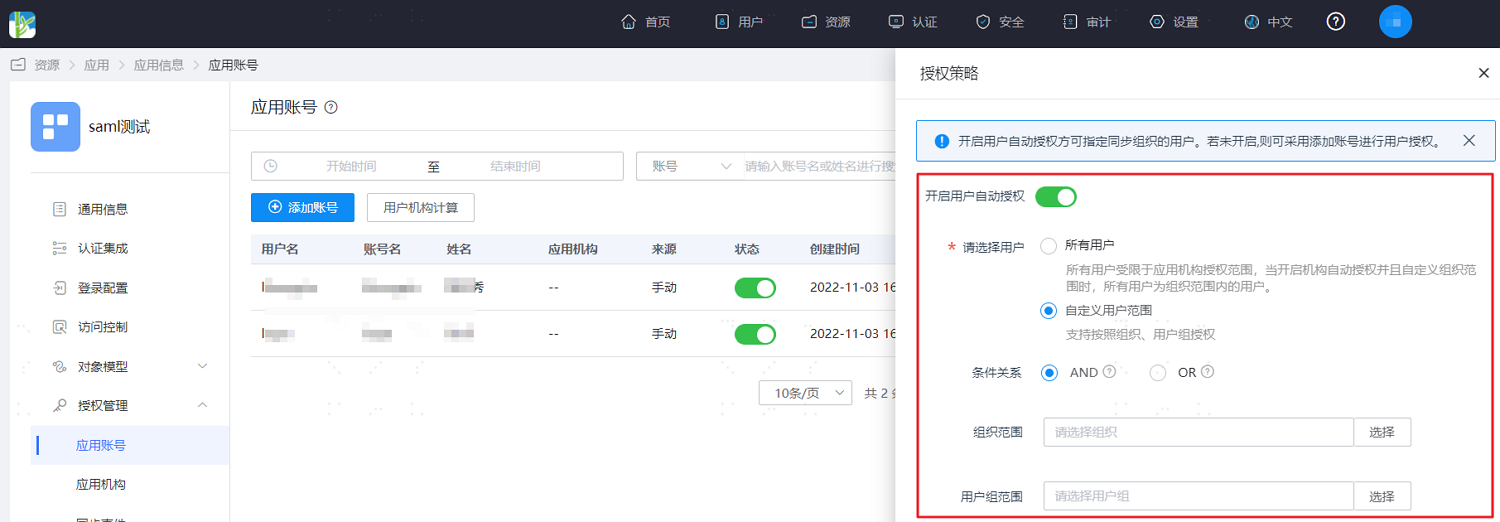
Please select users: Choose the user scope for automatically assigning accounts for this application.
All Users: Indicates that application accounts are automatically assigned to all users on the platform. When organization auto-authorization is enabled and a custom organization scope is defined, "All Users" refers to users within the organizational scope.
Custom User Scope: Indicates that application accounts are automatically assigned to users under specified organizations or user groups.
Conditional Relationship: The logical relationship between organizations and user groups under auto-authorization conditions.
- AND: Indicates that a user must be within both the set organization scope AND the set user group scope to be automatically assigned the application account.
- OR: Indicates that a user can be automatically assigned the application account as long as they are within either the set organization scope OR the set user group scope, satisfying one of the two conditions.
Organization Scope: Sets the organizational scope for which the application account can be automatically assigned.
User Group Scope: Sets the user group scope for which the application account can be automatically assigned.
Automatically Assigning Application Accounts to Users in Self-Built Applications
Log in to the IDaaS Enterprise Center platform. In the top navigation bar, select "Resources > Applications". Under the Self-Built Applications category, find the application for which you want to authorize accounts and click to enter it.
Find "Authorization Management". Click "Authorize" next to Policy-Based Authorization to enter the Policy-Based Authorization page, which displays the authorization policies already configured for this application.
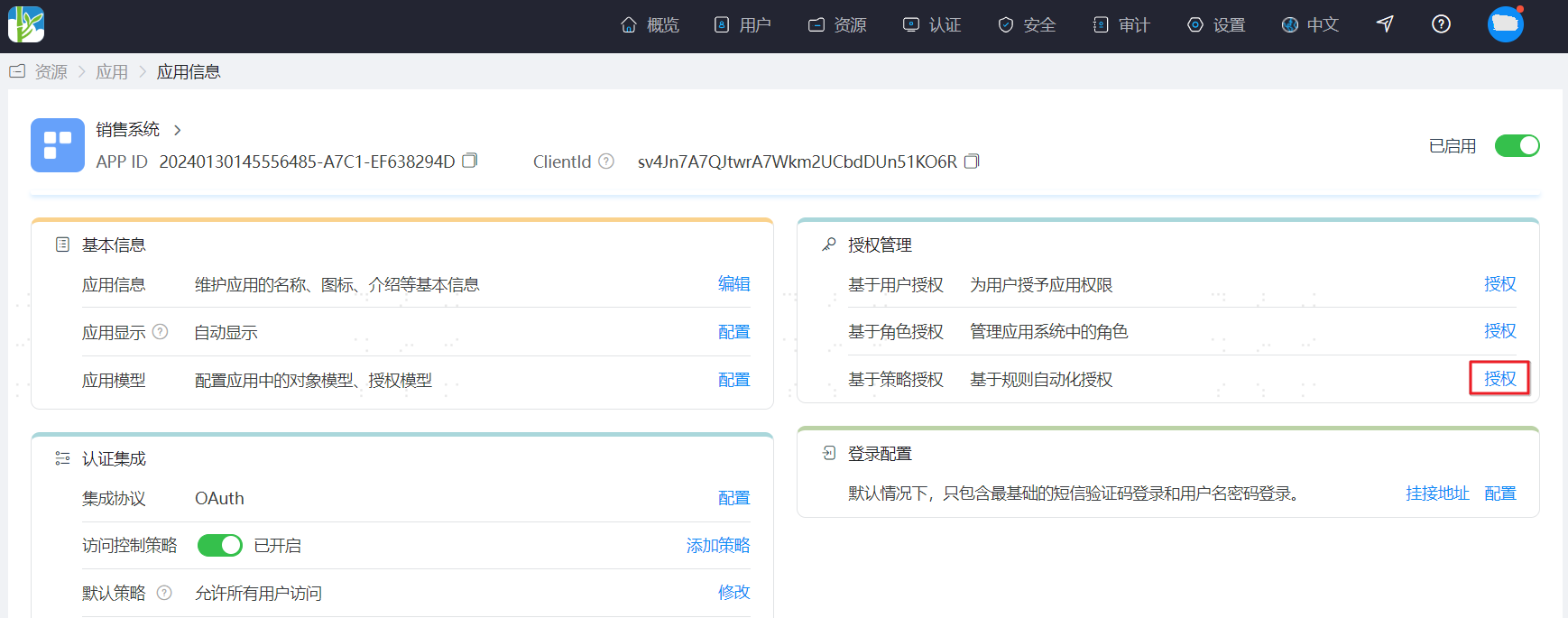
Click "Add Policy" to open the policy configuration page. The configuration instructions are as follows.
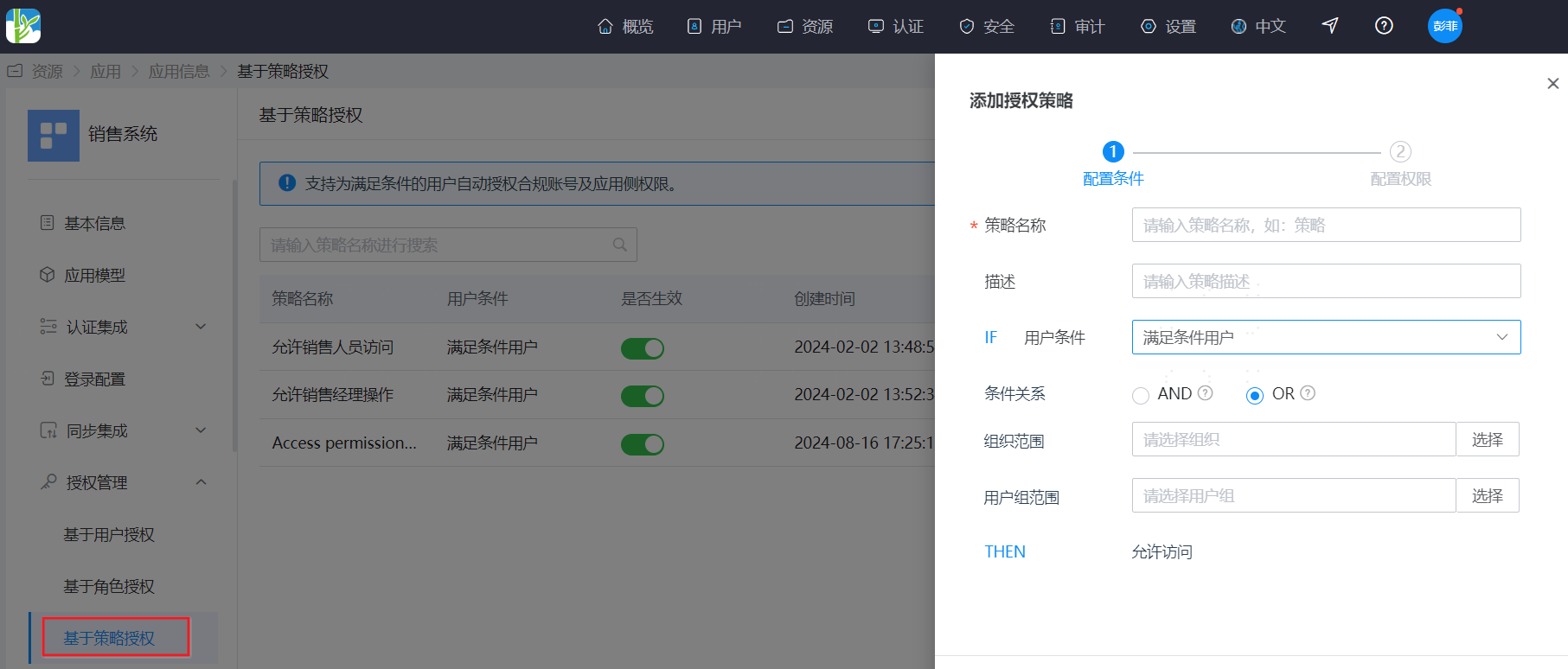
User Condition: Select the user scope for automatically assigning the application account.
All Users: Indicates that application accounts are automatically assigned to all users on the platform. When organization auto-authorization is enabled and a custom organization scope is defined, "All Users" refers to users within the organizational scope.
Custom User Scope: Indicates that application accounts are automatically assigned to users under specified organizations or user groups.
Conditional Relationship: The logical relationship between organizations and user groups under auto-authorization conditions.
- AND: Indicates that a user must be within both the set organization scope AND the set user group scope to be automatically assigned the application account.
- OR: Indicates that a user can be automatically assigned the application account as long as they are within either the set organization scope OR the set user group scope, satisfying one of the two conditions.
Organization Scope: Sets the organizational scope for which the application account can be automatically assigned.
User Group Scope: Sets the user group scope for which the application account can be automatically assigned.
# Managing Orphaned Accounts
Orphaned accounts, also known as ghost accounts, are a type of account in an application system that cannot be associated with a specific person.
Log in to the IDaaS Enterprise Center platform. In the top navigation bar, select "Resources > Applications". Click to enter the application for which you want to authorize accounts.
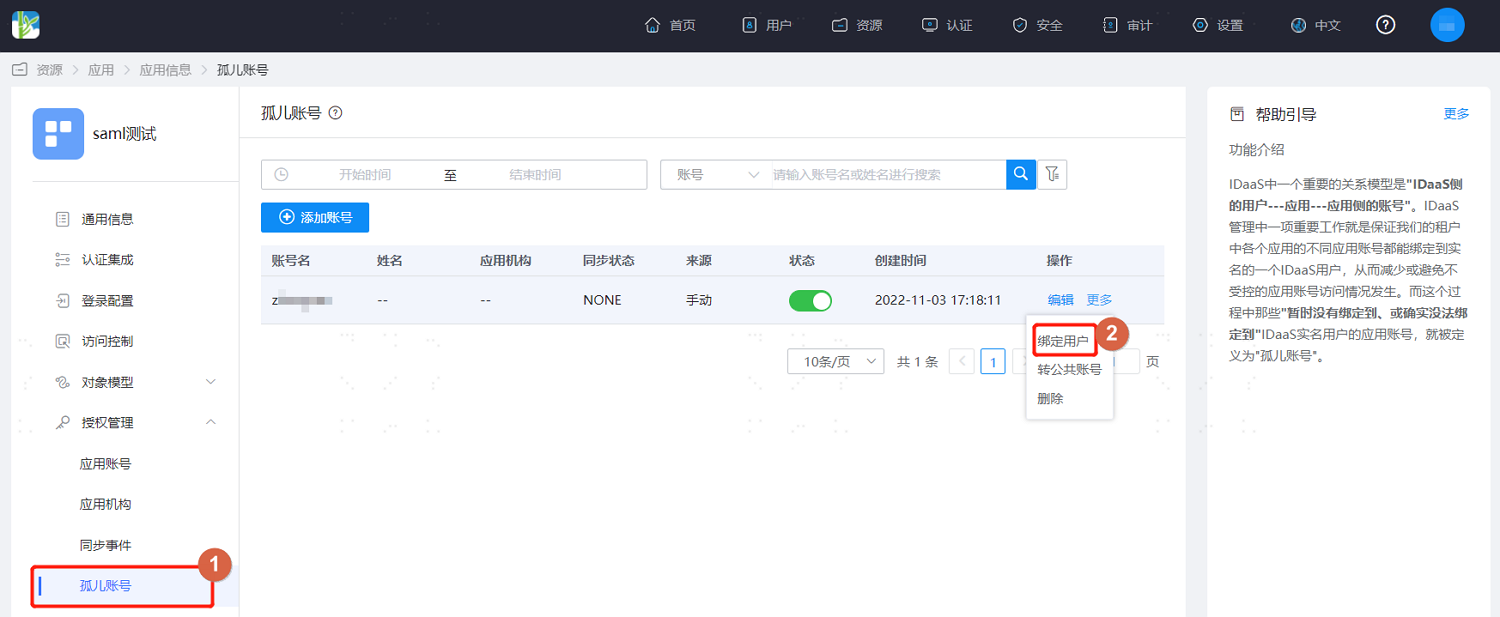
On the application details page, select "Orphaned Accounts" on the left. This page displays accounts under this application that are not bound to any user. You can manually add orphaned accounts. You can also click "More > Bind User" under the operation column for an orphaned account to bind a user to it. Subsequently, the user can use this account to access the application system.
# Managing Shared Accounts
Shared accounts refer to a type of account in an application system that is associated with multiple individuals and used simultaneously by multiple people.
Log in to the IDaaS Enterprise Center platform. In the top navigation bar, select "Resources > Applications". Click to enter the application for which you want to authorize accounts.
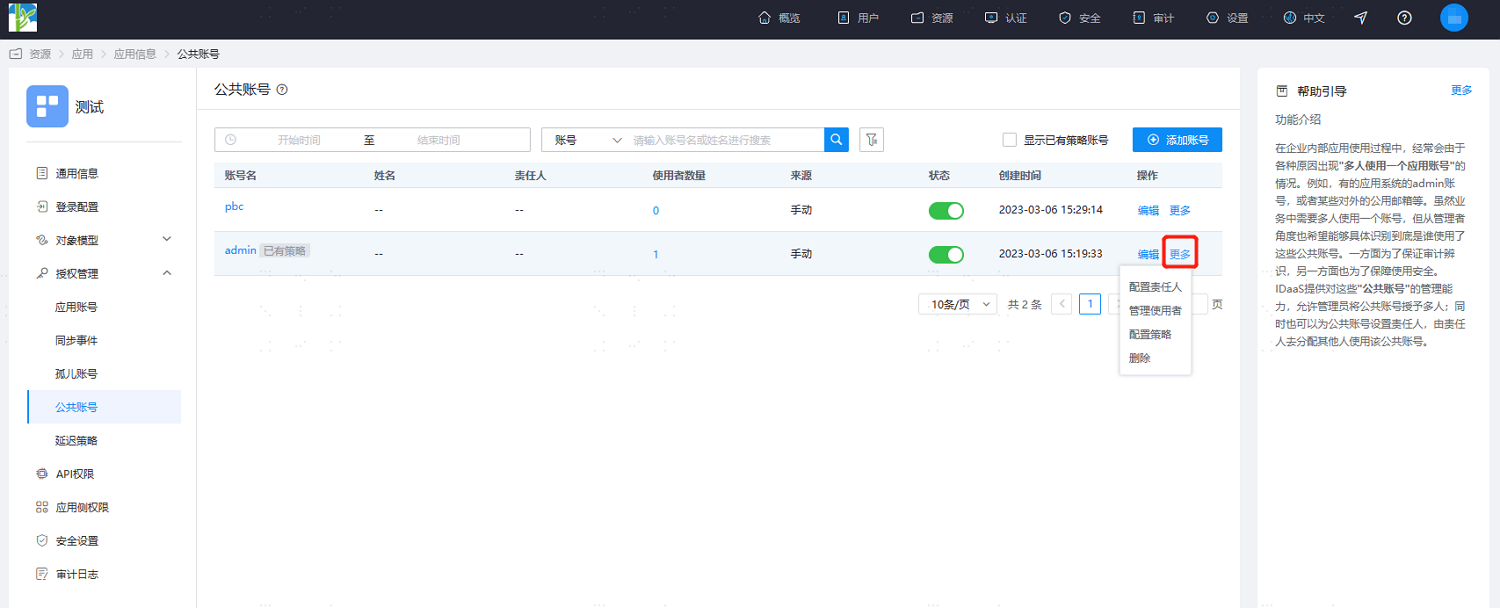
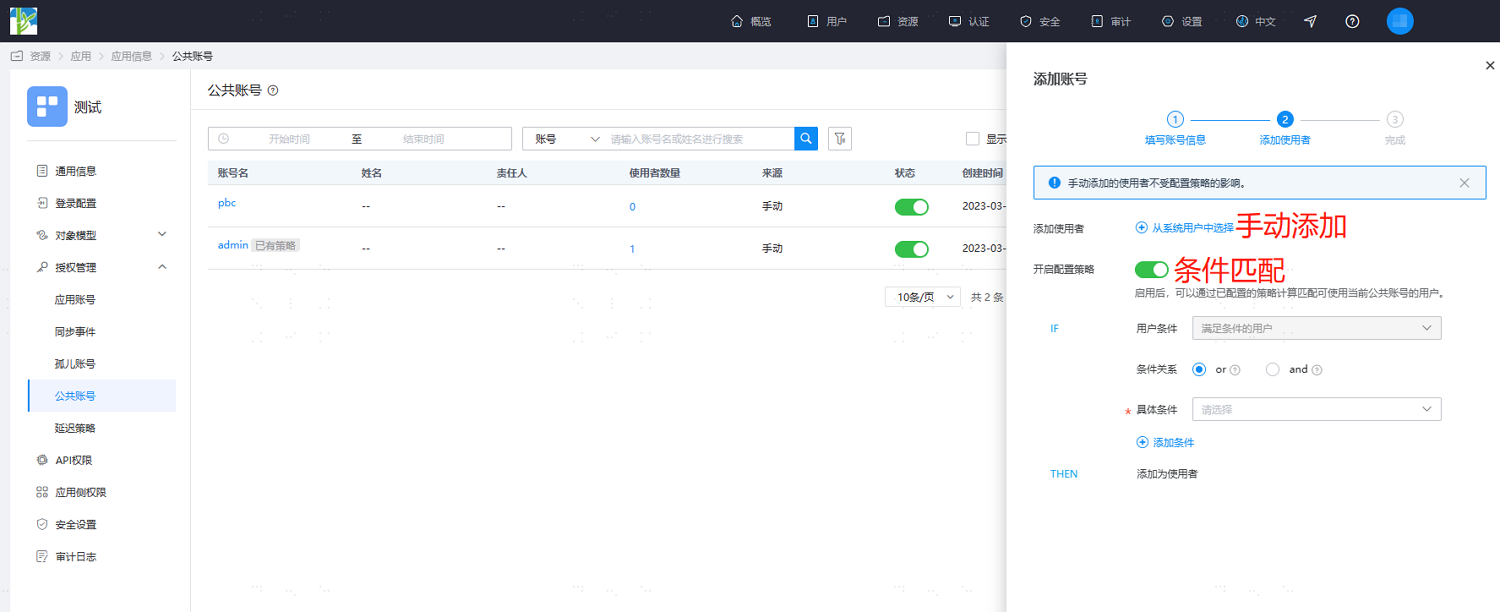
On the application details page, select "Shared Accounts" on the left. This page displays all shared accounts under this application. Click "More" under the operation column for a shared account. You can set the users and responsible person for the shared account, and configure the user policy for this account. You can view the users eligible to use this account through policy calculation.
Users: Set the users who can use this shared account to access the application. When a user is bound to a regular application account and also has permission to use a shared account, a pop-up window will prompt the user to choose one identity to log in when accessing the application system.
Responsible Person: Set the responsible person for this shared account. The responsible person can manage the shared account. Users can view the shared accounts they manage in the User Center and perform maintenance and management operations on them.
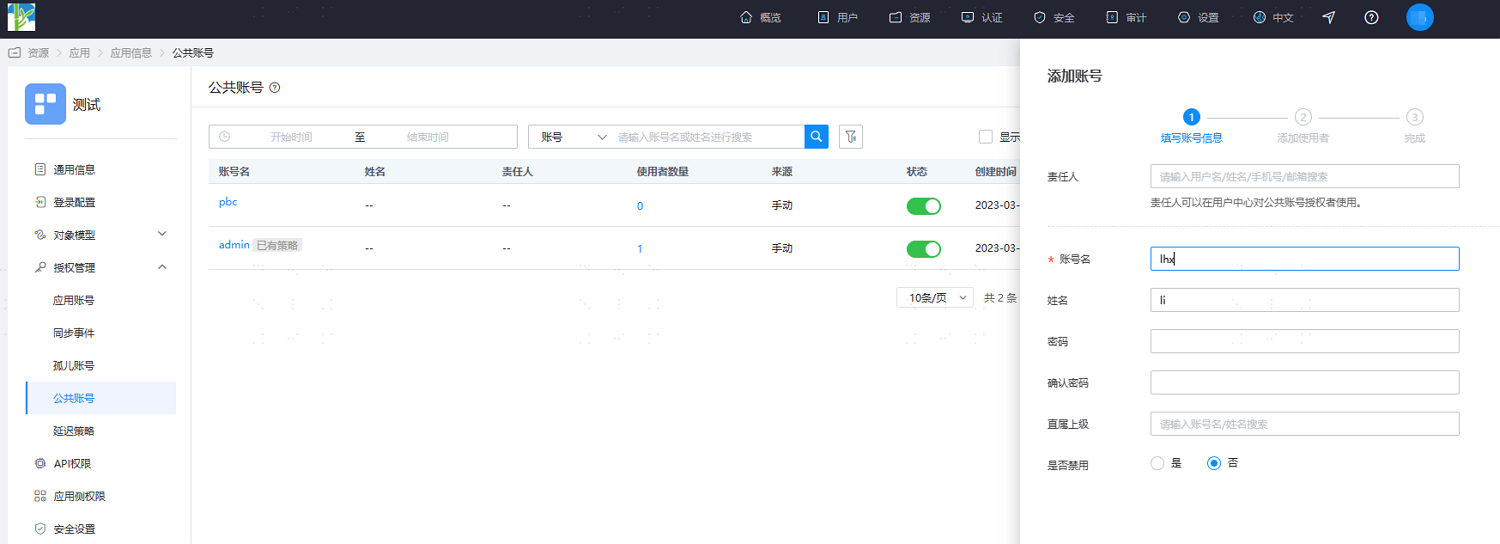
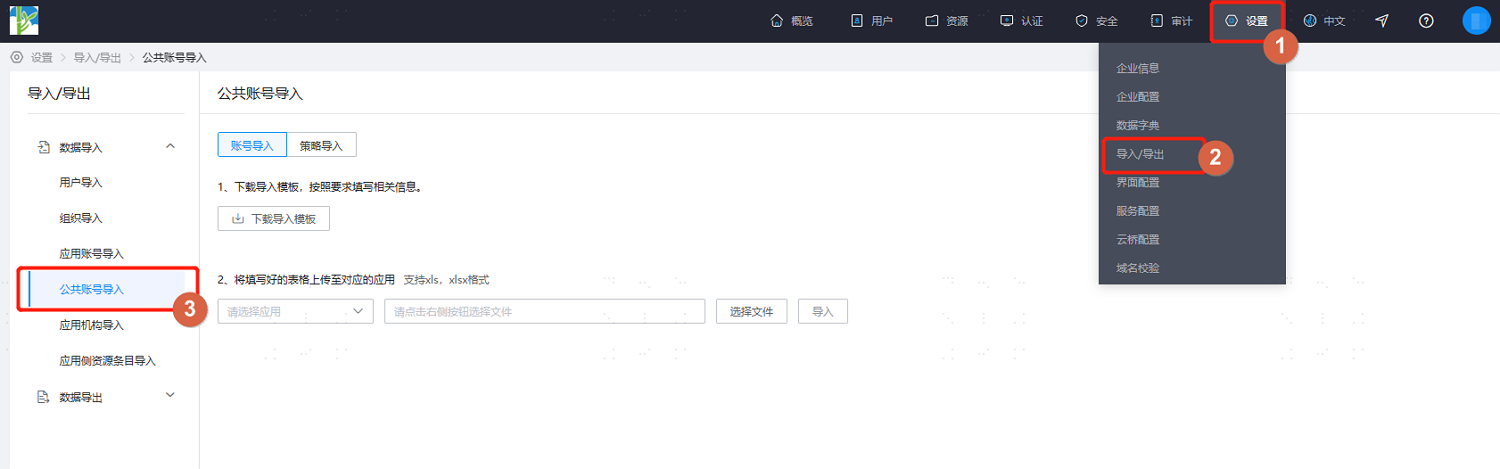
Click "Add Account" in the top right corner to manually add a shared account. Set basic information such as the account name and password. You can manually add a responsible person/users to it or automatically add users by configuring a policy. Also, you can import shared accounts and shared account policies from your local machine on the "Settings > Import/Export" page. Users meeting the account policy will automatically be assigned as users of the shared account.
I'm ready to receive the Markdown content for translation. Please paste it.