
Application Synchronization Cloud Bridge
# Overview
The Application Synchronization type Cloud Bridge is one of the IDaaS Cloud Bridges, used to establish a connection channel between Zhuyun IDaaS and internal enterprise applications, enabling data synchronization between IDaaS and internal enterprise applications.
This section guides you through deploying and using the Application Synchronization Cloud Bridge Agent on the IDaaS platform, and provides update records for the Application Synchronization Cloud Bridge installation package, so you can select the appropriate version based on your project's actual needs. The following example uses the operating system CentOS Linux release 8.0.1905 to deploy the Application Synchronization Cloud Bridge Agent.
# Prerequisites
Have administrator permissions for the IDaaS Enterprise Center platform.
Have operational permissions for the internal network server.
The server has installed net-tools, curl, jdk (OpenJDK 17 or higher), and rng-tools. Installation steps are as follows:
net-tools installation
- Verify if net-tools is already installed
rpm -q net-tools1 - If not installed, download (opens new window) the installation package and upload it to the internal network server.
- Navigate to the directory containing the file and execute the installation command.
yum -y install net-tools-2.0-0.22.20131004git.el7.x86_64.rpm1 - Verify the installation.
rpm -q net-tools1
curl installation
- Most Linux distributions come with curl pre-installed, just verify if it's installed.
curl --version1
jdk installation
- Download (opens new window) the installation package and upload it to the internal network server.
- Navigate to the directory containing the file and execute the installation command.
yum -y install jdk-17.0.13_linux-x64_bin.rpm1 - Verify the installation.
java -version1
rng-tools installation
- The rng-tools utility needs to be installed to increase the system entropy pool replenishment rate. Execute the following command to install rng-tools:
yum install rng-tools1 - Check if the rngd configuration file exists:
cat /etc/sysconfig/rngd1 - If the file does not exist or its content is empty, execute the following command to create the file:
echo "OPTIONS=\"-r /dev/urandom\"" > /etc/sysconfig/rngd1 - Execute the following commands to start the rng service and check its status.Status showing as enabled indicates a successful start:
service rngd start   Start the rng service
service rngd status   Check the rng service status
1
2
- Verify if net-tools is already installed
# Pre-deployment Preparation
# Software Packages
Please prepare the software packages as shown below in advance.
| Package Name | Description | Download Link |
|---|---|---|
| cloudAgent-appProvision-{version}.zip | Application Synchronization Cloud Bridge installation package | Click to Download (opens new window) |
| cloudAgent-appProvision-{version}.zip.sha256 | SHA256 checksum file for the Application Synchronization Cloud Bridge installation package, used to verify the integrity of the installation package. | Click to Download (opens new window) |
| cloudAgent-appProvision-adConnector-{version}.zip | AD Connector and configuration file package (Recommended for AD) | Click to Download (opens new window) |
| cloudAgent-appProvision-adConnector-{version}.zip.sha256 | SHA256 checksum file for the AD Connector and configuration file package, used to verify the integrity of the AD Connector and configuration file package. (Recommended for AD) | Click to Download (opens new window) |
| cloudAgent-appProvision-ldapConnector-{version}.zip | LDAP Connector and configuration file package | Click to Download (opens new window) |
| cloudAgent-appProvision-ldapConnector-{version}.zip.sha256 | SHA256 checksum file for the LDAP Connector and configuration file package, used to verify the integrity of the LDAP Connector and configuration file package. | Click to Download (opens new window) |
| cloudAgent-appProvision-fanruan-bi_report-Connector-{version}.zip | Fanruan Connector and configuration file package | Click to Download (opens new window) |
| cloudAgent-appProvision-fanruan-bi_report-Connector-{version}.zip.sha256 | SHA256 checksum file for the Fanruan Connector and configuration file package, used to verify the integrity of the Fanruan Connector and configuration file package. | Click to Download (opens new window) |
| cloudAgent-appProvision-eventCallback-Connector-{version}.zip | Event Callback Connector and configuration file package | Click to Download (opens new window) |
| cloudAgent-appProvision-eventCallback-Connector-{version}.zip.sha256 | SHA256 checksum file for the Event Callback Connector and configuration file package, used to verify the integrity of the Event Callback Connector and configuration file package. | Click to Download (opens new window) |
The files after extracting the Application Synchronization Cloud Bridge installation package are as follows:
| Name | Description |
|---|---|
| agent.sh | File for auto-starting the Cloud Bridge Agent on system boot. |
| cloudAgent-appProvision.jar | Deployment package for the Application Synchronization Cloud Bridge Agent. |
| cloudBridge.sh | File for manually starting the Cloud Bridge Agent. |
| config | Directory for storing the configuration files of the Application Synchronization Connector. |
| application.yml | Configuration file for the Application Synchronization Cloud Bridge Agent. |
| log | Directory for storing the Cloud Bridge Agent logs (agent.log). |
| connector | Directory for storing the Application Synchronization Cloud Bridge Connector jar packages. |
# Deploy the Application Synchronization Cloud Bridge
Log in to the IDaaS Enterprise Center platform. In the top navigation bar, select "Settings > Cloud Bridge Configuration", click "Add Cloud Bridge Agent", set a name and select the Application Synchronization type Cloud Bridge.
- After the Cloud Bridge Agent is added, the system will automatically generate a ClientID and ClientSecret. Please keep them safe.
- If you forget the ClientSecret accidentally, click "Reset Secret Key" for the target Agent to regenerate it. After resetting, the original key will become invalid. Please operate with caution.
- Supports viewing Cloud Bridge connection logs and service logs.
- Supports configuring an IP for the Cloud Bridge Agent. Configure it as the egress IP of the server where the Cloud Bridge Agent is deployed. After configuration, only this IP is allowed to connect to the IDaaS cloud service to ensure service security.
- Supports deleting the target Agent. Please operate with caution.

Upload all the obtained software packages for the Application Synchronization Cloud Bridge to the target server. Execute the following commands to verify the integrity of the Cloud Bridge installation package, LDAP connector, and Fanruan connector software packages. When the echo information shows OK, it indicates the integrity check is successful.
sha256sum -c cloudAgent-appProvision-{version}.zip.sha256
sha256sum -c cloudAgent-appProvision-ldapConnector-{version}.zip.sha256
sha256sum -c cloudAgent-appProvision-fanruan-bi_report-Connector-{version}.zip.sha256
1
2
3Execute the following command to extract the Application Synchronization Cloud Bridge installation package. The storage location must be unique, otherwise it may cause installation errors.
unzip -od {destination_path_for_extracted_files} cloudAgent-appProvision-{version}.zip1Navigate to the directory where the files were extracted and configure the
application.ymlfile.###UTF-8 format YAML configuration header, do not delete### server: # Cloud Bridge startup port port: 9081 agent: # This is the connection address of the agent # exp: wss://domain/api/v1/ws # Cloud Bridge service address, where domain is the tenant domain name in IDaaS, e.g., xx.bccastle.com # Example: wss://domain/api/v1/ws serverAddress: # This is the client ID of the agent # exp: 7jve68NwihfnjsD8SJToWxTU5Wg8hkl1 # Cloud Bridge ClientID, the ClientID of the Cloud Bridge created in IDaaS # Example: 7jve68NwihfnjsD8SJToWxTU5Wg8hkl1 agentId: # This is the client secret of the agent # exp: LdfwryojYHLMaeNGVdr9fSh1iwyDCL0QuBx2wewrjxT5UOhUQVpAqwerfgj8pLNV1 # Cloud Bridge ClientSecret, the ClientSecret of the Cloud Bridge created in IDaaS # Example: LdfwryojYHLMaeNGVdr9fSh1iwyDCL0QuBx2wewrjxT5UOhUQVpAqwerfgj8pLNV1 agentSecret: # This is the Agent log level control configuration logging: level: com.bamboocloud.bcidaas.cloudbridge: INFO file: # The value of the attribute must have a unit, which can be KB or MB # Size of a single log file. Default: 10MB, Maximum: 10MB # default: 10MB # max-size: 10MB # The maximum number of days that log files are to be archived # Maximum retention period for logs. Default: 7 days, Maximum: 7 days # default: 7 DAYS # max-history: 71
2
3
4
5
6
7
8
9
10
11
12
13
14
15
16
17
18
19
20
21
22
23
24
25
26
27
28
29
30
31
32
33
34
35
36Return to the directory where the application sync connector installation package is stored, and execute the following command to extract the installation package.
unzip -od {destination path for extracted files} cloudAgent-appProvision-{connector type}-{version number}.zip1Execute the following command to copy the extracted application sync connector (jar file) to the Cloud Bridge connector directory.
cp {connector name}.jar {Cloud Bridge connector directory path}1Execute the following command to copy the extracted application sync connector configuration file (yml file) to the Cloud Bridge config directory.
cp {connector name}.yml {Cloud Bridge config directory path}1Edit the content of the application sync connector configuration file and rename it to
{applicationId}.yml. The applicationId is the AppId found on the "Resource > Application > Application Information > General Information" page in the IDaaS Enterprise Center.After configuring the file, execute the following command in the directory where the Cloud Bridge installation package was extracted to start the Cloud Bridge. When prompted with Starting Agent Success, it indicates the Cloud Bridge has started successfully. If startup fails, please check the Cloud Bridge startup log agent.log and troubleshoot the configuration file content.
./cloudBridge.sh start1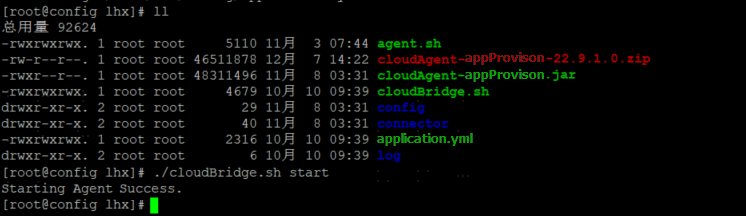
(Optional) If you need the Cloud Bridge to start automatically on system boot, execute the following command in the directory where the Cloud Bridge installation package was extracted. When prompted with The Agent service installed successfully, need to reboot will take effect, it indicates the auto-start setup was successful.
./agent.sh install
- (Optional) If you need to cancel the Cloud Bridge auto-start on boot, execute the following command in the directory where the Cloud Bridge installation package was extracted. When prompted with uninstall Agent Success, it indicates the Cloud Bridge auto-start has been successfully canceled.
./agent.sh uninstall
- You can obtain log information from the
log/agent.logfile in the directory.
# Using Application Sync Cloud Bridge
The following description uses the AD application as an example:
Log in to the IDaaS Enterprise Center platform, select "Resources > Applications" in the top navigation bar, turn on the "Sync Integration" switch for the application, and configure it as LDAP.
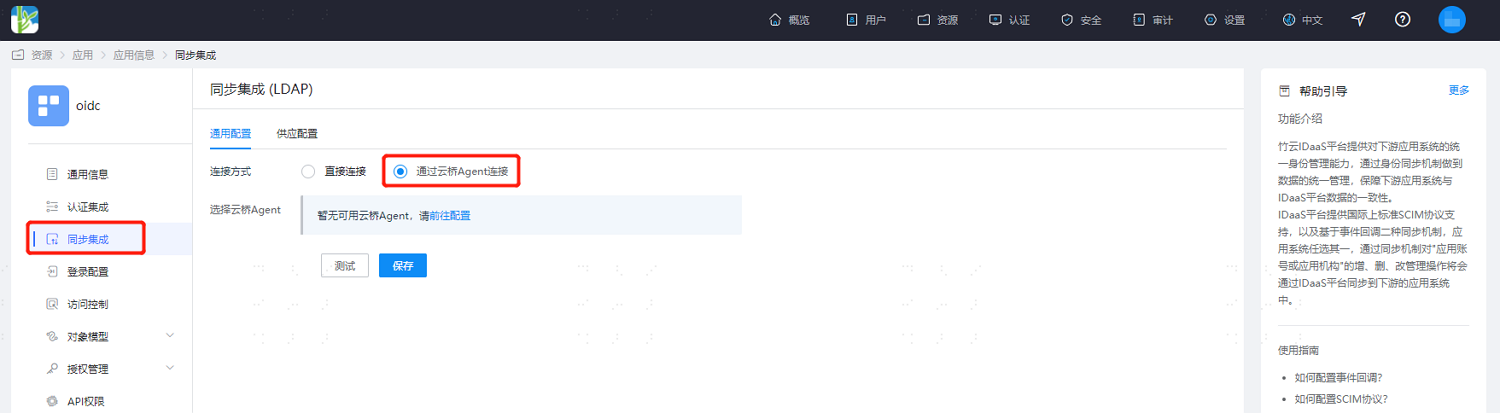
Go to the "Sync Integration > General Configuration" page, set the connection method to "Connect via Cloud Bridge Agent", select an available Application Sync Cloud Bridge. For other configurations, please refer to Synchronizing Data via LDAP Protocol.
# Update Log
This section displays the update records for the Application Sync Cloud Bridge Agent installation package.
| Package Name | Version | Update Description |
|---|---|---|
| cloudAgent-appProvision-{version}.zip | V25.2.1.1 | Upgraded third-party components, fixed security vulnerabilities |
| cloudAgent-appProvision-{version}.zip.sha256 | V25.2.1.1 | Upgraded third-party components, fixed security vulnerabilities |
| cloudAgent-appProvision-{version}.zip | V25.2.1.0 | Upgraded Spring version, fixed security vulnerabilities |
| cloudAgent-appProvision-{version}.zip.sha256 | V25.2.1.0 | Upgraded Spring version, fixed security vulnerabilities |
| cloudAgent-appProvision-fanruan-bi_report-Connector-{version}.zip | V24.11.1.0 | Supports position provisioning |
| cloudAgent-appProvision-adConnector-{version}.zip | V24.11.1.0 | Sync integration supports configuring custom domain names |
| cloudAgent-appProvision-{version}.zip | V24.11.1.0 | Upgraded third-party components, fixed security vulnerabilities |
| cloudAgent-appProvision-{version}.zip | V24.08.2.0 | Cloud Bridge client security hardening |
| cloudAgent-appProvision-{version}.zip | V24.04.1.0 | Cloud Bridge client security hardening |
| cloudAgent-appProvision-{version}.zip | V23.10.1.0 | JDK version upgraded to JDK 17 |
| cloudAgent-appProvision-{version}.zip | V23.5.1.0 | Added client connection information and log backup |
| cloudAgent-appProvision-{version}.zip | V23.4.1.0 | Added AD connector |
| cloudAgent-appProvision-{version}.zip.sha256 | V23.4.1.0 | Added AD connector |
| cloudAgent-appProvision-adConnector-Connector-{version}.zip | V23.4.1.0 | Added AD connector |
| cloudAgent-appProvision-adConnector-Connector-{version}.zip.sha256 | V23.4.1.0 | Added AD connector |
| cloudAgent-appProvision-{version}.zip | V23.3.1.0 | 1. Improved sync log information 2. Optimized configuration file template descriptions 3. Supplemented the logic for passing attributes required by connectors |
| cloudAgent-appProvision-{version}.zip.sha256 | V23.3.1.0 | Version number synchronized, content unchanged |
| cloudAgent-appProvision-eventCallback-Connector-{version}.zip | V23.3.1.0 | Added event callback |
| cloudAgent-appProvision-eventCallback-Connector-{version}.zip.sha256 | V23.3.1.0 | Added event callback |
| All | V22.11.1.0 | 1. Optimized some known bugs 2. Optimized WebSocket connection |
| All | V22.9.1.0 | First release of Application Sync Cloud Bridge |
I am ready to receive the Markdown content for translation. Please paste the text you would like me to translate into English.