
Identity Source Cloud Bridge
# Overview
The Identity Source type Cloud Bridge is one type of IDaaS Cloud Bridge, used to establish a connection channel between Bamboo Cloud IDaaS and the corresponding identity source within the enterprise. It currently supports AD identity sources.
This section guides you through deploying and using the Identity Source Cloud Bridge Agent on the IDaaS platform, and provides update records for the Identity Source Cloud Bridge installation package, so you can choose the appropriate version based on your project's actual needs. The following uses the operating system CentOS Linux release 8.0.1905 to deploy the Identity Source Cloud Bridge Agent as an example.
# Prerequisites
Have administrator permissions for the IDaaS Enterprise Center platform.
Have operational permissions for the intranet server.
The server has net-tools, curl, jdk (OpenJDK 17 or higher), and rng-tools installed. Installation steps are as follows:
net-tools installation
- Verify if net-tools is already installed
rpm -q net-tools1 - If not installed, download (opens new window) the installation package and upload it to the intranet server.
- Navigate to the directory containing the file and execute the installation command.
yum -y install net-tools-2.0-0.22.20131004git.el7.x86_64.rpm1 - Verify the installation.
rpm -q net-tools1
curl installation
- Most Linux distributions come with curl pre-installed, just verify if it's installed.
curl --version1
jdk installation
- Download (opens new window) the installation package and upload it to the intranet server.
- Navigate to the directory containing the file and execute the installation command.
yum -y install jdk-17.0.13_linux-x64_bin.rpm1 - Verify the installation.
java -version1
rng-tools installation
- The rng-tools tool needs to be installed to increase the system entropy pool replenishment rate. Execute the following command to install rng-tools:
yum install rng-tools1 - Check if the rngd configuration file exists:
cat /etc/sysconfig/rngd1 - If this file does not exist or its content is empty, please execute the following command to create the file:
echo "OPTIONS=\"-r /dev/urandom\"" > /etc/sysconfig/rngd1 - Execute the following commands to start the rng service and check its status.Status showing 'enabled' indicates successful startup:
service rngd start   Start the rng service
service rngd status   Check the rng service status
1
2
- Verify if net-tools is already installed
# Pre-deployment Preparation
# Software Packages
Please prepare the software packages as shown below in advance.
| Package Name | Description | Download Link |
|---|---|---|
| cloudAgent-identitySource-{version}.zip | Identity Source Cloud Bridge installation package. | Click to download (opens new window) |
| cloudAgent-identitySource-{version}.zip.sha256 | SHA256 checksum file for the Identity Source Cloud Bridge installation package, used to verify the integrity of the installation package. | Click to download (opens new window) |
The files after extracting the identity source cloud bridge installation package are as follows:
| Name | Description |
|---|---|
| agent.sh | The file for auto-starting the cloud bridge Agent on system boot. |
| cloudAgent-identitySource.jar | The deployment package for the identity source cloud bridge Agent. |
| cloudBridge.sh | The file for manually starting the cloud bridge Agent. |
| config | The directory for storing the cloud bridge Agent configuration file (application.yml). |
| log | The directory for storing the cloud bridge Agent logs (agent.log). |
| connector | The directory for storing the identity source cloud bridge connector jar packages. |
| encrypt.sh | The encryption script. |
# Deploying the Identity Source Cloud Bridge
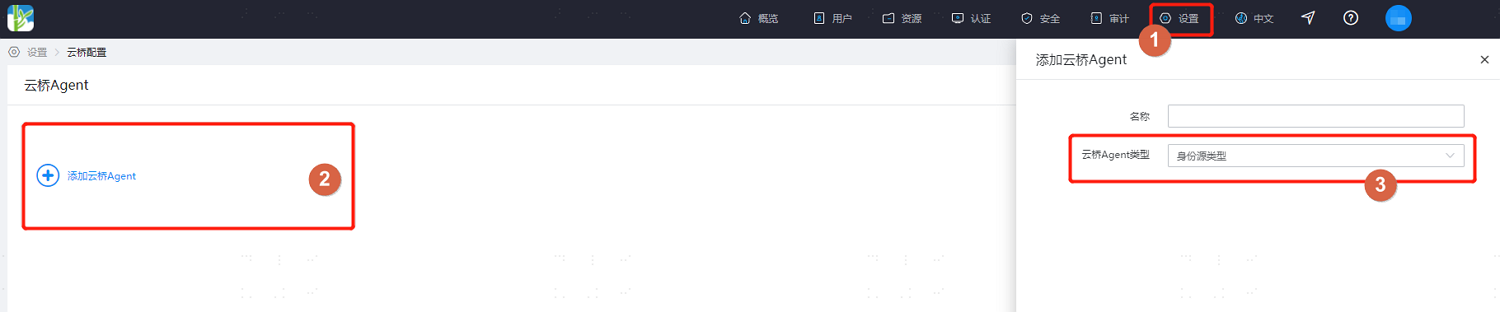
Log in to the IDaaS Enterprise Center platform, select "Settings > Cloud Bridge Configuration" from the top navigation bar, click "Add Cloud Bridge Agent", set a name and select the identity source type cloud bridge.
- After the cloud bridge Agent is added, the system will automatically generate a ClientID and ClientSecret. Please keep them safe.
- If you forget the ClientSecret accidentally, click "Reset Secret Key" for the target Agent to regenerate it. After resetting, the original secret key will become invalid. Please operate with caution.
- Supports viewing cloud bridge connection logs and service logs.
- Supports configuring an IP for the cloud bridge Agent. Configure it as the egress IP of the server where the cloud bridge Agent is deployed. After configuration, only this IP is allowed to connect to the IDaaS cloud service to ensure service security.
- Supports deleting the target Agent. Please operate with caution.
Upload all the software packages of the obtained identity source cloud bridge to the target server. Execute the following command to verify the integrity of the cloud bridge installation package. When the echo information shows OK, it indicates the integrity check is successful.
sha256sum -c cloudAgent-identitySource-{version}.zip.sha2561Execute the following command to extract the identity source cloud bridge installation package. The storage location must be unique, otherwise it will cause installation errors.
unzip -od {storage location after file extraction} cloudAgent-identitySource-{version}.zip1Enter the directory after file extraction and configure the
application.ymlfile under the config directory.###UTF-8 format YAML configuration header, do not delete### server: # Cloud bridge startup port port: 9081 agent: # Cloud bridge service address. domain is the tenant domain name xx.bccastle.com in IDaaS Example: serverAddress: wss://domain/api/v1/ws # Cloud bridge ClientID. The ClientID of the cloud bridge created in IDaaS Example: agentId: 7jve68NZlPFqyWD8SJToWxTU5Wg6khk1 # Cloud bridge ClientSecret. The ClientSecret of the cloud bridge created in IDaaS Example: agentSecret: LdfwryojYHLMaeNGVdr9fSh1iwyDCL0QuBxhKn0jxT5UOhUQVpAoGdglsvtpLNV11
2
3
4
5
6
7
8
9
10
11
12
13
# Identity Source Recycle Properties
idsource: recycle: # AD Identity Source Recycle Properties ad: # The hostname or IP address of the AD server Example: host: 127.0.0.1 # The TCP/IP port used to communicate with the AD server Example: port: 8080 # Check this box to use SSL to connect to the AD server Example: ssl: false # TLSv1.2 is used by default. It is recommended to use TLSv1.3 and TLSv1.2 (SSL and TLSv1.0 can be used for compatibility). Example: protocolVersion: TLSv1.2 # The identifier used for AD server authentication Example: principal: DEMO-TEST\Administrator # The password for the principal Example: credentials: passw0rd # Base Contexts (One or more starting points in the AD tree that will be used when searching the AD tree. A search will be performed when finding a user or a group the user belongs to from the AD server) Example: baseContexts: OU=org-test,DC=demo-test,DC=com # The name of the AD attribute mapped to the UID attribute. Default: objectGUID Example: uidAttribute: objectGUID # Enter multiple object classes, each entry should be on its own line; Do not use commas or semicolons to separate multiple object classes; Some object classes may require specifying all object classes in the class hierarchy. Default: organizationalUnit Example: organizationObjectClasses: organizationalUnit # Enter multiple object classes, each entry should be on its own line; Do not use commas or semicolons to separate multiple object classes; Some object classes may require specifying all object classes in the class hierarchy. Default: top, person, organizationalPerson, user Example: accountObjectClasses: user # Use VLV controls. Default: true Example: useVlvControls: true # Specifies the sorting attribute for the VLV index on the resource. Default: objectGUID Example: vlvSortAttribute: objectGUID
# This is the Agent log level control configuration
logging: level: com.bamboocloud.bcidaas.cloudbridge: INFO file: # The value of the attribute must have a unit, which can be KB or MB # Size of a single log file. Default: 10MB, Maximum: 10MB # default: 10MB # max-size: 10MB # The maximum number of days that log files are to be archived # Maximum log retention time. Default: 7 days, Maximum: 7 days # default: 7 DAYS # max-history: 7
5. After completing the configuration file, execute the following command in the directory where the Cloud Bridge installation package is extracted to start Cloud Bridge. When prompted **Starting Agent Success**, it indicates Cloud Bridge has started successfully. If startup fails, please troubleshoot the configuration file.
2
3
./cloudBridge.sh start
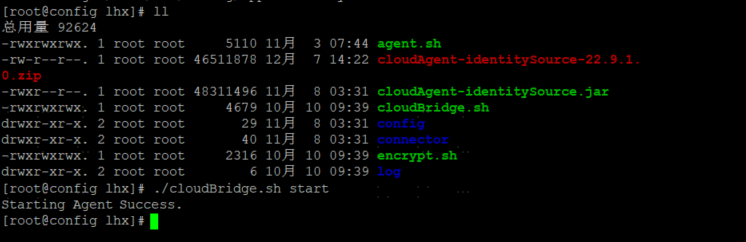
6. (**Optional**) If you need Cloud Bridge to start automatically on boot, execute the following command in the directory where the Cloud Bridge installation package is extracted. When prompted **The Agent service installed successfully, need to reboot will take effect**, it indicates the operation was successful.
2
3
4
5
./agent.sh install
7. (**Optional**) If you need to cancel Cloud Bridge automatic startup on boot, execute the following command in the directory where the Cloud Bridge installation package is extracted. When prompted **uninstall Agent Success**, it indicates Cloud Bridge automatic startup on boot has been successfully cancelled.
2
3
./agent.sh uninstall
8. You can obtain log information from the `log/agent.log` file in the directory.
## Using the Identity Source Cloud Bridge
1. Log in to the IDaaS Enterprise Center platform, select "Users > Identity Source Management" from the top navigation bar, and choose "AD Identity Source" to add it.
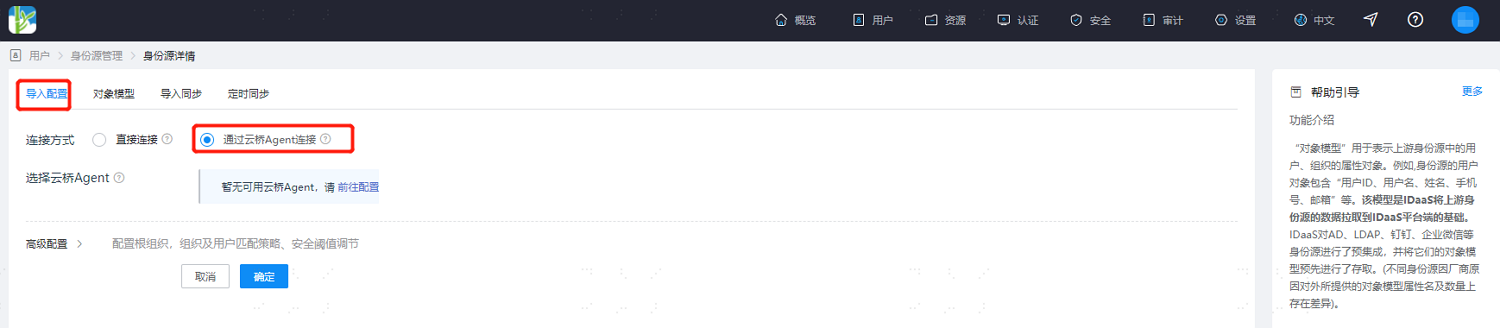
2. Go to the "Import Configuration" page, set the connection method to "Connect via Cloud Bridge Agent", select an available identity source cloud bridge. For other configurations, please refer to [AD as an Identity Source](/guide/admin/id_source/ad.html).
## Appendix: Using the Encryption Tool
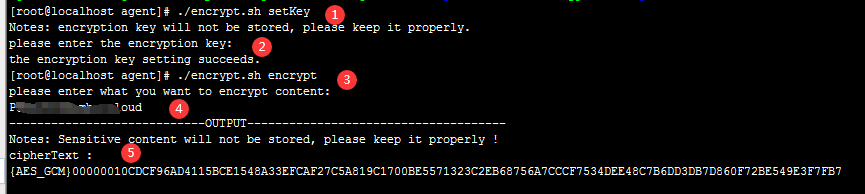
1. Execute the `./encrypt.sh setKey` command, and after pressing "Enter", set the encryption key.
:::tip
If an encryption key has been set previously and needs to be updated, execute the `./encrypt.sh updateKey` command.
:::
2. Customize the AD encryption key.
3. Execute the `./encrypt.sh encrypt` command.
4. Enter the AD administrator password.
5. Copy the generated encrypted password, and enter the encrypted password after `credentials:` in the configuration file application.yml, as shown below:
`credentials: 'encrypted password'`
## Update Log
This module displays the update records for the Identity Source Cloud Bridge Agent installation package.
| <span style="display:inline-block;width:100px">Version</span> | <span style="display:inline-block;width:200px">Update Description</span> |
|:---------------------------------------------------------|:-----------------------------------------------------------|
| V25.2.1.1 | Third-party component upgrades, security vulnerabilities fixed. |
| V25.2.1.0 | Spring version upgrade, security vulnerabilities fixed. |
| V24.11.1.0 | Third-party component upgrades, security vulnerabilities fixed. |
| V24.8.2.0 | Cloud bridge client security hardening. |
| V24.4.1.0 | Cloud bridge client security hardening. |
| V23.10.1.0 | JDK version upgraded to JDK 17. |
| V23.5.1.0 | Added client connection information and log backup. |
| V23.4.1.0 | 1. Updated AD connector, optimized error messages.<br>2. Added test functionality for cloud bridge AD configuration. |
| V22.11.1.0 | 1. Optimized some known bugs.<br>2. Optimized WebSocket connection. |
| V22.9.1.0 | 1. Modified cloud bridge installation script to install watchdog via systemd, supporting Ubuntu system.<br>2. Added pre-installation environment checks to the installation script. |
| V22.7.1.0 | Support for viewing cloud bridge service logs. |
| V22.3.1.0 | Optimized for AD identity source Agent functionality. |
| V21.10.2.0 | 1. Configuration errors provide more precise prompts.<br>2. Optimized the method for Agent to obtain Pid. |
| V21.9.2.0 | Added watchdog mechanism. |
| V21.9.1.0 | 1. Optimized cloud bridge reconnection mechanism.<br>2. Optimized some known BUGs. |
I'm ready. Please provide the Markdown content you'd like me to translate.
2
3
4
5
6
7
8
9
10
11
12
13
14
15
16
17
18
19
20
21
22
23
24
25
26
27
28
29
30
31
32
33
34
35
36
37
38
39
40
41
42
43
44
45
46
47
48
49
50
51
52
53
54
55
56