
Global Parameters and User Center Feature Configuration
# Overview
The IDaaS platform provides modules for global parameter configuration and user center feature configuration. The global parameter configuration supports setting the display of the enterprise logo on the PC side, mobile side, and browser address bar. It also allows defining whether to enable the registration process, password recovery process on the user center login page, and whether human-machine verification is required during authentication. The user center feature configuration module supports controlling whether to enable features such as dynamic password authentication, login password modification, account delegation, and mobile number modification in the user center.
# Prerequisites
Have administrator permissions for the IDaaS Enterprise Center platform.
# Steps
# Global Parameter Configuration
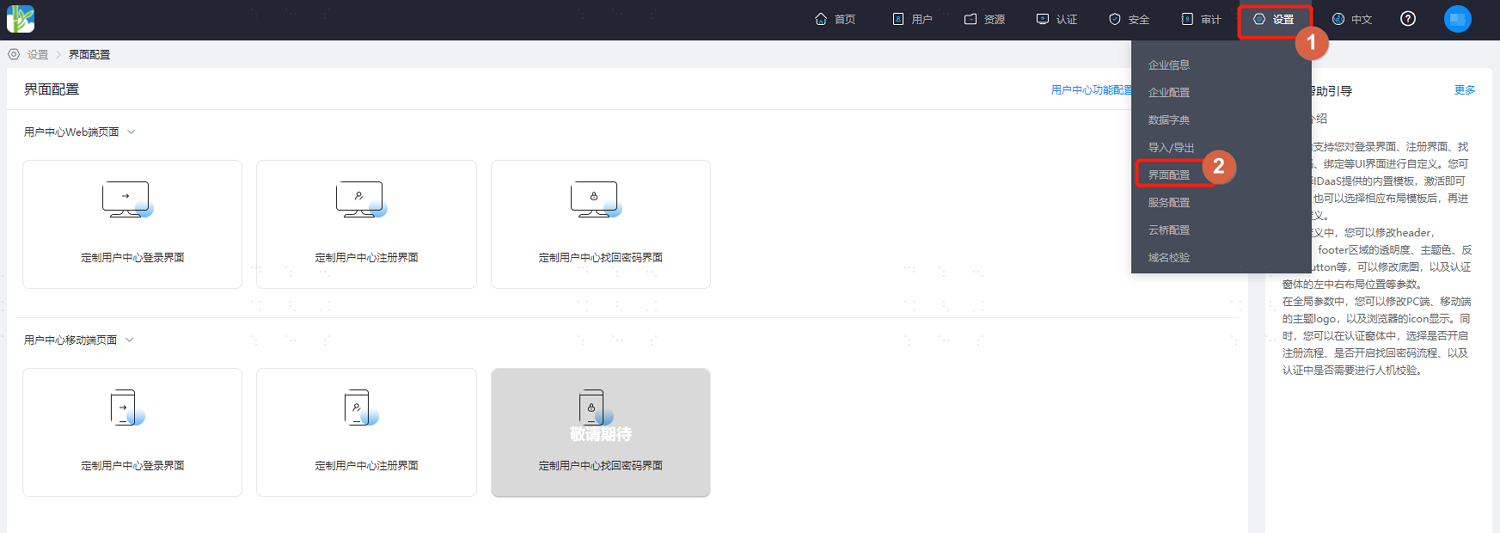
- Log in to the IDaaS Enterprise Center platform, select "Settings > Interface Configuration" in the top navigation bar, then choose "Global Parameter Configuration". Key parameter descriptions are as follows.
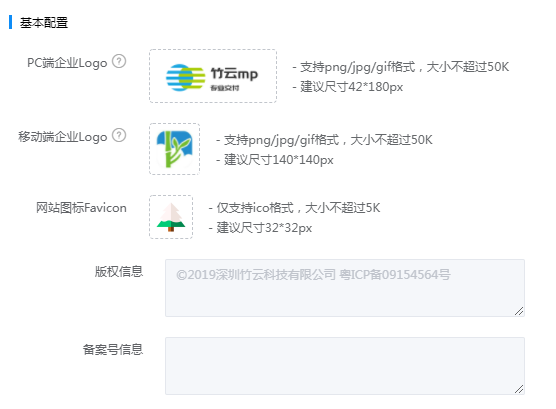
Basic Configuration:
PC-side Enterprise LOGO: Set the enterprise LOGO displayed on the PC side. After configuration, this Logo will be displayed in the top bar when logging into the Enterprise Center or User Center on a PC.
Mobile-side Enterprise LOGO: Set the enterprise LOGO displayed on the mobile side. After configuration, this Logo will be displayed in the top bar when logging into the Enterprise Center or User Center on a mobile device.
Website Favicon: The LOGO displayed in the browser address bar. Only ico format is supported, size should not exceed 5K, recommended dimensions are 32*32px.
Copyright Information: Set the copyright information at the bottom of the page.
Filing Number Information: Set the filing number information at the bottom of the page.
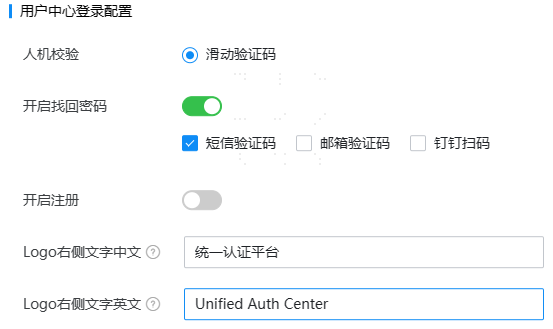
User Center Login Configuration:
Human-machine Verification: The method of human-machine verification on the user center login page, using a sliding CAPTCHA.
Enable Password Recovery: Adds a "Forgot Password" button to the user center login interface. When enabled, users can self-service password recovery, supported via SMS verification code, email verification code, and DingTalk QR code scanning. At least one password recovery method must be set.
- Email verification code password recovery is only possible if the email gateway configuration is enabled.
- DingTalk QR code scanning password recovery is only possible if the application is configured and DingTalk QR code authentication is enabled. If the DingTalk authentication source is disabled or deleted, the DingTalk QR code option will be automatically unchecked and cannot be used for password recovery. Additionally, DingTalk QR code password recovery is only applicable on the PC side. If only DingTalk QR code is selected when enabling password recovery, the "Forgot Password" option will not be displayed on the mobile side.
Enable Registration: Adds a "Register" button to the user center login interface. When enabled, users can self-register.
Text to the Right of Logo: Set the text displayed to the right of the LOGO on the user center login/registration page.
User Center Homepage Configuration:
Top Background Color: Customize the background color of the top section on the user center homepage.
Top Text Color: Customize the text color of the top section on the user center homepage.
Text to the Right of Logo: Set the text displayed to the right of the LOGO on the user center homepage.
Homepage Banner Configuration: When enabled, a Banner is displayed on the user center homepage.
Homepage Warm Message Display: When enabled, a warm message is displayed on the user center homepage.
Homepage Frequently Used Application Statistics Display: When enabled, statistics for frequently used applications are displayed on the user center homepage.
Homepage Operation Record Display: When enabled, operation records are displayed on the user center homepage.
Internationalization:
Available Languages: Set the languages that can be displayed in the Enterprise Center and User Center. Typically, both Chinese and English are configured. After configuration, the interface display language can be switched.
Default Language: Set the default display language for the Enterprise Center and User Center. The default is Chinese.
Verification Code Configuration:
- Verification Code Length: Configure the verification code length, including 4-digit and 6-digit. The default verification code length is 6 digits.
# User Center Feature Configuration
Log in to the IDaaS Enterprise Center platform, select "Settings > Interface Configuration" in the top navigation bar, then choose "User Center Feature Configuration". Enable the corresponding features in the user center according to the actual project requirements, as shown below.

Enable Account Delegation: When enabled, on the "Account Settings > Account Delegation" page in the user center, users can authorize their own application accounts for others to use. If there are concerns that casual use by users may pose security risks, it is recommended to disable this feature.
After enabling account delegation, delegation notifications can also be enabled. When notifications are enabled, notification messages will be sent to the creator or recipient of the delegation upon creation or completion of the delegation.
Supported notification methods can be selected, including email/SMS/DingTalk/In-site message. Multiple methods can be selected, and all selected methods will be used for sending.
Additionally, the notification scenarios can be selected as needed. Currently supported notification scenarios include delegation creation/delegation extension/delegation expiration completion/manual delegation completion.
:::
Enable Mobile Number Modification: When enabled, users can change their personal mobile number on the "Account Settings > Account Security" page in the User Center. If user mobile numbers are regularly synchronized from an identity source, it is recommended to disable the mobile number modification function in the User Center and manage changes uniformly from the identity source system.
Enable Email Address Editing: When enabled, users can change their personal email address on the "Account Settings > Account Security" page in the User Center. If user email information is regularly synchronized from an upstream identity source, it is recommended to disable the email address editing function in the User Center and manage adjustments uniformly from the upstream identity source system.
Enable Dynamic Password Authentication: Controls whether dynamic password authentication is activated for use in the User Center. If your enterprise does not require the use of dynamic password authentication, you can turn off this switch. Simultaneously, disable the dynamic password authentication method on the login configuration page for each application under "Resources > Applications".
The dynamic password switch on the "Resources > Applications > Login Configuration" page controls whether the dynamic password authentication method is available when logging into that application. The dynamic password authentication switch on the "Settings > Interface Configuration > User Center Function Configuration" page controls whether dynamic passwords can be activated or reset on the "Account Settings > Account Security" page in the User Center.
- Enable Login Password Modification: Controls whether the login password can be modified in the User Center. When disabled, the "Account Settings > Account Security" page in the User Center will not provide the option to change the password.
When the login password modification switch is enabled, if a logged-in user has not set a password and logs into the User Center via a non-account/password method, they can set a user login password on the "Account Settings > Account Security" page in the User Center.