Customize User Center Mobile Pages
# Overview
The IDaaS platform supports customization of the UI for mobile user center interfaces such as login, registration, and password recovery. You can choose to activate and use the built-in templates provided by IDaaS, or refer to this module to customize mobile interface styles that reflect your enterprise brand.
# Prerequisites
Possess administrator privileges for the IDaaS Enterprise Center platform.
# Steps
Currently, mobile user center interface customization supports the login, registration, and password recovery pages. The configuration method for each page template is the same. The following uses the user center login interface as an example for introduction.
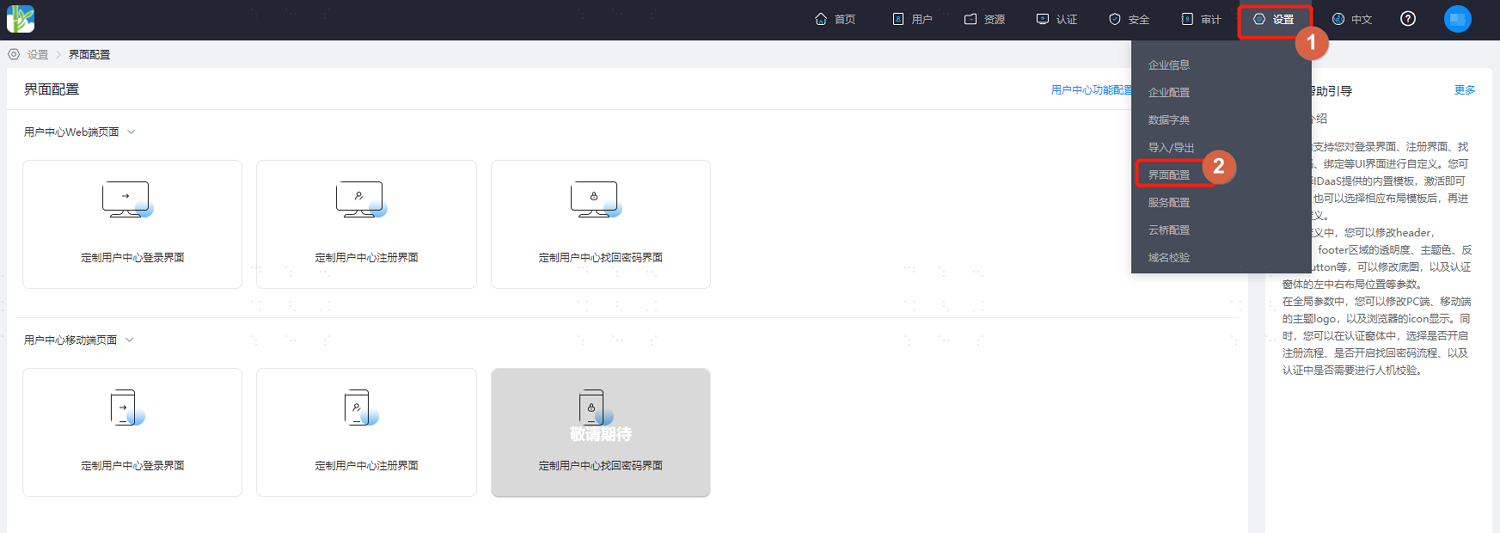
- Log in to the IDaaS Enterprise Center platform, and select Settings > Interface Configuration from the top navigation bar.
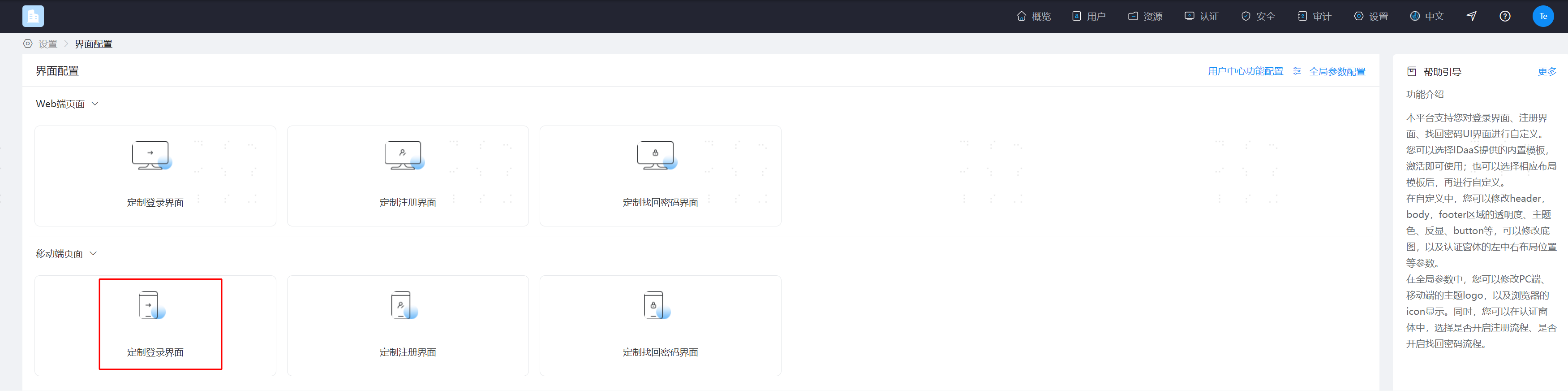
- Select User Center Mobile Pages > Customize User Center Login Interface. You can activate a built-in template for direct use, or click Add Custom Template to enter the template editing page. The following describes the custom template.
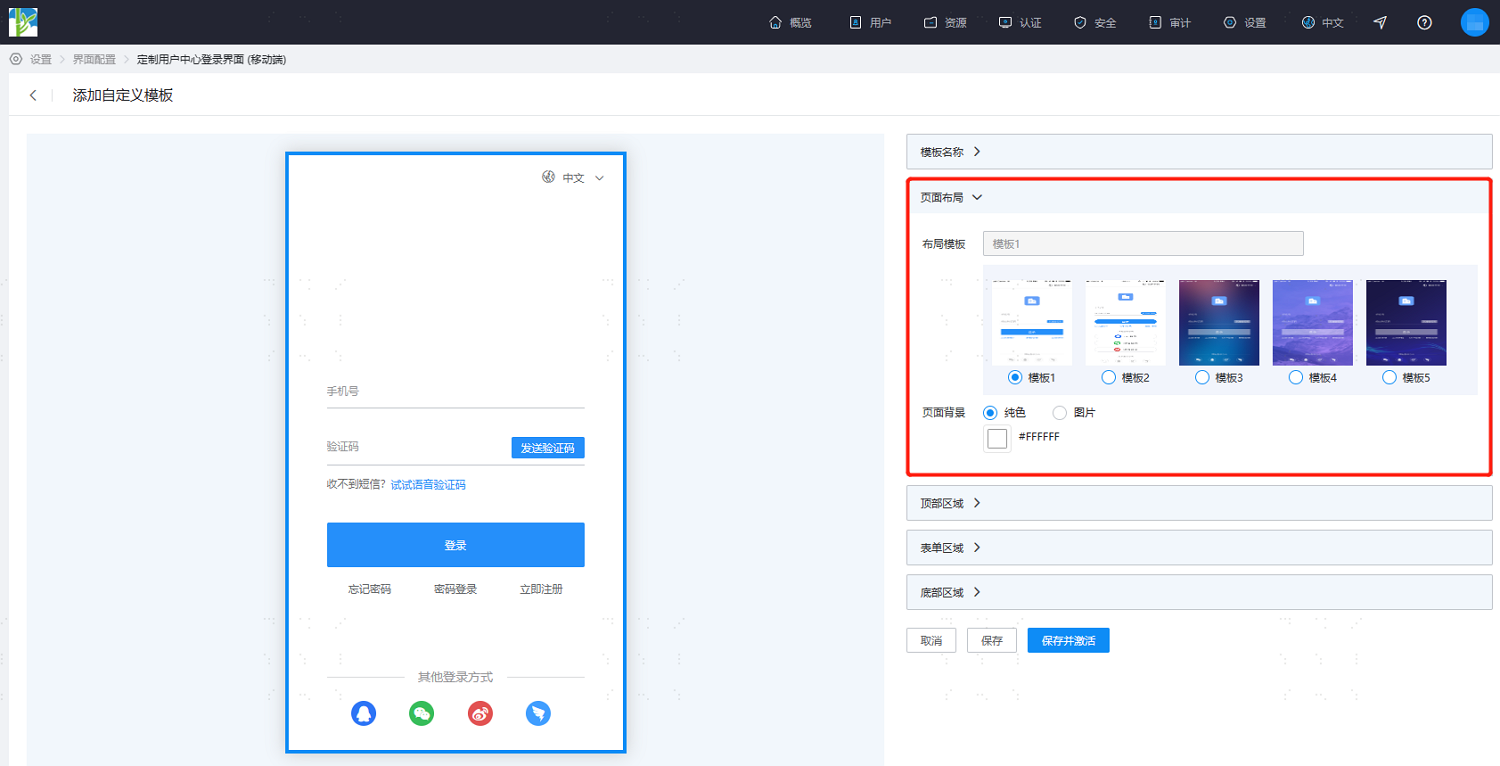
- On the template editing page, the left side is the real-time preview interface, and the right side is the interface style parameter configuration panel. You can make personalized settings according to your needs. Key configurations are as follows. For settings such as LOGO, copyright, and filing information, please go to Global Parameter Settings.
Page Layout: Set the overall layout and page background of the login page.
Layout Template: Select a system-built layout template.
Page Background: Choose a solid color or image as the login page background. Images can be selected from system-built options or uploaded custom images.
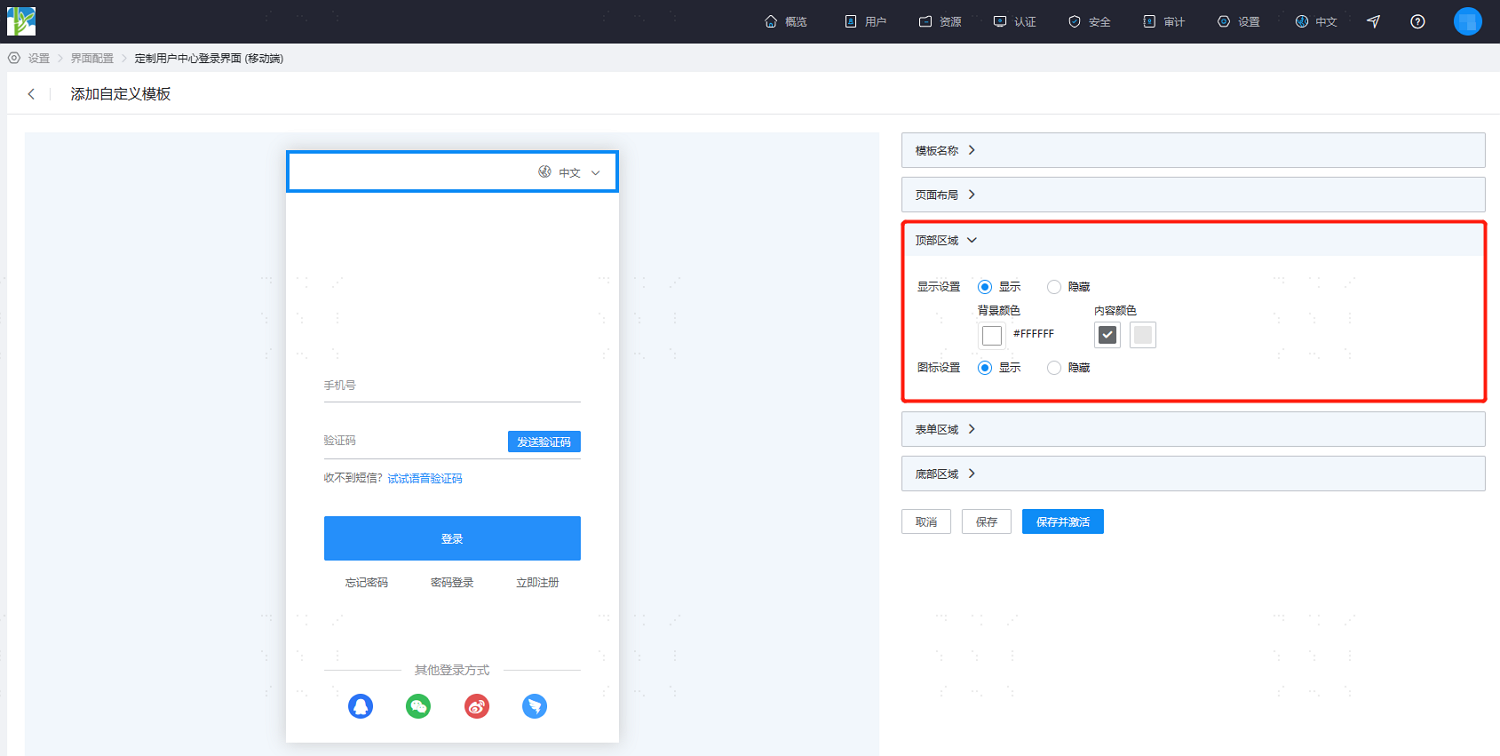
Top Area: Set the multi-language display information at the top of the login page.
Display Settings: Choose to show or hide the top information. Only when the top area is "Displayed" can the background color and content color be configured.
Background Color: Set the background color of the top area.
Content Color: Set the text color of the top area.
Icon Settings: Set whether to display the multi-language icon in the top area.
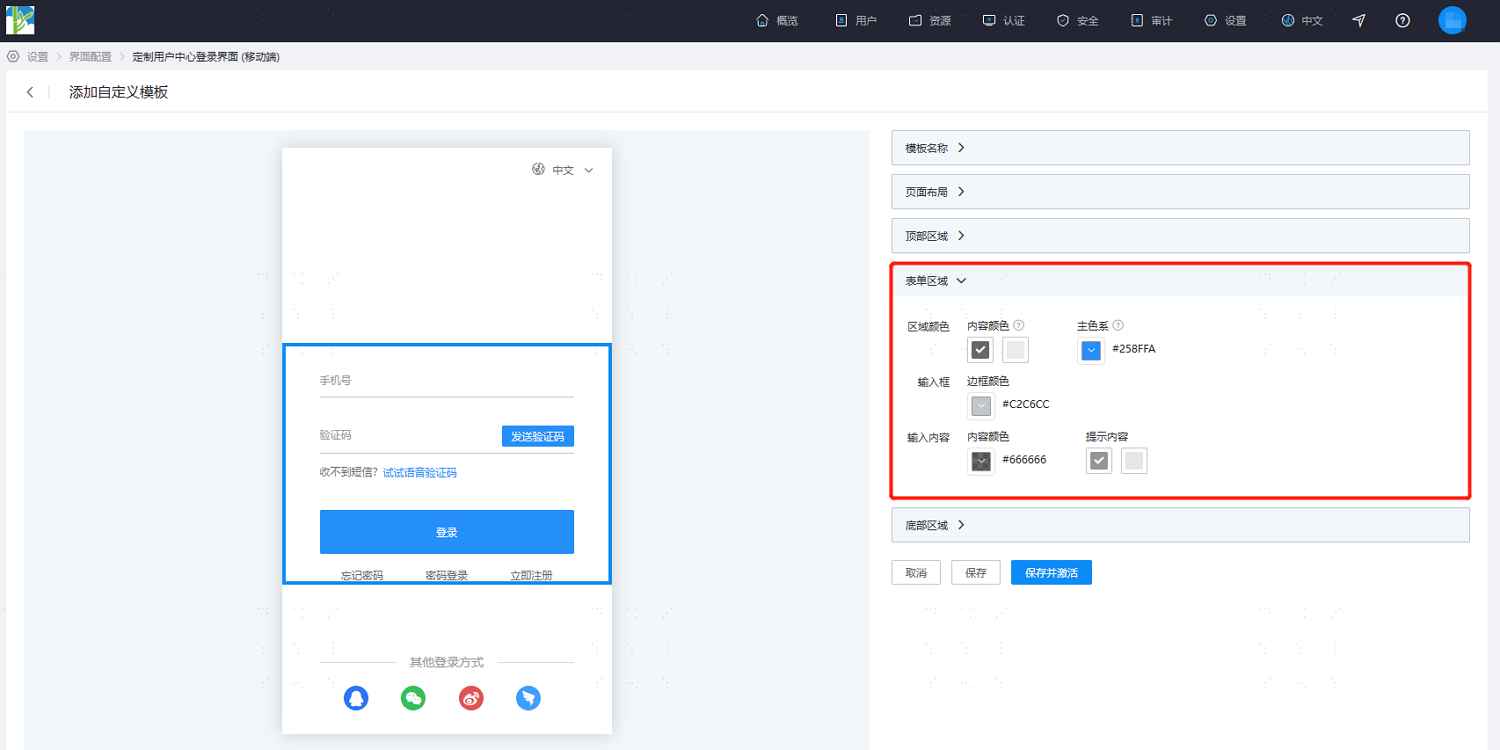
Form Area: Set the area on the login page where users need to input information, such as input boxes.
Area Colors: Set the text color for the form area and the primary color scheme for buttons, selected tab labels, etc.
Input Box: Set the color of the input boxes in the form area.
Input Content: Set the text color when content is entered in the form area and the placeholder color when no content is entered.
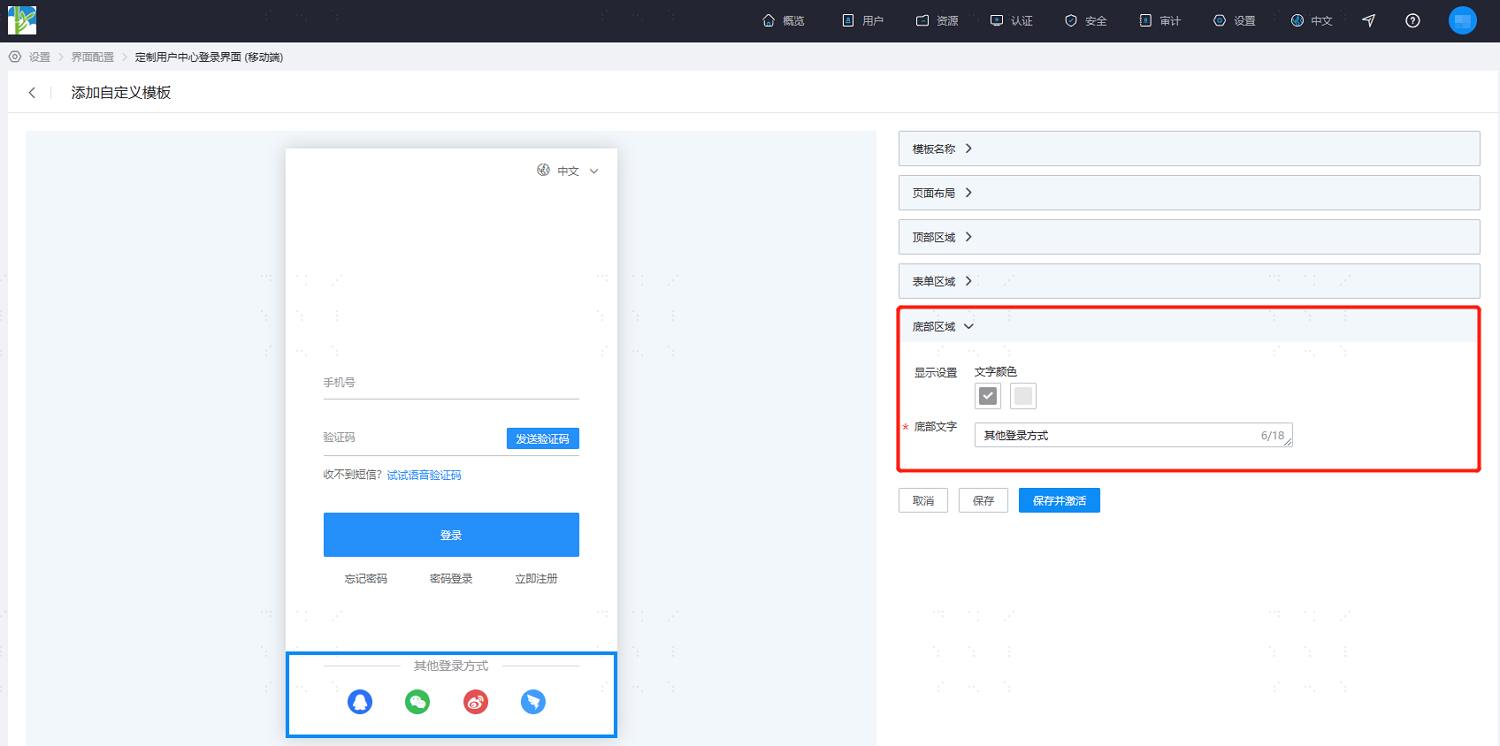
Bottom Area: Set the information at the bottom of the login page, such as copyright and filing information.
Text Color: Set the text color of the bottom information bar.
Bottom Text: Set the text content of the bottom information bar.
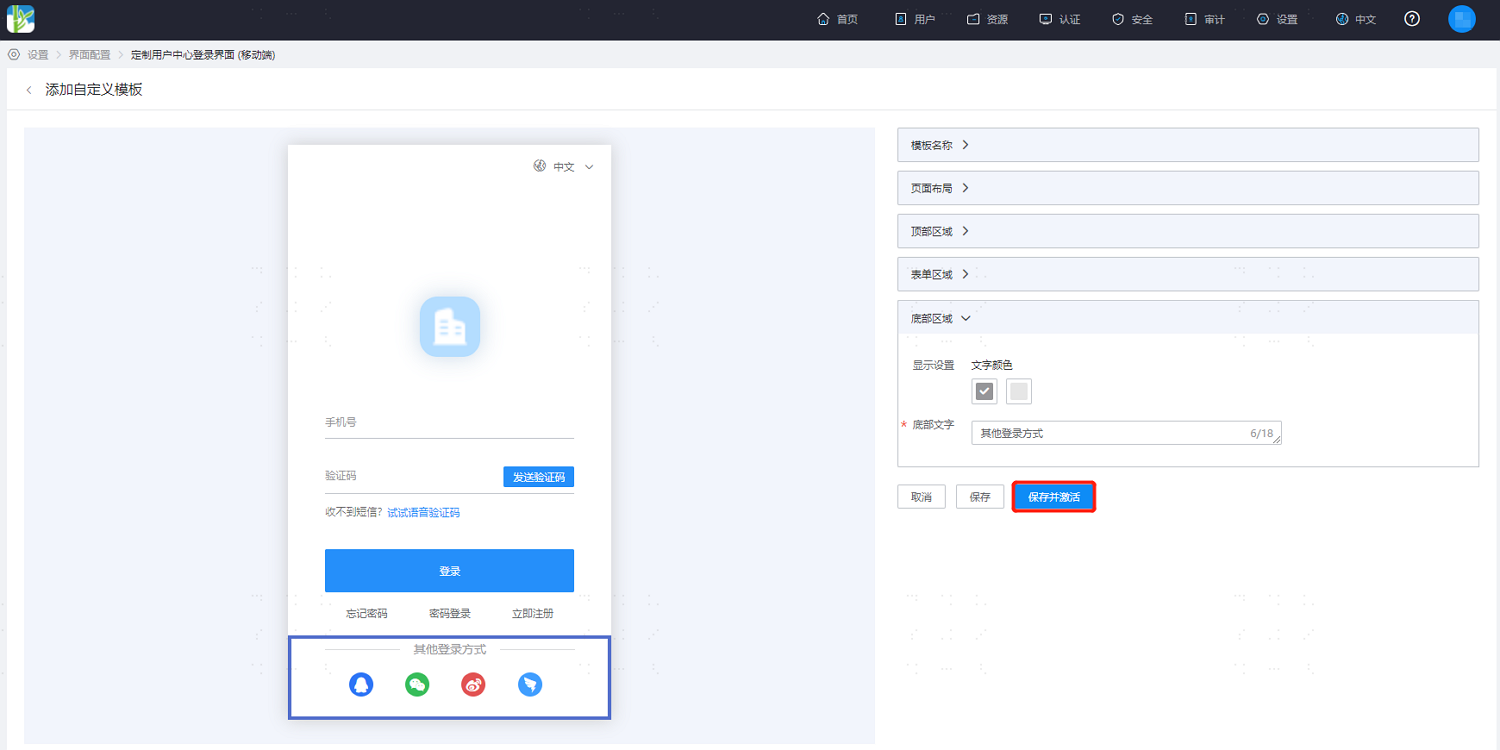
- After configuration is complete, you can directly save and activate it to start using the template.