
Synchronizing Data via LDAP Protocol
# Overview
This chapter guides you on synchronizing organization and user data to an LDAP protocol directory via the LDAP protocol.
# Prerequisites
The IDaaS public cloud service can access the LDAP service. If the LDAP server has network policies, you can add the IDaaS public cloud service IP to the network whitelist. Contact technical personnel to obtain the IDaaS public cloud service IP.
Possess administrator permissions for the IDaaS Enterprise Center platform.
# Steps
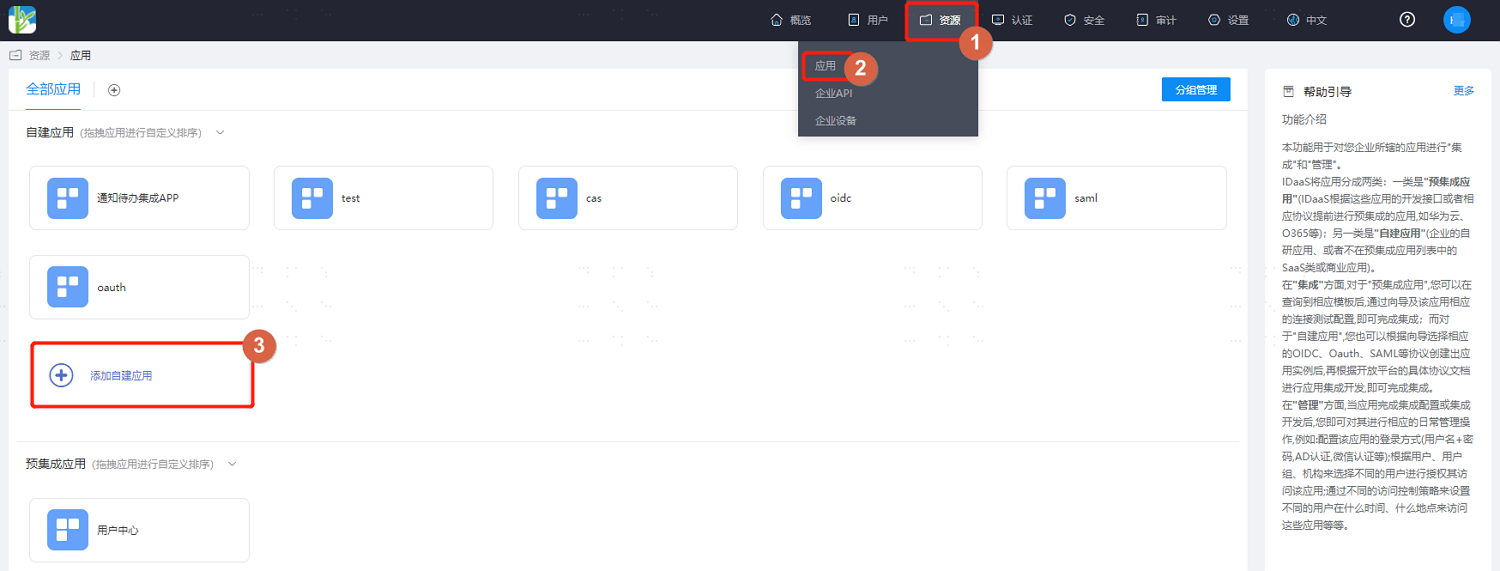
Log in to the IDaaS Enterprise Center platform, select "Resources > Applications" from the top navigation bar, add a self-built application, enter the application name, and save.
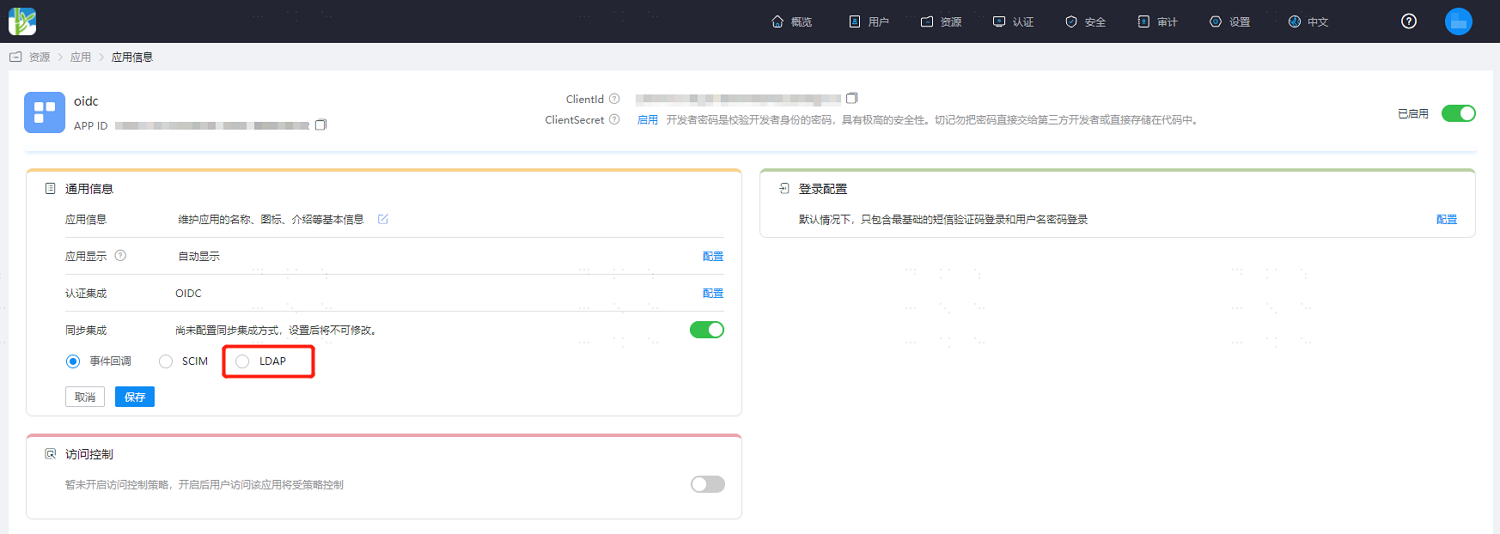
Click into the created application, enable synchronization integration, select "LDAP", and save.
Then click "Configure" next to the synchronization integration to enter the synchronization configuration details.
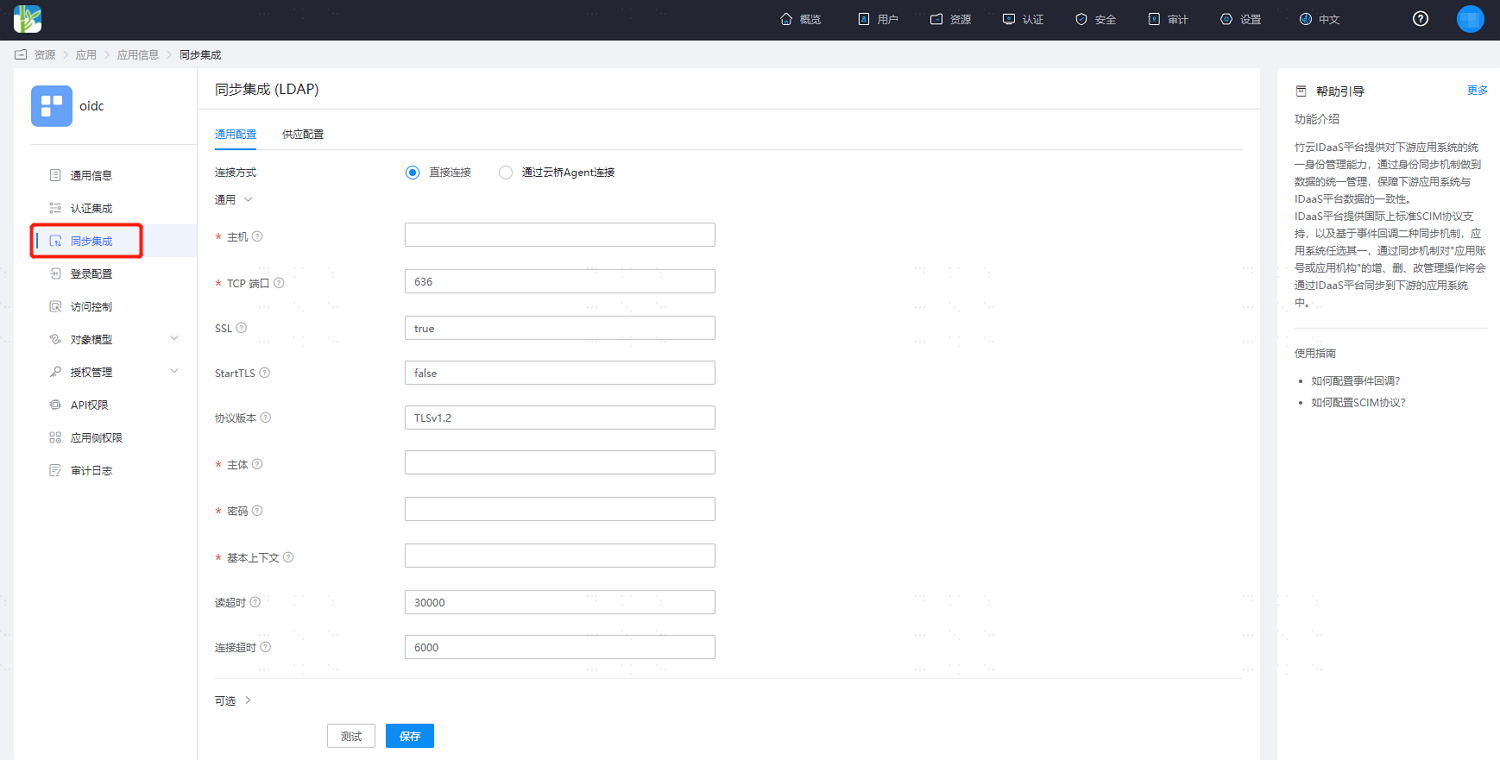
Refer to the configuration according to the interface prompts and the required scenario. The key parameters in the optional configuration are as follows.
Synchronizing data via LDAP service:
Account Object Class: Default is top,person,organizationalPerson,inetOrgPerson.
Include Base Context: Whether to include the base context object during application recycling, default is false. When the base context is an organization, true: application organization recycling will treat the base context as the root organization for recycling; false: application organization recycling will not recycle the base context.
If you need to synchronize IDaaS application group membership relationships, you also need to configure the following attributes:
Group Object Class: Configure as top,groupOfNames or top,groupOfUniqueNames.
Group Search Base Context: Used together with the general configuration's base context as the search DN for group entries. If not filled, the base context will be used as the search DN.
Group Member Attribute: Default is member.
LDAP Group Filter: The filter consists of a set of query conditions or logical relationships and multiple sets of query conditions. Logical relationships support AND【&】 and OR【|】, e.g., (|(&(exp1)(exp2)) (&(exp3)(exp4))). Query conditions consist of attribute, relationship, and attribute value. Relationships support equals【cn=sync group】, not equals【!(cn=sync group)】, fuzzy query【cn=sync group*】, less than or equal to【age<=18】, greater than or equal to【age>=18】.
Group Uid Attribute: Configure as entryUUID.
Synchronizing data via AD domain:
Account Object Class: Modify to top,person,organizationalPerson,user. If synchronizing AD domain accounts, the sAMAccountName attribute is required. This attribute is not in the user object. You need to add the securityPrincipal object after user to be able to add the sAMAccountName attribute in the application account model.
Include Base Context: Consistent with the LDAP data synchronization configuration.
UID Attribute: Modify to objectGUID.
Password Attribute: When synchronizing account passwords is needed, modify to unicodePwd, and set SSL to true in the general configuration.
If you need to synchronize IDaaS application group membership relationships, you also need to configure the following attributes:
Group Object Class: Configure as top,group.
Group Search Base Context: Used together with the general configuration's base context as the search DN for group entries. If not filled, the base context will be used as the search DN.
Group Member Attribute: Default is member.
LDAP Group Filter: Consistent with the LDAP data synchronization configuration.
Group Uid Attribute: Configure as objectGUID.
After configuration is complete, click "Save Configuration". You can test the connection status.
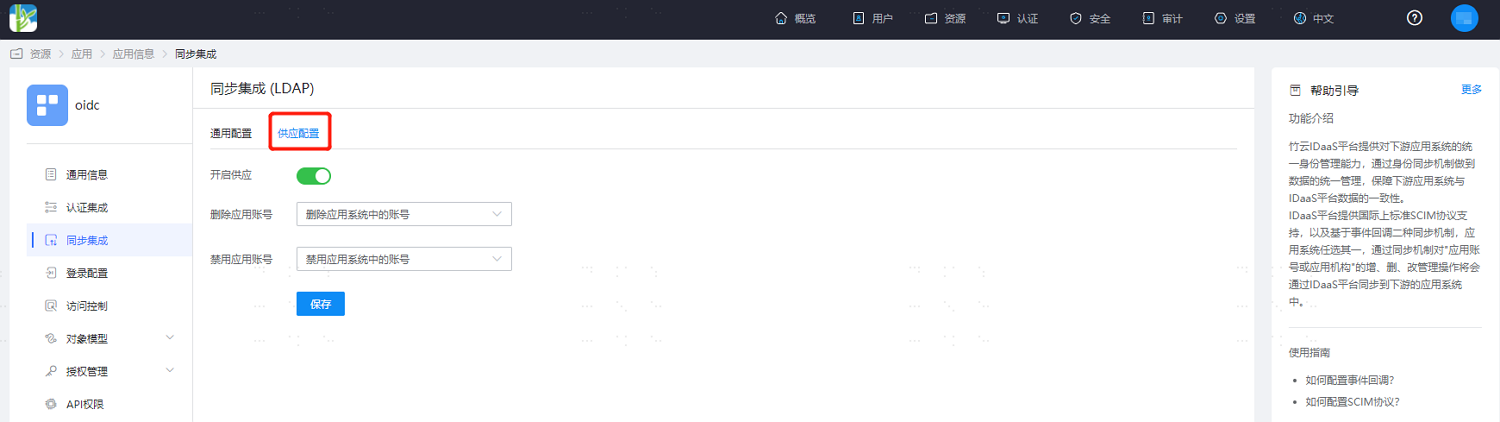
Switch to the "Provisioning Configuration" tab, enable the provisioning switch, and set the processing logic for synchronizing data.
If you need to synchronize other attributes of users, select "Object Model > Application Account Model > Attribute Definition" from the left menu, and add account attributes. Taking employeeNumber as an example below.
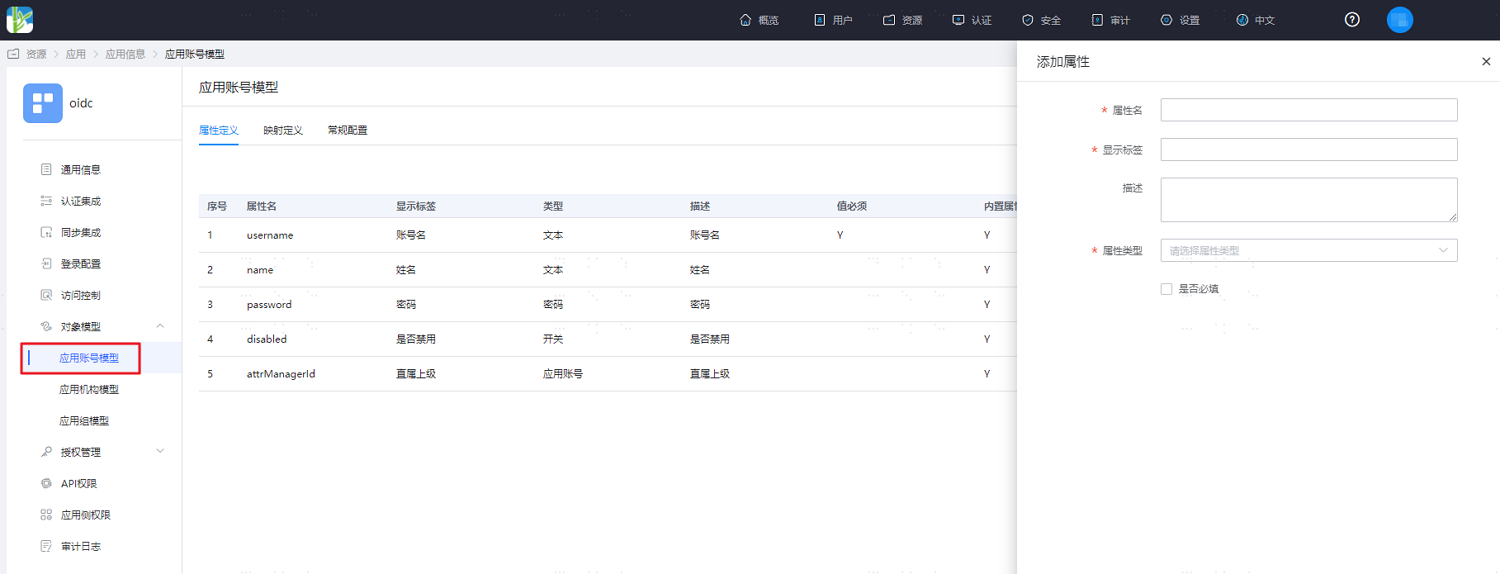
Parameter Description Attribute Name The account attribute of the application system, selectable from the dropdown menu, e.g., employeeNumber. Display Label Required, customizable. Description Text Optional, customizable. Attribute Type Different attribute names correspond to different attribute types, determined by the application system's attributes, and cannot be modified. Format System default, cannot be modified. Required System default is unchecked. Switch to the Mapping Definition tab and configure attribute mappings.
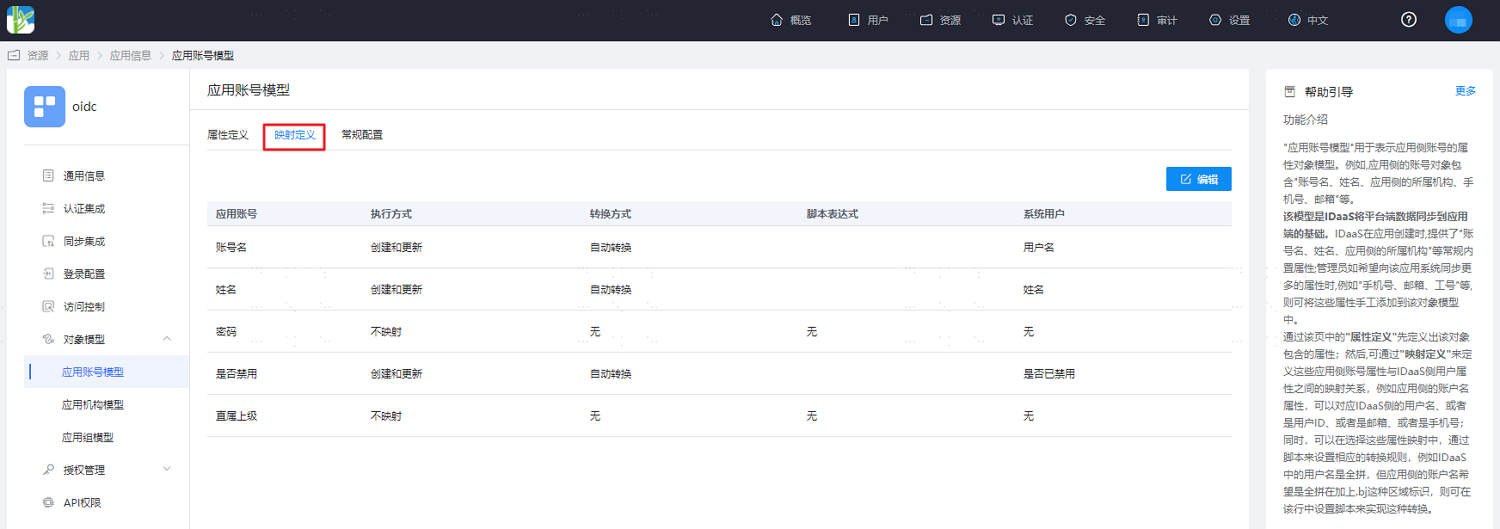
| Parameter | Description |
|---|---|
| Application Account | The account attribute of the application. |
| Execution Mode | The method used by IDaaS to synchronize user data to the target application. |
| Transformation Method | The mapping method for attributes between IDaaS and the application. |
| Script Expression | This input field is activated when the transformation method is set to Script Transformation. For mapping scripts, please refer to Developing Dynamic Scripts for Mapping Definitions. |
| System User | The attributes mapped from IDaaS to the application, such as mobile number. |
- If organization synchronization is required, select "Object Model > Application Organization Model" from the left menu and enable the application organization. Once enabled, the application organization cannot be disabled.
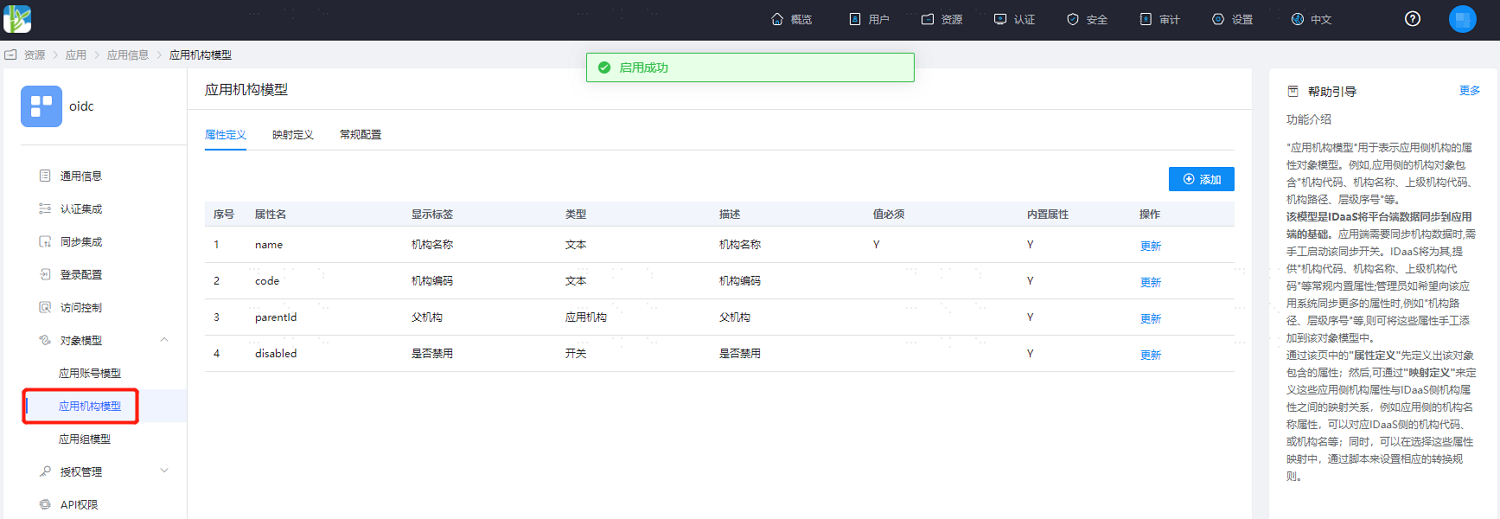
- If synchronization of other organization attributes is required, select "Object Model > Application Organization Model > Attribute Definition" from the left menu and add organization attributes. Similar to account attributes, this will not be described in detail here.
# Verifying IDaaS Data Synchronization to LDAP
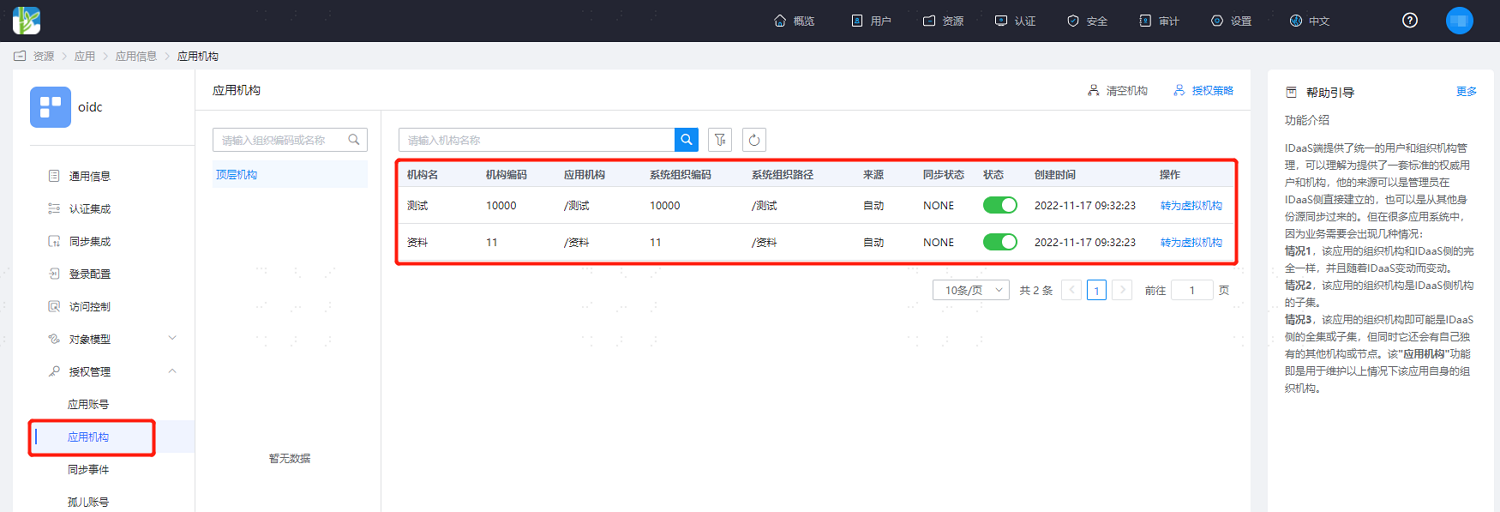
- On the "Authorization Management > Application Organizations" page accessed from the left menu, click "Authorization Policy", enable automatic organization authorization, select the organization scope, save the configuration. After clicking "Execute Add", you can see the synchronized organizations.
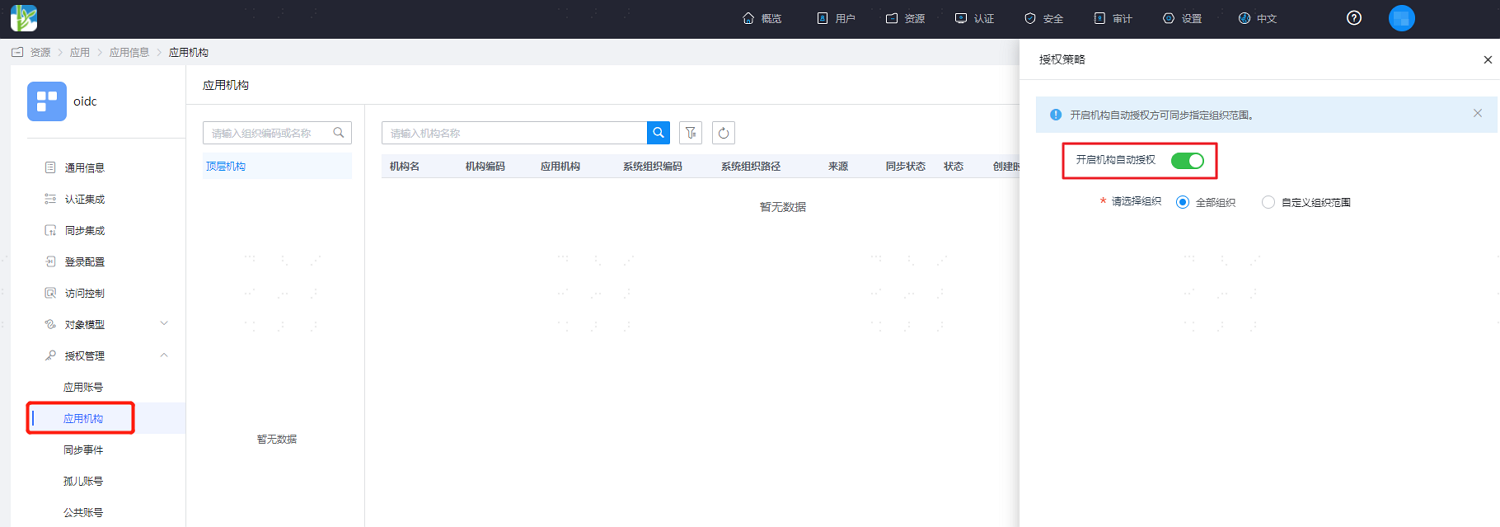
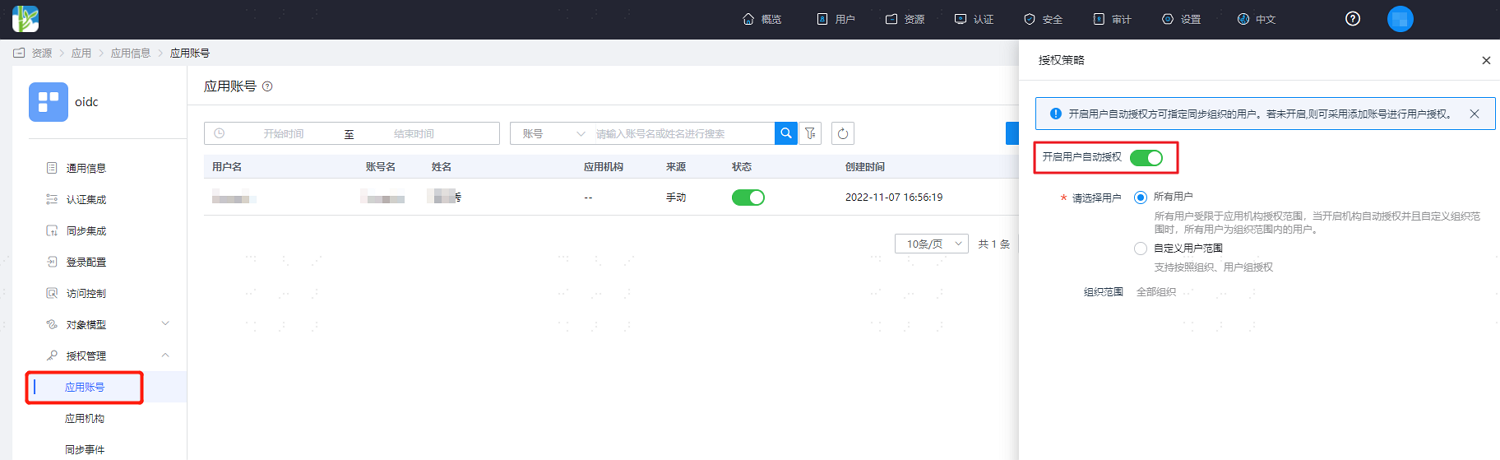
- Similarly, go to the "Authorization Management > Application Organizations" page, click "Authorization Policy", enable automatic user authorization, select the user scope, save the configuration. After clicking "Execute Add", you can see the synchronized users.
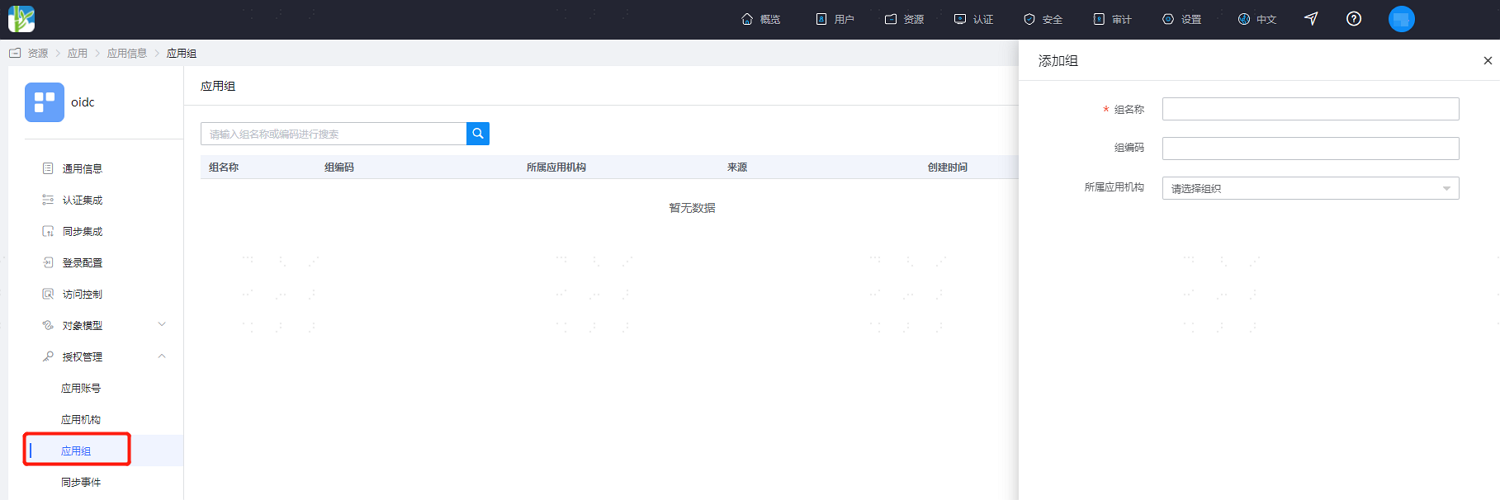
- Similarly, go to the "Authorization Management > Application Groups" page, click "Add Group" to authorize accessible user groups for the selected application. After configuration is complete and saved, users within the application group are synchronously authorized for that application.
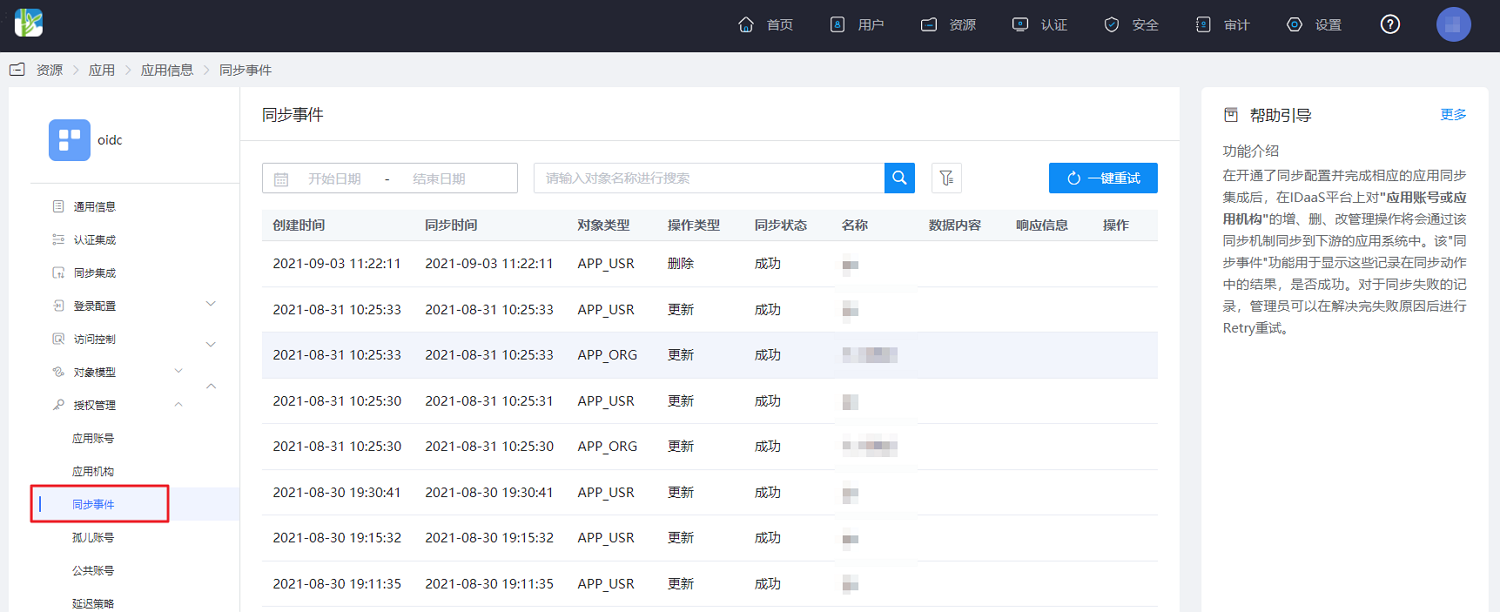
- Select "Authorization Management > Synchronization Events" from the left menu to view the synchronization records mentioned above. Additionally, operations such as editing and deleting organizations and users can also be viewed and filtered.
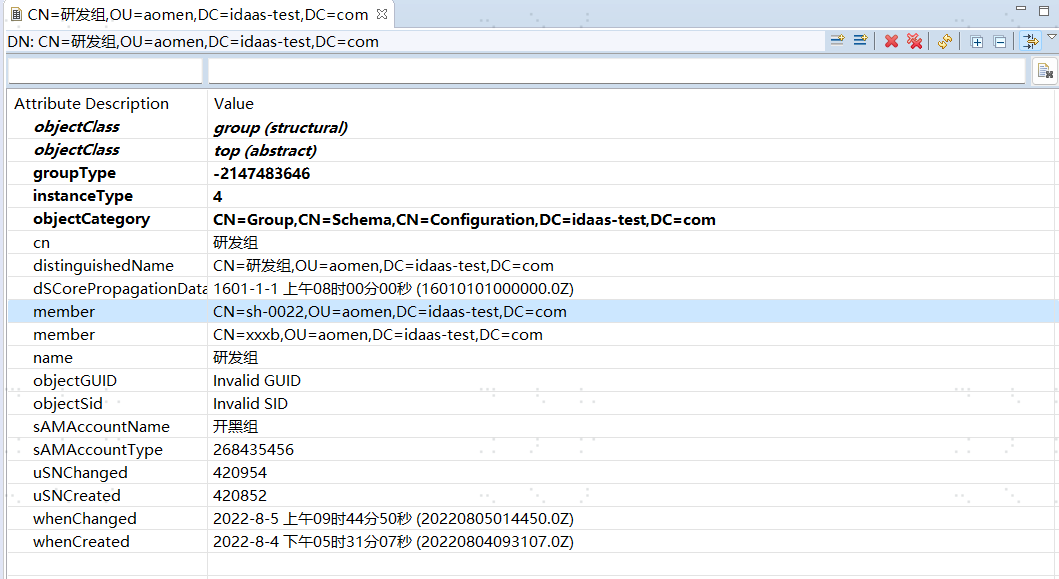
- Check the synchronized organizations, users, and application group members in LDAP.

# Notes
# Special Characters
Attributes containing special characters will be escaped in display after being synchronized downstream. For example, if the special character "+" is synchronized downstream, the downstream attribute may be displayed as "\+".
Please note that this escaping operation only adds the escape character "\" for display purposes and does not change the actual attribute value. Therefore, it does not affect the data synchronization functionality.
Currently, after review and statistics, the special characters that will be escaped for display are as follows:
| Before Escaping | After Escaping |
|---|---|
| + | \+ |
| ; | \; |
| , | \, |
| \ | \\ |
As shown in the figure:
