AWS Single Sign-On
# Description
This article explains how to implement IDaaS login to the AWS console.
# Operation Flow

# Prerequisites
The administrator has an AWS account.
The administrator has access to the IDaaS Enterprise Center.
# Authentication Configuration
# AWS Console Configuration
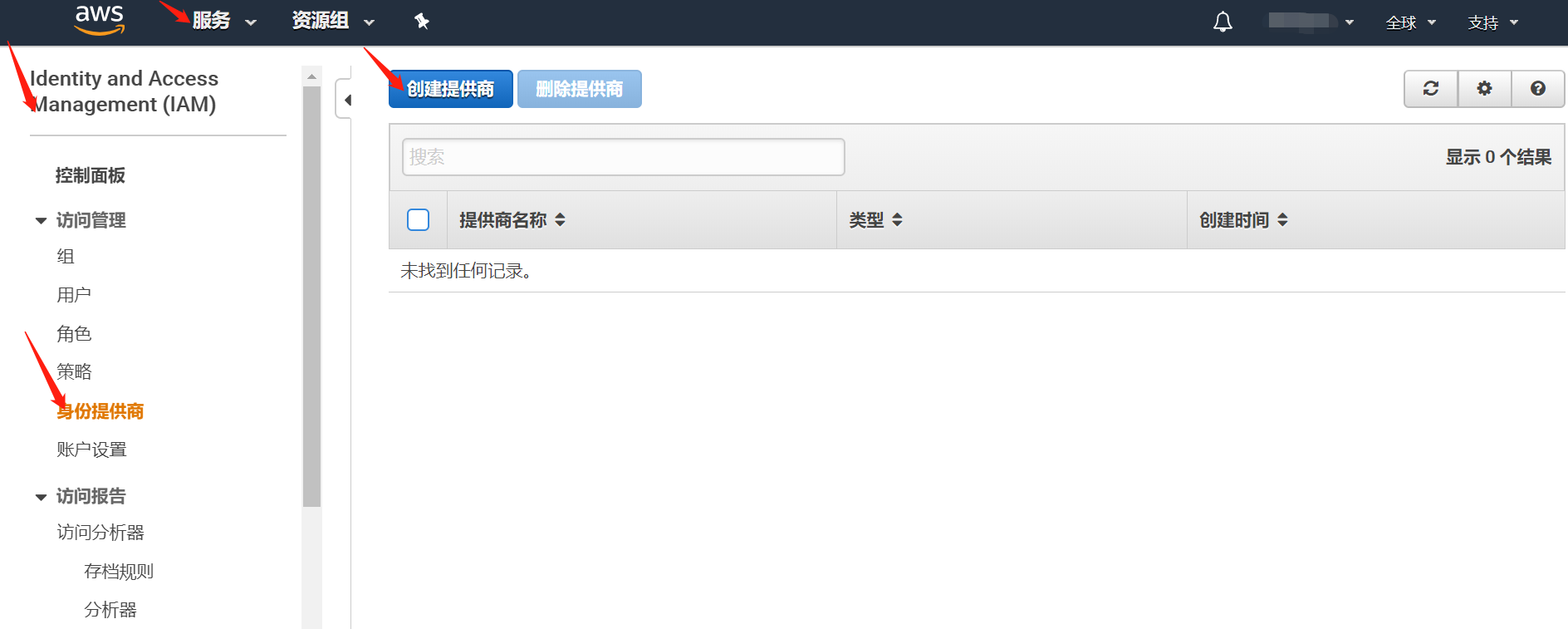
Log in to the AWS console as an administrator, click the "Services" tab. Under Security, Identity, & Compliance, click IAM (Identity and Access Management).
From the list on the left, click Identity Providers, then click the Create Provider button on the right section.
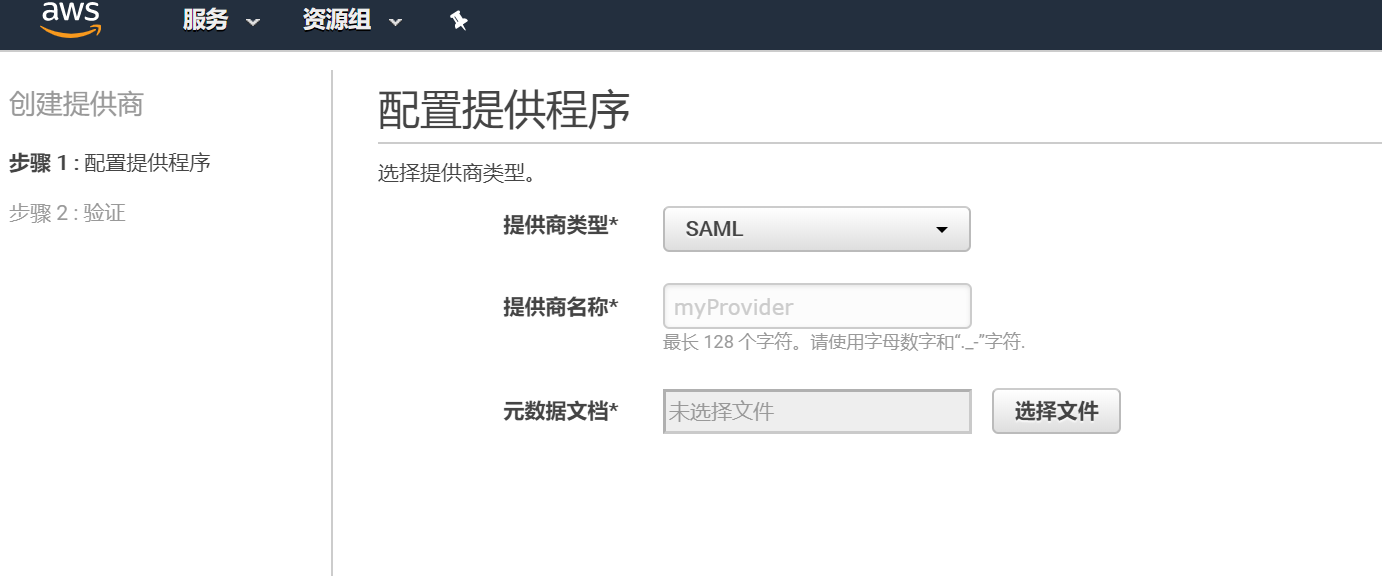
In "Configure Provider", select "SAML" as the Provider Type from the dropdown, enter a Provider Name, click the "Choose File" button, select the downloaded IDP metadata file, then click "Next". To download the IDP metadata from IDaaS, please visit https://{your_domain}/api/v1/saml2/idp/metadata.
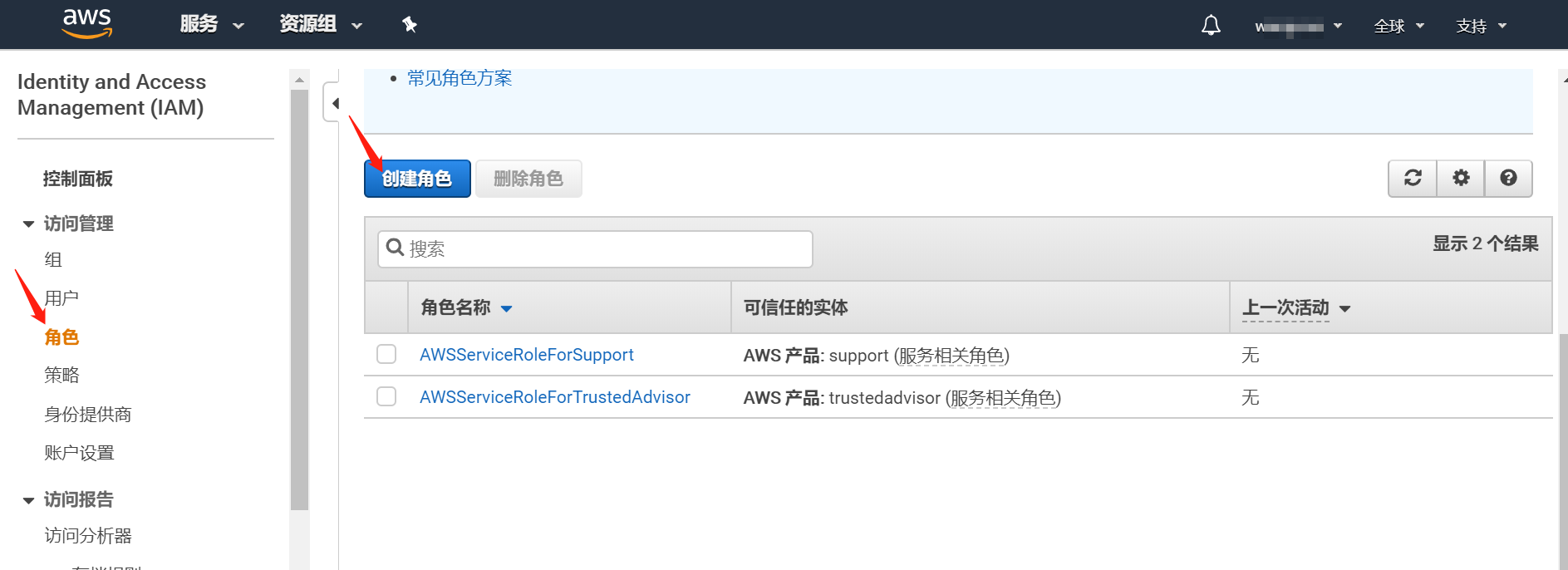
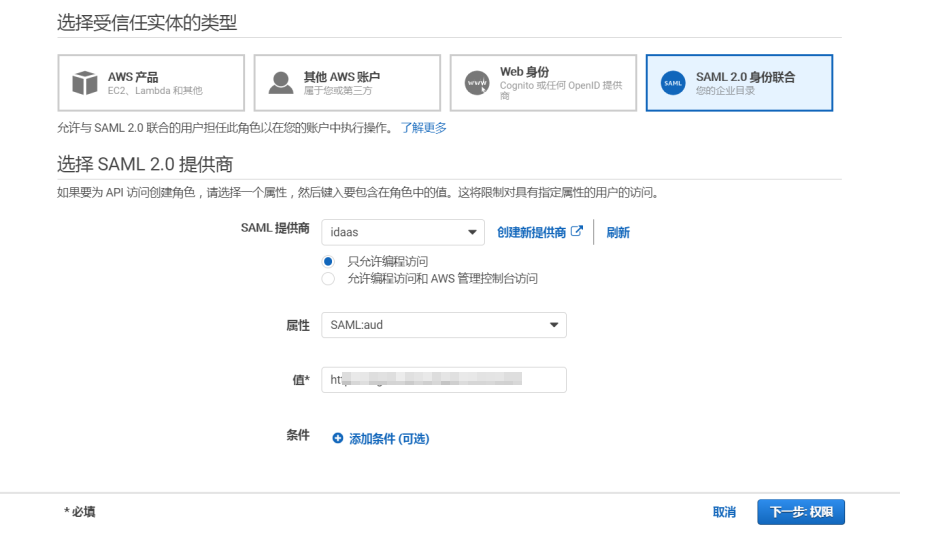
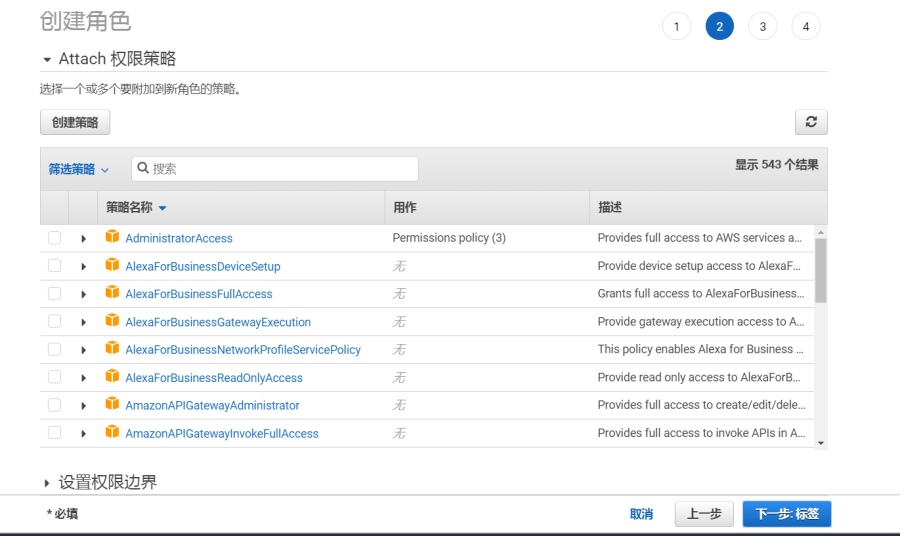
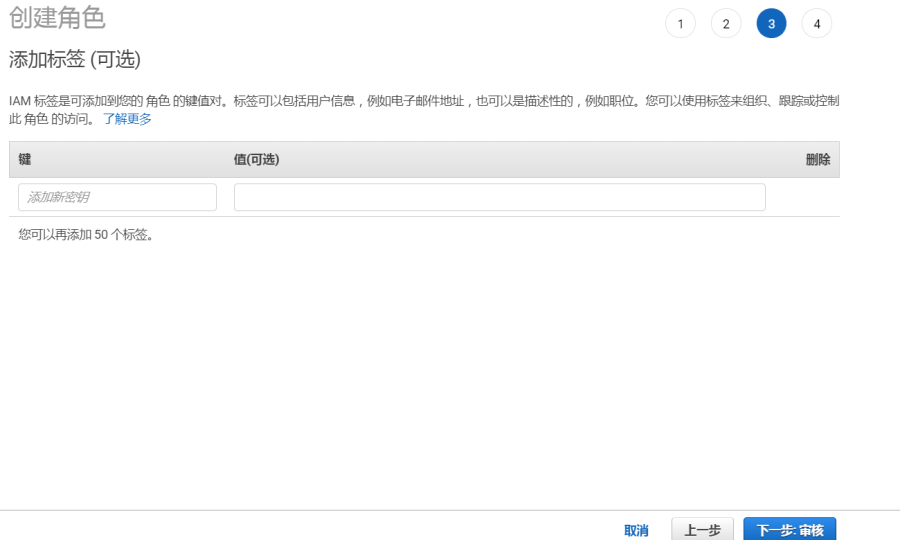
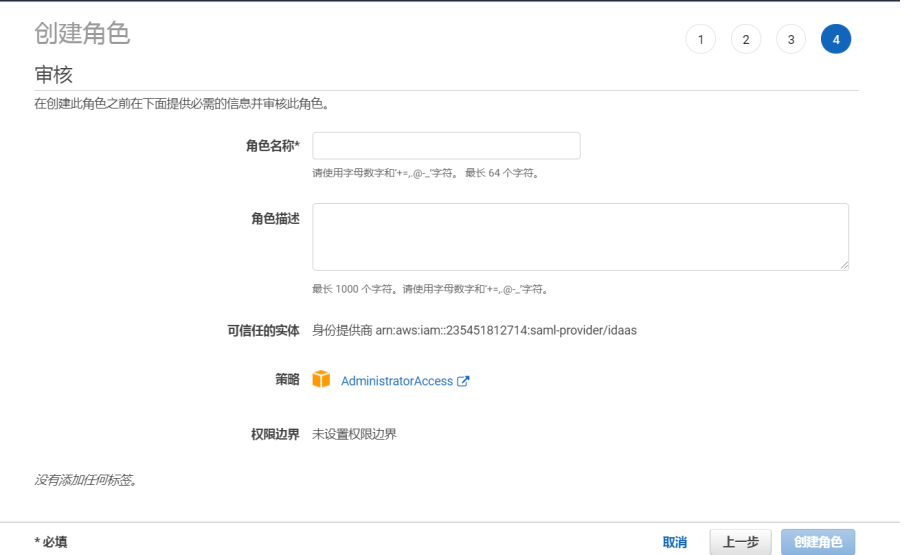
Create a role.
# IDaaS Configuration
Log in to the IDaaS Enterprise Center 【Resources】 -> 【Applications】 -> 【Pre-integrated Applications】, add the built-in application AWS.
Configure application authentication parameters.
Save the corresponding AWS metadata XML file according to the following addresses, import the SP application metadata, and configure the authentication parameters.
AWS Metadata Address:
International Version: https://signin.aws.amazon.com/static/saml-metadata.xml
China Version: https://signin.amazonaws.cn/static/saml-metadata.xml
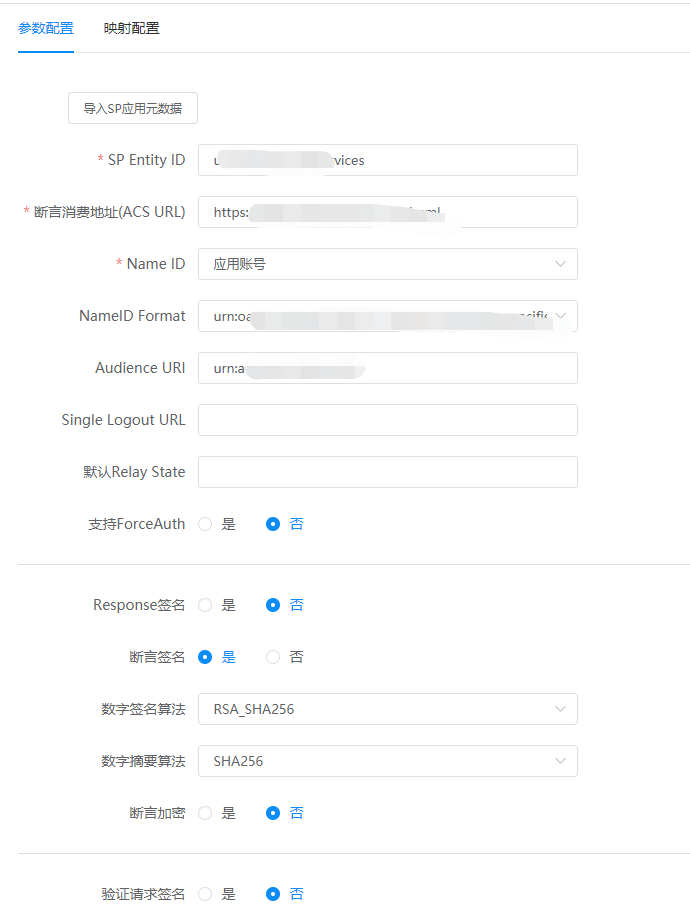
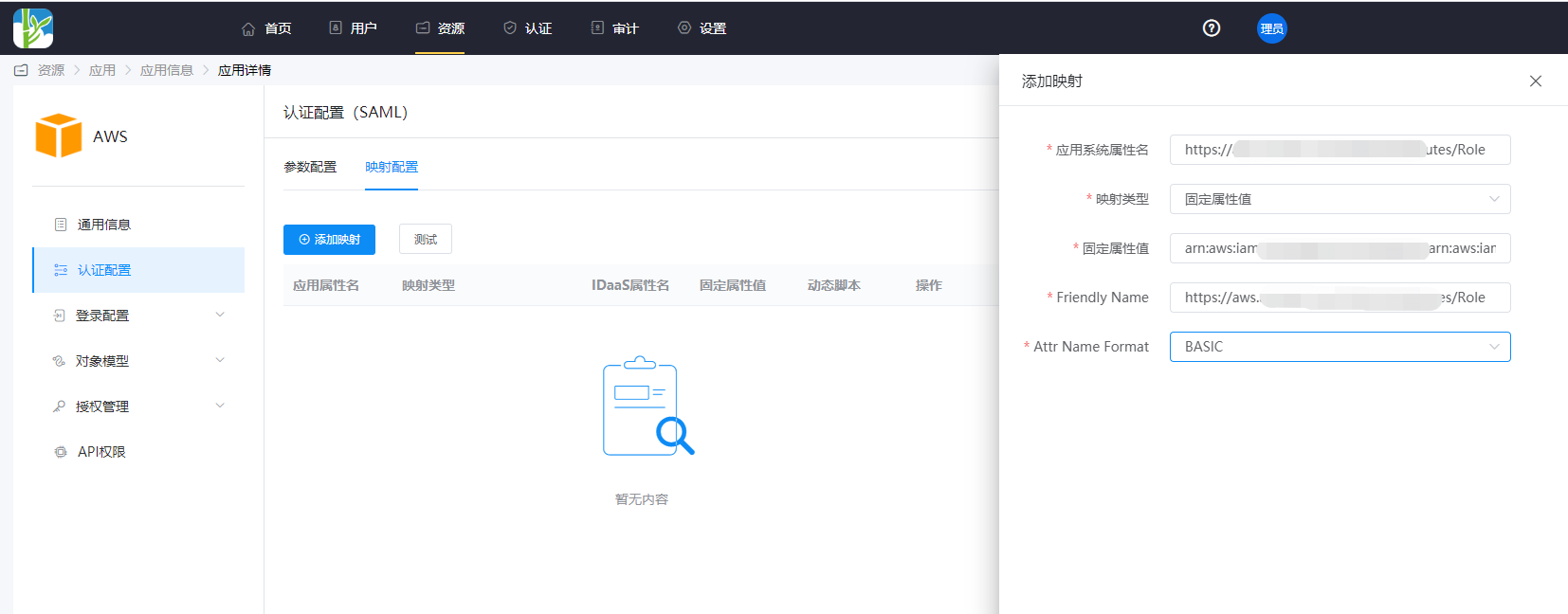
Click the application icon 【Authentication Configuration】 -> 【Mapping Configuration】 -> Add Mapping.
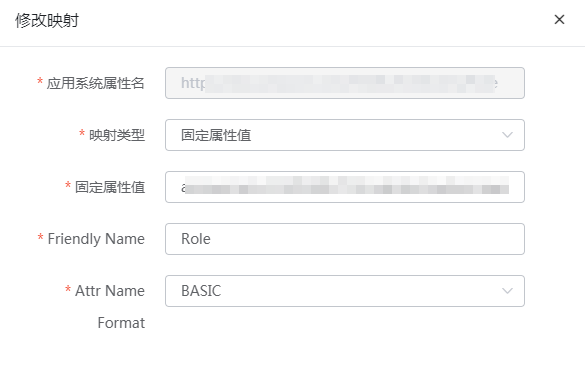
Taking the International Version as an example, the following two attributes are required attributes, and the attribute names can be obtained from the AWS metadata.
The domain name addresses in the attribute names differ between the International and China versions.
- https://aws.amazon.com/SAML/Attributes/Role :
arn:aws:iam::AWS Account:role/RoleName,arn:aws:iam::AWS Account:saml-provider/IdentityProviderName
Obtain this parameter from the AWS role details, separated by an English comma.
- https://aws.amazon.com/SAML/Attributes/RoleSessionName:
- You can choose the user email attribute.

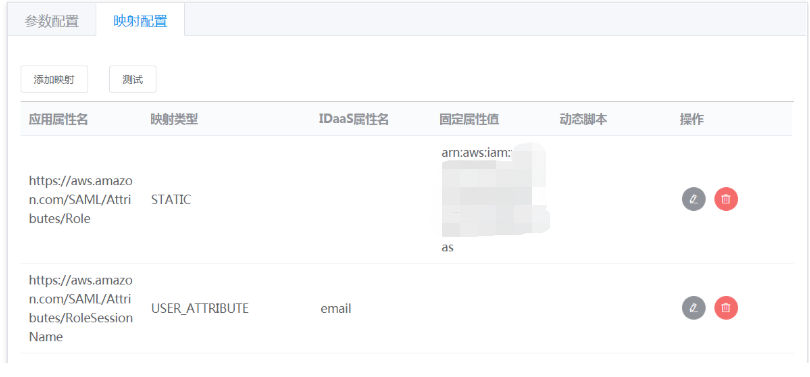
- You can choose the user email attribute.
- https://aws.amazon.com/SAML/Attributes/Role :
Switch to the "Authorization Management - Application Accounts" tab, add an account.
# Login Verification
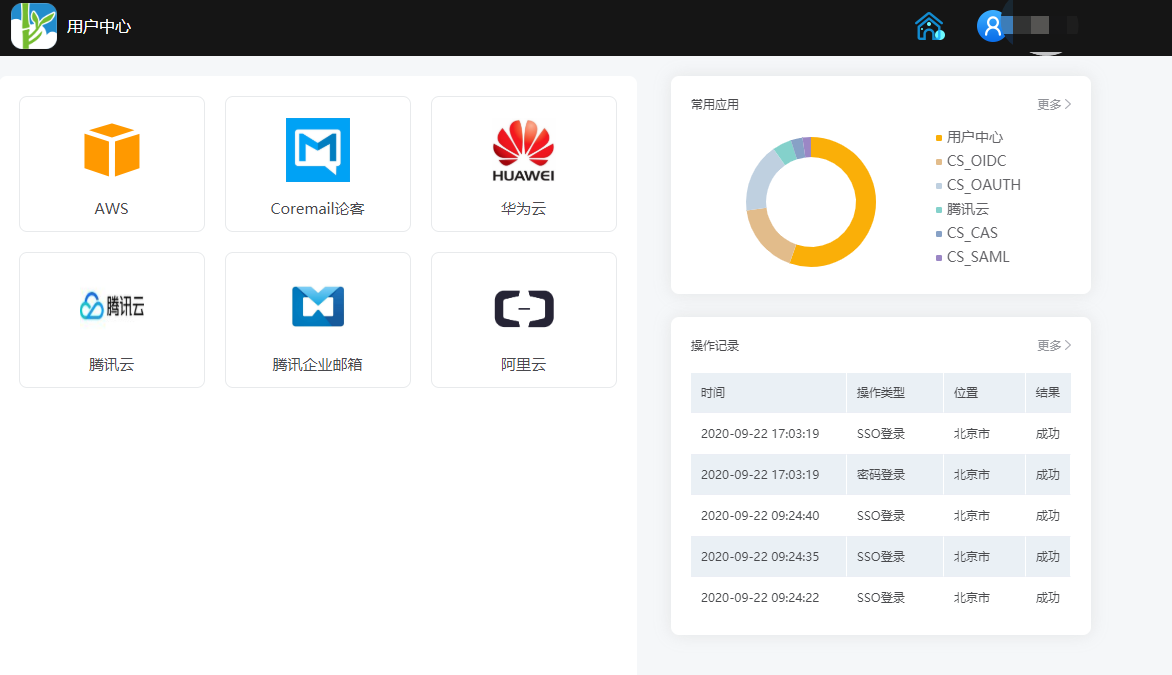
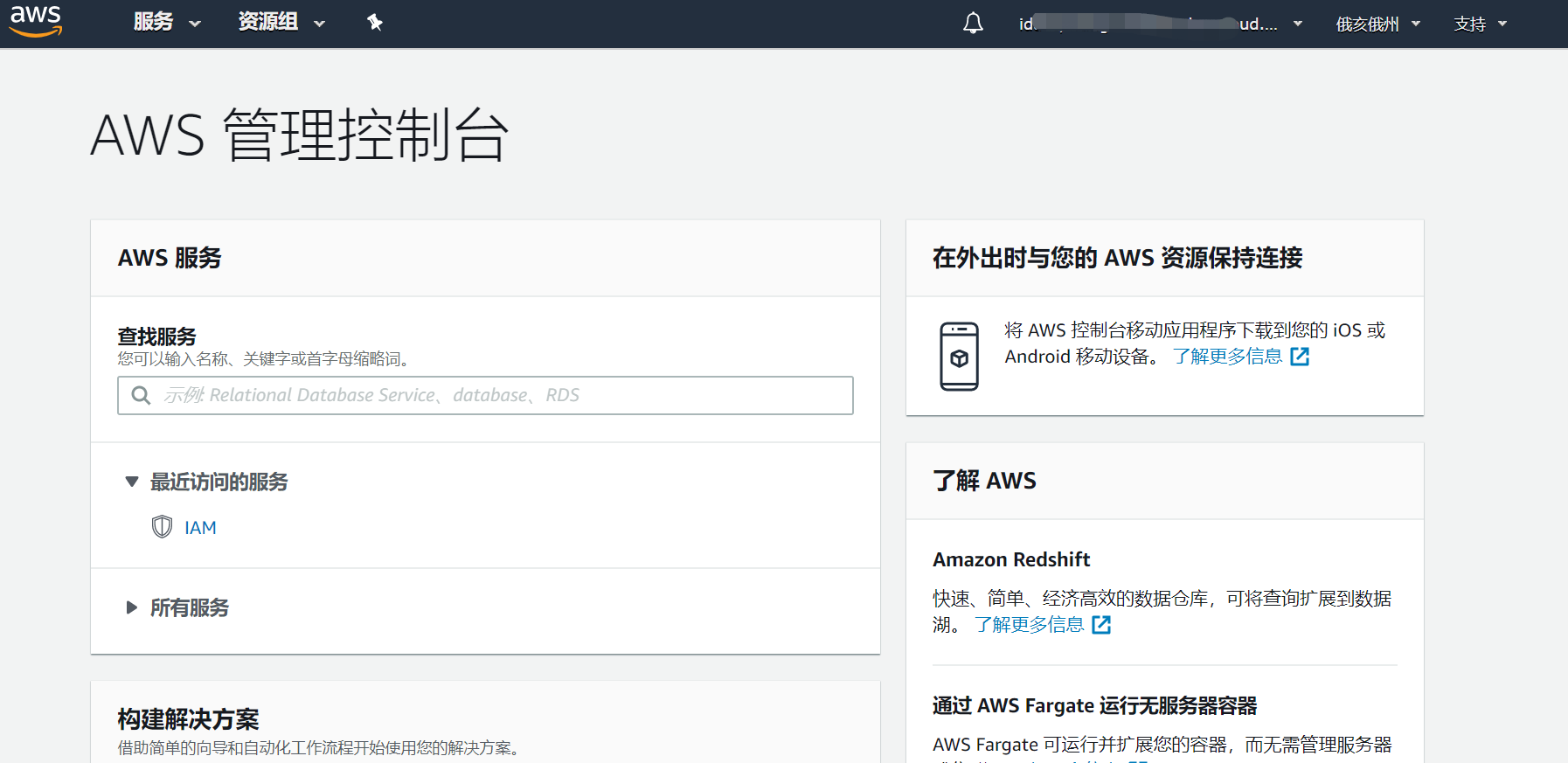
Log in to the IDaaS User Center, click the AWS logo to single sign-on to the AWS system.