
AWS China Region Cognito Identity Pool
# Description
The AWS Cognito component User Pool (Cognito User Pool) is not yet available in China. IDaaS (Identity Cloud) can fully replace the Cognito User Pool. By leveraging IDaaS for user authentication and integrating with the Cognito Identity Pool (Identity Pool), seamless and secure access to AWS resources can be achieved.
This article describes how to use the IDaaS OpenID Connect protocol as an alternative to the User Pool (Cognito User Pool). We will prepare a JavaScript demo example, which you can customize according to your needs. This example primarily demonstrates Zhuyun IDaaS acting as an identity provider, allowing users to log in with IDaaS username and password to obtain Cognito tokens.
# Terminology
Cognito User Pool: The Cognito User Pool is responsible for authentication. End users can complete registration and login processes through the user pool.
Cognito Identity Pool: The Cognito Identity Pool is responsible for authorization (access control), granting end users the rights to use AWS resources.
Zhuyun IDaaS: A cloud-native identity cloud service platform that can replace the Cognito User Pool, building a bridge between domestic users and AWS resources. Hereinafter referred to as IDaaS or the platform.
# Authentication Flow
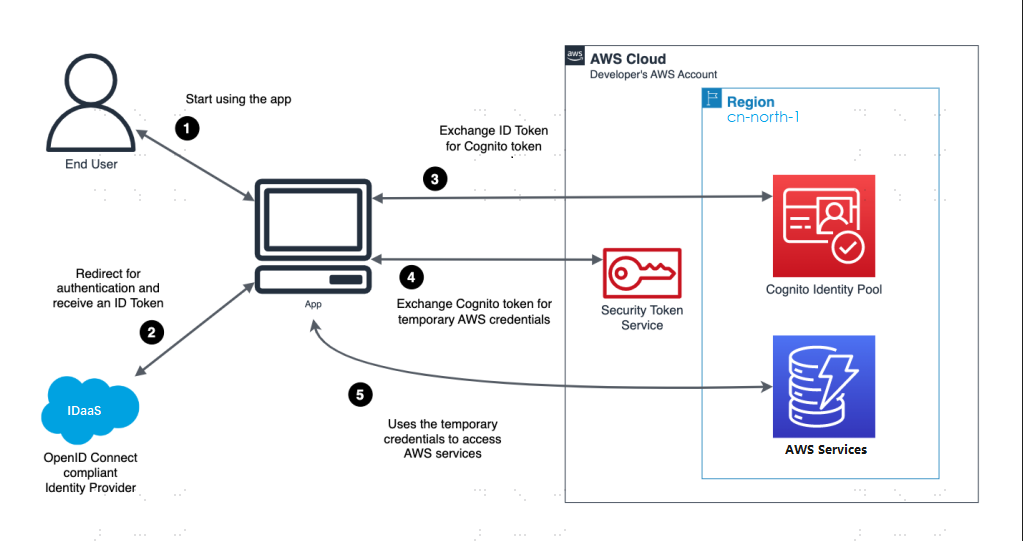
Flow Description
The user accesses the demo example and clicks the "Login with IDaaS" button.
The demo example redirects the user to IDaaS for login. Upon successful verification, the demo example receives an ID Token from IDaaS.
The demo example exchanges the ID Token for a Cognito token.
The demo example exchanges the Cognito token for temporary AWS security credentials.
The demo example uses the credentials to access AWS services.
# Prerequisites
- An AWS account. If you don't have one, you can get started with AWS for free (opens new window).
- A web server to host the demo example.
# IDaaS Configuration
Log in to the IDaaS Enterprise Center, go to 【Resources】->【Applications】->【Add Self-built Application】. The application name can be 【Cognito OIDC Example】, and select 【OIDC】 for Authentication Integration.
Configure the application authentication parameters.
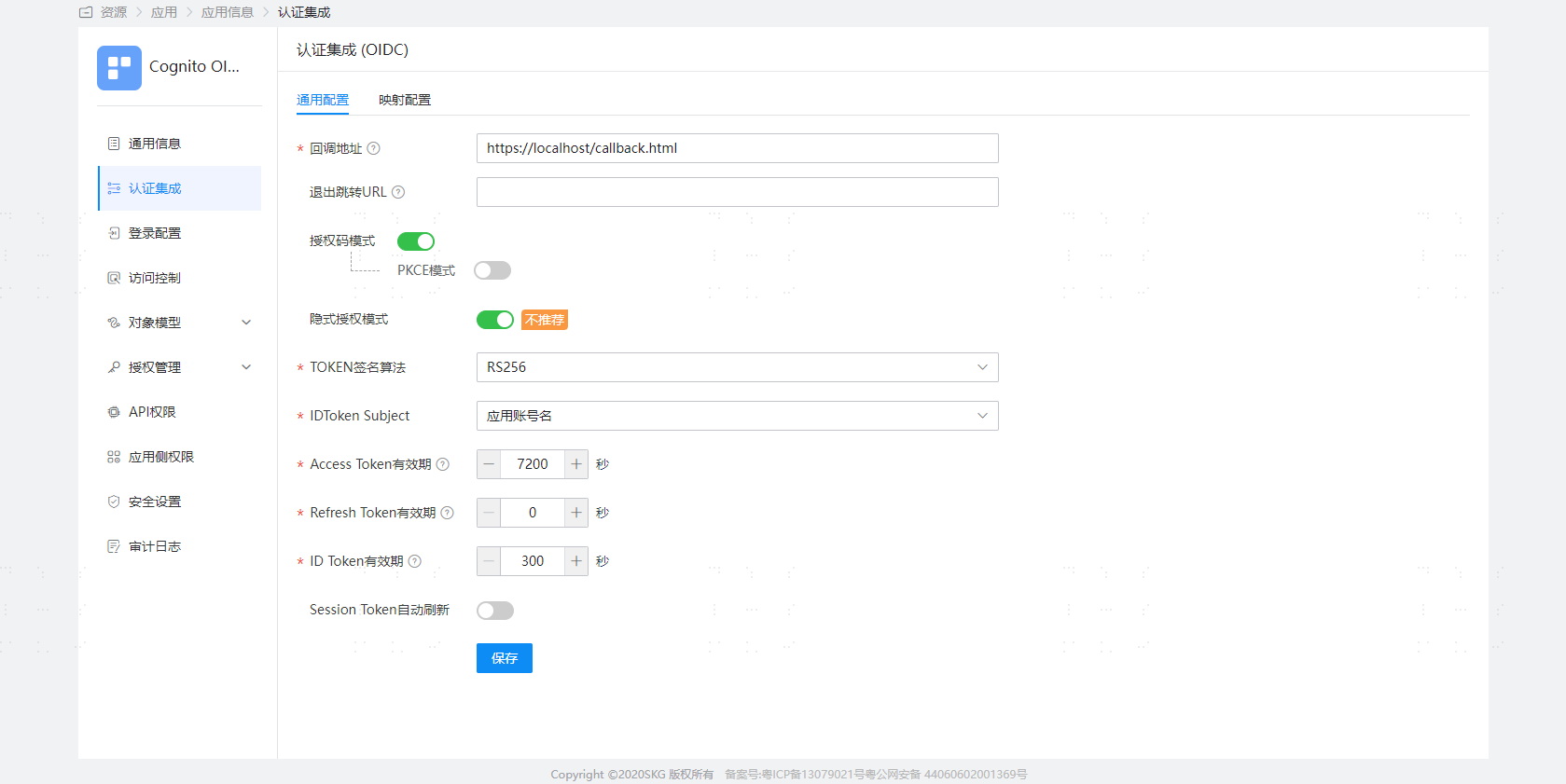
- Callback Address: Please specify the path to the Callback.html file on your web server. Example: https://localhost/callback.html
- Implicit Grant Mode: This demo example requires the Implicit Grant Mode to be enabled. If your application integrates with IDaaS on the backend, you can also choose to disable the Implicit Grant Mode and use the Authorization Code mode to obtain the ID Token through an authorization code, so that the demo can exchange IDaaS's ID Token for a Cognito token.
Remember the ClientId of the IDaaS application, which we will provide to AWS as the "Audience" for the OpenId Connect identity provider.
- Under the left menu bar of the application, switch to the 【Authorization Management】->【Application Accounts】 tab and add an account.
# AWS IAM Configuration
Log in to the AWS Console.
Under "All services", select "Identity and Access Management (IAM)".
Select "Identity Providers".
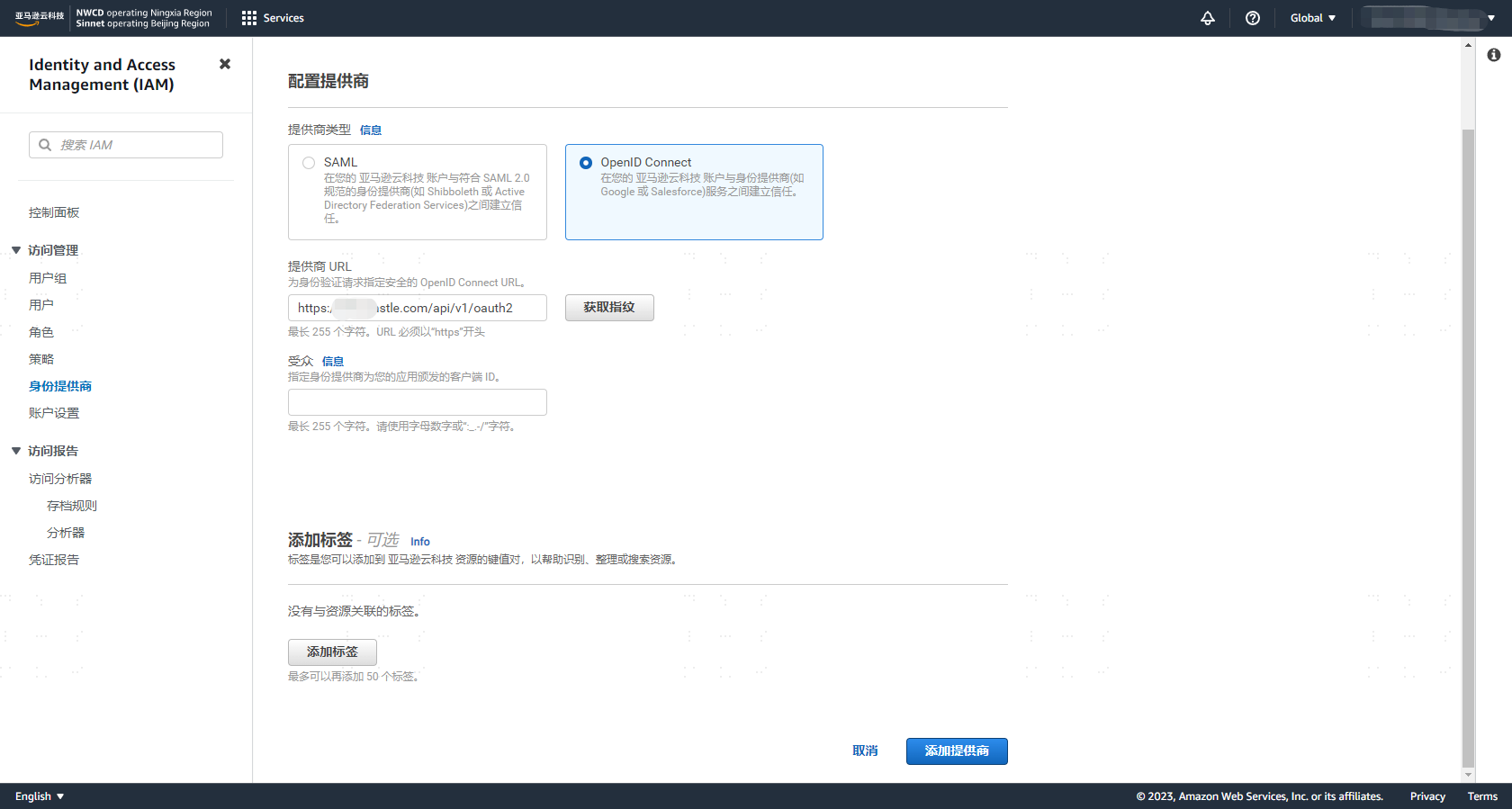
Click "Add Provider" and select "OpenID Connect".
Fill in the "Provider URL": Example: https://{yourdomain}/api/v1/oauth2. Replace
yourdomainin the example with your IDaaS domain, then click 【Get Thumbprint】.Fill in the "Audience": The ClientId of your IDaaS application, i.e., the application you created in the previous step on the IDaaS platform. Save successfully.
Remember your provider name, as we will need it later when creating the demo example. Example: {yourdomain}/api/v1/oauth2
# AWS Cognito Configuration
Log in to the AWS Console.
Under "All services", select "Cognito".
Select your identity pool. If you don't have an identity pool, please "Create identity pool".
Configure identity pool trust, select the identity source: OpenID Connect (OIDC), click "Next".
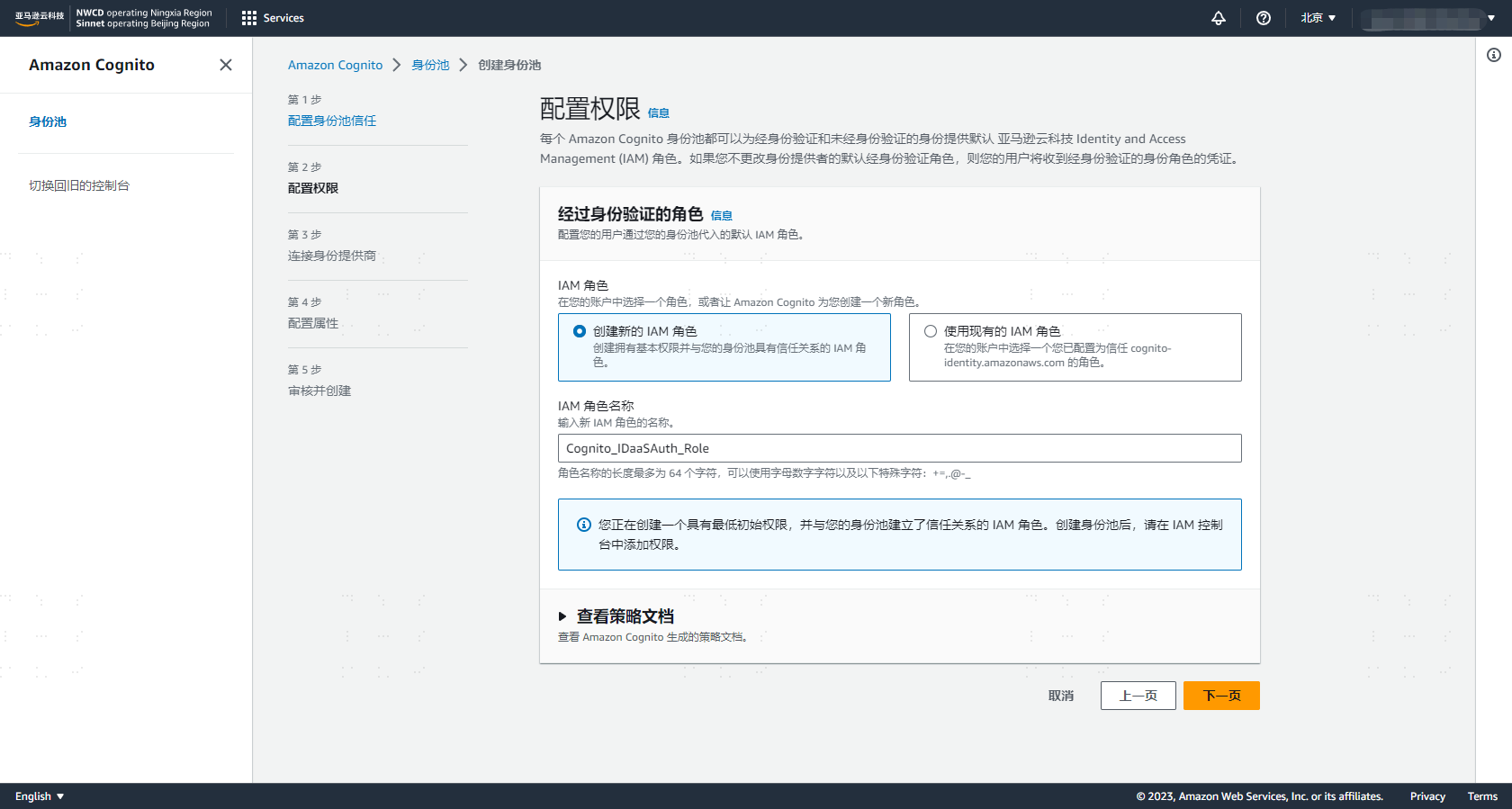
Create an IAM role name, for example: Cognito_IDaaSAuth_Role. You can view the policy details. Cognito automatically adds the GetCredentialsForIdentity permission.
    {
        "Effect": "Allow",
        "Action": [
            "cognito-identity:GetCredentialsForIdentity"
        ],
        "Resource": [
            "*"
        ]
    }
2
3
4
5
6
7
8
9
- Select the identity provider you created earlier and click Save.
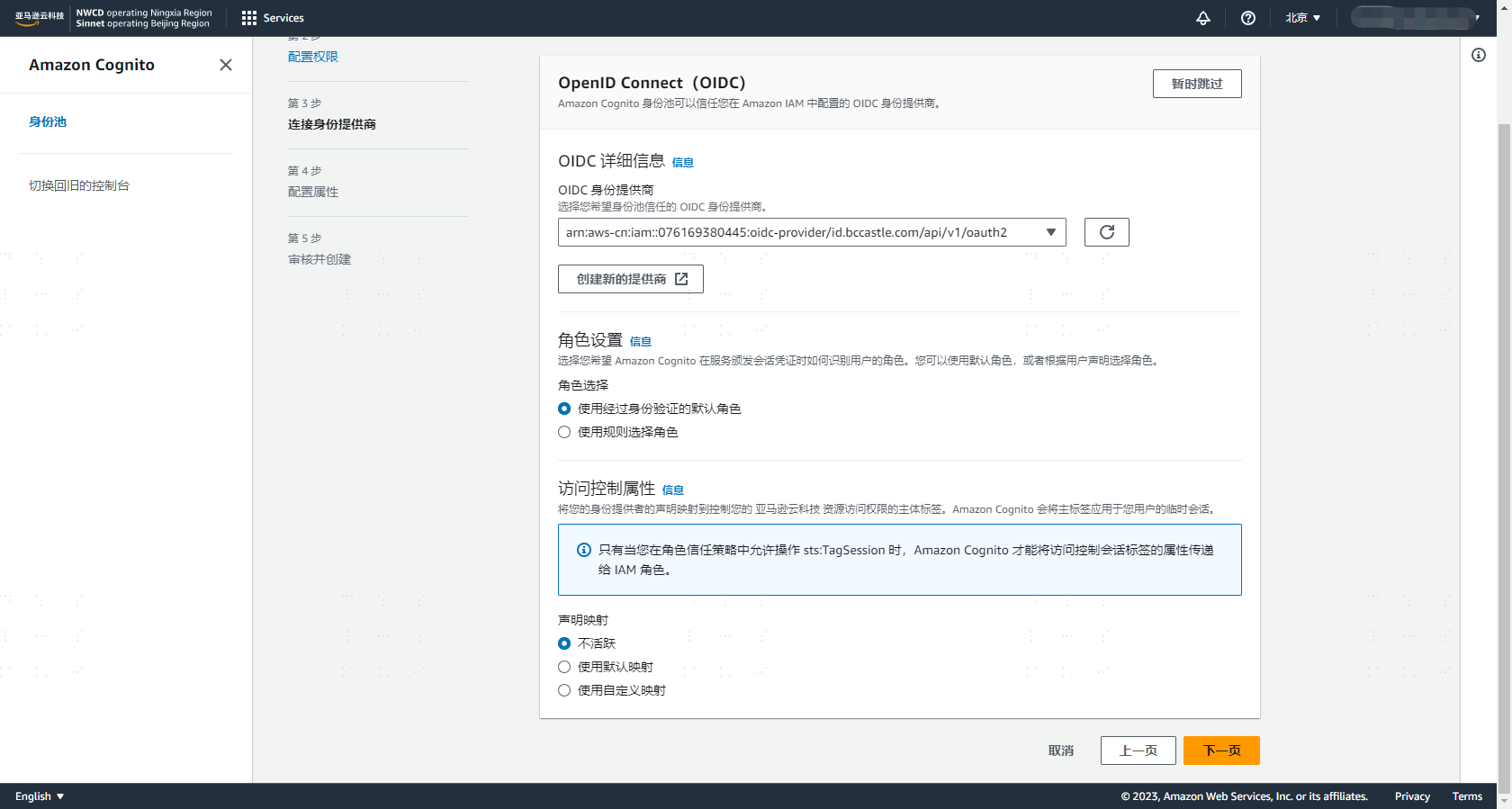
Remember the Identity Pool ID, as we will need it later when creating the sample demo.
# Creating the Sample Application
- The demo sample only contains two files — index.html and callback.html. In this section, I will show the complete code listings for these two files. Next, you only need to update three variables in each file respectively, and then deploy them to your server.
# index.html
The index.html file displays the "Login with IDaaS" button and redirects the user to IDaaS for authentication. This file is the starting point of the sample demo. It needs to be configured with your application's ClientId, which is how IDaaS knows which demo the login request is coming from.
The complete markup and code for index.html are listed below. You also need to follow these three steps:
Replace the
client_idin the JavaScript code with your ClientId, which is the ClientId of the IDaaS application you obtained from 【IDaaS Configuration】.Replace the
redirect_uriin the JavaScript code with the address of your demo's callback.html.Replace
yourdomainin theurlin the JavaScript code with your domain, i.e., the IDaaS domain.
<!DOCTYPE html>
<html>
<head>
    <title>IDaaS Cognito OIDC Sample</title>
</head>
<body>
    <h2>IDaaS and Amazon Cognito OpenID Integration Sample</h2>
    <p>
		This demo demonstrates an IDaaS web application sample integrated with Amazon Cognito via OIDC. This sample allows users to log in using their IDaaS username and password and obtain a Cognito token.
    </p>
    <p>This demo is written entirely in JavaScript and contains only two files - <b>index.html</b> and <b>callback.html</b>.</p>
    <p>First, please click <b><button onclick="login()">Login to Demo with IDaaS</button></b>. If authentication is successful, we will redirect to <b>callback.html</b> and successfully display the Cognito token.</p>
</body>
<script type="text/javascript">

function login() {
    // Replace with the ClientId of your IDaaS application
    var client_id = 'yeMSd6WRMnNoVXXXXXXncXLV9l2jXZ';

    // Replace with the address of your callback.html
    var redirect_uri = 'https://localhost/callback.html';

    // Replace `yourdomain` in the URL with your domain, i.e., the IDaaS domain
    var url = 'https://{yourdomain}/api/v1/oauth2/authorize'
        + '?response_type=token id_token'
        + '&scope=openid'
        + '&nonce=abc'
        + '&client_id=' + client_id
        + '&redirect_uri=' + redirect_uri;
    window.location.replace(url);
}
</script>
</html>
2
3
4
5
6
7
8
9
10
11
12
13
14
15
16
17
18
19
20
21
22
23
24
25
26
27
28
29
30
31
32
33
# callback.html
callback.html is the page users see when IDaaS redirects them to the demo after login.
The complete markup and code for callback.html are listed below. You also need to follow these three steps:
Replace
aws_regionin the JavaScript code with your Cognito user pool region.Replace
yourdomainin theprovider_urlin the JavaScript code with your domain name, which is the provider name you obtained from the 【AWS IAM Configuration】.Replace
pool_idin the JavaScript code with your Identity Pool ID, which is the Identity Pool ID you obtained from the 【AWS Cognito Configuration】.
<!DOCTYPE html>
<html>
<head>
    <title>IDaaS Cognito OIDC Example</title>
    <script src="https://sdk.amazonaws.com/js/aws-sdk-2.850.0.min.js"></script>
</head>
<body onload="callback()">
    <h2>IDaaS and Amazon Cognito OpenID Integration Example</h2>
	<h4><span id="Error" style="color:#FF0000"></span></h4>
	<h4><span id="IdentityId" style="color:#2196f3"></span></h4>
	<h4><span id="AccessKeyId" style="color:#2196f3"></span></h4>
	<h4><span id="SecretKey" style="color:#2196f3"></span></h4>
	<h4><span id="SessionToken" style="color:#2196f3;word-break:break-all"></span></h4>
	<h4><span id="Expiration" style="color:#2196f3"></span></h4>
</body>
<script type="text/javascript">
	function callback() {
        var url = window.location.href;
        var error = url.match('error=([^&]*)')
        if (error) {
            var description = url.match('error_description=([^&]*)')
            printMessage('Error', 'Error: ' + error[1] + '<br>Description: ' + description[1] + '</br>');
            return;
        }
        var match = url.match('id_token=([^&]*)');
        if (match) {
            var id_token = match[1];
            if (id_token) {
                printMessage('Error', '<span style="color:#000000">Using IDaaS ID Token to obtain Cognito credentials</span>');
                makeCognitoRequest(id_token);
            }else{
                printMessage('Error', 'Error: Unable to retrieve id token from URL');
            }
        }else{
            printMessage('Error', 'Error: No id token in URL');
        }
    }
    async function makeCognitoRequest(id_token) {
	    // Replace aws_region with your Cognito user pool region
        var aws_region = 'cn-north-1';
		// Replace yourdomain in provider_url with your domain name
        var provider_url = '{yourdomain}/api/v1/oauth2';
		// Replace pool_id with your Identity Pool ID
        var pool_id = 'cn-north-1:469392b9-XXXX-XXXX-9877-7d34c3ca2a47';
        var logins = {};
        logins[provider_url] = id_token;
        AWS.config.region = aws_region;

        try {
			const cognitoIdentity = new AWS.CognitoIdentity();
            const { IdentityId } = await cognitoIdentity.getId({
				IdentityPoolId: pool_id,
				Logins: logins
			}).promise()
            const { Credentials } = await cognitoIdentity.getCredentialsForIdentity({
				IdentityId: IdentityId,
				Logins: logins
			}).promise()
            printMessage('IdentityId', '<span style="color:#000000">IdentityId: </span>'  + IdentityId);
            printMessage('AccessKeyId','<span style="color:#000000">AccessKeyId: </span>'  + Credentials.AccessKeyId);
            printMessage('SecretKey','<span style="color:#000000">SecretKey: </span>'  + Credentials.SecretKey);
            printMessage('SessionToken','<span style="color:#000000">SessionToken: </span>'  + Credentials.SessionToken);
            printMessage('Expiration','<span style="color:#000000">Expiration: </span>'  + Credentials.Expiration);
        } catch (e) {
            printMessage('Error', e);
        }
    }
    function printMessage(elementId, messageString){
       document.getElementById(elementId).innerHTML = messageString;
    }
</script>
</html>
2
3
4
5
6
7
8
9
10
11
12
13
14
15
16
17
18
19
20
21
22
23
24
25
26
27
28
29
30
31
32
33
34
35
36
37
38
39
40
41
42
43
44
45
46
47
48
49
50
51
52
53
54
55
56
57
58
59
60
61
62
63
64
65
66
67
68
69
70
71
72
# Login Verification
Now everything is ready to test the sample demo.
On the index.html page, click "Login with IDaaS Demo".

Log in using your IDaaS username and password.
After successful login, you will be redirected to the callback.html page. You will see the following AWS temporary credentials.
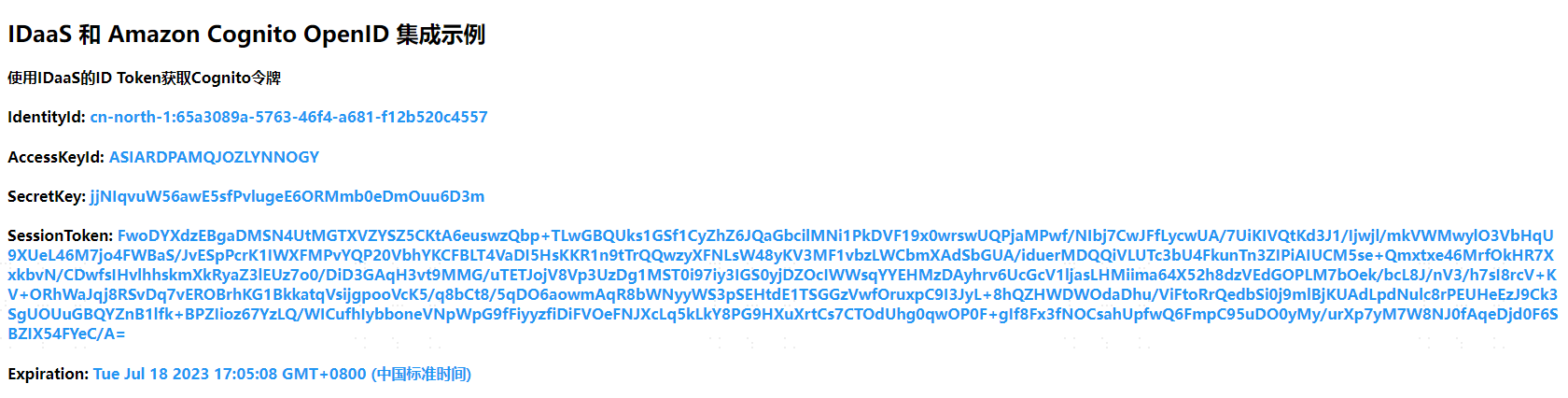
Use the AWS temporary credentials to access AWS services such as API Gateway, S3, IoT, AI, and other services.