
DingTalk Exclusive Edition Enterprise Single Sign-On
# Description
DingTalk Exclusive Edition supports Single Sign-On configuration. Authentication points to Zhuyun IDaaS, allowing users to log into DingTalk via IDaaS user accounts.
DingTalk Single Sign-On is currently only supported in the Exclusive Edition. The account type used for SSO login must be an SSO-type account created via the DingTalk V2 Directory API.
# Authentication Configuration
# IDaaS Configuration
Administrator logs into the Enterprise Center and adds the pre-integrated application "DingTalk Exclusive Edition SSO".
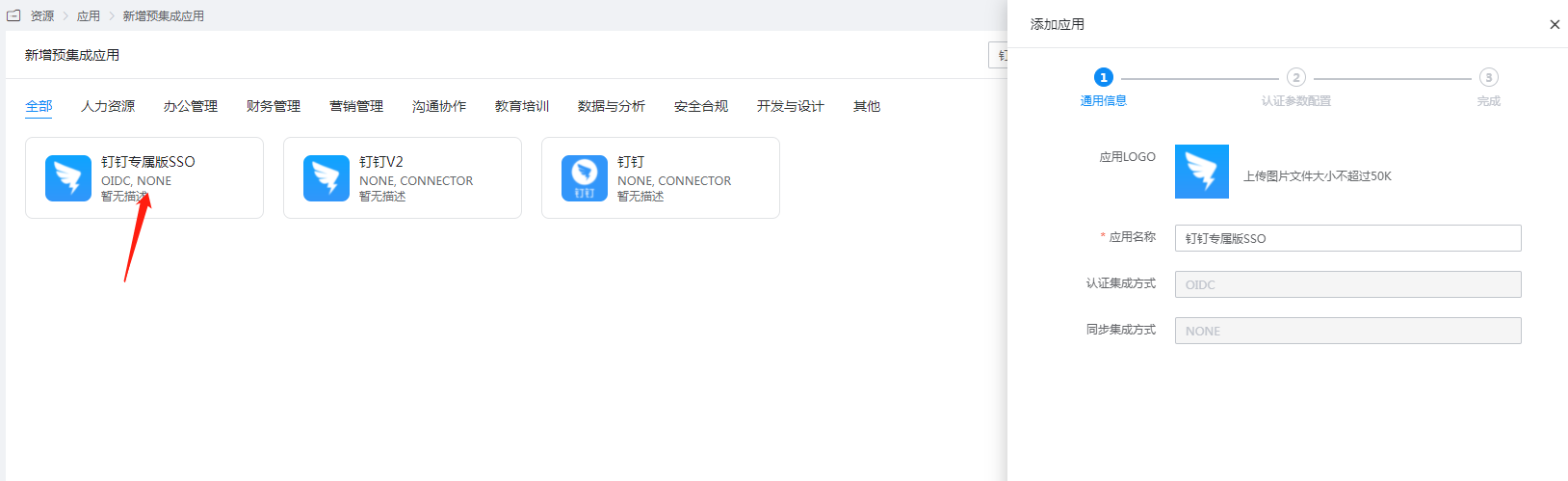
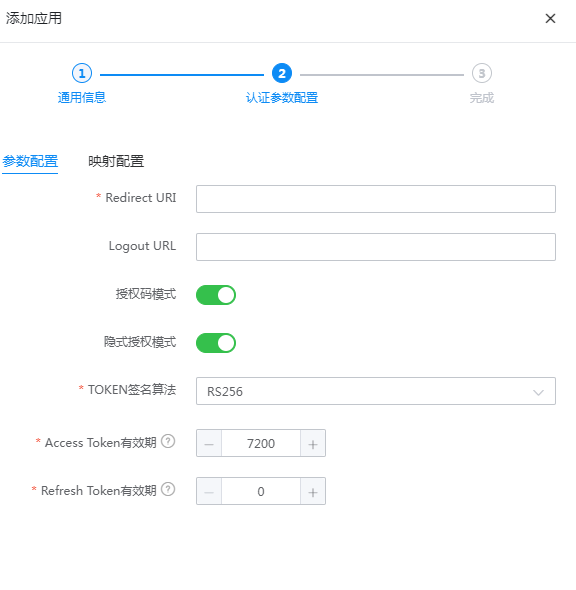
Configure application parameters.
Redirect URI: Enter https://login.dingtalk.com/oauth2/oidcCallBack.htm
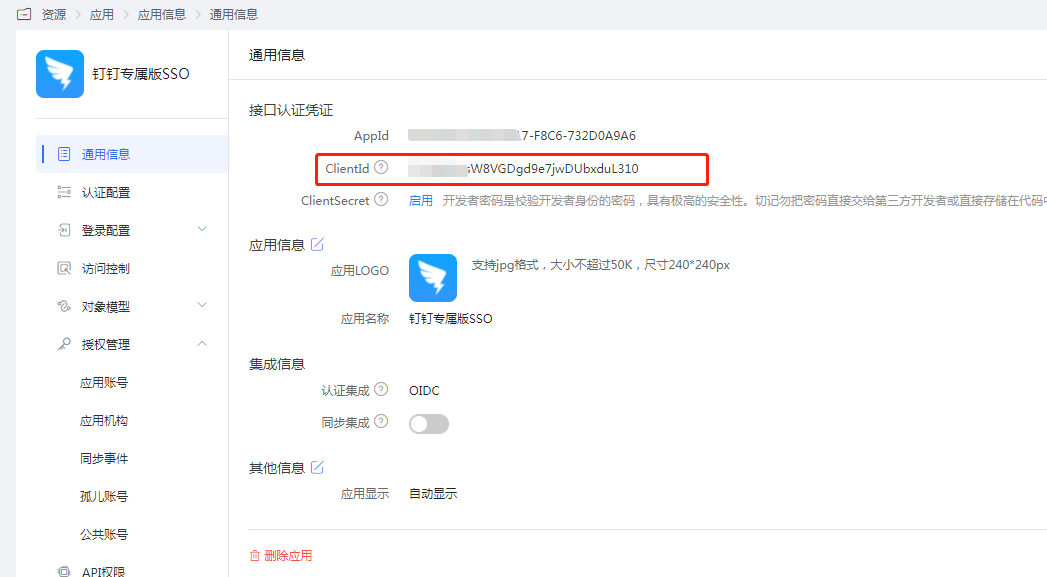
Go to Application Details - Authorization Management - Application Accounts, add an account, and set the account name to the DingTalk user's employee UserID.

Go to Application Details - General Information, and view the ClientId.
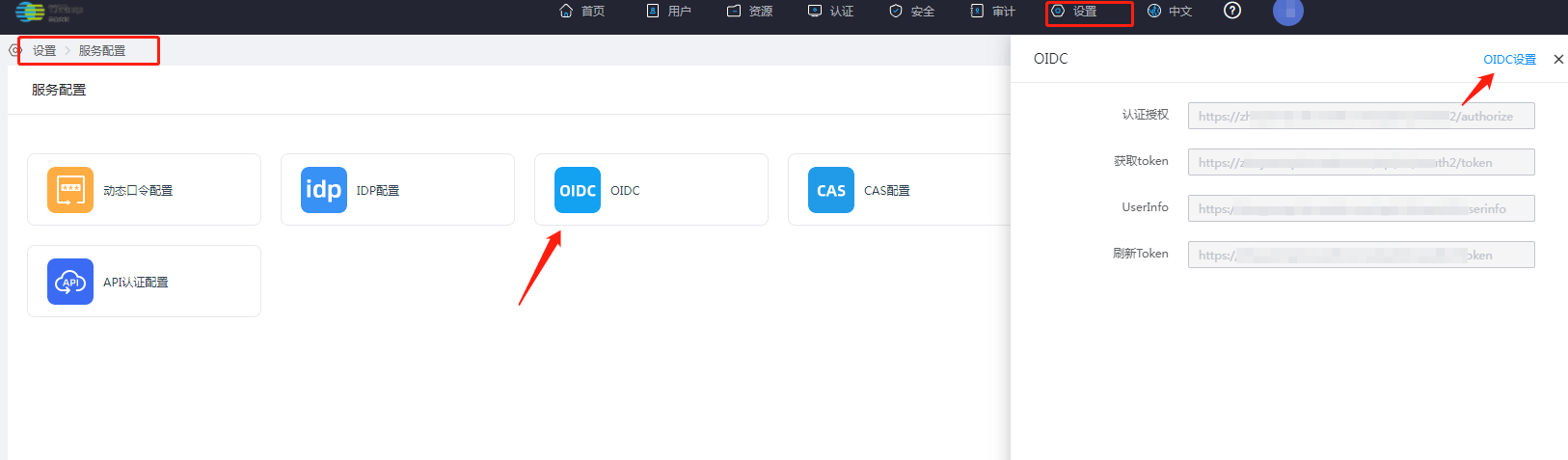
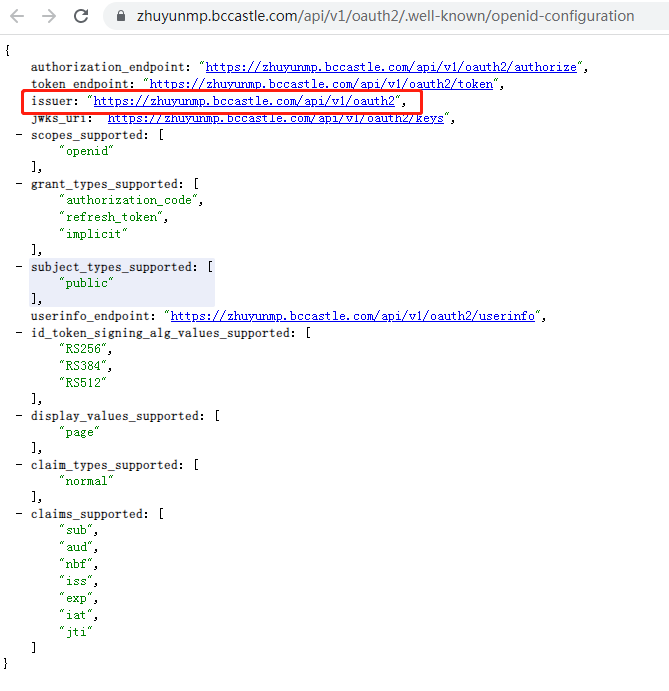
Go to 【Settings】-【Service Configuration】-【OIDC】-【OIDC Settings】, and view the OIDC configuration issuer.
# DingTalk Backend Configuration
Administrator logs into the DingTalk Admin Console, and navigates to 【Security & Permissions】-【SSO Single Sign-On Settings】.
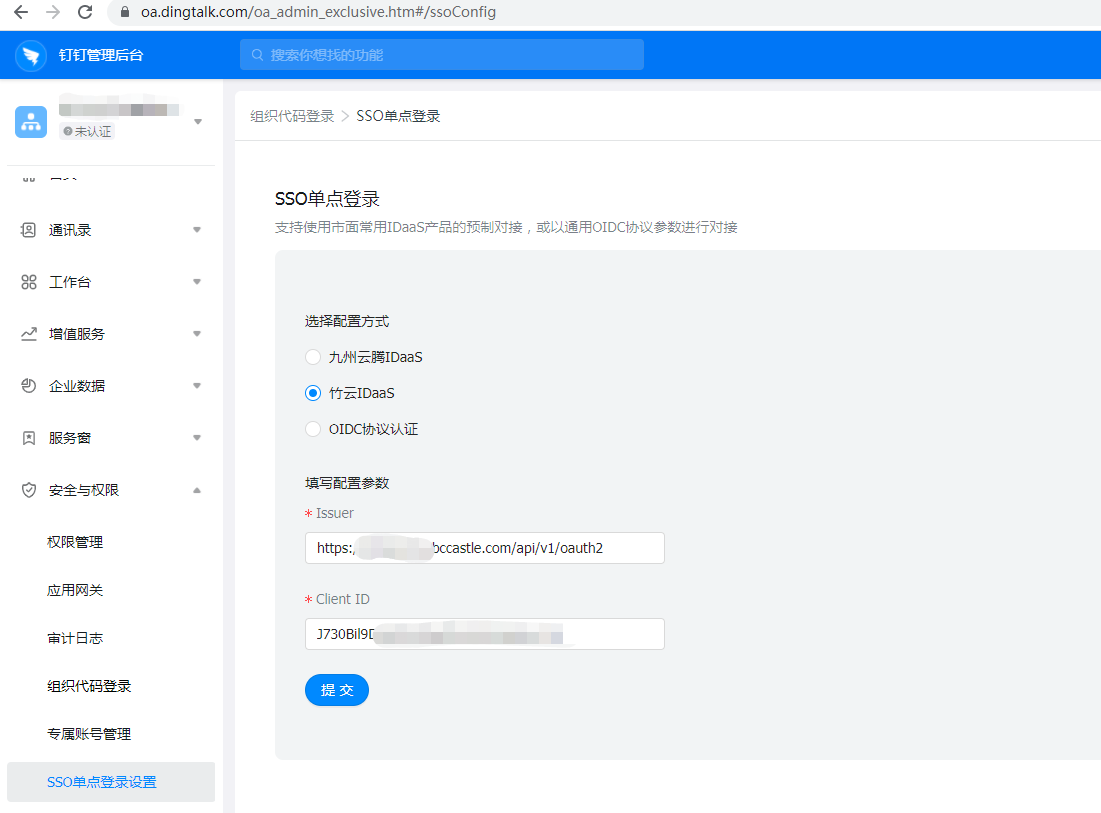
Select the configuration method: Zhuyun IDaaS.
Fill in the configuration parameters.
Issuer: The issuer from the IDaaS OIDC configuration.
Client ID: The IDaaS application ClientId.
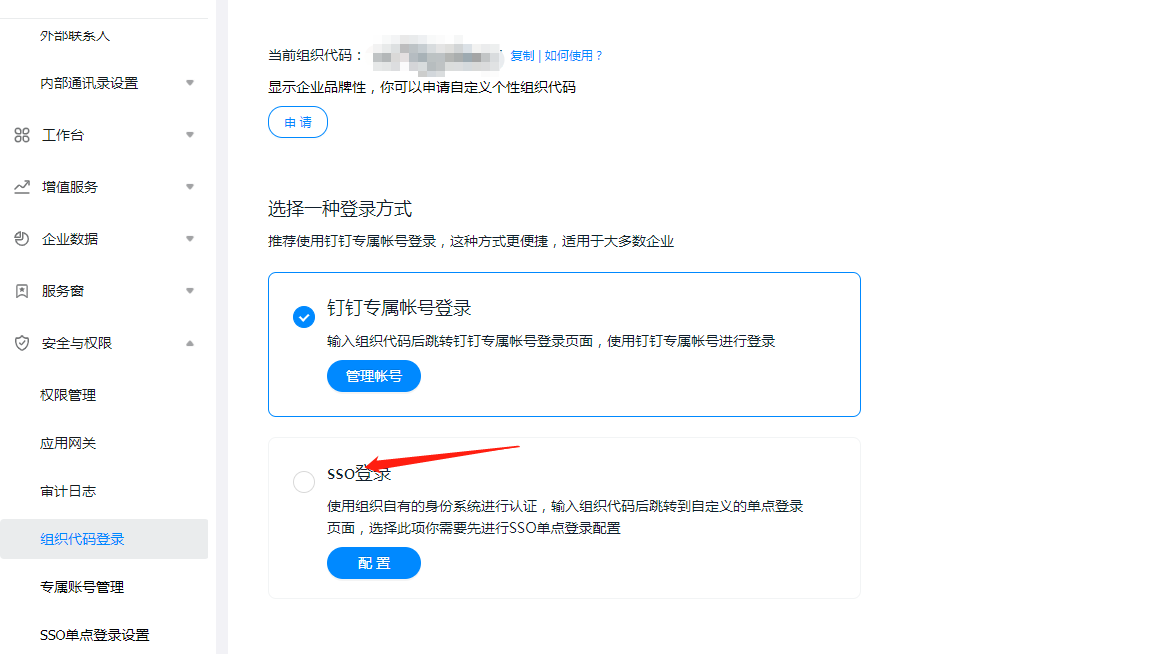
Go to 【Organization Code Login】, view the current organization code, and select SSO login.
# Login Verification
Taking the PC client as an example:
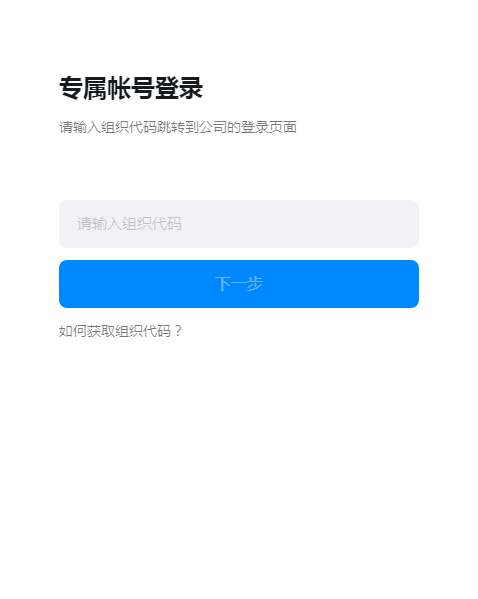
Open the DingTalk client and select Exclusive Account.
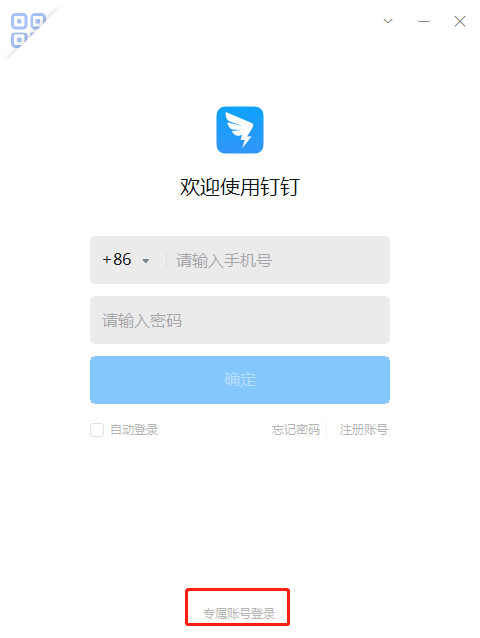
Enter the organization code.
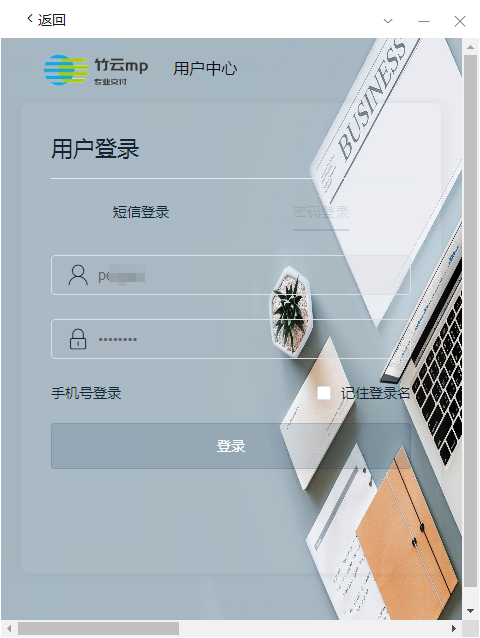
Redirect to the IDaaS login page, and enter the authorized user's login credentials.
SSO users logging in for the first time will be prompted to bind a mobile number. After binding is complete, they can enter DingTalk.
