DingTalk Data Synchronization
Identity Synchronization
# Description
This document describes how to synchronize organization and personnel data from IDaaS to DingTalk, enabling data flow from IDaaS to DingTalk.
# Synchronization Configuration
# DingTalk Configuration
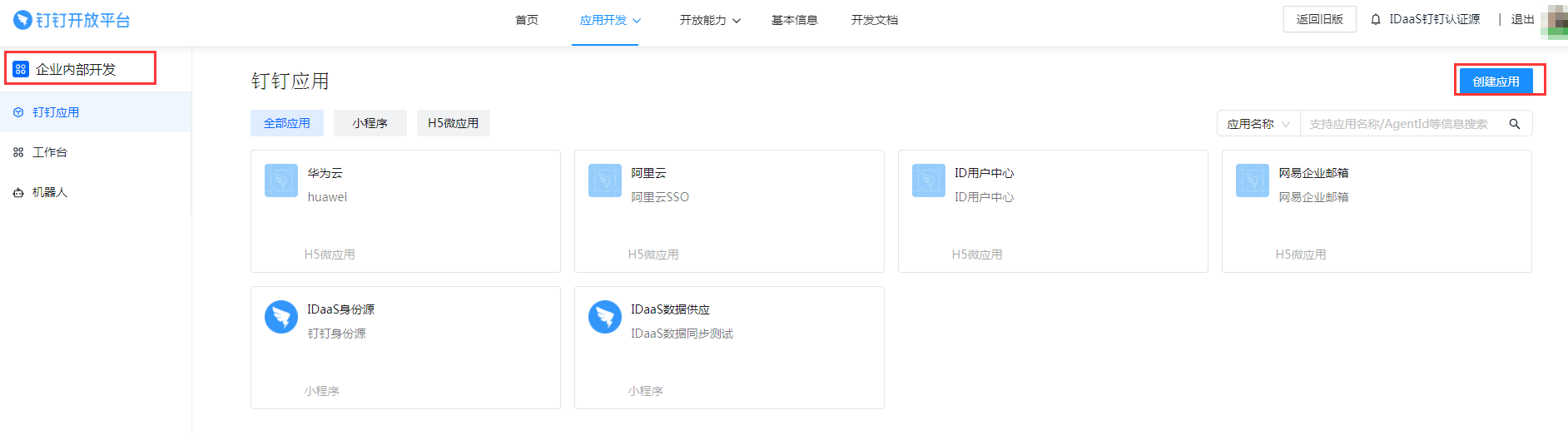
- Log in to the DingTalk Developer Platform and create an internal enterprise application (mini-program or H5 micro-application).
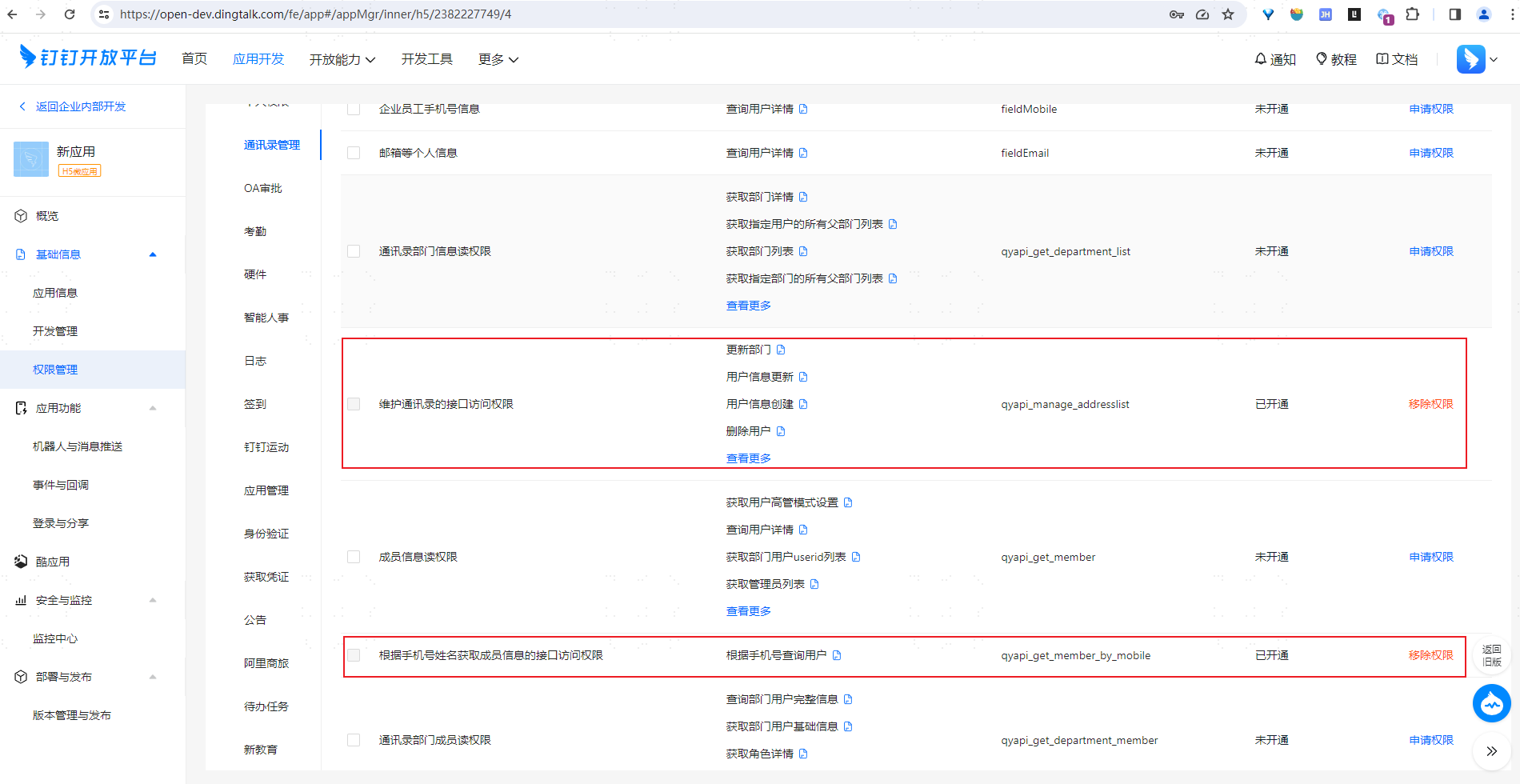
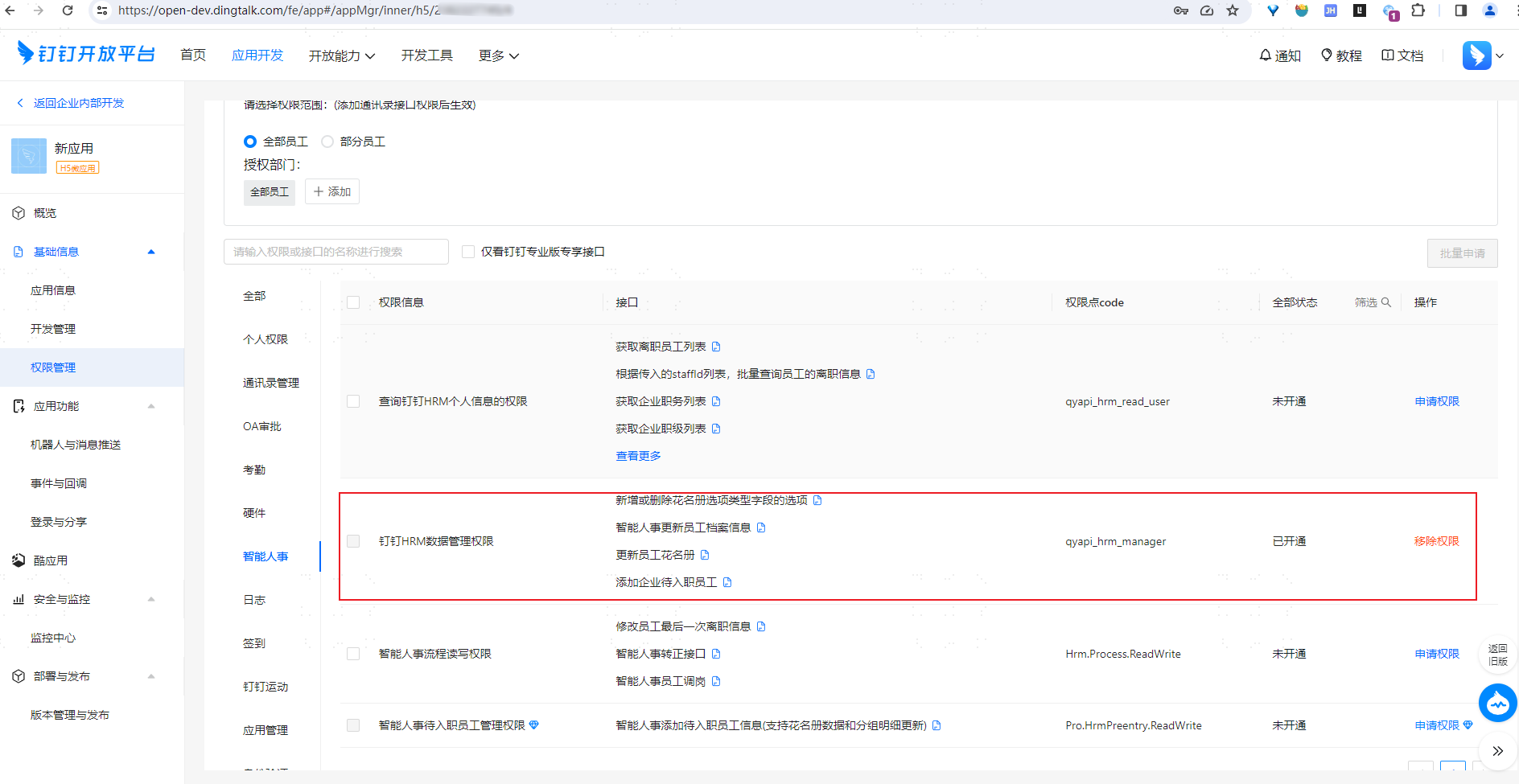
- In the application details, under Basic Information > Permission Management, apply for the "Address Book Management" permission (specifically "Interface access permission for maintaining the address book" and "Interface access permission to obtain member information based on mobile phone number and name") and the "DingTalk HRM Data Management Permission" under Smart HR. Then, set the authorized employee scope.
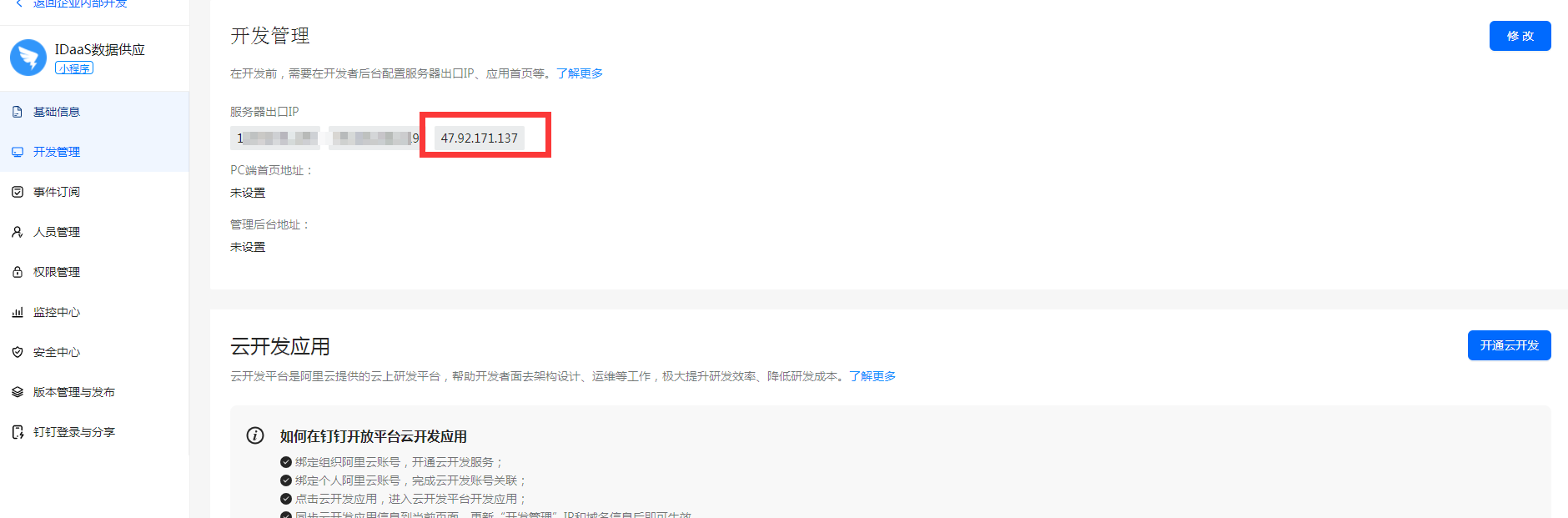
- In Development Management > Server Outbound IPs, add
47.92.171.137.
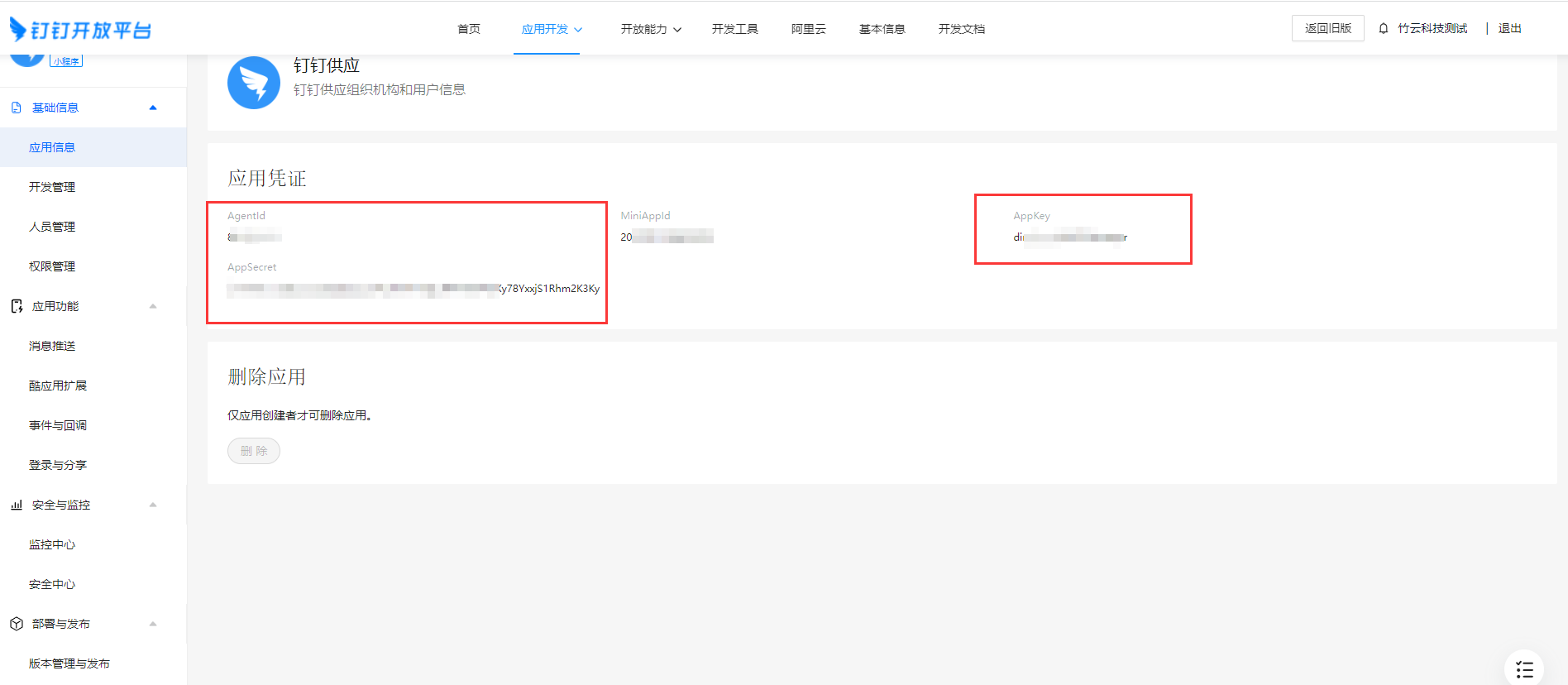
- Go to the application details page to obtain the AgentId, AppKey, and AppSecret.
# IDaaS Configuration
- Add the pre-integrated application "DingTalk".

- Configure synchronization parameters.
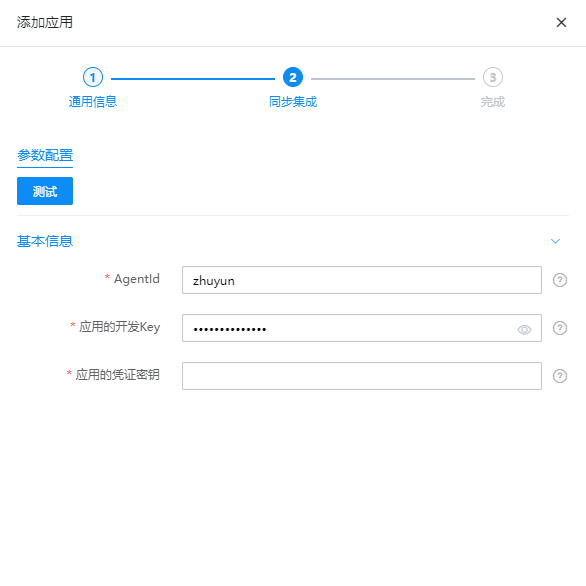
| Parameter | Description |
|---|---|
| AgentId | DingTalk's AgentId |
| Application Dev Key | The application's AppKey |
| Application Secret | The application's AppSecret |
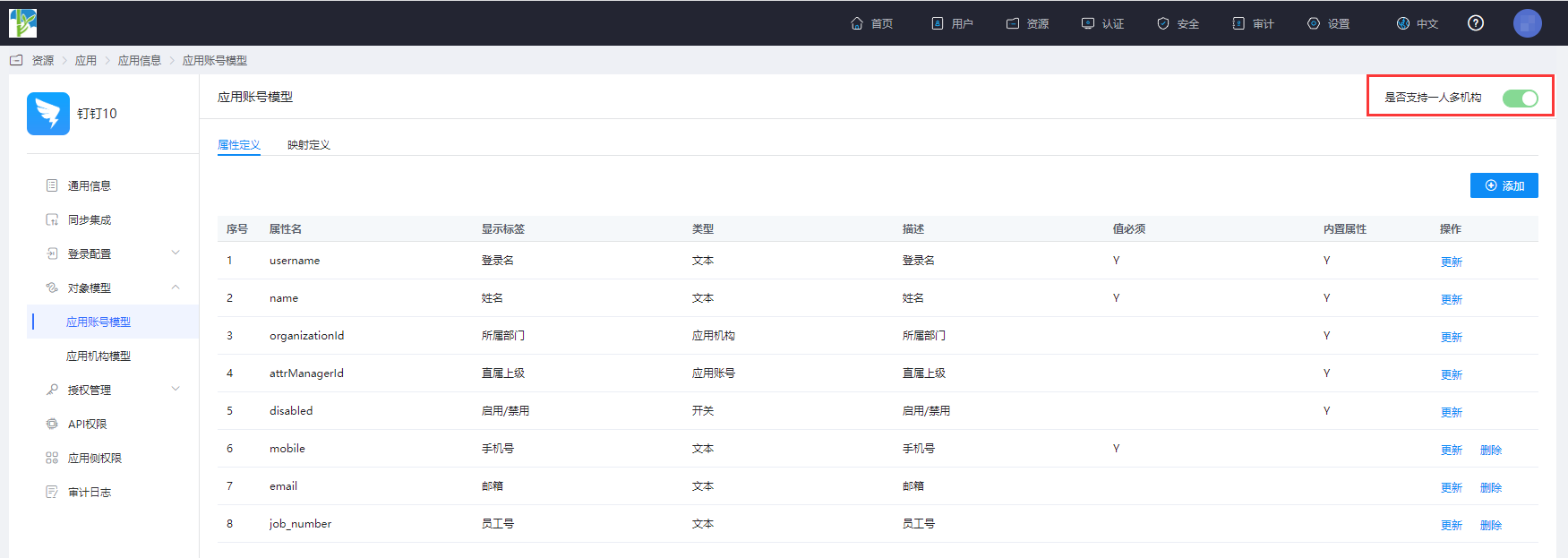
- Go to the application details page, navigate to Application Information > Object Model > Application Account Model. To synchronize scenarios where one person belongs to multiple organizations, enable Support One Person in Multiple Organizations.
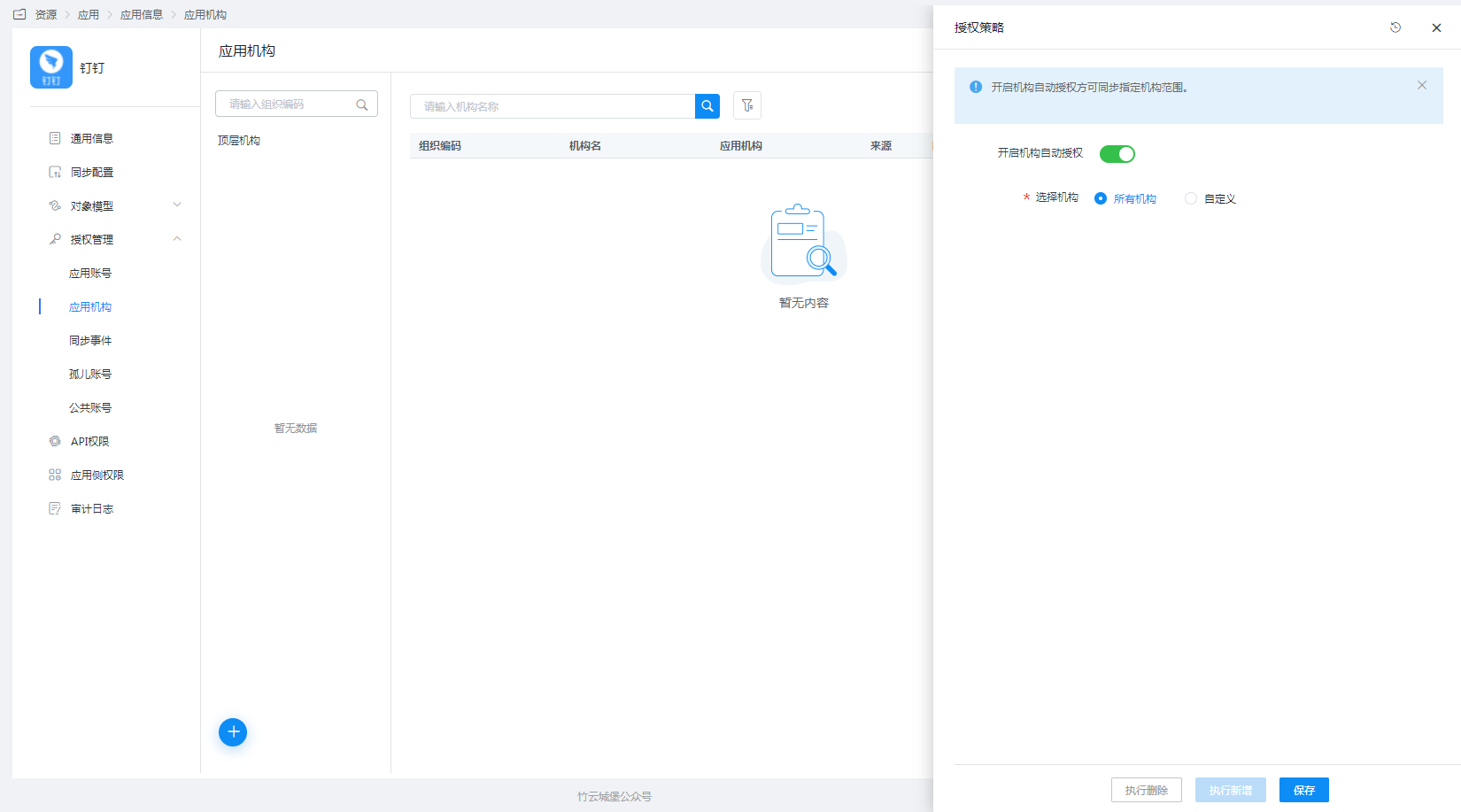
- Go to the application details page, navigate to Application Organizations > Authorization Policy. Enable automatic organization authorization, select the organization scope, click the Save button, and then click Execute Addition.
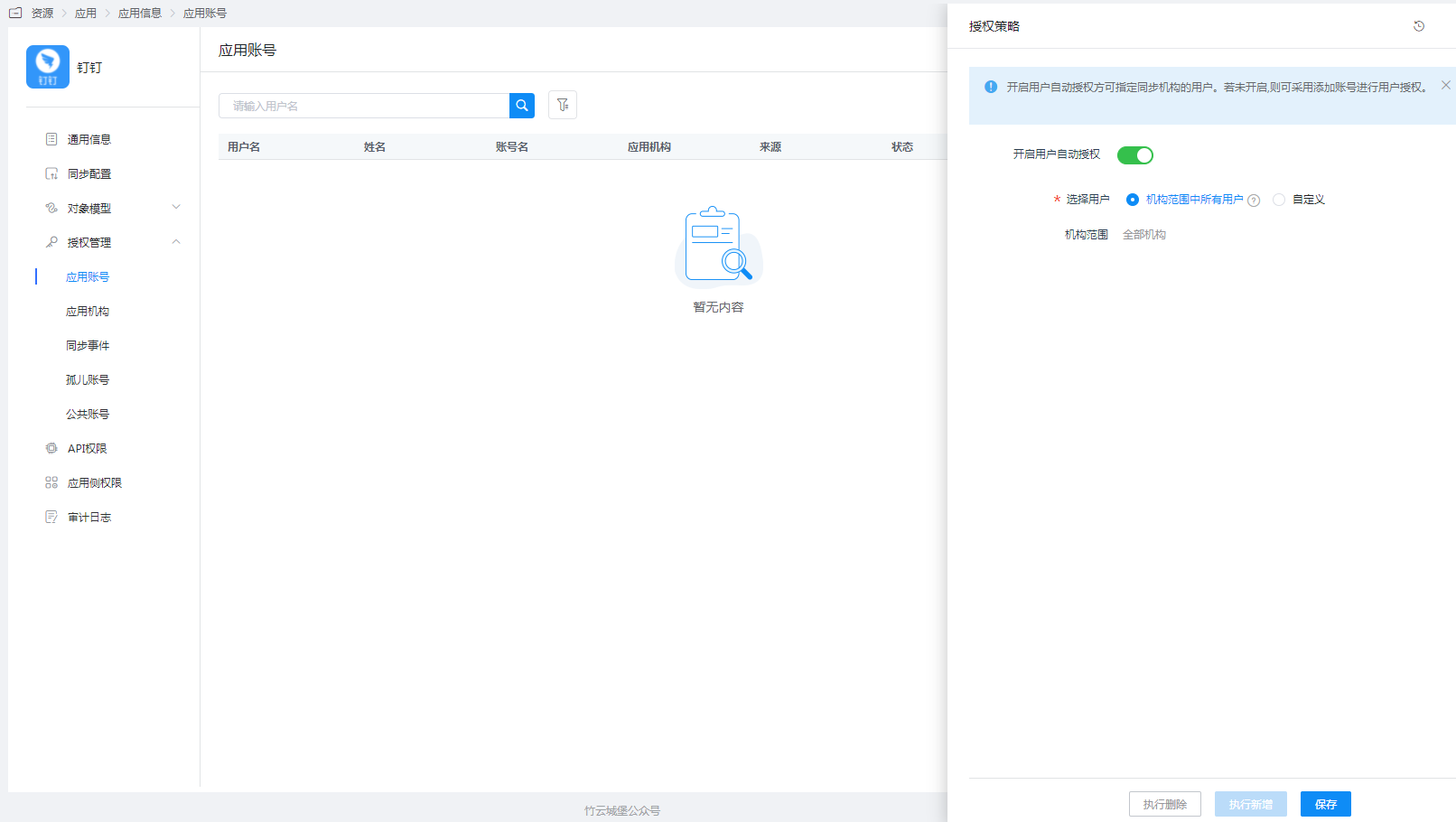
- Go to the application details page, navigate to Application Account Structure > Authorization Policy. Enable automatic user authorization, select the user scope, click the Save button, and then click Execute Addition.
- Go to the application details page, navigate to Synchronization Events, to view the synchronization status.

# View Synchronization Results
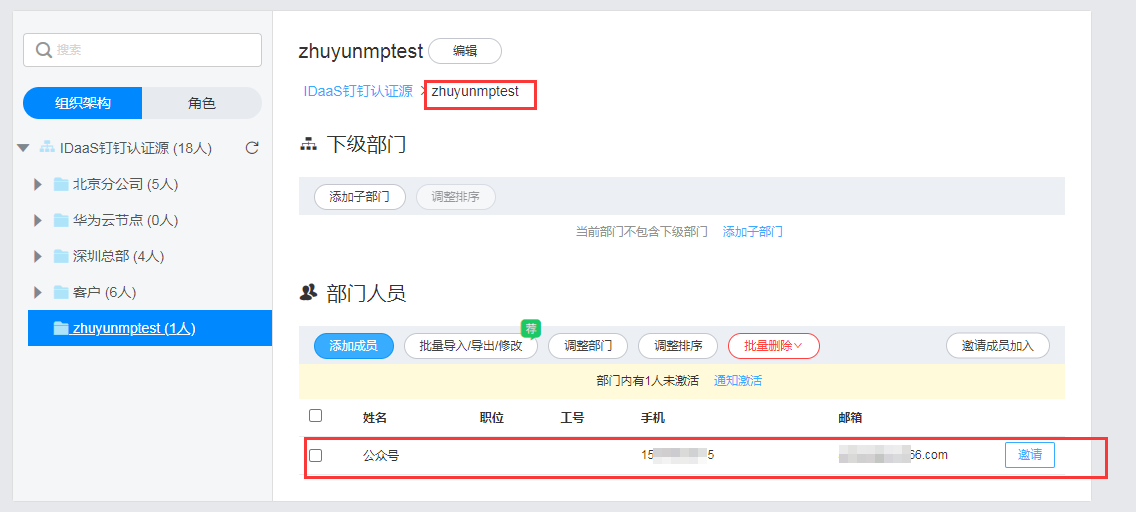
Log in to the DingTalk management backend, go to the Address Book, and view the synchronized organizations and users.