AAD International Edition Authentication Source
Authentication Source
# Description
This document describes how to configure Azure Active Directory International Edition as a standard authentication source in IDaaS using the SAML protocol.
# Authentication Source Configuration
# Adding an SP Application in Azure Active Directory
Administrator logs into Azure Active Directory (opens new window)
Create an application
- Click the Azure Active Directory icon to enter the AAD configuration page.
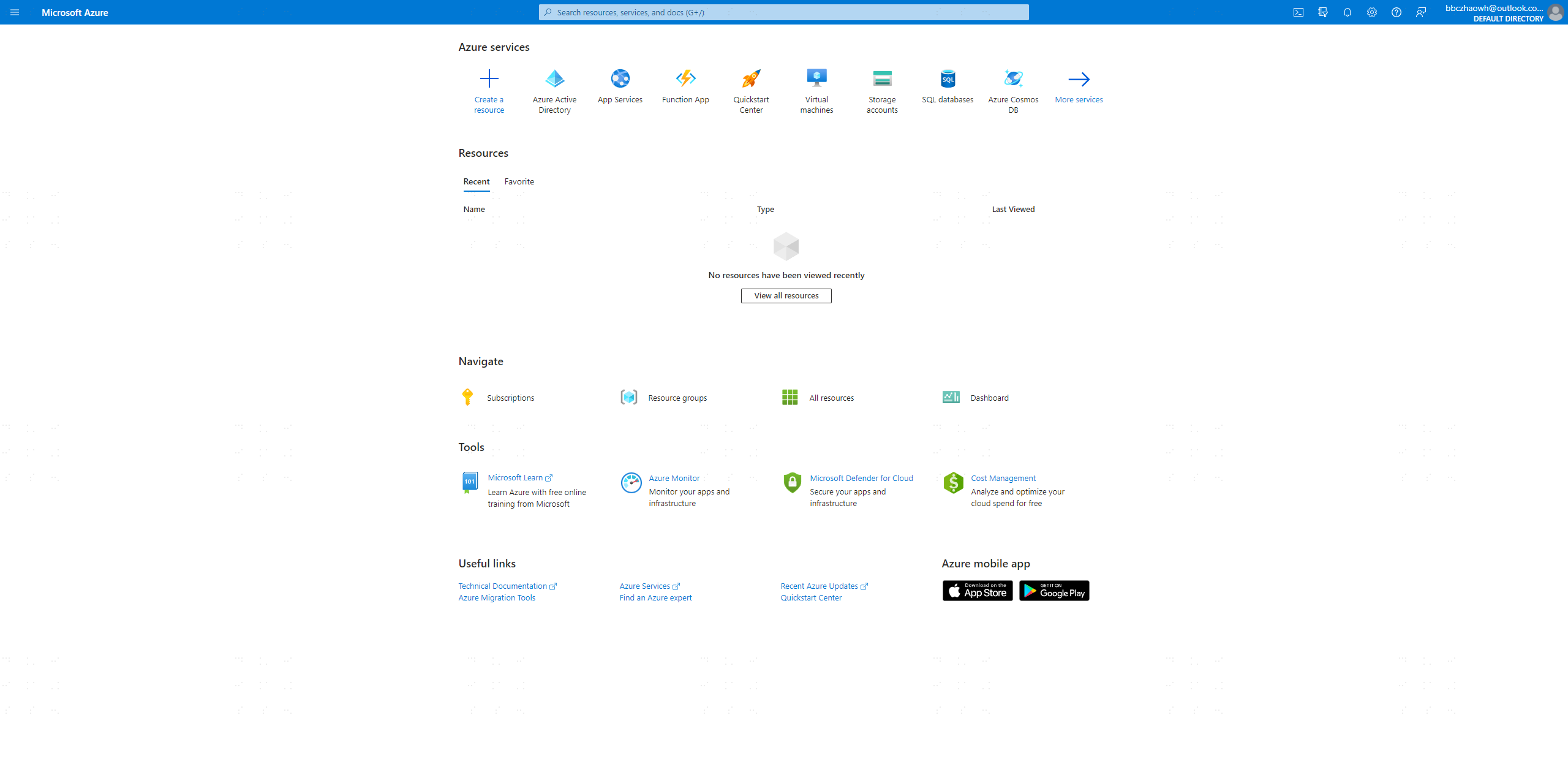
- Click the Enterprise applications menu -> New application -> Create your own application.
- Fill in the application name and create the application
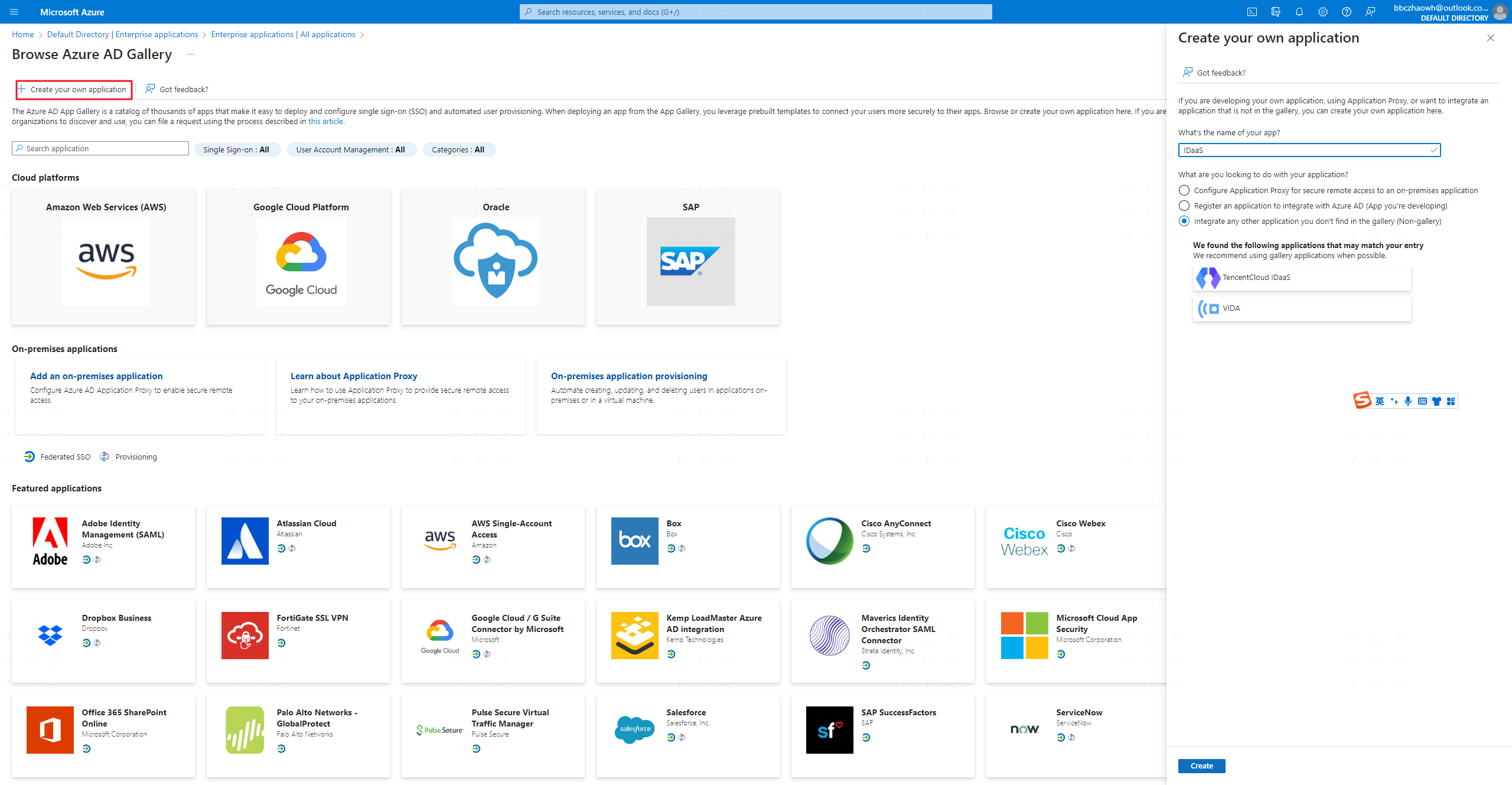
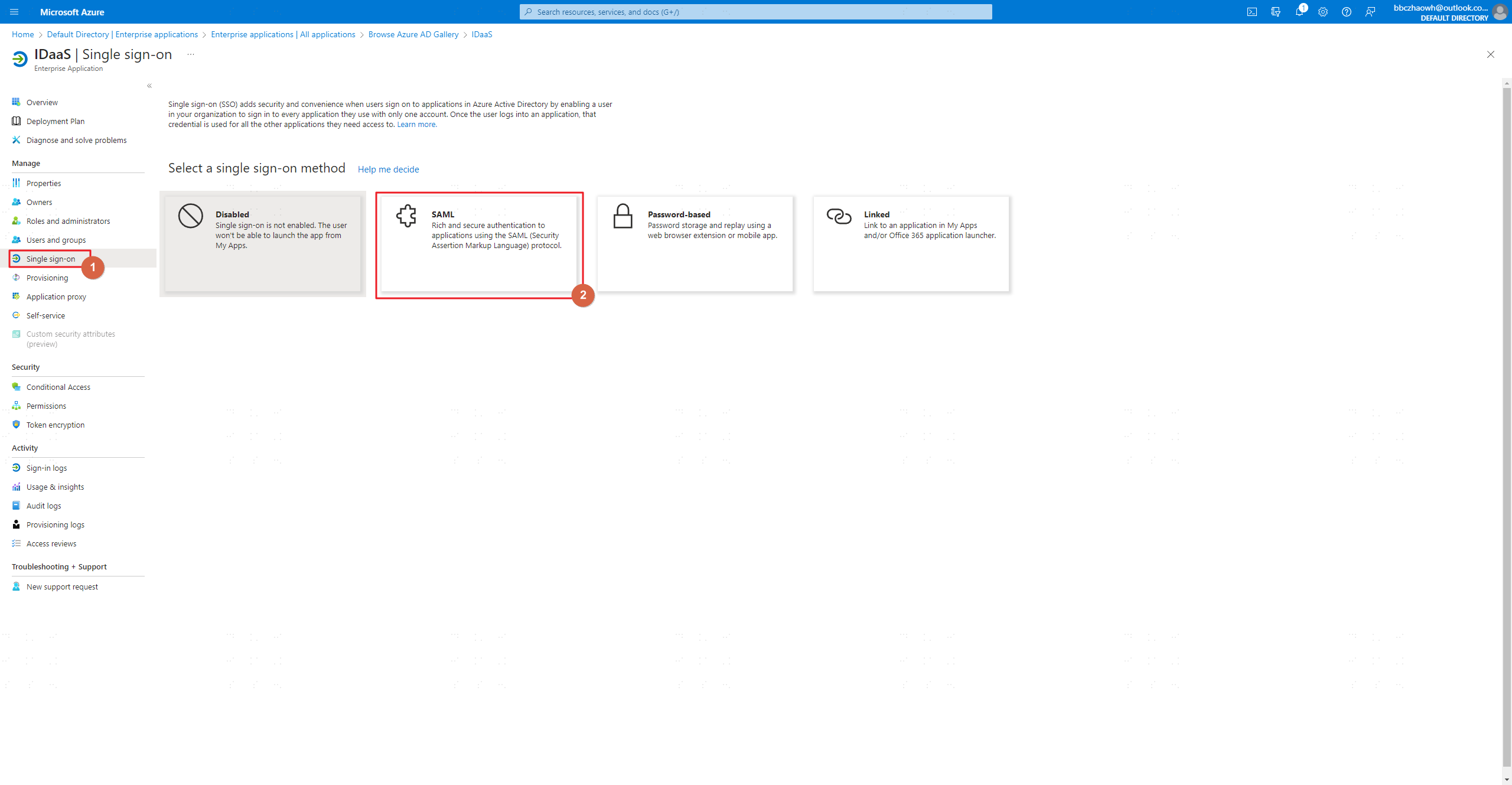
- Click Set up single sign on
- Select SAML as the authentication protocol
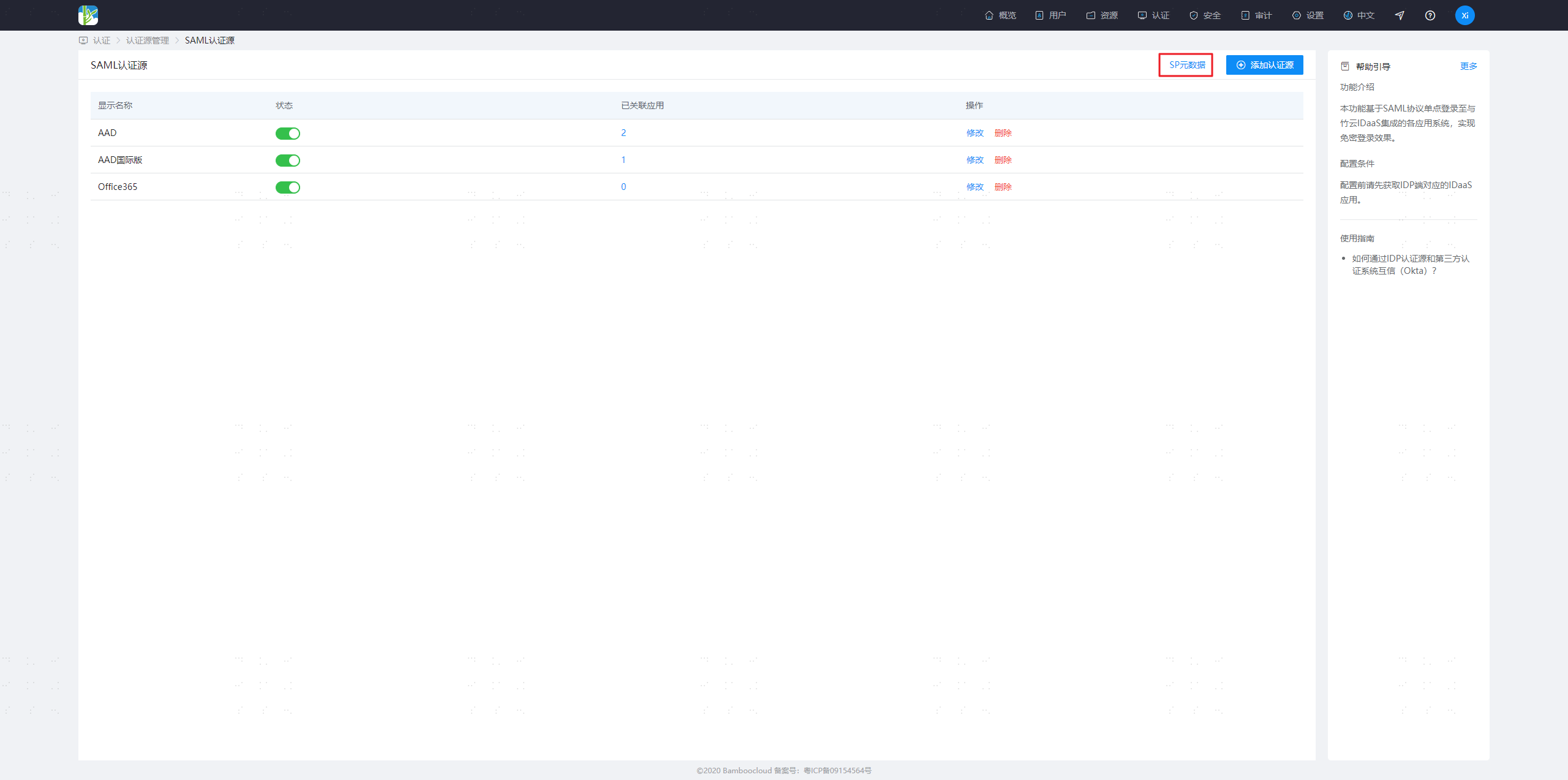
- Log in to the IDaaS management platform, select -> Authentication -> Authentication Source Management -> SAML Authentication Source -> SP Metadata, and download the SP metadata
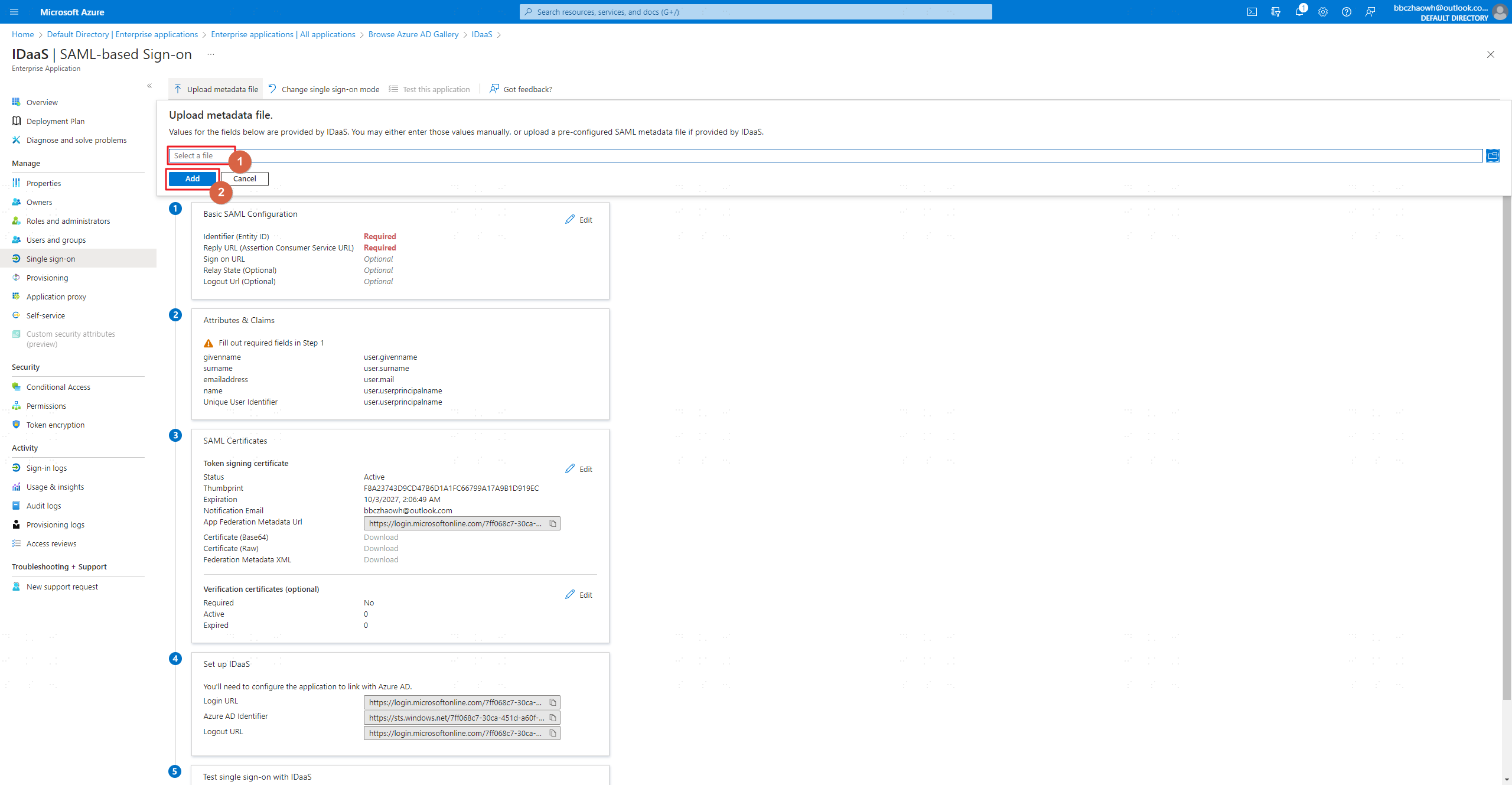
- Click Upload metadata file to upload the SP metadata file obtained from IDaaS
- Edit Attributes & Claims -> Required claim
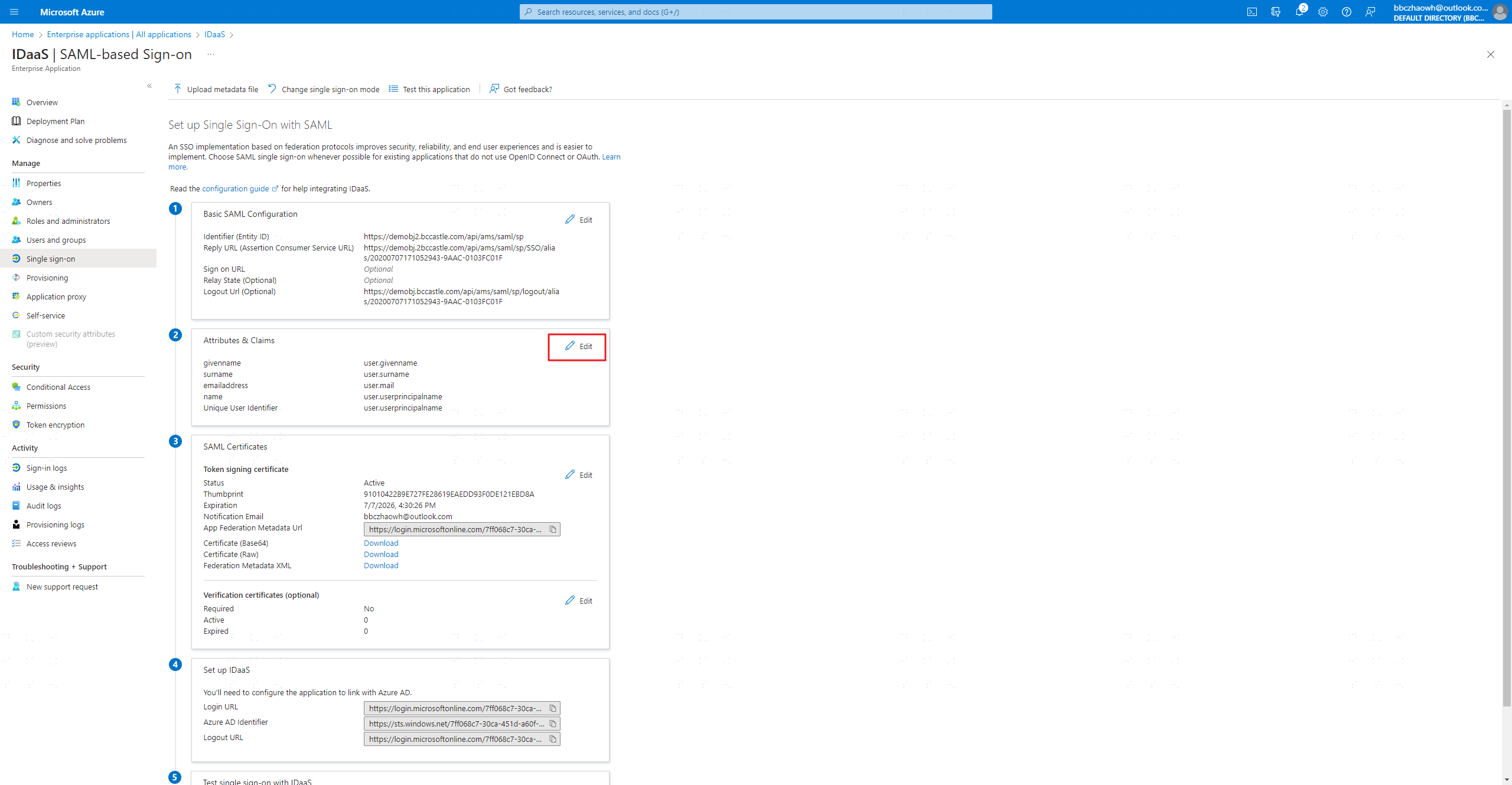
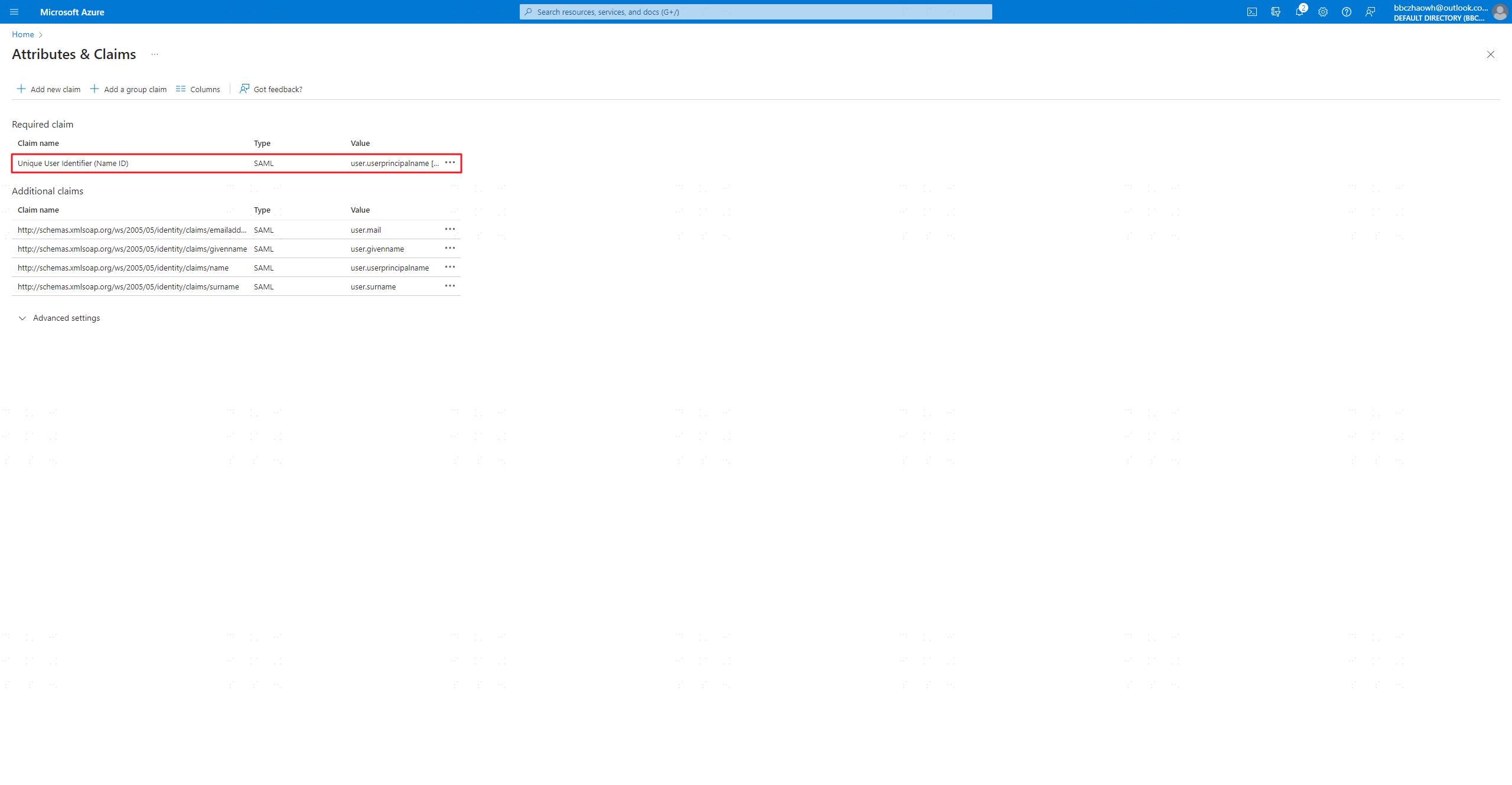
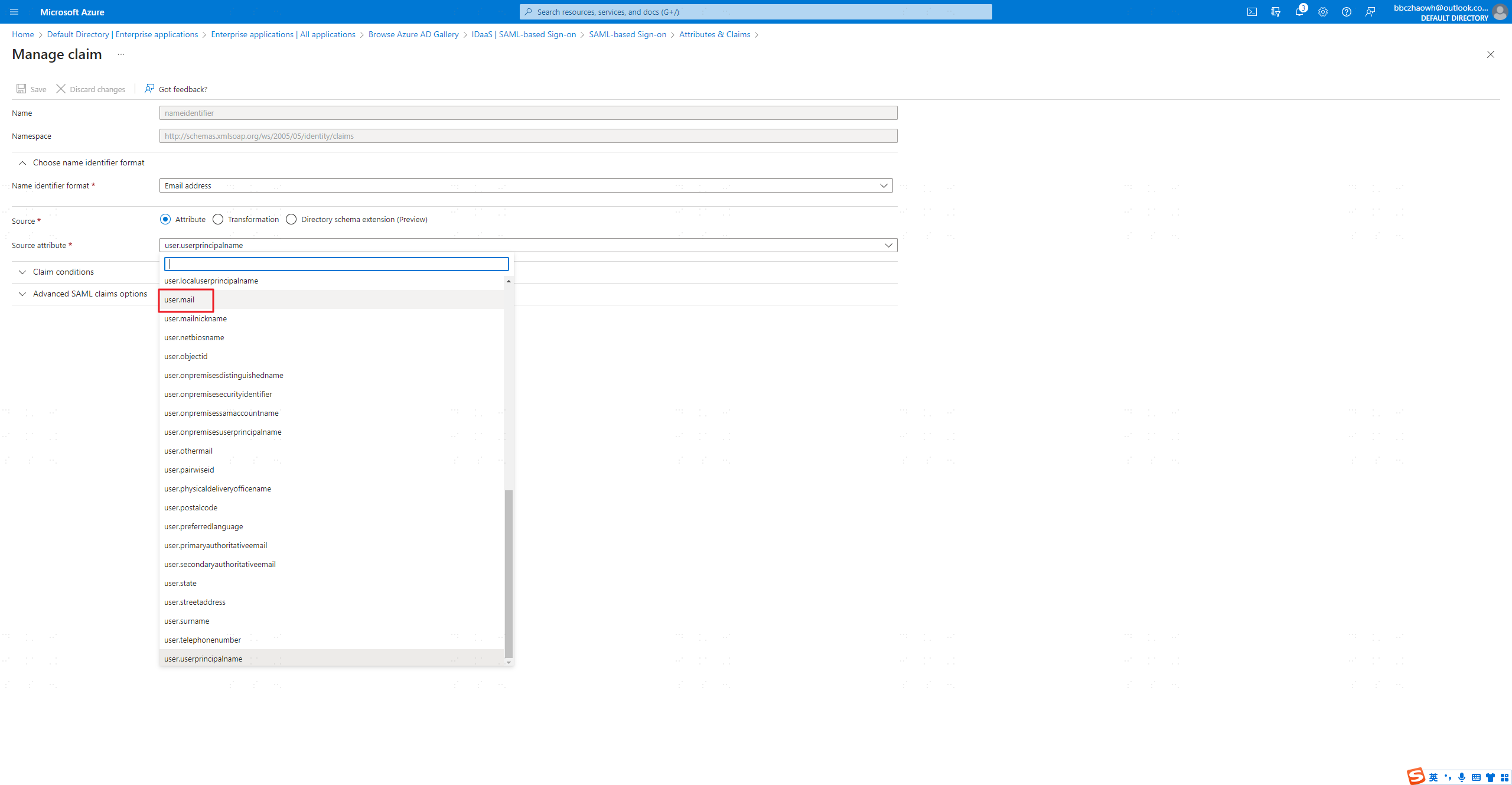
- Change the Unique User Identifier (Name ID) to: user.mail
- Click the Azure Active Directory icon to enter the AAD configuration page.
Download the certificate file and copy the authentication source parameters to a local file

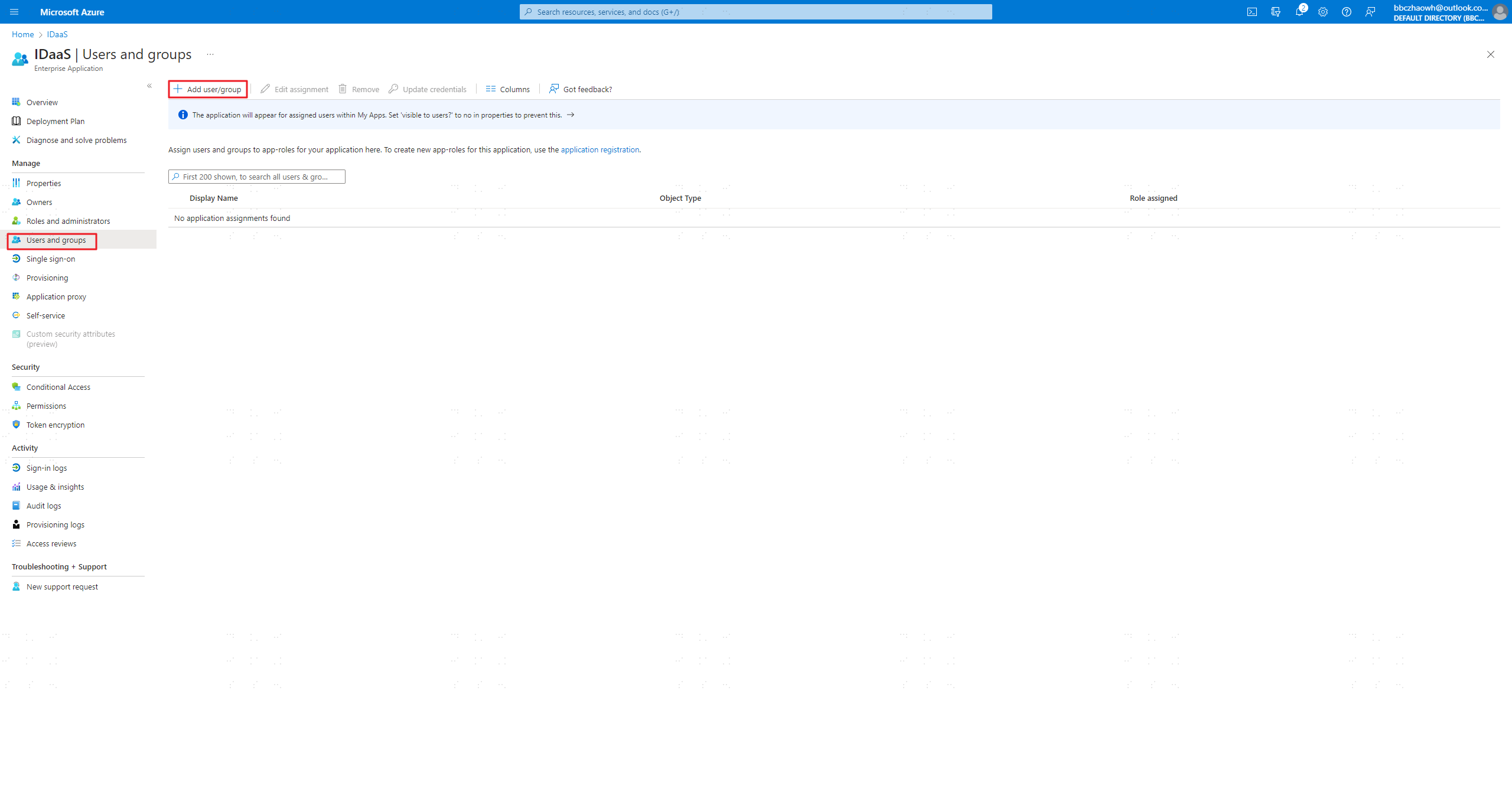
Authorize users or user groups who can log in to IDaaS via AAD
# Configuring the SAML Authentication Source in IDaaS
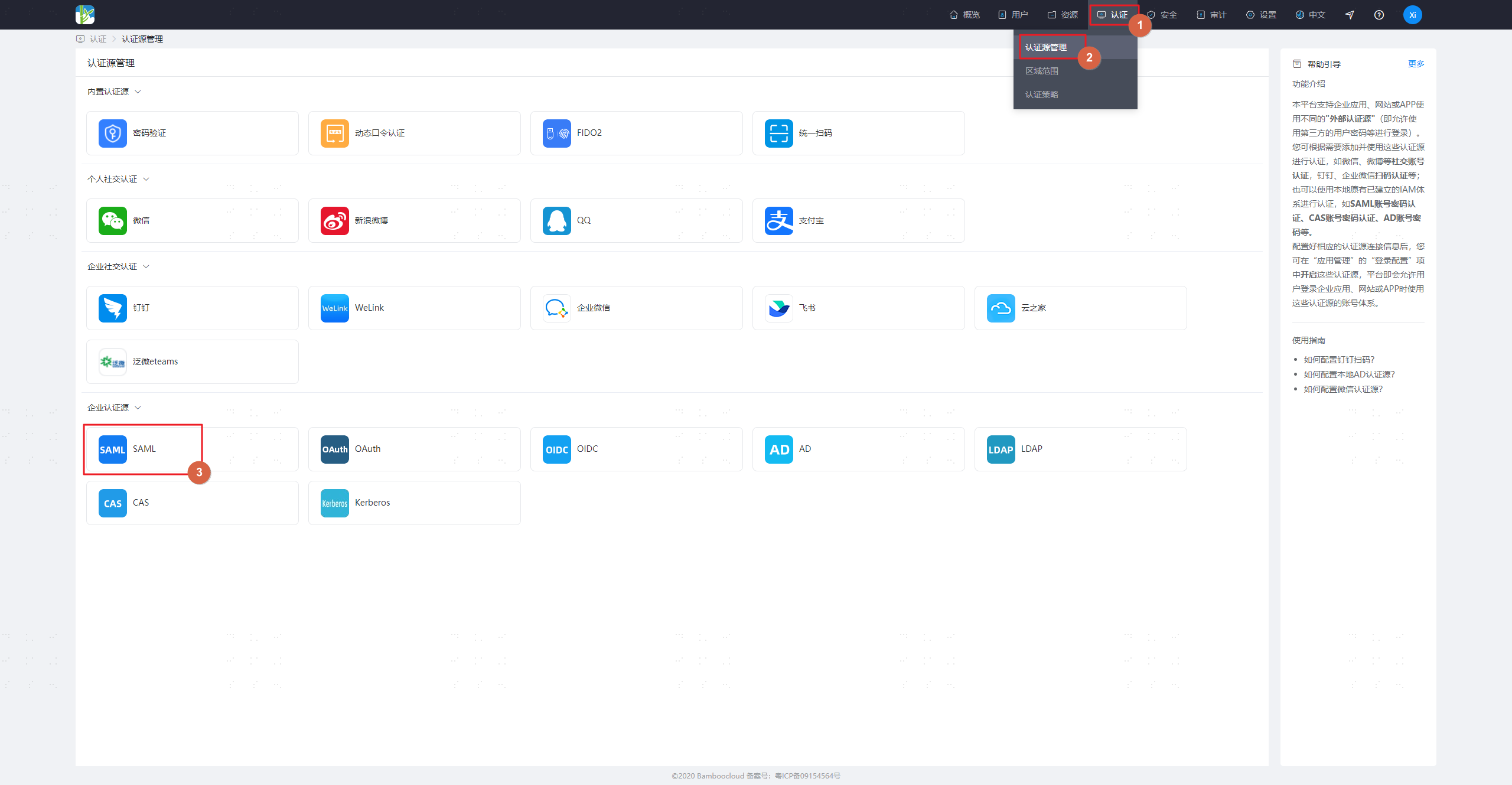
Log in to the IDaaS management platform, select -> Authentication -> Authentication Source Management -> SAML Authentication Source -> Add Authentication Source
Configure authentication source parameters
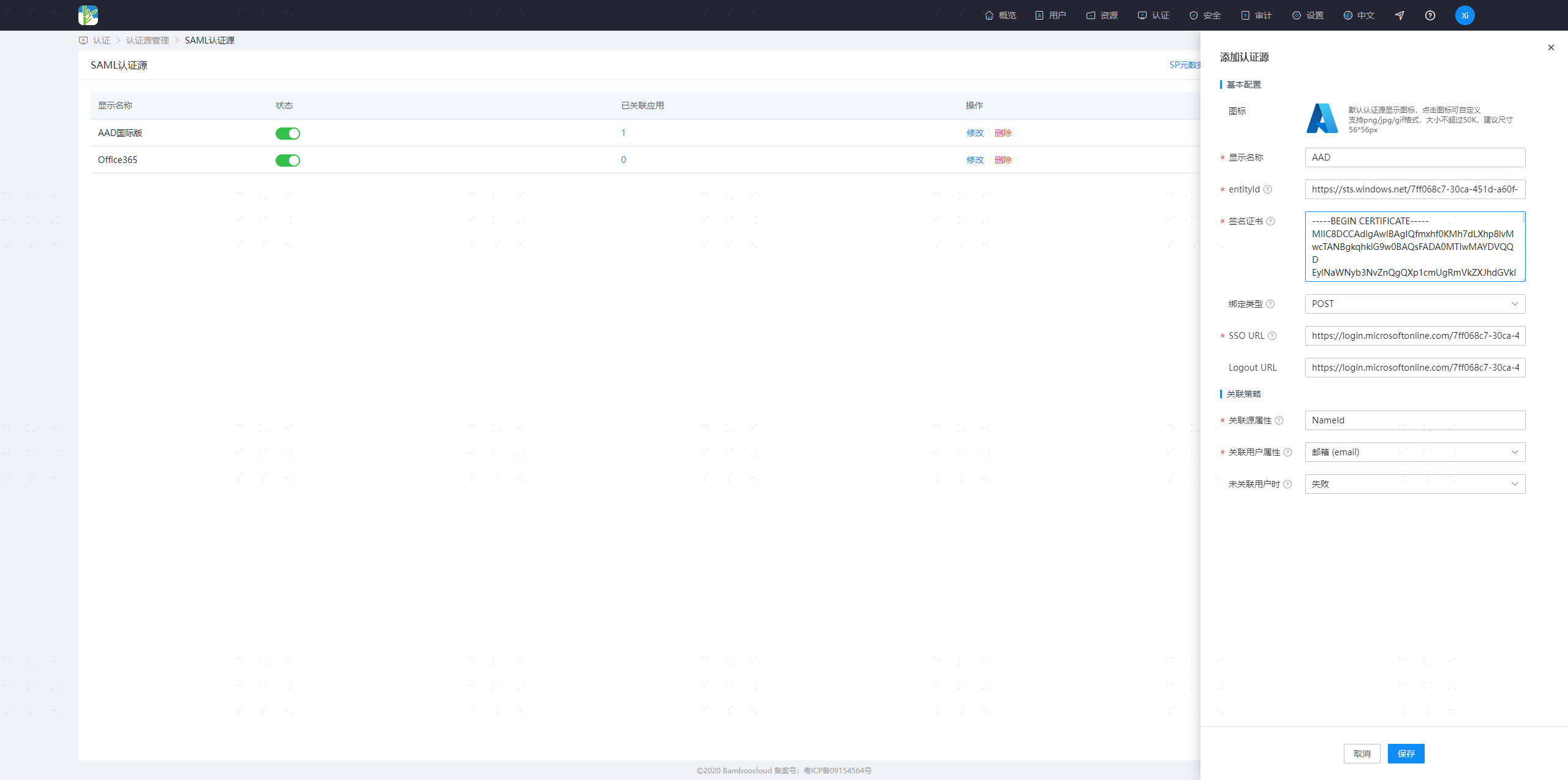
Parameter Description entityId The Azure AD Identifier address in AAD Signature Certificate The certificate downloaded in the step above (Certificate (Base64)), open with Notepad and copy the content SSO URL The Login URL address in AAD Logout URL The Logout URL in AAD Source Attribute Mapping Use the default value: NameId User Attribute Mapping Select email When User is Not Associated Automatically create a user if not associated with an IDaaS user, default is No Enable Authentication Source for the Application
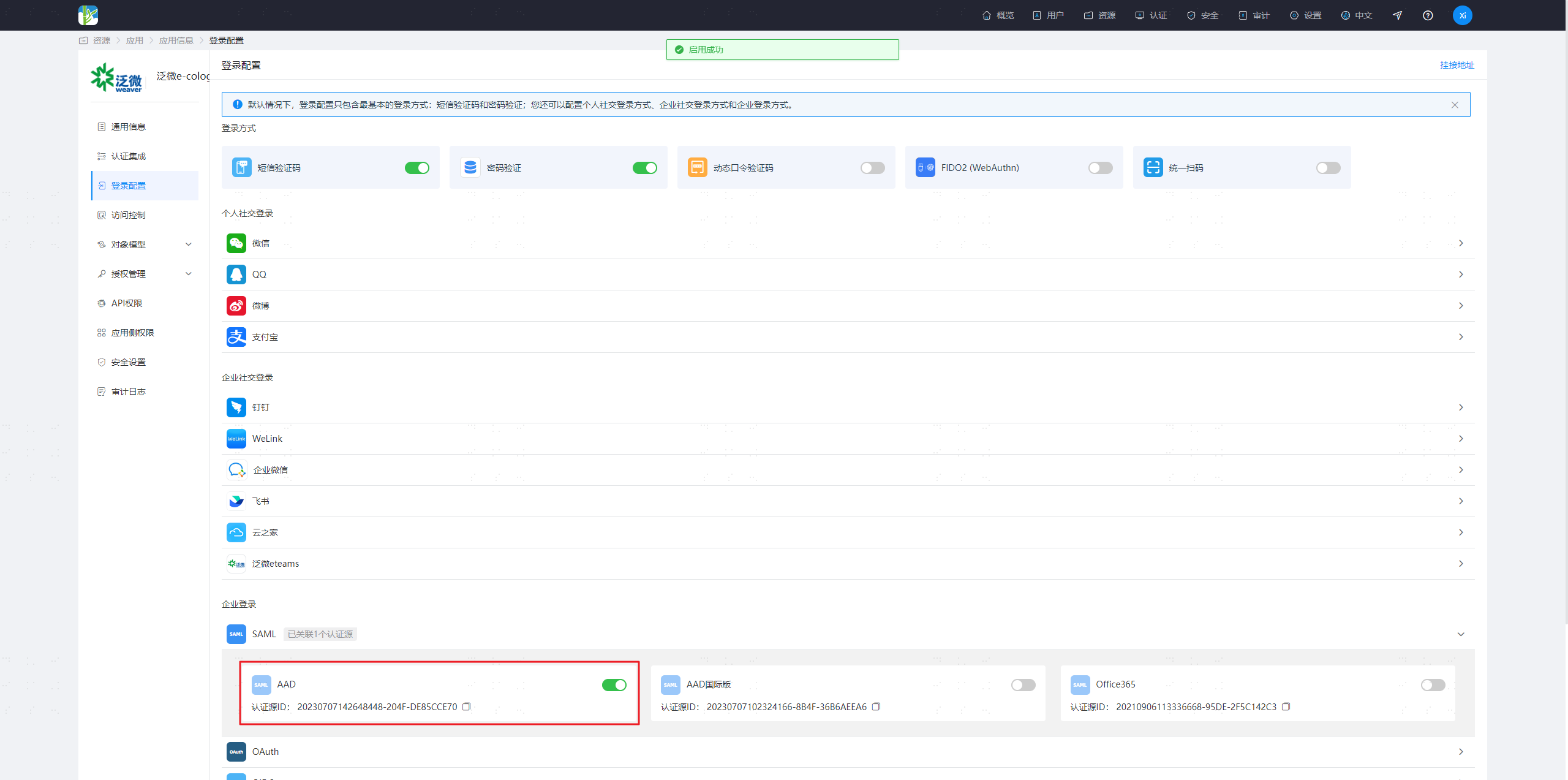
- Navigate to Resources -> Applications -> Select the application for which you want to enable the AAD authentication source -> Authentication Integration -> Configuration -> Login Configuration -> SAML
- Enable the AAD authentication source
# Login Verification
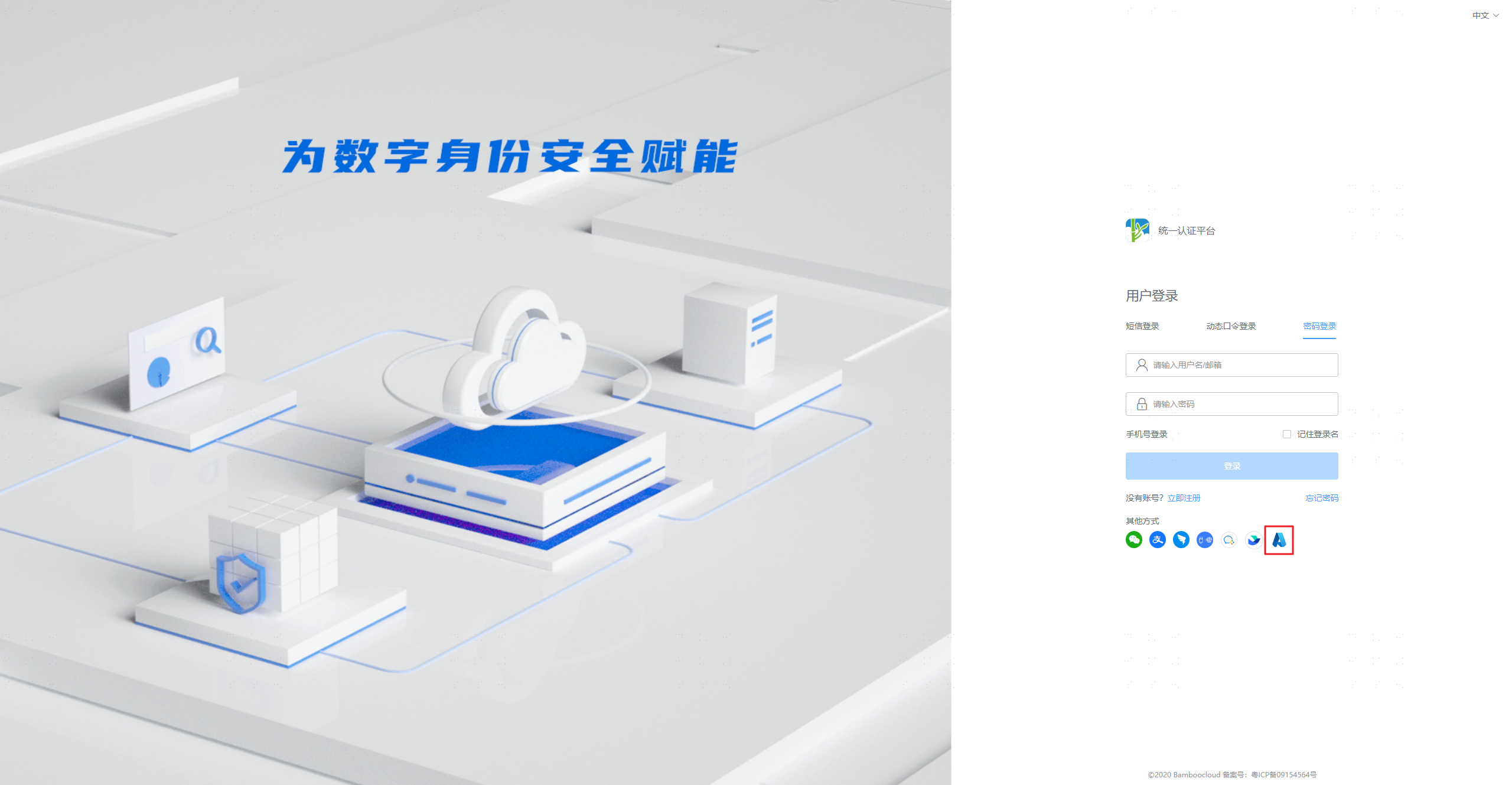
- Access the application system URL and select AAD from other login methods
- Enter AAD account credentials to log in