WeLink Single Sign-On
# Description
Welink supports integration with the standard OAuth 2.0 authentication protocol. IDaaS can help achieve the following business objectives:
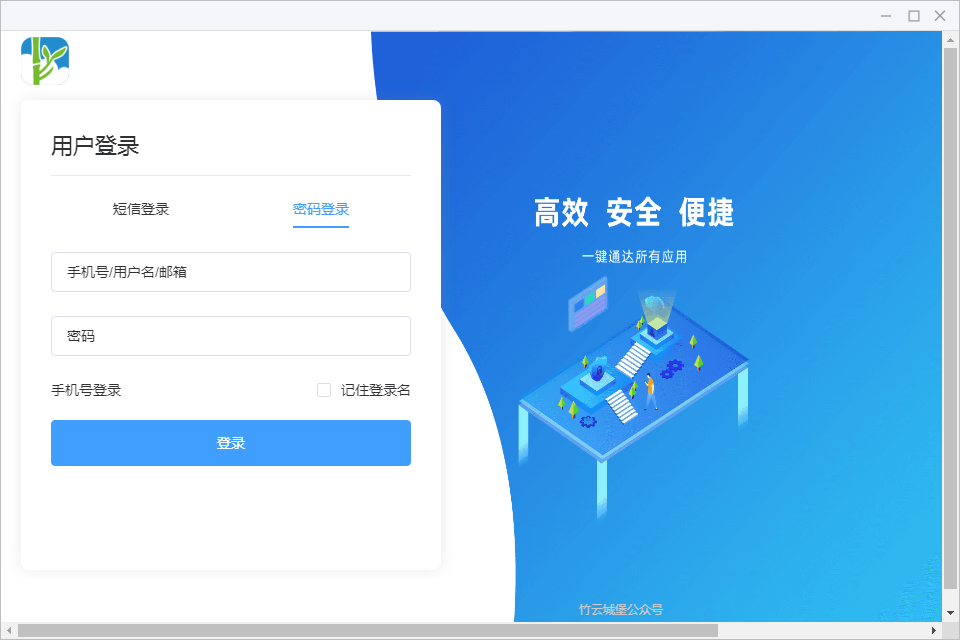
- When a user opens Welink, they are redirected via the OAuth 2.0 protocol to the IDaaS login page to complete authentication using IDaaS user credentials.
- When a user opens Welink, IDaaS facilitates the conversion from OAuth 2.0 to other protocols such as SAML or CAS, enabling integration with the enterprise's self-built authentication system. Users can then complete login authentication using credentials from the self-built authentication system.
WeLink Organization SSO Authentication Reference Documentation (opens new window)
# Authentication Configuration
# IDaaS Configuration
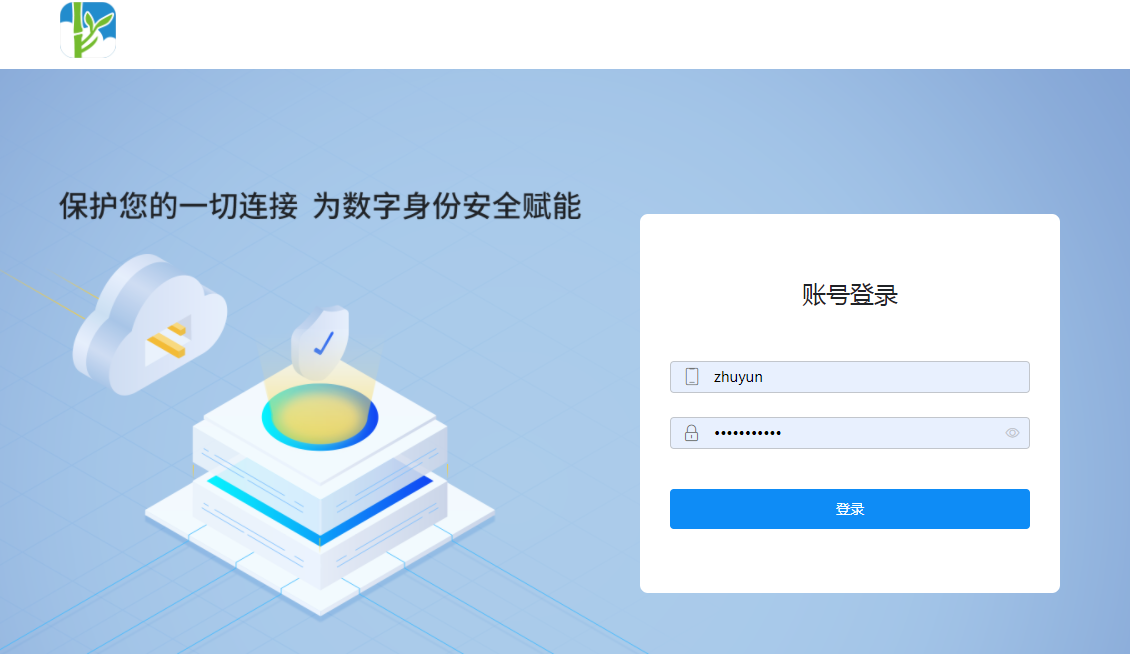
Log in to the IDaaS Enterprise Center.
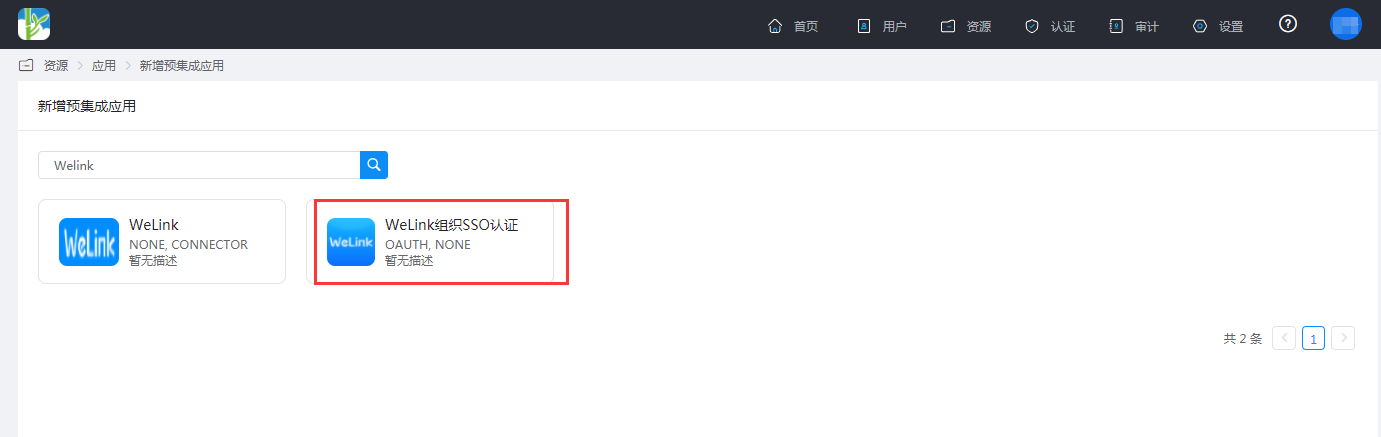
Add the pre-integrated application "Welink Organization SSO Authentication".
Configure application parameters.
For the trusted domain, fill in
https://api.welink.huaweicloud.com/sso/oauth2/magcallback.html.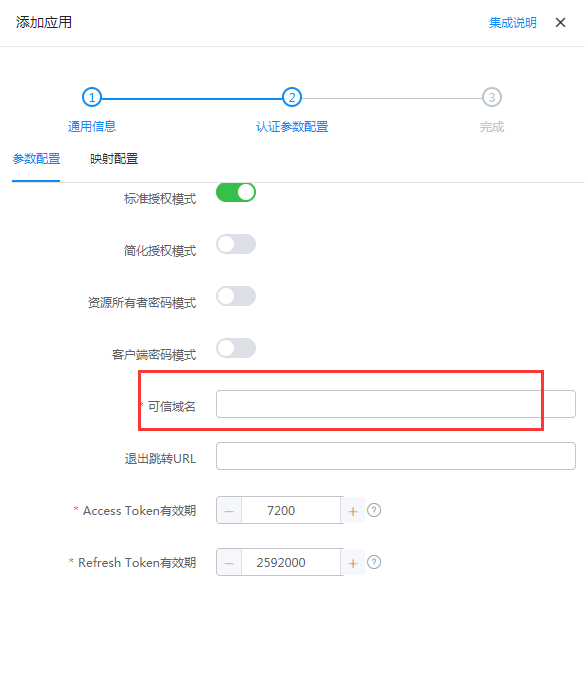
Under mapping configuration, add a mapping: Application attribute name
accname, mapping type: Account Attribute, account attribute name:accName.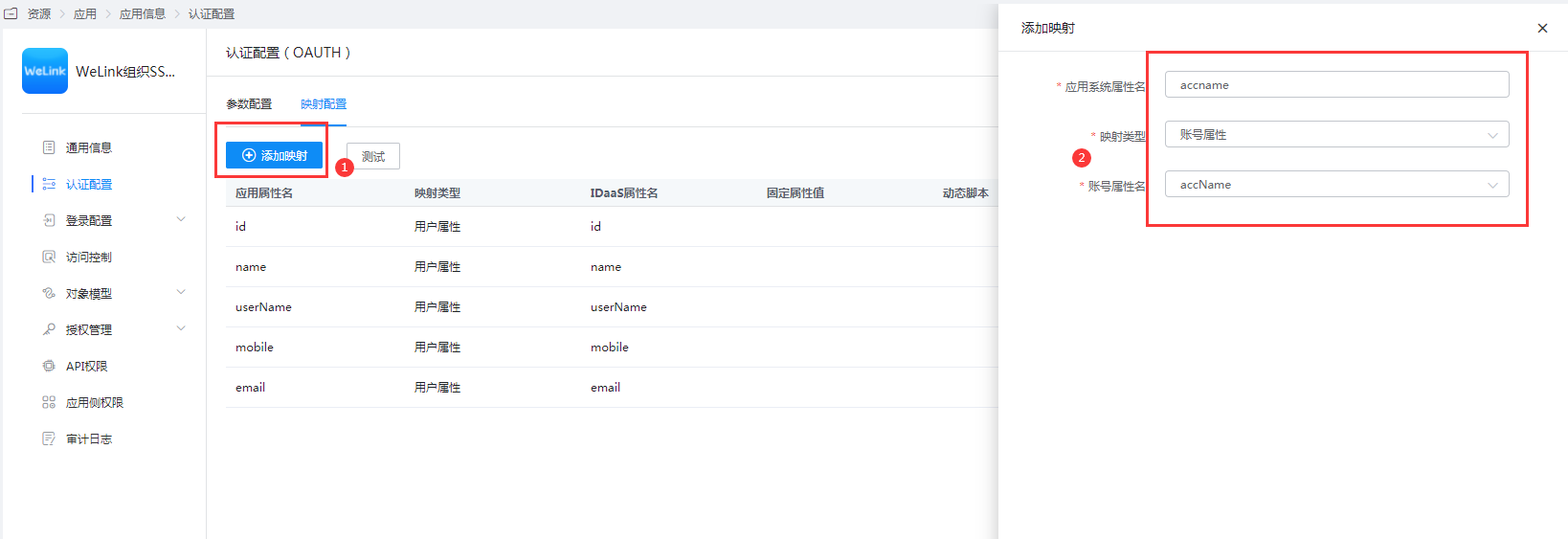
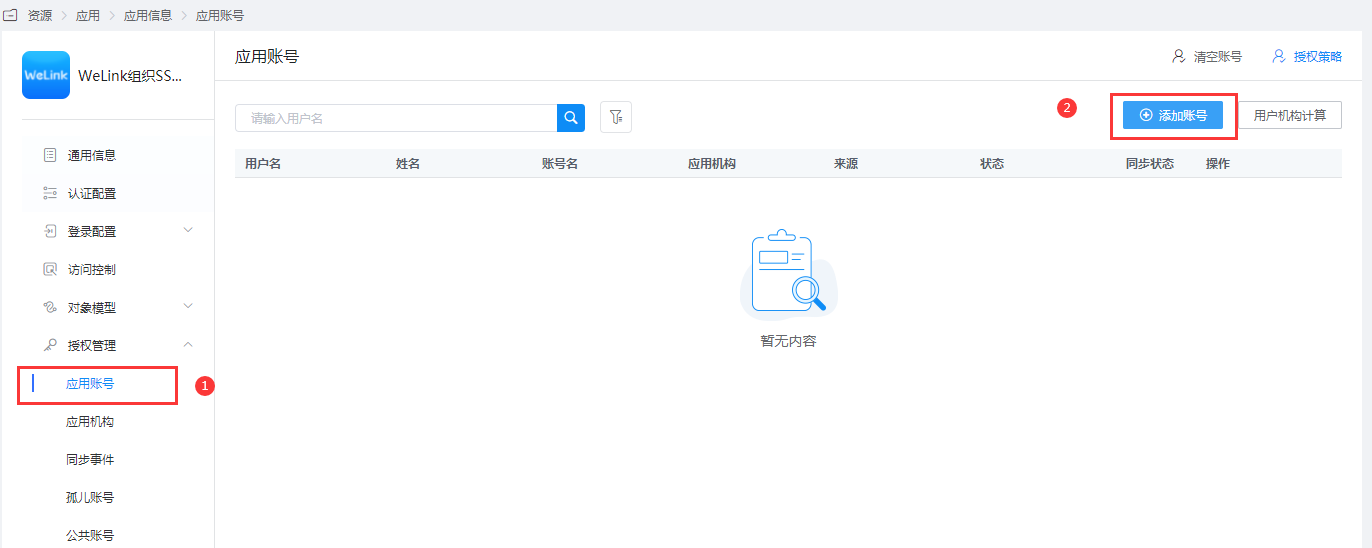
Authorize application accounts.
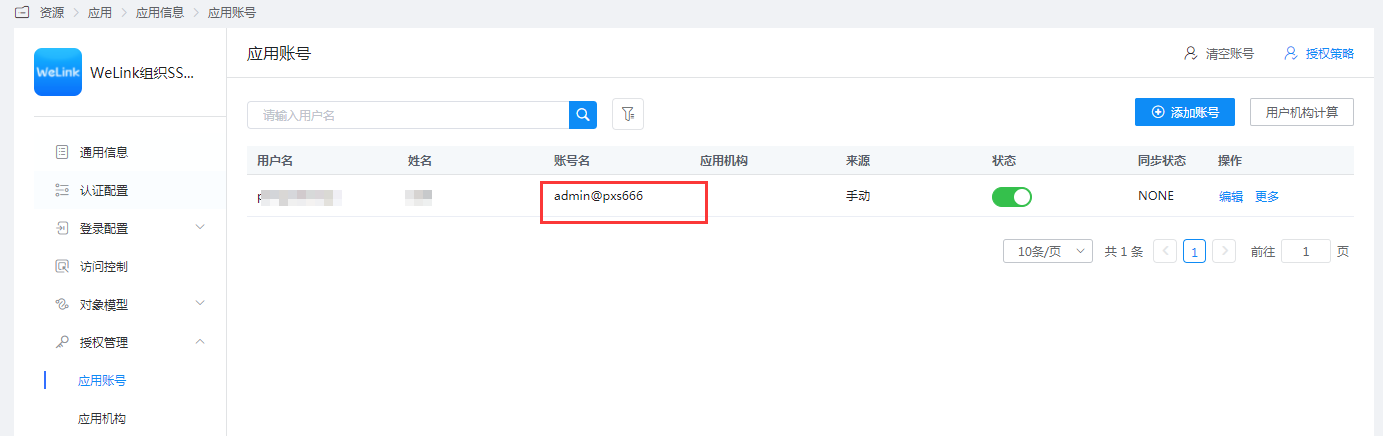
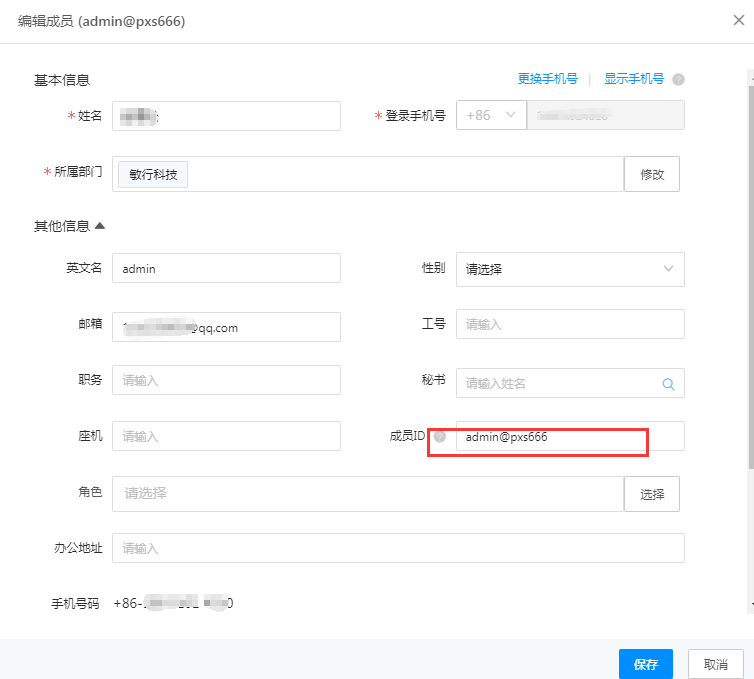
The account name must be consistent with the Member ID in WeLink.
View the Client ID and Client Secret.

# WeLink Configuration
Administrator logs into the WeLink Management Console (opens new window).

Select Settings -> Login Authentication -> Edit Login Method: Organization SSO Authentication.
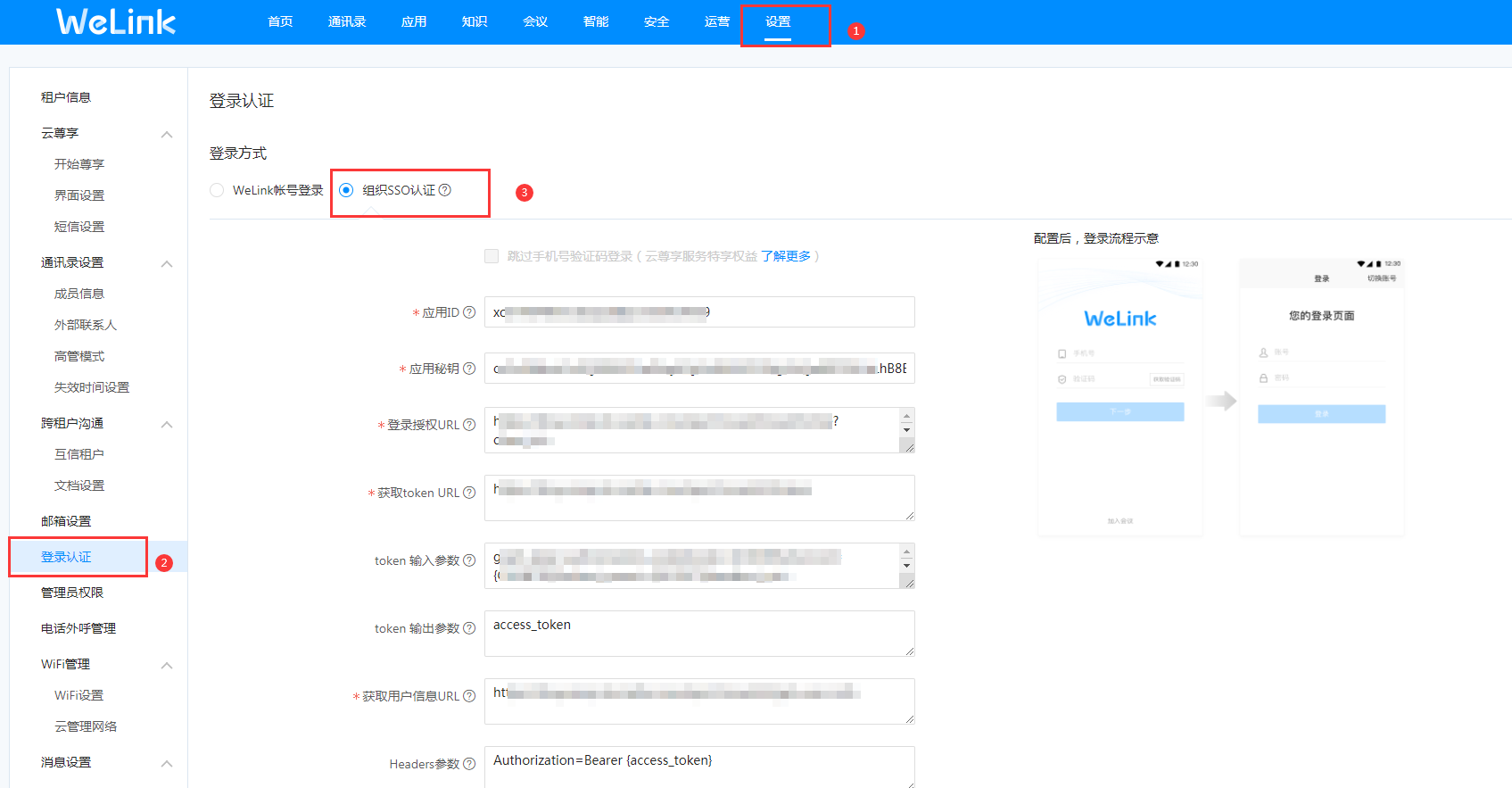
Edit SSO authentication parameters.
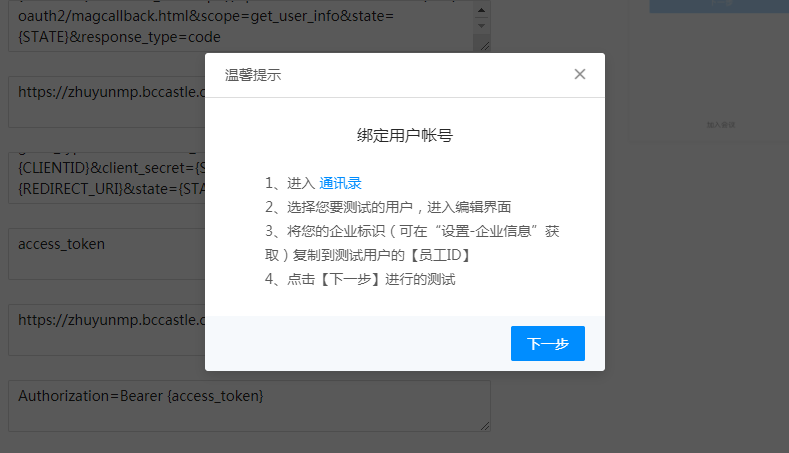
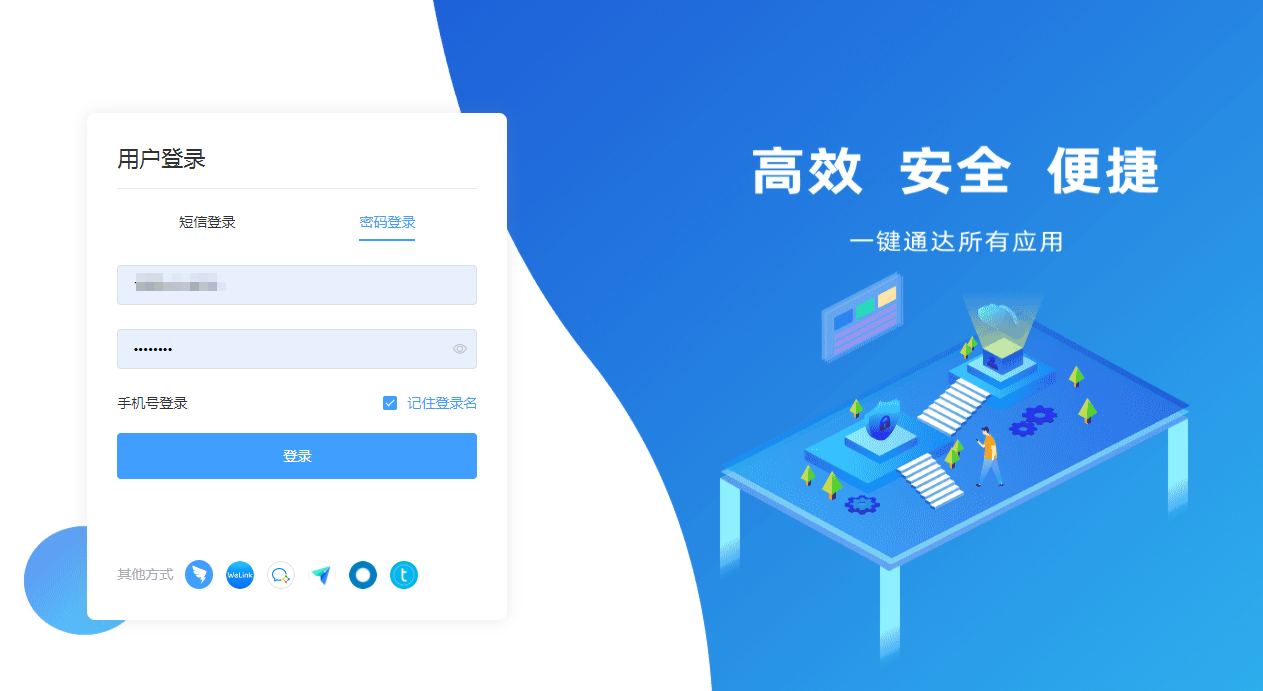
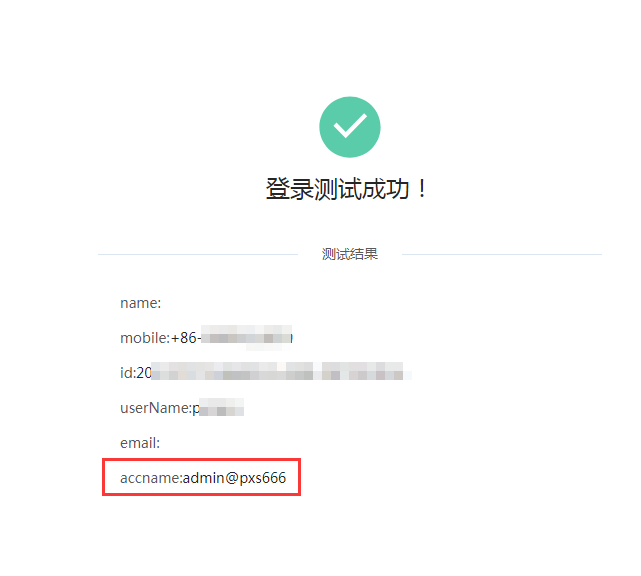
Parameter Description Application ID The ClientId of the application in IDaaS Application Secret The ClientSecret of the application in IDaaS Login Authorization URL https://IDaaS tenant domain.bccastle.com/api/v1/oauth2/authorize?client_id={CLIENTID}&redirect_uri=https://api.welink.huaweicloud.com/sso/oauth2/magcallback.html&scope=get_user_info&state={STATE}&response_type=codeGet Token URL https://IDaaS tenant domain.bccastle.com/api/v1/oauth2/tokenToken Input Parameters grant_type=authorization_code&code={CODE}&client_id={CLIENTID}&client_secret={SECRET}&redirect_uri={REDIRECT_URI}&state={STATE}Token Output Parameter access_tokenGet User Info URL https://IDaaS tenant domain.bccastle.com/api/v1/oauth2/get_user_infoHeaders Parameter Authorization=Bearer {access_token}User Output Parameter accnameClick the "Test Now" button, a pop-up window for binding a user account will appear. After clicking "Next", you will be redirected to the IDaaS authentication interface. Enter the username and password of the authorized user, and then return to view the test results.
- Save and make it effective.
# Login Verification
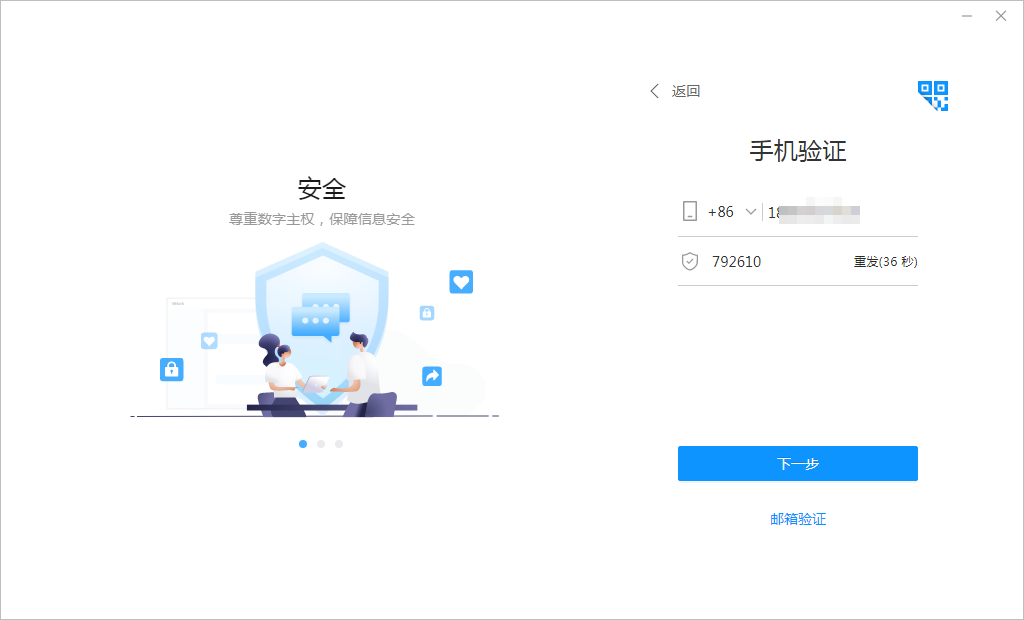
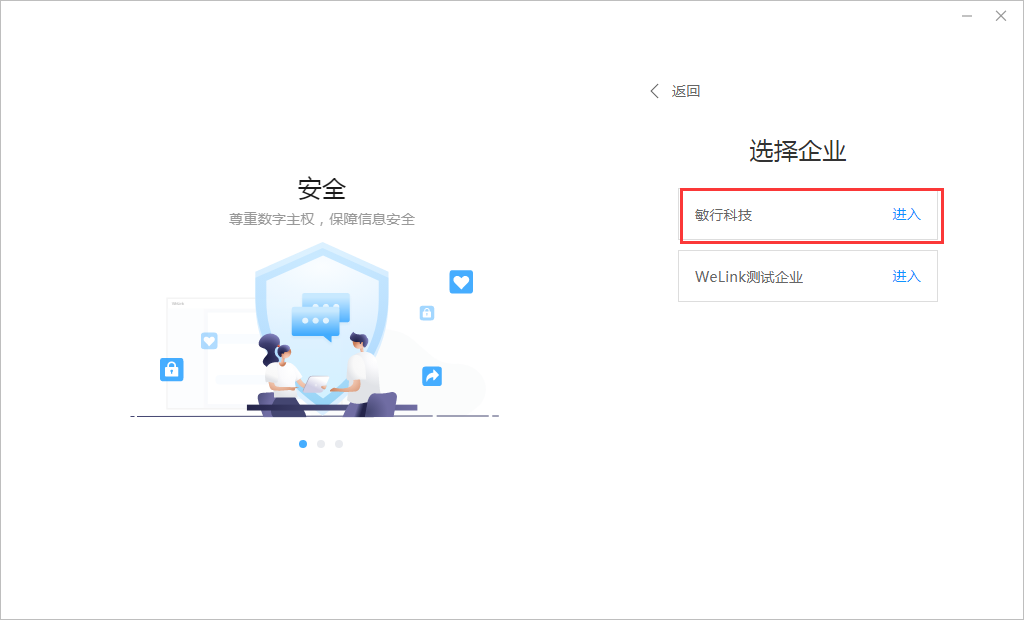
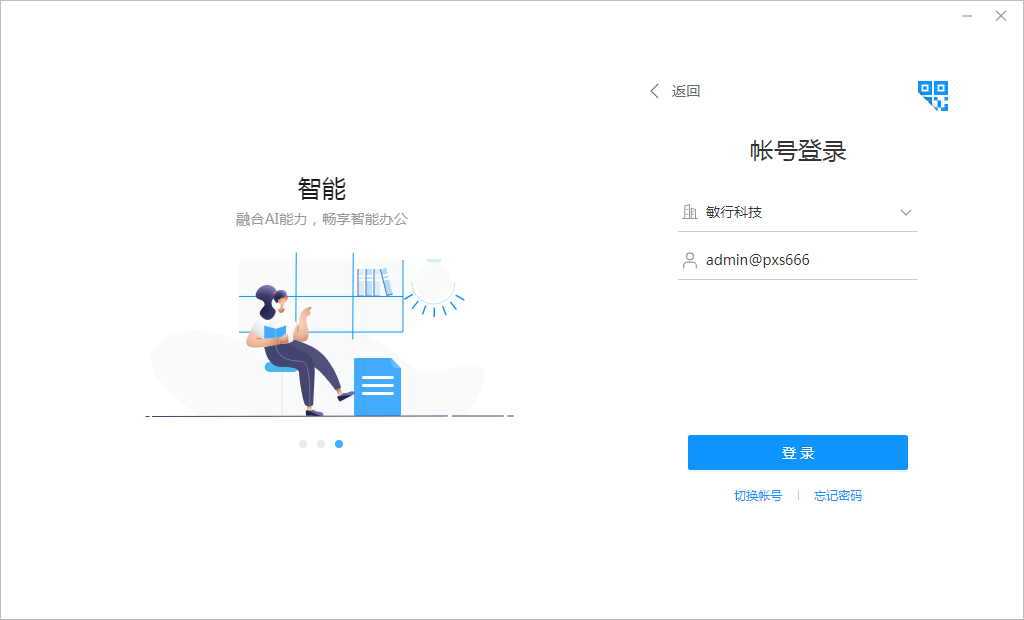
Taking the PC side as an example (the process is basically the same for mobile):