Teambition Data Synchronization
# Description
This document explains how to implement data synchronization between IDaaS and the Teambition system, enabling the deactivation or deletion of personnel in the IDaaS platform to synchronize and delete account information in the Teambition system.
# Synchronization Configuration
# Teambition System Configuration
Log in to the Teambition Open Platform (https://open.teambition.com) --> My Applications.
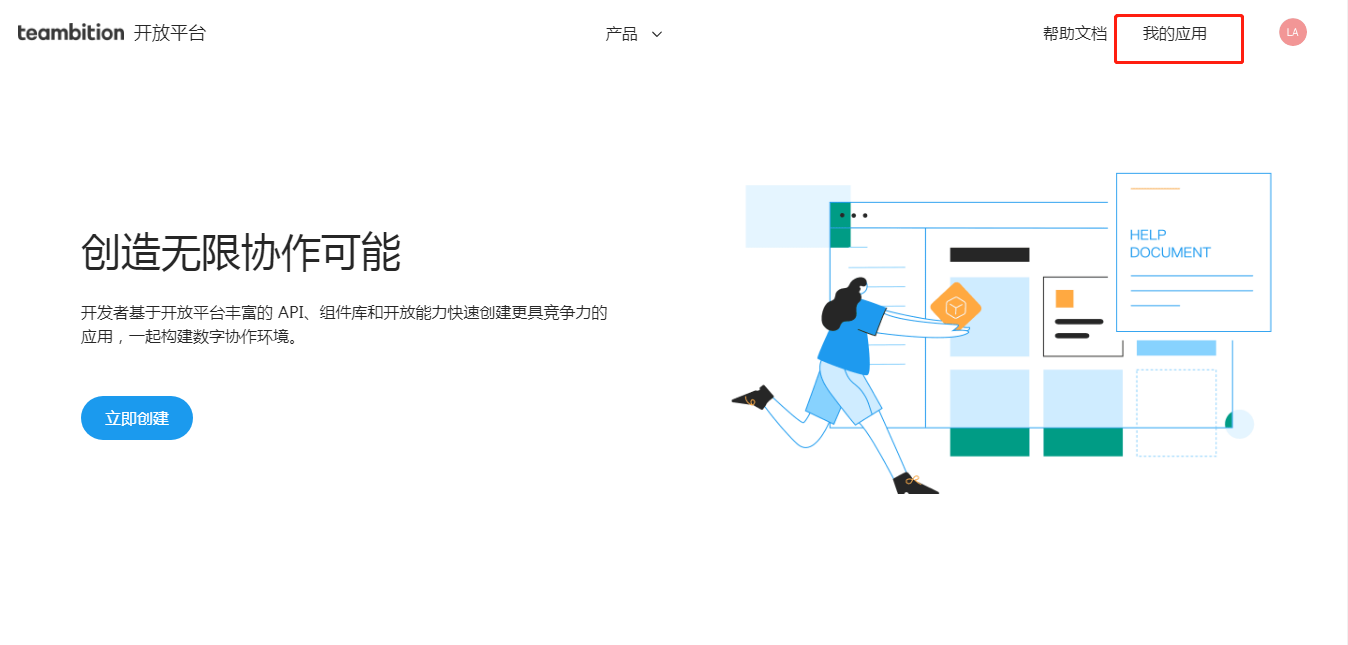
Create an internal enterprise application. Fill in the application name and description, then click Create to create the application.

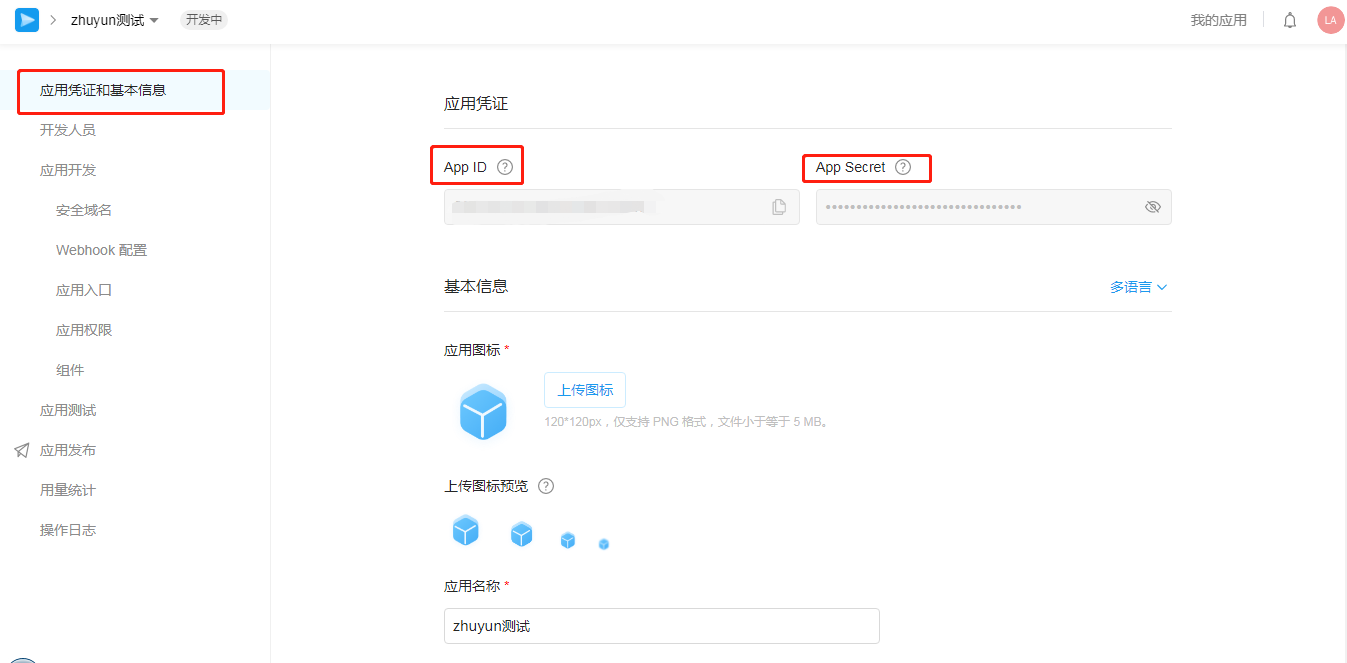
Obtain the Application APP ID and APP Secret. (These will be used for subsequent interaction with IDaaS; please store them securely.)
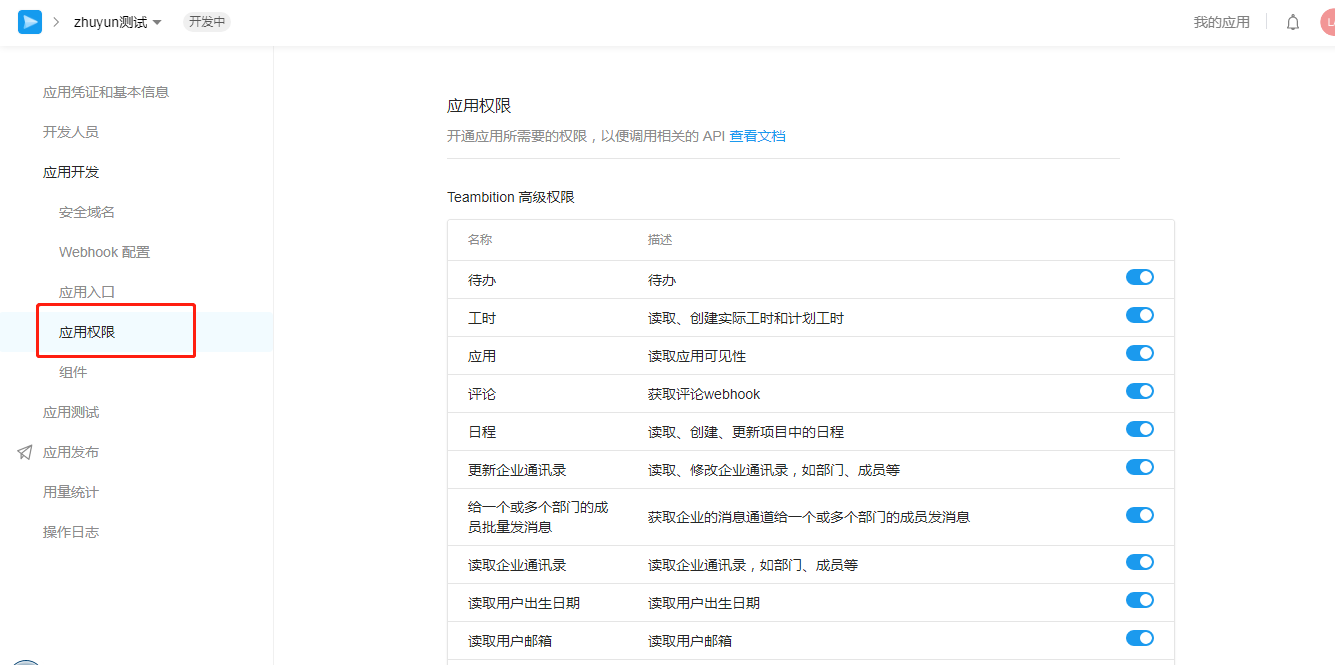
Apply for directory interface permissions for the application, and enable the required permissions based on your enterprise's requirements.
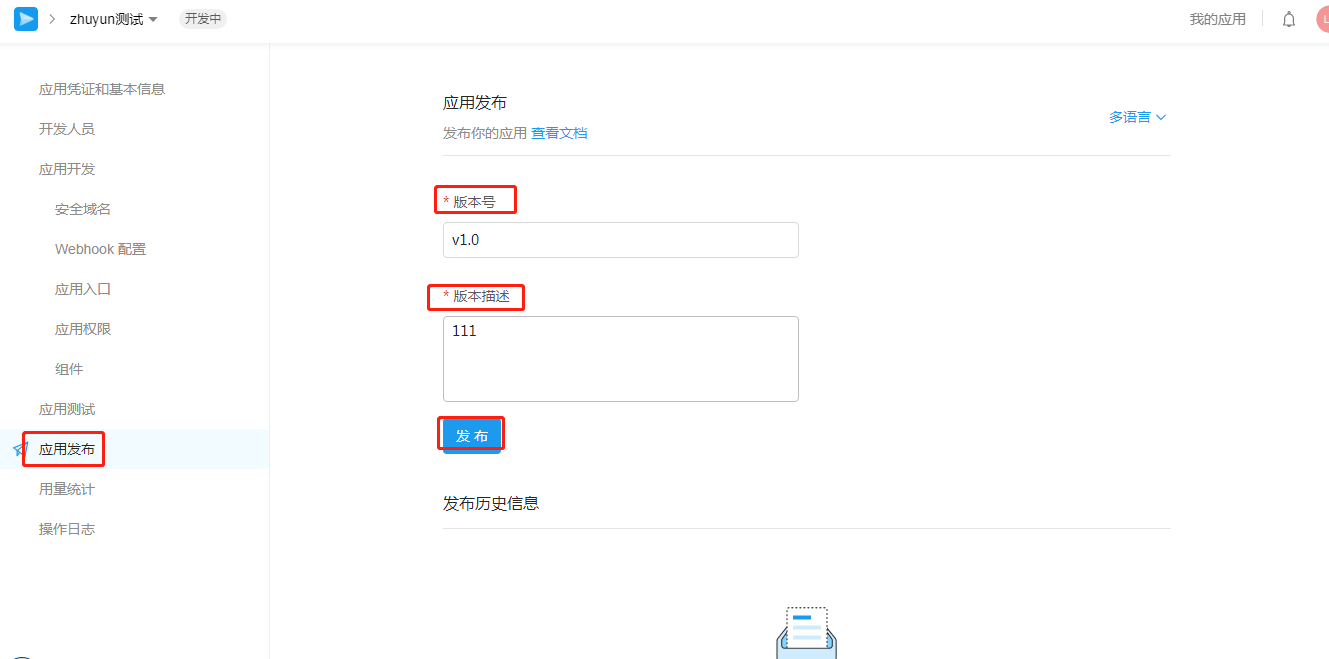
Fill in the relevant information and then publish.
# IDaaS Configuration
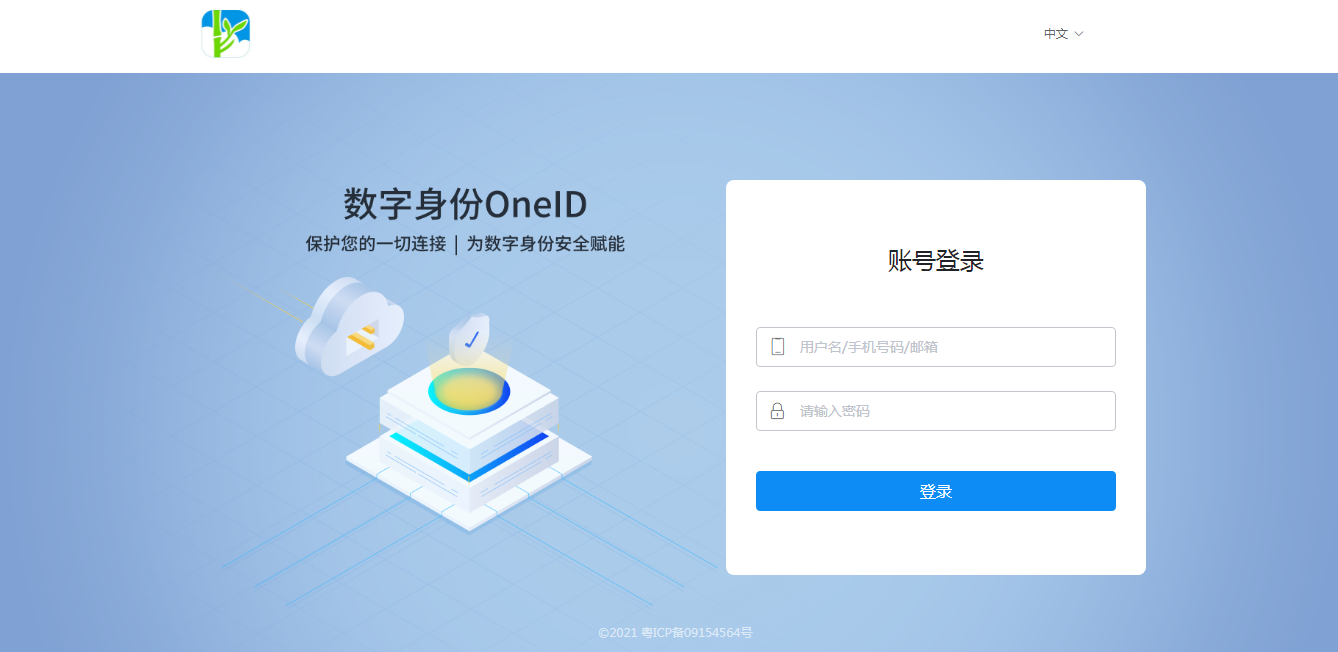
Log in to the IDaaS Enterprise Center (https://xxx.bccastle.com/admin, where xxx is your enterprise domain).
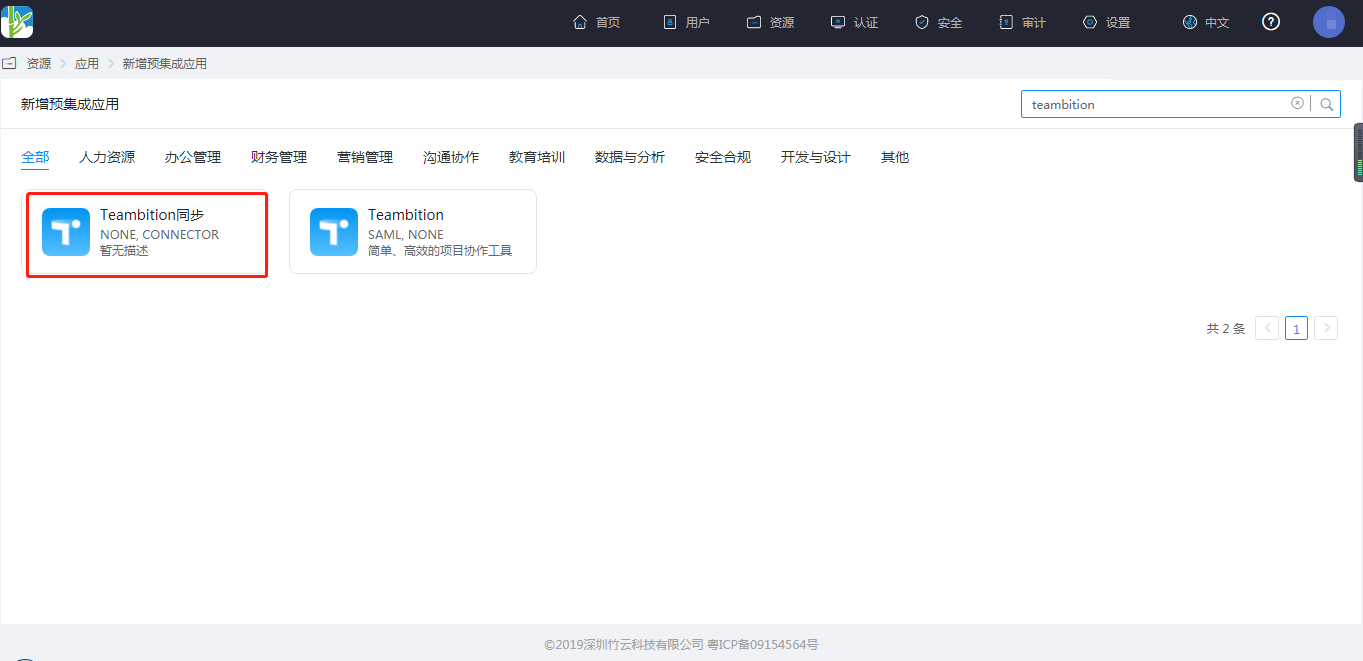
Add a pre-integrated application.
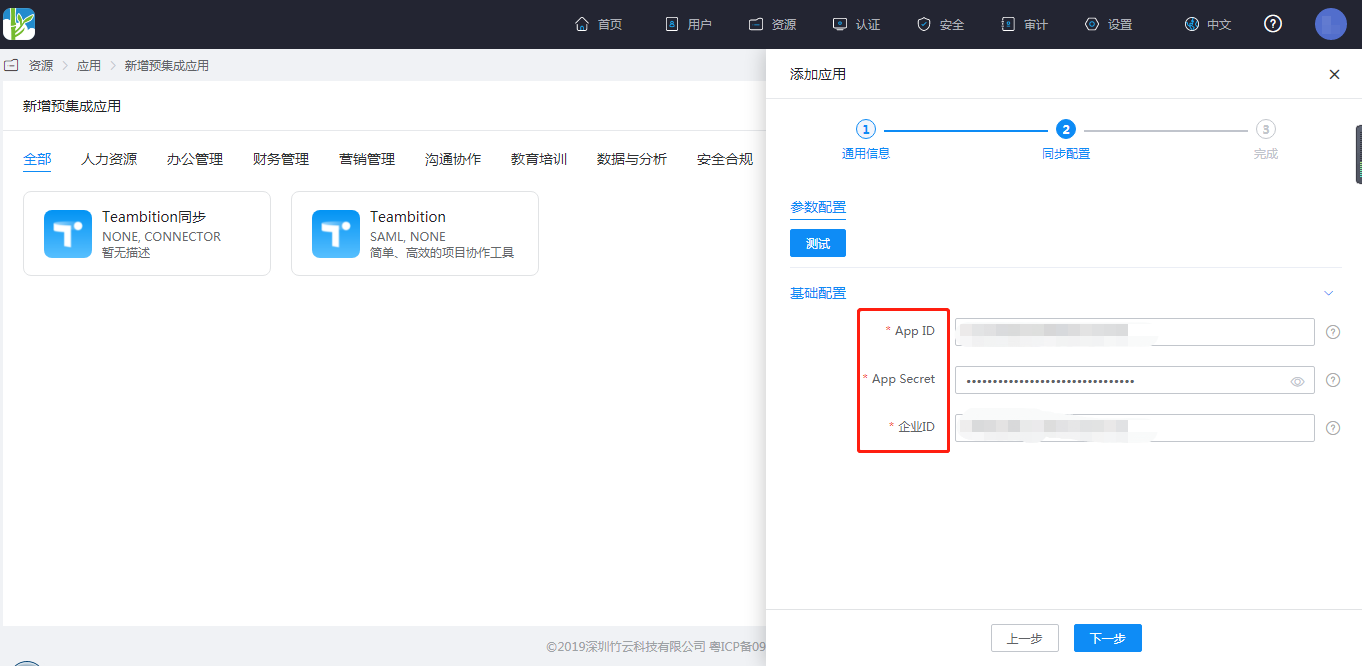
Configure application parameters.
- APP ID: The APP ID obtained when creating the new application on the Teambition Open Platform.
- APP Secret: The APP Secret obtained when creating the new application on the Teambition Open Platform.
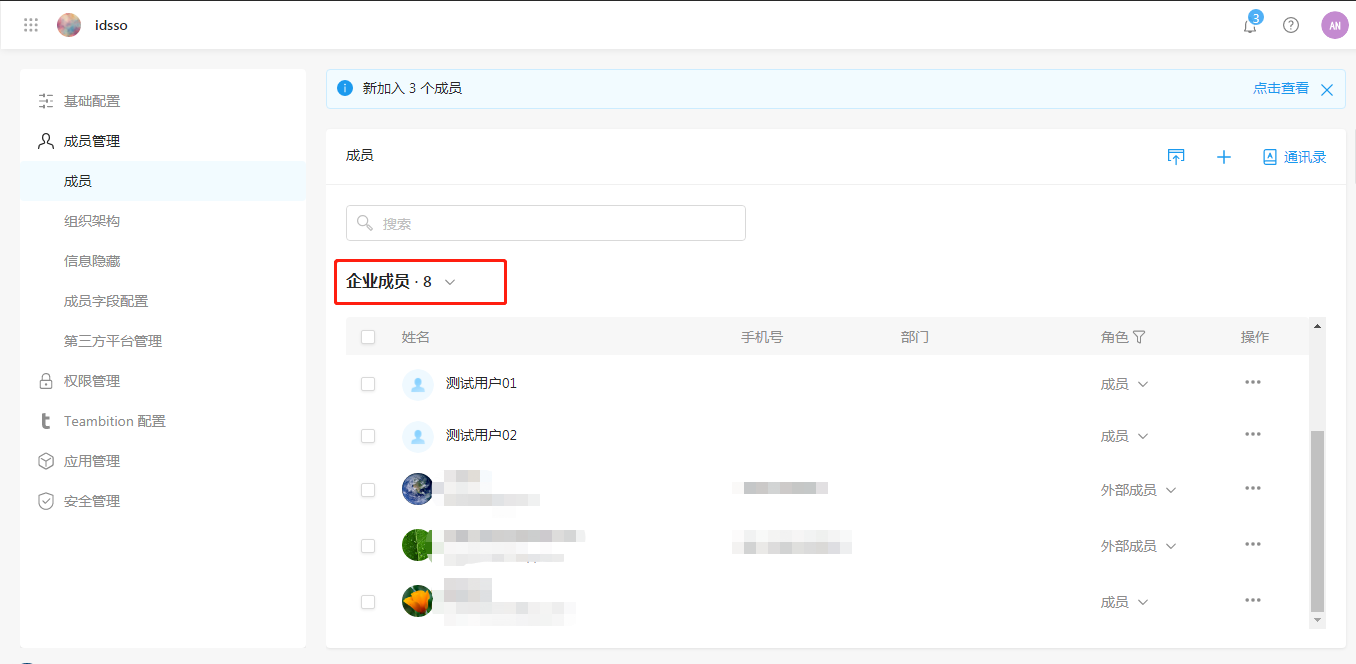
- Enterprise ID: Enterprise administrators or owners can view the "Enterprise ID" in the management backend.
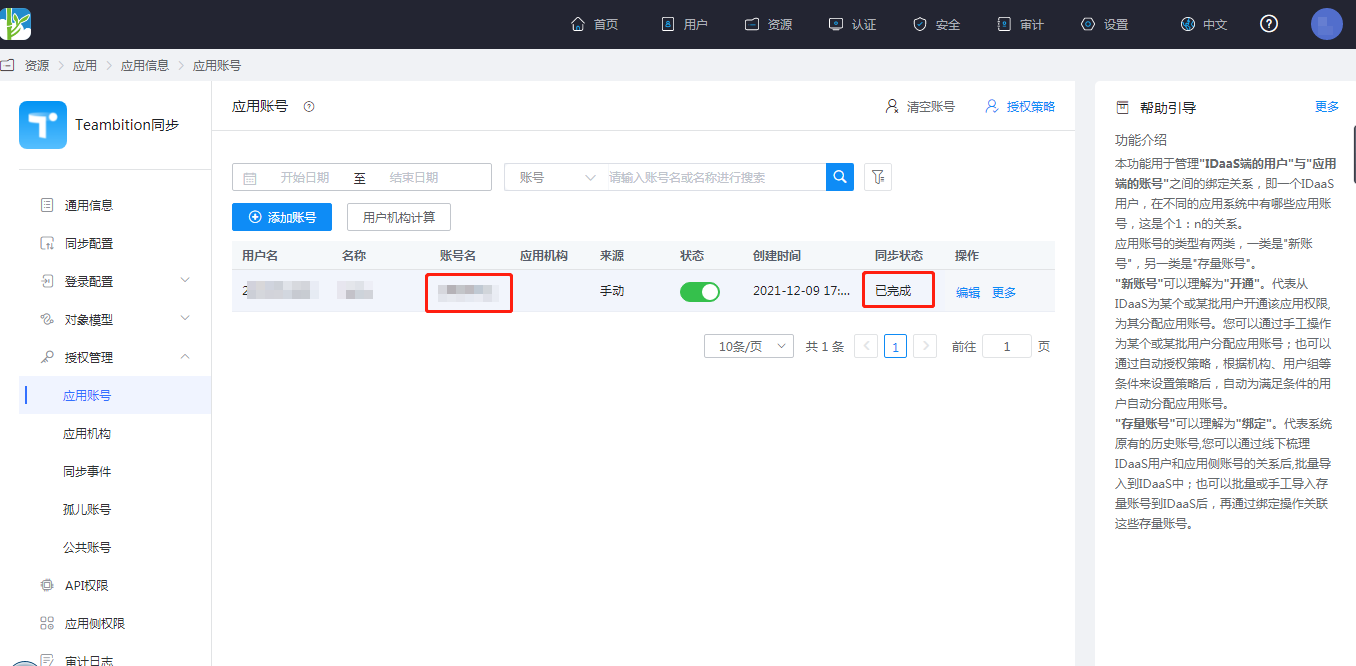
Authorize the application account.
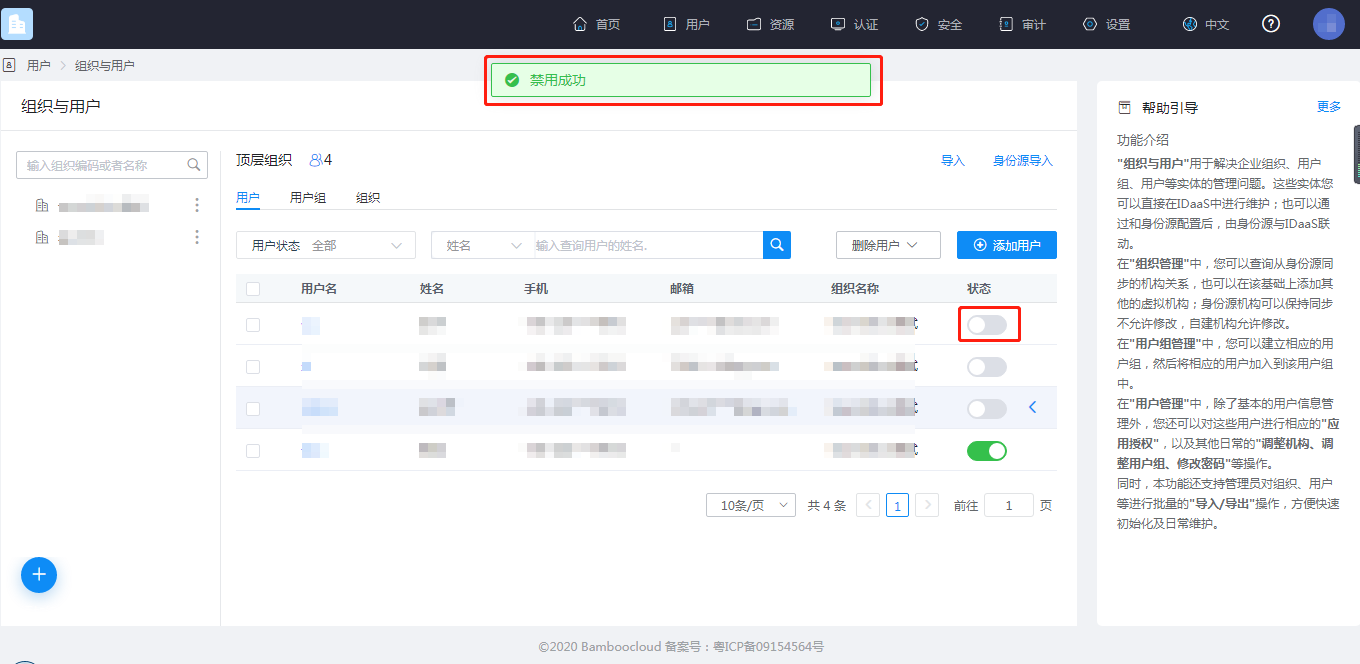
Disable or delete users.
(The IDaaS platform and the Teambition system are linked via the user's email attribute (the Teambition system account must be in an active state). This means that after an application account is deleted in the IDaaS platform, the corresponding account information in the Teambition system will be synchronously deleted.) As shown in the figure below (using disable as an example; deletion has the same effect).
# View Synchronization Results
View the application account synchronization results in the IDaaS platform.

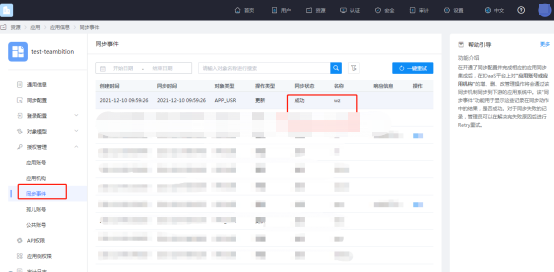
View the synchronization event results.
View the synchronization results in the Teambition member management.
Log in to Teambition to view members in the directory. The figure below (before disabling/deleting in IDaaS)

The figure below (after disabling/deleting the user in IDaaS)