Sentry Single Sign-On
# Description
This article describes how to configure the SAML authentication integration between IDaaS and Sentry. Reference Document (opens new window)
# Authentication Configuration
# Obtain Sentry SAML Metadata
Metadata URL: https://sentry.io/saml/metadata/{organization_slug}/, save it as an XML file.

# Obtain IDaaS IDP Metadata
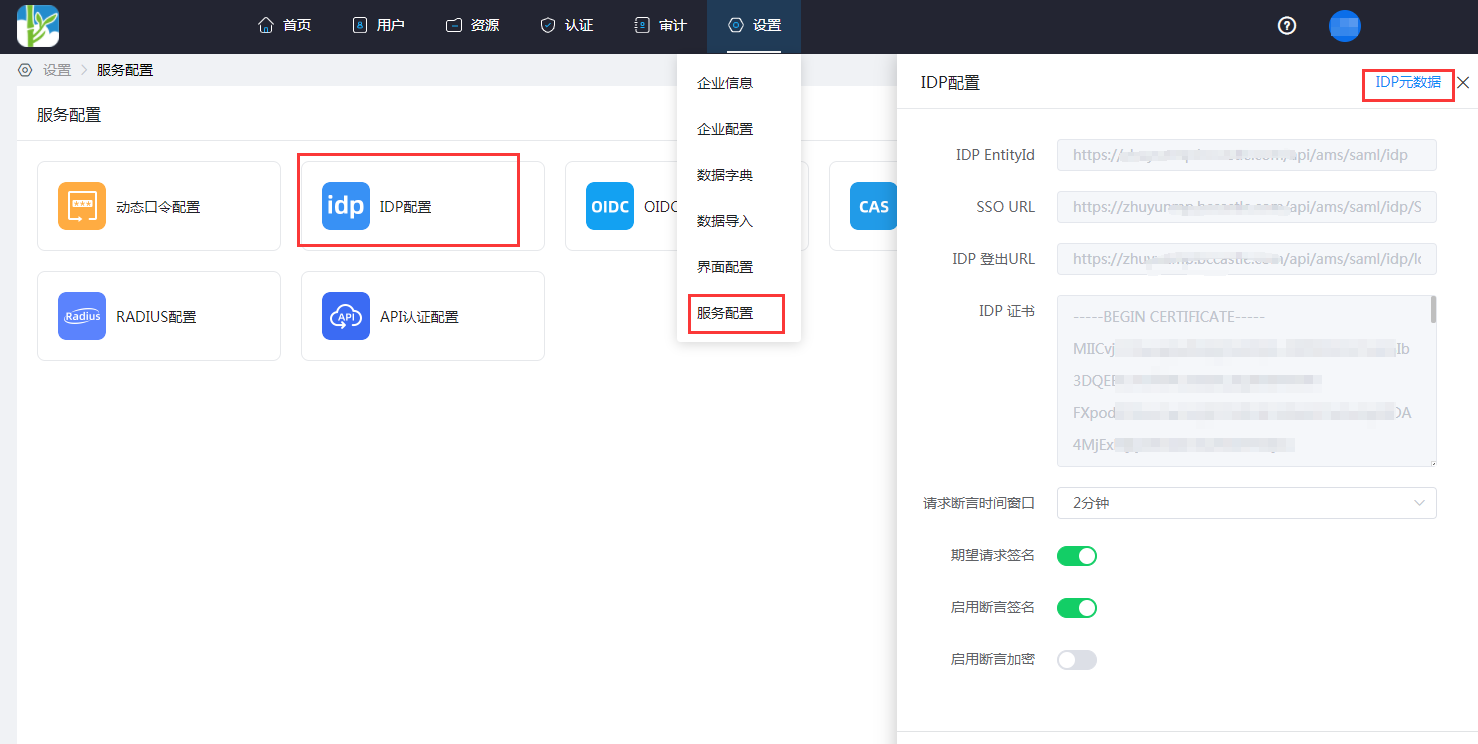
Log in to the IDaaS Enterprise Center, go to Settings > Service Configuration > IDP Configuration, and download the IDP metadata file.
# Add Sentry Application in IDaaS
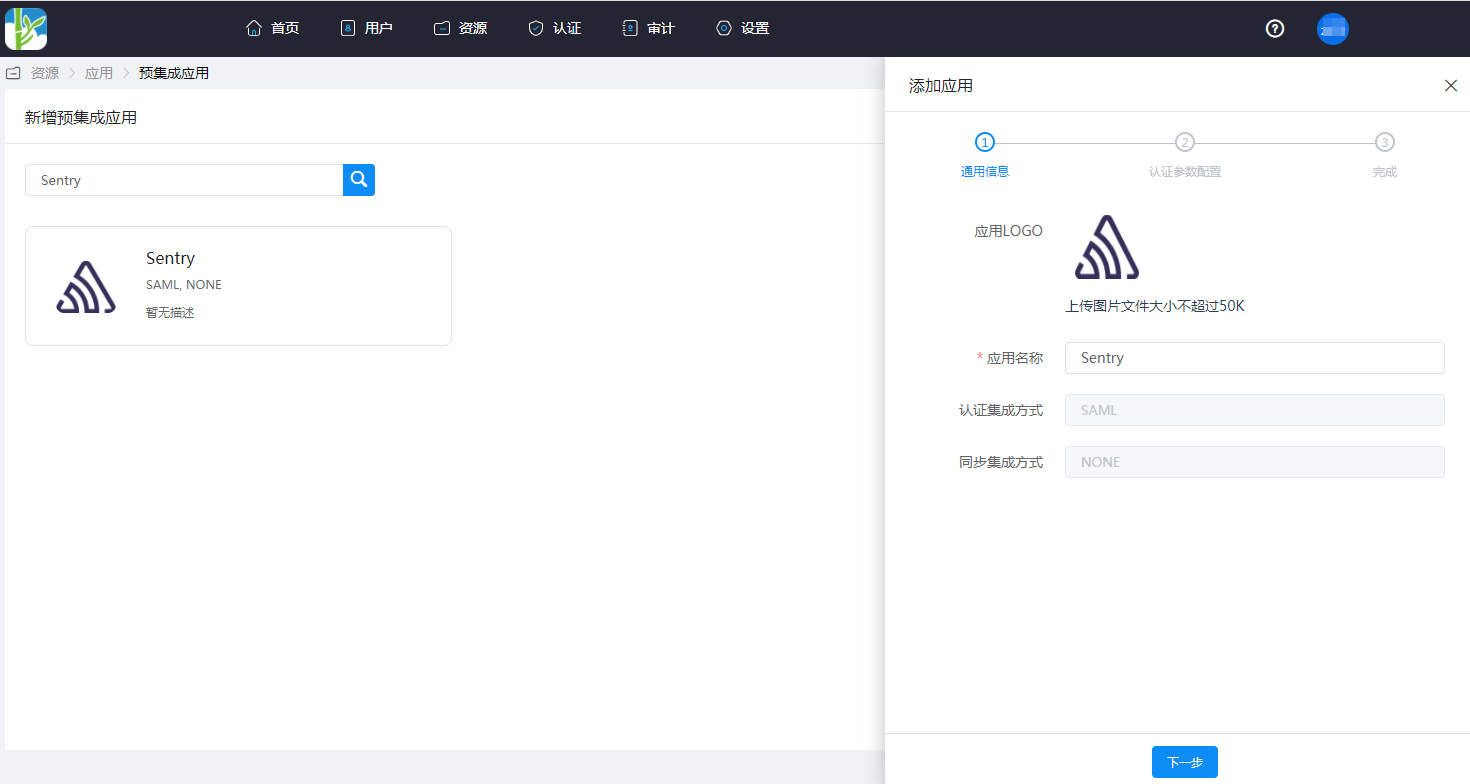
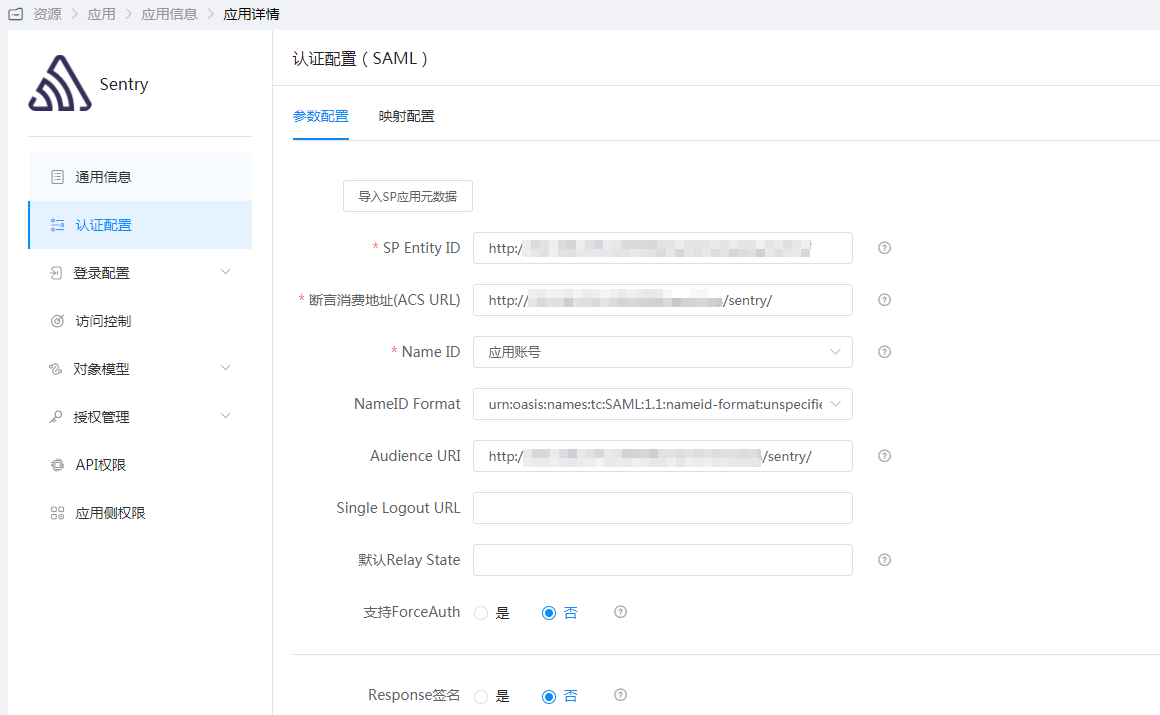
Resources > Applications > Add Pre-integrated Application, import the Sentry metadata file.
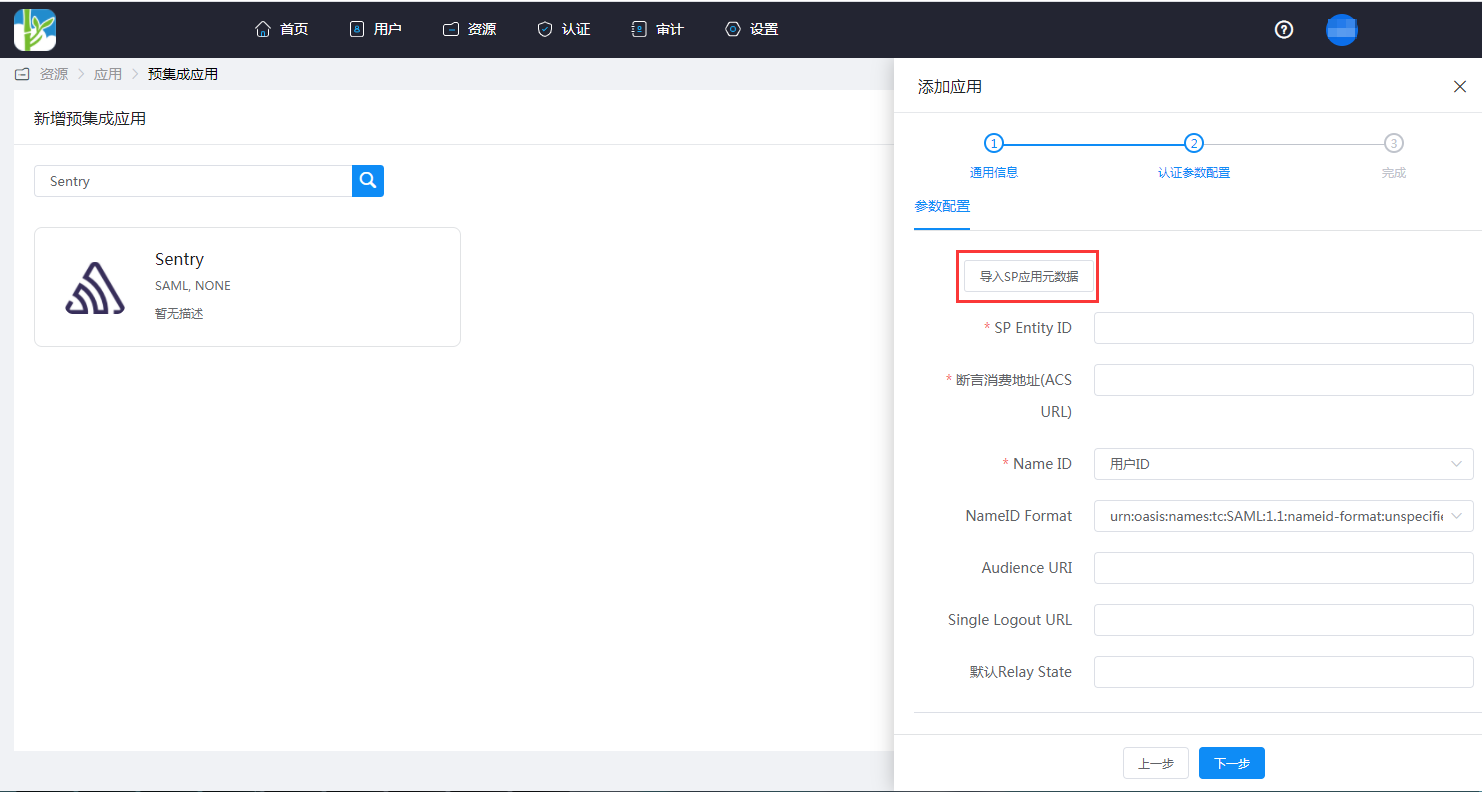
View authentication configuration.
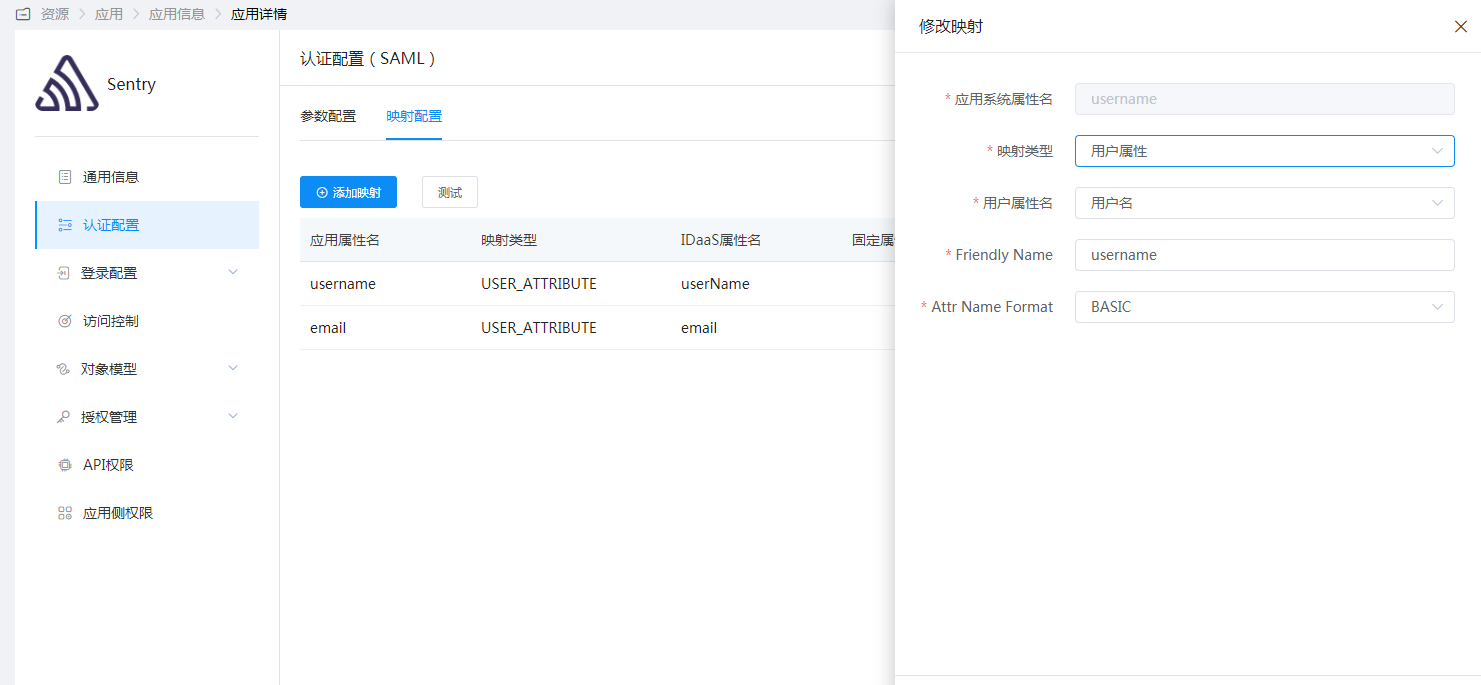
Configure mapping. Here, username and email are used as examples; attributes should be added according to actual needs.
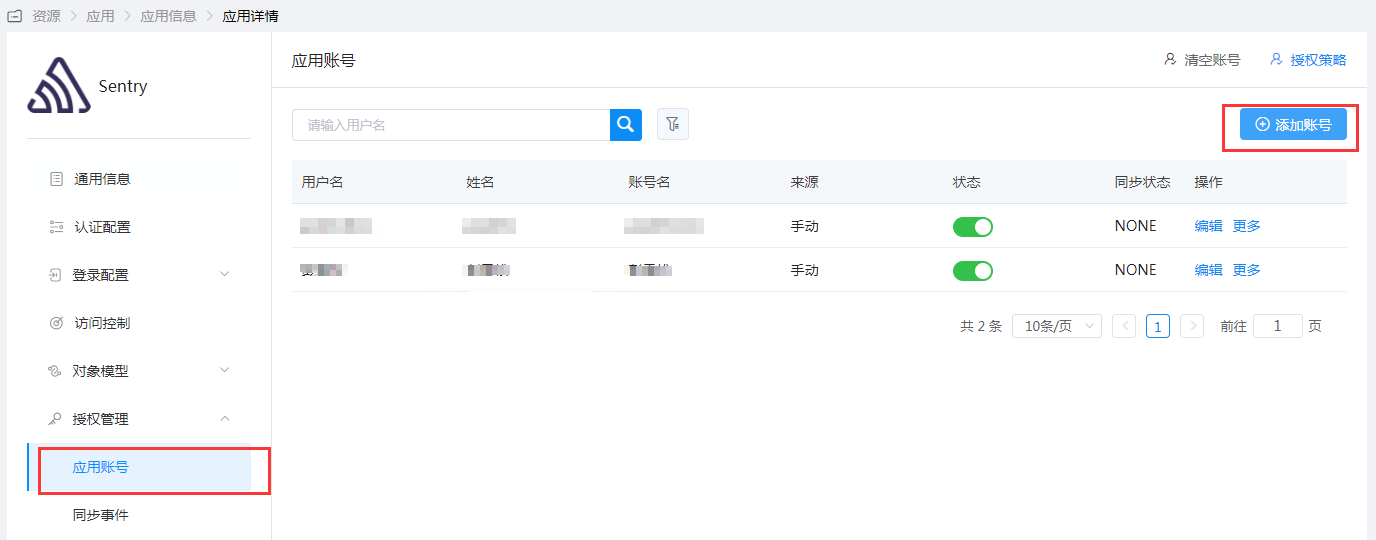
User authorization.
# Configure SAML Single Sign-On in Sentry
Go to Settings > Authentication > SAML2.
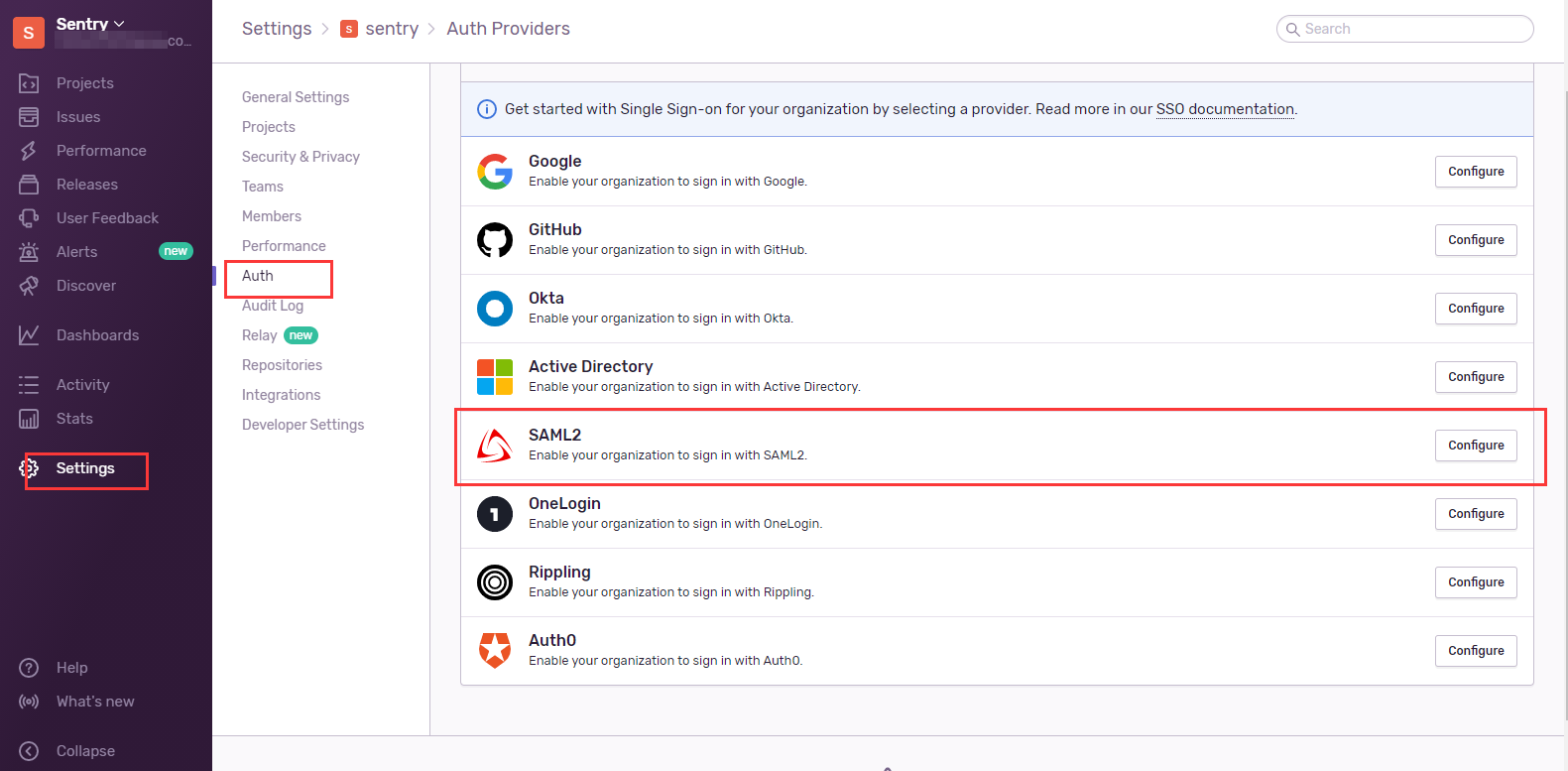
Register IDP, fill in the IDaaS IDP metadata content, and click the Parse Metadata button.

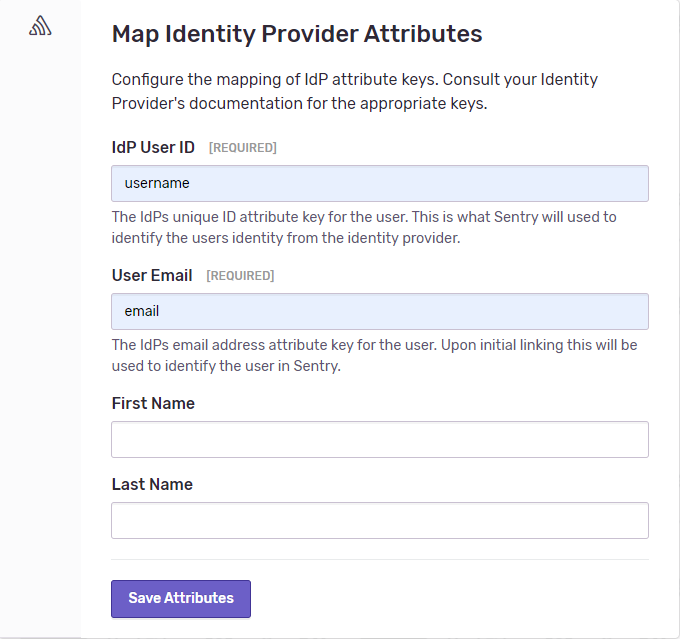
Configure mapping.
For IDP User ID, fill in username.
For User Email, fill in email, corresponding to the mapping configuration attributes of the Sentry application in IDaaS.
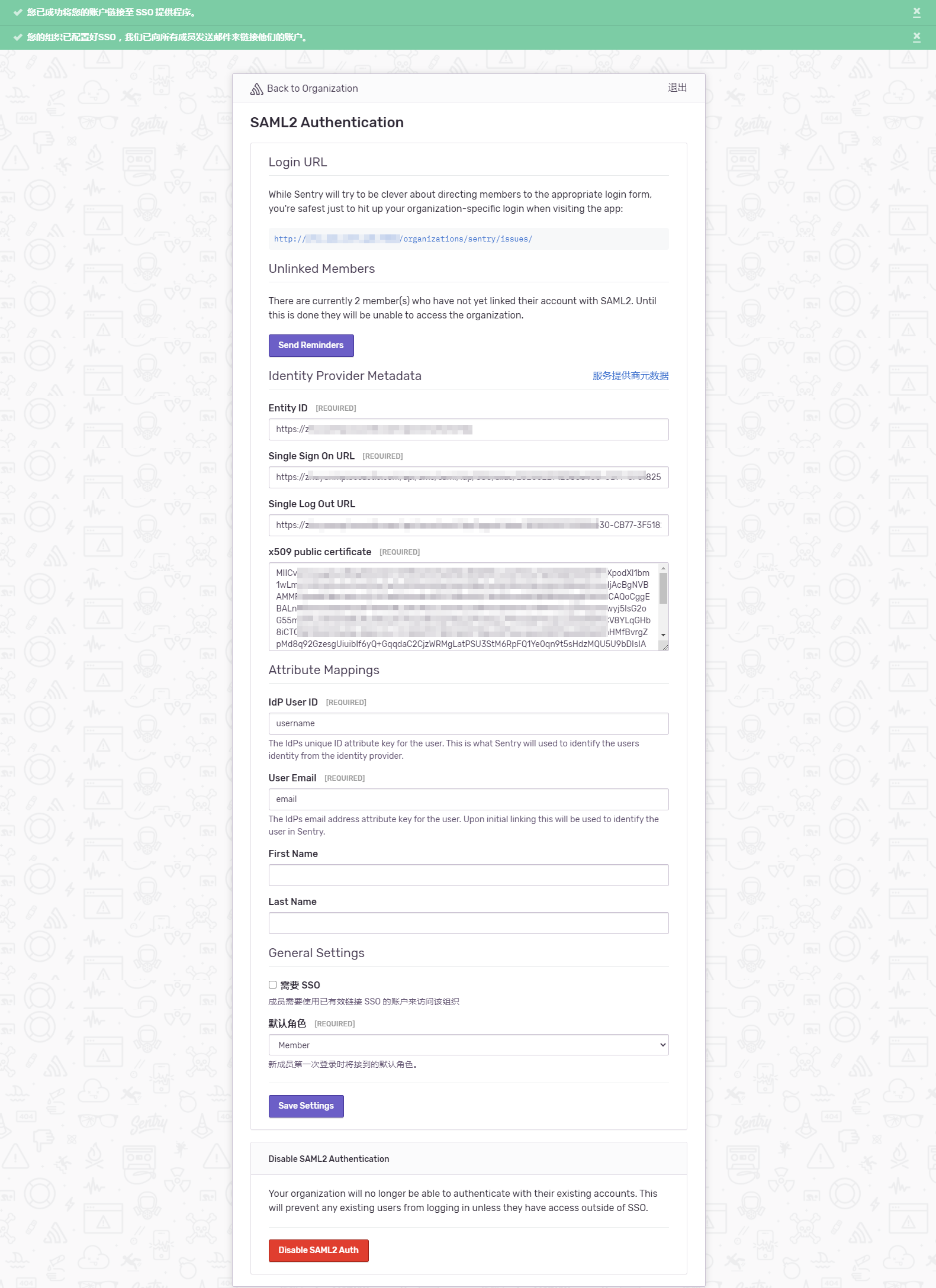
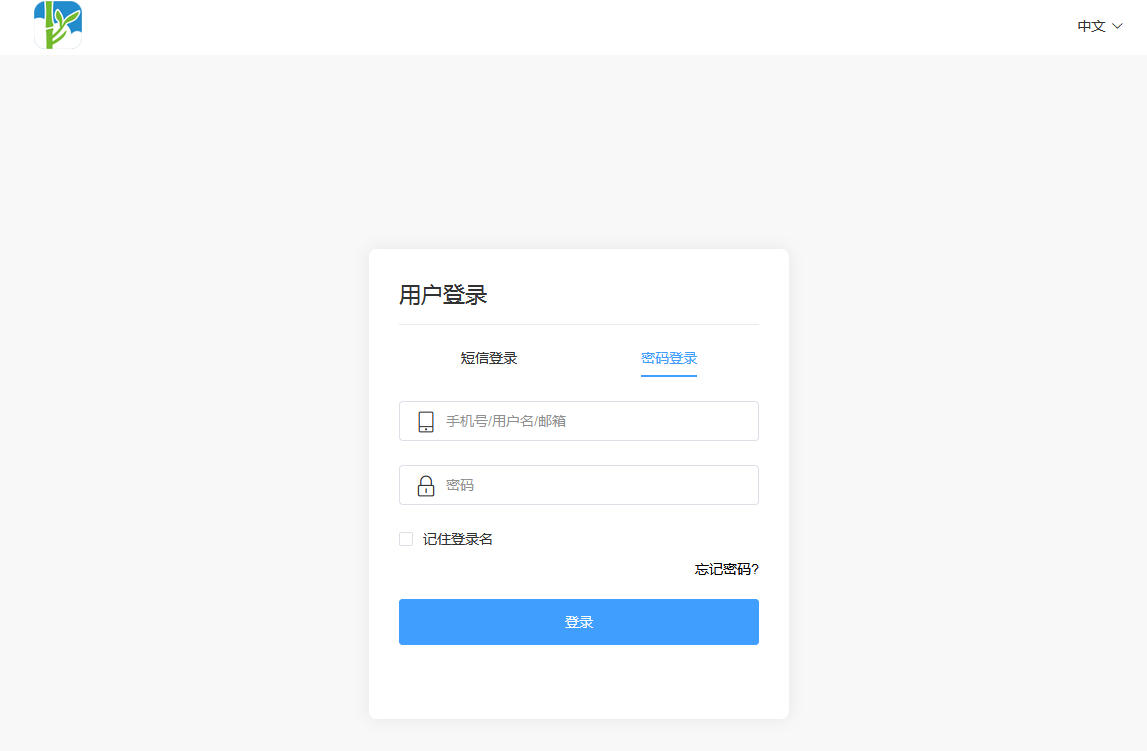
Save the configuration. You will be redirected to the IDaaS login authentication interface. Enter the authorized account username and password for authentication. After authentication is complete, you will return to the Sentry SAML2 Authentication configuration page.
# Login Test
The following are two login methods:
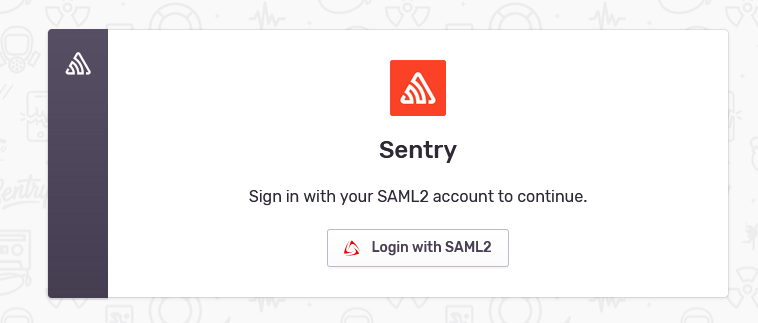
Access Sentry, click Login with SAML2, and you will be automatically redirected to the IDaaS login authentication interface. Enter your username and password to enter Sentry.
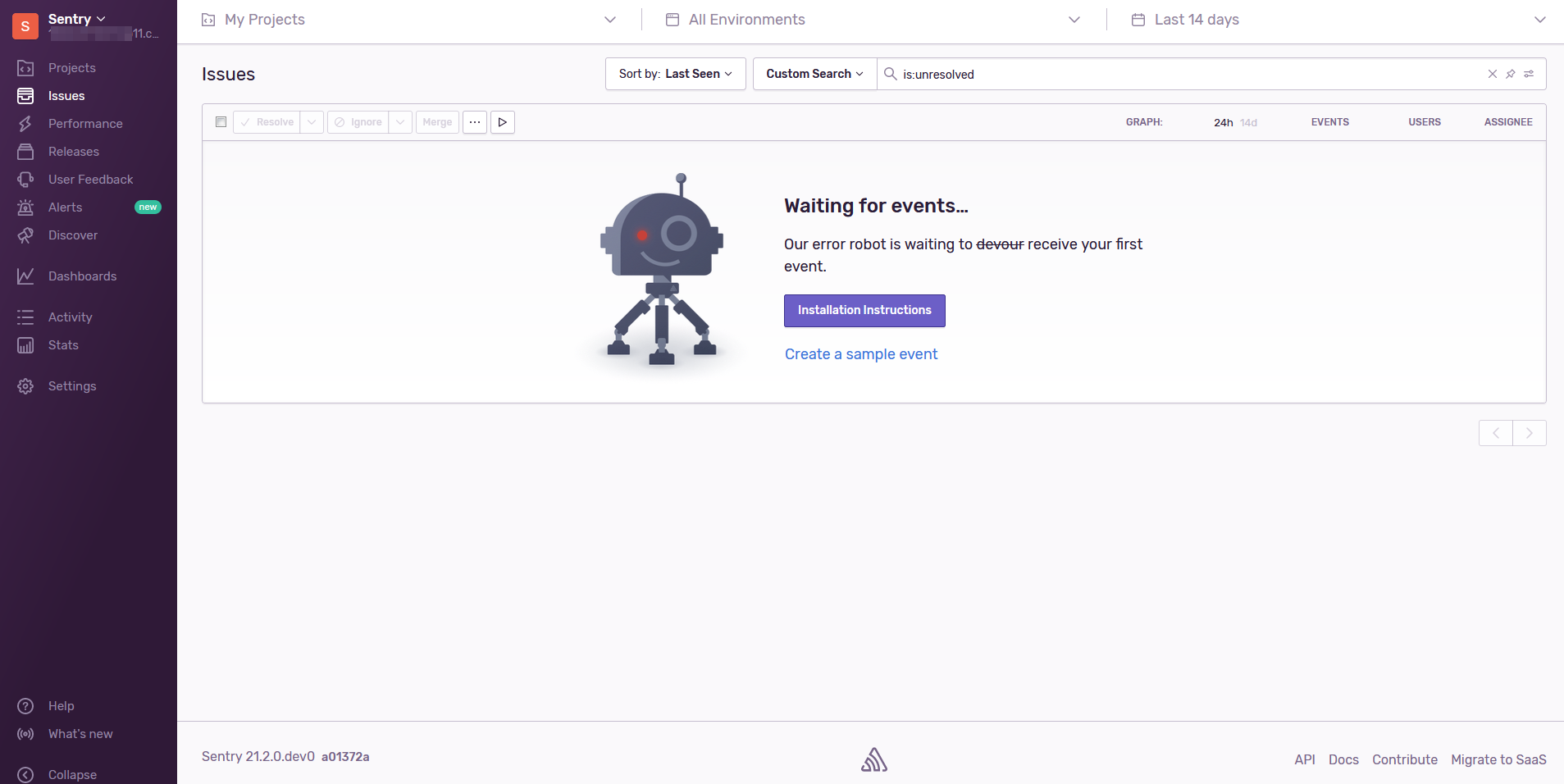
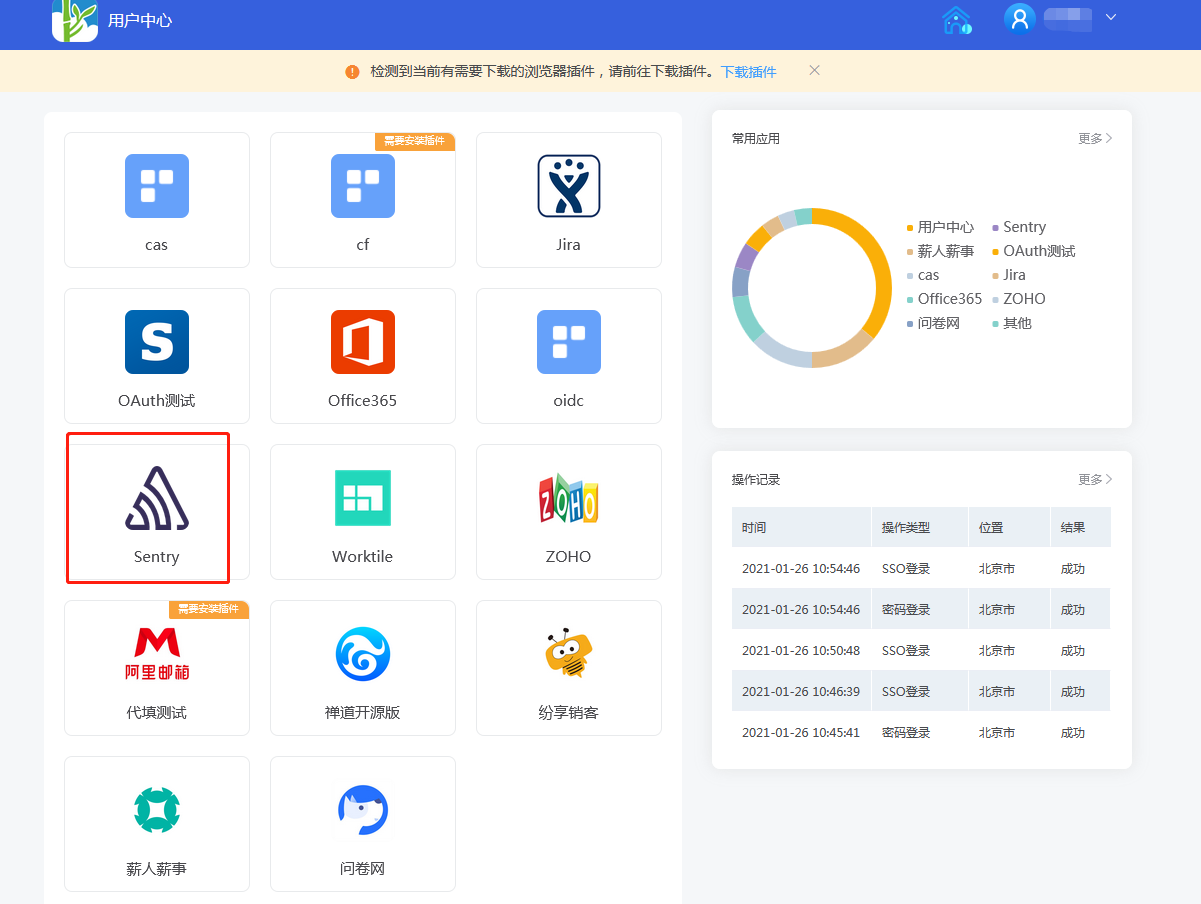
Log in to the IDaaS User Center, click the application logo to enter Sentry.