
SAP SuccessFactors Single Sign-On
# Description
This document introduces the configuration process for Single Sign-On between SAP SuccessFactors and IDaaS based on the SAML protocol.
# Authentication Configuration
The Single Sign-On configuration for SAP SuccessFactors is currently divided into two methods: one based on its own SAML 2.0 login configuration, and another based on SAP IAS service configuration. Choose the configuration method below according to the actual SuccessFactors version in use.
# SAP SuccessFactors Native Configuration
Administrator logs into the Administration Center and selects SAML 2.0 Single Sign-On configuration.
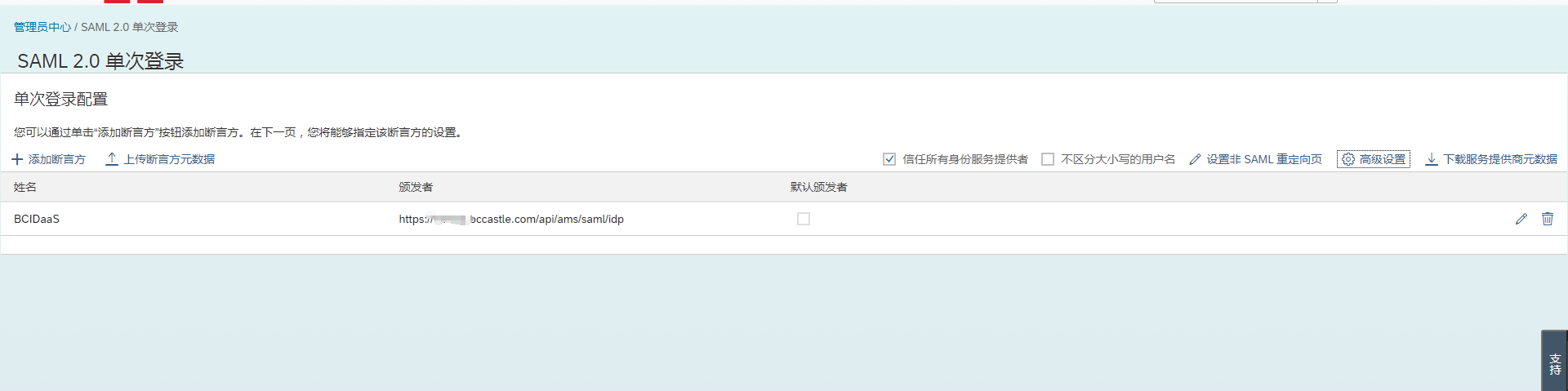
Click
Download Service Provider Metadatato download the SAP SuccessFactors SP metadata.Add an Asserting Party, click
Upload Asserting Party Metadatato upload the IDaaS IDP metadata. To download the IDaaS IDP metadata, please visit https://{your_domain}/api/v1/saml2/idp/metadata.
# SAP IAS Service Configuration
Administrator logs into the IAS management console, selects Identity Providers, and adds a third-party Identity Provider.
Navigate to SAML 2.0 configuration and upload the IDaaS IDP metadata.

Select the Applications and Resources menu, go to Tenant Settings, choose SAML 2.0 configuration, and click the
Download Metadatabutton to download the IAS metadata.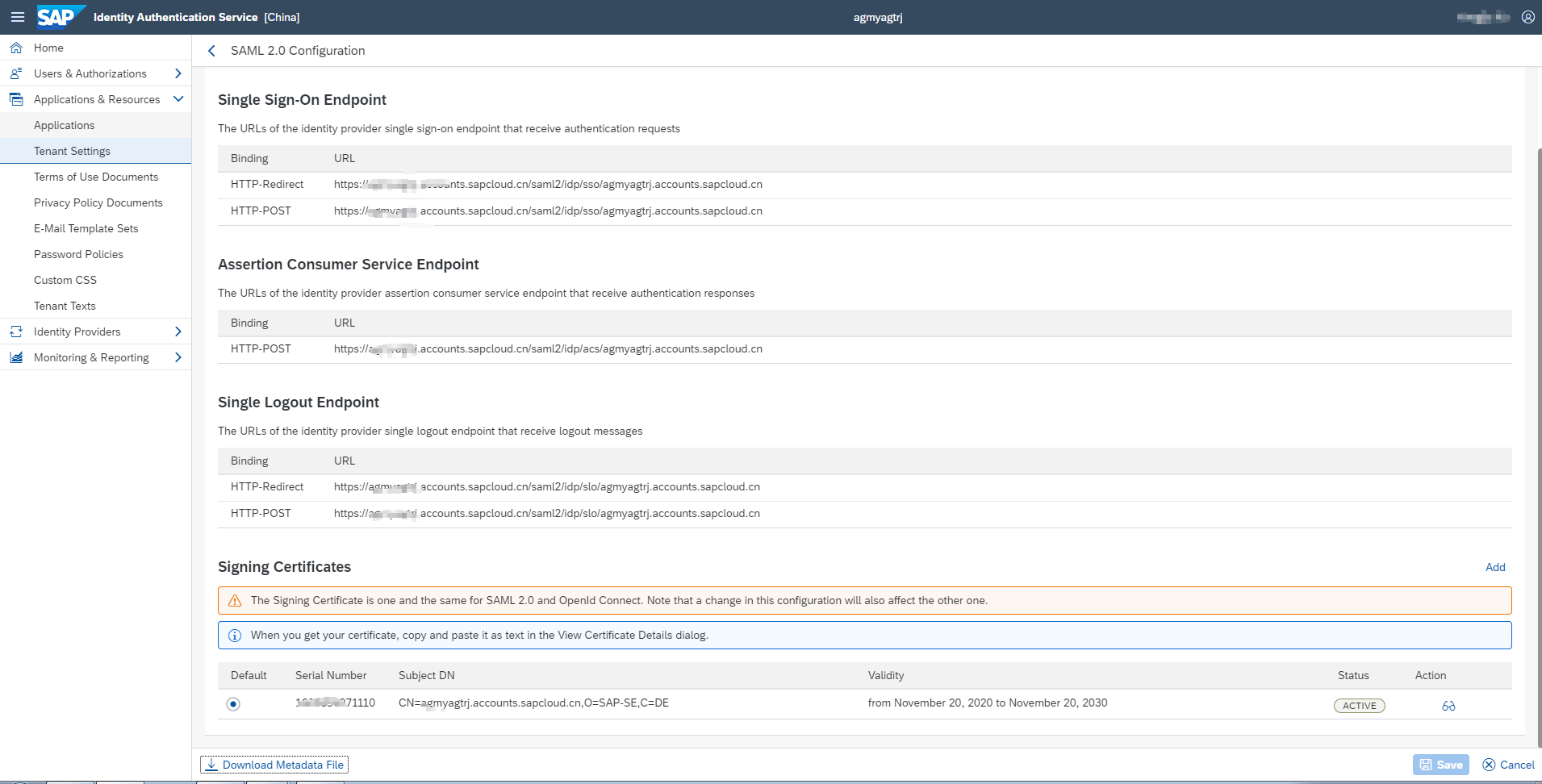
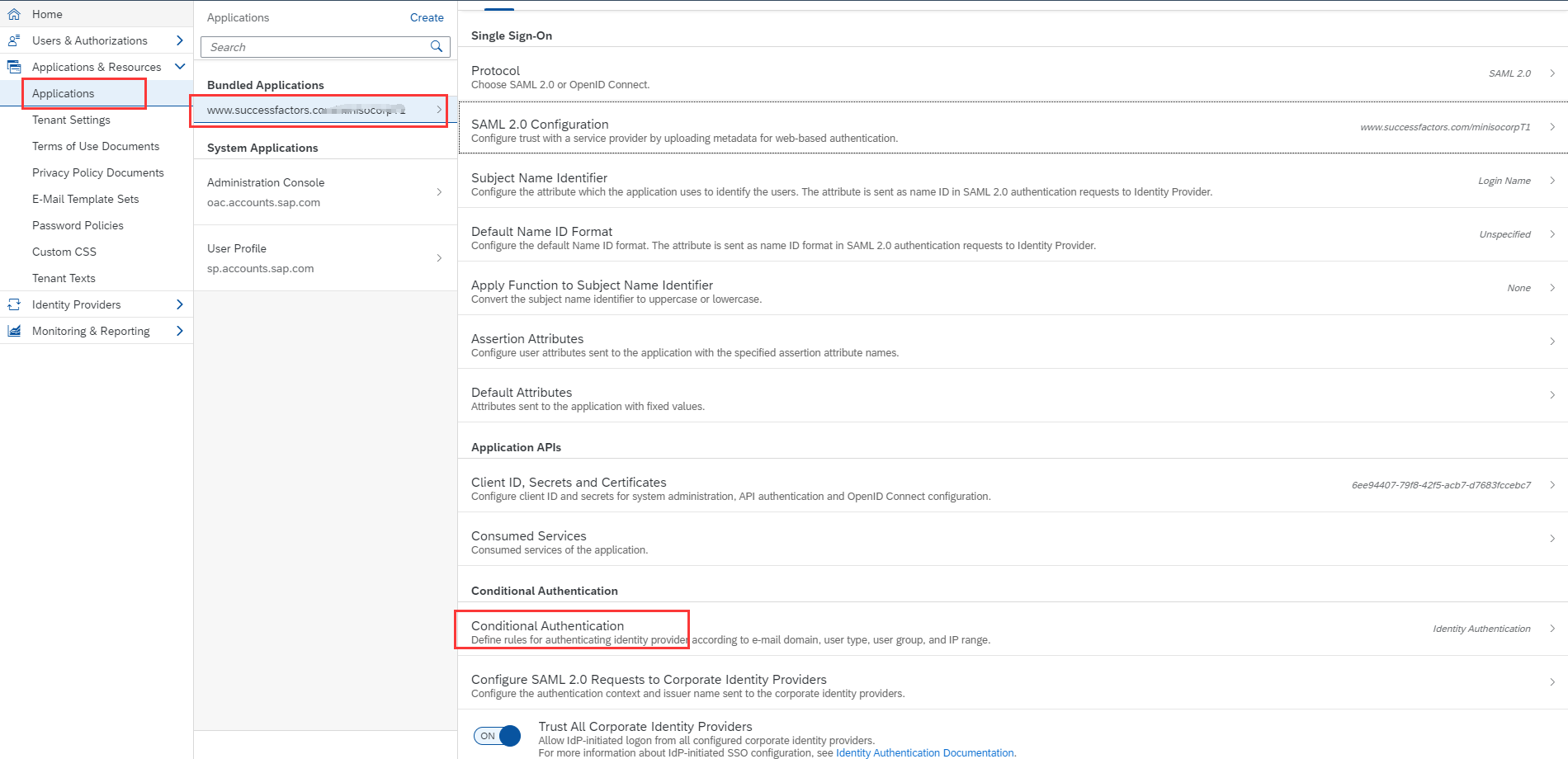
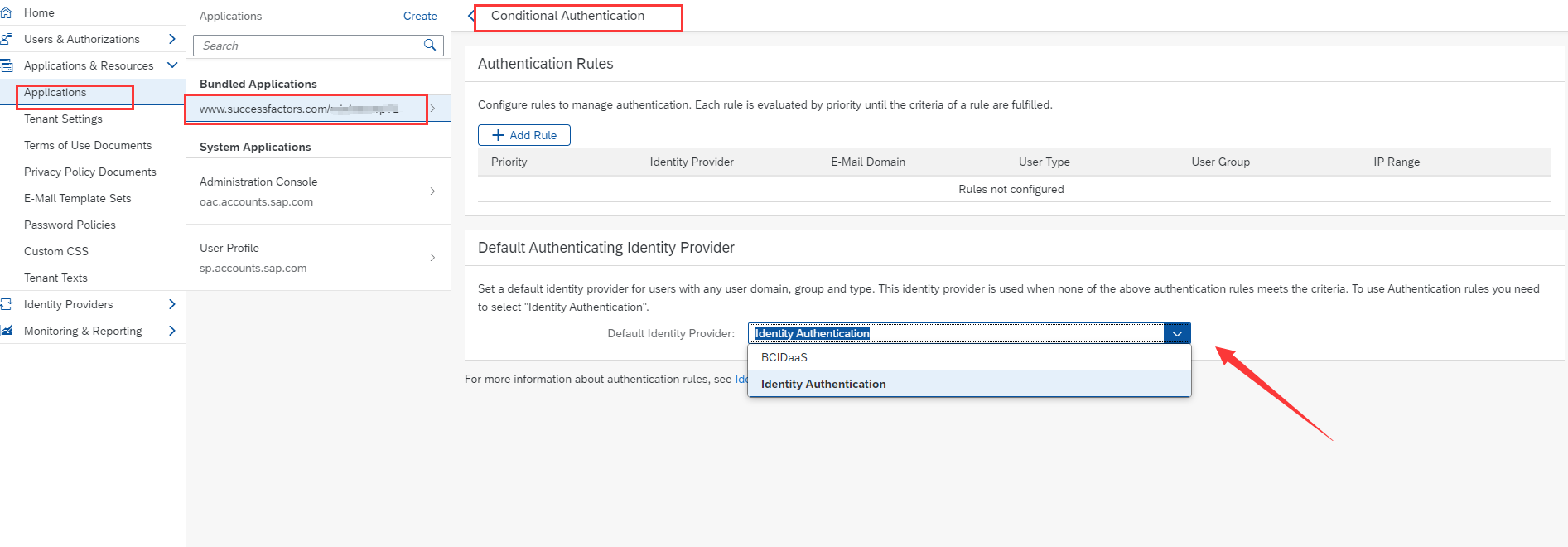
Select the Applications and Resources menu, go to Application Configuration, select SuccessFactors, enter Conditional Authentication, and choose the IDaaS Identity Provider added in the previous step.
# IDaaS Configuration
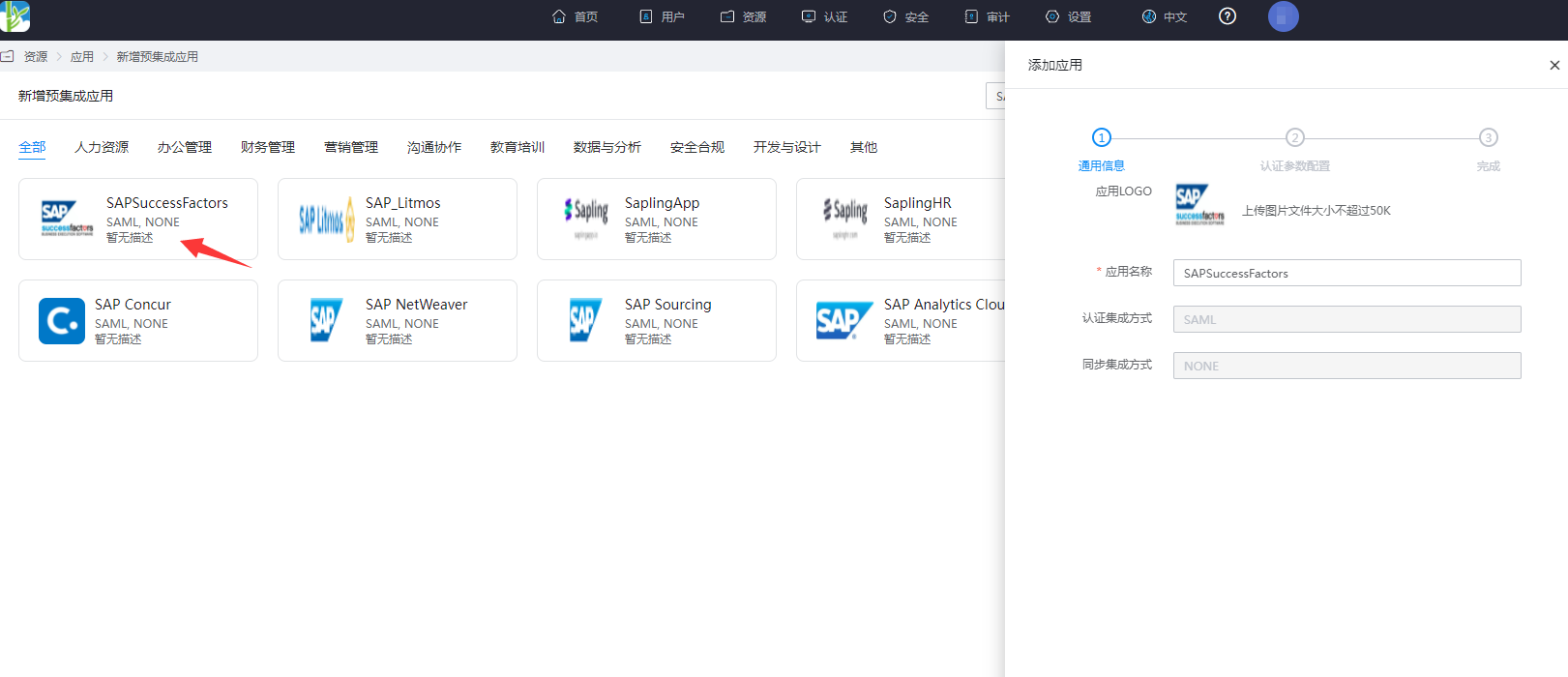
Enterprise Center - Resources - Applications - Pre-integrated Applications - Add Pre-integrated Application, search for SAP, select SAP SuccessFactors.
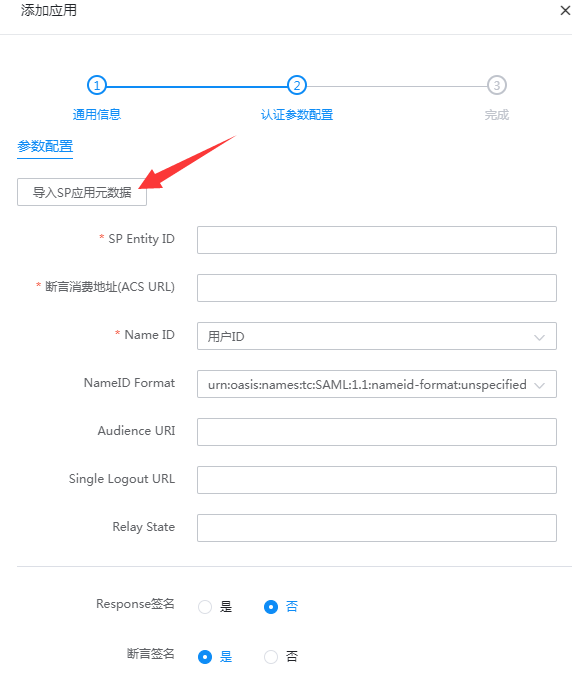
Import the SP metadata saved in the previous steps.
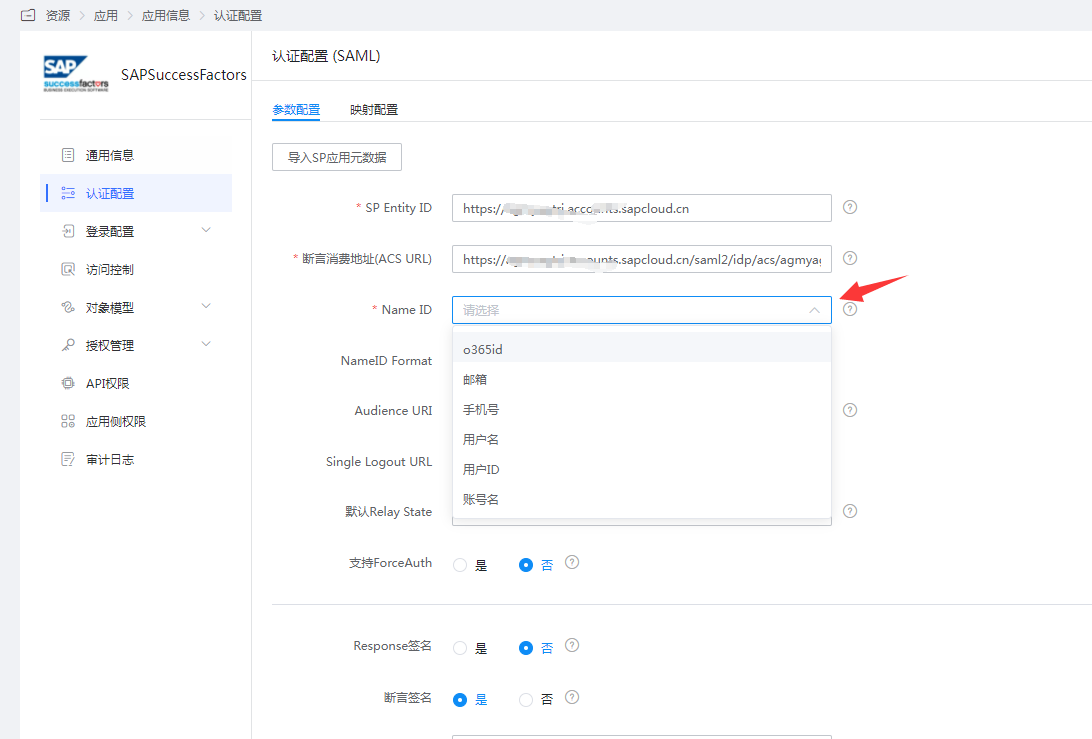
Go to Application Details - Authentication Configuration, select Name ID, it is recommended to set it to Account Name.
Authentication Configuration - Mapping Configuration, add a mapping for
username.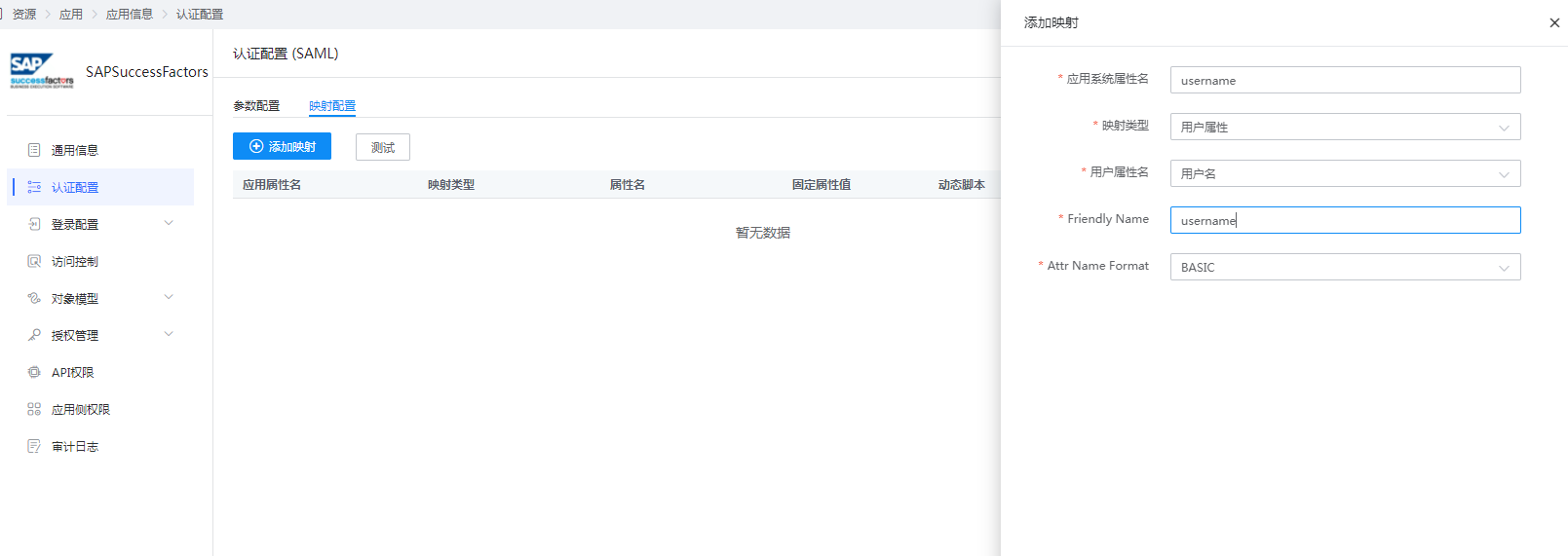
Go to Application Details - Authorization Management - Application Accounts, click the
Add Accountbutton, select authorized users, and set the Account Name to the SuccessFactors login name.
# Login Verification
There are two login methods as follows:
Access the SuccessFactors login URL, it will automatically redirect to the IDaaS authentication interface. Enter the IDaaS username and password to log in.
Log in through the IDaaS User Center, click the SuccessFactors logo to enter the application.