Redmine Single Sign-On
# Description
This document describes the configuration process for Single Sign-On (SSO) between Redmine 3.0 and above and IDaaS. It aims to achieve unified login for Redmine and SSO effects between application systems, providing users with a simpler and more convenient login method and a better user experience.
# Authentication Configuration
# Redmine Configuration
Install the plugin. This process uses a Linux environment as an example: Plugin Address (opens new window).
Download the plugin to the plugins directory.
git clone https://github.com/chrodriguez/redmine_omniauth_saml.git1
cd redmine_omniauth_saml/
bundle install
# Run from the root directory of Redmine
RAILS_ENV=production bundle exec rake redmine:plugins
1
2
3
4Edit authentication parameters. Add the saml.rb file to the
<redmine_folder>/config/initializersdirectory.The plugin folder contains a sample file named
sample-saml-initializers.rb.The file content example is shown in the image below:
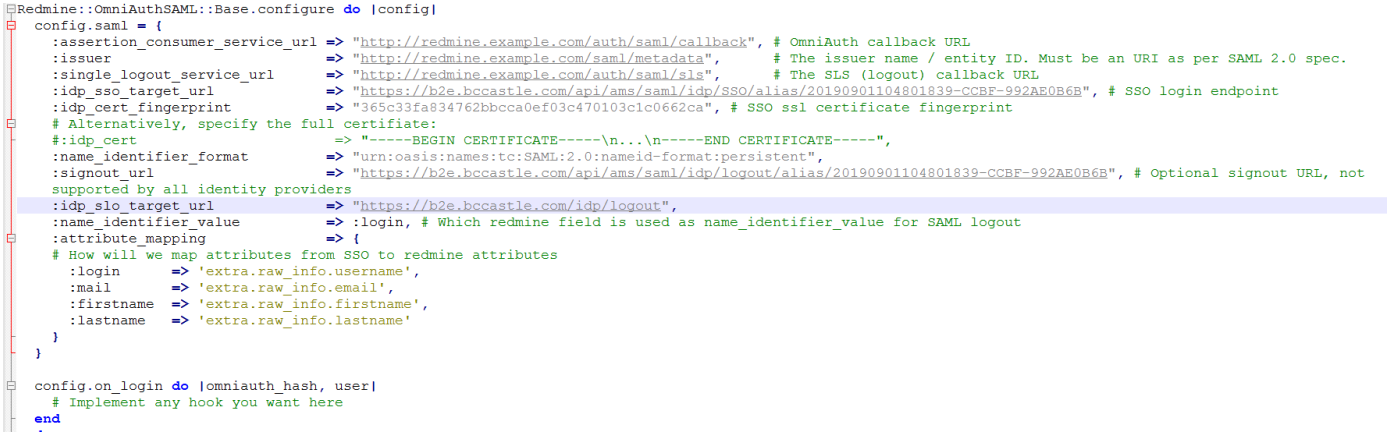
Parameter Description assertion_consumer_service_url The actual address of Redmine issuer The actual address of Redmine single_logout_service_url Redmine logout address idp_sso_target_url IDaaS login address idp_cert_fingerprint Certificate fingerprint name_identifier_format Fixed format: urn:oasis:names:tc:SAML:2.0:nameid-format:persistent idp_slo_target_url IDaaS logout address name_identifier_value Fixed value: login attribute_mapping Attribute mapping relationship between IDaaS and Redmine:
:login => 'extra.raw_info.username',
:mail => 'extra.raw_info.email',
:firstname => 'extra.raw_info.firstname',
:lastname => 'extra.raw_info.lastname'
To download the IDP metadata for IDaaS, please visit https://{your_domain}/api/v1/saml2/idp/metadata.
Ways to obtain the IDP certificate fingerprint (choose one):
Copy the IDP certificate content from IDaaS Enterprise Center - 【Settings】 - 【Service Configuration】 - 【IDP Configuration】, save it as an idp.cer file, and view the certificate file.

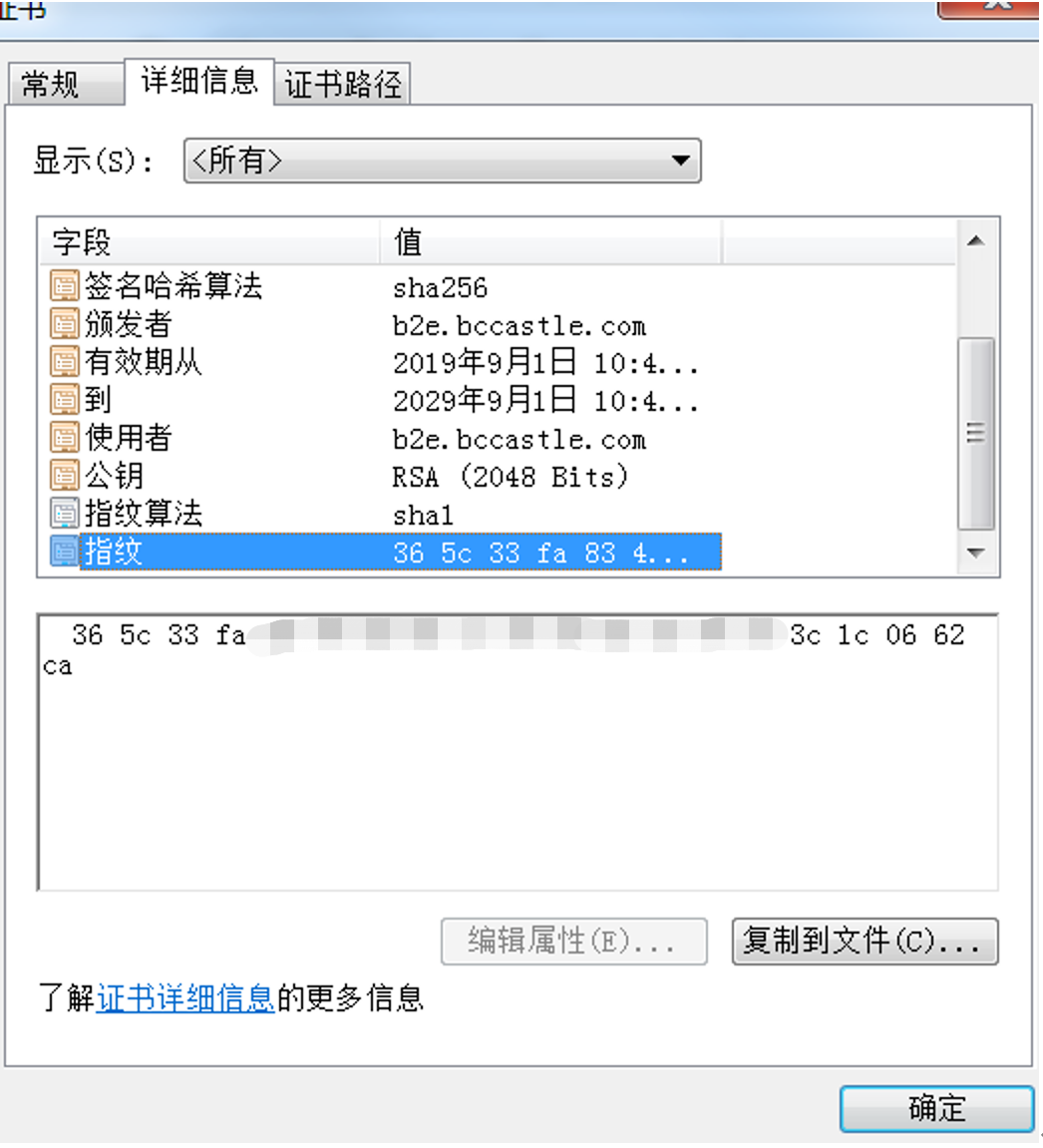
Copy the certificate content and calculate the certificate fingerprint via an online tool (opens new window).
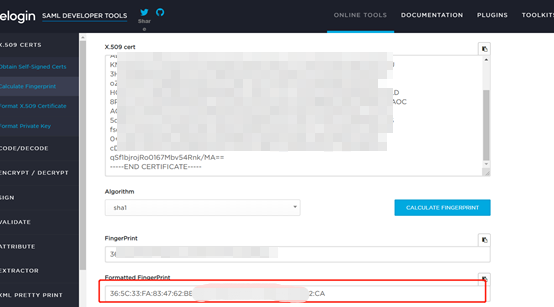
Restart Redmine.
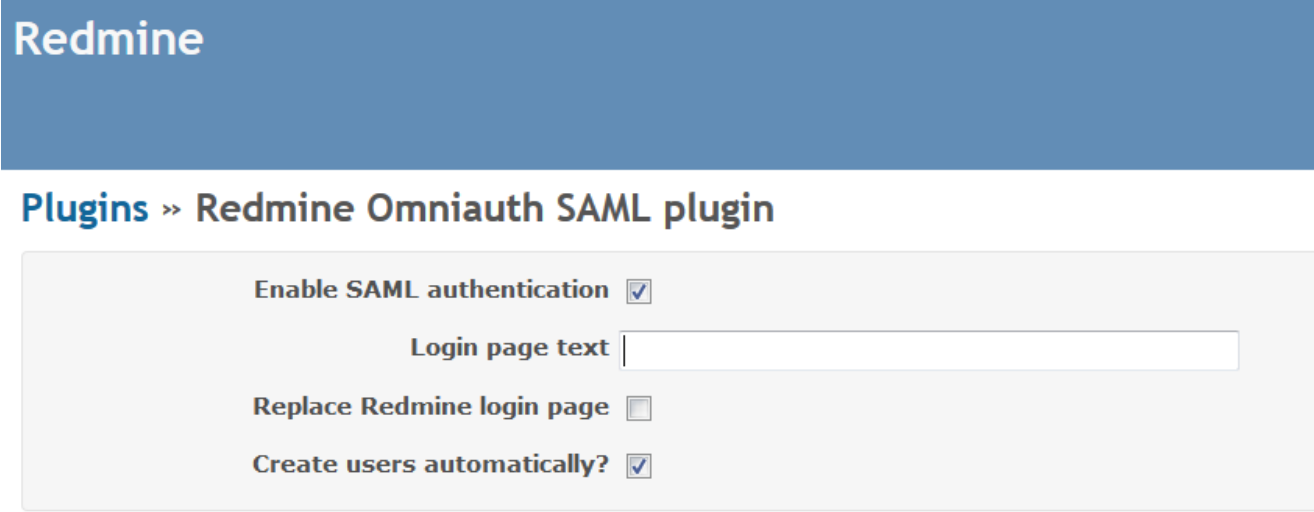
Log in to the Redmine admin console to configure the login page display content.
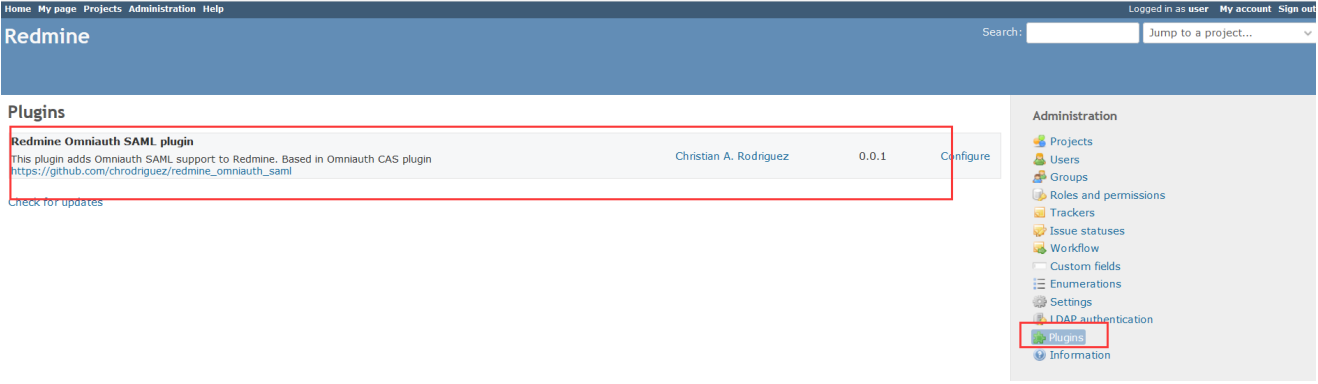
Click Configure to set the login page display content.
# IDaaS Configuration
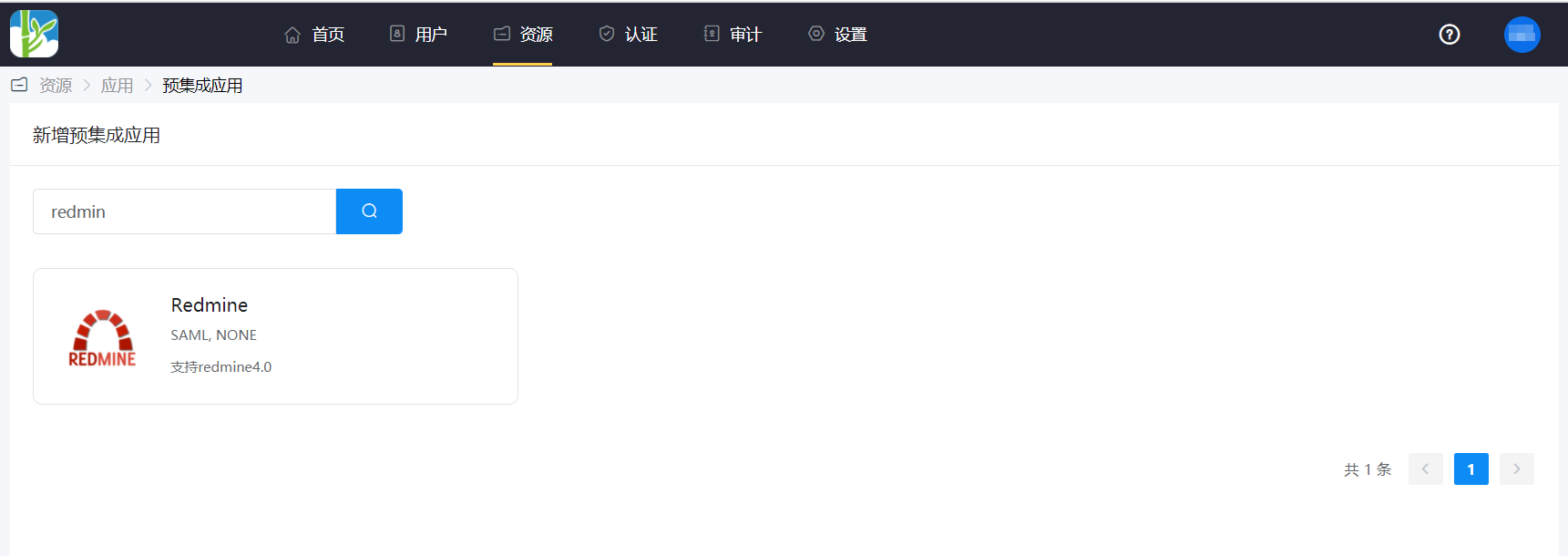
Add the pre-integrated application Redmine.
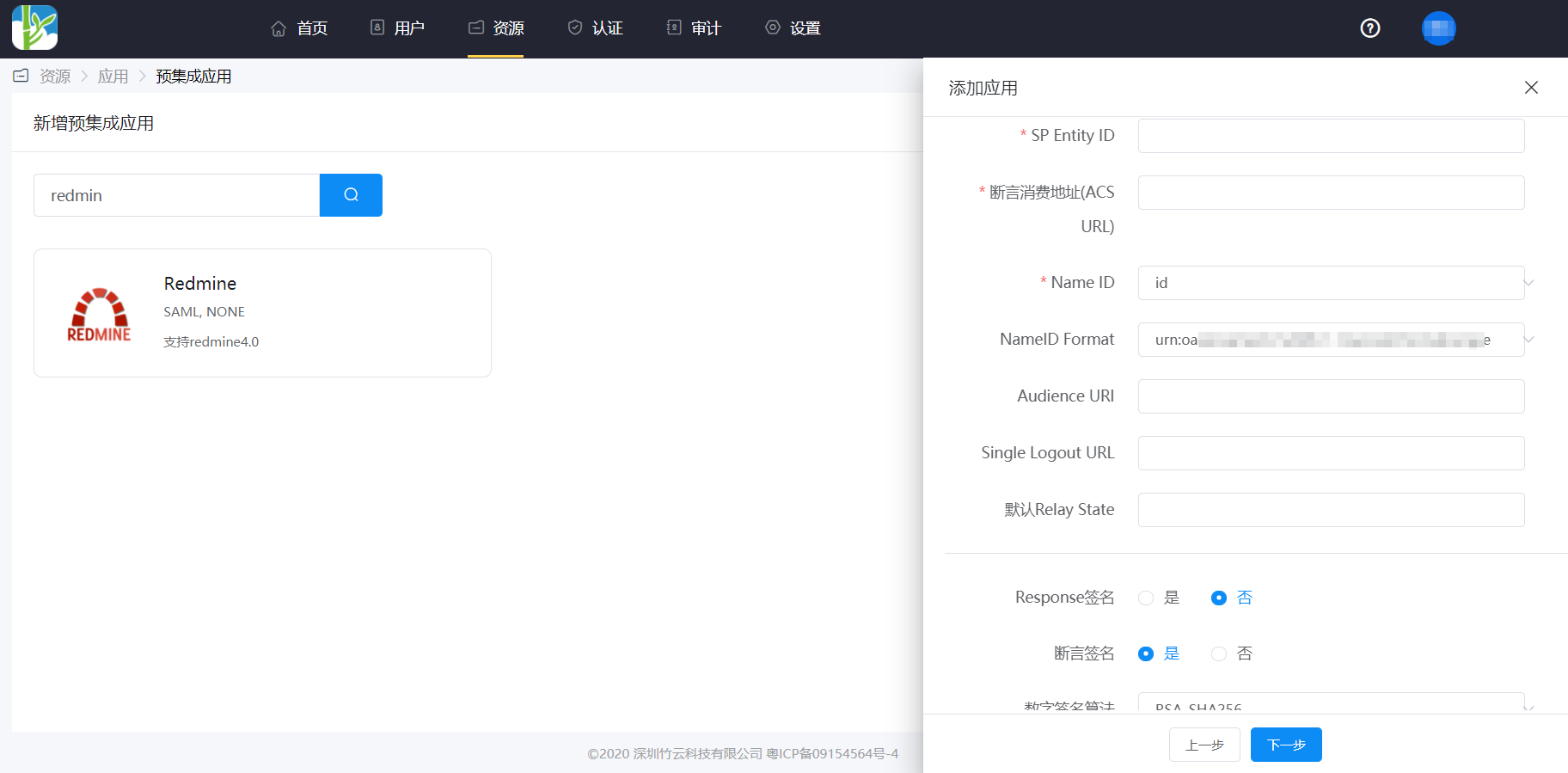
Authentication parameter configuration.
Parameter Description SP Entity ID The issuer parameter in the saml.rb file Assertion Consumer Service URL (ACS URL) The assertion_consumer_service_url parameter in the saml.rb file Name ID Application account NameID Format The name_identifier_format in the saml.rb file Audience URI The issuer parameter in the saml.rb file In the application details - Authentication Configuration - Mapping Configuration, add the attributes: firstname, lastname, email, username.
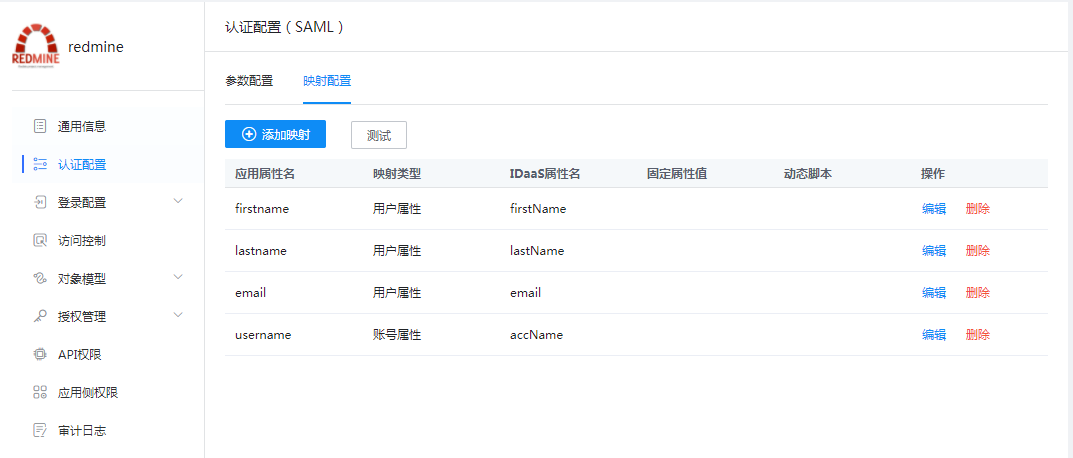
Go to Application Details - Authorization Management - Application Accounts, click the Add Account button, and select the authorized user.
# Login Verification
The following two login methods are available:
Initiate authentication through the Redmine login page.
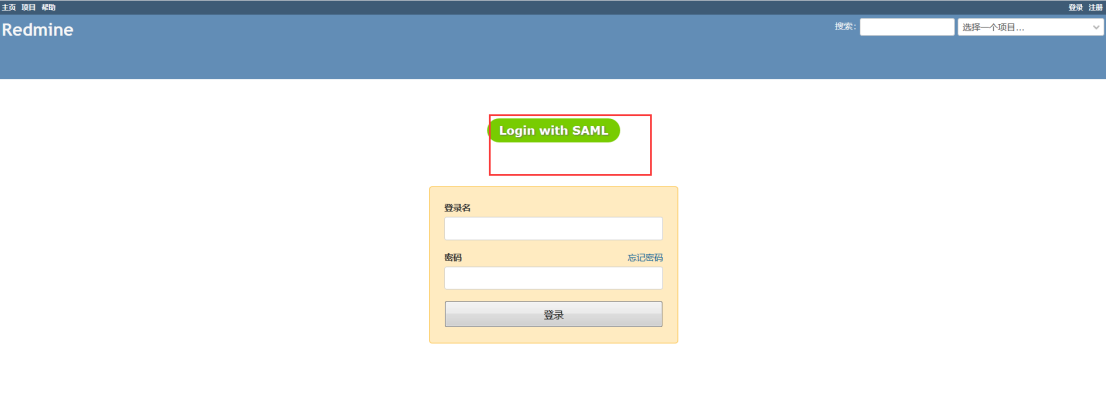
Click the application logo in the IDaaS User Center to single sign-on into Redmine.