
Enterprise DiDi Single Sign-On
# Description
This application template includes login authentication and account/organizational structure synchronization functions, which can be configured simultaneously or individually. If only one function is selected, the required data for the other function can be temporarily filled with dummy data. This article describes how to implement single sign-on from IDaaS to Enterprise DiDi.
# Prerequisites
- The administrator has access to the IDaaS Enterprise Center.
- Possess an Enterprise DiDi administrator account.
# Authentication Configuration
# Enterprise DiDi Configuration
Log in to Enterprise DiDi (opens new window) using an administrator account.

Enter the Management Center.
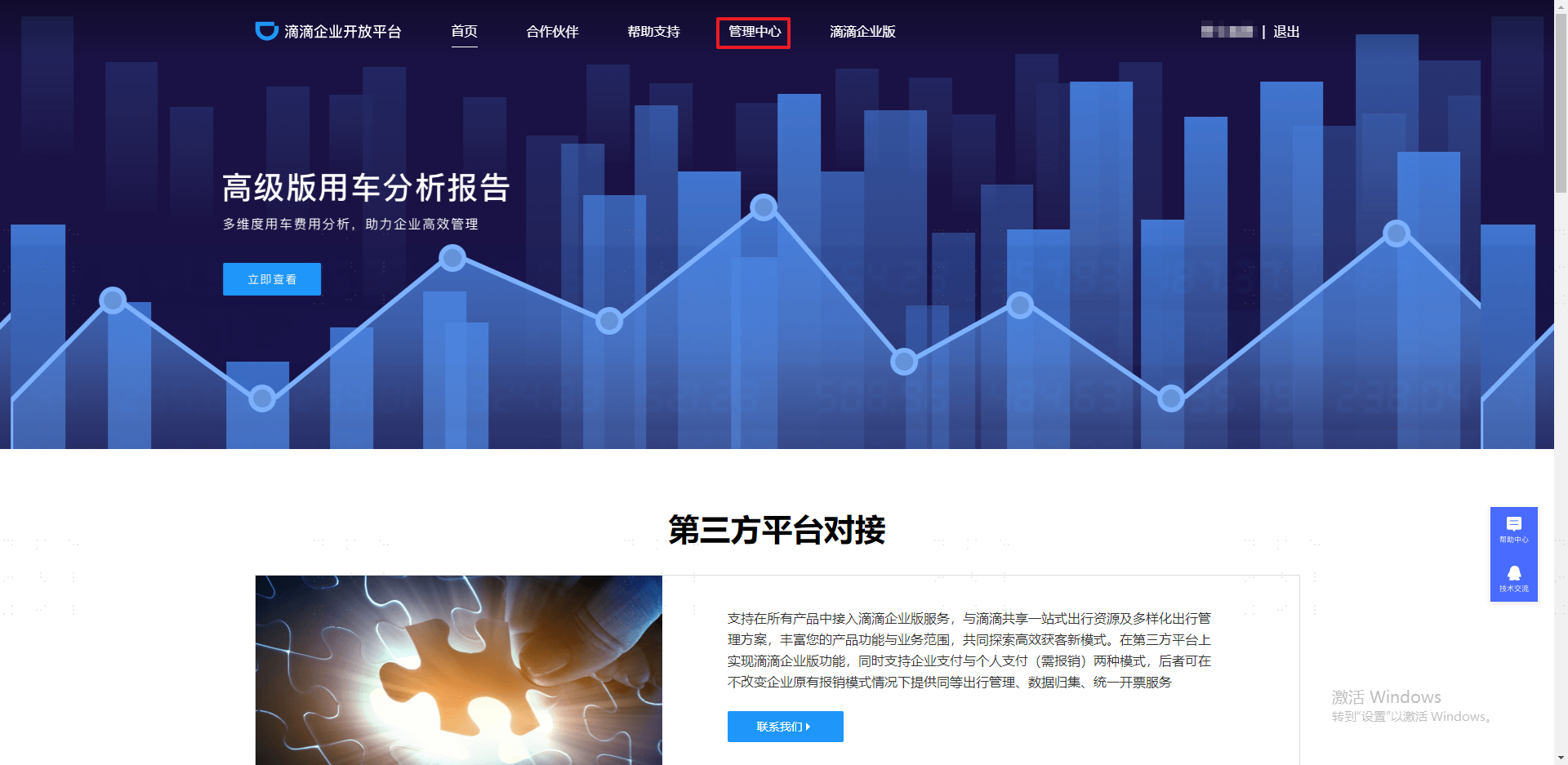
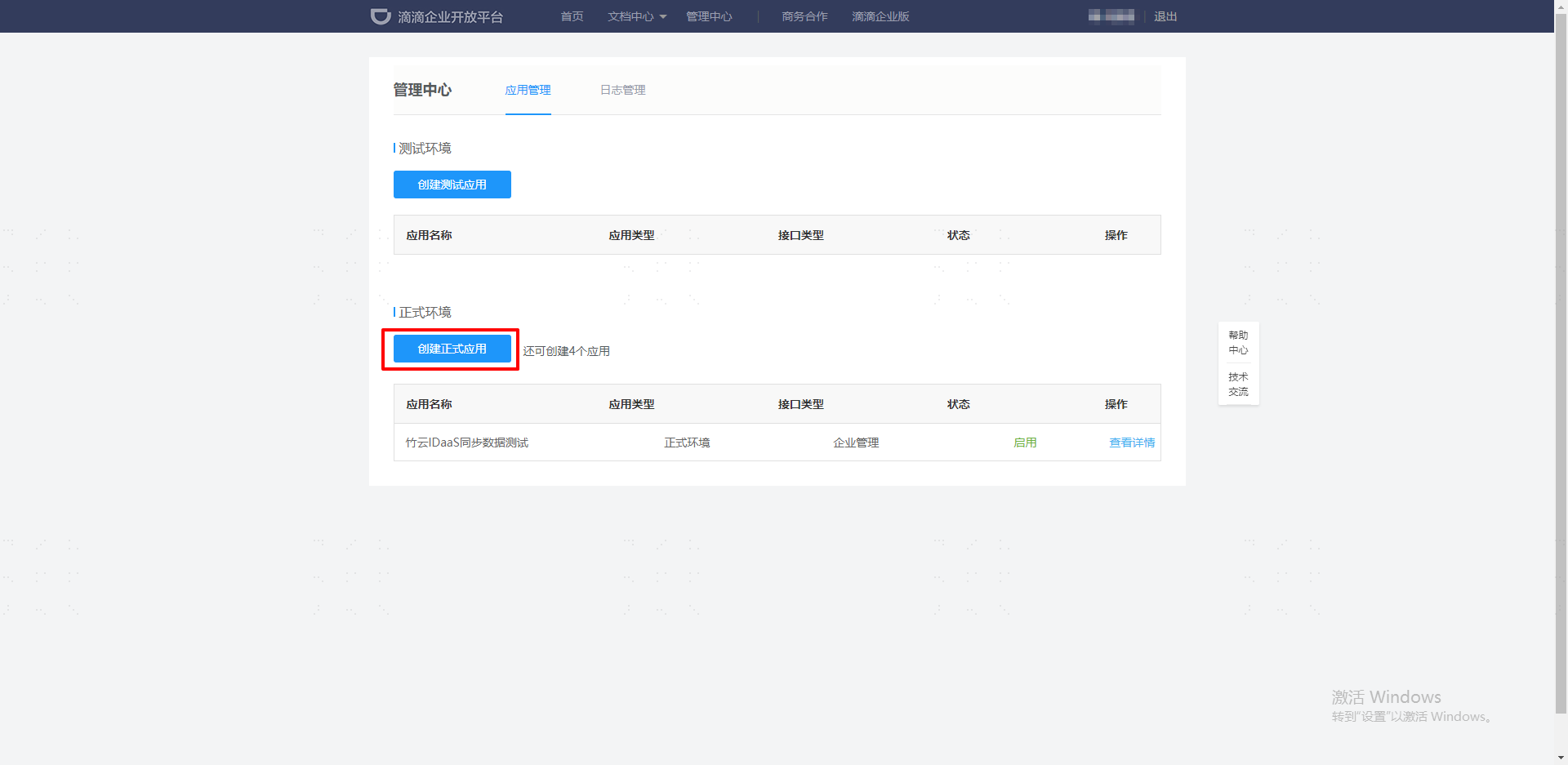
Go to 【Management System】--> 【Application Management】 --> 【Create Production Environment Application】 to create an Enterprise DiDi production application.
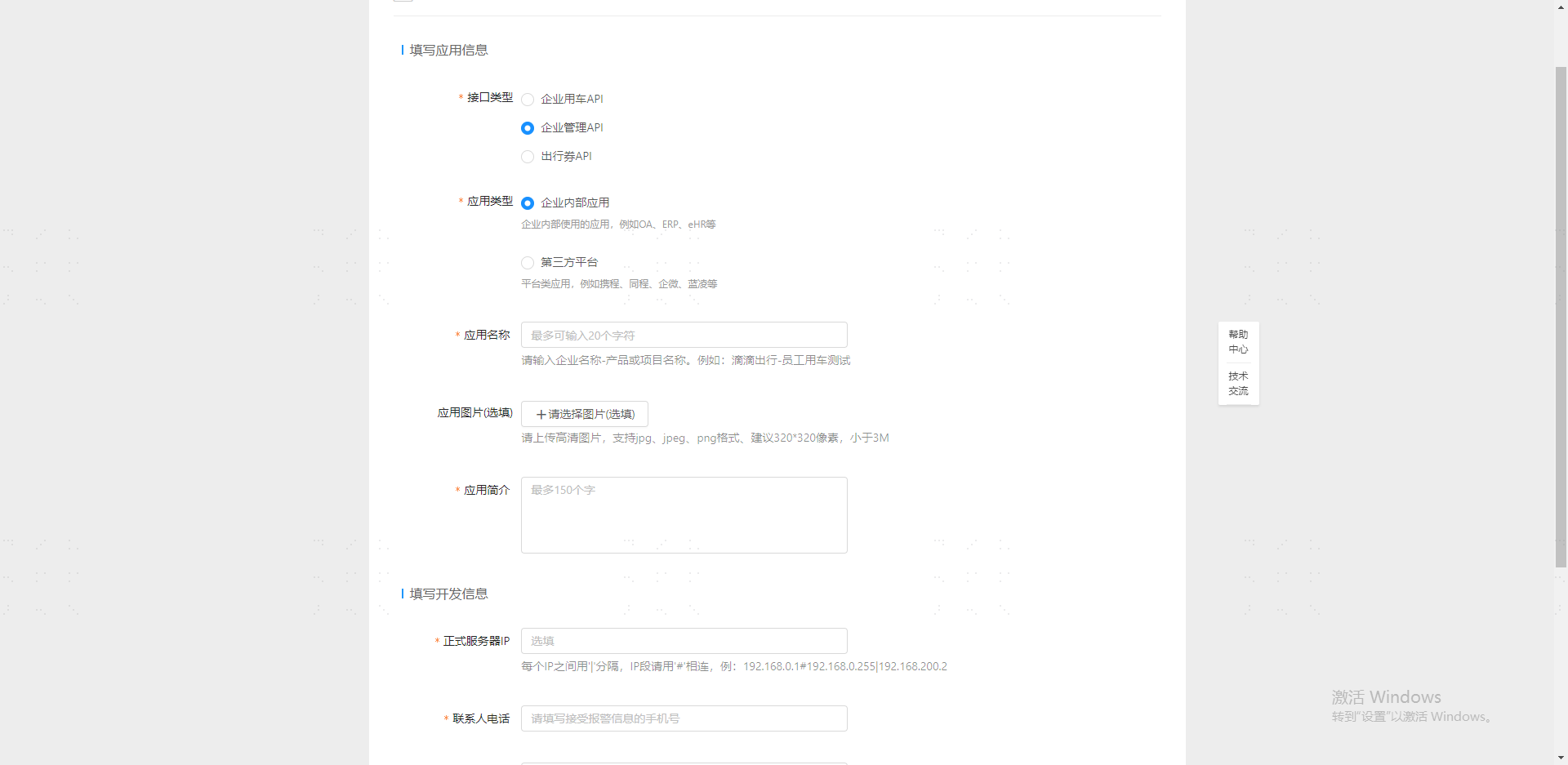
Select 【Enterprise Management API】 for Interface Type, 【Internal Enterprise Application】 for Application Type, and set the Production Server IP to: 47.92.171.137.
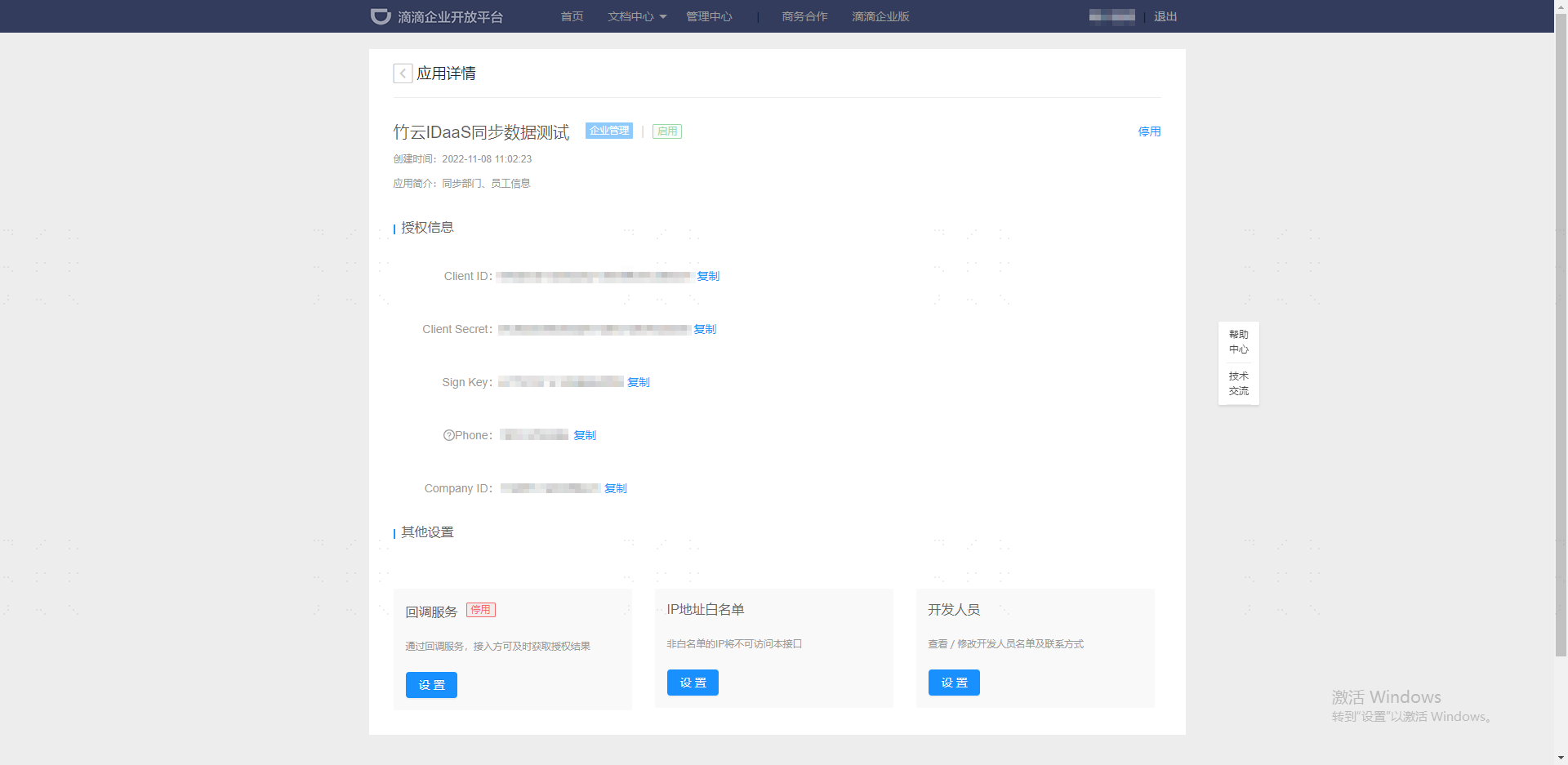
Go to 【Management System】--> 【Application Management】 --> 【View Details】 to view the Enterprise DiDi application configuration.
# IDaaS Configuration
Add the pre-integrated Enterprise DiDi application.

Configure authentication parameters.
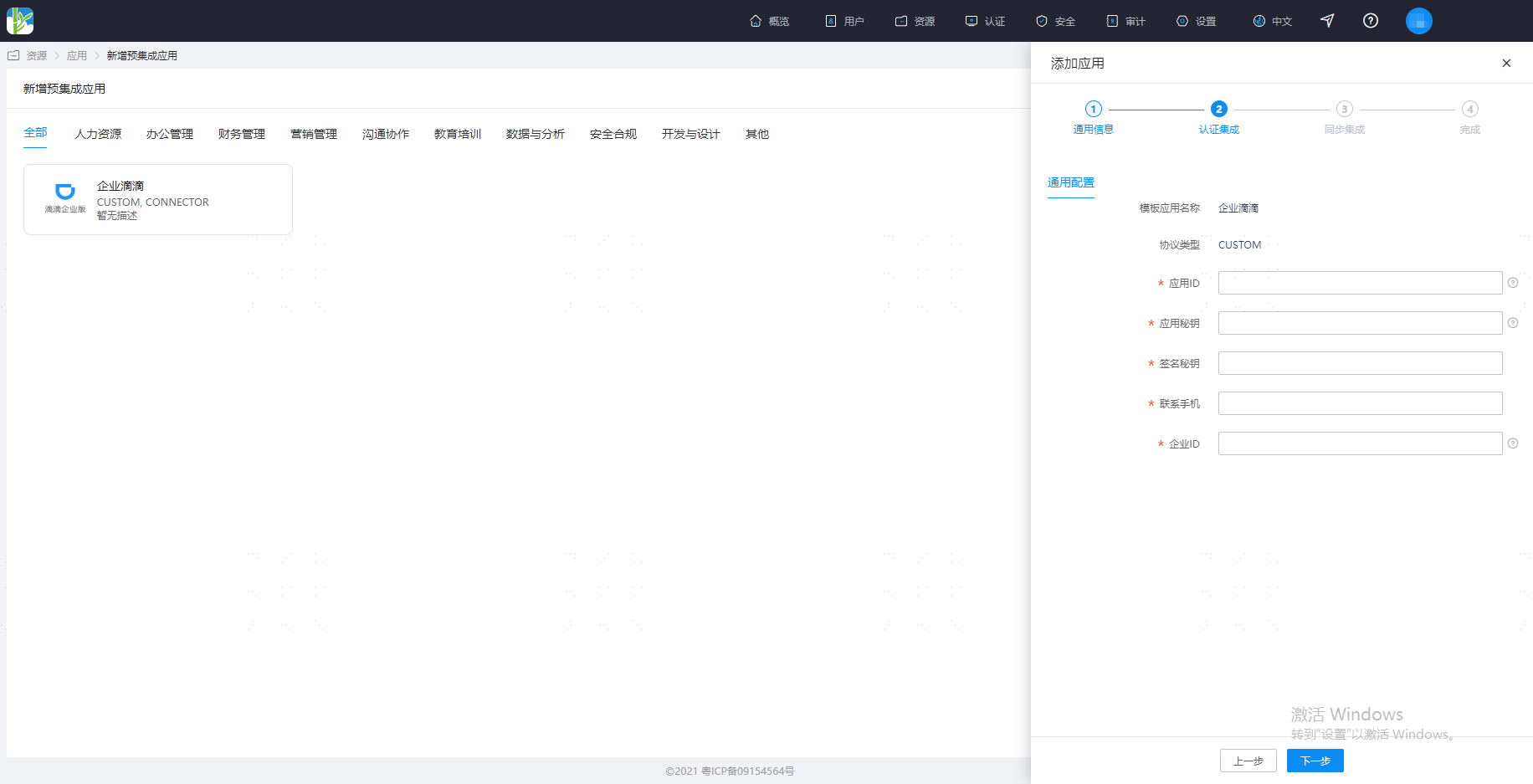
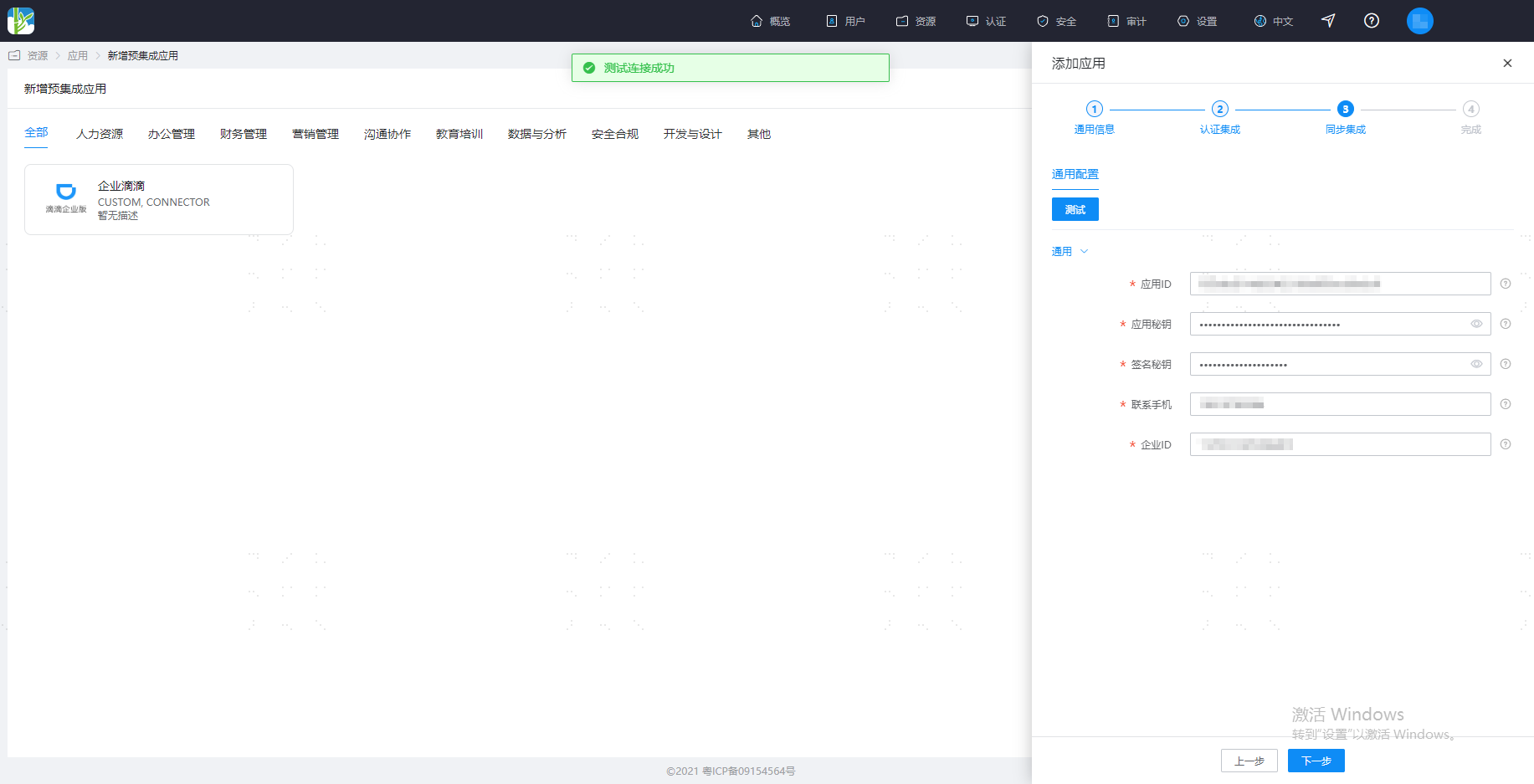
Parameter Description Application ID Log in to the Enterprise DiDi Open Center, create a production environment application, click the View Details button to view the Client ID Application Secret Log in to the Enterprise DiDi Open Center, create a production environment application, click the View Details button to view the Client Secret Signing Key Log in to the Enterprise DiDi Open Center, create a production environment application, click the View Details button to view the Sign Key Contact Mobile Log in to the Enterprise DiDi Open Center, create a production environment application, click the View Details button to view the Phone Enterprise ID Log in to the Enterprise DiDi Open Center, create a production environment application, click the View Details button to view the Company ID Synchronization parameters can be temporarily filled with dummy data. After configuration is complete, save, click Test. After successful testing, save the application.
# FAQ
- If the number of departments exceeds 2000, contact the Enterprise DiDi integration personnel to lift the department addition limit.
- Mobile phone numbers not registered with DiDi cannot be used for single sign-on when registered as Enterprise DiDi.
# Reference Links
Refer to the documentation Enterprise DiDi Open Platform (opens new window).